2014 MERCEDES-BENZ SLK-Class media interface
[x] Cancel search: media interfacePage 195 of 270

0083
Medium type, position of medium in the
media list, current folder or current album
0084 Artist (if available)
006B MP3 mode menu
i If no Media Interface is connected during
operation with a DVD changer, 006Bdisplays
Changer
Changer instead of Media
Media(Ypage 213). Pause function
In CD/audio DVD and MP3 mode X
To pause playback: briefly press the
0063 button.
The 006B symbol appears at the top left in
the status bar.
X To continue playback: briefly press the
0063 button again.
The 006B symbol disappears.
In audio DVD mode only X
To pause playback: switch on audio DVD
mode (Y page 191).
X Select 00CFby sliding 00520064and turning
00790052007A the COMAND controller and press
0098 to confirm.
The 00CF display changes to 00D0.
X To continue playback: select00D0and
press 0098to confirm.
Playback continues from the point where it
was interrupted. The 00D0display changes
to 00CF. Stop function
This function is only available in audio DVD
mode.
X Switch on audio DVD mode (Y page 191).
X To interrupt playback: select00DBby
sliding 00520064and turning 00790052007Athe COMAND
controller and press 0098to confirm.
The 00CF display changes to 00D0. The
00DB symbol remains highlighted.
X To continue playback: select00D0and
press 0098to confirm.
Playback continues from the point where it
was interrupted.
X To stop playback: while playback is inter-
rupted, select 00DBagain and press 0098to
confirm.
or
X Select 00DBand confirm by pressing 0098
twice in rapid succession.
00D0 is highlighted.
X To restart playback: select00D0and
press 0098to confirm.
Playback starts at the beginning of the
DVD. Selecting CD/audio DVD/MP3 discs
Selecting via the media list Media list when equipped with a DVD changer
X
In CD/audio DVD and MP3 mode: select
Media Media orChanger
Changer by sliding 00520064and turn- CD/audio DVD and MP3 mode
193Audio Z
Page 196 of 270

ing
00790052007A the COMAND controller and press
0098 to confirm.
In CD/audio DVD and MP3 mode: select
Media Media by sliding 00520064or turning 00790052007Athe
COMAND controller and press 0098to con-
firm.
The media list appears. The 003Bdot indicates
the current medium being played.
The media list shows the discs currently
available.
View in 0043:
R 0043 magazine tray not shown
R 0045 magazine tray shown
X To switch the display: select1...6 1...6
Changer
Changer by turning 00790052007Athe COMAND
controller and press 0098to confirm.
Depending on the previous setting, the
magazine trays are shown or not shown.
i If a disc cannot be read, an entry appears
next to the corresponding magazine tray. Media list showing all magazine trays
X
Select the data medium by turning 00790052007A
the COMAND controller and press 0098to
confirm. The following tables list the selection options
in the media list for the respective equipment
variants. For DVD changer
Magazine trays, positions 1 to 6: readable
data media are audio CDs, MP3 CDs or MP3
DVDs, audio DVDs and video DVDs.
Memory card, position 7
MUSIC REGISTER, position 8
USB storage device, position 9
Media Interface, position 0
Bluetooth Audio
Equipped with a single DVD drive
DVD drive, position 1: readable data media
are audio CDs, MP3 CDs or MP3 DVDs,
audio DVDs and video DVDs.
Memory card, position 2
MUSIC REGISTER, position 3
USB storage device, position 4
Media Interface, position 5
Bluetooth
®
audio: position 6 i
If you select a video DVD, the system
switches to video DVD mode
(Y page 224).
Selecting a track using the number key-
pad X
When the display/selection window is
active, press a number key, e.g. 0084.
The medium at the corresponding position
in the media list is loaded and then played. 194
CD/audio DVD and MP3 modeAudio
Page 206 of 270

Switching to the MUSIC REGISTER
MUSIC REGISTER basic display Example: MUSIC REGISTER
0043
Cover (if available)
0044 Track time
0087 Track number and name
0085 Graphic time and track display
0083 Position of the medium in the media list
and name of the medium, followed by the
current playback option (no display for
Normal Track Sequence
Normal Track Sequence)
0084 Artist
006B MUSIC REGISTER menu bar
Switching modes using the function
button X
Press the 003Afunction button repeatedly
until the MUSIC REGISTER is switched on.
By pressing the function button repeatedly,
you can change the operating mode in the
following order:
R CD/audio DVD/MP3 (disc)
R Memory card mode
R MUSIC REGISTER
R USB storage device
R Media Interface or audio AUX mode
R Bluetooth ®
audio mode
If music files are available, playback begins at
the point last listened to.
If there are no music files, you will see a mes-
sage to this effect. X
Confirm the message by pressing 0098and
store the music data (Y page 204).
Switching modes via the audio menu X
Select Audio Audioin the main function bar by
sliding 00970052and turning 00790052007Athe COMAND
controller and press 0098to confirm.
If MUSIC REGISTER was the last mode
selected, it is now switched on.
If another audio source is switched on, you
can now switch on the MUSIC REGISTER in
the audio menu.
X Select Audio Audioby sliding 00970052and turning
00790052007Athe COMAND controller and press
0098 to confirm.
The audio menu appears.
X Select Music Register Music Register and press0098to
confirm.
Switching on with the number buttons X
Make sure that neither radio nor disc is
activated.
X Press the 0088(for a DVD changer) or
0083 (for a single DVD drive) number key.
The MUSIC REGISTER is switched on. Importing music files
Introduction You can copy music files from the data carrier
in the single DVD drive or in the DVD changer
in the following file formats:
R
MP3
R WMA
R AAC (with file extensions .m4p, .m4a, .m4b
and .aac)
X Switch on CD mode (Y page 191).
X With an audio CD inserted, select REC RECin the
basic CD display by sliding 00520064and turning
00790052007A the COMAND controller and press
0098 to confirm. 204
MUSIC REGISTERAudio
Page 214 of 270
Using the function button
X
Press the 003Afunction button one or more
times.
By pressing the function button repeatedly,
you can change the operating mode in the
following order:
R CD/audio DVD/MP3 (disc)
R Memory card mode
R MUSIC REGISTER
R USB storage device
R Media Interface or audio AUX mode
R Bluetooth ®
audio mode
Using the media list X
Select Bluetooth Audio Bluetooth Audio in the media list
by turning 00790052007Athe COMAND controller
and press 0098to confirm (Y page 193).
COMAND activates the connected device.
You will see a message to this effect. The
basic display then appears. Starting/stopping playback
X To start playback: select00D0by sliding
00520064 and turning 00790052007Athe COMAND con-
troller and press 0098to confirm.
Playback starts. 00DBis selected.
X To stop playback: select00DBby turning
00790052007A the COMAND controller and press
0098 to confirm.
A message appears. 00D0is selected.
X To continue playback: select00D0by
turning 00790052007Athe COMAND controller and
press 0098to confirm.
A message appears. 00DBis selected. Restarting playback after stopping
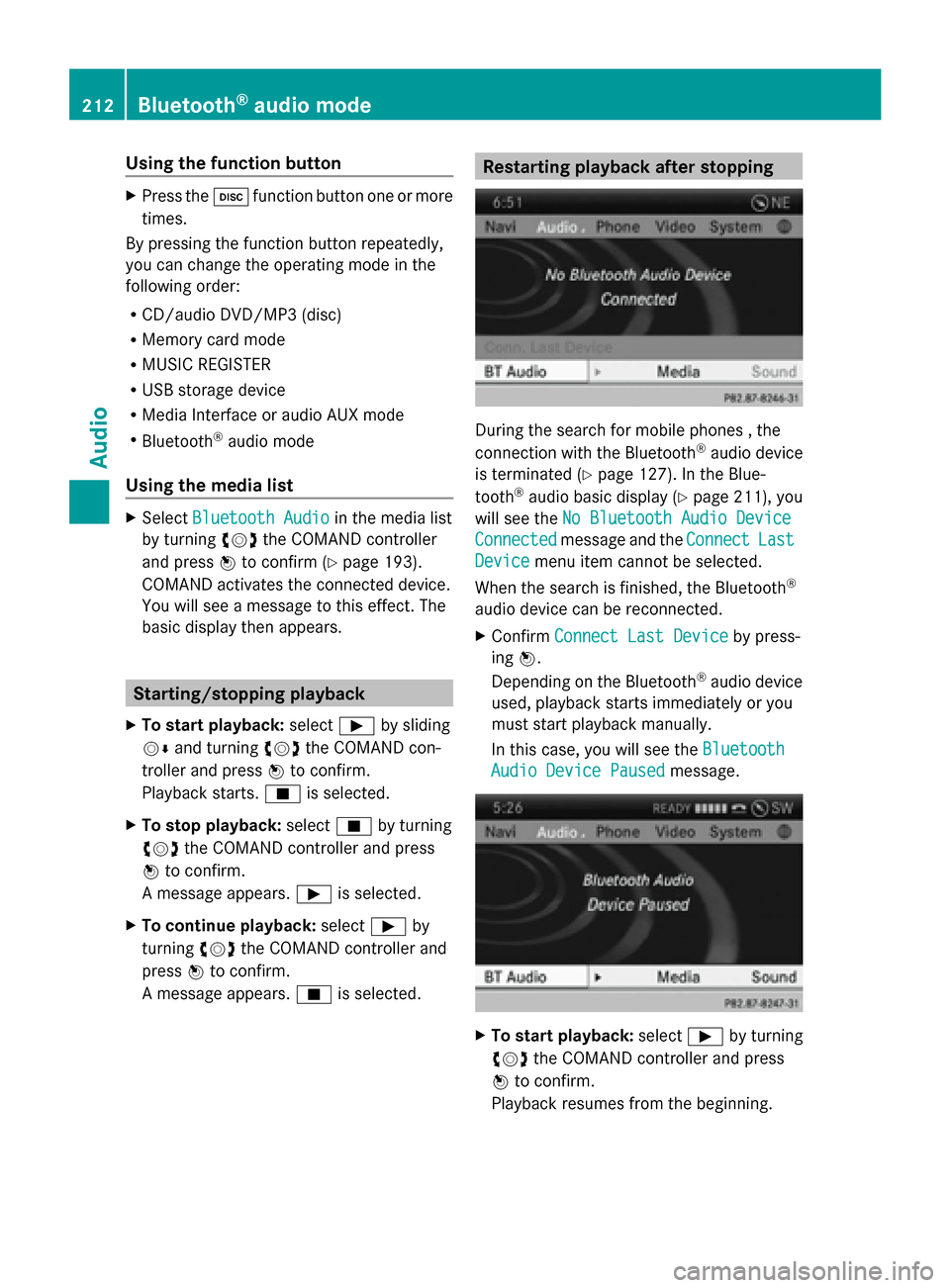
During the search for mobile phones , the
connection with the Bluetooth
®
audio device
is terminated (Y page 127). In the Blue-
tooth ®
audio basic display (Y page 211), you
will see the No Bluetooth Audio Device
No Bluetooth Audio Device
Connected Connected message and the Connect
ConnectLast
Last
Device
Device menu item cannot be selected.
When the search is finished, the Bluetooth ®
audio device can be reconnected.
X Confirm Connect Last Device
Connect Last Device by press-
ing 0098.
Depending on the Bluetooth ®
audio device
used, playback starts immediately or you
must start playback manually.
In this case, you will see the Bluetooth Bluetooth
Audio Device Paused
Audio Device Paused message. X
To start playback: select00D0by turning
00790052007A the COMAND controller and press
0098 to confirm.
Playback resumes from the beginning. 212
Bluetooth ®
audio modeAudio
Page 215 of 270
Selecting a track
The function is not supported by all Blue-
tooth ®
audio devices.
X To skip forward or back to a track: press
the 0048 or0049 button on COMAND.
or
X Press the 0063or0064 button briefly on
the multifunction steering wheel.
X Rapid scroll: press and hold the 0063
or 0064 button on the multifunction steer-
ing wheel until the desired track is reached.
If you press and hold the 0063or0064 but-
ton, the rapid scrolling speed is increased. Selecting playback options
If the Bluetooth ®
audio device supports the
corresponding function, the following options
are available:
R Normal Track Sequence Normal Track Sequence
The tracks are played in the normal order
(e.g. track 1, 2, 3, etc.).
Audio data playback is determined by the
order in which the tracks are written to the
data carrier. Alphabetical order is the most
common. Once all the tracks in a folder
have been played, the tracks in the next
folder are played.
R Random Tracks
Random Tracks
All the tracks on the medium are played in
random order (e.g. track 3, 8, 5 etc.).
X Select BT BTAudio
Audio by sliding 00520064and turning
00790052007A the COMAND controller and press
0098 to confirm.
The 003Bdot indicates the option selected.
X Select the option by turning 00790052007Athe
COMAND controller and press 0098to con-
firm.
If you select Random Tracks
Random Tracks, you will see
a corresponding symbol in the display/
selection window. Increasing the volume on COMAND
X
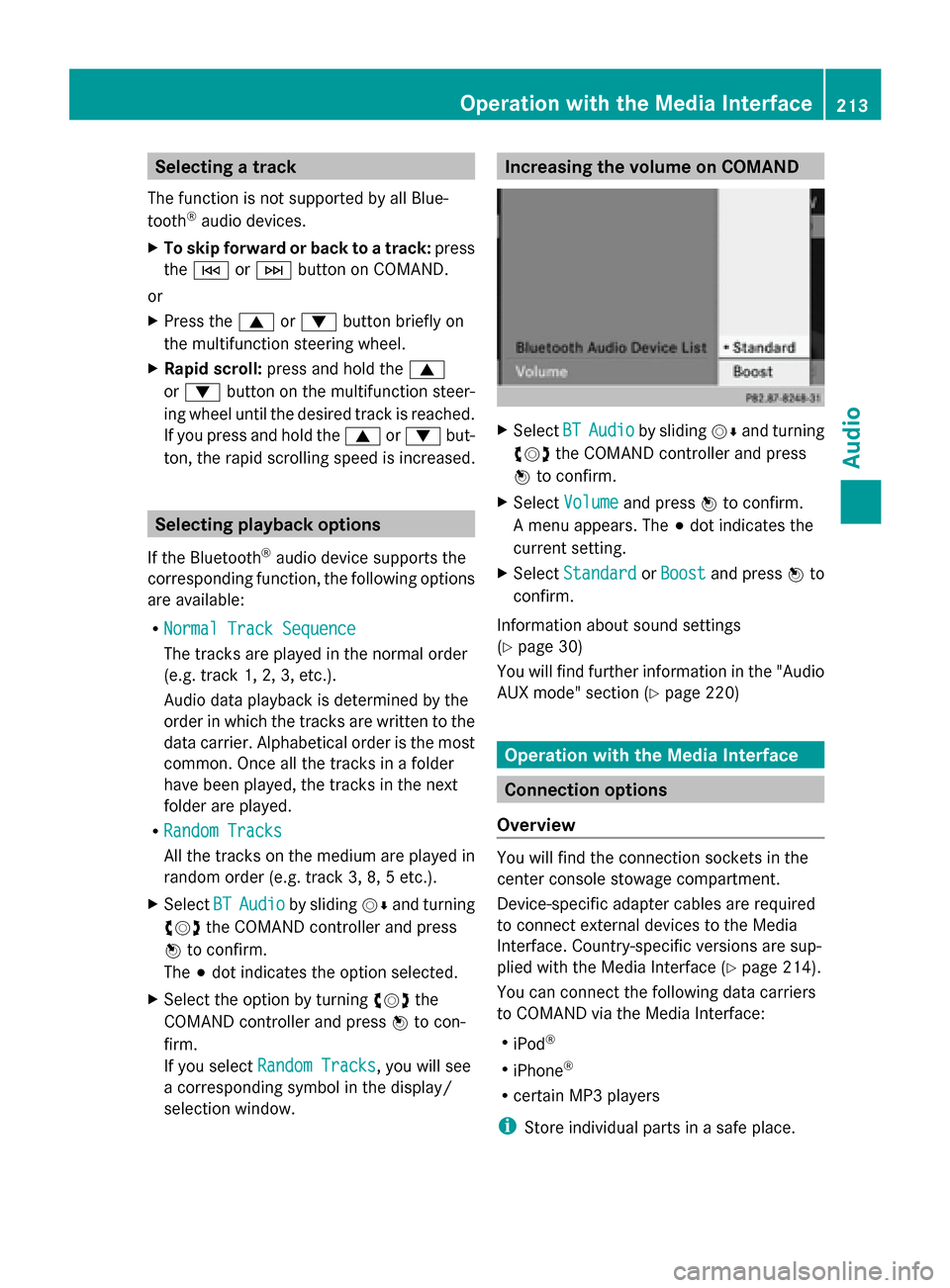
Select BT
BT Audio Audio by sliding 00520064and turning
00790052007A the COMAND controller and press
0098 to confirm.
X Select Volume
Volume and press 0098to confirm.
A menu appears. The 003Bdot indicates the
current setting.
X Select Standard
Standard orBoost
Boost and press 0098to
confirm.
Information about sound settings
(Y page 30)
You will find further information in the "Audio
AUX mode" section (Y page 220) Operation with the Media Interface
Connection options
Overview You will find the connection sockets in the
center console stowage compartment.
Device-specific adapter cables are required
to connect external devices to the Media
Interface. Country-specific versions are sup-
plied with the Media Interface (Y
page 214).
You can connect the following data carriers
to COMAND via the Media Interface:
R iPod ®
R iPhone ®
R certain MP3 players
i Store individual parts in a safe place. Operation with the Media Interface
213Audio Z
Page 216 of 270
Only use genuine Mercedes-Benz connec-
tion cables.
i iPod ®
and iPhone ®
are registered trade-
marks of Apple Inc., Cupertino, California,
USA.
i MP3 players that support MTP ( Media
Transfer Protocol) can be used.
This allows the MP3 player to be easily con-
nected to the Media Interface and removed
after use. Audio data is played without
problem.
On some MP3 players, you have to activate
the relevant function; see the MP3 player
operating instructions.
Supported devices For details and a list of supported devices,
visit http://www.mbusa-mobile.com. Or
call the Mercedes-Benz Customer Assistance
Center at 1-800-FOR-MERCedes
(1-800-367-6372) (for the USA) or Customer
Relations at 1-800-387-0100 (for Canada). Connecting an external device
Do not leave external devices in the vehicle.
They may malfunction in extreme tempera-
tures; see the operating instructions for the
respective device. Examples of extreme tem-
peratures are direct sunlight or very low out-
side temperatures. Mercedes-Benz USA, LLC
accepts no liability for damage to external
devices.
i Never connect more than one device at a
time. You will otherwise not be able to play
back from the external device.
USB hubs (devices with several USB con-
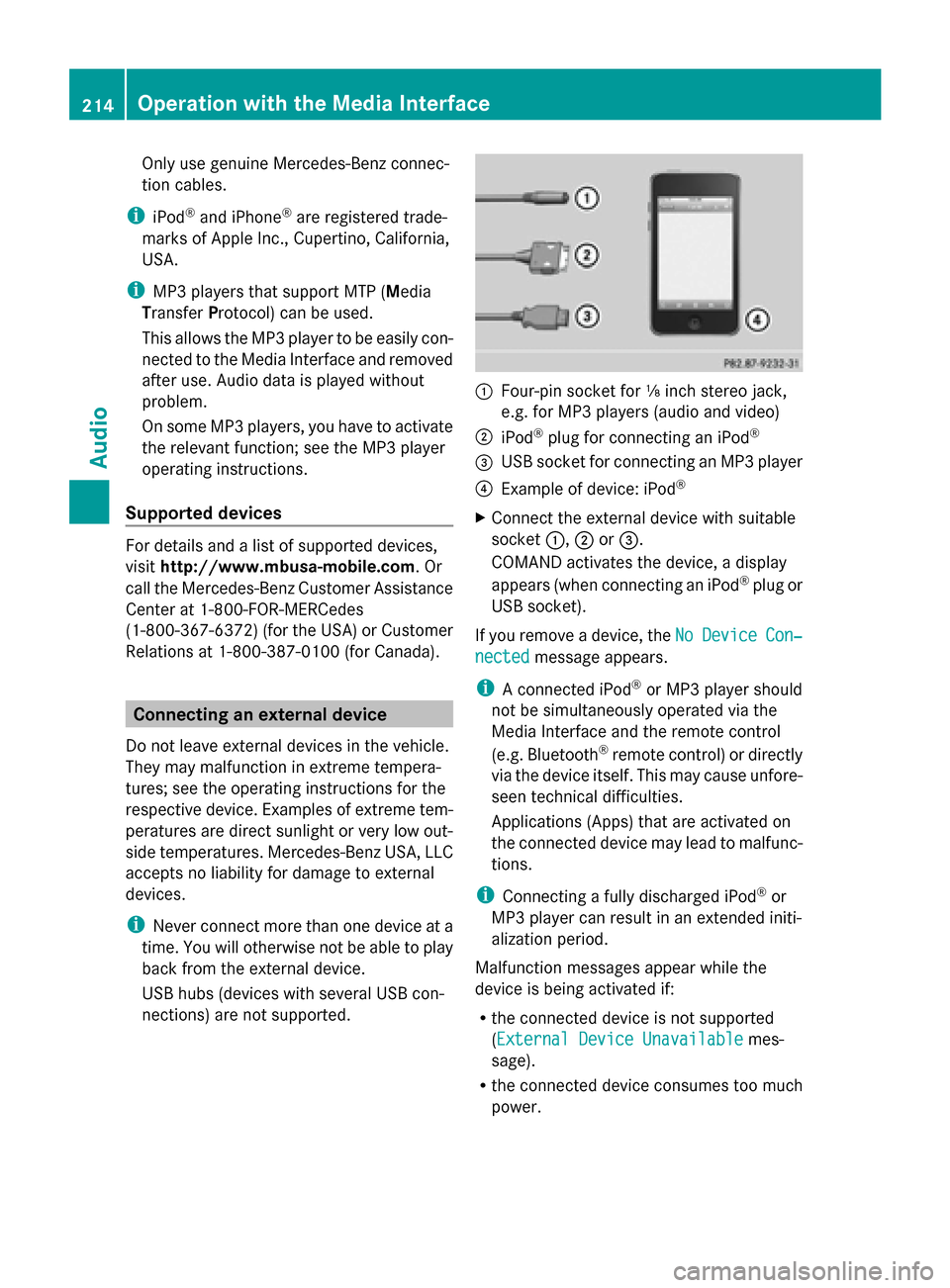
nections) are not supported. 0043
Four-pin socket for ⅛ inch stereo jack,
e.g. for MP3 players (audio and video)
0044 iPod ®
plug for connecting an iPod ®
0087 USB socket for connecting an MP3 player
0085 Example of device: iPod ®
X Connect the external device with suitable
socket 0043,0044or0087.
COMAND activates the device, a display
appears (when connecting an iPod ®
plug or
USB socket).
If you remove a device, the No NoDevice
Device Con‐
Con‐
nected
nected message appears.
i A connected iPod ®
or MP3 player should
not be simultaneously operated via the
Media Interface and the remote control
(e.g. Bluetooth ®
remote control) or directly
via the device itself. This may cause unfore-
seen technical difficulties.
Applications (Apps) that are activated on
the connected device may lead to malfunc-
tions.
i Connecting a fully discharged iPod ®
or
MP3 player can result in an extended initi-
alization period.
Malfunction messages appear while the
device is being activated if:
R the connected device is not supported
(External Device UnavailableExternal Device Unavailable mes-
sage).
R the connected device consumes too much
power. 214
Operation with the Media InterfaceAudio
Page 217 of 270
R
the Media Interface connection is faulty.
R a mass storage device (e.g. a USB memory
stick or USB hard drive) is connected to the
Media Interface.
In this case the Please connect the
Please connect the
device to the other USB port
device to the other USB port mes-
sage appears.
i The separate USB connection ensures
quick access and expanded media content
options.
i Consult an authorized Mercedes-Benz
Center if you have further questions.
Disconnecting an iPod ®
X Press the release buttons on iPod ®
plug 0044and pull the iPod ®
cable from the
iPod ®
, see the separate cable kit instruc-
tions. Switching to Media Interface mode
General notes In extreme cases, starting up individual func-
tions can take up to several minutes – this
depends on the external device and its con-
tent (e.g. video podcasts).
Only use the original software to save files on
iPods ®
or MP3 players. Otherwise, some or
all functions may not be available.
Switching on automatically X
Connect an external device (Y page 214).
COMAND activates the device (if con-
nected via the iPod ®
connector or USB
socket). The basic display then appears.
Switching modes using the function
button The external device is connected to the Media
Interface.
X Press the 003Afunction button one or more
times. By pressing the function button repeatedly,
you can change the operating mode in the
following order:
R
CD/audio DVD/MP3 (disc)
R Memory card mode
R MUSIC REGISTER
R USB storage device
R Media Interface or audio AUX mode
R Bluetooth ®
audio mode
Switching on using a number key X
Press the 007Fnumber key (for a DVD
changer) or the 0085number key (for a
single DVD drive).
This selects the connected external audio
device directly.
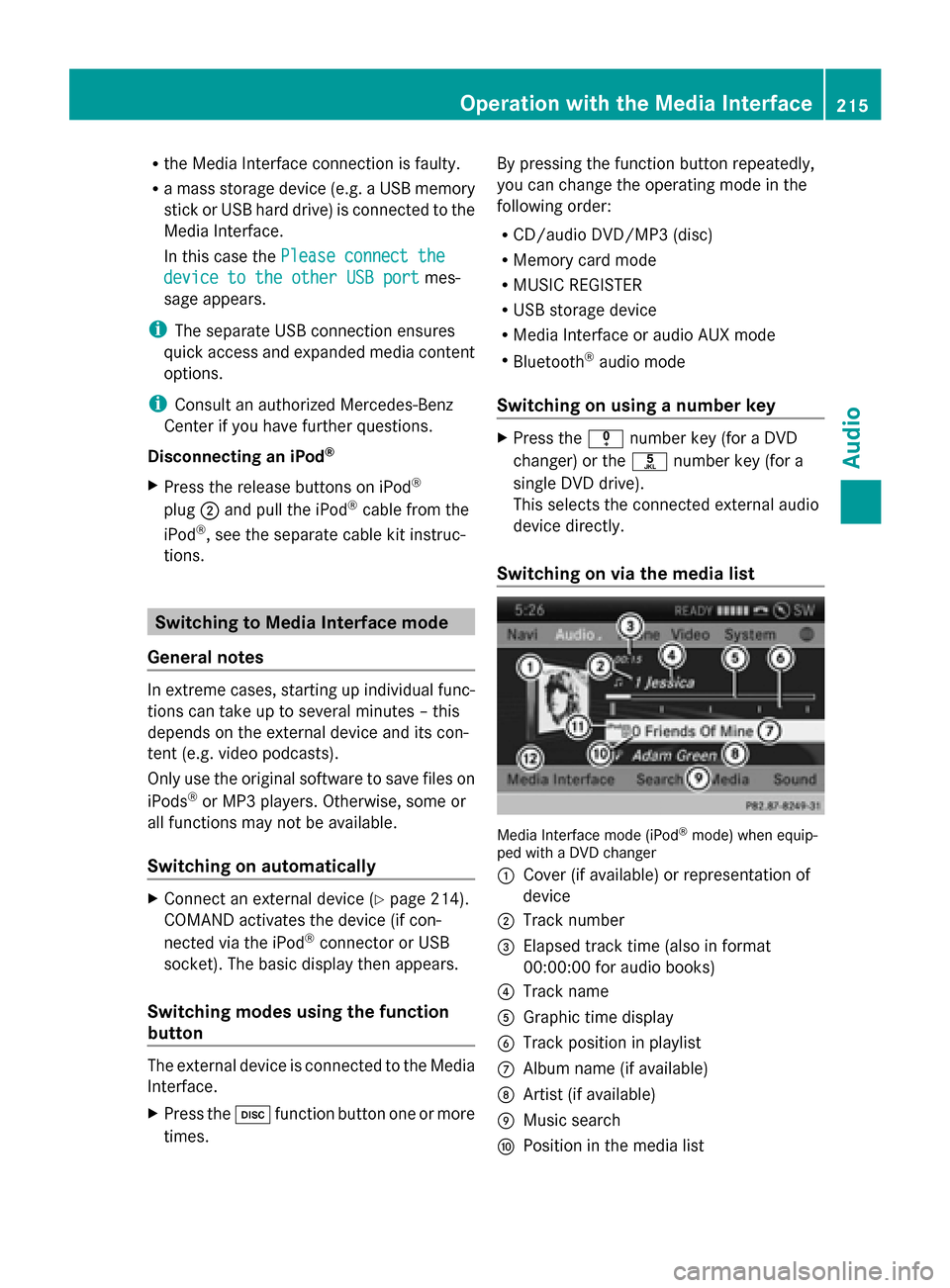
Switching on via the media list Media Interface mode (iPod
®
mode) when equip-
ped with a DVD changer
0043 Cover (if available) or representation of
device
0044 Track number
0087 Elapsed track time (also in format
00:00:00 for audio books)
0085 Track name
0083 Graphic time display
0084 Track position in playlist
006B Album name (if available)
006C Artist (if available)
006D Music search
006E Position in the media list Operation
withthe Media Interface
215Audio Z
Page 218 of 270
006F
Type of data medium
0070 Playback options
X Select the entry under position 0 (DVD
changer) or position 5 (single DVD drive) in
the media list by turning 00790052007Athe COMAND
controller and press 0098to confirm
(Y page 193).
COMAND activates the connected device.
You will see a message to this effect. The
basic display then appears.
If no device is connected, you will see the
Media Interface
Media Interface entry instead of a
device name.
The type of device connected is indicated by
the corresponding symbol for iPod ®
(iPhone ®
) or MP3 player.
The current playback option is shown with a
symbol after the album name (no display for
Normal Track Sequence
Normal Track Sequence) (Y page 219).
i If the device connected does not contain
any playable tracks, a message appears to
this effect. Selecting music files
Note COMAND displays the data stored on the
iPod ®
, iPhone ®
or MP3 player according to
the file structure used in the respective
medium.
Selecting by skipping to a track X
To skip forwards or back to a track: turn
00790052007A the COMAND controller when the dis-
play/selection window is active.
or
X Press the 0048or0049 button.
The skip forward function skips to the next
track. The skip back function skips to the
beginning of the current track if the track
has been playing for more than eight sec-
onds. If the track has been playing for less
than eight seconds, it skips to the start of the previous track. If you have selected a
playback option other than
Normal
Normal Track Track
Sequence
Sequence, the track sequence is random.
Selecting using the number keypad X
To make an entry: press the003Ebutton.
An input menu appears. The number of
characters available for input depends on
the number of stored tracks.
X To enter a track number: press a number
key, e.g. 0087.
The digit is entered in the first position in
the input line.
i COMAND will ignore and not display an
invalid digit.
X Enter more numbers if desired.
The track plays after the last possible num-
ber is entered.
i Pressing and holding a number key for
more than two seconds completes the
entry, and the corresponding track is
played.
Fast forwarding/rewinding X
While the display/selection window is
active, slide 009500520096and hold the COMAND
controller until the desired position has
been reached.
or
X Press and hold the 0048or0049 button
until the desired position is reached.
i On an iPod ®
or iPhone ®
, fast rewind only
functions within the current track. Selecting a category/playlist/folder
Overview For an iPod
®
, iPhone ®
or certain MP3 players,
you can select tracks using categories or fold-
ers. 216
Operation with the Media InterfaceAudio