2014 MERCEDES-BENZ SLK-Class media interface
[x] Cancel search: media interfacePage 8 of 270

MP3
............................................... 198
MUSIC REGISTER ........................... 203
Date format, setting ............................43
Day design, setting .............................42
Deleting Call lists ......................................... 142
Destination
Assigning a destination to an
address book entry ........................105
Destination (navigation)
Displaying information .....................94
Entering a destination by address ....63
Entering a destination using the
map ................................................. 71
Entering a point of interest ..............76
Entering using geo-coordinates .......72
Entering using Mercedes-Benz
Apps ................................................ 72
Saving ............................................ 105
Selecting from the destination
memory ........................................... 70
Selecting from the list of last des-
tinations .......................................... .70
Selecting storage options ..............105
Storing after destination entry .......105
Storing during route guidance .......105
Destination memory (navigation)
Deleting an entry ........................... 106
Entering/saving your home
address ............................................ 69
Previous destinations ....................107
Dialing a number (telephone) ........... 132
DISC button Activating audio CD/DVD or MP3
mode ............................................. 191
Activating Bluetooth ®
Audio .......... 212
Switching on the Media Interface ..215
Switching to the MUSIC REG-
ISTER ............................................. 204
Display
Selecting the design ........................42
Displaying the arrival time .................94
Displaying the distance to the des-
tination ................................................. 94
Displaying the track and album .......197
Dolby ®
Digital ...................................... 31DVD
Copy protection ............................. 200
Fast forward/fast rewind ...............196
Inserting ........................................ 188
Inserting/loading (Rear Seat
Entertainment System) ..................242
Notes on discs ............................... 200
Removing/ejecting (Rear Seat
Entertainment System) ..................242
Selecting a media type ..................193
Selecting a track ............................ 195
Sound settings (balance, bass,
treble) .............................................. 30
DVD video
Rear Seat Entertainment System ...246 E
Entering an intersection name ...........67
Entering a street name .......................64
Entering the address (example) .........63
Entering the city .................................. 64
Entering the house number ................ 64
Entry Deleting ........................................... 37
Saving .............................................. 35
Example display
Audio CD mode .............................. 192
MUSIC REGISTER ........................... 204 F
Factory setting (reset function) .........47
Fast forward Audio mode (CD, DVD, MP3) .........196
Video DVD ..................................... 227
Fast rewind
Audio mode (CD, DVD, MP3) .........196
Video DVD ..................................... 227
Favorites (Internet) ...........................173
Favorites button .................................. 45
Frequencies Adjusting for radio stations ............ 180
Fuel
Displaying consumption ...................506
Index
Page 9 of 270

G
Google™ local search Importing a destination/route .......160
Popular Searche s........................... 161
Search ........................................... 159
Search history ............................... 162
Selecting a search position ............160
Using as the destination ................160
GPS reception ...................................... 60
Gracenote ®
Media Database ............196 H
Harman/kardon ®
Logic 7 ®
sur-
round sound system see Surround sound (harman/
kardon ®
surround sound system)
Heading up (navigation) ...................109
Headphones Changing batteries ........................238
Highway information ........................112
Home address Entering and saving .........................69
Selecting from the destination
memory ........................................... 70I
Incident (traffic report) .......................99
Indicator lamp Remote control .............................. 238
Interface (USB, iPod ®
)
see Media Interface
Internet
Calling up the carousel view ..........168
Conditions for access ....................158
Creating favorites .......................... 173
Entering the URL ............................ 168
Favorites manager .........................173
Favorites menu .............................. 174
Menu functions .............................. 171
Opening favorites .......................... 172
Selecting favorites .........................169
Internet radio
Calling up ....................................... 167
Searching for stations .................... 167 iPod
®
Alphabetical track selection ..........218
Connecting to the Media Inter-
face ............................................... 214
Selecting a category/playlis t......... 216
iTunes ®
............................................... 218 L
Lane recommendations Explanation ...................................... 90
Presentation .................................... 90
Load/eject button .............................188
Lumbar support Adjusting (COMAND) .......................53 M
Map (navigation) Adjusting the scale ........................108
Arrival time/distance to the des-
tination .......................................... 111
City mode l..................................... 112
Geo-coordinate displa y.................. 111
Heading ......................................... 109
Information in the display ..............111
Map settings .................................. 109
Moving ........................................... 108
North orientation ........................... 109
Notes ............................................. 108
Point of interest symbols ...............110
Road displa y.................................. 111
Saving the crosshair position .........109
Showing the map data version ....... 118
Topographical map ........................112
Updating ........................................ 118
Updating process ........................... 119
Media Interface
Alphabetical track selection ..........218
Basic menu .................................... 215
Connecting an external audio
source ............................................ 214
Connection options .......................213
iPod ®
............................................. 213
Mode ............................................. 213
MP3 player. ................................... 214
Notes for the MP3 player ...............219
Playback options ........................... 219 Index
7
Page 14 of 270

Telephone mode
Redialing ........................................ 133
Telephone number
Entering ......................................... 132
Text messages (SMS)
Calling the sende r.......................... 146
Deleting ......................................... 147
Inbox .............................................. 145
Information and requirements .......144
Reading .......................................... 145
Reading aloud ................................ 145
Storing sender in address book .....147
Storing the sender as a new
address book entry ........................146
Time
Setting ............................................. 44
Setting summer/standard time .......43
Setting the format ............................ 43
Setting the time ............................... 42
Setting the time/date forma t.......... 43
Setting the time manually ................42
Setting the time zone ....................... 43
Tone settings
Balance and fader ............................ 30
Track
Selecting (CD, DVD, MP3) .............. 195
Selecting using the number key-
pad ................................................ 195
Track information .............................. 245
Traffic jam function .............................92
Traffic reports Calling up a list .............................. 100
Reading out on route .....................102
Real-time traffic report ..................101
Treble, adjusting (sound) ....................30
True Image™ ........................................ 33
TV Automatic picture shutoff ..............224
Picture settings .............................. 224
Sound settings (balance, bass,
treble) .............................................. 30U
Updating the digital map ..................118
USB see Media Interface V
Vehicle Data acquisition ............................... 15
Video
see Video DVD
Video AUX
Setting the picture .........................224
Video DVD
Automatic picture shutoff ..............224
DVD menu ..................................... 228
Fast forward/rewind ..................... .227
Function restrictions ......................225
Interactive content ........................229
Notes on discs ............................... 225
Operation ....................................... 224
Pause function ............................... 227
Playing conditions .......................... 225
Safety notes .................................. 224
Selecting ........................................ 228
Selecting a film/title ..................... .227
Selecting a scene/chapter ............227
Setting the audio format ................229
Setting the language ......................229
Setting the picture .........................224
Showing/hiding the control menu ..226
Showing/hiding the menu .............226
Stop function ................................. 227
Subtitles ........................................ 229
Switching to ................................... 225
Voice Control System
Settings ........................................... 44
Volume, adjusting
COMAND ......................................... 29
Navigation messages .......................30 W
Waypoints Accepting waypoints for the route ...76
Creating ........................................... 73
Editing .............................................. 75
Entering ........................................... 73
Searching for a gas station when
the fuel level is low ..........................76
Weather Band
Searching for a channel .................181
Switching on .................................. 18112
Index
Page 27 of 270
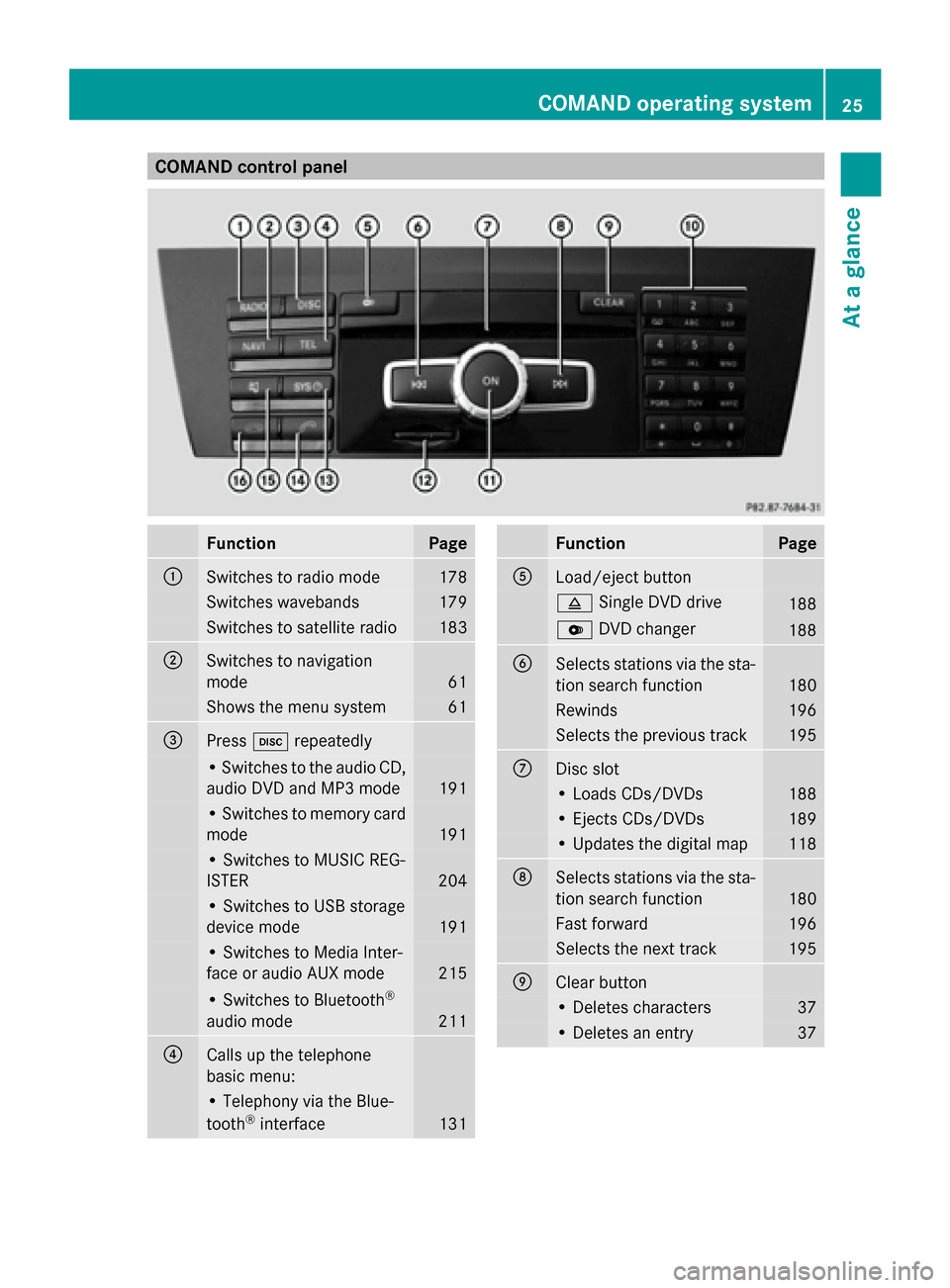
COMAND control panel
Function Page
0043
Switches to radio mode 178
Switches wavebands 179
Switches to satellite radio 183
0044
Switches to navigation
mode 61
Shows the menu system 61
0087
Press
003Arepeatedly • Switches to the audio CD,
audio DVD and MP3 mode
191
• Switches to memory card
mode
191
• Switches to MUSIC REG-
ISTER
204
• Switches to USB storage
device mode
191
• Switches to Media Inter-
face or audio AUX mode
215
• Switches to Bluetooth
®
audio mode 211
0085
Calls up the telephone
basic menu: • Telephony via the Blue-
tooth ®
interface 131 Function Page
0083
Load/eject button
0062
Single DVD drive 188
0065
DVD changer 188
0084
Selects stations via the sta-
tion search function
180
Rewinds 196
Selects the previous track 195
006B
Disc slot
• Loads CDs/DVDs 188
• Ejects CDs/DVDs 189
• Updates the digital map 118
006C
Selects stations via the sta-
tion search function
180
Fast forward 196
Selects the next track 195
006D
Clear button
• Deletes characters 37
• Deletes an entry 37COMAND operating system
25At a glance
Page 33 of 270

The fader function is used to control whether
the sound is louder in the front or the rear of
the vehicle.
You can adjust the fader depending on the
vehicle model.
Equipped with Bang & Olufsen sound sys-
tem: for the best sound focus, choose the
setting 0 0.
X Select Bal/Fad
Bal/Fad (balance/fader) in the
sound menu by turning 00790052007Athe COMAND
controller and press 0098to confirm.
X Select a balance setting by sliding 009500520096the
COMAND controller and press 0098to con-
firm. Surround
General notes If your vehicle is equipped with surround
sound, you can use one of two sound sys-
tems:
R harman/kardon ®
Logic 7 ®
Surround
Sound system
The harman/kardon ®
Logic 7 ®
Surround
Sound system allows you to set the opti-
mum surround sound in the vehicle interior
(Y page 32).
R Bang & Olufsen sound system
(Y page 33)
Both sound systems are available for the fol-
lowing operating modes:
R radio (FM only)
R satellite radio
R audio CD
R audio DVD (MLP, dts, PCM and Dolby Digi-
tal audio formats)
R MP3 (including SD memory card and USB
storage device)
R Media Interface
R Bluetooth ®
audio mode R
video DVD (PCM, dts and Dolby Digital
audio formats)
R AUX
Because some DVDs contain both stereo and
multichannel audio formats, it may be neces-
sary to set the audio format (Y page 229).
Discs which support the audio formats men-
tioned have the following logos: Basic COMAND functions
31At a glance
Page 40 of 270

If there are several entries for a city or if sev-
eral cities of the same name are stored, then
0054 is highlighted in the character bar.
X Press 0098the COMAND controller. Option 2: city list as selection list
COMAND either shows the selection list auto-
matically or you can call up the selection list
from the list with the character bar.
The example shows the selection list after the
city NEW YORK
NEW YORK has been entered. The entry is
highlighted automatically.
X Confirm NEW YORK NEW YORK by pressing 0098the
COMAND controller.
The address entry menu appears. You can
now enter a street, for example.
Observe the information on destination entry
(Y page 63). SPLITVIEW
Method of operation
SPLITVIEW allows you to simultaneously use
different COMAND functions on the front-
passenger side and on the driver's side. Dif-
ferent content is seen depending on your per-
spective when viewing the display.
The "Navi" function, for example, can be used
from the driver's side while a video is watched
from the front-passenger side.
SPLITVIEW is operated with the remote
control from the front-passenger side. To do so, use the special radio headphones.
Using the headphones on the correct sides
ensures an optimal sound.
You can connect your own headphones to a
special headphones jack. You can use the
remote control to operate them. Points to remember
R You can only adjust the volume for the
headphones supplied, directly on the head-
phones.
R Only entertainment functions, i.e. audio,
TV, video and Internet, for example, may be
used with SPLITVIEW.
R Different media can be used on the driver
and front-passenger sides as long as they
use different media sources. Example: if a
medium from the DVD changer is being
played on the driver's side. then another
medium that is also played from the DVD
changer cannot be played separately on
the front-passenger side. However, other
media can be used at the same time on the
front-passenger side, including radio,
memory card, MUSIC REGISTER, Media
Interface, USB or AUX.
R If you use the same medium on both sides,
you can both carry out the respective set-
tings.
R Internet use is only available at any one
time to the driver or the front passenger.
A corresponding message appears on the
display.
R Internet can only be used, if it is set and
connected via a telephone on the driver's
side.
R The multifunction steering wheel can only
be used for functions which relate to the
driver's side. 38
SPLITVIEWAt a glance
Page 152 of 270

Showing the details of an address book
entry X
Select the list symbol to the right of the
entry by sliding 00520096the COMAND control-
ler and press 0098to confirm.
X Select Details
Details and press 0098to confirm.
The display is shown in full.
X To close the detailed display: press the
0038 back button.
Changing an address book entry X
Option 1: search for an address book entry
(Y page 138).
X Make a selection in the selection list by
turning 00790052007Athe COMAND controller.
X Select the list symbol to the right of the
entry by sliding 00520096the COMAND control-
ler and press 0098to confirm.
A menu appears. X
Select Edit Editand press 0098to confirm.
X Option 2: call up the detailed view for an
address book entry (Y page 149).
X Select the list symbol to the right of the
entry by sliding 00520096the COMAND control-
ler and press 0098to confirm.
X Select Edit
Edit and press 0098to confirm.
Irrespective of the option chosen, the input
menu containing data fields appears.
Information about character entry
(Y page 34) Changing the category of a telephone
number data field X
Display details for an address book entry
(Y page 149).
X Select the telephone number data field.
X Select the list symbol to the right of the
entry by sliding 00520096the COMAND control-
ler and press 0098to confirm.
X Select Change Category
Change Category and press0098to
confirm.
X Select a number category, e.g. Home Home.
X Select a telephone category, e.g. Mobile
Mobile.
X If desired, select Preferred
Preferredand press0098
to confirm.
Depending on the previous status, switch
the option on 0073or off 0053. The phone num-
ber is displayed as the first number in the
phone book and can be dialed immediately.
X Select Save Saveand press 0098to confirm.
The new category is stored. Calling a number stored in an entry
Prerequisites The mobile phone must be connected via the
Bluetooth
®
Interface (Y page 126).
Dialing a number X
Display details for an address book entry
(Y page 149).
X Select the phone number data field by turn-
ing 00790052007A the COMAND controller.
X Press 0098the COMAND controller to con-
firm.
or
X Select the list symbol to the right of the
data field by sliding 00520096the COMAND con-
troller. 150
Using the address bookTelephone
Page 194 of 270

R
USB storage device
R Media Interface or audio AUX mode
R Bluetooth ®
audio mode
X Select an audio medium from the media list
(Y page 193).
Switching modes via the audio menu X
Select Audio
Audioin the main function bar by
sliding 00970052and turning 00790052007Athe COMAND
controller and press 0098to confirm.
The last active audio source is now acti-
vated.
You can activate a different audio source
using the audio menu.
X Select Audio
Audio by sliding 00970052and turning
00790052007Athe COMAND controller and press
0098 to confirm.
The audio menu appears.
X Select Disc Disc,Memory Card
Memory Card, Music Reg‐
Music Reg‐
ister
ister, USB Storage
USB Storage orMedia Inter‐
Media Inter‐
face
face and press 0098to confirm.
This switches to the desired audio source.
X Select an audio medium from the media list
(Y page 193).
Example display: audio CD mode 0043
CD cover (if available)
0044 Gracenote ®
media data found, then the
elapsed track time
0087 Track number and track name (if stored
on the disc as CD text or if Gracenote ®
data is available) 0085
Graphic time and track display
0083 Disc type, disc position in the media list
and disc name (if stored on the disc as CD
text or if Gracenote ®
data is available)
0084 Artist (if stored on the disc as CD text or
if Gracenote ®
data is available)
006B CD mode menu
Example display: audio DVD mode 0043
Cover (if available)
0044 Track time
0087 Track number
0085 Graphic time and track display
0083 Disc type, disc position in the media list,
disc name (only if stored on the disc)
0084 Audio DVD mode menu
Example display: MP3 mode 0043
Cover (if available)
0044 Track time
0087 Track number and name
0085 Graphic time and track display 192
CD/audio
DVD and MP3 modeAudio