2014 LINCOLN MKZ audio
[x] Cancel search: audioPage 385 of 468

"USB" or "SD CARD"
"What's this?""Help"
* If you have said you would like to
browse your USB or SD card, the
system prompts you to specify what
you would like to browse. When
prompted, see the following "Browse"
chart.
** These commands are only available
in USB mode and are
device-dependent.
"BROWSE"
"Album
"All albums""All artists"
"All audiobooks" "All authors"
"All composers" "All folders""All genres"
"All movies"
*
"All music videos"*
"All playlists"
"All podcasts" "All songs"
"All TV shows"
*
"BROWSE"
"All video playlists"*
"All video podcasts"*
"All videos"*
"Artist
"Audiobook
"Composer
"Playlist
"Podcast
"TV show
*
"Video
"Video playlist
"Video podcast
"Help"
* This command is only available in
USB mode and is device-dependent.
382
MyLincoln Touch™
Page 386 of 468

Supported Media Players,
Formats and Metadata
Information
SYNC is capable of hosting nearly any
digital media player, including iPod,
Zune™, plays from device players, and
most USB drives. Supported audio
formats include MP3, WMA, WAV and
AAC.
It is also able to organize your indexed
media from your playing device by
metadata tags. Metadata tags, which
are descriptive software identifiers
embedded in the media files, provide
information about the file.
If your indexed media files contain no
information embedded in these
metadata tags, SYNC may classify
the empty metadata tags as
Unknown.
In order to playback video from your
iPod or iPhone, you must have a
special combination USB/RCA
composite video cable (which you can
buy from Apple). When you connect
the cable to your iPod or iPhone, plug
the other end into both the RCA jacks
and the USB port.
Bluetooth Audio
Your system allows you to stream
audio over your vehicle's speakers
from your connected,
Bluetooth-enabled cellular phone.
E142611
To access, press the lower
left corner on the
touchscreen, then select the
BT Stereo tab. Bluetooth Audio Voice Commands
E142599
If you are listening to a
Bluetooth audio device, press
the voice button on the
steering wheel control. When
prompted, say "Next song", "Pause",
"Play" or "Previous song".
If you are not listening to a Bluetooth
audio device, press the voice button
and, after the tone, say "Next song",
"Pause", "Play" or "Previous song".
A/V Inputs
WARNINGS
Driving while distracted can
result in loss of vehicle control,
crash and injury. We strongly
recommend that you use extreme
caution when using any device that
may take your focus off the road. Your
primary responsibility is the safe
operation of your vehicle. We
recommend against the use of any
handheld device while driving and
encourage the use of voice-operated
systems when possible. Make sure you
are aware of all applicable local laws
that may affect the use of electronic
devices while driving.
For safety reasons, do not
connect or adjust the settings on
your portable music player while your
vehicle is moving.
383
MyLincoln Touch™
Page 387 of 468

WARNINGS
Store the portable music player
in a secure location, such as the
center console or the glove box, when
your vehicle is moving. Hard objects
may become projectiles in a crash or
sudden stop, which may increase the
risk of serious injury. The audio
extension cable must be long enough
to allow the portable music player to
be safely stored while your vehicle is
moving.
E142622
Your A/V inputs allow you to connect
an auxiliary audio/video source (such
as a gaming systems or a personal
camcorder) by connecting RCA cords
(not included) to these input jacks.
The jacks are yellow, red and white
and are located either behind a small
access door on the instrument panel
or in your center console.
You can also use the A/V inputs as an
auxiliary input jack to play music from
your portable music player over your
vehicle's speakers. Plug in your 1/8
inch (3.5 millimeter) RCA adapter into
the two left A/V input jacks (red and
white). Press the lower left corner of the
touchscreen, and then select
A/V In.
To use the auxiliary input jack feature,
make sure that your portable music
player is designed for use with
headphones and that it is fully
charged. You also need an audio
extension cable with stereo male
1/8-inch (3.5 millimeter) connectors
at one end and a RCA jack at the
other.
1. Switch off the engine, radio and portable music player. Set the
parking brake and put the
transmission in position P.
2. Attach one end of the audio extension cable to the headphone
output of your player and the other
end into the adapter in one of the
two left A/V input jacks (white or
red) inside the center console.
3. Press the lower left corner on the touchscreen. Select either a tuned
FM station or a CD (if there is a CD
already loaded into the system).
4. Adjust the volume as desired.
5. Turn the portable music player on and adjust the volume to ½ the
maximum.
6. Press the lower left corner on the touchscreen. Select the A/V In
tab. (You should hear audio from
your portable music player
although it may be low.)
7. Adjust the sound on your portable music player until it reaches the
level of the FM station or CD by
switching back and forth between
the controls.
384
MyLincoln Touch™
Page 388 of 468

In order to playback video from your
iPod or iPhone, you must have a
special combination USB/RCA
composite video cable (which you can
buy from Apple). When you connect
the cable to your iPod or iPhone, plug
the other end into both the RCA jacks
and the USB port.
Troubleshooting
• Do not connect the audio inputjack to a line level output. The jack
only works correctly with devices
that have a headphone output
with a volume control.
• Do not set the portable music player's volume level higher than
is necessary to match the volume
of the CD or FM radio as this
causes distortion and reduces
sound quality. • If the music sounds distorted at
lower listening levels, turn the
portable music player volume
down. If the problem persists,
replace or recharge the batteries
in the portable media player.
• Control the portable media player in the same manner when used
with headphones, as the auxiliary
input jack does not provide control
(such as Play or Pause) over the
attached portable media player.
PHONE
A
B
C
D
E
F
E161968
385
MyLincoln Touch™
Page 398 of 468
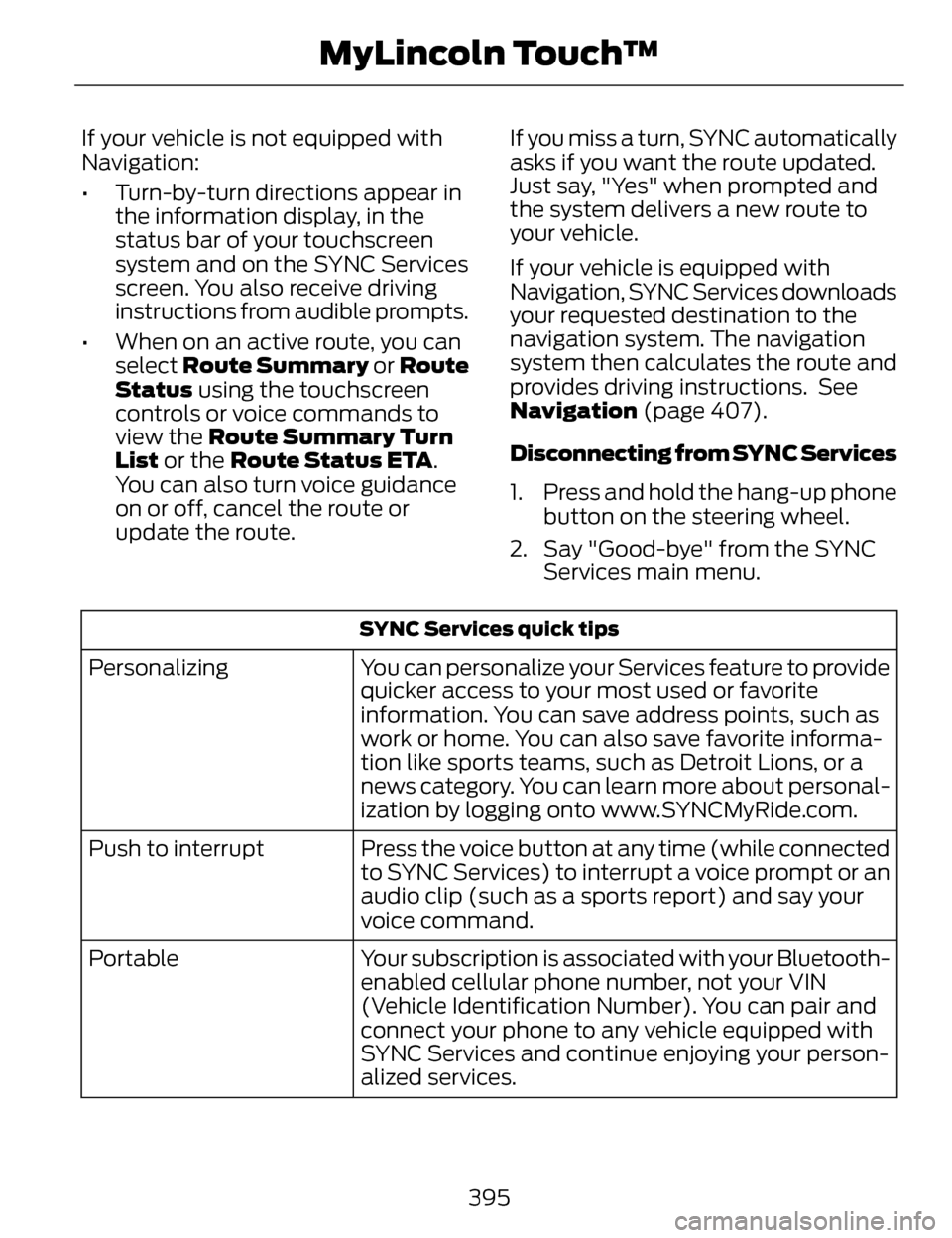
If your vehicle is not equipped with
Navigation:
• Turn-by-turn directions appear inthe information display, in the
status bar of your touchscreen
system and on the SYNC Services
screen. You also receive driving
instructions from audible prompts.
• When on an active route, you can select Route Summary or Route
Status using the touchscreen
controls or voice commands to
view the Route Summary Turn
List or the Route Status ETA.
You can also turn voice guidance
on or off, cancel the route or
update the route. If you miss a turn, SYNC automatically
asks if you want the route updated.
Just say, "Yes" when prompted and
the system delivers a new route to
your vehicle.
If your vehicle is equipped with
Navigation, SYNC Services downloads
your requested destination to the
navigation system. The navigation
system then calculates the route and
provides driving instructions. See
Navigation (page 407).
Disconnecting from SYNC Services
1. Press and hold the hang-up phone
button on the steering wheel.
2. Say "Good-bye" from the SYNC Services main menu.
SYNC Services quick tips
You can personalize your Services feature to provide
quicker access to your most used or favorite
information. You can save address points, such as
work or home. You can also save favorite informa-
tion like sports teams, such as Detroit Lions, or a
news category. You can learn more about personal-
ization by logging onto www.SYNCMyRide.com.
Personalizing
Press the voice button at any time (while connected
to SYNC Services) to interrupt a voice prompt or an
audio clip (such as a sports report) and say your
voice command.
Push to interrupt
Your subscription is associated with your Bluetooth-
enabled cellular phone number, not your VIN
(Vehicle Identification Number). You can pair and
connect your phone to any vehicle equipped with
SYNC Services and continue enjoying your person-
alized services.
Portable
395
MyLincoln Touch™
Page 425 of 468

UPGRADES AND RECOVERY
MEDIA: If the SOFTWARE is provided
by FORD MOTOR COMPANY separate
from the DEVICE on media such as a
ROM chip, CD ROM disk(s) or via web
download or other means, and is
labeled "For Upgrade Purposes Only"
or "For Recovery Purposes Only" you
may install one (1) copy of such
SOFTWARE onto the DEVICE as a
replacement copy for the existing
SOFTWARE, and use it in accordance
with this EULA, including any
additional EULA terms accompanying
the upgrade SOFTWARE.
INTELLECTUAL PROPERTY
RIGHTS: All title and intellectual
property rights in and to the
SOFTWARE (including but not limited
to any images, photographs,
animations, video, audio, music, text
and "applets" incorporated into the
SOFTWARE), the accompanying
printed materials, and any copies of
the SOFTWARE, are owned by MS,
Microsoft Corporation, FORD MOTOR
COMPANY, or their affiliates or
suppliers. The SOFTWARE is licensed,
not sold. You may not copy the
printed materials accompanying the
SOFTWARE. All title and intellectual
property rights in and to the content
which may be accessed through use
of the SOFTWARE is the property of
the respective content owner and may
be protected by applicable copyright
or other intellectual property laws and
treaties. This EULA grants you no
rights to use such content. All rights
not specifically granted under this
EULA are reserved by MS, Microsoft
Corporation, FORD MOTOR COMPANY, third party software and
service providers, their affiliates and
suppliers. Use of any on-line services
which may be accessed through the
SOFTWARE may be governed by the
respective terms of use relating to
such services. If this SOFTWARE
contains documentation that is
provided only in electronic form, you
may print one copy of such electronic
documentation.
EXPORT RESTRICTIONS:
Yo u
acknowledge that the SOFTWARE is
subject to U.S. and European Union
export jurisdiction. You agree to
comply with all applicable
international and national laws that
apply to the SOFTWARE, including
the U.S. Export Administration
Regulations, as well as end-user,
end-use and destination restrictions
issued by U.S. and other governments.
For additional information, see
http://www.microsoft.com/exporting/.
TRADEMARKS: This EULA does not
grant you any rights in connection with
any trademarks or service marks of
FORD MOTOR COMPANY, MS,
Microsoft Corporation, third party
software or service providers, their
affiliates or suppliers.
PRODUCT SUPPORT: Product
support for the SOFTWARE is not
provided by MS, its parent corporation
Microsoft Corporation, or their
affiliates or subsidiaries. For product
support, please refer to FORD MOTOR
COMPANY instructions provided in
the documentation for the DEVICE.
422
Appendices
Page 429 of 468

while driving. If you feel that a route
suggested by the TeleNav Software
instructs you to perform an unsafe or
illegal maneuver, places you in an
unsafe situation, or directs you into an
area that you consider to be unsafe,
do not follow such instructions; (c) do
not input destinations, or otherwise
manipulate the TeleNav Software,
unless your vehicle is stationary and
parked; (d) do not use the TeleNav
Software for any illegal, unauthorized,
unintended, unsafe, hazardous, or
unlawful purposes, or in any manner
inconsistent with this Agreement; (e)
arrange all GPS and wireless devices
and cables necessary for use of the
TeleNav Software in a secure manner
in your vehicle so that they will not
interfere with your driving and will not
prevent the operation of any safety
device (such as an airbag).
You agree to indemnify and hold
TeleNav harmless against all claims
resulting from any dangerous or
otherwise inappropriate use of the
TeleNav Software in any moving
vehicle, including as a result of your
failure to comply with the directions
above.
2. Account Information
You agree: (a) when registering the
TeleNav Software, to provide TeleNav
with true, accurate, current, and
complete information about yourself,
and (b) to inform TeleNav promptly
of any changes to such information,
and to keep it true, accurate, current
and complete.3. Software License
Subject to your compliance with the
terms of this Agreement, TeleNav
hereby grants to you a personal,
non-exclusive, non-transferable
license (except as expressly permitted
below in connection with your
permanent transfer of the TeleNav
Software license), without the right
to sublicense, to use the TeleNav
Software (in object code form only)
in order to access and use the
TeleNav Software. This license shall
terminate upon any termination or
expiration of this Agreement. You
agree that you will use the TeleNav
Software only for your personal
business or leisure purposes, and not
to provide commercial navigation
services to other parties.
3.1 License Limitations
You agree not to do any of the
following: (a) reverse engineer,
decompile, disassemble, translate,
modify, alter or otherwise change the
TeleNav Software or any part thereof;
(b) attempt to derive the source code,
audio library or structure of the
TeleNav Software without the prior
express written consent of TeleNav;
(c) remove from the TeleNav
Software, or alter, any of TeleNav's or
its suppliers' trademarks, trade
names, logos, patent or copyright
notices, or other notices or markings;
(d) distribute, sublicense or otherwise
transfer the TeleNav Software to
others, except as part of your
permanent transfer of the TeleNav
Software; or (e) use the TeleNav
426
Appendices
Page 456 of 468

A
A/CSee: Climate Control...............................128
About This Manual..................................7Protecting the Environment......................7
ABSSee: Brakes..................................................179
ABS driving hintsSee: Hints on Driving With Anti-LockBrakes......................................................180
Accessories ...........................................337Exterior style...............................................337
Interior style................................................337
Lifestyle........................................................337
Peace of mind...........................................337
AccessoriesSee: Replacement Parts
Recommendation...................................12
ACCSee: Using Adaptive Cruise Control...199
Active Park Assist...............................189Automatic Steering into ParkingSpace.........................................................191
Deactivating the Park Assist Feature.....................................................192
Troubleshooting the System................192
Using Active Park Assist........................190
Adaptive Headlamps..........................86
Adjusting the Headlamps...............285
Horizontal Aim Adjustment.................286
Vertical Aim Adjustment......................285
Adjusting the Steering Wheel...........75Power Tilt and Telescope Steering Column.......................................................75
AFSSee: Adaptive Headlamps.....................86
Airbag Disposal.......................................51
Air Conditioning
See: Climate Control...............................128
AlarmSee: Anti-Theft Alarm...............................73
All-Wheel Drive....................................173
Anti-Theft Alarm...................................73
Arming the Alarm.......................................74
Disarming the Alarm.................................74
Appendices...........................................418
Audible Warnings andIndicators............................................100
Headlamps On Warning Chime.........100
Key in Ignition Warning Chime............100
Keyless Warning Alert............................100
Parking Brake On Warning
Chime....................................................... 100
Audio Control..........................................76Seek, Next or Previous..............................76
Audio System........................................124General Information................................124
Audio unit - Vehicles With: Premium
AM/FM/CD..........................................125
Autolamps...............................................82
Automatic Climate Control.............128
Automatic High Beam Control........84
Activating the System..............................85
Manually Overriding the System..........85
Automatic Transmission...................167Automatic Transmission Adaptive
Learning.....................................................171
Brake-Shift Interlock Override.............170
If Your Vehicle Gets Stuck In Mud or Snow..........................................................172
Push Button Shift Transmission.........167
SelectShift Automatic™ Transmission.........................................169
Automatic Transmission FluidCheck....................................................276
6F35/HF35 transmission......................276
6F50/6F55 Transmission.....................276
Autowipers..............................................79
Auxiliary Power Points......................148
110 Volt AC Power Point.........................148
12 Volt DC Power Point...........................148
Locations.....................................................148
453
Index