2014 LINCOLN MKZ HYBRID instrument cluster
[x] Cancel search: instrument clusterPage 174 of 445

The message Stay in Neutral mode
engaged will appear in the instrument
cluster when the vehicle has entered Stay
in Neutral mode.
Note: During this mode the
N button will
flash continuously and the instrument
cluster will display
N as the selected gear.
Exiting Stay in Neutral mode
To disable Stay in Neutral mode put the
vehicle in another gear. See the
Putting
the Vehicle in Gear section for instructions
on how to do this.
Entering a Carwash
Note: Always put the vehicle in Stay in
Neutral mode when entering an automatic
car wash. Failure to do this could result in
vehicle damage that may not be covered
by warranty.
D (Drive)
The normal driving position for the best
fuel economy.
D (Drive) with Grade Assist The grade assist button is
located on the instrument panel
next the MyLincoln Touch
™
system. Press the grade assist button to
activate and deactivate grade assist. Grade assist:
•
Provides additional grade braking with
a combination of engine motoring and
high-voltage battery charging to help
maintain vehicle speed when
descending a grade.
• As the vehicle determines the amount
of engine motoring and high-voltage
battery charging, you may notice the
engine speed increasing and
decreasing to help maintain your
vehicle speed when descending a
grade. The grade assist lamp will
appear in the instrument cluster
when grade assist is turned on.
L (Low)
• Provides maximum engine braking.
• The transmission may be put into
L
(Low) at any vehicle speed.
Brake-Shift Interlock Override WARNINGS
Do not drive your vehicle until you
verify that the brake lamps are
working. When doing this procedure, you will
be taking the vehicle out of park
which means the vehicle can roll freely.
To avoid unwanted vehicle movement,
always fully set the parking brake prior to
doing this procedure. Use wheel chocks
if appropriate. If the parking brake is fully released,
but the brake warning lamp remains
illuminated, the brakes may not be working
properly. See your authorized dealer. 172
MKZ (CC9) TransmissionE144523 E144523
Page 193 of 445
PRINCIPLE OF OPERATION
Cruise control lets you maintain a set
speed without keeping your foot on the
accelerator pedal.
USING CRUISE CONTROL
WARNINGS
Do not use cruise control in heavy
traffic, on winding roads or when the
road surface is slippery. This could result
in loss of vehicle control, serious injury or
death. When you are going downhill, your
vehicle speed may increase above
the set speed. The system will not apply
the brakes. Change down a gear to assist
the system in maintaining the set speed.
Failure to do so could result in loss of
vehicle control, serious injury or death. Note:
Cruise control will disengage if the
vehicle speed decreases more than 10
mph (16 km/h) below your set speed while
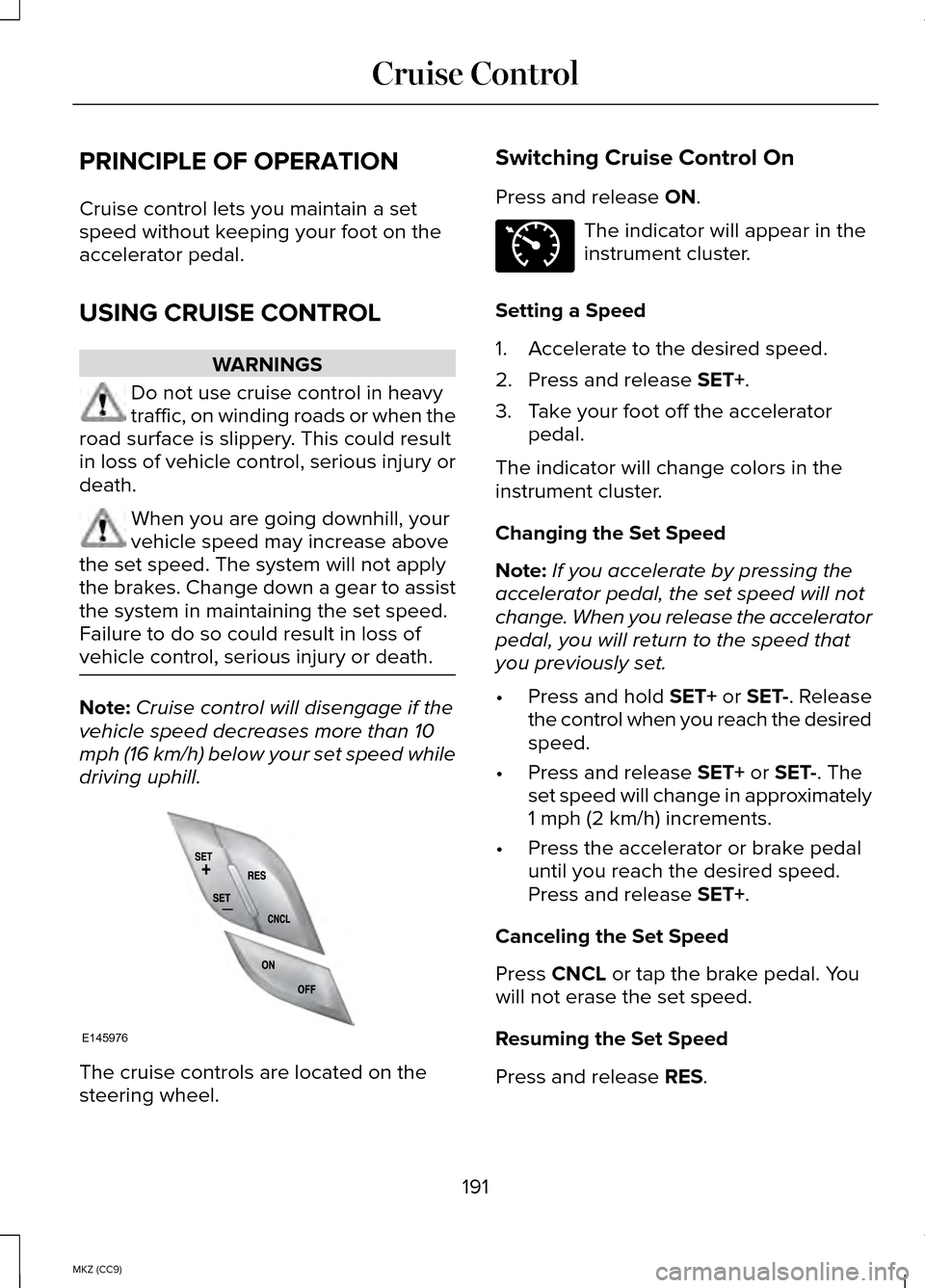
driving uphill. The cruise controls are located on the
steering wheel. Switching Cruise Control On
Press and release ON. The indicator will appear in the
instrument cluster.
Setting a Speed
1. Accelerate to the desired speed.
2. Press and release
SET+.
3. Take your foot off the accelerator pedal.
The indicator will change colors in the
instrument cluster.
Changing the Set Speed
Note: If you accelerate by pressing the
accelerator pedal, the set speed will not
change. When you release the accelerator
pedal, you will return to the speed that
you previously set.
• Press and hold
SET+ or SET-. Release
the control when you reach the desired
speed.
• Press and release
SET+ or SET-. The
set speed will change in approximately
1 mph (2 km/h) increments.
• Press the accelerator or brake pedal
until you reach the desired speed.
Press and release
SET+.
Canceling the Set Speed
Press
CNCL or tap the brake pedal. You
will not erase the set speed.
Resuming the Set Speed
Press and release
RES.
191
MKZ (CC9) Cruise ControlE145976 E71340
Page 203 of 445

The system detects unintentional drifting
toward the outside of the lane and alerts
and/or aids the driver to stay in the lane
through the steering system and
instrument cluster display. The system
automatically detects and tracks the road
lane markings using a camera that is
mounted behind the interior rear view
mirror.
Switching the System On and Off
Note:
The system on or off setting is
stored until it is manually changed, unless
a MyKey® is detected. If a MyKey® is
detected, the system is defaulted to on
and the mode is set to Alert.
Note: If a MyKey® is detected, pressing
the button will not affect the on or off
status of the system. Only the Mode and
Intensity settings can be changed when
a MyKey® is present. Press the button located on the
left steering wheel stalk to
switch the system on or off.
System Settings
The system has two optional setting
menus available. To view or adjust them,
select Settings > Driver Assist > Lane
Keeping Sys in the information display
using the OK button on the steering wheel.
The last-known selection for each of these
settings is stored by the system. You do
not need to readjust your settings each
time you turn on the system.
Mode: This setting allows the driver to
select which of the system features will be
enabled. Alert only – Provides a steering wheel
vibration when an unintended lane
departure is detected.
Aid only – Provides an assistance steering
torque input toward the lane center when
an unintended lane departure is detected.
201
MKZ (CC9) Driving AidsE144813 E165515 E165516
Page 204 of 445

AlertA
AidB
Alert + Aid – Provides an assistance
steering torque input toward the lane
center. If the vehicle continues drifting out
of the lane, a steering wheel vibration is
provided.
Note: The alert and aid diagrams are
meant to illustrate general zone coverage.
They are not intended to provide the exact
zone parameters.
Intensity: This setting affects the intensity
of the steering wheel vibration used for
the alert and alert + aid modes. This setting
does not impact the aid mode.
• Low
• Medium
• High System Display When the system is turned on, an
overhead graphic of a vehicle with lane
markings will be displayed in the
information display. If the aid mode is
selected when the system is turned on, a
separate white icon will also appear in the
instrument cluster or in some vehicles
arrows will be displayed with the lane
markings.
When the system is turned off, the lane
marking graphics will not be displayed.
Note:
The overhead vehicle graphic may
still be displayed if adaptive cruise control
is enabled.
While the system is on, the color of the
lane markings will change to indicate the
system status.
Gray: Indicates that the system is
temporarily unable to provide a warning
or intervention on the indicated side(s).
This may be because:
• the vehicle is under the activation
speed
• the turn indicator is active
• the vehicle is in a dynamic maneuver
202
MKZ (CC9) Driving AidsA
B
A
B
E165517 E151660
Page 230 of 445

A. Negative prong (–)
B. Positive prong (+)
Note:
In the illustration, the vehicle on the
bottom is used to designate the assisting
(boosting) battery.
Note: Remove the red cap from the
positive prong (B) on your vehicle before
connecting the cables. 1. Connect the positive (+) jumper cable
to the positive (+) prong (B) of the
discharged battery.
2. Connect the other end of the positive (+) cable to the positive (+) terminal of
the assisting battery.
3. Connect the negative (-) cable to the negative (-) terminal of the assisting
battery. 4. Make the final connection of the
negative (-) cable to the negative (-)
prong (A) of your vehicle.
Note: Do not attach the negative (-) cable
to fuel lines, engine rocker covers, the
intake manifold or electrical components
as grounding points. WARNING
Do not connect the end of the
second cable to the negative (-)
terminal of the battery to be jumped. A
spark may cause an explosion of the gases
that surround the battery. Ensure that the cables are clear of fan
blades, belts, moving parts of both
engines, or any fuel delivery system parts.
Jump Starting
1.
Start the booster vehicle and press the
accelerator pedal moderately.
2. Start the disabled vehicle. Check the instrument cluster for the Ready to
Drive light as the gasoline engine may
not start, but the electric motor may be
running.
3. Once you start the disabled vehicle, run both vehicles for an additional
three minutes before disconnecting
the jumper cables.
Removing the Jumper Cables
Remove the jumper cables in the reverse
order that they were connected.
Note: In the illustration, the vehicle on the
bottom is used to designate the assisting
(boosting) battery.
228
MKZ (CC9) Roadside EmergenciesE148861
Page 233 of 445
Post-Incident
•
Do not store a severely damaged
vehicle with a lithium-ion battery inside
a structure or within 50 feet (15 meters)
of any structure or vehicle.
• Make sure that passenger and cargo
compartments remain ventilated (i.e.,
open window, door, or trunk).
• For vehicles in the United States, notify
Ford Motor Company 1-800-392-3673
(then follow the prompts on the voice
response menu), an authorized Ford
dealer or service center as soon as
possible as there may be other steps
to secure and discharge the
high-voltage battery.
• For vehicles in Canada, notify Ford
Motor Company 1-800-565-3673 (then
follow the prompts on the voice
response menu), an authorized Ford
dealer or service center as soon as
possible as there may be other steps
to secure and discharge the
high-voltage battery.
• Call 911 if you observe leaking fluids,
sparks, smoke or flames, or hear
gurgling or bubbling from the
high-voltage battery.
POST-CRASH ALERT SYSTEM
The system flashes the turn signal lamps
and sounds the horn (intermittently) in the
event of a serious impact that deploys an
airbag (front, side, side curtain or Safety
Canopy) or the safety belt pretensioners. The horn and lamps will turn off when:
•
The hazard control button is pressed
• The panic button (if equipped) is
pressed on the remote entry
transmitter
• Your vehicle runs out of power
Spinout Detection
If a spinout is detected, the vehicle comes
to a stop and the hazard warning flashers
come on. The message Spinout Detected
Hazards Activated will also appear on the
instrument cluster. The message may not
appear if your vehicle runs out of power.
Once the hazard warning flashers have
been activated, you can turn them off by:
• Pressing the hazard warning flasher
button
• Pressing the remote control unlock
button
• Pressing the remote control panic
button
• Cycling the ignition on and off twice
231
MKZ (CC9) Roadside Emergencies
Page 273 of 445
•
If grease or tar is present on the
material, spot-clean the area first with
Motorcraft Spot and Stain Remover. In
Canada, use Motorcraft Multi-Purpose
Cleaner.
• If a ring forms on the fabric after spot
cleaning, clean the entire area
immediately (but do not oversaturate)
or the ring will set.
• Do not use household cleaning
products or glass cleaners, which can
stain and discolor the fabric and affect
the flame retardant abilities of the seat
materials.
CLEANING THE INSTRUMENT
PANEL AND INSTRUMENT
CLUSTER LENS WARNING
Do not use chemical solvents or
strong detergents when cleaning the
steering wheel or instrument panel to
avoid contamination of the airbag system. Clean the instrument panel and cluster
lens with a clean, damp, white cotton cloth,
then use a clean and dry white cotton cloth
to dry these areas. •
Avoid cleaners or polishes that
increase the gloss of the upper portion
of the instrument panel. The dull finish
in this area helps protect you from
undesirable windshield reflection.
• Be certain to wash or wipe your hands
clean if you have been in contact with
certain products such as insect
repellent and suntan lotion in order to
avoid possible damage to the interior
painted surfaces.
• Do not use household or glass
cleaners as these may damage the
finish of the instrument panel, interior
trim and cluster lens.
• Do not allow air fresheners and hand
sanitizers to spill onto interior surfaces.
If a spill occurs, wipe off immediately.
Damage may not be covered by your
warranty.
If a staining liquid like coffee or juice has
been spilled on the instrument panel or
on interior trim surfaces, clean as follows:
1. Wipe up spilled liquid using a clean, white, cotton cloth.
2. Wipe the surface with a damp, clean, white cotton cloth. For more thorough
cleaning, use a mild soap and water
solution. If the spot cannot be
completely cleaned by this method,
the area may be cleaned using a
commercially available cleaning
product designed for automotive
interiors.
3. If necessary, apply more soap and water solution or cleaning product to
a clean, white, cotton cloth and press
the cloth onto the soiled area. Allow
this to set at room temperature for 30
minutes.
271
MKZ (CC9) Vehicle Care
Page 321 of 445

Accessing and Adjusting Modes Through Your Right Vehicle Information
Display (If Equipped)
The display is located on the right side of
your instrument cluster (A). You can use
your steering wheel controls to view and
make minor adjustments to active modes
without taking your hands off the wheel.
For example:
•
In Entertainment mode, you can view
what is now playing, change the audio
source, select memory presets and
make some adjustments.
• In Phone mode, you can accept or
reject an incoming call.
• If your vehicle is equipped with
Navigation, you can view the current
route or activate a route. •
In climate mode, the driver side
temperature can bet set as well as fan
speed.
• In Efficiency Leaves mode, you can
learn how your vehicle informs you of
your driving efficiency. Press OK to exit
the menu. Use the OK and arrow buttons on the right
side of your steering wheel to scroll
through the available modes:
319
MKZ (CC9) MyLincoln Touch™E145459 E145982