2014 KIA Sedona ESP
[x] Cancel search: ESPPage 184 of 382
3175
Features of your vehicle
Defogging logic
Manual climate control system
To reduce the probability of fogging up
the inside of the windshield, the air intake
control is set to the outside (fresh) air
position automatically if any of following
occur.
The mode is selected to the orwhile the system is activated.
The ignition switch is turned on while the
mode is selected to the or .
In this case, the air conditioning will auto-
matically operate if the mode is selected
to the or (while the fan is operat-
ed).
If you don’t want the air-conditioning or
outside (fresh) air position, press the cor-
responding button to cancel the opera-
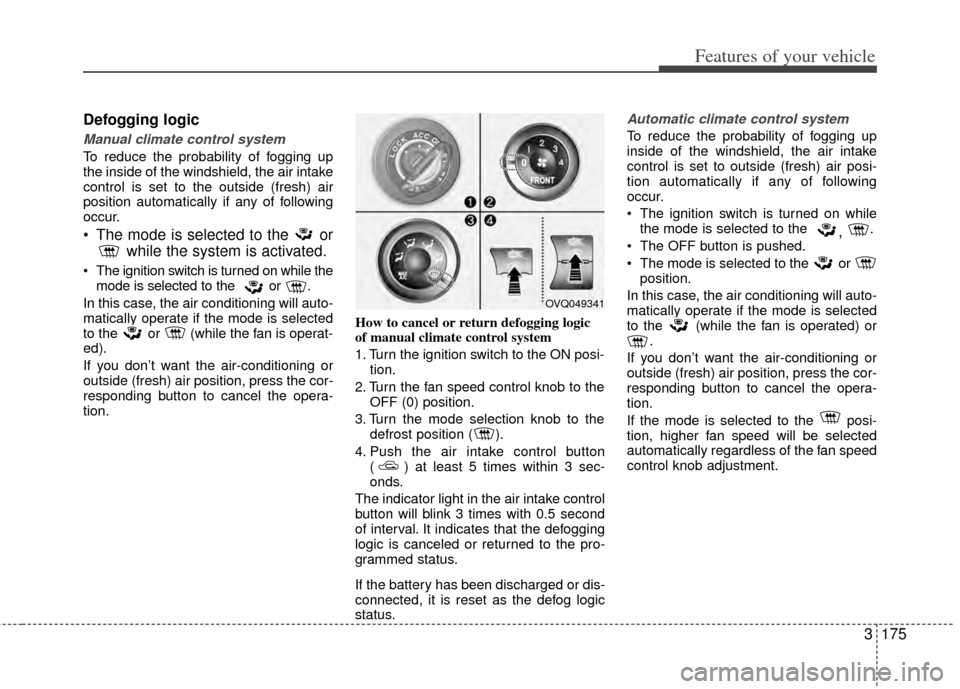
tion. How to cancel or return defogging logic
of manual climate control system
1. Turn the ignition switch to the ON posi-
tion.
2. Turn the fan speed control knob to the OFF (0) position.
3. Turn the mode selection knob to the defrost position ( ).
4. Push the air intake control button ( ) at least 5 times within 3 sec-
onds.
The indicator light in the air intake control
button will blink 3 times with 0.5 second
of interval. It indicates that the defogging
logic is canceled or returned to the pro-
grammed status.
If the battery has been discharged or dis-
connected, it is reset as the defog logic
status.
Automatic climate control system
To reduce the probability of fogging up
inside of the windshield, the air intake
control is set to outside (fresh) air posi-
tion automatically if any of following
occur.
The ignition switch is turned on while the mode is selected to the
, .
The OFF button is pushed.
The mode is selected to the or position.
In this case, the air conditioning will auto-
matically operate if the mode is selected
to the (while the fan is operated) or .
If you don’t want the air-conditioning or
outside (fresh) air position, press the cor-
responding button to cancel the opera-
tion.
If the mode is selected to the posi-
tion, higher fan speed will be selected
automatically regardless of the fan speed
control knob adjustment.
OVQ049341
Page 186 of 382

3177
Features of your vehicle
If the vehicle has a roof rack, you can
load cargo on top of your vehicle.
Crossbars and fixing components need-
ed to install the roof rack on your vehicle
may be obtained from an authorized Kia
dealer.
ROOF RACK (IF EQUIPPED)
OVQ069206
CAUTION
The crossbars should be placedin the proper load carrying posi-tions prior to placing items ontothe roof rack.
If the vehicle is equipped with a sunroof, be sure not to positioncargo onto the roof rack in such away that it could interfere with sunroof operation.
(Continued)
WARNING
The following specification is themaximum weight that can be
loaded onto the roof rack.
Distribute the load as evenly as
possible across the crossbars
and roof rack and secure the load
firmly.
The vehicle center of gravity will be higher when items are loaded
onto the roof rack. Avoid sudden
starts, braking, sharp turns,
abrupt maneuvers or high speeds
that may result in loss of vehicle
control or rollover causing an
accident.
(Continued)
(Continued)
Always drive slowly and turn cor-ners carefully when carrying
items on the roof rack. Severe
wind updrafts, caused by passing
vehicles or natural causes, can
cause sudden upward pressure
on items loaded on the roof rack.
This is especially true when car-
rying large, flat items such as
wood panels or mattresses. This
could cause the items to fall off
the roof rack and cause damage
to your vehicle or those around
you.
To prevent damage or loss of cargo while driving, check fre-
quently before or while driving to
make sure the items on the roof
rack are securely fastened.
CAUTION
If the vehicle has a sunroof, do not position the roof rack loadsso that they could interfere with the sunroof.
Loading cargo or luggage above specification on the roof rack maydamage your vehicle.
(Continued)
When carrying cargo on the roof rack, take the necessary precau-tions to make sure the cargo doesnot damage the roof of the vehicle.
When carrying large objects on the roof rack, make sure they donot exceed the overall roof lengthor width.
ROOF 165 lbs. (75 kg)
RACK EVENLY DISTRIBUTED
Page 190 of 382
3181
Features of your vehicle
Reprogramming a single
HomeLink®button
To program a device to HomeLink®using
a HomeLink®button previously trained,
follow these steps:
1.
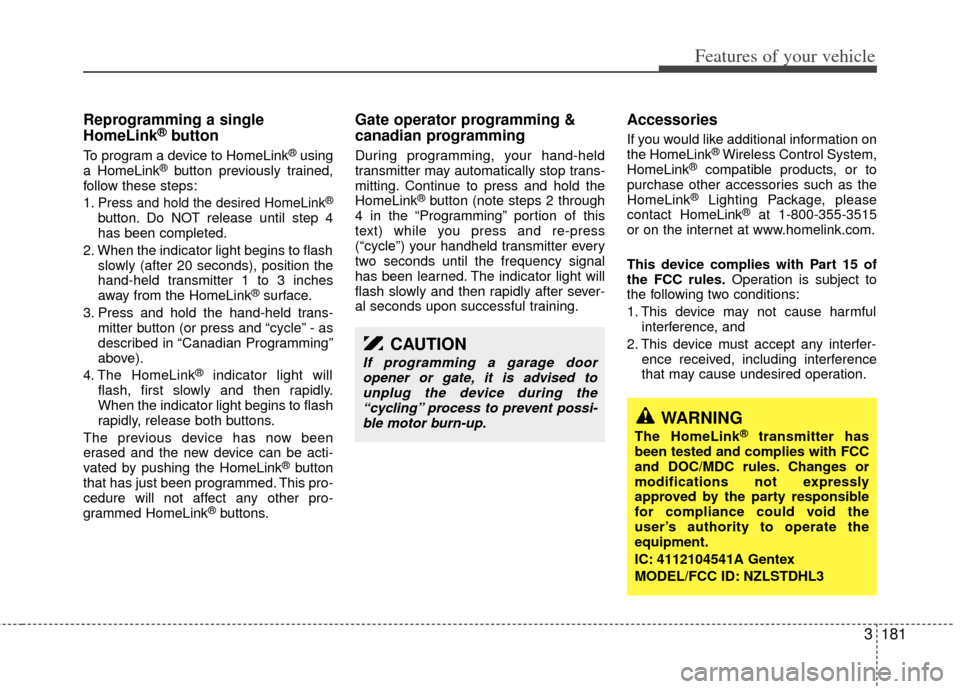
Press and hold the desired HomeLink®
button. Do NOT release until step 4
has been completed.
2. When the indicator light begins to flash slowly (after 20 seconds), position the
hand-held transmitter 1 to 3 inches
away from the HomeLink
®surface.
3. Press and hold the hand-held trans- mitter button (or press and “cycle” - as
described in “Canadian Programming”
above).
4. The HomeLink
®indicator light will
flash, first slowly and then rapidly.
When the indicator light begins to flash
rapidly, release both buttons.
The previous device has now been
erased and the new device can be acti-
vated by pushing the HomeLink
®button
that has just been programmed. This pro-
cedure will not affect any other pro-
grammed HomeLink
®buttons.
Gate operator programming &
canadian programming
During programming, your hand-held
transmitter may automatically stop trans-
mitting. Continue to press and hold the
HomeLink
®button (note steps 2 through
4 in the “Programming” portion of this
text) while you press and re-press
(“cycle”) your handheld transmitter every
two seconds until the frequency signal
has been learned. The indicator light will
flash slowly and then rapidly after sever-
al seconds upon successful training.
Accessories
If you would like additional information on
the HomeLink®Wireless Control System,
HomeLink®compatible products, or to
purchase other accessories such as the
HomeLink
®Lighting Package, please
contact HomeLink®at 1-800-355-3515
or on the internet at www.homelink.com.
This device complies with Part 15 of
the FCC rules. Operation is subject to
the following two conditions:
1. This device may not cause harmful interference, and
2. This device must accept any interfer- ence received, including interference
that may cause undesired operation.
CAUTION
If programming a garage dooropener or gate, it is advised to unplug the device during the“cycling” process to prevent possi-ble motor burn-up.
WARNING
The HomeLink®transmitter has
been tested and complies with FCC
and DOC/MDC rules. Changes or
modifications not expressly
approved by the party responsible
for compliance could void the
user’s authority to operate the
equipment.
IC: 4112104541A Gentex
MODEL/FCC ID: NZLSTDHL3
Page 194 of 382
3185
Features of your vehicle
Reprogramming a single
HomeLink®button
To program a device to HomeLink®using
a HomeLink®button previously trained,
follow these steps:
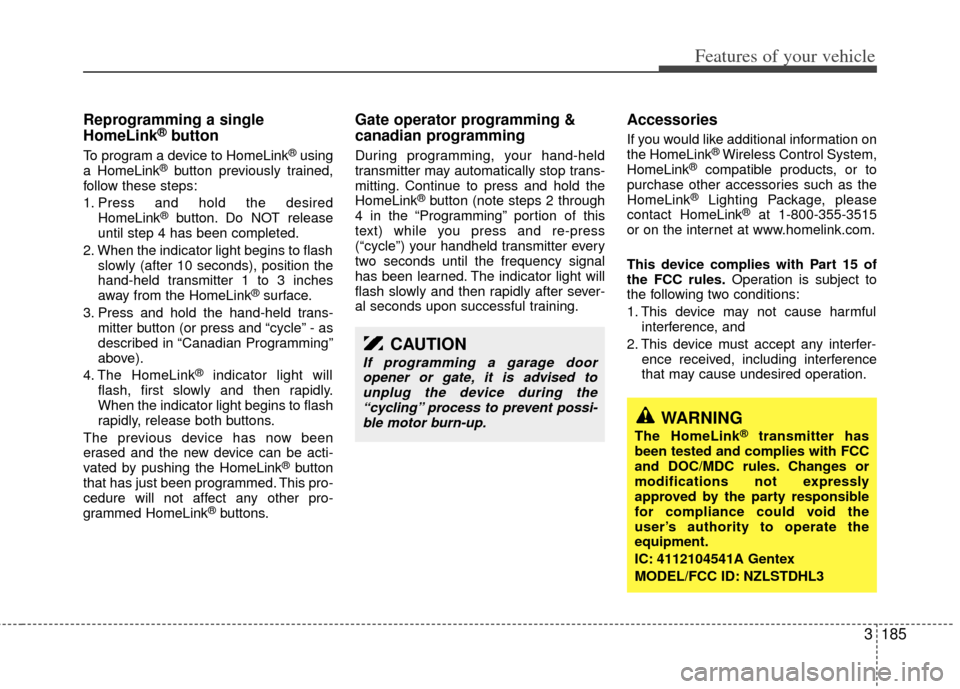
1. Press and hold the desired HomeLink
®button. Do NOT release
until step 4 has been completed.
2. When the indicator light begins to flash slowly (after 10 seconds), position the
hand-held transmitter 1 to 3 inches
away from the HomeLink
®surface.
3. Press and hold the hand-held trans- mitter button (or press and “cycle” - as
described in “Canadian Programming”
above).
4. The HomeLink
®indicator light will
flash, first slowly and then rapidly.
When the indicator light begins to flash
rapidly, release both buttons.
The previous device has now been
erased and the new device can be acti-
vated by pushing the HomeLink
®button
that has just been programmed. This pro-
cedure will not affect any other pro-
grammed HomeLink
®buttons.
Gate operator programming &
canadian programming
During programming, your hand-held
transmitter may automatically stop trans-
mitting. Continue to press and hold the
HomeLink
®button (note steps 2 through
4 in the “Programming” portion of this
text) while you press and re-press
(“cycle”) your handheld transmitter every
two seconds until the frequency signal
has been learned. The indicator light will
flash slowly and then rapidly after sever-
al seconds upon successful training.
Accessories
If you would like additional information on
the HomeLink®Wireless Control System,
HomeLink®compatible products, or to
purchase other accessories such as the
HomeLink
®Lighting Package, please
contact HomeLink®at 1-800-355-3515
or on the internet at www.homelink.com.
This device complies with Part 15 of
the FCC rules. Operation is subject to
the following two conditions:
1. This device may not cause harmful interference, and
2. This device must accept any interfer- ence received, including interference
that may cause undesired operation.
CAUTION
If programming a garage dooropener or gate, it is advised tounplug the device during the“cycling” process to prevent possi-ble motor burn-up.
WARNING
The HomeLink®transmitter has
been tested and complies with FCC
and DOC/MDC rules. Changes or
modifications not expressly
approved by the party responsible
for compliance could void the
user’s authority to operate the
equipment.
IC: 4112104541A Gentex
MODEL/FCC ID: NZLSTDHL3
Page 211 of 382
Features of your vehicle
202
3
Using RADIO, SETUP, VOLUME
and AUDIO CONTROL
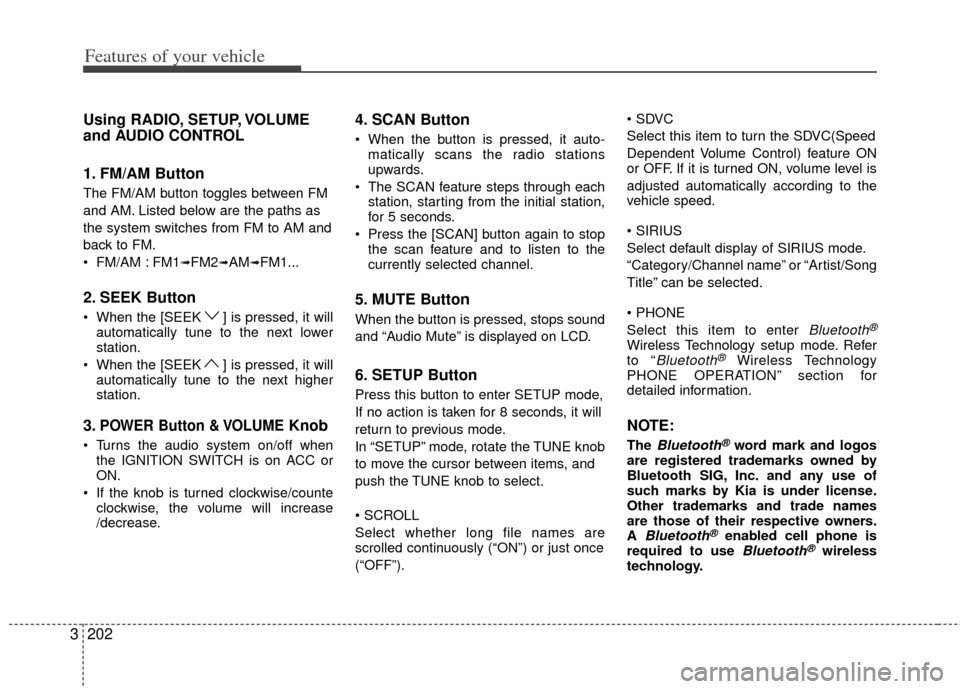
1. FM/AM Button
The FM/AM button toggles between FM
and AM. Listed below are the paths as
the system switches from FM to AM and
back to FM.
FM/AM : FM1
➟FM2➟AM➟FM1...
2. SEEK Button
When the [SEEK ] is pressed, it will
automatically tune to the next lower
station.
When the [SEEK ] is pressed, it will automatically tune to the next higher
station.
3.POWER Button & VOLUMEKnob
Turns the audio system on/off whenthe IGNITION SWITCH is on ACC or
ON.
If the knob is turned clockwise/counte clockwise, the volume will increase
/decrease.
4. SCAN Button
When the button is pressed, it auto-matically scans the radio stations
upwards.
The SCAN feature steps through each station, starting from the initial station,
for 5 seconds.
Press the [SCAN] button again to stop the scan feature and to listen to the
currently selected channel.
5. MUTE Button
When the button is pressed, stops sound
and “Audio Mute” is displayed on LCD.
6. SETUP Button
Press this button to enter SETUP mode,
If no action is taken for 8 seconds, it will
return to previous mode.
In “SETUP” mode, rotate the TUNE knob
to move the cursor between items, and
push the TUNE knob to select.
Select whether long file names are
scrolled continuously (“ON”) or just once
(“OFF”).
Select this item to turn the SDVC(Speed
Dependent Volume Control) feature ON
or OFF. If it is turned ON, volume level is
adjusted automatically according to the
vehicle speed.
Select default display of SIRIUS mode.
“Category/Channel name” or “Artist/Song
Title” can be selected.
Select this item to enter
Bluetooth®
Wireless Technology setup mode. Refer
to “Bluetooth®Wireless Technology
PHONE OPERATION” section for
detailed information.
NOTE:
The Bluetooth®word mark and logos
are registered trademarks owned by
Bluetooth SIG, Inc. and any use of
such marks by Kia is under license.
Other trademarks and trade names
are those of their respective owners.
A
Bluetooth®enabled cell phone is
required to use Bluetooth®wireless
technology.
Page 212 of 382
3203
Features of your vehicle
7. TUNE & AUDIO Control Knob
Rotate the knob clockwise or counter
clock wise to increase or decrease from
current frequency.
(AM 10 kHz, FM 200 kHz)
Pressing the button changes the BASS,
MIDDLE, TREBLE, FADER and BAL-
ANCE TUNE mode. The mode selected
is shown on the display. After selecting
each mode, rotate the Audio control knob
clockwise or counterclockwise.
Press this button while holding [SETUP]
button to activate / inactivate the item to.
Select SETUP item using left and right
function of the Tune button.
To increase the BASS, rotate the knob
clockwise, while to decrease the BASS,
rotate the knob counterclockwise.
To increase the MIDDLE, rotate the knob
clockwise, while to decrease the MID-
DLE, rotate the knob counterclockwise. Control
To increase the TREBLE, rotate the knob
clockwise, while to decrease the TRE-
BLE, rotate the knob counterclockwise.
Turn the control knob clockwise to
emphasize rear speaker sound (front
speaker sound will be attenuated). When
the control knob is turned counterclock-
wise, front speaker sound will be empha-
sized (rear speaker sound will be attenu-
ated).
Rotate the knob clockwise to emphasize
right speaker sound (left speaker sound
will be attenuated). When the control
knob is turned counter clockwise, left
speaker sound will be emphasized (right
speaker sound will be attenuated).
8. PRESET Buttons
onds to play the station saved in each
button.
seconds or longer to save the current
station to the respective button with a
beep.
Page 214 of 382
3205
Features of your vehicle
Using CD Player
1. CD Slot
Insert a CD label side up and gently push
in while ignition switch is on ACC or ON.
The audio automatically switches to CD
mode and begins to play the CD. If the
audio was turned off, audio power will
automatically turned on as the CD is
inserted.
This audio only recognizes 12cm-size,CD-DA (Audio CD) or ISO data-CD
(MP3 CD).
If UDF data-CD or non-CD (e.g. DVD) is inserted, "Reading Error" message
will be displayed and the disc will be
ejected.
2. CD Indicator(CD Player :PA710S)
When car ignition switch is ACC or ON
and if the CD is loaded, this indicator is lit.
If the CD is ejected the Icon is off.
3. CD Eject Button
Press button to to eject the CD. This
button works regardless of ignition
switch status.
ALL EJECT(CD Changer :PA760S)
Press this button for more than 0.8
seconds to eject all discs inside the
deck in respective order.
4. CD LOAD Button
This compact disc player will accommo-
date up to six compact discs.To insert
discs into the player, perform the follow-
ing:
Press and release the [LOAD] Button.
Green light on the slot will be illuminat-ed and the lowest number of empty
slot will blink on the display. After “Wait”
is displayed on the LCD, the slot will
open with “Insert CD” displayed on the
LCD.
Insert a disc partway into the slot, label side up. The player will pull the disc in.
When the disc is inserted, the disc will
begin to play automatically.
✽ ✽ NOTICE
• The disc can be only inserted while the
green light is blinking on the slot.
• This CD player is suitable only for 12cm discs, do not use irregular
shaped CDs.
To insert multiple discs:
Press and hold the [LOAD] button for
one second or more. You will then hear
a beep sound and the green light on
the slot will be illuminated, and the
numbers of empty disc will blink on the
display.
After “Wait” is displayed on the LCD with the lowest number of empty slot
blinking, the slot will open with “Insert
CD” displayed on the LCD.
Insert a disc partway into the slot, label side up. The player will pull the disc in.
Once the disc is loaded, the numbers
of the empty disc will blink on the dis-
play continuously.
If the next “Insert CD” is displayed
when the slot is illuminated, you can
then load another disc.
Load the remaining disc by following procedures 1 and 2. When you finished
loading 6 discs, the CD player will
begin to play the last CD loaded.
CAUTION
Do not insert a CD if CD indicator
is lit.
Page 224 of 382
3215
Features of your vehicle
Satellite Radio channels:SIRIUS Satellite Radio has over 130 chan-
nels, including 69 channels of 100% com-
mercial-free music, plus sports, news, talk
and entertainment available nationwide in
your vehicle. For more information and a
complete list of SIRIUS Satellite Radio
channels, visit sirius.com in the United
States, sirius-canada.ca in Canada, or call
SIRIUS at 1-888-539-7474.
Satellite Radio reception factors:
To receive the satellite signal, your vehi-
cle has been equipped with a satellite
radio antenna located on the roof of your
vehicle. The vehicle roof provides the
best location for an unobstructed, open
view of the sky, a requirement of a satel-
lite radio system. Like AM/FM, there are
several factors that can affect satellite
radio reception performance:
Antenna obstructions: For optimalreception performance, keep the
antenna clear of snow and ice build-up
and keep luggage and other material
as far away from the antenna as possi-
ble.
Terrain: Hills, mountains, tall buildings, bridges, tunnels, freeway overpasses,
parking garages, dense tree foliage
and thunderstorms can interfere with
your reception.SIRIUS Satellite Radio service:
SIRIUS Satellite Radio is a subscription-
based satellite radio service that broad-
casts music, sports, news and entertain-
ment programming to radio receivers,
which are available for installation in
motor vehicles or factory installed, as
well as for the home, portable and wire-
less devices, and through an Internet
connection on personal computer.
Vehicles that are equipped with a factory
installed SIRIUS Satellite Radio system
include:
Hardware and an introductory trial sub-scription term, which begins on the
date of sale or lease of the vehicle.
For a small upgrade fee, access to SIRIUS music channels, and other
select channels over the Internet using
any computer connected to the
Internet (U.S. customers only).
For information on extended subscrip-
tion terms, contact SIRIUS at 1-888-
539-7474.
NOTE:
SiriusXM service requires a subscrip-
tion, sold separately, after 3 month trial
included with vehicle purchase. If you
decide to continue your SiriusXM serv-
ice at the end of your trial subscription,
the plan you choose will automatically
renew and bill at then current rates until
you call SiriusXM at 1-866-635-2349 to
cancel. See our Customer Agreement
for complete terms at
www.siriusxm.com. Programming sub-
ject to change. Sirius satellite service is
available only to those at least 18 and
older in the 48 contiguous USA, D.C.,
and PR (with coverage limitations).
Traffic information not available in all
markets. See siriusxm.com/traffic for
details. SiriusXM and all related marks
and logos are trademarks of SiriusXM
Radio Inc. Subscriptions governed by
the SIRIUS Terms & Conditions available
at www
.sirius.com / serviceterms.
Available only in the 48 contiguous
United States and the District of
Columbia. Service available in Canada;
see www
.siriuscanada.caKia shall not be responsible for any such
programming changes.
Satellite Radio Electronic Serial
Number (ESN):This 12-digit Satellite
Serial Number is needed to re-activate,
modify or track your satellite radio account.
You will need this number when communi-
cating with SIRIUS.
SIRIUS Satellite Radio information (if equipped)