Page 349 of 665
Bluetooth® Wireless Technology
(for Bluetooth®Wireless
Te ch n o l o g yequipped model)
Pairing a Bluetooth®Wireless
Technology wireless technolo-
gy Device
What is Bluetooth®Wireless
Technology Pairing?
Pair ing refers to the process of syn-
chronizing your Bluetooth®Wireless
Technology phone or device with the
car audio system for connection.
Pair ing is necessar y to connect and
use the Bluetooth®Wireless
Technology feature.
Pairing Key / Key on
the Steering Remote Controller
When No Devices have been Paired
1. Press the key or the
key on the steering remote con-
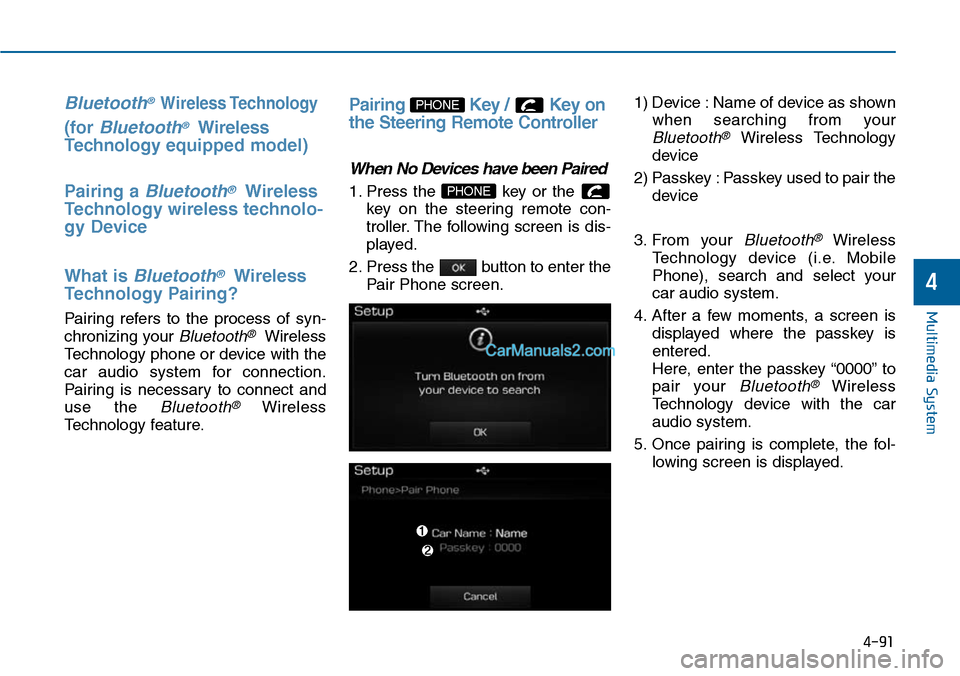
troller. The following screen is dis-
played.
2. Press the button to enter the
Pair Phone screen.
1) Device : Name of device as shown
when searching from your
Bluetooth®Wireless Technology
device
2) Passkey : Passkey used to pair the
device
3. From your Bluetooth®Wireless
Te c h n o l o g y d e v i c e ( i . e . M o b i l e
Phone), search and select your
car audio system.
4. After a few moments, a screen is
displayed where the passkey is
entered.
Here, enter the passkey “0000” to
pair your Bluetooth®Wireless
Technology device with the car
audio system.
5. Once pairing is complete, the fol-
lowing screen is displayed.
PHONE
PHONE
4-91
Multimedia System
4
Page 350 of 665
Information
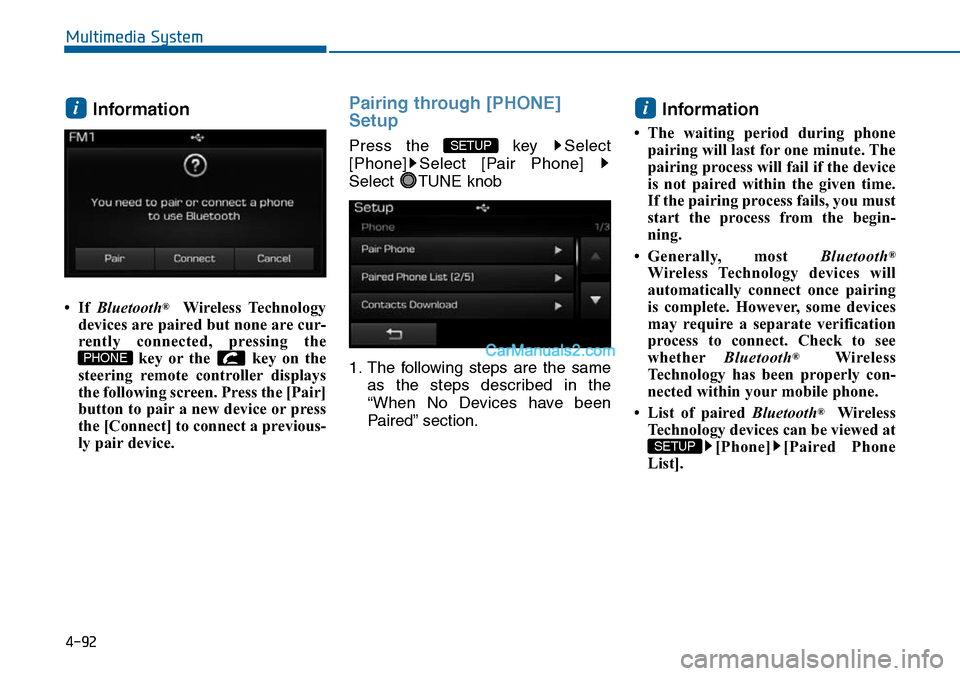
• If Bluetooth®Wireless Technology
devices are paired but none are cur-
rently connected, pressing the
key or the key on the
steering remote controller displays
the following screen. Press the [Pair]
button to pair a new device or press
the [Connect] to connect a previous-
ly pair device.
Pairing through [PHONE]
Setup
Press the key Select
[Phone] Select [Pair Phone]
Select TUNE knob
1. The following steps are the same
as the steps described in the
“When No Devices have been
Paired” section.
Information
• The waiting period during phone
pairing will last for one minute. The
pairing process will fail if the device
is not paired within the given time.
If the pairing process fails, you must
start the process from the begin-
ning.
•Generally, most Bluetooth®
Wireless Technology devices will
automatically connect once pairing
is complete. However, some devices
may require a separate verification
process to connect. Check to see
whetherBluetooth®Wireless
Technology has been properly con-
nected within your mobile phone.
• List of paired Bluetooth®Wireless
Technology devices can be viewed at
[Phone] [Paired Phone
List].
SETUP
i
SETUP
PHONE
i
4-92
Multimedia System
Page 351 of 665
Connecting a Device
Press the key Select
[Phone] Select [Paired Phone List]
1) Connected Phone : Device that is
currently connected
2) Paired Phone : Device that is
paired but not connected
From the paired phone list, select the
device you want to connect and
press the button.
Changing Priority
What is Priority?
It is possible to pair up to five
Bluetooth®Wireless Technology
devices with the car audio system.
As a result, the “Change Priority’ fea-
ture is used to set the connection pri-
ority of paired phones. However, the
most recently connected phone will
always be set as the highest priority.
Press the key Select
[Phone] Select [Paired Phone List]
SETUP
ConnectSETUP
4-93
Multimedia System
4
Page 352 of 665
4-94
Multimedia System
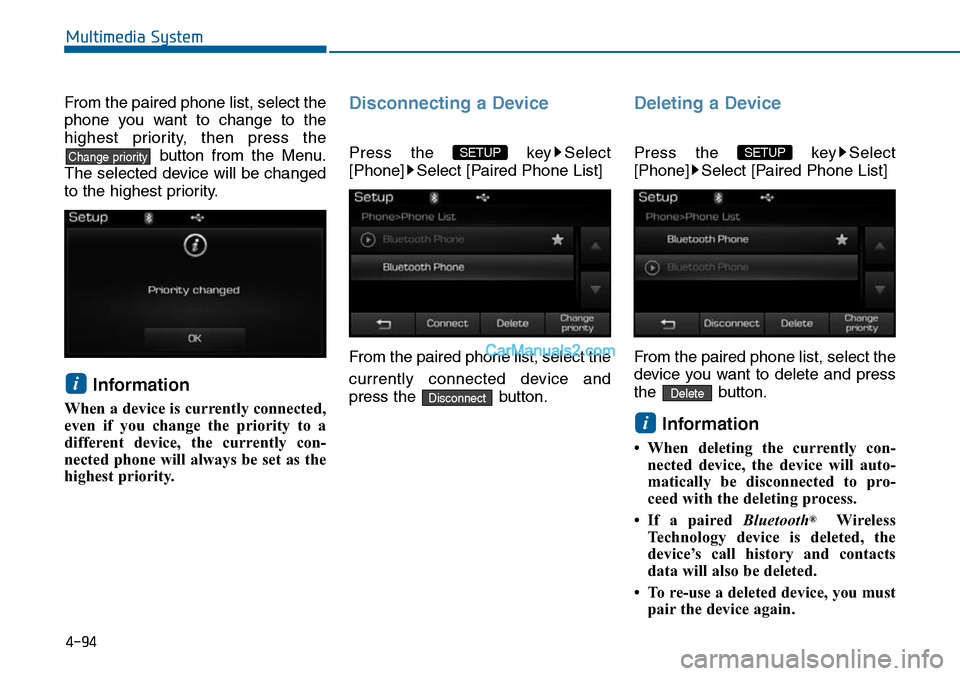
From the paired phone list, select the
phone you want to change to the
highest priority, then press the
button from the Menu.
The selected device will be changed
to the highest priority.
Information
When a device is currently connected,
even if you change the priority to a
different device, the currently con-
nected phone will always be set as the
highest priority.
Disconnecting a Device
Press the key Select
[Phone] Select [Paired Phone List]
From the paired phone list, select the
currently connected device and
press the button.
Deleting a Device
Press the key Select
[Phone] Select [Paired Phone List]
From the paired phone list, select the
device you want to delete and press
the button.
Information
• When deleting the currently con-
nected device, the device will auto-
matically be disconnected to pro-
ceed with the deleting process.
•If a paired Bluetooth®Wireless
Te c h n o l o g y d e v i c e i s d e l e t e d , t h e
device’s call history and contacts
data will also be deleted.
• To re-use a deleted device, you must
pair the device again.
i
Delete
SETUP
Disconnect
SETUP
i
Change priority
Page 353 of 665
USING Bluetooth®Wireless
Technology
Phone Menu Screen
Phone Menus
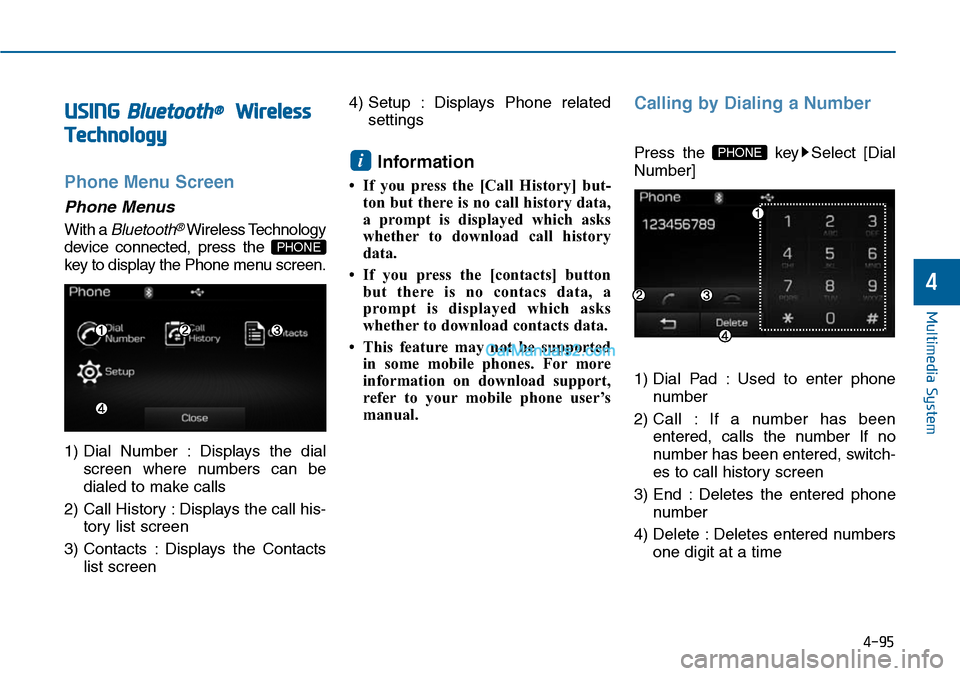
With a Bluetooth®Wireless Technology
device connected, press the
key to display the Phone menu screen.
1) Dial Number : Displays the dial
screen where numbers can be
dialed to make calls
2) Call History : Displays the call his-
tory list screen
3) Contacts : Displays the Contacts
list screen
4) Setup : Displays Phone related
settings
Information
• If you press the [Call History] but-
ton but there is no call history data,
a prompt is displayed which asks
whether to download call history
data.
•If you press the [contacts] button
but there is no contacs data, a
prompt is displayed which asks
whether to download contacts data.
• This feature may not be supported
in some mobile phones. For more
information on download support,
refer to your mobile phone user’s
manual.
Calling by Dialing a Number
Press the key Select [Dial
Number]
1) Dial Pad : Used to enter phone
number
2) Call : If a number has been
entered, calls the number If no
number has been entered, switch-
es to call history screen
3) End : Deletes the entered phone
number
4) Delete : Deletes entered numbers
one digit at a time
PHONEi
PHONE
4-95
Multimedia System
4
Page 355 of 665
![Hyundai Sonata 2014 Owners Manual Call History
Press the key Select [Call
History]
A list of incoming, outgoing and
missed calls is displayed.
Press the button to down-
load the call history.
1) Call History :
- Displays re](/manual-img/35/16805/w960_16805-354.png "Hyundai Sonata 2014 Owners Manual Call History
Press the key Select [Call
History]
A list of incoming, outgoing and
missed calls is displayed.
Press the button to down-
load the call history.
1) Call History :
- Displays re")
Call History
Press the key Select [Call
History]
A list of incoming, outgoing and
missed calls is displayed.
Press the button to down-
load the call history.
1) Call History :
- Displays recent calls (call history)
- Connects call upon selection
2) Download : Download Recent Call
History
Contacts
Press the key Select
[Contacts]
The list of saved phone book entries
is displayed. Press the but-
ton to download the call history.
1) Contacts List :
- Displays downloaded contacts
entries
- Connects call upon selection
2) Download : Download contacts
entries
Information
• Up to 1,000 contacts entries can be
copied into car contacts.
•Upon downloading contacts data,
previously saved contacts data will
be deleted.
• Downloading is not possible if the
contacts download feature is turned
off within the Bluetooth®Wireless
Te c h n o l o g y d e v i c e . A l s o , s o m e
devices may require device authori-
zation upon attempting to down-
load. If downloading cannot be nor-
mally conducted, check the
Bluetooth®Wireless Technology
device setting or the screen state.
• Caller ID information will not be
displayed for unsaved callers.
• The download feature may not be
supported in some mobile phones.
Check to see that the Bluetooth®
Wireless Technology device sup-
ports the download feature.
i
Download
PHONE
Download
PHONE
4-97
Multimedia System
4
Page 356 of 665
4-98
Information
- Using the Voice Recognition
• When using the voice recognition
feature, only commands listed with-
in the user's manual are supported.
• Be aware that during the operation
of the voice recognition system,
pressing any key other than the
key or touching the screen will ter-
minate voice recognition mode.
• For superior voice recognition per-
formance, position the microphone
used for voice recognition above the
head of the driver’s seat and main-
tain a proper position when saying
commands.
(Continued)
(Continued)
•Within the following situations,
voice recognition may not function
properly due to external sound.
- When the windows and sunroof
are open
- When the wind of the cooling /
heating device is strong
-When entering and passing
through tunnels
-When driving on rugged and
uneven roads
- During severe rain (heavy rains,
windstorms)
• Phone related voice commands can
be used only when a Bluetooth®
Wireless Technology device is con-
nected.
•When making calls by stating a
name, the corresponding contact
must be downloaded and stored
within the audio system.
(Continued)
(Continued)
• After downloading the Bluetooth®
Wireless Technology phone book, it
takes some times to convert the
phone book data into voice informa-
tion. During this time, voice recogni-
tion may not properly operate.
• Pronounce the voice commands nat-
urally and clearly as if in a normal
conversation.
i
Multimedia System
Page 357 of 665
4-99
Multimedia System
4
VOICE RECOGNITION
(if equipped)
Using Voice Recognition
Starting Voice Recognition
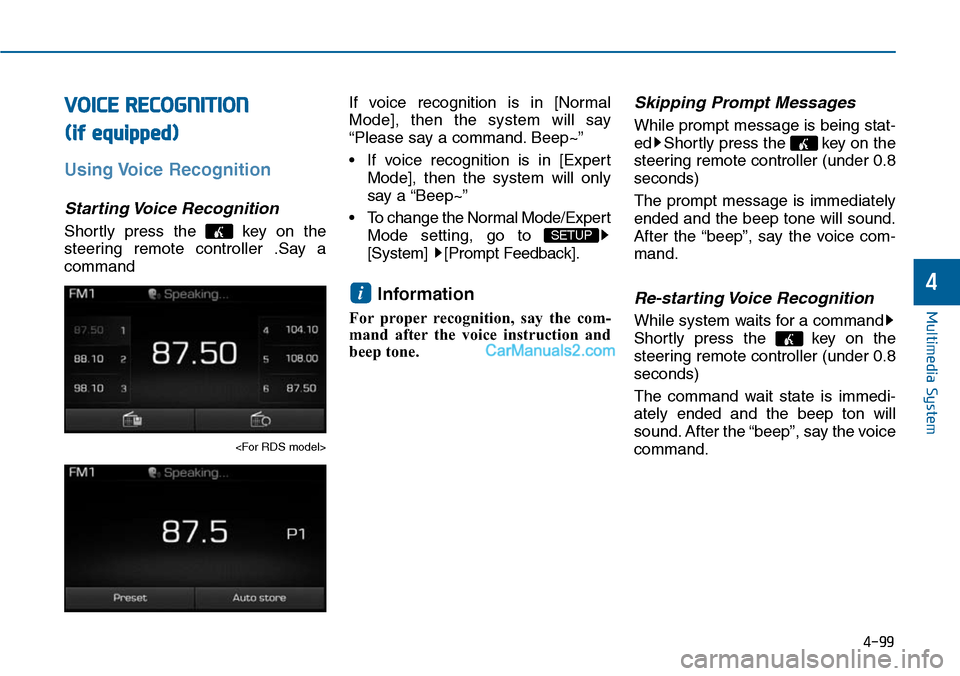
Shortly press the key on the
steering remote controller .Say a
command
If voice recognition is in [Normal
Mode], then the system will say
“Please say a command. Beep~”
• If voice recognition is in [Expert
Mode], then the system will only
say a “Beep~”
•To change the Normal Mode/Expert
Mode setting, go to
[System] [Prompt Feedback].
Information
For proper recognition, say the com-
mand after the voice instruction and
beep tone.
Skipping Prompt Messages
While prompt message is being stat-
ed Shortly press the key on the
steering remote controller (under 0.8
seconds)
The prompt message is immediately
ended and the beep tone will sound.
After the “beep”, say the voice com-
mand.
Re-starting Voice Recognition
While system waits for a command
Shortly press the key on the
steering remote controller (under 0.8
seconds)
The command wait state is immedi-
ately ended and the beep ton will
sound. After the “beep”, say the voice
command.
i
SETUP
![Hyundai Sonata 2014 Owners Manual Connecting a Device
Press the key Select
[Phone] Select [Paired Phone List]
1) Connected Phone : Device that is
currently connected
2) Paired Phone : Device that is
paired but not connected](/manual-img/35/16805/w960_16805-350.png "Hyundai Sonata 2014 Owners Manual Connecting a Device
Press the key Select
[Phone] Select [Paired Phone List]
1) Connected Phone : Device that is
currently connected
2) Paired Phone : Device that is
paired but not connected")