Page 325 of 665
4-67
Multimedia System
4
Rewinding / Fast-forwarding Files
While playing, press and hold the
key (over 0.8 seconds) to
rewind or fast-forward the current file.
Scan
Press the key to play the first
10 seconds of each file.
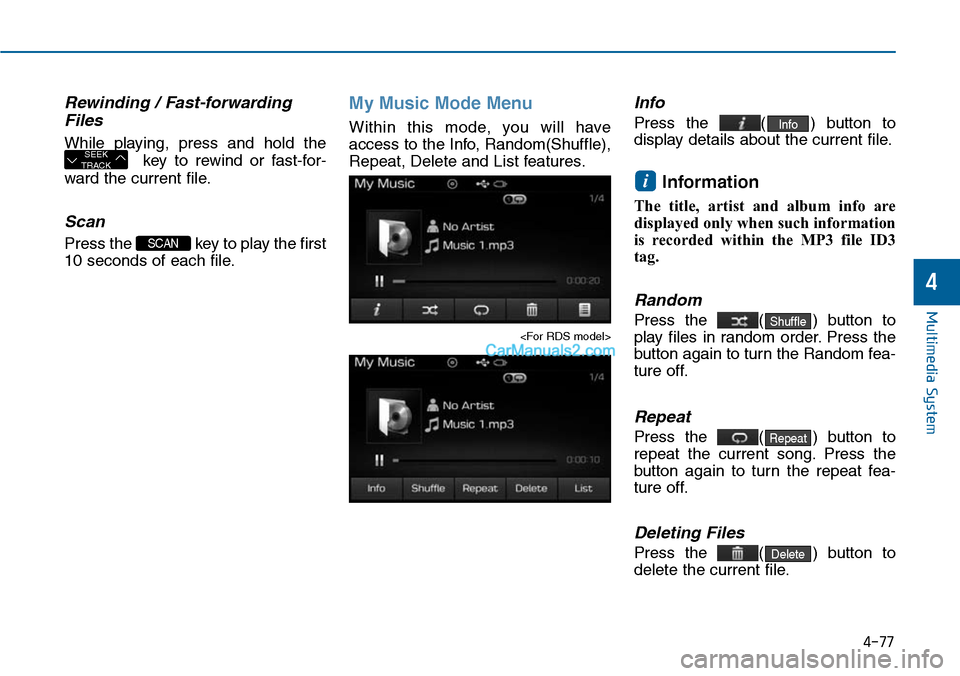
Searching Folders
Press the key to select
and search folders.
Once the desired folder is displayed,
press the TUNE knob to select.
The first file within the selected fold-
er will begin playing.
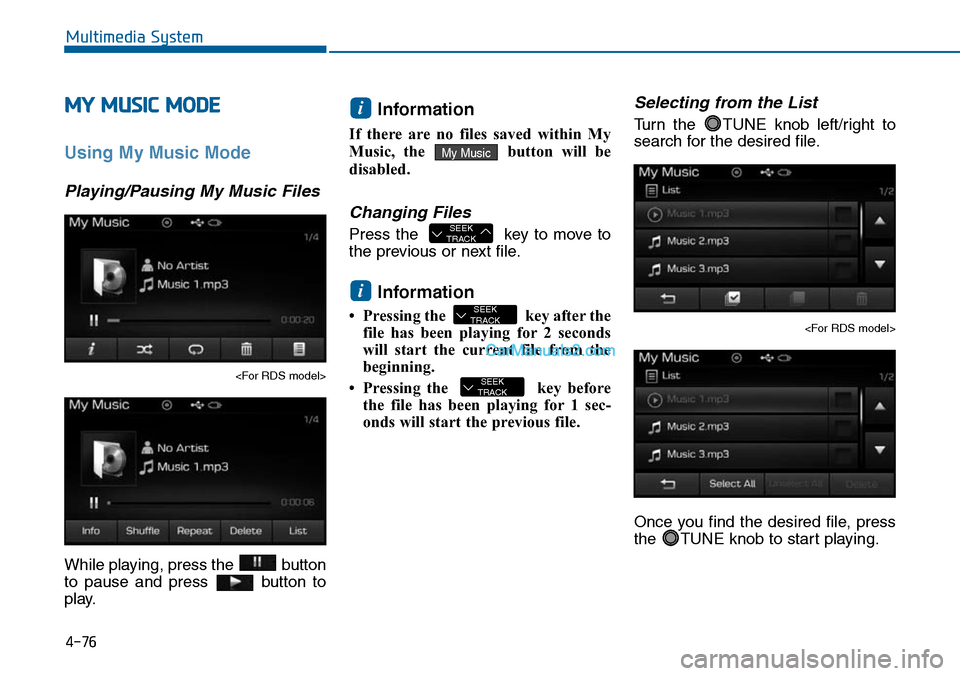
MP3 CD Mode Menu
Within this mode, you will have
access to the Info, Random(Shuffle),
Repeat, Copy and List features.
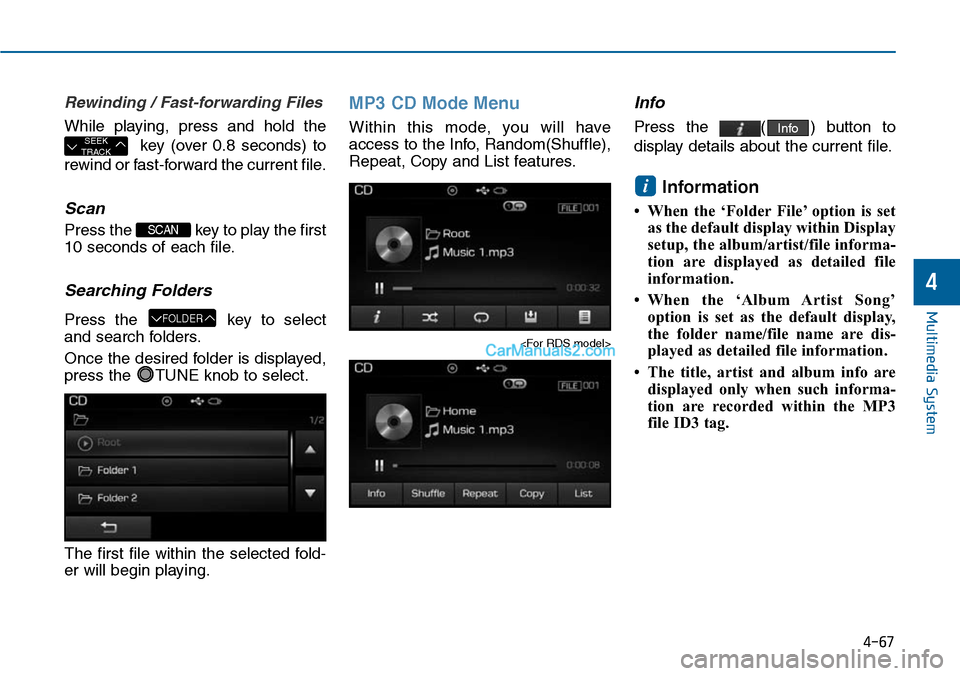
Info
Press the ( ) button to
display details about the current file.
Information
• When the ‘Folder File’ option is set
as the default display within Display
setup, the album/artist/file informa-
tion are displayed as detailed file
information.
•When the ‘Album Artist Song’
option is set as the default display,
the folder name/file name are dis-
played as detailed file information.
• The title, artist and album info are
displayed only when such informa-
tion are recorded within the MP3
file ID3 tag.
i
Info
FOLDER
SCAN
SEEKTRACK
Page 327 of 665
4-69
Multimedia System
4
USB MODE
Using USB Mode
Playing/Pausing USB Files
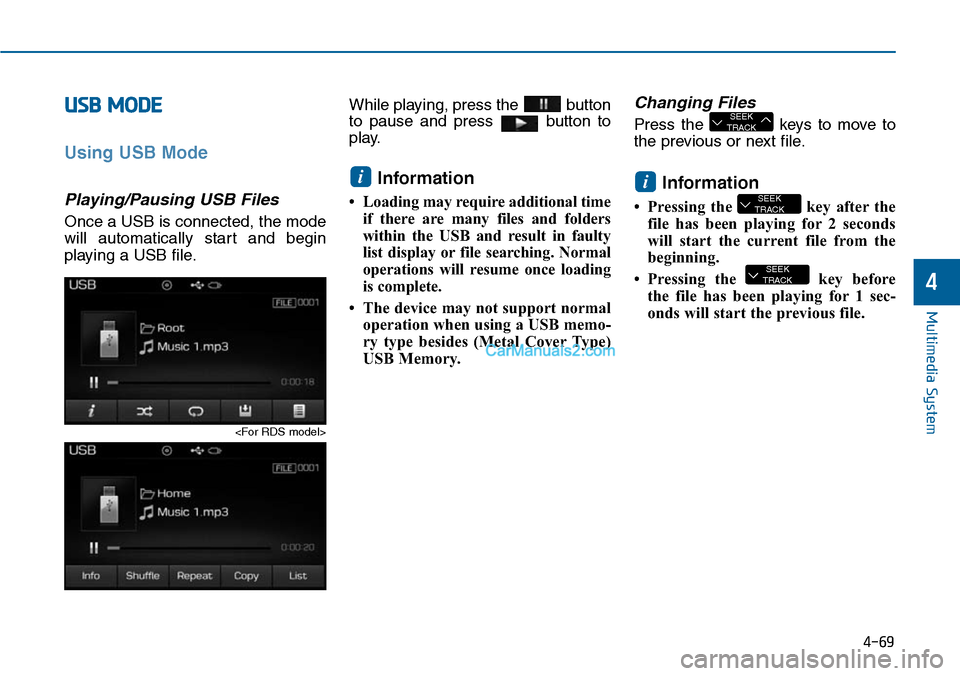
Once a USB is connected, the mode
will automatically start and begin
playing a USB file.
While playing, press the button
to pause and press button to
play.
Information
•Loading may require additional time
if there are many files and folders
within the USB and result in faulty
list display or file searching. Normal
operations will resume once loading
is complete.
• The device may not support normal
operation when using a USB memo-
ry type besides (Metal Cover Type)
USB Memory.
Changing Files
Press the keys to move to
the previous or next file.
Information
• Pressing the key after the
file has been playing for 2 seconds
will start the current file from the
beginning.
• Pressing the key before
the file has been playing for 1 sec-
onds will start the previous file.
SEEKTRACK
SEEKTRACK
i
SEEKTRACK
i
Page 328 of 665
4-70
Multimedia System
Selecting from the List
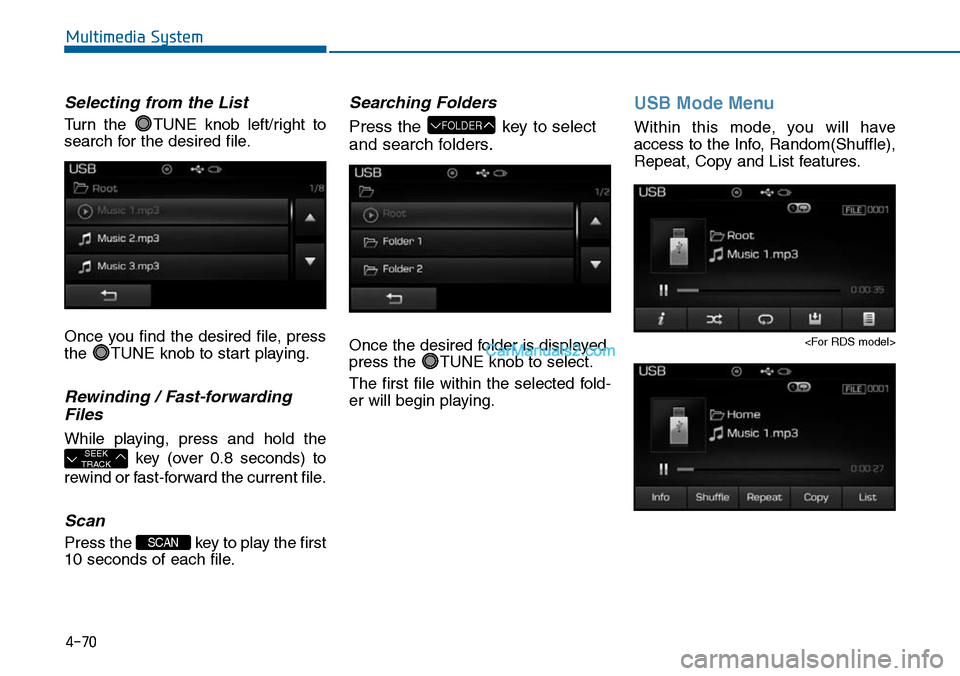
Turn the TUNE knob left/right to
search for the desired file.
Once you find the desired file, press
the TUNE knob to start playing.
Rewinding / Fast-forwarding
Files
While playing, press and hold the
key (over 0.8 seconds) to
rewind or fast-forward the current file.
Scan
Press the key to play the first
10 seconds of each file.
Searching Folders
Press the key to select
and search folders.
Once the desired folder is displayed,
press the TUNE knob to select.
The first file within the selected fold-
er will begin playing.
USB Mode Menu
Within this mode, you will have
access to the Info, Random(Shuffle),
Repeat, Copy and List features.
FOLDER
SCAN
SEEKTRACK
Page 330 of 665
4-72
Multimedia System
iPod®MODE
Using iPod®Mode
Playing/Pausing iPod®Songs
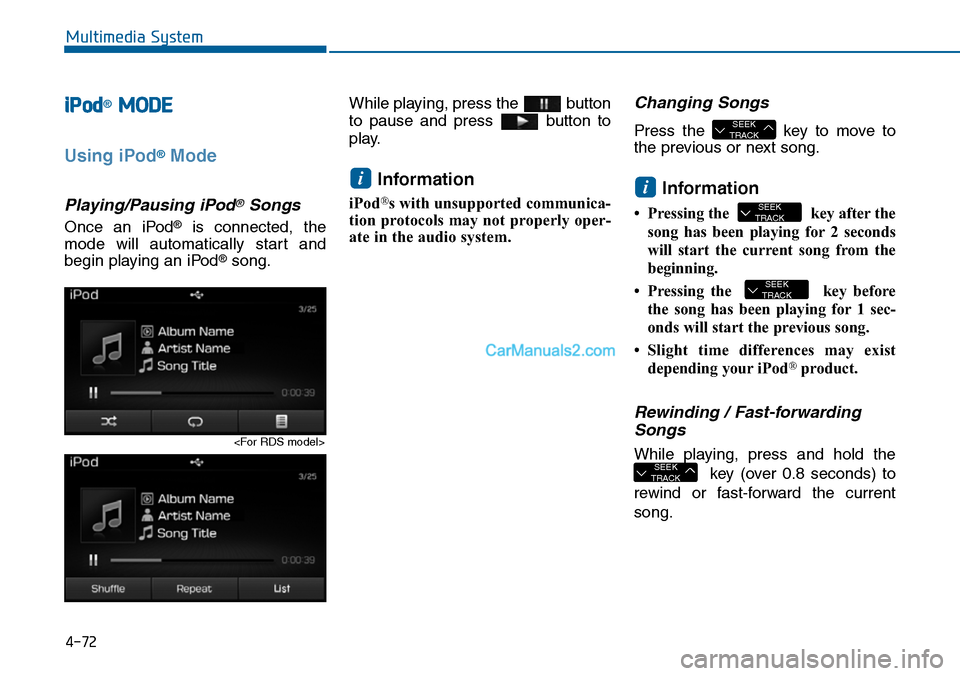
Once an iPod®is connected, the
mode will automatically start and
begin playing an iPod®song.
While playing, press the button
to pause and press button to
play.
Information
iPod®s with unsupported communica-
tion protocols may not properly oper-
ate in the audio system.
Changing Songs
Press the key to move to
the previous or next song.
Information
•Pressing the key afterthe
song has been playing for 2 seconds
will start the current song from the
beginning.
•Pressing the key before
the song has been playing for 1 sec-
onds will start the previous song.
•Slight time differences may exist
depending your iPod®product.
Rewinding / Fast-forwarding
Songs
While playing, press and hold the
key (over 0.8 seconds) to
rewind or fast-forward the current
song.
SEEKTRACK
SEEKTRACK
SEEKTRACK
i
SEEKTRACK
i
Page 333 of 665
4-75
List
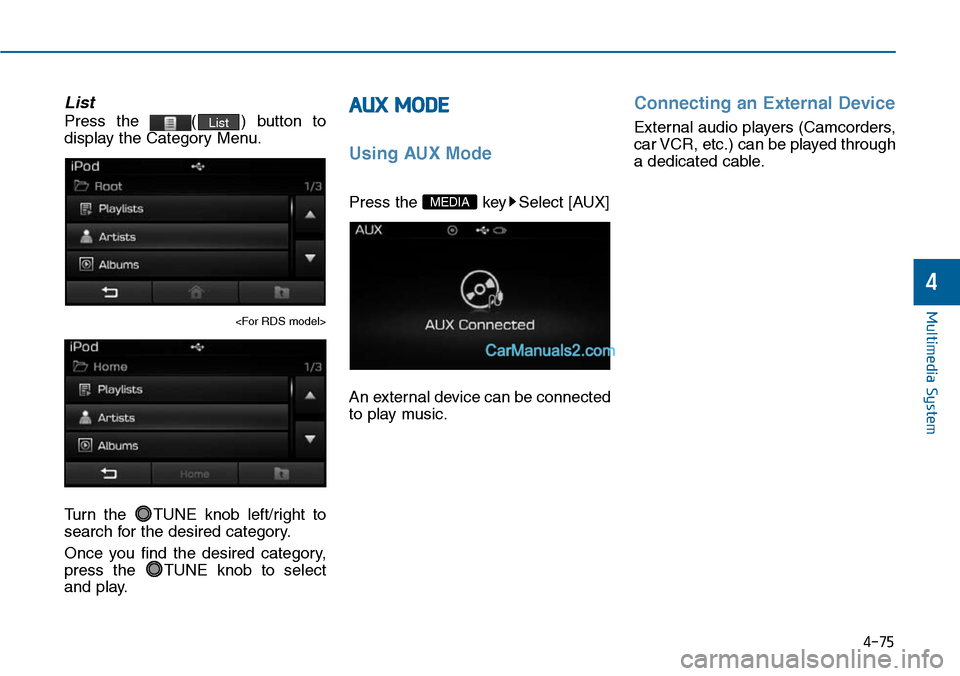
Press the ( ) button to
display the Category Menu.
Turn the TUNE knob left/right to
search for the desired category.
Once you find the desired category,
press the TUNE knob to select
and play.
AUX MODE
Using AUX Mode
Press the key Select [AUX]
An external device can be connected
to play music.
Connecting an External Device
External audio players (Camcorders,
car VCR, etc.) can be played through
a dedicated cable.
MEDIA
List
Multimedia System
4
Page 334 of 665
4-76
Multimedia System
MY MUSIC MODE
Using My Music Mode
Playing/Pausing My Music Files
While playing, press the button
to pause and press button to
play.
Information
If there are no files saved within My
Music, the button will be
disabled.
Changing Files
Press the key to move to
the previous or next file.
Information
• Pressing the key after the
file has been playing for 2 seconds
will start the current file from the
beginning.
• Pressing the key before
the file has been playing for 1 sec-
onds will start the previous file.
Selecting from the List
Turn the TUNE knob left/right to
search for the desired file.
Once you find the desired file, press
the TUNE knob to start playing.
SEEKTRACK
SEEKTRACK
i
SEEKTRACK
My Music
i
Page 335 of 665
4-77
Multimedia System
4
Rewinding / Fast-forwarding
Files
While playing, press and hold the
key to rewind or fast-for-
ward the current file.
Scan
Press the key to play the first
10 seconds of each file.
My Music Mode Menu
Within this mode, you will have
access to the Info, Random(Shuffle),
Repeat, Delete and List features.
Info
Press the ( ) button to
display details about the current file.
Information
The title, artist and album info are
displayed only when such information
is recorded within the MP3 file ID3
tag.
Random
Press the ( ) button to
play files in random order. Press the
button again to turn the Random fea-
ture off.
Repeat
Press the ( ) button to
repeat the current song. Press the
button again to turn the repeat fea-
ture off.
Deleting Files
Press the ( ) button to
delete the current file.
Delete
Repeat
Shuffle
i
Info
SCAN
SEEKTRACK
Page 337 of 665
4-79
Multimedia System
4
Bluetooth®Wireless
TechnologyAUDIO MODE
(for Bluetooth®Wireless
Technologyequipped model)
Using Bluetooth®Wireless
Technology Audio Mode
Playing/Pausing Bluetooth®
Wireless TechnologyAudio
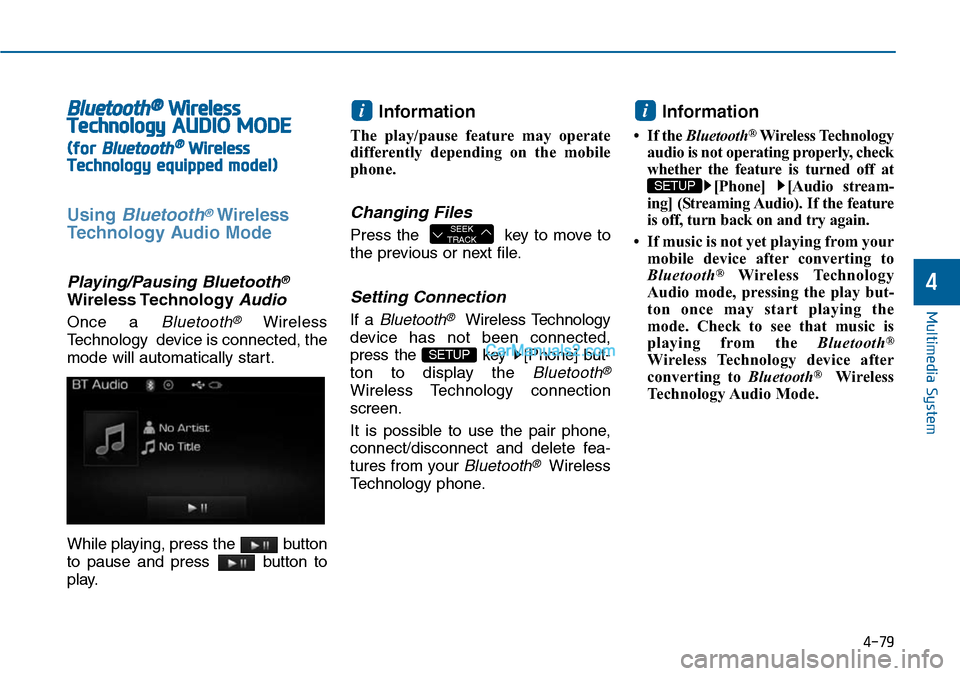
Once a Bluetooth®Wireless
Technology device is connected, the
mode will automatically start.
While playing, press the button
to pause and press button to
play.
Information
The play/pause feature may operate
differently depending on the mobile
phone.
Changing Files
Press the key to move to
the previous or next file.
Setting Connection
If a Bluetooth®Wireless Technology
device has not been connected,
press the key [Phone] but-
ton to display the Bluetooth®
Wireless Technology connection
screen.
It is possible to use the pair phone,
connect/disconnect and delete fea-
tures from your Bluetooth®Wireless
Technology phone.
Information
•If the Bluetooth®Wireless Technology
audio is not operating properly, check
whether the feature is turned off at
[Phone] [Audio stream-
ing] (Streaming Audio). If the feature
is off, turn back on and try again.
• If music is not yet playing from your
mobile device after converting to
Bluetooth®Wireless Technology
Audio mode, pressing the play but-
ton once may start playing the
mode. Check to see that music is
playing from the Bluetooth®
Wireless Technology device after
converting to Bluetooth®Wireless
Technology Audio Mode.
SETUP
i
SETUP
SEEKTRACK
i