Page 303 of 665
![Hyundai Sonata 2014 Owners Manual 4-45
Multimedia System
4
Information
Set [ Info] through the TUNE
knob or key.
Displays information of the current
song.
❈Press the key to turn off
info display.
Search
Set [ Search]th](/manual-img/35/16805/w960_16805-302.png "Hyundai Sonata 2014 Owners Manual 4-45
Multimedia System
4
Information
Set [ Info] through the TUNE
knob or key.
Displays information of the current
song.
❈Press the key to turn off
info display.
Search
Set [ Search]th")
4-45
Multimedia System
4
Information
Set [ Info] through the TUNE
knob or key.
Displays information of the current
song.
❈Press the key to turn off
info display.
Search
Set [ Search]through the TUNE
knob or key.
Displays iPod®category list.
❈Searching iPod®category is
key pressed, move to par-
ent category.
MENU : My Music Mode
In My Music mode, press key.
Repeat
Set [ RPT] through the TUNE knob
or key.
Repeats the currently playing song.
❈Press RPT again to turn repeat off.
Random
Set [ RDM] through the TUNEknob
or key.
Plays all songs within the currently
playing folder in random order.
❈Press RDM again to turn random
off.
Information
Set [ Info] through the TUNEknob
or key.
Displays information of the current
song.
❈Press the key to turn off
info display.
Delete
Set [ Delete] through the TUNE
knob or key.
•Deletes currently playing file
In the play screen, pressing delete
will delete the currently playing song.
•Deletes file from list
➀ Select the file you wish to delete
by using the TUNE knob.
➁Press the key and select
the delete menu to delete the
selected file.
MENU
4
MENU
3
2 RDM
1 RPT
MENU
MENU
4
MENU
3
Page 304 of 665
4-46
Multimedia System
Delete All
Set [ Del.All] through the TUNE
knob or key.
Deletes all songs of My Music.
Delete Selection
Press the key Set [ Del.Sel]
through the TUNEknob or key.
Songs within My Music are selected
and deleted.
➀Select the songs you wish to
delete from the list.
➁After selecting, press the
key and select the delete menu.
AUX
AUX is used to play exter nal MEDIA
currently connected with the AUX
terminal.
AUX mode will automatically star t
when an external device is connect-
ed to the AUX terminal.
If an external device is connected,
you can also press the key to
change to AUX mode.
❈AUX mode cannot be star ted
unless there is an external device
connected to the AUX terminal.
Information
- USING THE AUX
Fully insert the AUX cable into the
AUX terminal for use.
i
MEDIA
MENU
6
MENU
5
Page 305 of 665
4-47
Multimedia System
4
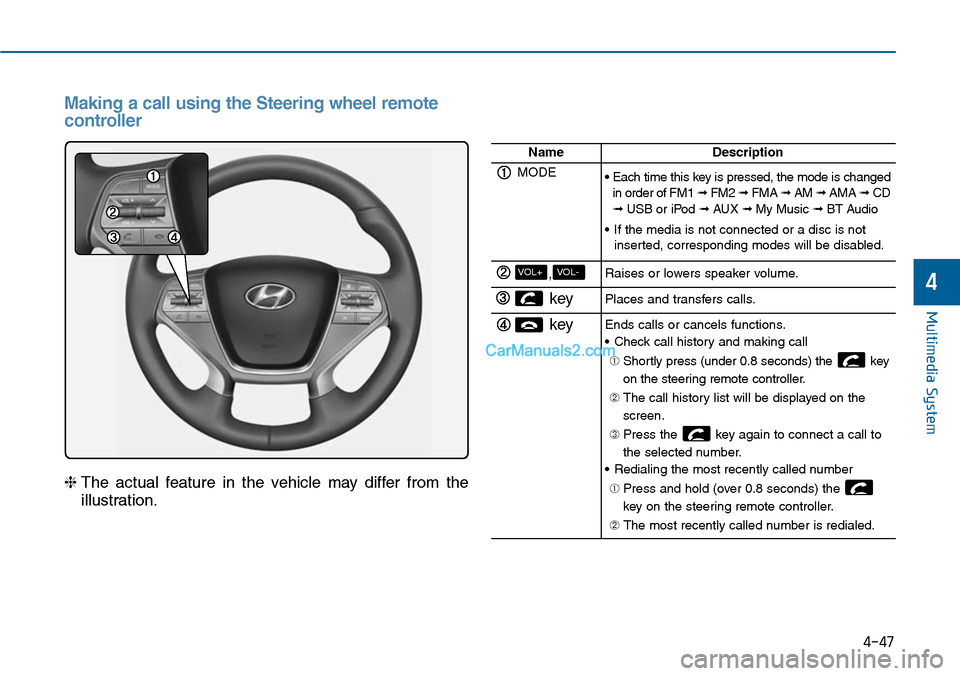
Making a call using the Steering wheel remote
controller
❈The actual feature in the vehicle may differ from the
illustration.
NameDescription
MODE• Each time this key is pressed, the mode is changedin order of FM1 ➟ FM2 ➟ FMA ➟ AM ➟ AMA➟ CD➟ USB or iPod ➟ AUX ➟ My Music ➟ BT Audio
•If the media is not connected or a disc is notinserted, corresponding modes will be disabled.
,VOL-VOL+Raises or lowers speaker volume.
key Places and transfers calls.
keyEnds calls or cancels functions.
•Check call history and making call
➀ Shortly press (under 0.8 seconds) the key
on the steering remote controller.
➁ The call history list will be displayed on the
screen.
➂ Press the key again to connect a call to
the selected number.
•Redialing the most recently called number
➀ Press and hold (over 0.8 seconds) the
key on the steering remote controller.
➁ The most recently called number is redialed.
Page 306 of 665
![Hyundai Sonata 2014 Owners Manual Phone MENU (for RDS model)
Press the key to display three
menus (Call History, Phone Book,
Phone Setup).
Call history
Press the key Set [
History] through the TUNE knob
or key.
The call h](/manual-img/35/16805/w960_16805-305.png "Hyundai Sonata 2014 Owners Manual Phone MENU (for RDS model)
Press the key to display three
menus (Call History, Phone Book,
Phone Setup).
Call history
Press the key Set [
History] through the TUNE knob
or key.
The call h")
Phone MENU (for RDS model)
Press the key to display three
menus (Call History, Phone Book,
Phone Setup).
Call history
Press the key Set [
History] through the TUNE knob
or key.
The call history is displayed and can
be used to select a number and
make a call.
If call history does not exist, a screen
asking whether to download call his-
tory is displayed. (The download fea-
ture may not be supported in some
mobile phones)
Phone Book
Press the key Set [ P.
Book] through the TUNE knob or
key.
The phone book is displayed and
can be used to select a number and
make a call.
❈If more than one number is saved
to one contact, then a screen
showing the mobile phone num-
ber, Home and office number is
displayed. Select the desired num-
ber to make the call.
❈If phone book do not exist, a
screen asking whether to down-
load phone book is displayed. (The
download feature may not be sup-
ported in some mobile phones)
Phone Setup
Press the key Set [ Setup]
through the TUNE knob or
key.
The Bluetooth®Wireless Technology
mobile phone setup screen is dis-
played. For more information, refer to
“Phone Setup”.
3
PHONE
2 RDM
PHONE
1 RPT
PHONE
PHONE
4-48
Multimedia System
Page 307 of 665
![Hyundai Sonata 2014 Owners Manual 4-49
Multimedia System
4
Phone MENU
Press the key to display three
menus (Call History, Contacts,
Phone Setup).
Call history
Press the key Set [ History]
through the TUNEknob or
key.
The call](/manual-img/35/16805/w960_16805-306.png "Hyundai Sonata 2014 Owners Manual 4-49
Multimedia System
4
Phone MENU
Press the key to display three
menus (Call History, Contacts,
Phone Setup).
Call history
Press the key Set [ History]
through the TUNEknob or
key.
The call")
4-49
Multimedia System
4
Phone MENU
Press the key to display three
menus (Call History, Contacts,
Phone Setup).
Call history
Press the key Set [ History]
through the TUNEknob or
key.
The call history is displayed and can
be used to select a number and
make a call.
If call history does not exist, a screen
asking whether to download call his-
tory is displayed. (The download fea-
ture may not be supported in some
mobile phones)
Contacts
Press the key Set [
Contacts] through the TUNEknob or
key.
The Contacts are displayed and can
be used to select a number and
make a call.
❈If more than one number is saved
to one contact, then a screen
showing the mobile phone num-
ber, Home and office number is
displayed. Select the desired num-
ber to make the call.
❈If Contacts do not exist, a screen
asking whether to download
Contacts is displayed. (The down-
load feature may not be supported
in some mobile phones)
Phone Setup
Press the key Set [ Setup]
through the TUNEknob or
key.
The Bluetooth®Wireless Technology
mobile phone setup screen is dis-
played. For more information, refer to
“Phone Setup”.
3
PHONE
2 RDM
PHONE
1 RPT
PHONE
PHONE
Page 310 of 665
4-52
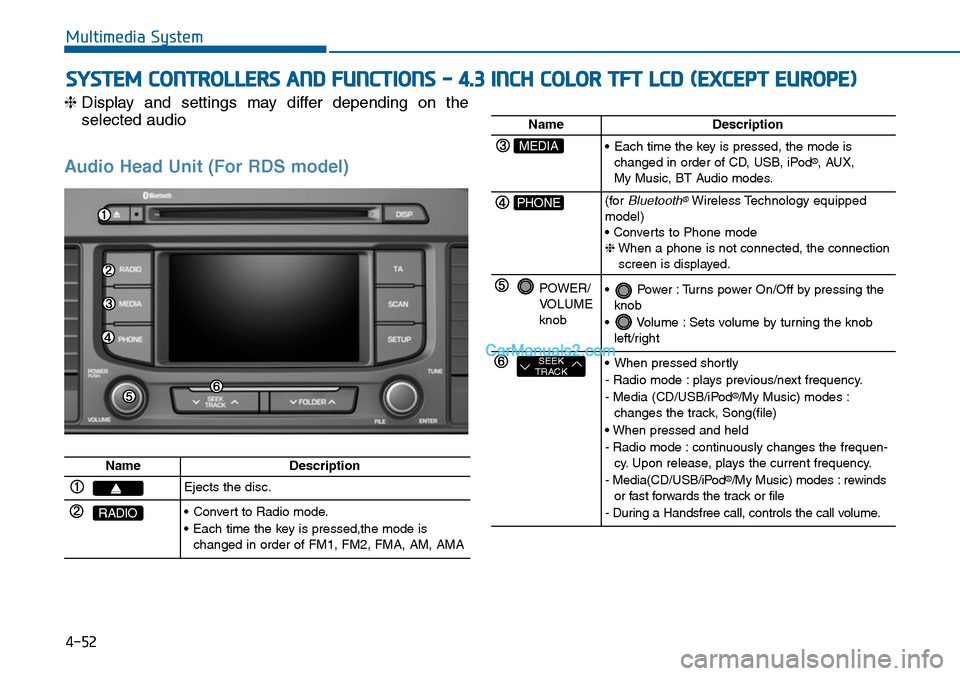
SYSTEM CONTROLLERS AND FUNCTIONS - 4.3 INCH COLOR TFT LCD (EXCEPT EUROPE)
Multimedia System
❈Display and settings may differ depending on the
selected audio
Audio Head Unit (For RDS model)
NameDescription
Ejects the disc.
RADIO•Convert to Radio mode.
•Each time the key is pressed,the mode ischanged in order of FM1, FM2, FMA, AM, AMA
NameDescription
MEDIA•Each time the key is pressed, the mode ischanged in order of CD, USB, iPod®, AUX, My Music, BT Audio modes.
PHONE(forBluetooth®Wireless Technology equippedmodel)• Converts to Phone mode❈When a phone is not connected, the connectionscreen is displayed.
POWER/VOLUMEknob
•Power :Turns power On/Off by pressing theknob
•Volume :Sets volume by turning the knobleft/right
SEEKTRACK•When pressed shortly
- Radio mode : plays previous/next frequency.
- Media (CD/USB/iPod®/My Music) modes :changes the track, Song(file)
• When pressed and held
- Radio mode : continuously changes the frequen-cy. Upon release, plays the current frequency.
- Media(CD/USB/iPod®/My Music) modes : rewindsor fast forwards the track or file
- During a Handsfree call, controls the call volume.
Page 311 of 665
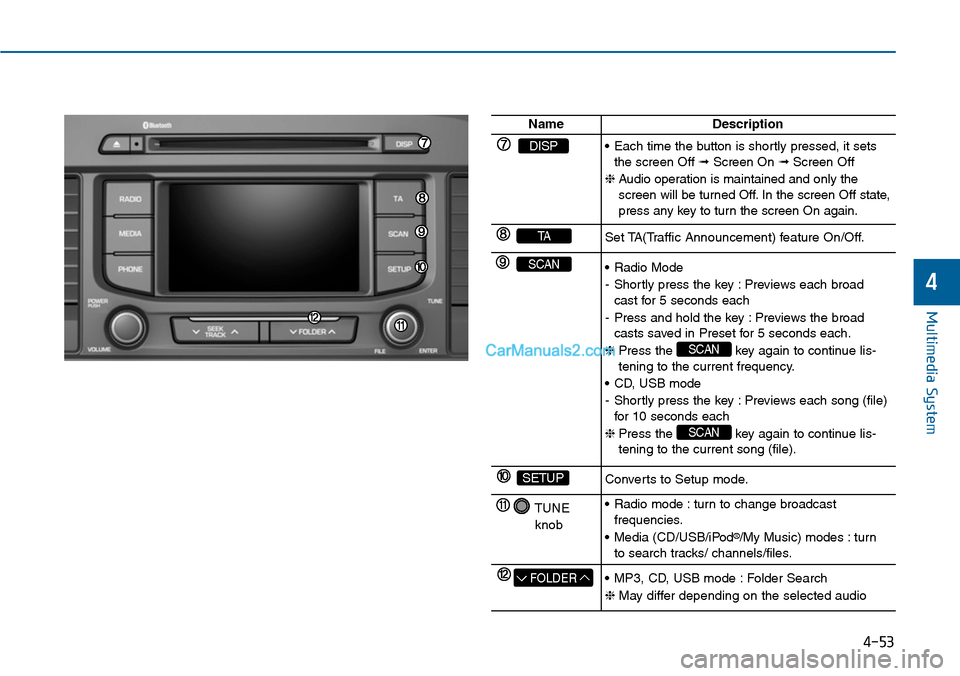
4-53
Multimedia System
4
NameDescription
DISP•Each time the button is shortly pressed, it setsthe screen Off ➟Screen On ➟Screen Off
❈Audio operation is maintained and only thescreen will be turned Off. In the screen Off state,press any key to turn the screen On again.
TASet TA(Traffic Announcement) feature On/Off.
SCAN•Radio Mode
-Shortly press the key :Previews each broadcast for 5 seconds each
-Press and hold the key :Previews the broadcasts saved in Preset for 5 seconds each.
❈Press the key again to continue lis-tening to the current frequency.
•CD, USB mode
-Shortly press the key :Previews each song (file)for 10 seconds each
❈Press the key again to continue lis-tening to the current song (file).
SCAN
SCAN
SETUPConverts to Setup mode.
TUNE
knob
•Radio mode :turn to change broadcast frequencies.
•Media (CD/USB/iPod®/My Music) modes : turnto search tracks/ channels/files.
FOLDER•MP3, CD, USB mode :Folder Search
❈May differ depending on the selected audio
Page 312 of 665
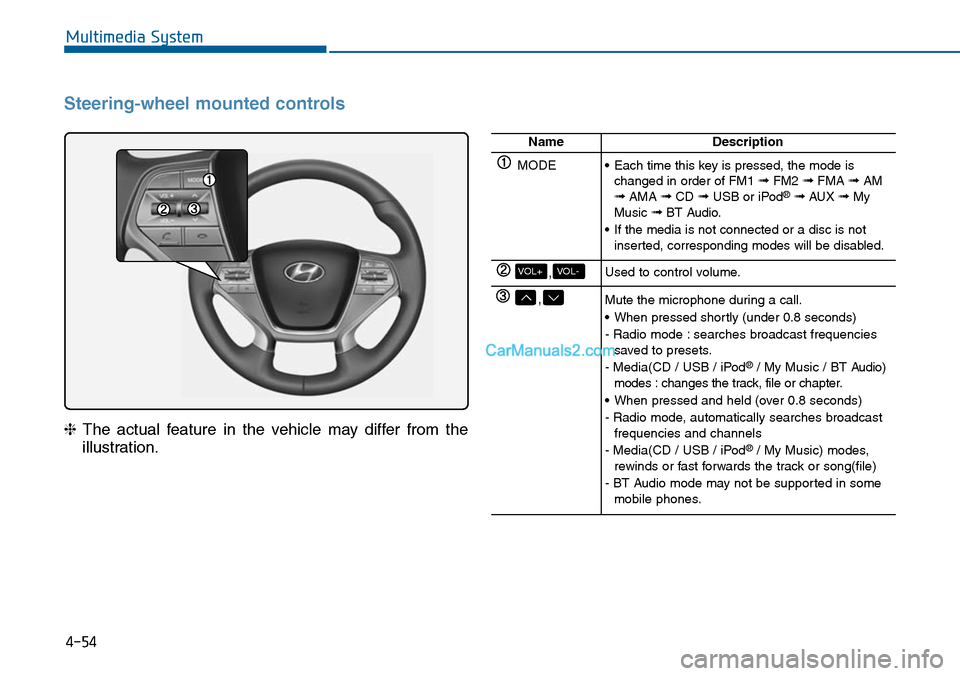
4-54
Multimedia System
Steering-wheel mounted controls
❈The actual feature in the vehicle may differ from the
illustration.
NameDescription
MODE•Each time this key is pressed, the mode ischanged in order of FM1 ➟FM2 ➟FMA ➟AM➟AMA ➟CD ➟USB or iPod®➟ AUX ➟MyMusic ➟BT Audio.
•If the media is not connected or a disc is notinserted, corresponding modes will be disabled.
,VOL-VOL+Used to control volume.
,Mute the microphone during a call.
•When pressed shortly (under 0.8 seconds)
- Radio mode : searches broadcast frequenciessaved to presets.
- Media(CD / USB / iPod®/ My Music / BT Audio)modes : changes the track, file or chapter.
•When pressed and held (over 0.8 seconds)
- Radio mode, automatically searches broadcastfrequencies and channels
- Media(CD / USB / iPod®/ My Music) modes,rewinds or fast forwards the track or song(file)
- BT Audio mode may not be supported in somemobile phones.
![Hyundai Sonata 2014 Owners Manual 4-46
Multimedia System
Delete All
Set [ Del.All] through the TUNE
knob or key.
Deletes all songs of My Music.
Delete Selection
Press the key Set [ Del.Sel]
through the TUNEknob or key.
Songs](/manual-img/35/16805/w960_16805-303.png "Hyundai Sonata 2014 Owners Manual 4-46
Multimedia System
Delete All
Set [ Del.All] through the TUNE
knob or key.
Deletes all songs of My Music.
Delete Selection
Press the key Set [ Del.Sel]
through the TUNEknob or key.
Songs")