Page 153 of 488
152
uu Interior Lights/Interior Convenience Items u Interior Convenience Items
Controls
Interior Convenience Items
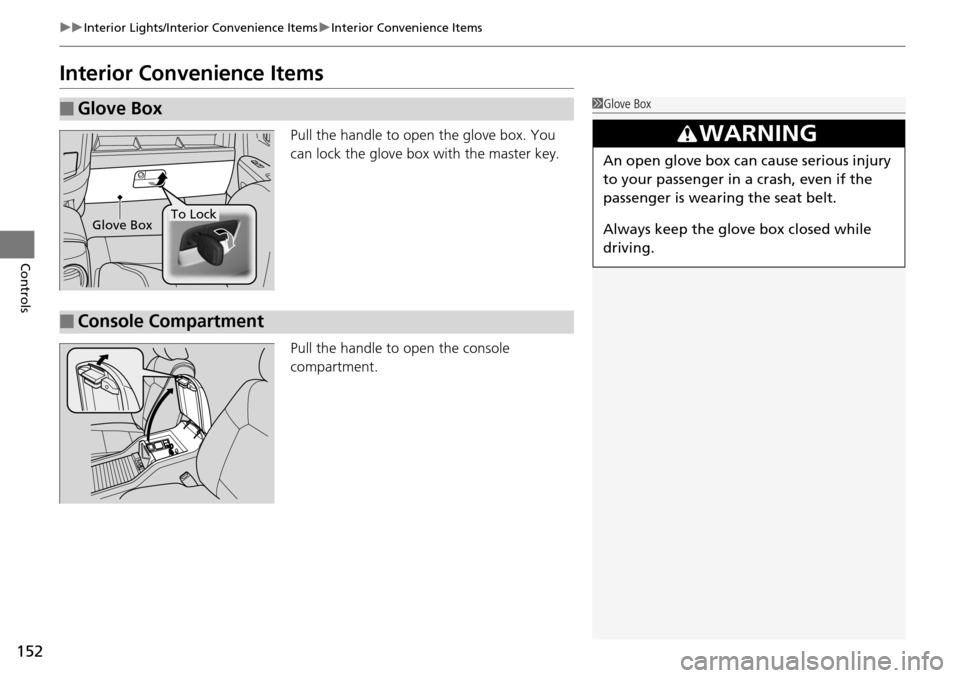
Pull the handle to open the glove box. You
can lock the glove box with the master key.
Pull the handle to open
the console
compartment.
■Glove Box1 Glove Box
3 WARNING
An open glove box can cause serious injury
to your passenger in a crash, even if the
passenger is wearing the seat belt.
Always keep the glove box closed while
driving.
Glove BoxTo Lock
■Console Compartment
Page 159 of 488
uu Interior Lights/Interior Convenience Items u Interior Convenience Items
158
Controls
The AC power outlet can be used when the engine is running.
Open the cover to use it. Plug in the appliance
slightly, turn it 90° clockwise, then push it all
the way.
■AC Power Outlet *1AC Power Outlet *
NOTICE
Do not use the AC power outlet for electric
appliances that require high initial peak wattage,
such as cathode-ray tube type televisions,
refrigerators, electric pumps, etc. It is not suitable for
devices that process precis e data, such as medical
equipment, and that require an extremely stable
power supply, such as microcomputer-controlled
electric blankets, touc h sensor lamps, etc.
The AC power outlet is desi gned to supply power for
up to 115 volt appliances that are rated 150 watts or
less.
* Not available on all models
Page 169 of 488
168
uu Climate Control System u Rear Climate Control System
Controls
Rear Climate Control System
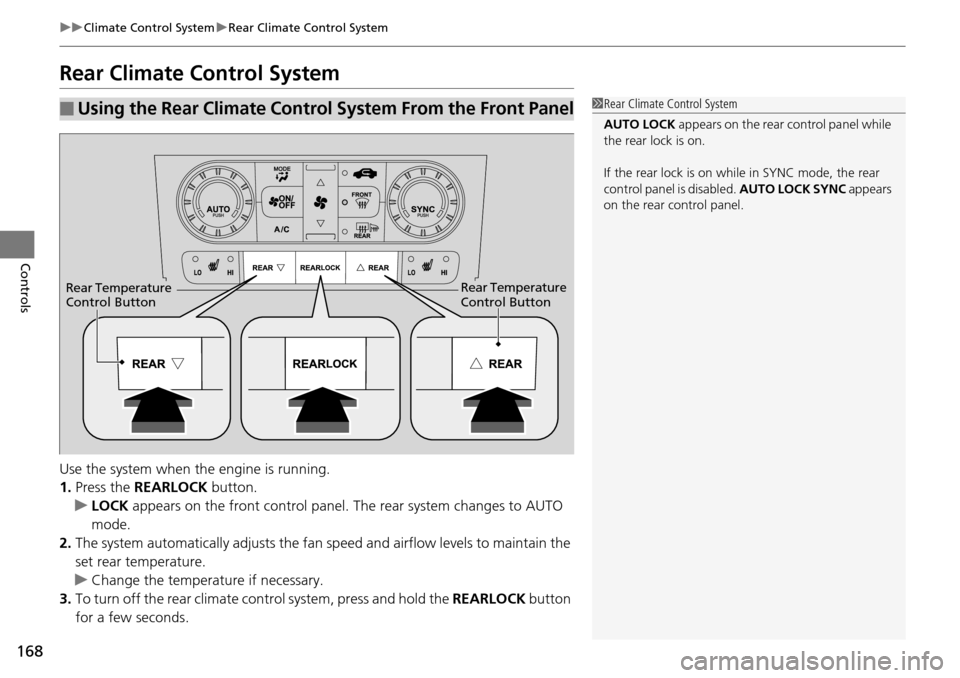
Use the system when the engine is running.
1. Press the RE
ARLOCK button.
u LOCK appea
rs on the front control panel. The rear system changes to AUTO
mode.
2. The system automatically adjusts the fan sp e
ed and airflow levels to maintain the
set rear temperature.
u Change the t
emperature if necessary.
3. To turn off t
he rear climate control system, press and hold the REARLOCK button
for a few seconds.
■Using the Rear Climate Control System From the Front Panel1 Rear Climate Control System
AUTO LOCK appears on the rear control panel while
the rear lock is on.
If the rear lock is on while in SYNC mode, the rear
control panel is disabled. AUTO LOCK SYNC appears
on the rear control panel.
Rear Temperature
Control ButtonRear Temperature
Control Button
Page 170 of 488
169
uu Climate Control System u Rear Climate Control System
Controls
Use the system when the engine is running.
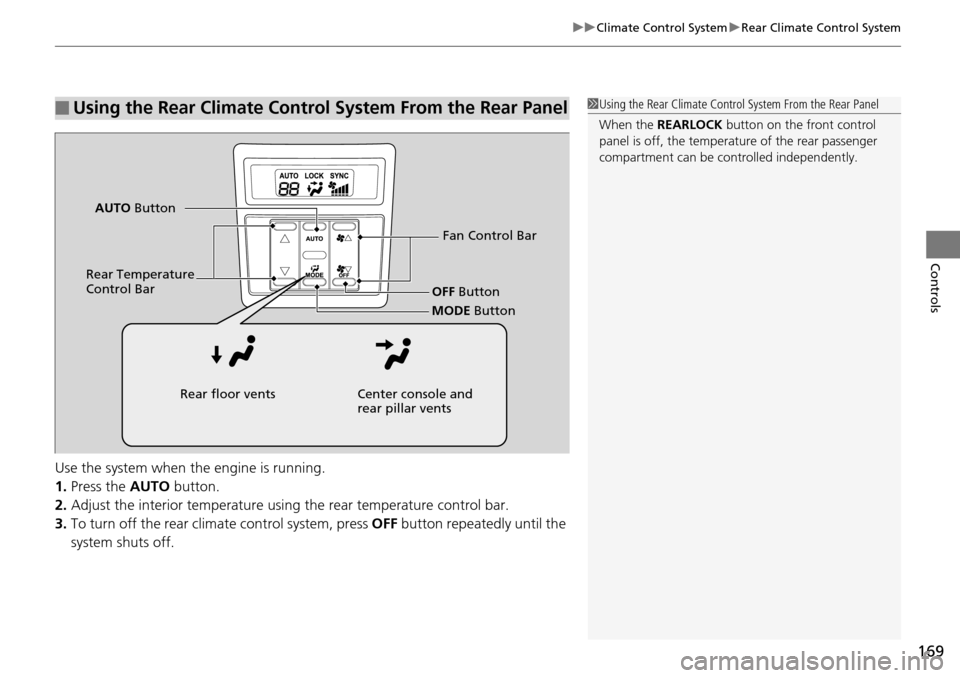
1. Press the AUTO button.
2. Adjust t
he interior temperature usi ng the rear temperature control bar.
3. To t
urn off the rear climate control system, press OFF button repeatedly until the
system shuts off.
■Using the Rear Climate Control System From the Rear Panel1 Using the Rear Climate Control System From the Rear Panel
When the REARLOCK button on the front control
panel is off, the temperat ure of the rear passenger
compartment can be cont rolled independently.
Fan Control Bar
Rear Temperature
Control Bar OFF Button
MODE Button
AUTO
Button
Rear floor vents Center console and
rear pillar vents
Page 178 of 488
Continued177
uu Audio System Basic Operation u Audio/Information Screen *
Features
Shows the current audio information.
2 Audio System Basic Operation P. 175
Shows the instant fuel economy, averag e fuel economy, distance (trip meter),
average speed, elapsed time, and range.
2 Instant Fuel Economy P. 82
2 Trip Meter P. 82
2 Range P. 82
■Average speed
Shows the average speed in mph (U.S.) or km/h (Canada).
■Elapsed time
Shows the time during one drive cycle.
Shows a clock screen or an image you import.
2 Wallpaper Setup P. 179
Minimizes the display by only showing the compass, audio status, and clock on the
upper part of the display.
■Audio Display
■Trip Computer
■Wallpaper
■Minimum Display
1 Trip Computer
You can reset the trip computer.
2 Trip Computer P. 88
Page 181 of 488
180
uu Audio System Basic Operation u Audio/Information Screen *
Features
6. The preview of the imported data is
displayed.
7.Rotate to select OK, then press .
u Th
e imported list number and the
confirmation message will appear. Then
the display will return to the import
wallpaper list.
■Choose wallpaper
1. Rotate
to select Ch oose Wallpaper on the wallpaper setup menu, then press
.
u The
screen will change to the wallpaper list.
2. Rotate
to select desired wallpaper and press .
3. Your selection will be ind
icated by the filled in circle.
u You
can also select Default Wallpaper (Honda logo) or Clock on the list.
■Delete wallpaper
1. Rotate
to select De lete Picture from mem on the wallpaper setup menu,
then press .
u The
screen will change to the delete wallpaper list.
2. Rotate
to select wallpaper that you want to delete and press .
u The confir
mation message will appear.
3. Rotate
to select Yes, then pr ess to delete completely.
Page 273 of 488

272
Features
General Information on the Audio System
XM® Radio Service *
1. You need your radio ID ready befo re registering for subscription.
To see the ID on the display: Turn the selector knob until 0 a
ppears.
2. Hav
e your radio ID and credit card numbe r ready, and either call or visit the XM®
website to subscribe.
Press the (XM®)
button and stay in this mode for about 30 minutes until the
service is activated. Make su re your
vehicle is in an open area with good reception.
LOADING: XM® is
loading the audio or program information.
Ch Off Air: The channel is not currently broadcasting.
Ch Unauthorized: The encryption code is being updated. Channels 0 and 1 still
work norm
ally.
NO SIGNAL: The signal is too weak in the current location.
Ch Unavailable: No such channel exists, the channel is not part of your
subscr
iption, or the artist or title information is unavailable.
CHECK ANTENNA: There is a problem with the XM ® antenna.
Contact a dealer.
■Subscribing to XM® Radio
■Receiving XM® Radio
■XM ® Radio Display Messages
1 Subscribing to XM ® Radio
Contact Information for XM® Radio:US: XM ® Radio at www.siriusxm.com or (800) 852-
9696
Canada: XM ® Canada at www.xmradio.ca , or (877)
209-0079
1 Receiving XM ® Radio
The XM® satellites are in orbit over the equator,
therefore, objects south of the vehicle may cause
satellite reception interruptions. Satellite signals are
more likely to be blocked by tall buildings and
mountains the farther north you travel from the
equator.
You may experience rece ption problems under the
following circumstances:
•In a location with an obstruction to the south of
your vehicle.
•In tunnels
•On the lower level of a multi-tiered road•Large items carried on the roof rack
* Not available on all models
Page 276 of 488
275
uu General Information on the Audio System u Compatible iPod ® and USB Flash Drives
Features
Compatible iPod ® and USB Flash Drives
• Use a recommended USB flash drive of 256 MB or higher.
• Some digi
tal audio players may not be compatible.
• Some U
SB flash drives (e.g., a device with security lockout) may not work.
• Some software files may not allo
w for audio play or text data display.
• Some versio
ns of MP3, WMA, or AAC formats may be unsupported.
■iPod® Model Compatibility
Model
iPod classic ® 80GB/160GB
iPod classic ® 120GB
iPod classic ® 160GB (launch in 2009)
iPod ® (5th generation)
iPod nano ®
iPod touch ®
■USB Flash Drives
1iPod ® Model Compatibility
This system may not work with all software versions
of these devices.
1 USB Flash Drives
Files on the USB flash drive are played in their stored
order. This order may be different from the order
displayed on your PC or device.