Page 143 of 573
142Controls
Interior Lights/Interior Convenience ItemsInterior Lights
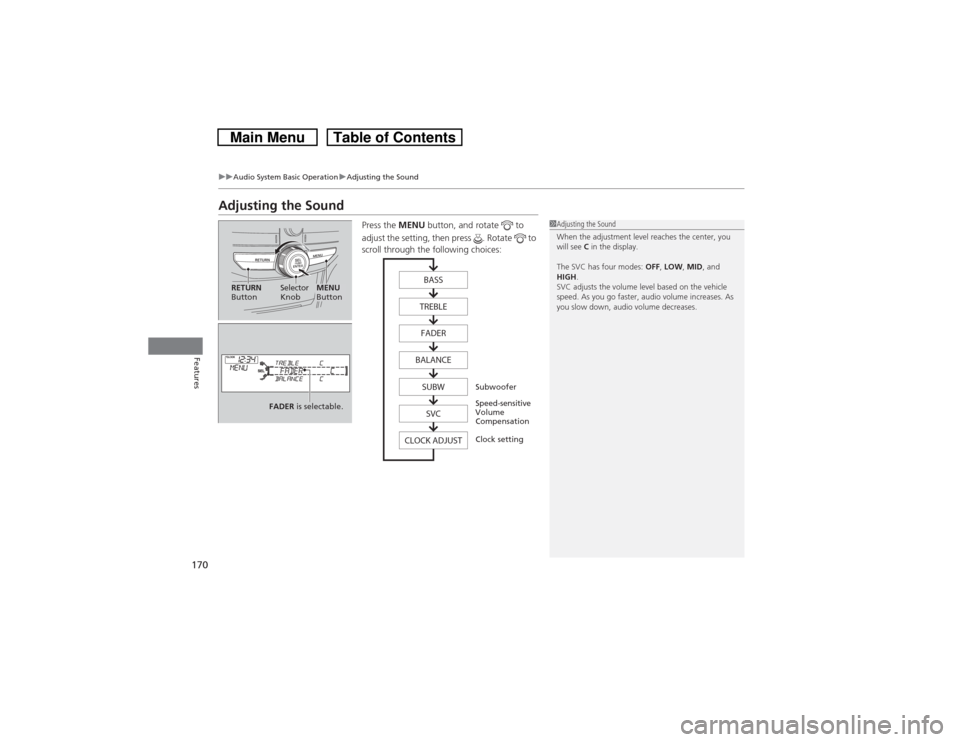
■ON
The interior lights come on regardless of
whether the doors are open or closed.■Door activated
The interior lights come on in the following
situations:
•When any of the doors are opened.
•You unlock the driver’s door.
•You remove the key from the ignition
switch.
•When the power mode is set to VEHICLE
OFF (LOCK).
Only the cargo area light comes on when the
tailgate is opened.■OFF
The interior lights remain off regardless of
whether the doors are open or closed.
■Interior Light Switches
1Interior Light Switches
In the door activated position, the interior lights fade
out and go off about 30 seconds after the doors are
closed.
The lights go off after 30 seconds in the following
situations:•When you unlock the driver’s door but do not open it.•When you remove the key from the ignition switch
but do not open a door.•When you set the power mode to VEHICLE OFF
(LOCK) but do not open a door.
You can change the interior lights dimming time.
2Customized Features
* P. 281
The interior lights go off immediately in the following
situations:
•When you lock the driver’s door.•When you turn the ignition switch to ON
(w*1.
•When you close the driver’s door with the key in
the ignition switch.•When you close the driver’s door in ACCESSORY
mode.
If you leave any of the doors open in VEHICLE OFF
(LOCK) mode, or without the key in the ignition switch,
the interior lights go off after about 15 minutes.*1: Models with the smart entry system have an
ENGINE
START/STOP
button instead of an ignition switch.
Models without smart entry systemModels with smart entry systemModels without smart entry systemModels with smart entry system
Door Activated Position
Off
FrontDoor Activated PositionOn
Off Rear
Models without smart entry systemModels with smart entry system
* Not available on all models
Page 145 of 573
144
uuInterior Lights/Interior Convenience ItemsuInterior Convenience Items
Controls
Interior Convenience Items
Pull the handle to open the glove box. You
can lock the glove box with the master key or
the built-in key.
■Glove Box
1Glove Box
3
WARNING
An open glove box can cause serious injury
to your passenger in a crash, even if the
passenger is wearing the seat belt.
Always keep the glove box closed while
driving.
Glove Box
To Lock
Page 170 of 573

169Features
Audio System Basic OperationTo use the audio system function, the ignition switch must be in ACCESSORY
(q or
ON
(w.
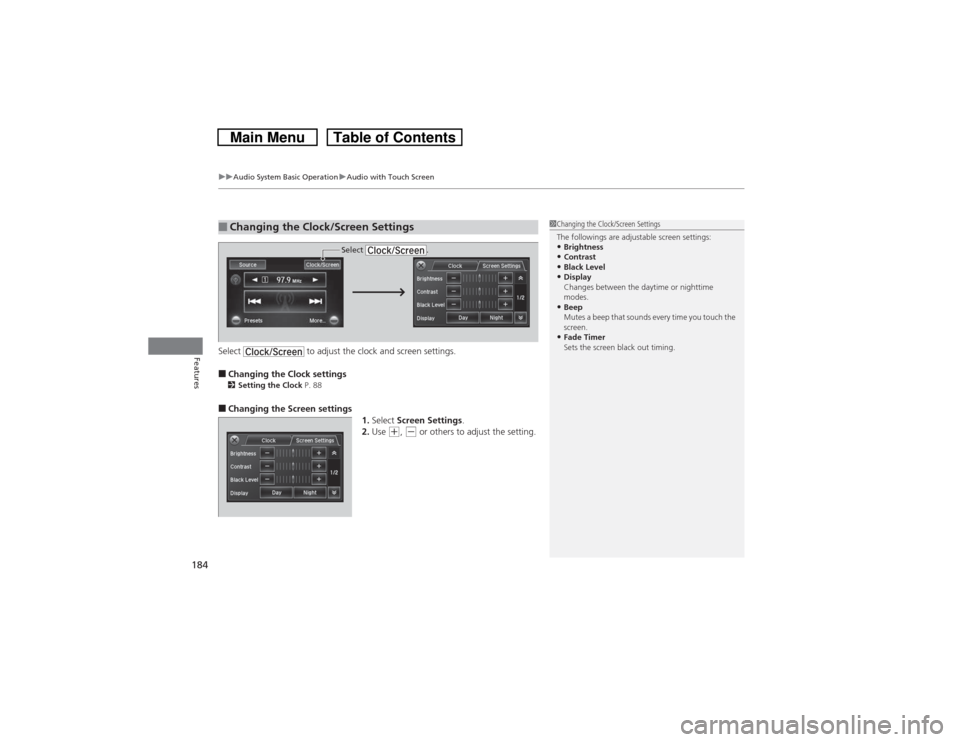
Use the selector knob or MENU button to
access some audio functions.
Press to switch between the normal and
extended display for some functions. The
extended display has three segments to
display detailed information.
Selector knob: Rotate left or right to scroll
through the available choices. Press to set
your selection.
MENU button: Press to select any setting
such as the clock, sound control, or the
compass
*. Press this button again to cancel
the menu display mode.
RETURN button: Press to go back to the
previous display.
Audio system without touch screen
1Audio System Basic Operation
These indications are used to show how to operate
the selector knob.
Rotate to select.
Press to enter.
Press the SOURCE,
(+, (-, or button on the
steering wheel to change any audio setting.
2Audio Remote Controls P. 168
RETURN
ButtonSelector
Knob
MENU
Button
Menu Display
* Not available on all models
Page 171 of 573
170
uuAudio System Basic OperationuAdjusting the Sound
Features
Adjusting the Sound
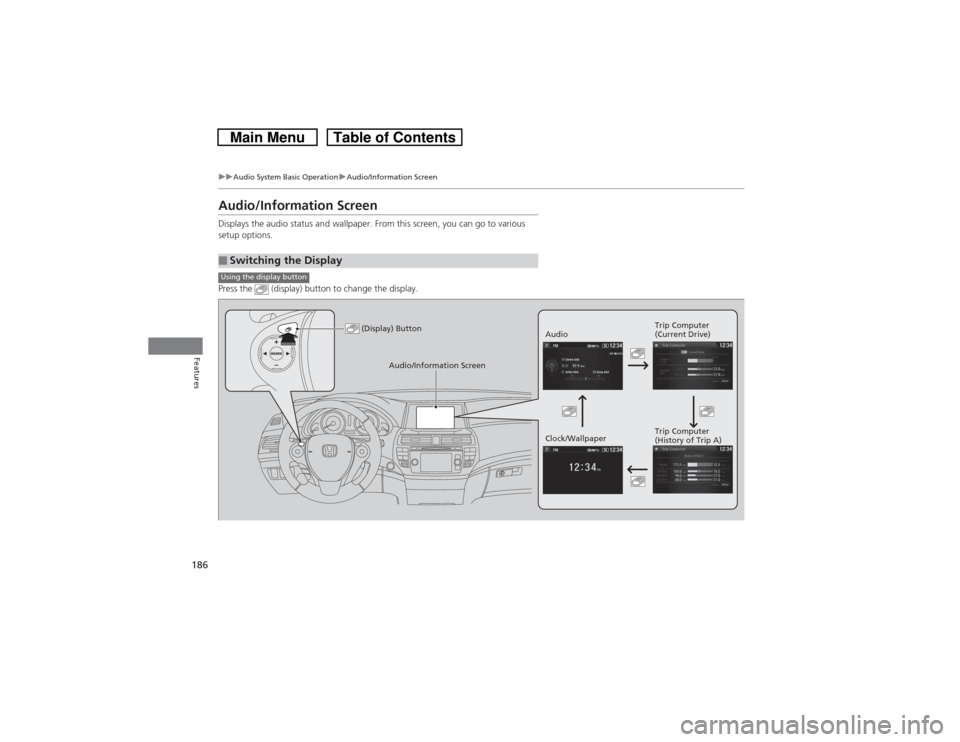
Press the MENU button, and rotate to
adjust the setting, then press . Rotate to
scroll through the following choices:
1Adjusting the Sound
When the adjustment level reaches the center, you
will see C in the display.
The SVC has four modes: OFF, LOW, MID, and
HIGH.
SVC adjusts the volume level based on the vehicle
speed. As you go faster, audio volume increases. As
you slow down, audio volume decreases.
Selector
Knob
MENU
Button RETURN
Button
BASS
TREBLE
FADER
BALANCE
SUBW
SVC
CLOCK ADJUST
Speed-sensitive
Volume
CompensationSubwoofer
Clock setting
FADER is selectable.
Page 185 of 573
uuAudio System Basic OperationuAudio with Touch Screen
184Features
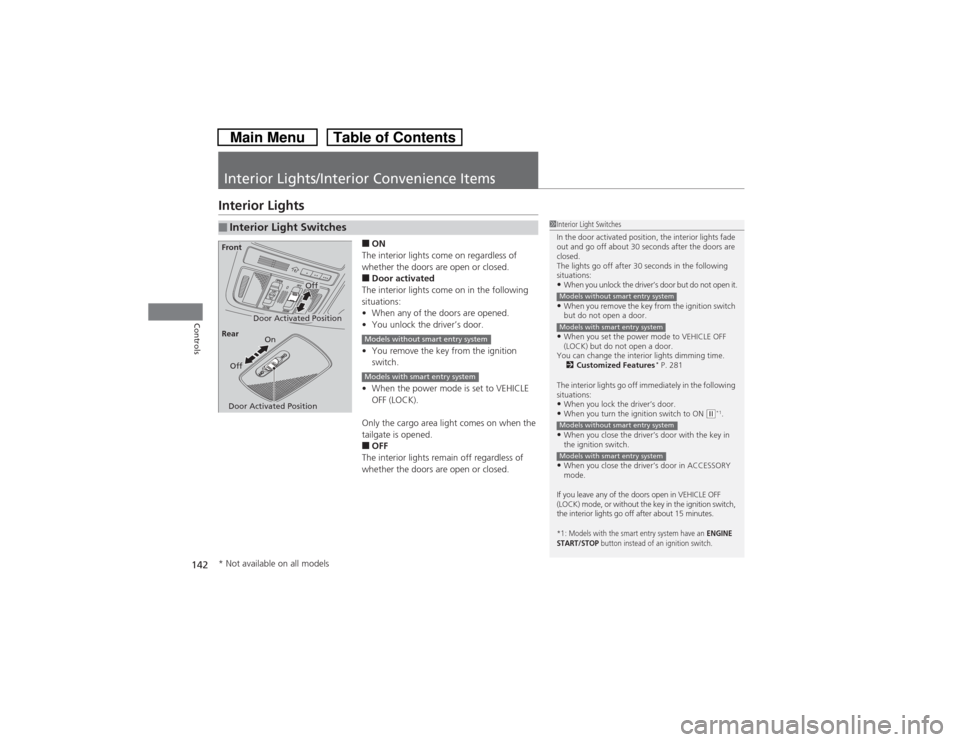
Select to adjust the clock and screen settings.■Changing the Clock settings2Setting the Clock P. 88■Changing the Screen settings
1.Select Screen Settings.
2.Use
(+, (- or others to adjust the setting.
■Changing the Clock/Screen Settings
1Changing the Clock/Screen Settings
The followings are adjustable screen settings:•Brightness•Contrast•Black Level•Display
Changes between the daytime or nighttime
modes.•Beep
Mutes a beep that sounds every time you touch the
screen.•Fade Timer
Sets the screen black out timing.
Select .
Page 187 of 573
186
uuAudio System Basic OperationuAudio/Information Screen
Features
Audio/Information ScreenDisplays the audio status and wallpaper. From this screen, you can go to various
setup options.
Press the (display) button to change the display.■Switching the DisplayUsing the display button
(Display) Button
AudioTrip Computer
(Current Drive)
Clock/WallpaperTrip Computer
(History of Trip A)
Audio/Information Screen
Page 189 of 573

188
uuAudio System Basic OperationuAudio/Information Screen
Features
■Info
Shows the Trip Computer or Clock/Wallpaper information.
Press , rotate to select an item, then press .
Info menu items
Current Drive (Trip computer)
Shows the range, and instant and average fuel economy of the current trip, as well
as the average fuel economy from your last trip.
History of Trip A (Trip computer)
Shows the range, average fuel economy and distance traveled for the current trip,
as well as the average fuel economy and distances traveled during the last three
driving cycles.
Each time you reset the trip meter A, the information on the display updates. The
history of the previous three driving cycles is kept.
Delete History
1.Rotate to select Delete History, then press .
2.You will receive a confirmation message on the screen. Rotate to select Yes,
then press .
Clock/Wallpaper
Shows the current clock type and wallpaper
Clock/Wallpaper Change
Enters the clock and wallpaper setting menu screen.
Page 190 of 573
Continued
189
uuAudio System Basic OperationuAudio/Information Screen
Features
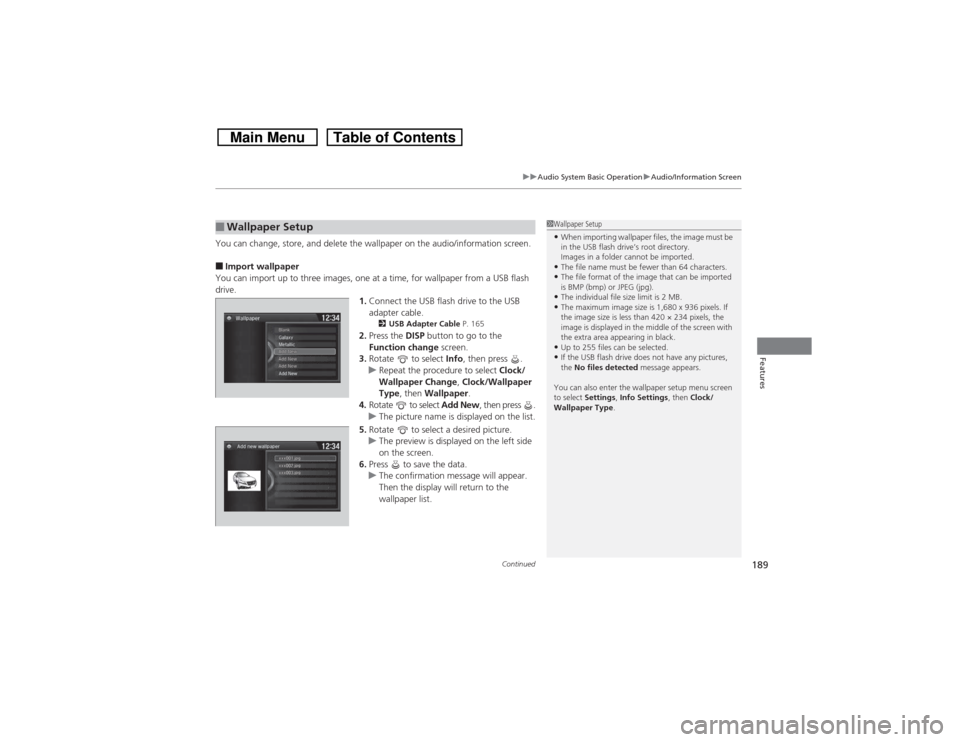
You can change, store, and delete the wallpaper on the audio/information screen.■Import wallpaper
You can import up to three images, one at a time, for wallpaper from a USB flash
drive.
1.Connect the USB flash drive to the USB
adapter cable.
2USB Adapter Cable P. 165
2.Press the DISP button to go to the
Function change screen.
3.Rotate to select Info, then press .
uRepeat the procedure to select Clock/
Wallpaper Change, Clock/Wallpaper
Type, then Wallpaper.
4.Rotate to select Add New, then press .
uThe picture name is displayed on the list.
5.Rotate to select a desired picture.
uThe preview is displayed on the left side
on the screen.
6.Press to save the data.
uThe confirmation message will appear.
Then the display will return to the
wallpaper list.
■Wallpaper Setup
1Wallpaper Setup•When importing wallpaper files, the image must be
in the USB flash drive’s root directory.
Images in a folder cannot be imported.•The file name must be fewer than 64 characters.•The file format of the image that can be imported
is BMP (bmp) or JPEG (jpg).•The individual file size limit is 2 MB.•The maximum image size is 1,680 x 936 pixels. If
the image size is less than 420 × 234 pixels, the
image is displayed in the middle of the screen with
the extra area appearing in black.•Up to 255 files can be selected.•If the USB flash drive does not have any pictures,
the No files detected message appears.
You can also enter the wallpaper setup menu screen
to select Settings, Info Settings, then Clock/
Wallpaper Type.