Page 264 of 573
263
uuAudio System Basic OperationuPlaying a USB Flash Drive
Continued
Features
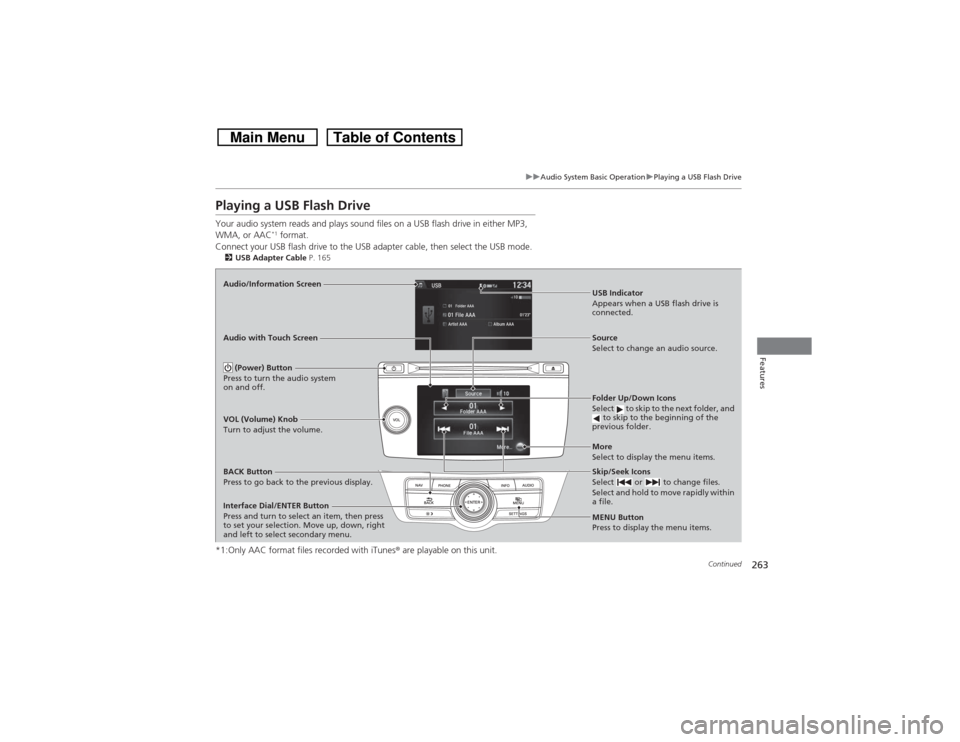
Playing a USB Flash DriveYour audio system reads and plays sound files on a USB flash drive in either MP3,
WMA, or AAC
*1 format.
Connect your USB flash drive to the USB adapter cable, then select the USB mode.
2USB Adapter Cable P. 165*1:Only AAC format files recorded with iTunes® are playable on this unit.Audio/Information Screen
BACK Button
Press to go back to the previous display.
More
Select to display the menu items. Source
Select to change an audio source. USB Indicator
Appears when a USB flash drive is
connected.Folder Up/Down Icons
Select to skip to the next folder, and
to skip to the beginning of the
previous folder.Skip/Seek Icons
Select or to change files.
Select and hold to move rapidly within
a file.
(Power) Button
Press to turn the audio system
on and off.VOL (Volume) Knob
Turn to adjust the volume.
Interface Dial/ENTER Button
Press and turn to select an item, then press
to set your selection. Move up, down, right
and left to select secondary menu. Audio with Touch Screen
MENU Button
Press to display the menu items.
Page 265 of 573
uuAudio System Basic OperationuPlaying a USB Flash Drive
264Features
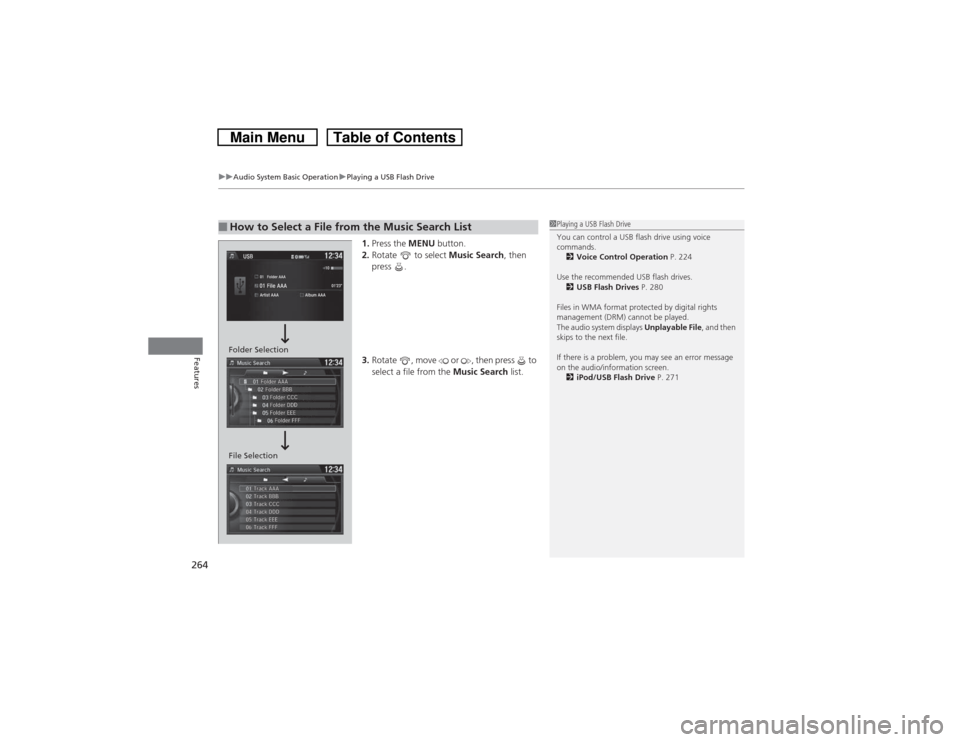
1.Press the MENU button.
2.Rotate to select Music Search, then
press .
3.Rotate , move or , then press to
select a file from the Music Search list.
■How to Select a File from the Music Search List
1Playing a USB Flash Drive
You can control a USB flash drive using voice
commands.
2Voice Control Operation P. 224
Use the recommended USB flash drives.
2USB Flash Drives P. 280
Files in WMA format protected by digital rights
management (DRM) cannot be played.
The audio system displays Unplayable File, and then
skips to the next file.
If there is a problem, you may see an error message
on the audio/information screen.
2iPod/USB Flash Drive P. 271
Folder Selection
File Selection
Page 266 of 573
265
uuAudio System Basic OperationuPlaying a USB Flash Drive
Features
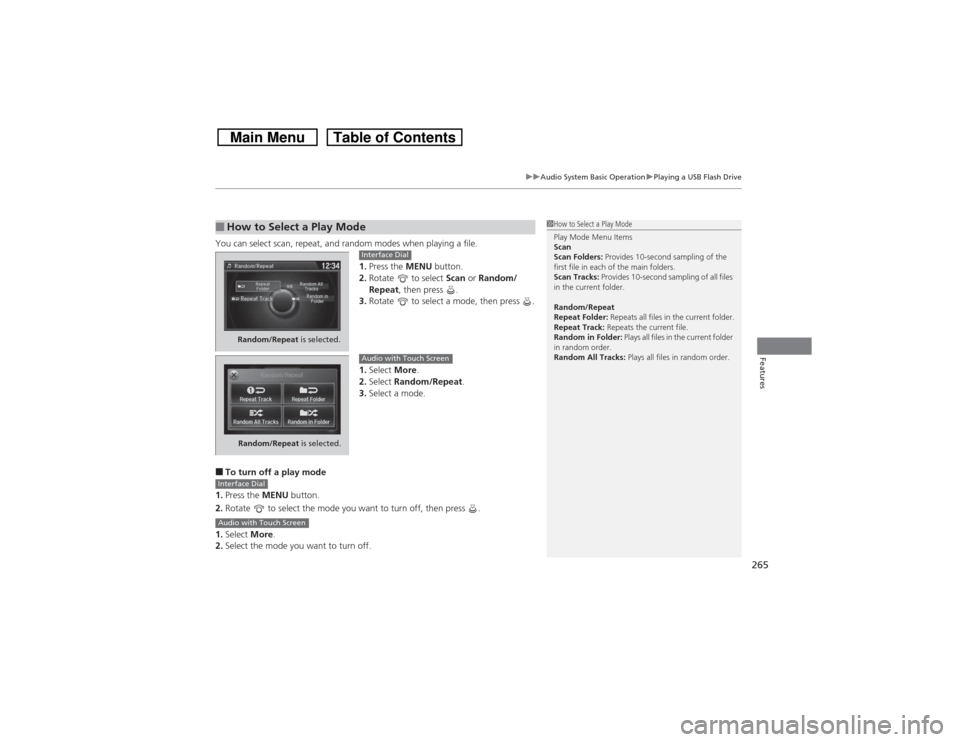
You can select scan, repeat, and random modes when playing a file.
1.Press the MENU button.
2.Rotate to select Scan or Random/
Repeat, then press .
3.Rotate to select a mode, then press .
1.Select More.
2.Select Random/Repeat.
3.Select a mode.■To turn off a play mode
1.Press the MENU button.
2.Rotate to select the mode you want to turn off, then press .
1.Select More.
2.Select the mode you want to turn off.■How to Select a Play Mode
1How to Select a Play Mode
Play Mode Menu Items
Scan
Scan Folders: Provides 10-second sampling of the
first file in each of the main folders.
Scan Tracks: Provides 10-second sampling of all files
in the current folder.
Random/Repeat
Repeat Folder: Repeats all files in the current folder.
Repeat Track: Repeats the current file.
Random in Folder: Plays all files in the current folder
in random order.
Random All Tracks: Plays all files in random order.
Random/Repeat is selected.
Interface Dial
Random/Repeat is selected.
Audio with Touch Screen
Interface DialAudio with Touch Screen
Page 272 of 573
271
uuAudio Error MessagesuiPod/USB Flash Drive
Continued
Features
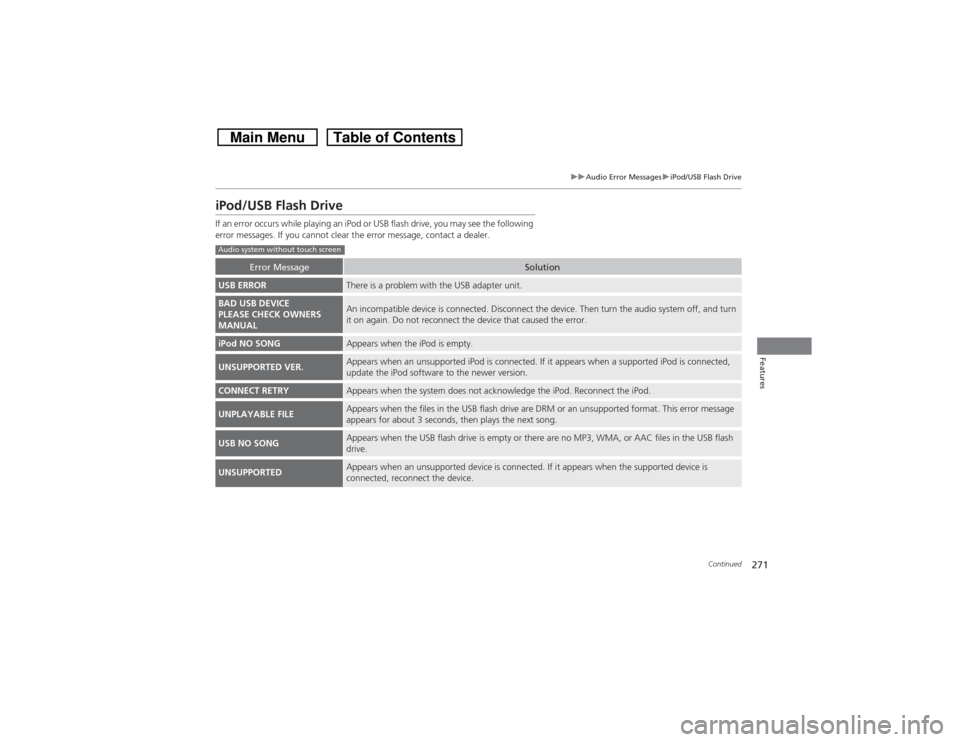
iPod/USB Flash DriveIf an error occurs while playing an iPod or USB flash drive, you may see the following
error messages. If you cannot clear the error message, contact a dealer.
Error Message
Solution
USB ERROR
There is a problem with the USB adapter unit.
BAD USB DEVICE
PLEASE CHECK OWNERS
MANUAL
An incompatible device is connected. Disconnect the device. Then turn the audio system off, and turn
it on again. Do not reconnect the device that caused the error.
iPod NO SONG
Appears when the iPod is empty.
UNSUPPORTED VER.
Appears when an unsupported iPod is connected. If it appears when a supported iPod is connected,
update the iPod software to the newer version.
CONNECT RETRY
Appears when the system does not acknowledge the iPod. Reconnect the iPod.
UNPLAYABLE FILE
Appears when the files in the USB flash drive are DRM or an unsupported format. This error message
appears for about 3 seconds, then plays the next song.
USB NO SONG
Appears when the USB flash drive is empty or there are no MP3, WMA, or AAC files in the USB flash
drive.
UNSUPPORTED
Appears when an unsupported device is connected. If it appears when the supported device is
connected, reconnect the device.
Audio system without touch screen
Page 273 of 573
272
uuAudio Error MessagesuiPod/USB Flash Drive
Features
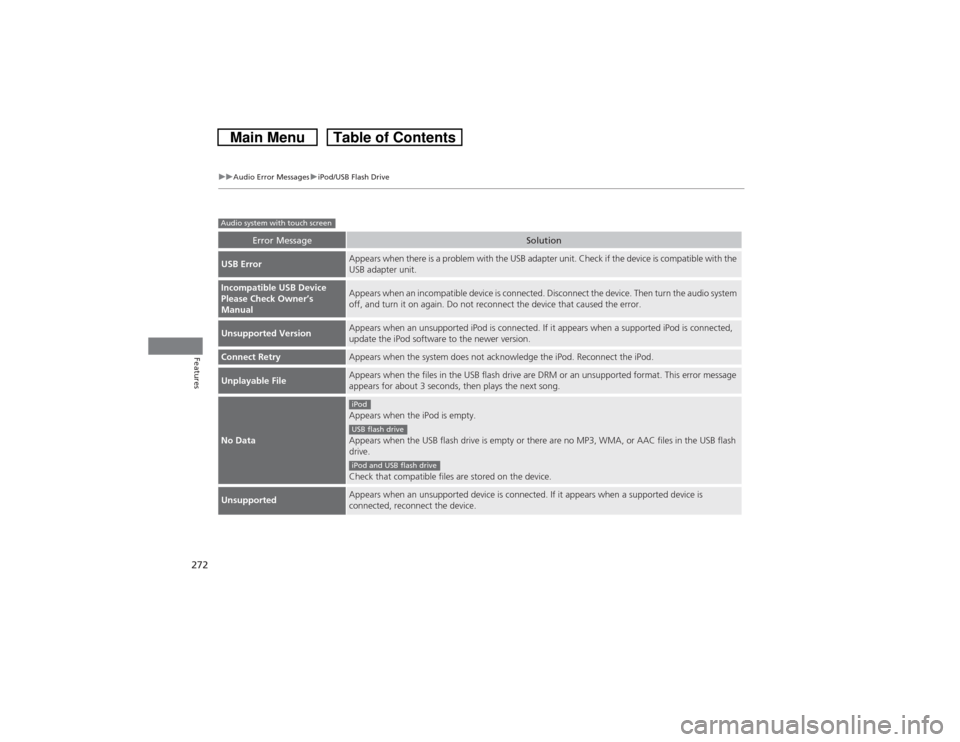
Error Message
Solution
USB Error
Appears when there is a problem with the USB adapter unit. Check if the device is compatible with the
USB adapter unit.
Incompatible USB Device
Please Check Owner’s
Manual
Appears when an incompatible device is connected. Disconnect the device. Then turn the audio system
off, and turn it on again. Do not reconnect the device that caused the error.
Unsupported Version
Appears when an unsupported iPod is connected. If it appears when a supported iPod is connected,
update the iPod software to the newer version.
Connect Retry
Appears when the system does not acknowledge the iPod. Reconnect the iPod.
Unplayable File
Appears when the files in the USB flash drive are DRM or an unsupported format. This error message
appears for about 3 seconds, then plays the next song.
No Data
Appears when the iPod is empty.
Appears when the USB flash drive is empty or there are no MP3, WMA, or AAC files in the USB flash
drive.
Check that compatible files are stored on the device.
Unsupported
Appears when an unsupported device is connected. If it appears when a supported device is
connected, reconnect the device.
Audio system with touch screen
iPodUSB flash driveiPod and USB flash drive
Page 274 of 573
273
uuAudio Error MessagesuPandora®
*
Continued
Features
Pandora®
*
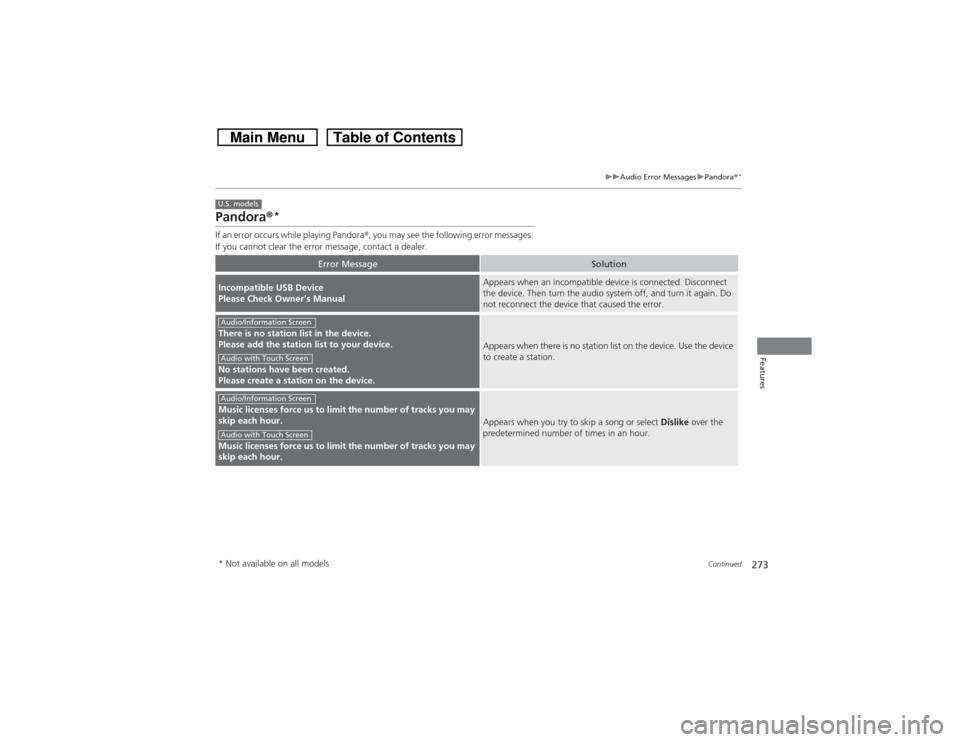
If an error occurs while playing Pandora®, you may see the following error messages.
If you cannot clear the error message, contact a dealer.
Error Message
Solution
Incompatible USB Device
Please Check Owner’s Manual
Appears when an incompatible device is connected. Disconnect
the device. Then turn the audio system off, and turn it again. Do
not reconnect the device that caused the error.
There is no station list in the device.
Please add the station list to your device.
No stations have been created.
Please create a station on the device.
Appears when there is no station list on the device. Use the device
to create a station.
Music licenses force us to limit the number of tracks you may
skip each hour.
Music licenses force us to limit the number of tracks you may
skip each hour.
Appears when you try to skip a song or select Dislike over the
predetermined number of times in an hour.
U.S. modelsAudio/Information ScreenAudio with Touch ScreenAudio/Information ScreenAudio with Touch Screen* Not available on all models
Page 276 of 573
275
uuAudio Error MessagesuAha
TM*
Features
Aha
TM
*
If an error occurs while playing Aha
TM, you may see the following error messages.
If you cannot clear the error message, contact a dealer.
Error Message
Solution
Cannot connect to HondaLink. When stopped, check your
mobile device.
Appears when the Aha
TM app is not activated. Check your device.
Incompatible USB Device
Please Check Owner’s Manual
Appears when an incompatible device is connected. Disconnect
the device. Then turn the audio system off, and turn it on again.
Do not reconnect the device that caused the error.
U.S. models* Not available on all models
Page 280 of 573
279
uuGeneral Information on the Audio SystemuCompatible iPod and USB Flash Drives
Continued
Features
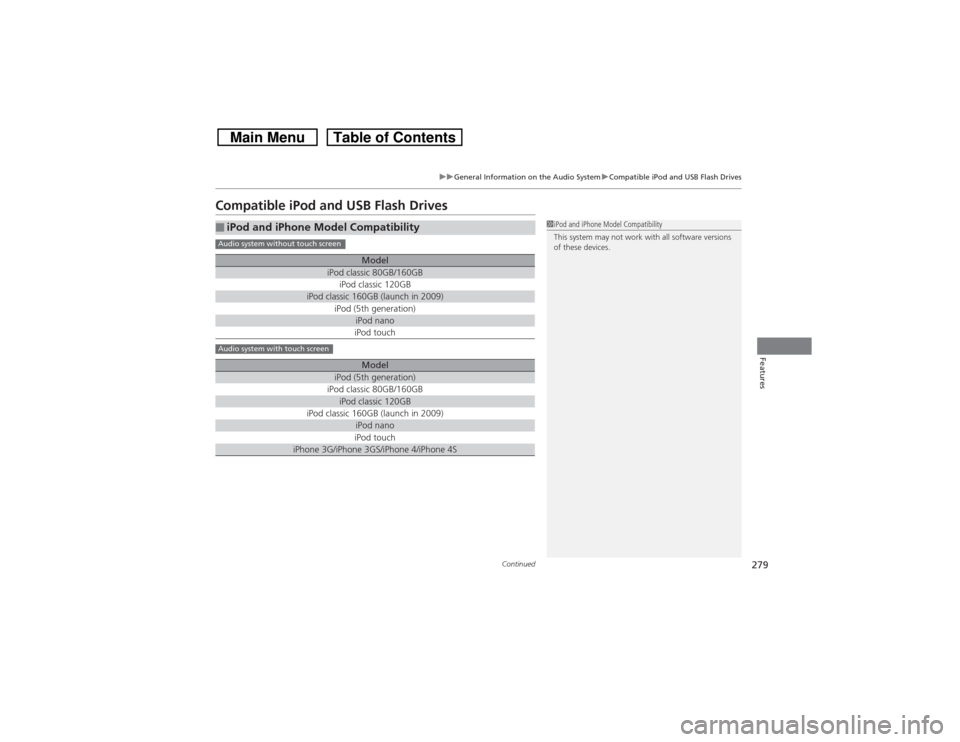
Compatible iPod and USB Flash Drives■iPod and iPhone Model Compatibility
Model
iPod classic 80GB/160GBiPod classic 120GB
iPod classic 160GB (launch in 2009)
iPod (5th generation)
iPod nanoiPod touchModel
iPod (5th generation)iPod classic 80GB/160GBiPod classic 120GB
iPod classic 160GB (launch in 2009)
iPod nanoiPod touch
iPhone 3G/iPhone 3GS/iPhone 4/iPhone 4S
1iPod and iPhone Model Compatibility
This system may not work with all software versions
of these devices.
Audio system without touch screenAudio system with touch screen