Page 178 of 469
177
uuAudio System Basic Operation uPlaying AM/FM Radio
Features
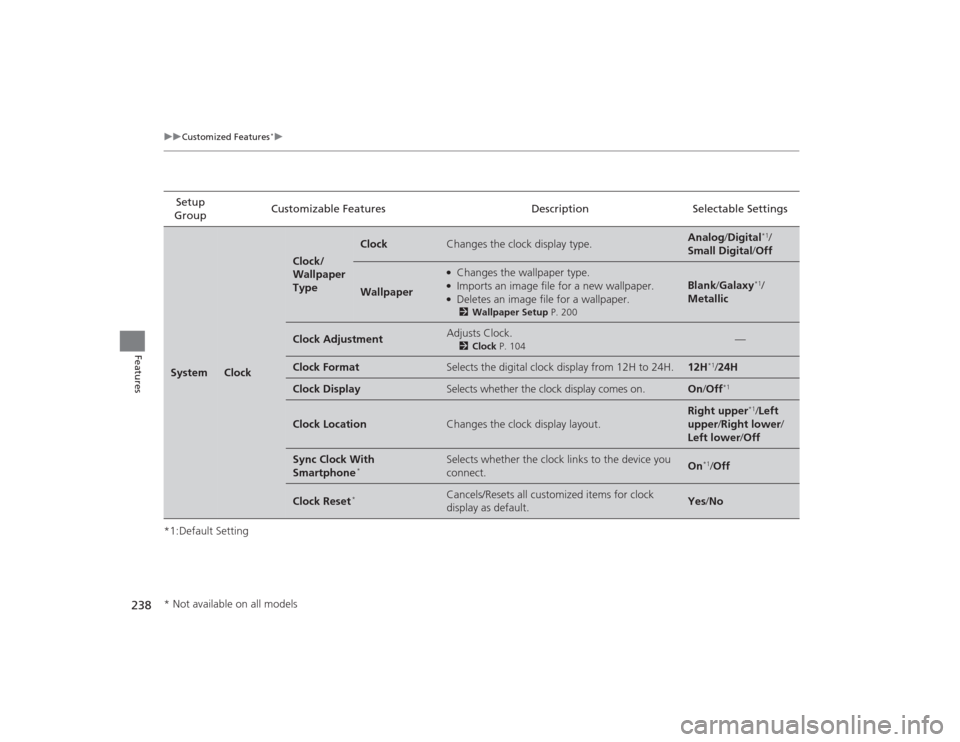
Playing AM/FM Radio
1Playing AM/FM Radio
The ST indicator appears on the display indicating
stereo FM broadcasts.
Stereo reproduction in AM is not available.
You can store six AM stations and twelve FM stations
into the preset memory.
A.SEL function scans and stores up to six AM stations
and twelve FM stations with a strong signal into the
preset button memory.
If you do not like the stations auto select has stored,
you can manually store your preferred frequencies.
FM Button
SCAN Button
Press to sample
each of the
strongest stations
on the selected
band for 10
seconds. To turn
off scan, press the
button again.
VOL/PWR
(Volume/Power)
Knob
Press to turn the
audio system on
and off.
Turn to adjust
the volume.
Preset Buttons (1-6)
To store a station:
1. Tune to the selected station.
2. Pick a preset button and hold it until you hear a
beep.
To listen to a stored station,
select a band, then press the
preset button. / (SEEK/SKIP)
Buttons
Press to search up and down
the selected band for a
station with a strong signal.
A.SEL (Auto Select)
Button
Press to scan both
bands and store the
strongest station in
each preset. To turn off
auto select, press the
button again. This
restores the presets you
originally set. TUNE/SOUND Knob
Rotate to the right to tune to a
higher frequency, and turn it to
the left to tune to a lower
frequency.
AM Button
Press to select a
band.
Page 182 of 469
181
uuAudio System Basic Operation uPlaying AM/FM Radio
Continued
Features
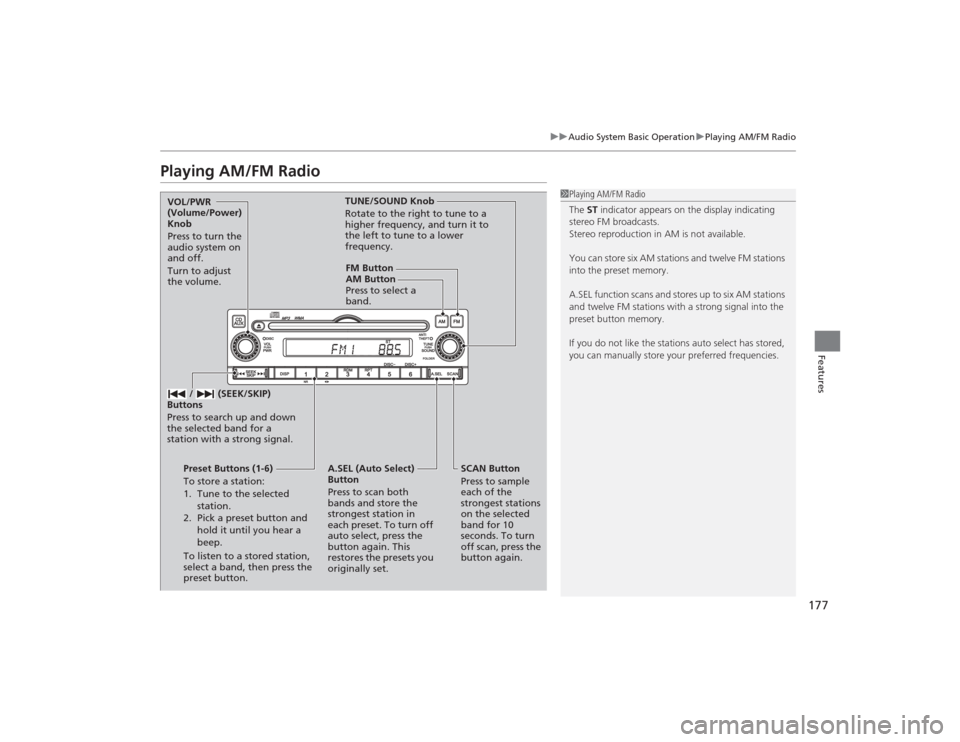
Playing AM/FM Radio
002300
75°
F miles
FM Button / Button
Press to display and select an
RDS category.SCAN Button
Press to sample each of the
strongest stations on the
selected band for 10 seconds.
To turn off scan, press the
button again. (Power) Button
Press to turn the audio
system on and off.
Preset Buttons (1-6)
To store a station:
1. Tune to the selected station.
2. Pick a preset button and hold it until you hear a beep.
To listen to a stored station, select a
band, then press the preset button.
/ (Seek/Skip) Buttons
Press to search up and down the
selected band for a station with
a strong signal.SETUP Button
Press to display menu items.
Selector Knob
Turn to adjust the volume.
Press and turn to tune the radio
frequency.
AM Button
Press to select a band.
Page 183 of 469
uuAudio System Basic Operation uPlaying AM/FM Radio
182Features
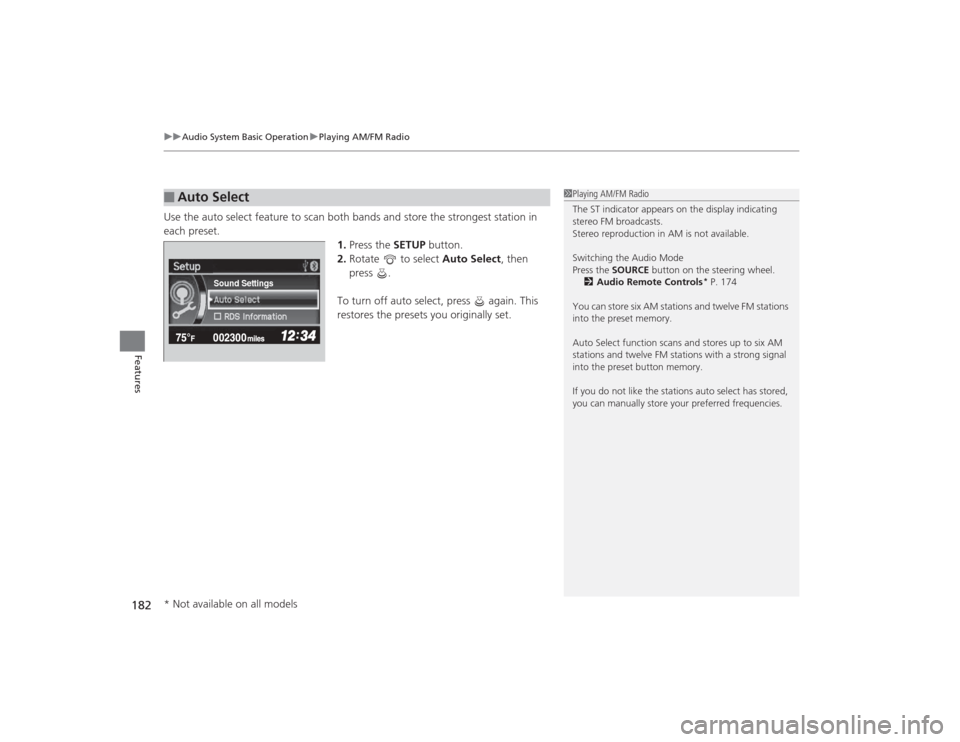
Use the auto select feature to scan both bands and store the strongest station in
each preset. 1.Press the SETUP button.
2. Rotate to select Auto Select, then
press .
To turn off auto select, press again. This
restores the presets you originally set.■
Auto Select
1 Playing AM/FM Radio
The ST indicator appears on the display indicating
stereo FM broadcasts.
Stereo reproduction in AM is not available.
Switching the Audio Mode
Press the SOURCE button on the steering wheel.
2 Audio Remote Controls
* P. 174
You can store six AM stations and twelve FM stations
into the preset memory.
Auto Select function scans and stores up to six AM
stations and twelve FM stations with a strong signal
into the preset button memory.
If you do not like the stations auto select has stored,
you can manually store your preferred frequencies.
Sound Settings
* Not available on all models
Page 198 of 469
197Features
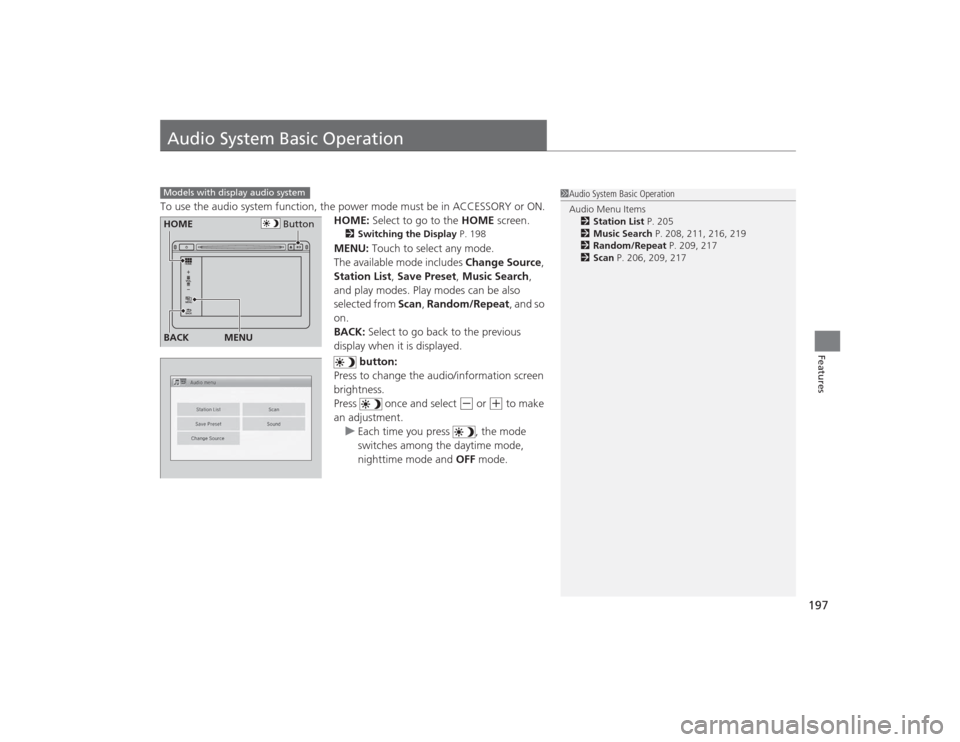
Audio System Basic OperationTo use the audio system function, the power mode must be in ACCESSORY or ON.HOME: Select to go to the HOME screen.
2Switching the Display P. 198MENU: Touch to select any mode.
The available mode includes Change Source,
Station List , Save Preset, Music Search,
and play modes. Play modes can be also
selected from Scan, Random/Repeat , and so
on.
BACK: Select to go back to the previous
display when it is displayed.
button:
Press to change the audio/information screen
brightness.
Press once and select
(-
or
(+
to make
an adjustment. u Each time you press , the mode
switches among the daytime mode,
nighttime mode and OFF mode.
Models with display audio system
1Audio System Basic Operation
Audio Menu Items
2 Station List P. 205
2 Music Search P. 208, 211, 216, 219
2 Random/Repeat P. 209, 217
2 Scan P. 206, 209, 217
Button
HOME
BACK
MENU
Page 206 of 469
Continued
205
uuAudio System Basic Operation uPlaying AM/FM Radio
Features
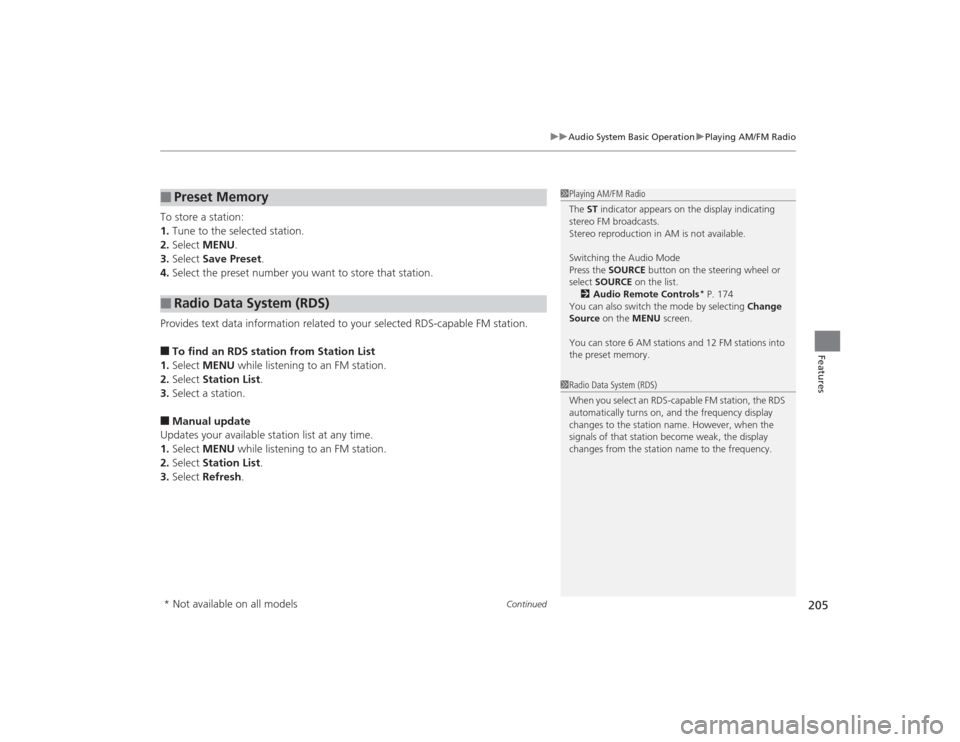
To store a station:
1. Tune to the selected station.
2. Select MENU .
3. Select Save Preset .
4. Select the preset number you want to store that station.
Provides text data information related to your selected RDS-capable FM station.■To find an RDS station from Station List
1. Select MENU while listening to an FM station.
2. Select Station List .
3. Select a station.■Manual update
Updates your available station list at any time.
1. Select MENU while listening to an FM station.
2. Select Station List .
3. Select Refresh .■
Preset Memory
■
Radio Data System (RDS)
1Playing AM/FM Radio
The ST indicator appears on the display indicating
stereo FM broadcasts.
Stereo reproduction in AM is not available.
Switching the Audio Mode
Press the SOURCE button on the steering wheel or
select SOURCE on the list.
2 Audio Remote Controls
* P. 174
You can also switch the mode by selecting Change
Source on the MENU screen.
You can store 6 AM stations and 12 FM stations into
the preset memory.
1 Radio Data System (RDS)
When you select an RDS-capable FM station, the RDS
automatically turns on, and the frequency display
changes to the station name. However, when the
signals of that station become weak, the display
changes from the station name to the frequency.
* Not available on all models
Page 235 of 469
234
uuCustomized Features
*u
Features
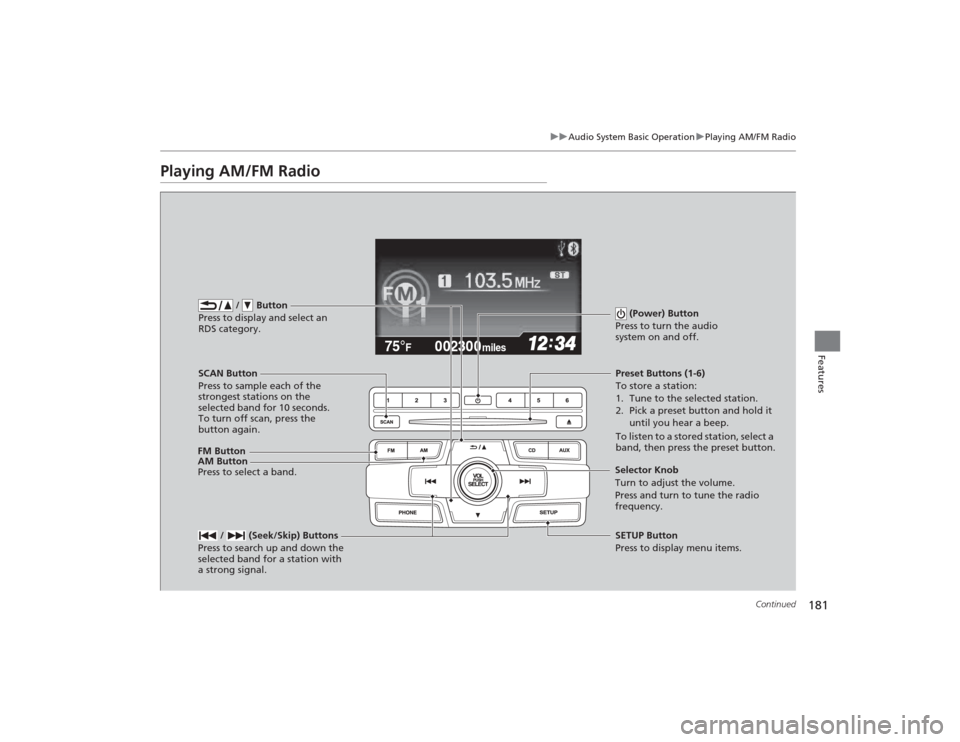
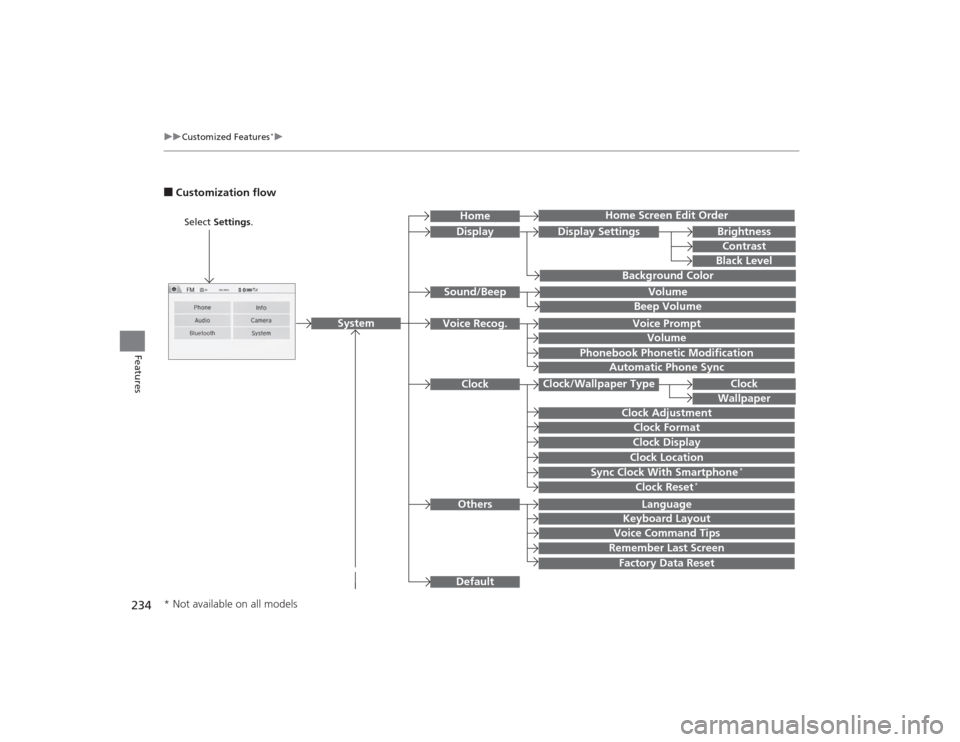
■Customization flow
Clock Format
Remember Last ScreenFactory Data ResetClock Adjustment
Select Settings .
Language
Default
BrightnessContrastBlack Level
Clock
Wallpaper
Display
Home Screen Edit Order
Background Color
Volume
Sync Clock With Smartphone
*
Clock LocationClock DisplayBeep VolumeKeyboard Layout
Home
Sound/Beep
Display Settings
Clock
Clock/Wallpaper Type
System
Clock Reset
*
Others
Phonebook Phonetic Modification
Automatic Phone Sync
Voice Prompt
Volume
Voice Recog.
Voice Command Tips
* Not available on all models
Page 236 of 469
235
uuCustomized Features
*u
Continued
Features
Color
Audio
Sound
Audio Source Pop-up
[Your selected media] Cover Art
*1
Display Adjustment
*1
Aspect Ratio Adjustment
*1
Change Bluetooth Audio Device
*1
Bluetooth Device List
*1
Default
Display
BrightnessContrastBlack Level
ColorTint
Clock FormatClock Adjustment
Clock/Wallpaper Type
Clock
Wallpaper
Sync Clock With Smartphone
*
Clock LocationClock Display
Info Screen Preference
Default
Info
Clock Reset
*
OtherClock
*1: May change depending on your currently
selected source.* Not available on all models
Page 239 of 469
238
uuCustomized Features
*u
Features
*1:Default SettingSetup
Group Customizable Features Description Selectable SettingsSystem
Clock
Clock/
Wallpaper
Type
Clock
Changes the clock display type.
Analog
/Digital
*1/
Small Digital /Off
Wallpaper
●Changes the wallpaper type.●Imports an image file for a new wallpaper.●Deletes an image file for a wallpaper.2 Wallpaper Setup P. 200
Blank /Galaxy
*1/
Metallic
Clock Adjustment
Adjusts Clock.
2 Clock P. 104
—
Clock Format
Selects the digital clock display from 12H to 24H.
12H
*1/24H
Clock Display
Selects whether the clock display comes on.
On /Off
*1
Clock Location
Changes the clock display layout.
Right upper
*1/Left
upper /Right lower/
Left lower/ Off
Sync Clock With
Smartphone
*
Selects whether the clock links to the device you
connect.
On
*1/Off
Clock Reset
*
Cancels/Resets all customized items for clock
display as default.
Yes /No
* Not available on all models
![HONDA CIVIC 2014 9.G Owners Manual 235
uuCustomized Features
*u
Continued
Features
Color
Audio
Sound
Audio Source Pop-up
[Your selected media] Cover Art
*1
Display Adjustment
*1
Aspect Ratio Adjustment
*1
Change Bluetooth Audio Device](/manual-img/13/5834/w960_5834-235.png "HONDA CIVIC 2014 9.G Owners Manual 235
uuCustomized Features
*u
Continued
Features
Color
Audio
Sound
Audio Source Pop-up
[Your selected media] Cover Art
*1
Display Adjustment
*1
Aspect Ratio Adjustment
*1
Change Bluetooth Audio Device")