2014 FORD MUSTANG display
[x] Cancel search: displayPage 407 of 461
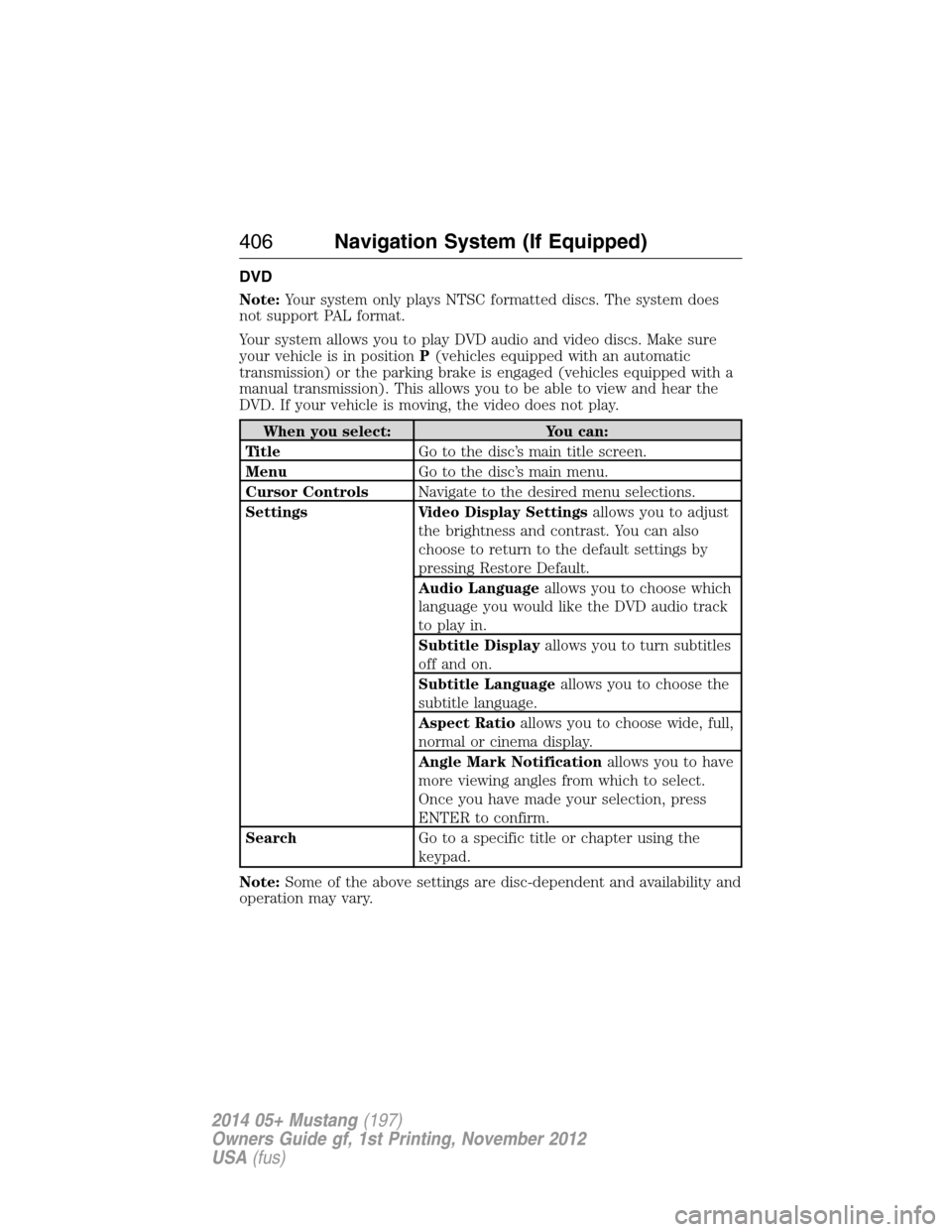
DVD
Note:Your system only plays NTSC formatted discs. The system does
not support PAL format.
Your system allows you to play DVD audio and video discs. Make sure
your vehicle is in positionP(vehicles equipped with an automatic
transmission) or the parking brake is engaged (vehicles equipped with a
manual transmission). This allows you to be able to view and hear the
DVD. If your vehicle is moving, the video does not play.
When you select: You can:
Ti t l eGo to the disc’s main title screen.
MenuGo to the disc’s main menu.
Cursor ControlsNavigate to the desired menu selections.
Settings Video Display Settingsallows you to adjust
the brightness and contrast. You can also
choose to return to the default settings by
pressing Restore Default.
Audio Languageallows you to choose which
language you would like the DVD audio track
to play in.
Subtitle Displayallows you to turn subtitles
off and on.
Subtitle Languageallows you to choose the
subtitle language.
Aspect Ratioallows you to choose wide, full,
normal or cinema display.
Angle Mark Notificationallows you to have
more viewing angles from which to select.
Once you have made your selection, press
ENTER to confirm.
SearchGo to a specific title or chapter using the
keypad.
Note:Some of the above settings are disc-dependent and availability and
operation may vary.
406Navigation System (If Equipped)
2014 05+ Mustang(197)
Owners Guide gf, 1st Printing, November 2012
USA(fus)
Page 410 of 461
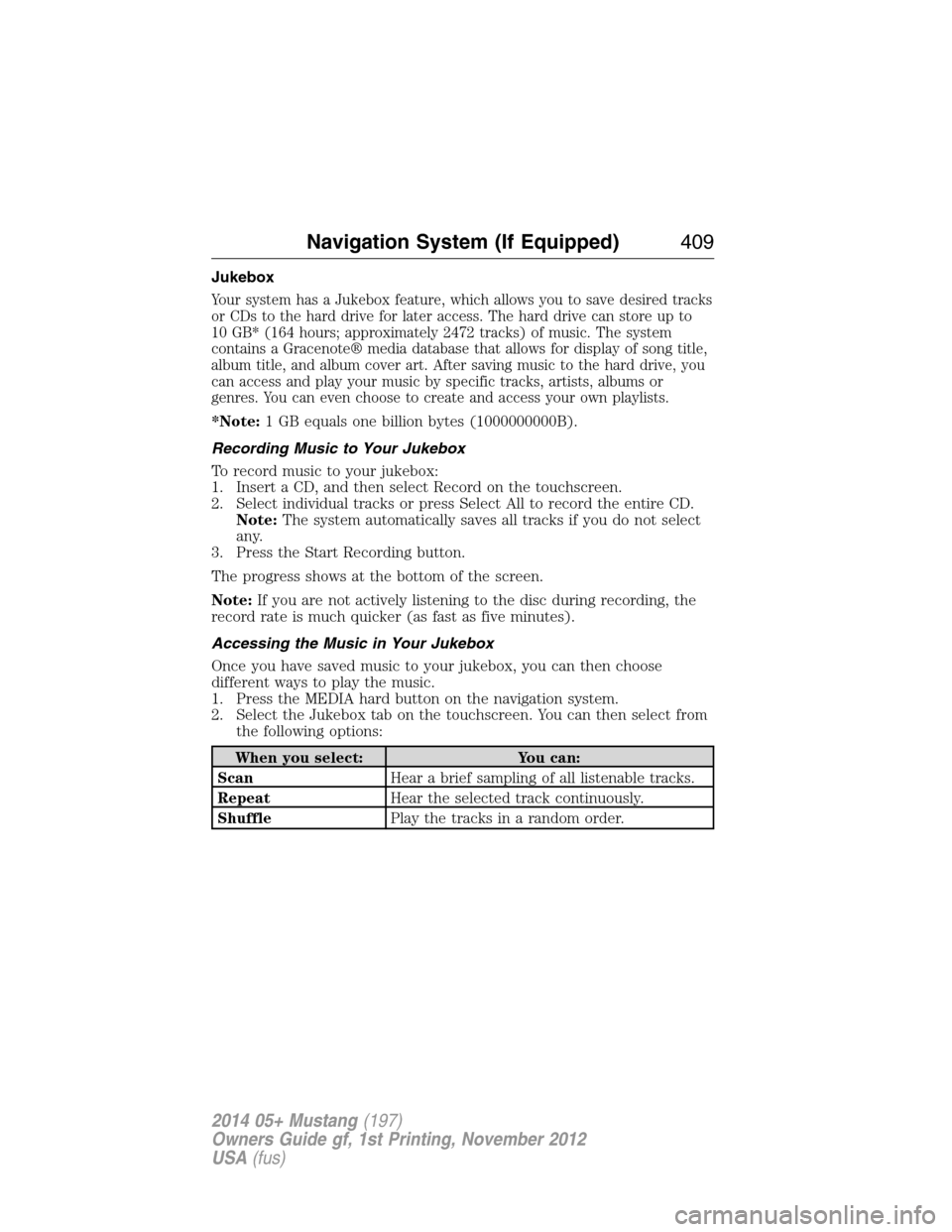
Jukebox
Your system has a Jukebox feature, which allows you to save desired tracks
or CDs to the hard drive for later access. The hard drive can store up to
10 GB* (164 hours; approximately 2472 tracks) of music. The system
contains a Gracenote® media database that allows for display of song title,
album title, and album cover art. After saving music to the hard drive, you
can access and play your music by specific tracks, artists, albums or
genres. You can even choose to create and access your own playlists.
*Note:1 GB equals one billion bytes (1000000000B).
Recording Music to Your Jukebox
To record music to your jukebox:
1. Insert a CD, and then select Record on the touchscreen.
2. Select individual tracks or press Select All to record the entire CD.
Note:The system automatically saves all tracks if you do not select
any.
3. Press the Start Recording button.
The progress shows at the bottom of the screen.
Note:If you are not actively listening to the disc during recording, the
record rate is much quicker (as fast as five minutes).
Accessing the Music in Your Jukebox
Once you have saved music to your jukebox, you can then choose
different ways to play the music.
1. Press the MEDIA hard button on the navigation system.
2. Select the Jukebox tab on the touchscreen. You can then select from
the following options:
When you select: You can:
ScanHear a brief sampling of all listenable tracks.
RepeatHear the selected track continuously.
ShufflePlay the tracks in a random order.
Navigation System (If Equipped)409
2014 05+ Mustang(197)
Owners Guide gf, 1st Printing, November 2012
USA(fus)
Page 419 of 461

SOUND
The sound menu allows you to access and adjust settings, such as Bass,
Treble, Fade, Balance, Speed Compensated Volume (SCV) and the
visualizer. Press the SOUND hard button.
When you select: You can:
Bass/TrebleIncrease or decrease levels by pressing + or -.
Balance/FadeAdjust the sound between the left and right
speakers and front and rear speakers.
SCVHave the system automatically adjust radio
volume according to vehicle speed to
compensate for road and wind noise. Select a
level of compensation between 1 and 7 by
pressing the corresponding button.
VisualizerTurn the audio visualizer display on or off.
Note:Turning the visualizer setting to off
does not remove the visualizer on the home
screen. You need to select a different view in
order to remove the visualizer.
NAVIGATION SYSTEM
Your navigation system allows you to set a destination by using your
touchscreen or voice commands.
The navigation system contains map coverage for the United States,
Puerto Rico and U.S. Virgin Islands, Canada and Mexico.
Disclaimer
A disclaimer appears once per ignition cycle when theDESTbutton is
pressed. PressAcceptto agree to the terms and access navigation functions.
If you do not press Accept, you only have access to non-navigation functions.
The disclaimer has information similar to the following:
•Always obey local traffic regulations.
•We recommend you program the system only when your vehicle is at a
stop.
•Some functions are unavailable while your vehicle is moving to help
minimize distraction.
•Periodic map updates are available at an additional cost.
418Navigation System (If Equipped)
2014 05+ Mustang(197)
Owners Guide gf, 1st Printing, November 2012
USA(fus)
Page 420 of 461
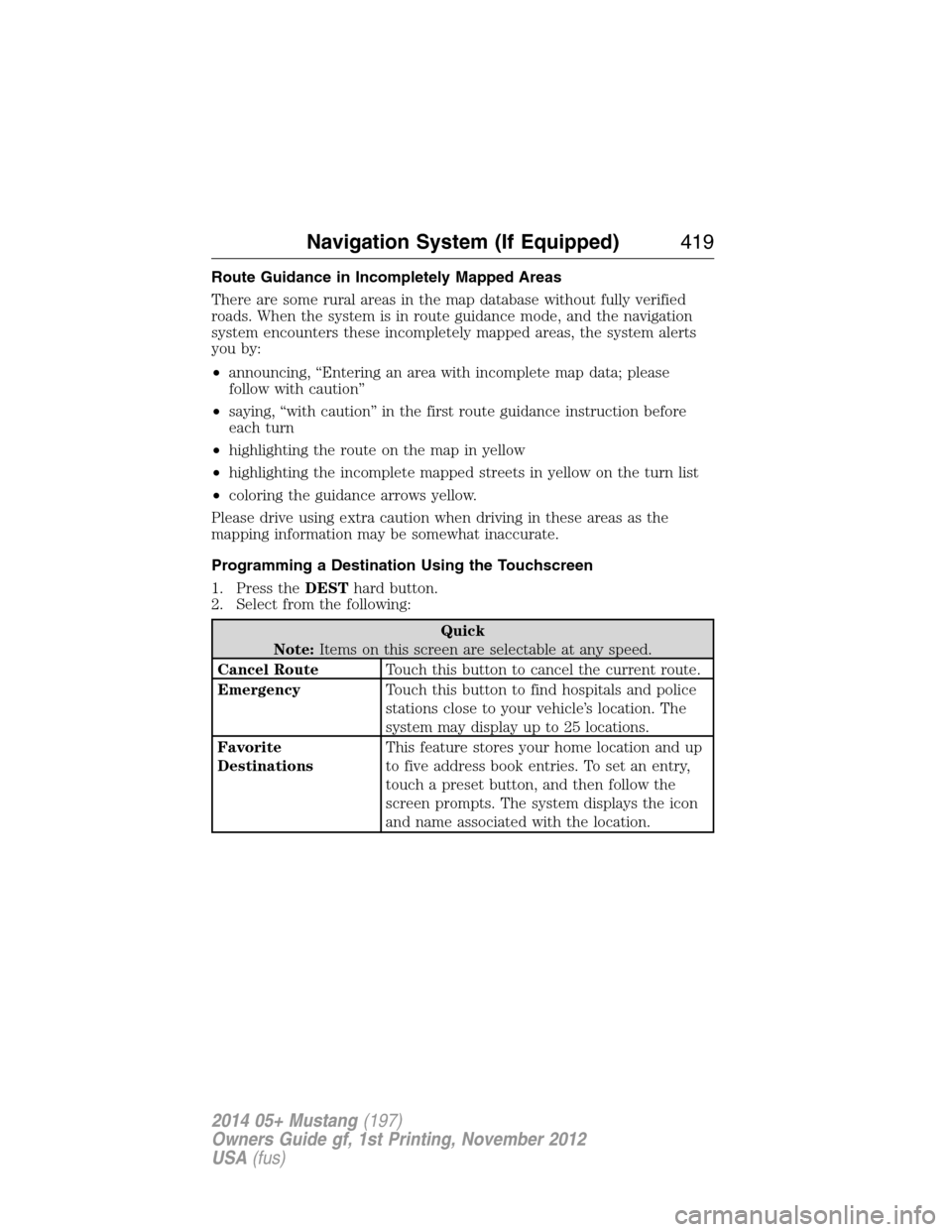
Route Guidance in Incompletely Mapped Areas
There are some rural areas in the map database without fully verified
roads. When the system is in route guidance mode, and the navigation
system encounters these incompletely mapped areas, the system alerts
you by:
•announcing, “Entering an area with incomplete map data; please
follow with caution”
•saying, “with caution” in the first route guidance instruction before
each turn
•highlighting the route on the map in yellow
•highlighting the incomplete mapped streets in yellow on the turn list
•coloring the guidance arrows yellow.
Please drive using extra caution when driving in these areas as the
mapping information may be somewhat inaccurate.
Programming a Destination Using the Touchscreen
1. Press theDESThard button.
2. Select from the following:
Quick
Note:Items on this screen are selectable at any speed.
Cancel RouteTouch this button to cancel the current route.
EmergencyTouch this button to find hospitals and police
stations close to your vehicle’s location. The
system may display up to 25 locations.
Favorite
DestinationsThis feature stores your home location and up
to five address book entries. To set an entry,
touch a preset button, and then follow the
screen prompts. The system displays the icon
and name associated with the location.
Navigation System (If Equipped)419
2014 05+ Mustang(197)
Owners Guide gf, 1st Printing, November 2012
USA(fus)
Page 421 of 461
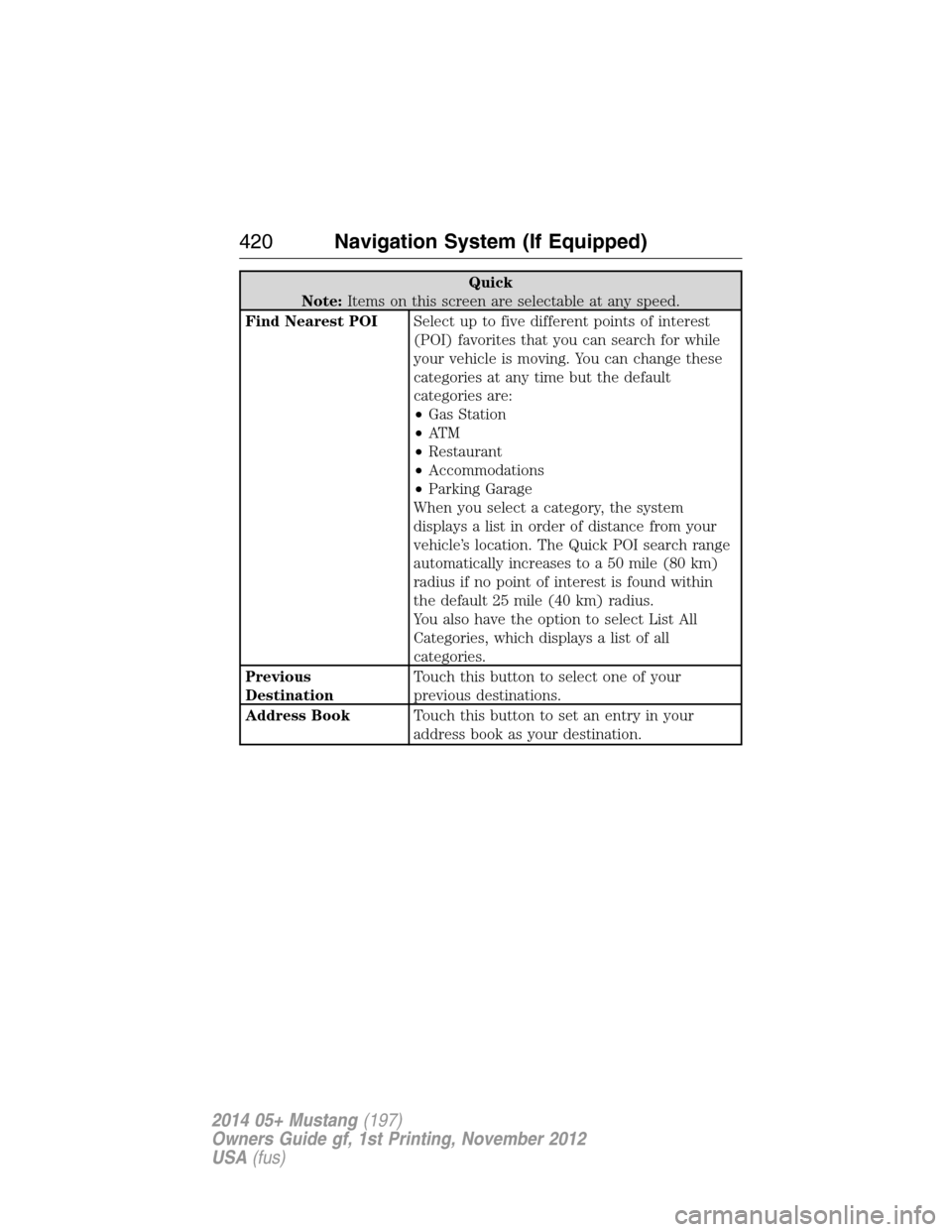
Quick
Note:Items on this screen are selectable at any speed.
Find Nearest POISelect up to five different points of interest
(POI) favorites that you can search for while
your vehicle is moving. You can change these
categories at any time but the default
categories are:
•Gas Station
•AT M
•Restaurant
•Accommodations
•Parking Garage
When you select a category, the system
displays a list in order of distance from your
vehicle’s location. The Quick POI search range
automatically increases to a 50 mile (80 km)
radius if no point of interest is found within
the default 25 mile (40 km) radius.
You also have the option to select List All
Categories, which displays a list of all
categories.
Previous
DestinationTouch this button to select one of your
previous destinations.
Address BookTouch this button to set an entry in your
address book as your destination.
420Navigation System (If Equipped)
2014 05+ Mustang(197)
Owners Guide gf, 1st Printing, November 2012
USA(fus)
Page 426 of 461
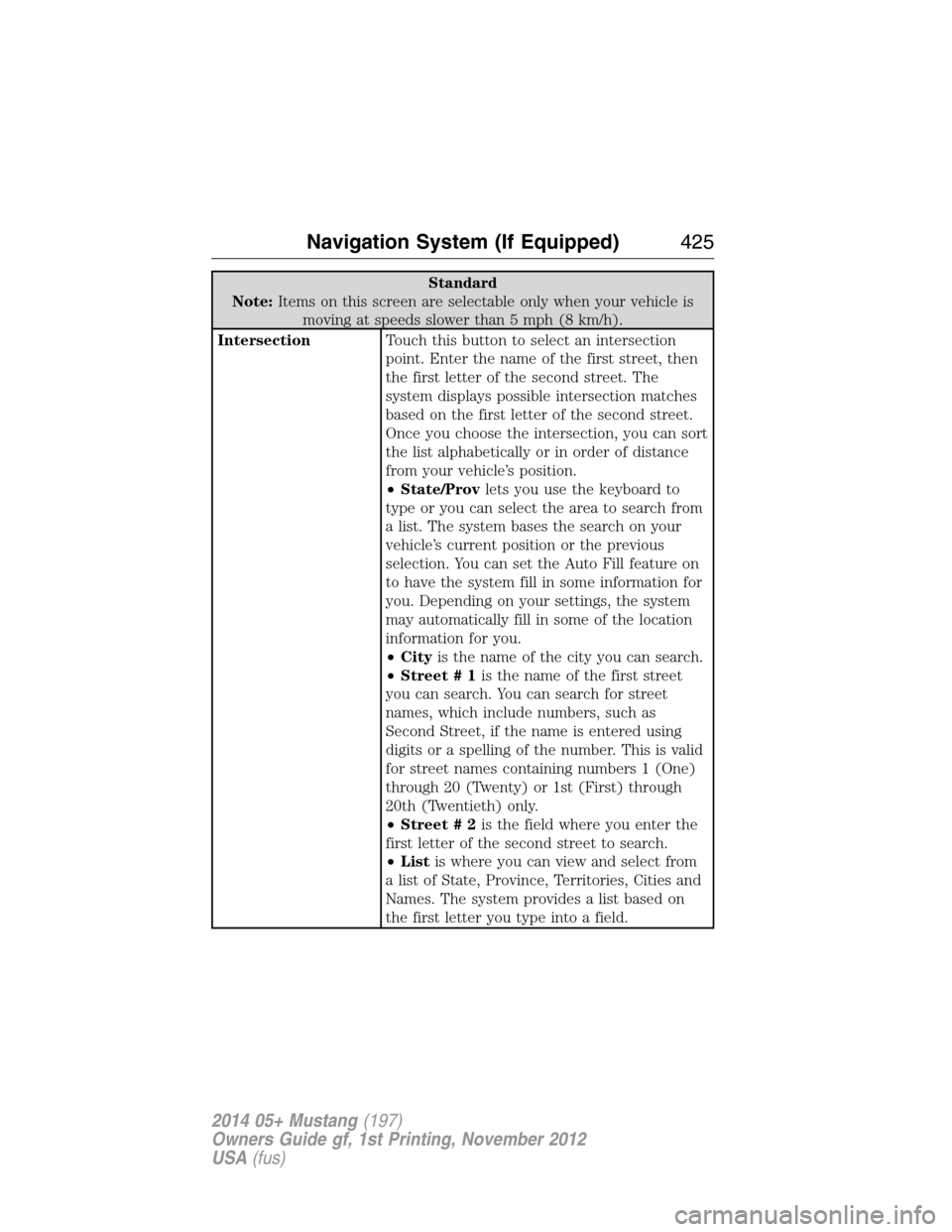
Standard
Note:Items on this screen are selectable only when your vehicle is
moving at speeds slower than 5 mph (8 km/h).
IntersectionTouch this button to select an intersection
point. Enter the name of the first street, then
the first letter of the second street. The
system displays possible intersection matches
based on the first letter of the second street.
Once you choose the intersection, you can sort
the list alphabetically or in order of distance
from your vehicle’s position.
•State/Provlets you use the keyboard to
type or you can select the area to search from
a list. The system bases the search on your
vehicle’s current position or the previous
selection. You can set the Auto Fill feature on
to have the system fill in some information for
you. Depending on your settings, the system
may automatically fill in some of the location
information for you.
•Cityis the name of the city you can search.
•Street # 1is the name of the first street
you can search. You can search for street
names, which include numbers, such as
Second Street, if the name is entered using
digits or a spelling of the number. This is valid
for street names containing numbers 1 (One)
through 20 (Twenty) or 1st (First) through
20th (Twentieth) only.
•Street # 2is the field where you enter the
first letter of the second street to search.
•Listis where you can view and select from
a list of State, Province, Territories, Cities and
Names. The system provides a list based on
the first letter you type into a field.
Navigation System (If Equipped)425
2014 05+ Mustang(197)
Owners Guide gf, 1st Printing, November 2012
USA(fus)
Page 427 of 461
*To delete all stored Address Book and Previous Destination entries at
once:
1. Press theMENUhard button.
2. Select theSystem Settingstab.
3. Press theVi e wbutton forDelete Stored Items.
4. SelectAddress BookorPrevious Destinations.
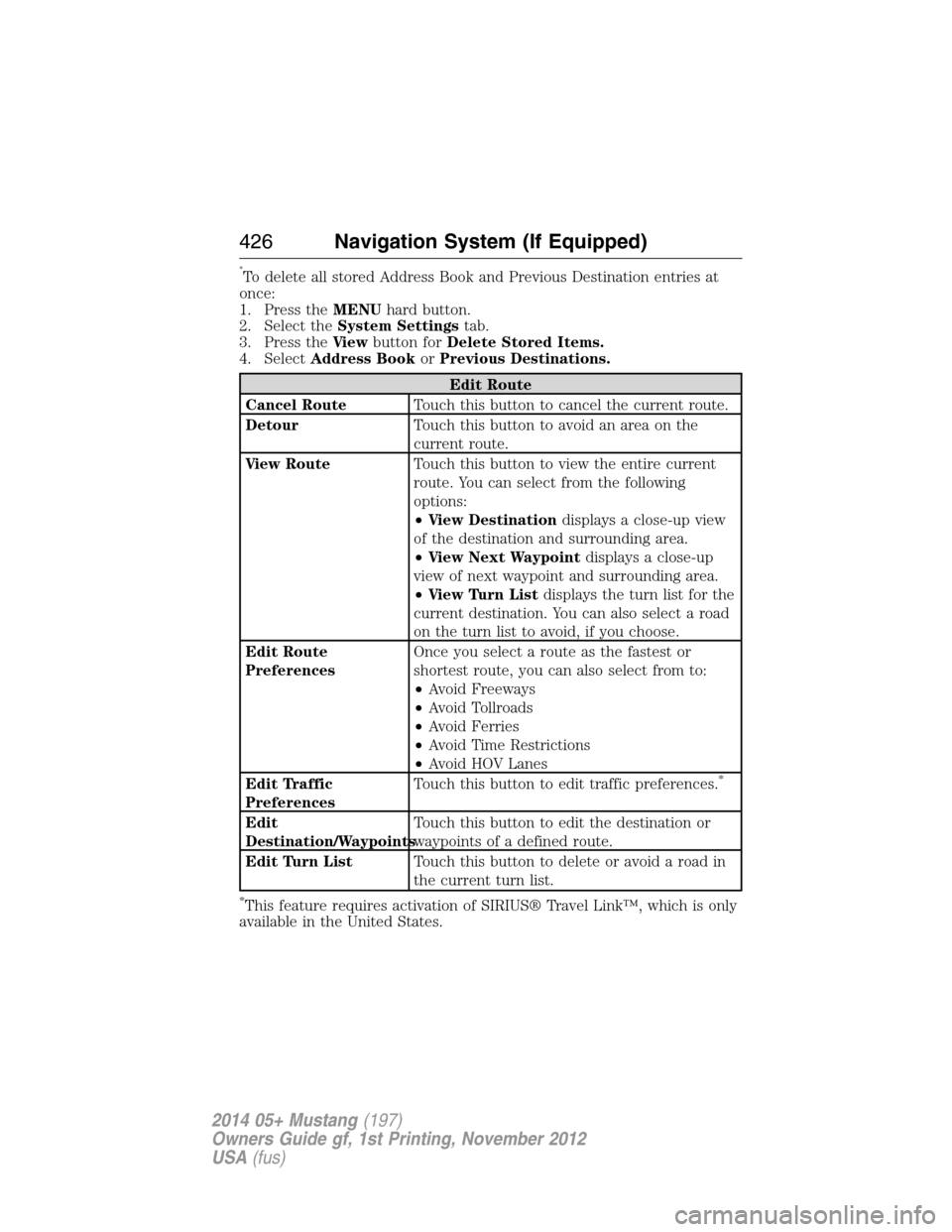
Edit Route
Cancel RouteTouch this button to cancel the current route.
DetourTouch this button to avoid an area on the
current route.
View RouteTouch this button to view the entire current
route. You can select from the following
options:
•View Destinationdisplays a close-up view
of the destination and surrounding area.
•View Next Waypointdisplays a close-up
view of next waypoint and surrounding area.
•View Turn Listdisplays the turn list for the
current destination. You can also select a road
on the turn list to avoid, if you choose.
Edit Route
PreferencesOnce you select a route as the fastest or
shortest route, you can also select from to:
•Avoid Freeways
•Avoid Tollroads
•Avoid Ferries
•Avoid Time Restrictions
•Avoid HOV Lanes
Edit Traffic
PreferencesTouch this button to edit traffic preferences.
*
Edit
Destination/WaypointsTouch this button to edit the destination or
waypoints of a defined route.
Edit Turn ListTouch this button to delete or avoid a road in
the current turn list.
*This feature requires activation of SIRIUS® Travel Link™, which is only
available in the United States.
426Navigation System (If Equipped)
2014 05+ Mustang(197)
Owners Guide gf, 1st Printing, November 2012
USA(fus)
Page 428 of 461
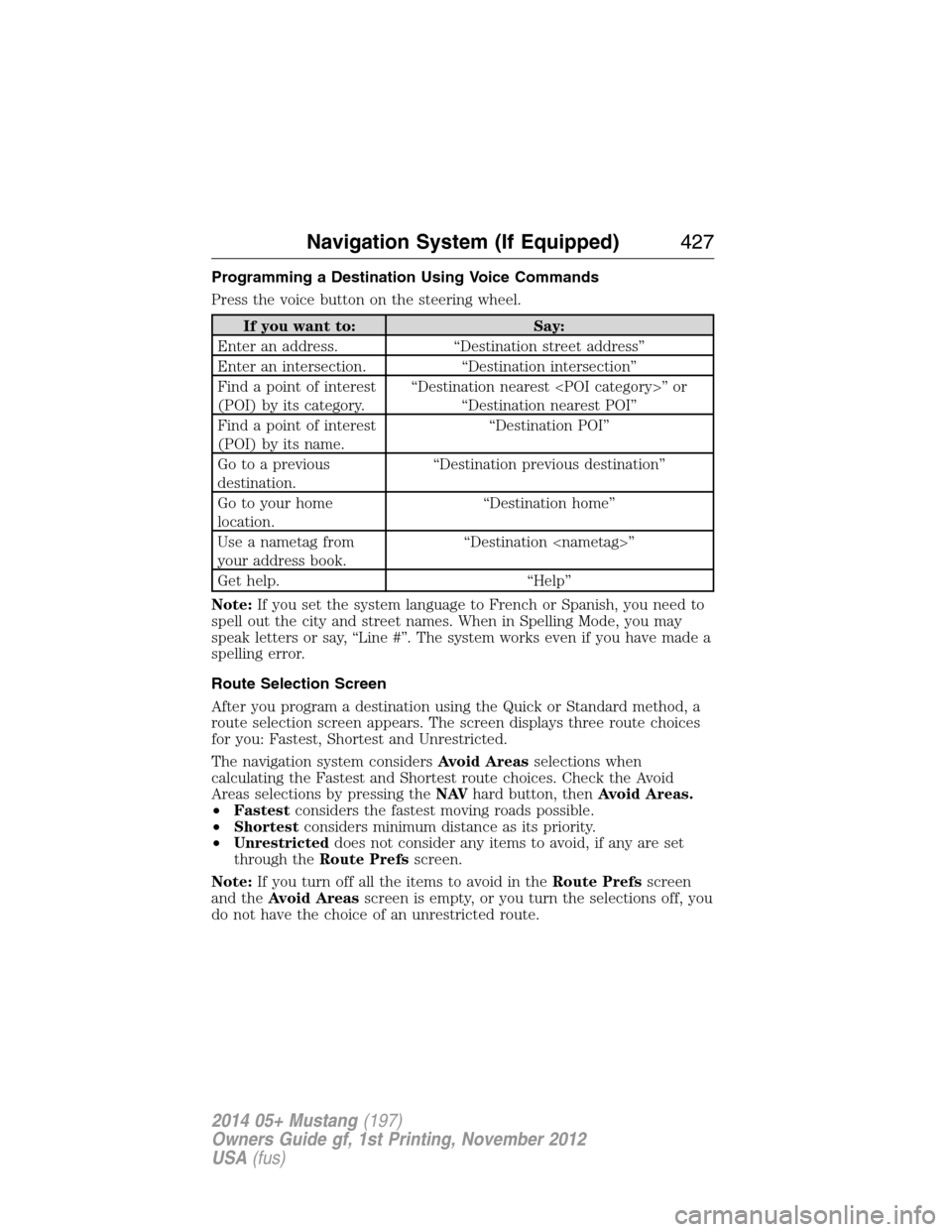
Programming a Destination Using Voice Commands
Press the voice button on the steering wheel.
If you want to: Say:
Enter an address. “Destination street address”
Enter an intersection. “Destination intersection”
Find a point of interest
(POI) by its category.“Destination nearest
“Destination nearest POI”
Find a point of interest
(POI) by its name.“Destination POI”
Go to a previous
destination.“Destination previous destination”
Go to your home
location.“Destination home”
Use a nametag from
your address book.“Destination
Get help. “Help”
Note:If you set the system language to French or Spanish, you need to
spell out the city and street names. When in Spelling Mode, you may
speak letters or say, “Line #”. The system works even if you have made a
spelling error.
Route Selection Screen
After you program a destination using the Quick or Standard method, a
route selection screen appears. The screen displays three route choices
for you: Fastest, Shortest and Unrestricted.
The navigation system considersAvoid Areasselections when
calculating the Fastest and Shortest route choices. Check the Avoid
Areas selections by pressing theNAVhard button, thenAvoid Areas.
•Fastestconsiders the fastest moving roads possible.
•Shortestconsiders minimum distance as its priority.
•Unrestricteddoes not consider any items to avoid, if any are set
through theRoute Prefsscreen.
Note:If you turn off all the items to avoid in theRoute Prefsscreen
and theAvoid Areasscreen is empty, or you turn the selections off, you
do not have the choice of an unrestricted route.
Navigation System (If Equipped)427
2014 05+ Mustang(197)
Owners Guide gf, 1st Printing, November 2012
USA(fus)