Page 374 of 461
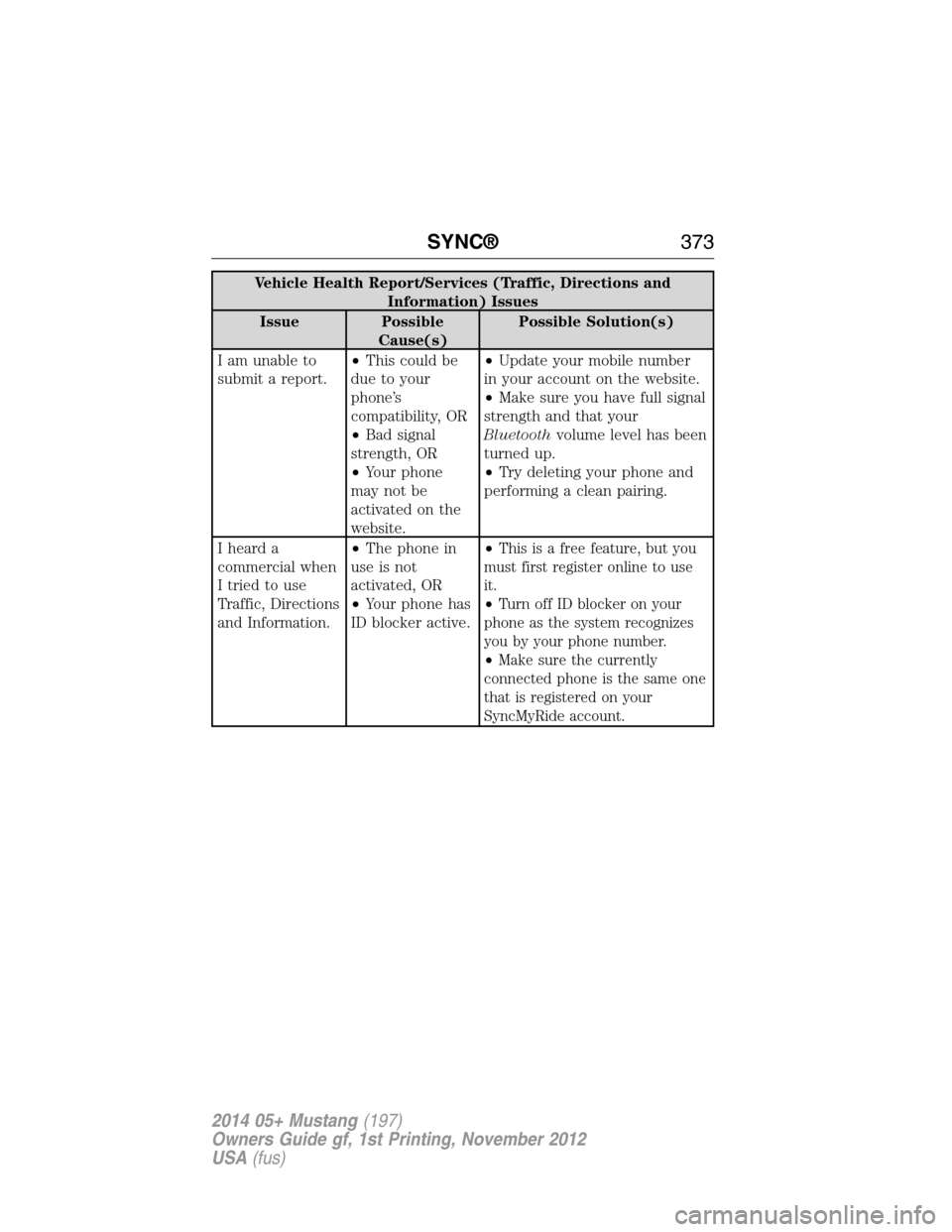
Vehicle Health Report/Services (Traffic, Directions and
Information) Issues
Issue Possible
Cause(s)Possible Solution(s)
I am unable to
submit a report.•This could be
due to your
phone’s
compatibility, OR
•Bad signal
strength, OR
•Your phone
may not be
activated on the
website.•Update your mobile number
in your account on the website.
•Make sure you have full signal
strength and that your
Bluetoothvolume level has been
turned up.
•Try deleting your phone and
performing a clean pairing.
I heard a
commercial when
I tried to use
Traffic, Directions
and Information.•The phone in
use is not
activated, OR
•Your phone has
ID blocker active.•
This is a free feature, but you
must first register online to use
it.
•Turn off ID blocker on your
phone as the system recognizes
you by your phone number.
•Make sure the currently
connected phone is the same one
that is registered on your
SyncMyRide account.
SYNC®373
2014 05+ Mustang(197)
Owners Guide gf, 1st Printing, November 2012
USA(fus)
Page 378 of 461
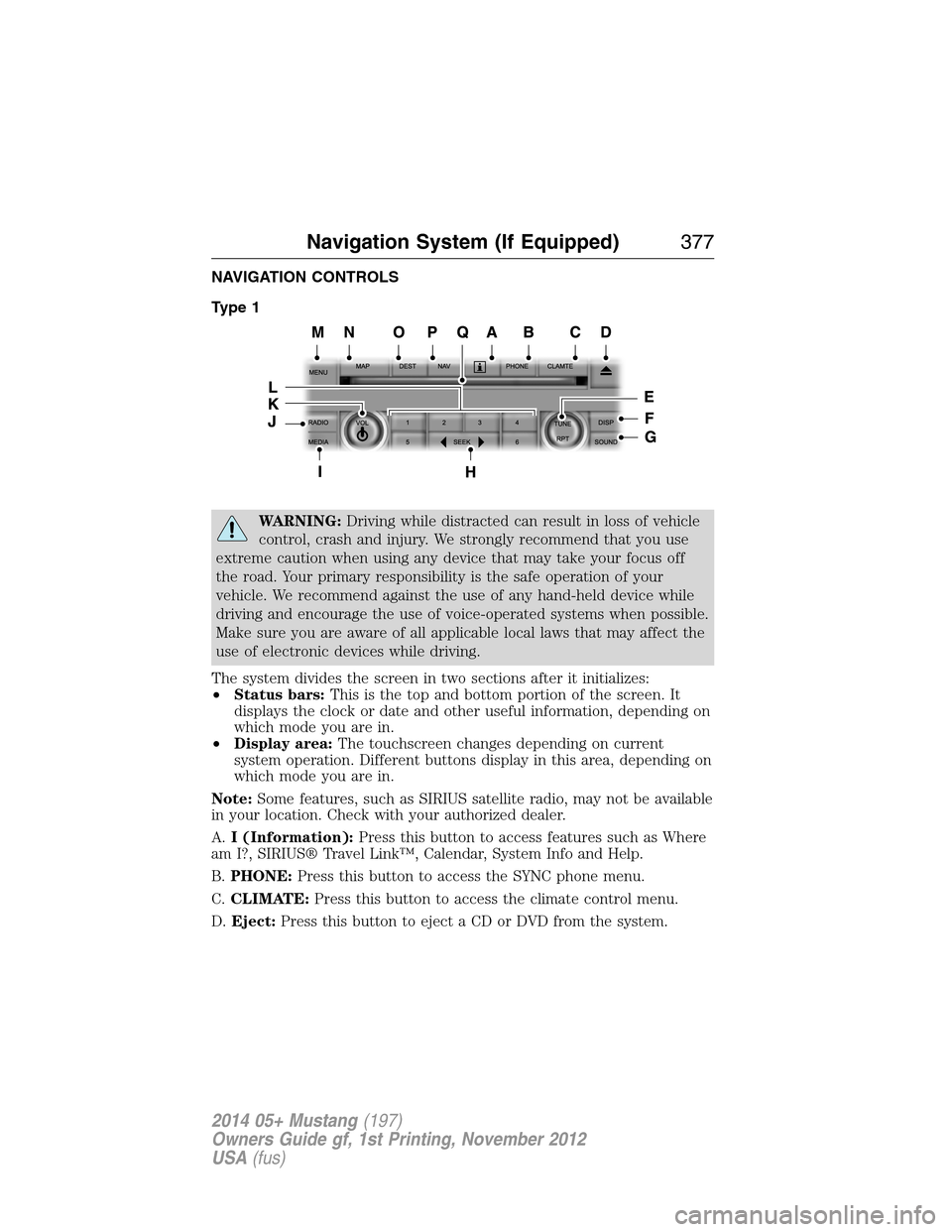
NAVIGATION CONTROLS
Type 1
WARNING:Driving while distracted can result in loss of vehicle
control, crash and injury. We strongly recommend that you use
extreme caution when using any device that may take your focus off
the road. Your primary responsibility is the safe operation of your
vehicle. We recommend against the use of any hand-held device while
driving and encourage the use of voice-operated systems when possible.
Make sure you are aware of all applicable local laws that may affect the
use of electronic devices while driving.
The system divides the screen in two sections after it initializes:
•Status bars:This is the top and bottom portion of the screen. It
displays the clock or date and other useful information, depending on
which mode you are in.
•Display area:The touchscreen changes depending on current
system operation. Different buttons display in this area, depending on
which mode you are in.
Note:Some features, such as SIRIUS satellite radio, may not be available
in your location. Check with your authorized dealer.
A.I (Information):Press this button to access features such as Where
am I?, SIRIUS® Travel Link™, Calendar, System Info and Help.
B.PHONE:Press this button to access the SYNC phone menu.
C.CLIMATE:Press this button to access the climate control menu.
D.Eject:Press this button to eject a CD or DVD from the system.
Navigation System (If Equipped)377
2014 05+ Mustang(197)
Owners Guide gf, 1st Printing, November 2012
USA(fus)
Page 380 of 461
M.MENU:
•Press this button to access the system menu.
•Press while the system menu is active to access the menu tabs of
Display, Clock, Feedback Settings, System Settings and Valet Mode.
N.MAP:
•Press this button to access the navigation map.
•Press while the map display is active to center the map on the
current vehicle position. Press while the map display and route are
active to see the different map guidance views.
O.DEST:
•Press this button to access the destination entry menu.
•Press while the destination entry menu is active to show additional
destination entry techniques.
P.N AV:
•Press this button to access the navigation menu.
•Press while the navigation menu is active to access the navigation
menu tabs.
Q.CD and DVD slot:Insert a CD or DVD, label side up.
Navigation System (If Equipped)379
2014 05+ Mustang(197)
Owners Guide gf, 1st Printing, November 2012
USA(fus)
Page 381 of 461
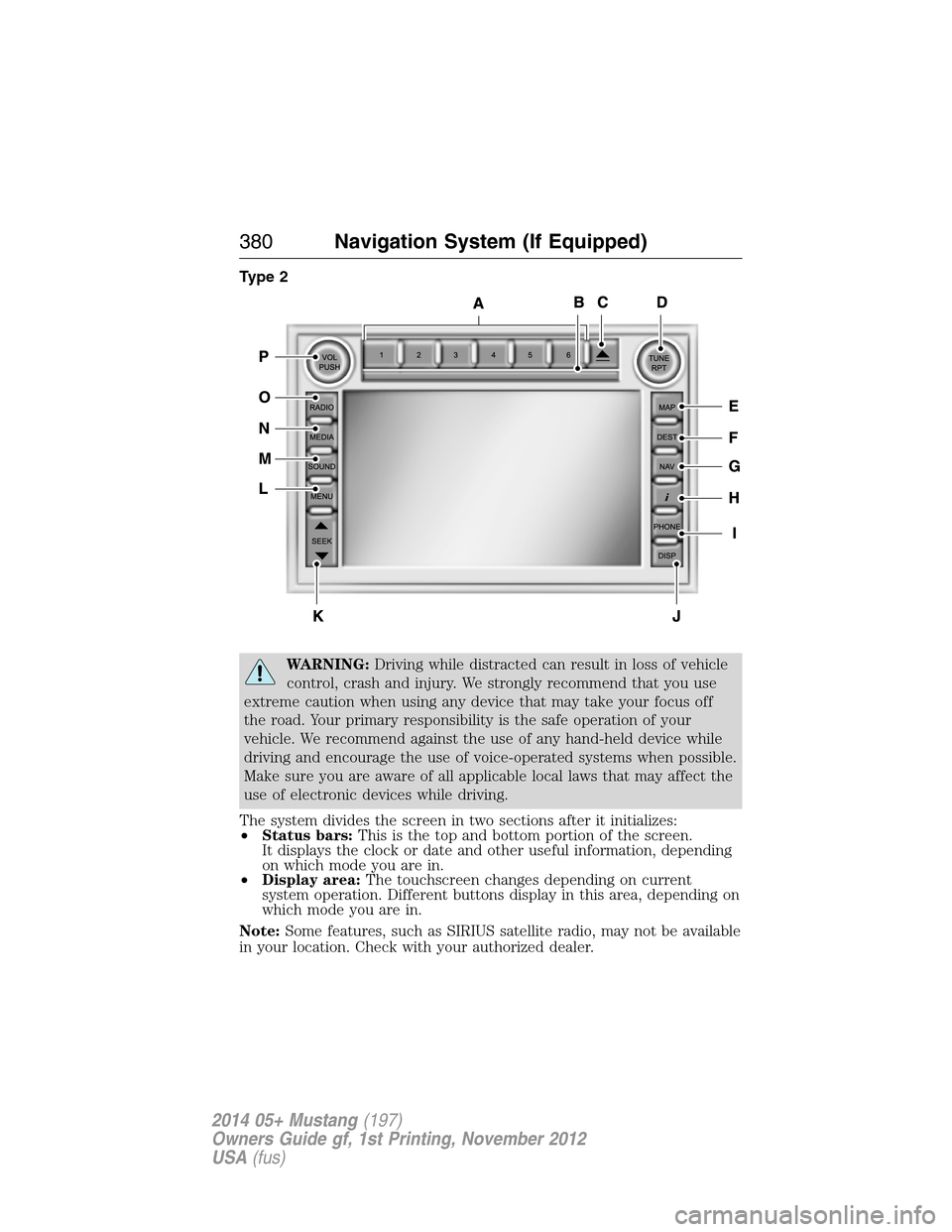
Type 2
WARNING:Driving while distracted can result in loss of vehicle
control, crash and injury. We strongly recommend that you use
extreme caution when using any device that may take your focus off
the road. Your primary responsibility is the safe operation of your
vehicle. We recommend against the use of any hand-held device while
driving and encourage the use of voice-operated systems when possible.
Make sure you are aware of all applicable local laws that may affect the
use of electronic devices while driving.
The system divides the screen in two sections after it initializes:
•Status bars:This is the top and bottom portion of the screen.
It displays the clock or date and other useful information, depending
on which mode you are in.
•Display area:The touchscreen changes depending on current
system operation. Different buttons display in this area, depending on
which mode you are in.
Note:Some features, such as SIRIUS satellite radio, may not be available
in your location. Check with your authorized dealer.
380Navigation System (If Equipped)
2014 05+ Mustang(197)
Owners Guide gf, 1st Printing, November 2012
USA(fus)
Page 383 of 461

L.MENU:
•Press this button to access the system menu.
•Press while the system menu is active to access the menu tabs of
Display, Clock, Feedback Settings, System Settings and Valet Mode.
M.SOUND:
•Press this button to access the sound menu.
•Press while the sound menu is active to access the menu tabs of
Bass/Treble, Balance/Fade, SCV (Speed Compensated Volume), DSP
(Digital Signal Processing) and Visualizer.
N.MEDIA:
•Press this button to access the media menu.
•Press while the media menu is active to access the available sources
of CD/DVD, Jukebox and User Device.
O.RADIO:
•Press this button to access the radio menu.
•Press while the radio menu is active to access the available sources of
AM, FM1, FM2, SAT1, SAT2, and SAT3.
P.VOL:Press and hold this button to turn the system off and on. Turn
the control to adjust the volume.
Note:If a navigation route is active when the navigation system is off,
the system resumes the route when you turn the system on.
DISPLAY MODE
You can choose to turn your screen on or off and if you would like to
view the status bars on the top and bottom of the screen. Press DISP to
see the options.
Display Mode Voice Commands
The following voice commands are available in display mode. If
you are not in display mode, press the voice button on the
steering wheel. When prompted, say “Display mode” and then
any of the following commands.
Display mode voice commands
“Display on”
“Display off”
“Status bar”
“Brighter”
“Dimmer”
“Day”
382Navigation System (If Equipped)
2014 05+ Mustang(197)
Owners Guide gf, 1st Printing, November 2012
USA(fus)
Page 389 of 461
If you select: You can:
Clock Display Clockallows you to turn the clock
on or off.
Note:If your vehicle is equipped with an
in-dash analog clock, you can set the time on
this screen, but it may not appear in the
status bar for viewing purposes.
Formatallows you to switch between 12–
and 24–hour clock display.
Auto Time Zoneallows you to have the
system automatically switch the time
whenever you enter a new time zone.
Note:The system does not implement
daylight savings time.
Restore Defaultsallows you to restore
system defaults.
388Navigation System (If Equipped)
2014 05+ Mustang(197)
Owners Guide gf, 1st Printing, November 2012
USA(fus)
Page 391 of 461
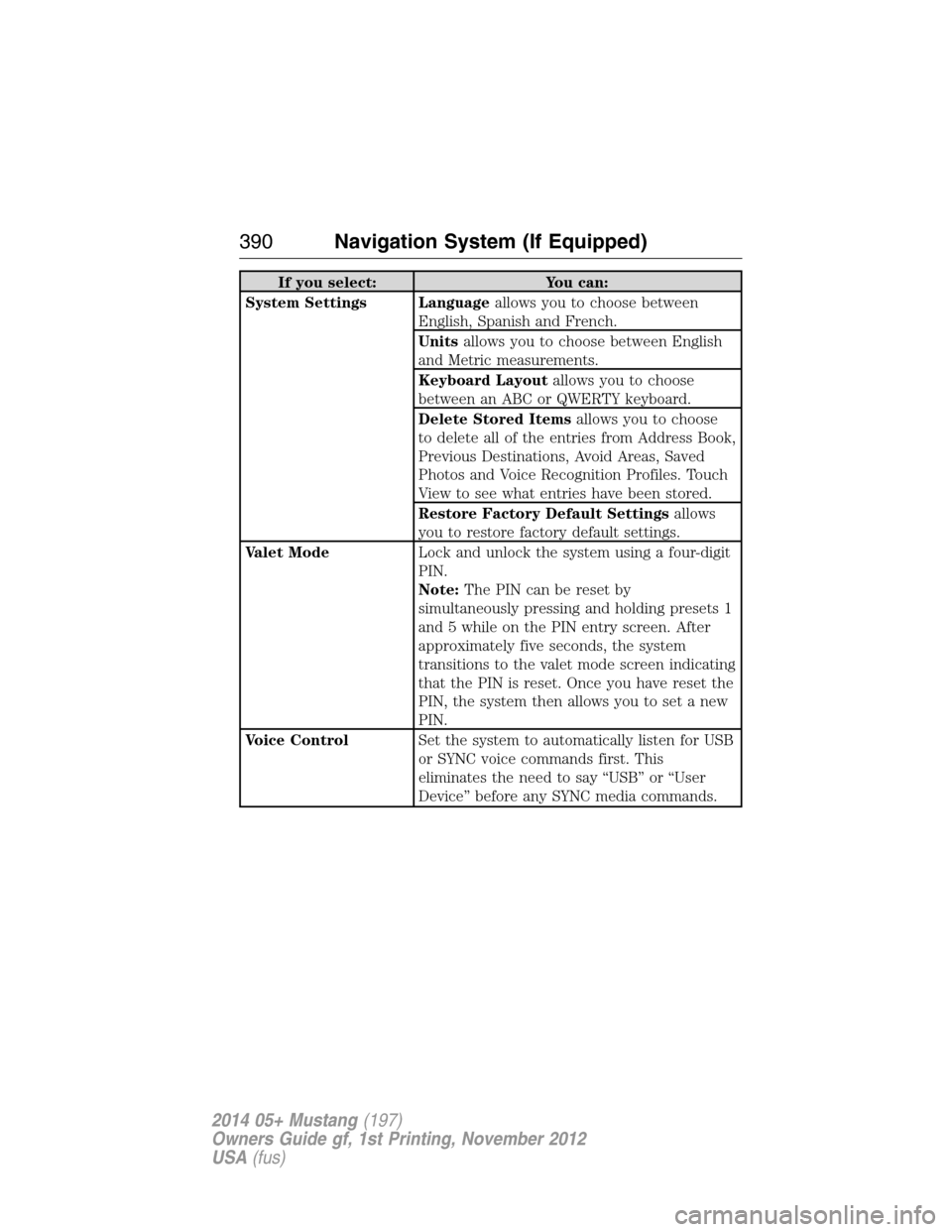
If you select: You can:
System Settings Languageallows you to choose between
English, Spanish and French.
Unitsallows you to choose between English
and Metric measurements.
Keyboard Layoutallows you to choose
between an ABC or QWERTY keyboard.
Delete Stored Itemsallows you to choose
to delete all of the entries from Address Book,
Previous Destinations, Avoid Areas, Saved
Photos and Voice Recognition Profiles. Touch
View to see what entries have been stored.
Restore Factory Default Settingsallows
you to restore factory default settings.
Valet ModeLock and unlock the system using a four-digit
PIN.
Note:The PIN can be reset by
simultaneously pressing and holding presets 1
and 5 while on the PIN entry screen. After
approximately five seconds, the system
transitions to the valet mode screen indicating
that the PIN is reset. Once you have reset the
PIN, the system then allows you to set a new
PIN.
Voice ControlSet the system to automatically listen for USB
or SYNC voice commands first. This
eliminates the need to say “USB” or “User
Device” before any SYNC media commands.
390Navigation System (If Equipped)
2014 05+ Mustang(197)
Owners Guide gf, 1st Printing, November 2012
USA(fus)
Page 400 of 461
SIRIUS® Satellite Radio (If Activated)
Press the RADIO hard button, then select SAT on the
touchscreen.
When you select: You can:
SAT123Press this button to access three different
satellite radio modes (SAT1, SAT2 or SAT3).
ScanPress this button to hear a brief sampling of
all satellite radio channels within the current
genre.
Scan PresetsPress these buttons to hear a brief sampling
of all channels stored in the memory presets.
Channel GuideSee a list of channels sorted by genre and
also skip or lock out certain channels. Select
the desired genre and choose a channel by
pressing the channel name button. You can
then choose to Skip or Lock a certain
channel. A skipped channel is not accessible
using the tune knob, scan or seek functions.
(To access the skipped channel, select Direct
Tune and enter the channel number.) You can
only access a locked channel by entering the
Channel Guide and then entering the system’s
PIN.
Direct TuneEnter the desired satellite channel number
using the on-screen keypad.
Set GenrePress this button to choose from a list of
genres. Once you choose a genre, and you
press SEEK, it only looks for channels in that
genre.
Navigation System (If Equipped)399
2014 05+ Mustang(197)
Owners Guide gf, 1st Printing, November 2012
USA(fus)

