2014 FORD MONDEO USB
[x] Cancel search: USBPage 342 of 446
Downloaded from www.Manualslib.com manuals search engine General
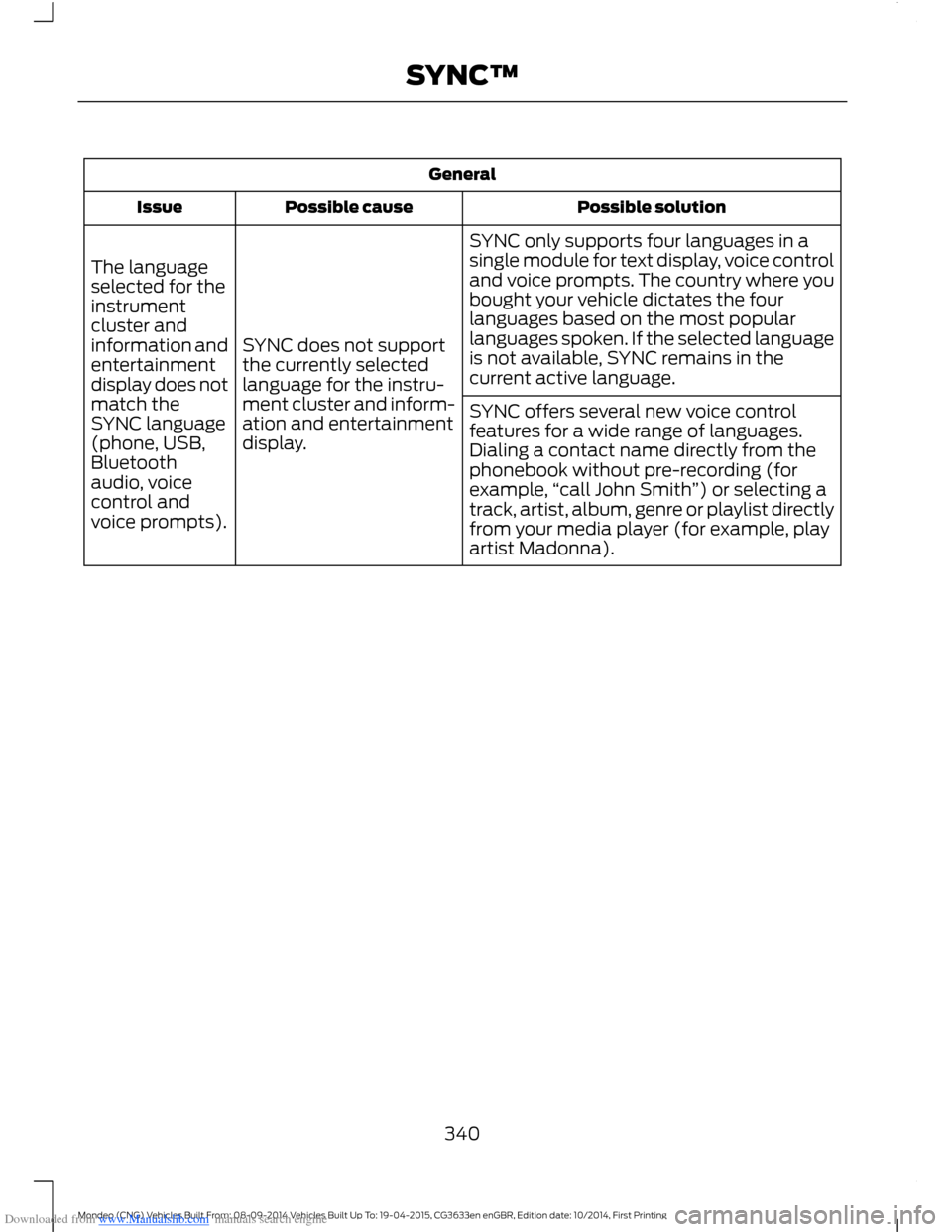
Possible solutionPossible causeIssue
SYNC only supports four languages in asingle module for text display, voice controland voice prompts. The country where youbought your vehicle dictates the fourlanguages based on the most popularlanguages spoken. If the selected languageis not available, SYNC remains in thecurrent active language.
SYNC does not supportthe currently selectedlanguage for the instru-ment cluster and inform-ation and entertainmentdisplay.
The languageselected for theinstrumentcluster andinformation andentertainmentdisplay does notmatch theSYNC language(phone, USB,Bluetoothaudio, voicecontrol andvoice prompts).
SYNC offers several new voice controlfeatures for a wide range of languages.Dialing a contact name directly from thephonebook without pre-recording (forexample,“call John Smith”) or selecting atrack, artist, album, genre or playlist directlyfrom your media player (for example, playartist Madonna).
340Mondeo (CNG) Vehicles Built From: 08-09-2014 Vehicles Built Up To: 19-04-2015, CG3633en enGBR, Edition date: 10/2014, First PrintingSYNC™
Page 343 of 446
Downloaded from www.Manualslib.com manuals search engine AppLink issues
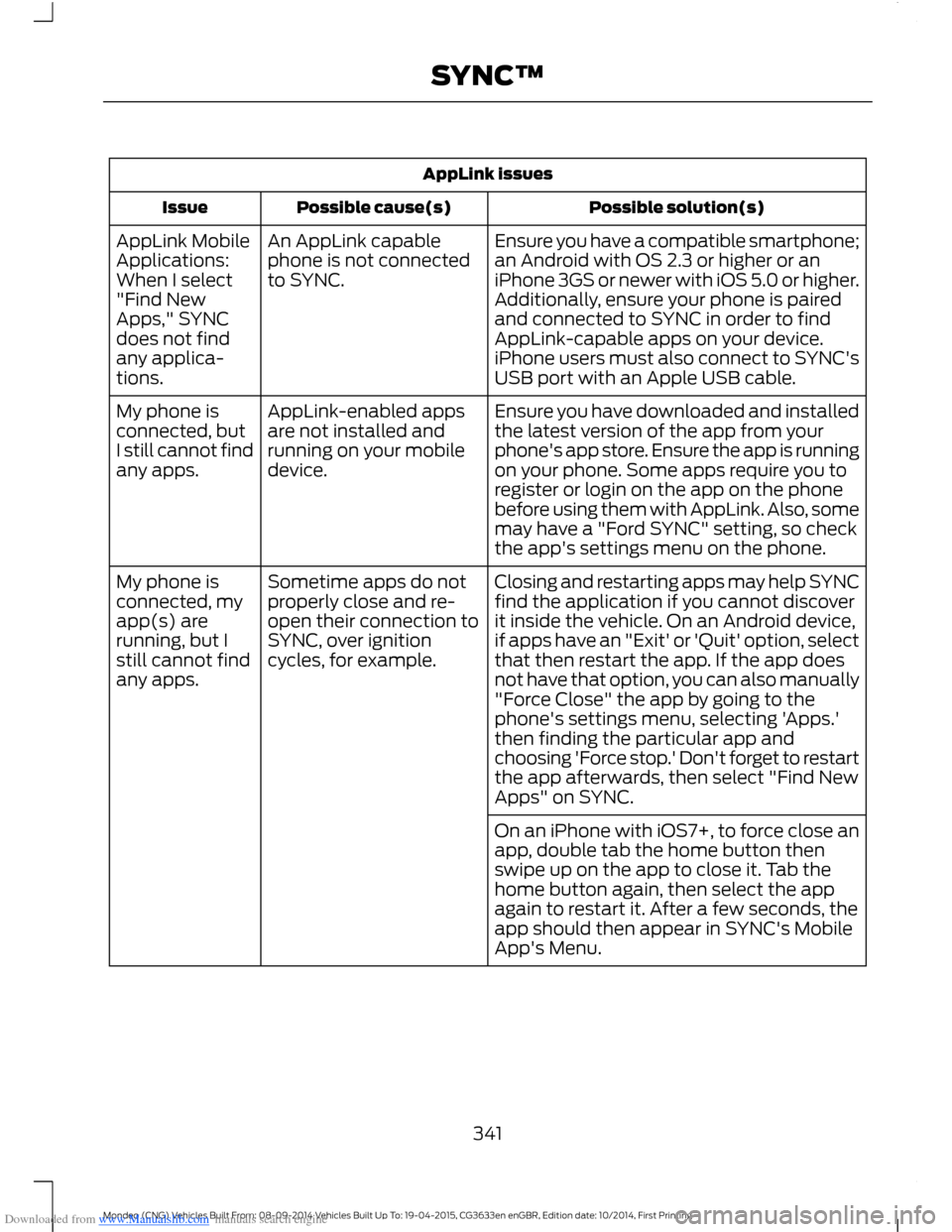
Possible solution(s)Possible cause(s)Issue
Ensure you have a compatible smartphone;an Android with OS 2.3 or higher or aniPhone 3GS or newer with iOS 5.0 or higher.Additionally, ensure your phone is pairedand connected to SYNC in order to findAppLink-capable apps on your device.iPhone users must also connect to SYNC'sUSB port with an Apple USB cable.
An AppLink capablephone is not connectedto SYNC.
AppLink MobileApplications:When I select"Find NewApps," SYNCdoes not findany applica-tions.
Ensure you have downloaded and installedthe latest version of the app from yourphone's app store. Ensure the app is runningon your phone. Some apps require you toregister or login on the app on the phonebefore using them with AppLink. Also, somemay have a "Ford SYNC" setting, so checkthe app's settings menu on the phone.
AppLink-enabled appsare not installed andrunning on your mobiledevice.
My phone isconnected, butI still cannot findany apps.
Closing and restarting apps may help SYNCfind the application if you cannot discoverit inside the vehicle. On an Android device,if apps have an "Exit' or 'Quit' option, selectthat then restart the app. If the app doesnot have that option, you can also manually
Sometime apps do notproperly close and re-open their connection toSYNC, over ignitioncycles, for example.
My phone isconnected, myapp(s) arerunning, but Istill cannot findany apps."Force Close" the app by going to thephone's settings menu, selecting 'Apps.'then finding the particular app andchoosing 'Force stop.' Don't forget to restartthe app afterwards, then select "Find NewApps" on SYNC.
On an iPhone with iOS7+, to force close anapp, double tab the home button thenswipe up on the app to close it. Tab thehome button again, then select the appagain to restart it. After a few seconds, theapp should then appear in SYNC's MobileApp's Menu.
341Mondeo (CNG) Vehicles Built From: 08-09-2014 Vehicles Built Up To: 19-04-2015, CG3633en enGBR, Edition date: 10/2014, First PrintingSYNC™
Page 344 of 446

Downloaded from www.Manualslib.com manuals search engine AppLink issues
Possible solution(s)Possible cause(s)Issue
Reset the Bluetooth on your phone byturning it off and then turning Bluetoothback on. If you are in your vehicle, SYNCshould be able to automatically re-connectto your phone if you press the "Phone"button.
There is a bluetooth bugon some order versionsof the Android OS thatmay cause apps thatwere found on yourprevious vehicle drive tonot be found again if youhave not turned offbluetooth.
My Androidphone isconnected, myapp(s) arerunning, Irestarted them,but I still cannotfind any apps.
Unplug the USB cable from the phone, waita moment, and plug the USB cable back into the phone. After a few seconds, the appshould appear in SYNC's Mobile AppsMenu. If not, "Force Close" the applicationand restart it.
The USB connection toSYNC may need to bereset.
My iPhonephone isconnected, myapp is running, Irestarted theapp but I stillcannot find it onSYNC.
Try increasing the Bluetooth volume of thedevice by using the device's volume controlbuttons which are most often found on theside of the device.
The bluetooth volume onthe phone may be low.I have anAndroid phone.I found andstarted mymedia app onSYNC, but thereis no sound orthe sound isvery low.
Force close or uninstall the apps you do notwant SYNC to find. If the app has a "FordSYNC" setting, disable that setting in theapp's settings menu on the phone.
Some Android deviceshave a limited number ofbluetooth ports apps canuse to connect. If youhave more AppLink appson your phone than thenumber of availbleBluetooth ports, you willnot see all of your appslisted in SYNC's mobileapps menu.
I can only seesome of theAppLink appsrunning on myphone listed inSYNC's MobileApps Menu.
342Mondeo (CNG) Vehicles Built From: 08-09-2014 Vehicles Built Up To: 19-04-2015, CG3633en enGBR, Edition date: 10/2014, First PrintingSYNC™
Page 347 of 446
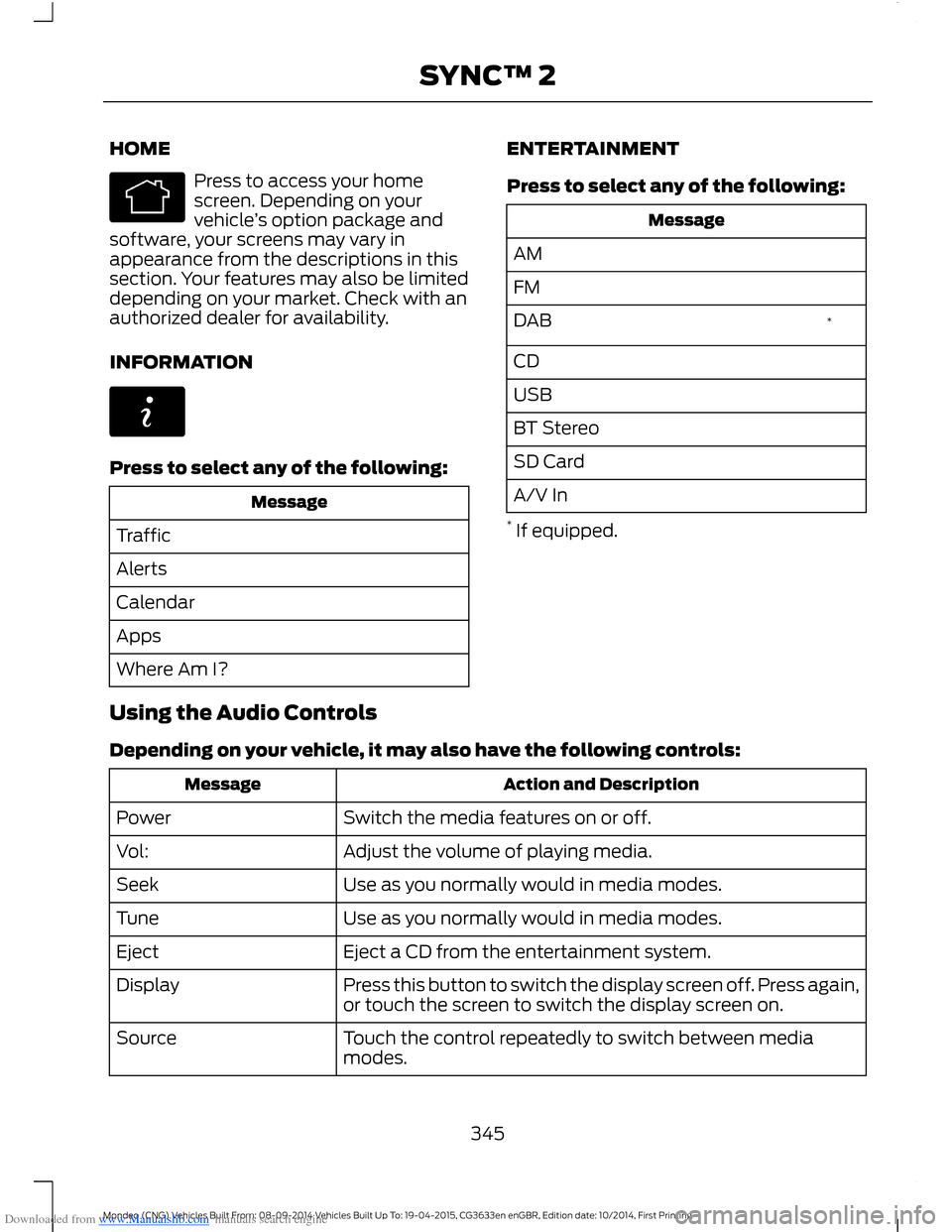
Downloaded from www.Manualslib.com manuals search engine HOME
Press to access your homescreen. Depending on yourvehicle’s option package andsoftware, your screens may vary inappearance from the descriptions in thissection. Your features may also be limiteddepending on your market. Check with anauthorized dealer for availability.
INFORMATION
Press to select any of the following:
Message
Traffic
Alerts
Calendar
Apps
Where Am I?
ENTERTAINMENT
Press to select any of the following:
Message
AM
FM
*DAB
CD
USB
BT Stereo
SD Card
A/V In
* If equipped.
Using the Audio Controls
Depending on your vehicle, it may also have the following controls:
Action and DescriptionMessage
Switch the media features on or off.Power
Adjust the volume of playing media.Vol:
Use as you normally would in media modes.Seek
Use as you normally would in media modes.Tune
Eject a CD from the entertainment system.Eject
Press this button to switch the display screen off. Press again,or touch the screen to switch the display screen on.Display
Touch the control repeatedly to switch between mediamodes.Source
345Mondeo (CNG) Vehicles Built From: 08-09-2014 Vehicles Built Up To: 19-04-2015, CG3633en enGBR, Edition date: 10/2014, First PrintingSYNC™ 2
Page 348 of 446

Downloaded from www.Manualslib.com manuals search engine Action and DescriptionMessage
Adjust the settings for:Sound
Bass
Treble
Midrange
Set Balance and Fade
DSP
EQ Mode
Speed Compensated Volume
Using the Steering Wheel Controls
Depending on your vehicle and optionpackage, you can use your steering wheelcontrols to interact with the touchscreensystem.
•VOL: Control the volume of audiooutput.
•Mute: Mute the audio output.
•Voice: Press to start a voice session.Press again and hold to end a voicesession.
•SEEK and PHONE ACCEPT:
•While in radio mode, press to seekbetween memory presets or pressand hold to seek between stations.
•While in USB or CD mode, press toseek between stations or press andhold to fast seek.
•While in phone mode, press toanswer a call, or to switch betweencalls.
•SEEK and PHONE REJECT:
•While in radio mode, press to seekbetween memory presets or pressand hold to seek between stations.
•While in USB or CD mode, press toseek between stations or press andhold to fast seek.
•While in phone mode, press to enda call, or to reject an incoming call.
•Source: Touch the control repeatedlyto switch between media modes.
•Sound: Touch the control to adjust thesound settings. See Settings (page352).
See Steering Wheel (page 56).
Cleaning the Touchscreen Display
Use a dry, clean, soft cloth. If dirt orfingerprints are still visible, apply a smallamount of alcohol to the cloth. Do not pouror spray alcohol onto the display. Do notuse detergent or any type of solvent toclean the display.
Support
For further support, contact an authorizeddealer. For more information, visit theregional Ford website.
346Mondeo (CNG) Vehicles Built From: 08-09-2014 Vehicles Built Up To: 19-04-2015, CG3633en enGBR, Edition date: 10/2014, First PrintingSYNC™ 2
Page 352 of 446
Downloaded from www.Manualslib.com manuals search engine The selection menu expands and differentoptions appear.
•Press the up and down arrows to scrollthrough the modes.
•Press the right arrow to enter the mode.
•Press the left or right arrows to makeadjustments within the chosen mode.
•Press OK to confirm your selection.
Note:If your vehicle is not equipped withNavigation, Compass appears in the displayinstead of Navigation. If you press the rightarrow to go into the Compass menu, youcan see the compass graphic. The compassdisplays the direction in which the vehicleis traveling, not true direction (for example,if the vehicle is traveling west, the middleof the compass graphic displays west; northdisplays to the left of west though its truedirection is to the right of west).
Using Voice Recognition
This system helps you control manyfeatures using voice commands. Thisallows you to keep your hands on thewheel and focus on what is in front of you.The system provides feedback throughaudible tones, prompts, questions andspoken confirmations depending on thesituation and the chosen level ofinteraction (voice settings).
The system also asks short questions(confirmation prompts) when it is not sureof your request or when there are multiplepossible responses to your request.
When using voice commands, words andicons may appear in the lower left statusbar indicating the status of the voicecommand session.
How to Use Voice Commands
The following are some of thevoice commands that you cansay at any time during a voicecommand session.
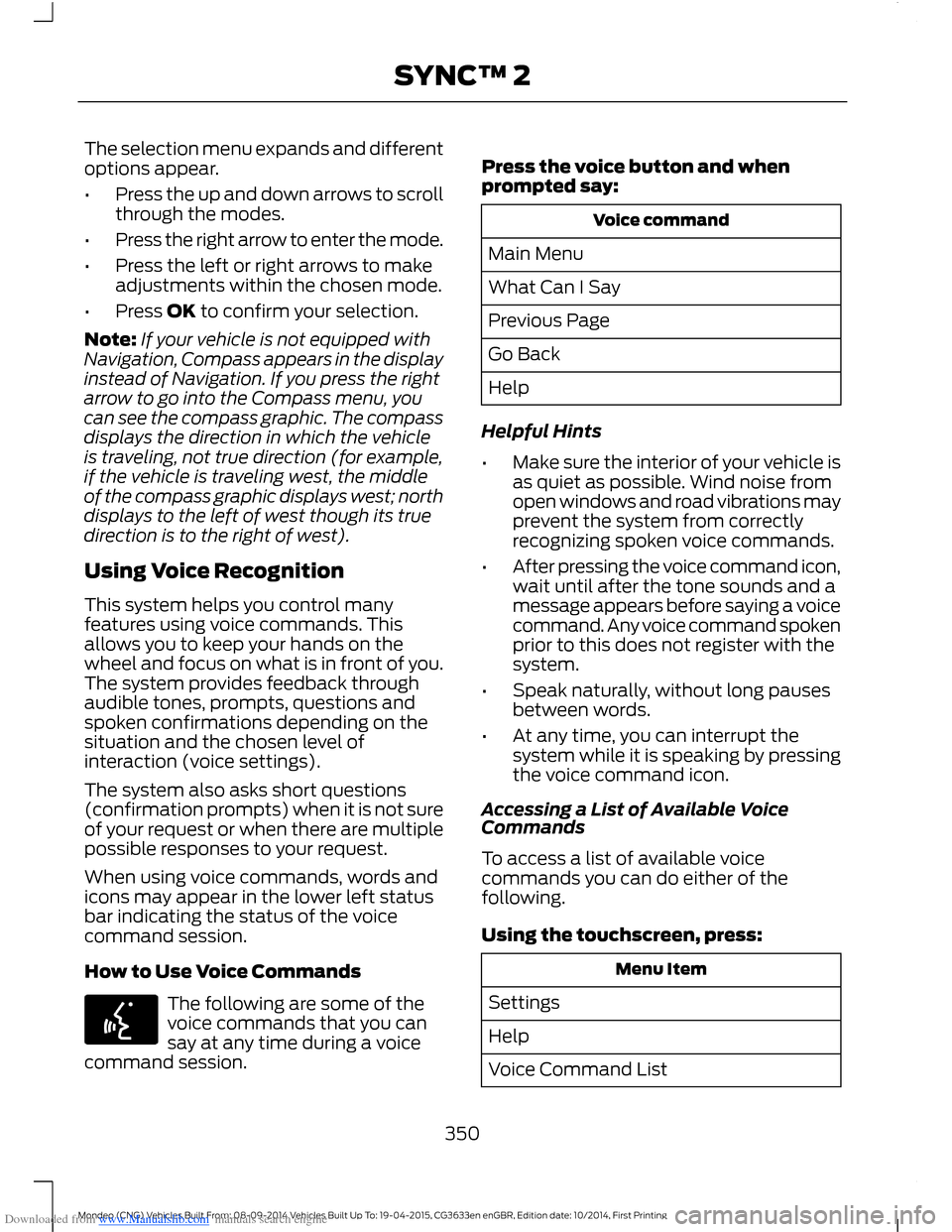
Press the voice button and whenprompted say:
Voice command
Main Menu
What Can I Say
Previous Page
Go Back
Help
Helpful Hints
•Make sure the interior of your vehicle isas quiet as possible. Wind noise fromopen windows and road vibrations mayprevent the system from correctlyrecognizing spoken voice commands.
•After pressing the voice command icon,wait until after the tone sounds and amessage appears before saying a voicecommand. Any voice command spokenprior to this does not register with thesystem.
•Speak naturally, without long pausesbetween words.
•At any time, you can interrupt thesystem while it is speaking by pressingthe voice command icon.
Accessing a List of Available VoiceCommands
To access a list of available voicecommands you can do either of thefollowing.
Using the touchscreen, press:
Menu Item
Settings
Help
Voice Command List
350Mondeo (CNG) Vehicles Built From: 08-09-2014 Vehicles Built Up To: 19-04-2015, CG3633en enGBR, Edition date: 10/2014, First PrintingSYNC™ 2
Page 356 of 446

Downloaded from www.Manualslib.com manuals search engine Action and DescriptionMenu Item
Allows you to display the default photo or upload your own.Edit Wallpaper
When set to On, lets you use the automatic dimming feature.Auto DimWhen set to Off you are able to adjust the brightness of the screen.
Make the screen display brighter or dimmer.Brightness
Allows you to adjust screen dimming as the outside lighting conditionschange from day to night.Auto DimManual Offset
To make adjustments using the voicebutton, press the button and whenprompted, say:
Voice command
Display Settings
Uploading Photos for Your HomeScreen Wallpaper
Note:You cannot load photos directly fromyour camera. You must access the photoseither from your USB mass storage deviceor from an SD card.
Note:Photographs with extremely largedimensions (such as 2048 x 1536) may notbe compatible and appear as a blank(black) image on the display.
The system allows you to upload and viewup to 32 photos.
To access, press:
To upload your photos, select:
Action and DescriptionMenu Item
Press the settings icon.Settings
Display
Follow the system prompts to upload your photographs.Edit Wallpaper
Only the photograph(s), which meets thefollowing conditions display:
•Compatible file formats are as follows:JPG, GIF, PNG, BMP.
•Each file must be 1.5 MB or less.
•Recommended dimensions: 800 x 384.
Sound
354Mondeo (CNG) Vehicles Built From: 08-09-2014 Vehicles Built Up To: 19-04-2015, CG3633en enGBR, Edition date: 10/2014, First PrintingSYNC™ 2
Page 364 of 446
Downloaded from www.Manualslib.com manuals search engine Action and DescriptionMenu Item
If compatible with your phone, you can adjust your internetdata connection. Select to make your connection profile withthe personal area network or to switch off your connection.You can also choose to adjust your settings or have thesystem always connect, never connect when roaming, orquery on connect. Press ? for more information.
Internet Data Connection
Access features, such as automatic phonebook download,re-download your phonebook, add contacts from your phoneas well as delete or upload your phonebook.
Manage Phonebook
Have the system alert you when in Roaming mode.Roaming Warning
Wireless and Internet
Your system has a Wi-Fi featurethat creates a wireless networkwithin your vehicle, therebyallowing other devices (such as personalcomputers or phones) in your vehicle tospeak to each other, share files or play
games. Using this Wi-Fi feature, everyonein your vehicle can also access the internetif you have a USB mobile broadbandconnection inside your vehicle, your phonesupports personal area networking or ifyou park outside a wireless hotspot.
To make adjustments using the touchscreen, select:
Action and DescriptionMenu Item
Press the settings icon.Settings
Wireless & Internet
Then select from the following:
Wi-Fi Network (Client) ModeWi-Fi Settings
Turns the Wi-Fi feature on and off in your vehicle. Make sureyou switch it on for connectivity purposes.
Choose a Wireless Network
Allows you to use a previously stored wireless network. Youcan categorize by alphabetical listing, priority and signalstrength. You can also choose to search for a network,connect to a network, disconnect from a network, receivemore information, prioritize a network or delete a network.
Gateway (Access Point) Mode
362Mondeo (CNG) Vehicles Built From: 08-09-2014 Vehicles Built Up To: 19-04-2015, CG3633en enGBR, Edition date: 10/2014, First PrintingSYNC™ 2