2014 FORD FUSION (AMERICAS) buttons
[x] Cancel search: buttonsPage 351 of 458
•CD
•USB
•BT Stereo
•SD Card
•A/V In
Using the Touch-SensitiveControls on Your System
To turn a feature on and off, just touch thegraphic with your finger. To get the bestperformance from the touch-sensitivecontrols:
•Do not press hard on the controls. Theyare sensitive to light touch.
•Use your bare finger to touch the centerof a touch-control graphic. Touchingoff-center of the graphic may affectoperation of a nearby control.
•Make sure your hands are clean anddry.
•Since the touchscreen operates basedon the touch of a finger, you may havetrouble using it if you are wearinggloves.
•Keep metal and other conductivematerial away from the surface of thetouchscreen as this may causeelectronic interference (for example,inadvertently turning on a feature otherthan the one you meant to turn on).
Depending on your vehicle and optionpackage, you may also have these controlson your bezel:
•Power: Switch the media or climatefeatures off and on.
•VOL: Control the volume of playingmedia.
•Fan: Control the speed of the climatesystem fan.
•Seek and Tune buttons: Use as younormally would in media modes.
•Eject: Eject a CD from theentertainment system.
•SOURCE: Touch the word repeatedlyto see all available media modes. Thescreen does not change, but you seethe media change in the lower leftstatus bar.
•SOUND: Touch the word to access theSound menu where you can adjustsettings such as: Bass, Treble,Midrange, Balance and Fade, DSP(Digital Signal Processing), OccupancyMode and Speed CompensatedVolume. (Your vehicle may not haveall of these sound options.)
•Hazard flasher: Switch the hazardflashers off and on.
Cleaning the Touchscreen Display
Use a clean, soft cloth such as one usedfor cleaning glasses. If dirt or fingerprintsare still visible, apply a small amount ofalcohol to the cloth. Do not pour or sprayalcohol onto the display. Do not usedetergent or any type of solvent to cleanthe display.
Support
The SYNC support team is available tohelp you with any questions you are notable to answer on your own.
Monday-Saturday, 8:30am-9:00pm EST.
Sunday, 10:30am-7:30pm EST.
In the United States, call: 1-800-392-3673.
In Canada, call: 1-800-565-3673.
Times are subject to change due toholidays.
348Fusion (CC7) , enUSAMyFord Touch™ (If Equipped)
Page 354 of 458
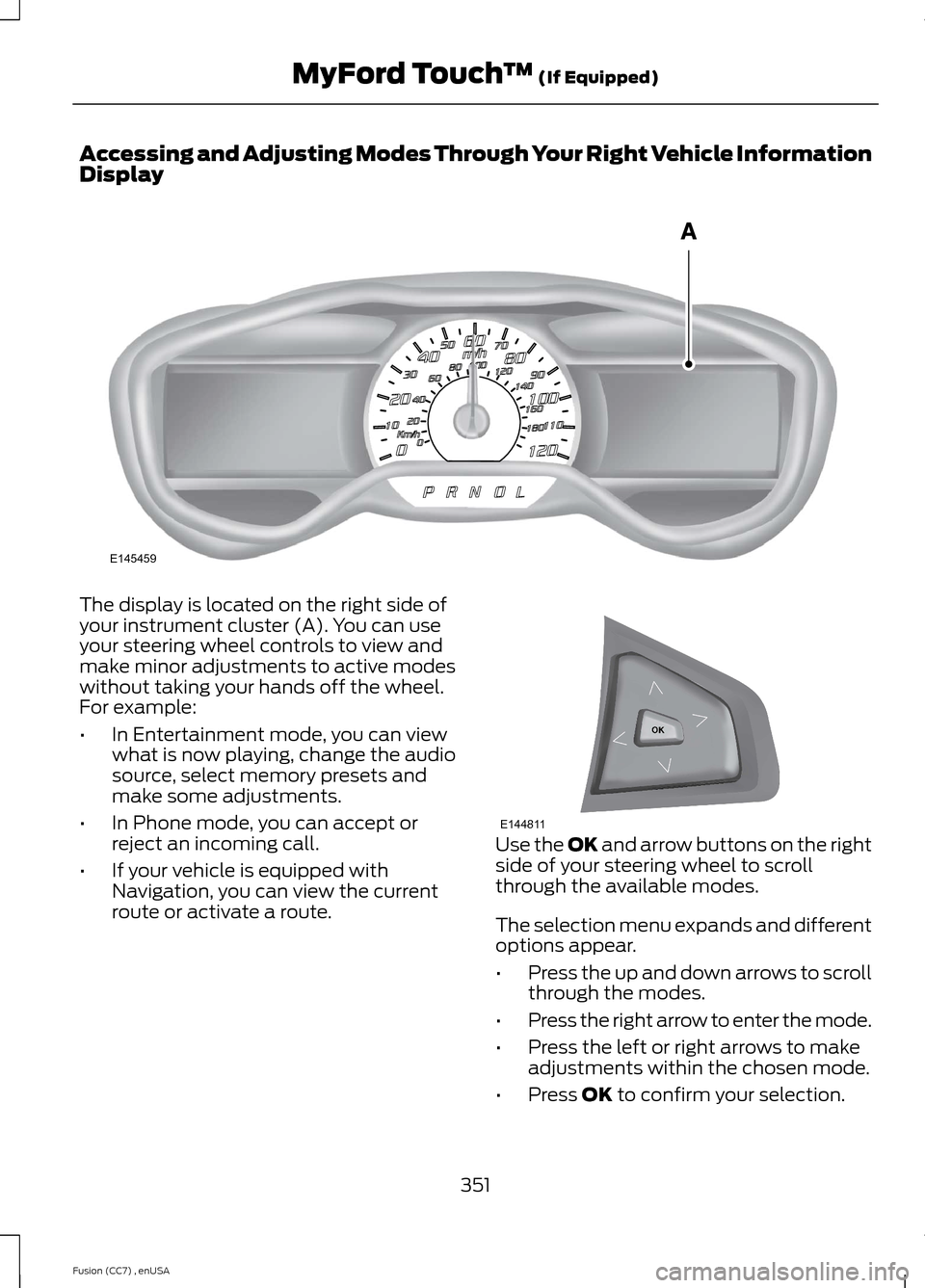
Accessing and Adjusting Modes Through Your Right Vehicle InformationDisplay
The display is located on the right side ofyour instrument cluster (A). You can useyour steering wheel controls to view andmake minor adjustments to active modeswithout taking your hands off the wheel.For example:
•In Entertainment mode, you can viewwhat is now playing, change the audiosource, select memory presets andmake some adjustments.
•In Phone mode, you can accept orreject an incoming call.
•If your vehicle is equipped withNavigation, you can view the currentroute or activate a route.
Use the OK and arrow buttons on the rightside of your steering wheel to scrollthrough the available modes.
The selection menu expands and differentoptions appear.
•Press the up and down arrows to scrollthrough the modes.
•Press the right arrow to enter the mode.
•Press the left or right arrows to makeadjustments within the chosen mode.
•Press OK to confirm your selection.
351Fusion (CC7) , enUSAMyFord Touch™ (If Equipped)E145459 E144811
Page 366 of 458

TheWi-FiCERTIFIED Logo is a certification mark ofthe Wi-Fi Alliance.
Help
Press the Settings icon > Help,then select from the following:
Help
View your vehicle's current location, if your vehicle isequipped with navigation. If your vehicle is not equippedwith navigation, you do not see this button.
Where Am I?
Touchscreen system serial numberSystem Information
Your vehicle identification number (VIN)
Touchscreen system software version
Navigation system version
Map database version
Sirius satellite radio ESN
Gracenote Database Information and Library version
View the licenses for any software and applicationsinstalled on your system.Software Licenses
Certain features are not accessible when your vehicle ismoving.Driving Restrictions
Turn on and turn off the 911 Assist feature. See Informa-tion (page 387).911 Assist
In Case of Emergency (ICE) Quick Dial: allows you tosave up to two numbers as ICE contacts for quick accessif there is an emergency. Select Edit to access yourphonebook and then select the desired contacts. Thenumbers then appear as options on this screen for the ICE1 and ICE 2 buttons. The ICE contacts you select appearat the end of the 911 Assist call process.
View categorized lists of voice commands.Voice Command List
363Fusion (CC7) , enUSAMyFord Touch™ (If Equipped)E142626 E142607
Page 367 of 458
To access Help using the voice commands,press the voice button, then, after the tone,say "Help". The system provides allowablevoice commands for the current mode.
ENTERTAINMENT
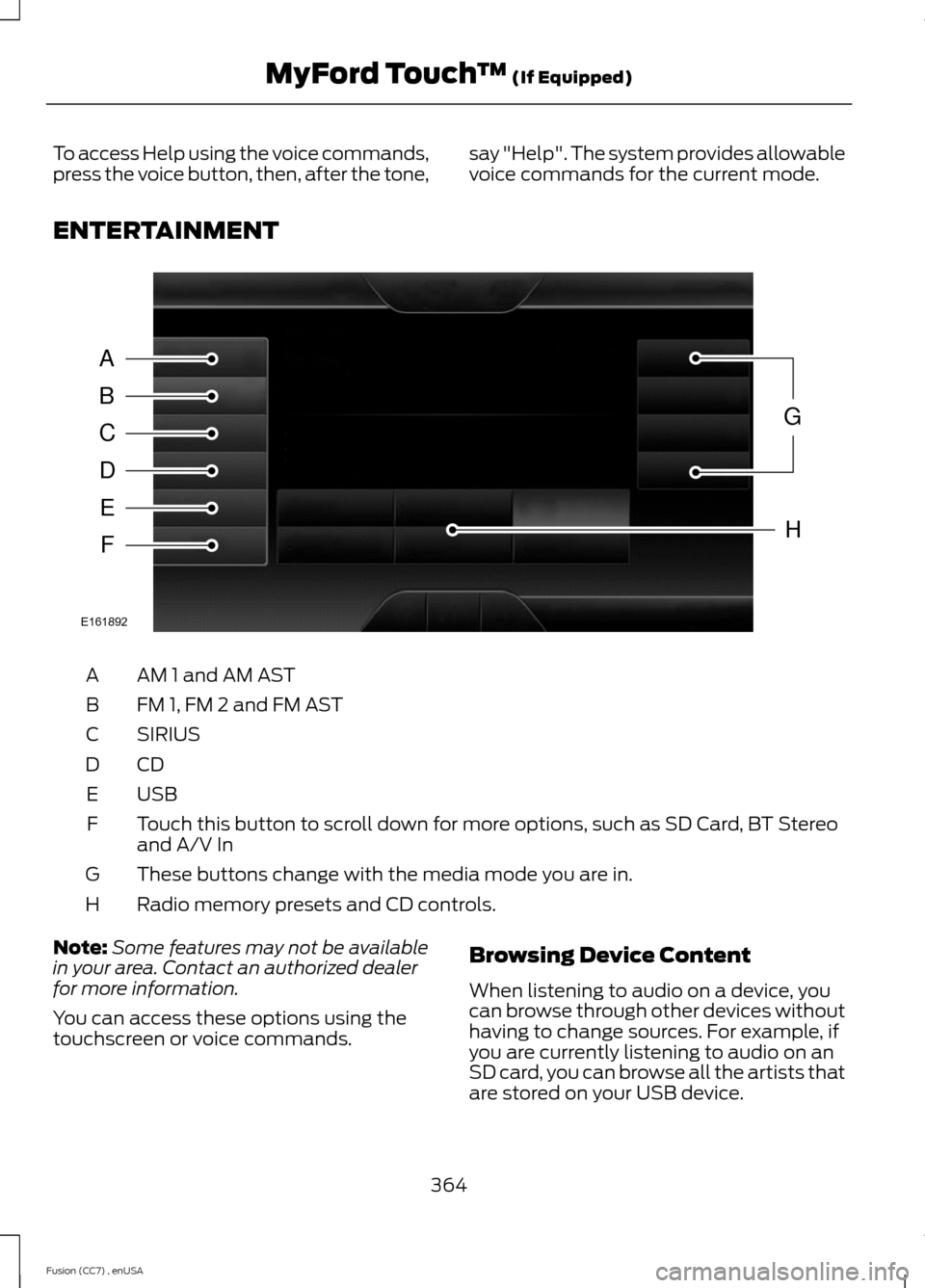
AM 1 and AM ASTA
FM 1, FM 2 and FM ASTB
SIRIUSC
CDD
USBE
Touch this button to scroll down for more options, such as SD Card, BT Stereoand A/V InF
These buttons change with the media mode you are in.G
Radio memory presets and CD controls.H
Note:Some features may not be availablein your area. Contact an authorized dealerfor more information.
You can access these options using thetouchscreen or voice commands.
Browsing Device Content
When listening to audio on a device, youcan browse through other devices withouthaving to change sources. For example, ifyou are currently listening to audio on anSD card, you can browse all the artists thatare stored on your USB device.
364Fusion (CC7) , enUSAMyFord Touch™ (If Equipped)ABCDEFGHE161892
Page 374 of 458
"TUNE"
"HD <#>"*
"Preset <#>"
"Help"
* If available.
SIRIUS® Satellite Radio (IfActivated)
Press the lower left corner of thetouchscreen, and then select theSIRIUS tab.
Memory Presets
Save a channel by pressing and holdingone of the memory preset areas. There isa brief mute while the radio saves thechannel. Sound returns when finished.
ALERT
Save the current song, artist, or team as afavorite. The system alerts you when itplays again on any channel.
Replay
Replay audio on the current channel. Youcan replay approximately 45 minutes ofaudio as long as you have remained tunedto the current station. Changing stationserases the previous audio.
While in replay mode:
•Press and release the seek buttons tohear the previous or next song.
•Press and hold the seek buttons toreverse or fast forward in the currenttrack.
•Press play or pause to play or pausethe audio.
•Press Replay to return to live audio ifyou have been using the feature toreplay audio.
Scan
Touch this button to hear a brief samplingof channels.
Options
Touch this button to view and adjustvarious media settings.
Sound Settings
Touch this button to adjust settings for:
•Bass
•Midrange
•Treble
•Balance and Fade
•DSP (Digital Signal processing)
•Occupancy Mode
•Speed Compensated Volume.
Note:Your vehicle may not have all thesesound settings.
Set Category for Seek/Scan
This allows you to select a category ofmusic you would like to search for. You canthen choose to either seek or scan for thestations playing that category.
Parental Lockout
This allows you to lock and unlockchannels, change or reset your PIN orunlock all channels. To use this feature,you need your initial PIN, which is 1234.
Artist/Title/Team Alerts
This feature allows you to select Artists,Titles and Teams that you would like thesystem to alert you to when they areplaying on other channels. Press Edit Alertsto delete or turn off alerts. You can alsoset all alerts to on or off. When an alertappears on the screen, you can choose to
371Fusion (CC7) , enUSAMyFord Touch™ (If Equipped)E142611
Page 394 of 458
"SERVICES"
"Route status"
"Route summary"
"Services"
"Update route"
"Help"
Sirius Travel Link (If Equipped)
WARNING
Driving while distracted can result inloss of vehicle control, crash andinjury. We strongly recommend thatyou use extreme caution when using anydevice that may take your focus off theroad. Your primary responsibility is the safeoperation of your vehicle. We recommendagainst the use of any handheld devicewhile driving and encourage the use ofvoice-operated systems when possible.Make sure you are aware of all applicablelocal laws that may affect the use ofelectronic devices while driving.
Note:In order to use Sirius Travel Link, yourvehicle must be equipped with navigationand your navigation SD card must be in theSD card slot.
Note:A paid subscription is required toaccess and use these features. Go towww.siriusxm.com/travellink for moreinformation.
Note:Visit www.siriusxm.com/traffic# andclick on Coverage map and details for acomplete listing of all traffic areas coveredby Sirius Travel Link.
Note:Neither Sirius nor Ford is responsiblefor any errors or inaccuracies in the SiriusTravel Link services or its use in vehicles.
When you subscribe to Sirius Travel Link,it can help you locate the best gas prices,find movie listings, get current traffic alerts,view the current weather map, getaccurate ski conditions and see scores tocurrent sports games.
If your vehicle is equipped withNavigation, touch the i(Information) button to accessthese features. If your vehicle is notequipped with Navigation, touch the cornerof the touchscreen with the green tab.
Traffic On Route and Traffic Nearby
Touch these buttons to identify trafficincidents on your route, nearby yourvehicle’s current location or near any ofyour favorite places, if programmed.
Fuel Prices
Touch this button to view fuel prices atstations close to your vehicle’s location oron an active navigation route.
Movie Listings
Touch this button to view nearby movietheaters and their show times, if available.
Weather
Touch this button to view the nearbyweather, current weather, or the five dayforecast for the chosen area. Select Mapto see the weather map, which can showstorms, radar information, charts andwinds. Select Area to select from a listingof weather locations.
Sports Info
Touch this button to view scores andschedules from a variety of sports. You canalso save up to 10 favorite teams for easieraccess. The score automatically refresheswhen a game is in progress.
391Fusion (CC7) , enUSAMyFord Touch™ (If Equipped)E142608
Page 401 of 458
Note: Recirculated air may turn off automatically (or be prevented from turningon) in all airflow modes except MAX A/C to reduce risk of fogging. Recirculatedair may also turn on and off automatically in Panel or Panel and Floor airflowmodes during hot weather in order to improve cooling efficiency.
MAX A/C: Touch the button to maximize cooling. Recirculated air flows throughthe instrument panel vents, air conditioning automatically turns on, and the fanautomatically adjusts to the highest speed.
E
A/C: Touch the button to turn air conditioning compressor on or off. Use airconditioning with recirculated air to improve cooling performance and efficiency.F
Note: In certain conditions (such as when using Max Defrost), the airconditioning compressor may continue to operate even after you switch off theair conditioning with the A/C button.
AUTO: Touch the button to turn on automatic operation. Select the desiredtemperature using the temperature control. The system adjusts fan speed, airdistribution, air conditioning operation, and selects outside air or recirculatedair to heat or cool the vehicle in order to maintain the desired temperature. Youcan also use the AUTO button to turn off dual zone operation by touching andholding the button for more than two seconds.
G
Heated rear window: Turns the heated rear window on and off. See HeatedWindows and Mirrors (page 119).H
Air distribution control: Touch these buttons to turn airflow from thewindshield, instrument panel, or footwell vents on or off. The system candistribute air through any combination of these vents.
I
MAX Defrost: Touch the button to maximize defrosting. Outside air flowsthrough the windshield vents, fan automatically adjusts to the highest speedand the temperature dial returns to the full heat position. You can use thissetting to defog or clear a thin covering of ice from the windshield. The heatedrear window also automatically turns on when you select MAX Defrost.
Note: To prevent window fogging, you cannot select recirculated air when MAXDefrost is on.
Driver settings:J
Touch the + or – to increase or decrease the air temperature on the passengerside of the vehicle.
Touch the heated seat icon to turn the heated seat off and on (if equipped).
Touch the climate-controlled seat icon to turn the climate-controlled seat offand on (if equipped).
Touch MyTemp to select your preset temperature setpoint. Touch and holdMyTemp to save a new preset temperature setpoint.
Touch the heated steering wheel icon to turn the heated steering wheel on andoff (if equipped).
398Fusion (CC7) , enUSAMyFord Touch™ (If Equipped)
Page 408 of 458
Re-center the map by pressingthis icon whenever you scroll themap away from your vehicle’scurrent location.
Auto Zoom
Press the green bar to access map mode,then select the + or - zoom button to bringup the zoom level and Auto buttons on thetouchscreen. When you press Auto, AutoZoom turns on and Auto displays in thebottom left corner of the screen in the mapscale. The map zoom level thensynchronizes with vehicle speed. Theslower your vehicle is traveling, the fartherin the map zooms in; the faster your vehicleis traveling, the farther the map zooms out.To turn the feature off, just press the + or- button again.
In 3D mode, rotate the map view byswiping your finger across the shaded barwith the arrows.
Map Icons
Vehicle mark shows the currentlocation of your vehicle. It staysin the center of the map display,except when in scroll mode.
Scroll cursor allows you to scrollthe map; the fixed icon is in thecenter of the screen. The mapposition closest to the cursor is ina window on the top center part of thescreen.
Address book entry defaulticon(s) indicates the location onthe map of an address book entry.This is the default symbol shownafter the entry has been stored to theAddress Book by any method other thanthe map. You can select from any of the22 icons available. You can use each iconmore than once.
Home indicates the location onthe map currently stored as thehome position. You can only saveone address from the AddressBook as your Home entry. You cannotchange this icon.
POI (Point Of Interest) iconsindicate locations of any point ofinterest categories you choose todisplay on the map. You canchoose to display three point of interestcategories on the map at one time.
Starting point indicates thestarting point of a planned route.
Waypoint indicates the locationof a waypoint on the map. Thenumber inside the circle is differentfor each waypoint and representsthe position of the waypoint in the routelist.
Destination symbol indicates theending point of a planned route.
Next maneuver point indicatesthe location of the next turn on theplanned route.
No GPS symbol indicates thatinsufficient GPS satellite signalsare available for accurate mappositioning. This icon may displayunder normal operation in an area withpoor GPS access.
Quick-touch Buttons
When in map mode, touch anywhere onthe map display to access the followingoptions:
405Fusion (CC7) , enUSAMyFord Touch™ (If Equipped)E146188 E142646 E142647 E142648 E142649 E142650 E142651 E142652 E142653 E142654 E142655