2014 FORD FIESTA USB
[x] Cancel search: USBPage 287 of 396
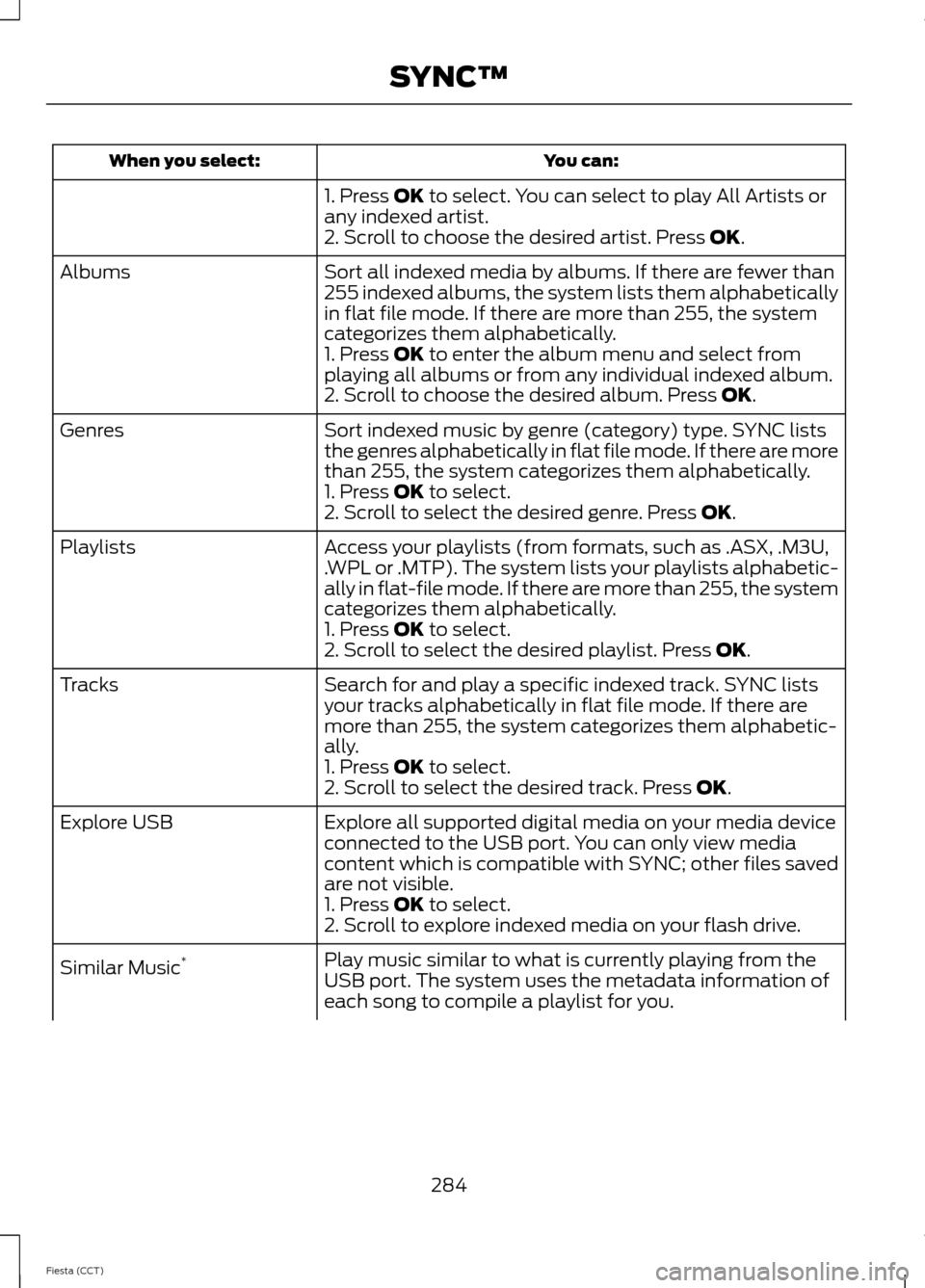
You can:
When you select:
1. Press OK to select. You can select to play All Artists or
any indexed artist.
2. Scroll to choose the desired artist. Press
OK.
Sort all indexed media by albums. If there are fewer than
255 indexed albums, the system lists them alphabetically
in flat file mode. If there are more than 255, the system
categorizes them alphabetically.
Albums
1. Press
OK to enter the album menu and select from
playing all albums or from any individual indexed album.
2. Scroll to choose the desired album. Press
OK.
Sort indexed music by genre (category) type. SYNC lists
the genres alphabetically in flat file mode. If there are more
than 255, the system categorizes them alphabetically.
Genres
1. Press
OK to select.
2. Scroll to select the desired genre. Press OK.
Access your playlists (from formats, such as .ASX, .M3U,
.WPL or .MTP). The system lists your playlists alphabetic-
ally in flat-file mode. If there are more than 255, the system
categorizes them alphabetically.
Playlists
1. Press
OK to select.
2. Scroll to select the desired playlist. Press OK.
Search for and play a specific indexed track. SYNC lists
your tracks alphabetically in flat file mode. If there are
more than 255, the system categorizes them alphabetic-
ally.
Tracks
1. Press
OK to select.
2. Scroll to select the desired track. Press OK.
Explore all supported digital media on your media device
connected to the USB port. You can only view media
content which is compatible with SYNC; other files saved
are not visible.
Explore USB
1. Press
OK to select.
2. Scroll to explore indexed media on your flash drive.
Play music similar to what is currently playing from the
USB port. The system uses the metadata information of
each song to compile a playlist for you.
Similar Music
*
284
Fiesta (CCT) SYNC™
Page 290 of 396
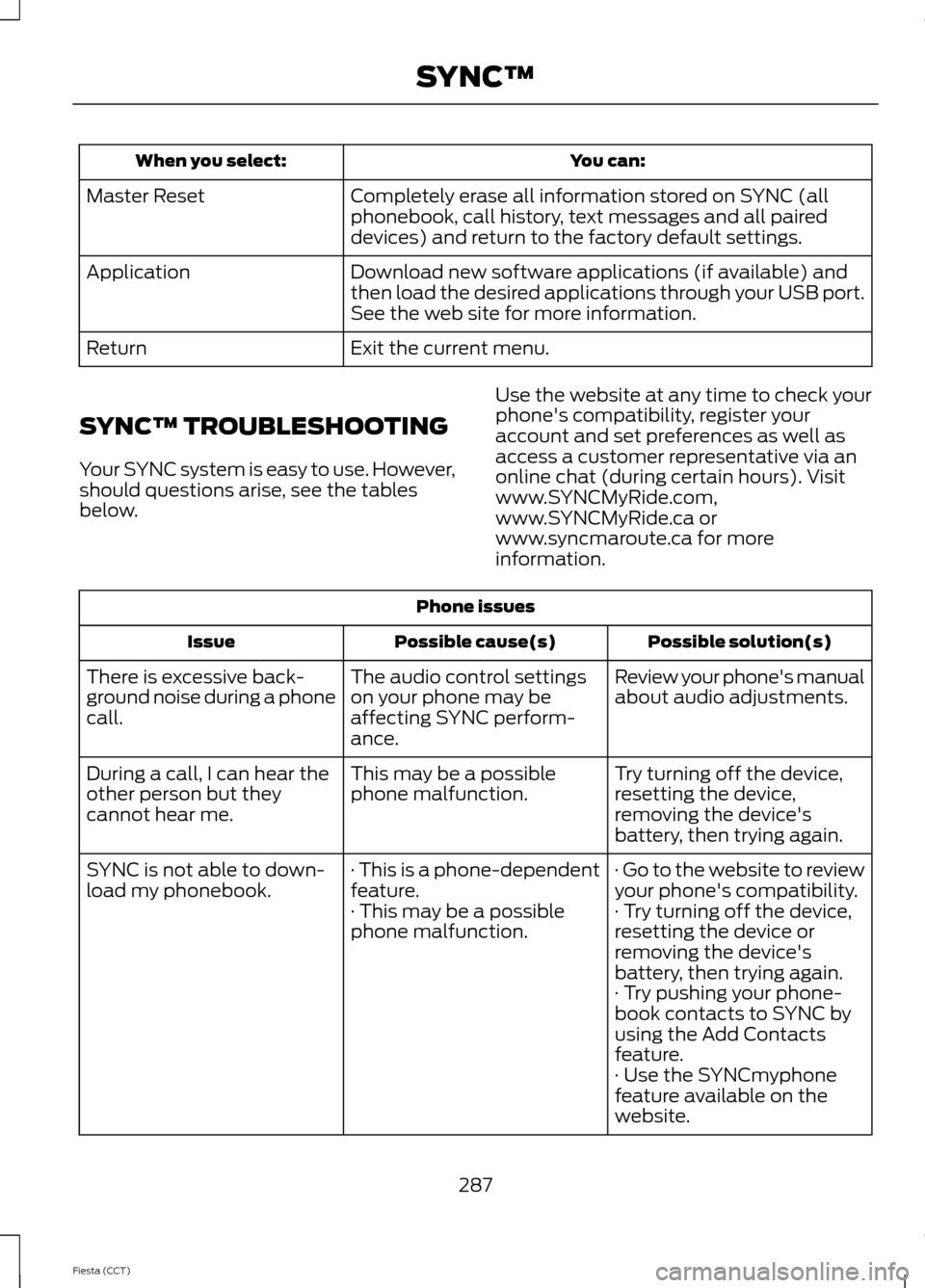
You can:
When you select:
Completely erase all information stored on SYNC (all
phonebook, call history, text messages and all paired
devices) and return to the factory default settings.
Master Reset
Download new software applications (if available) and
then load the desired applications through your USB port.
See the web site for more information.
Application
Exit the current menu.
Return
SYNC™ TROUBLESHOOTING
Your SYNC system is easy to use. However,
should questions arise, see the tables
below. Use the website at any time to check your
phone's compatibility, register your
account and set preferences as well as
access a customer representative via an
online chat (during certain hours). Visit
www.SYNCMyRide.com,
www.SYNCMyRide.ca or
www.syncmaroute.ca for more
information.Phone issues
Possible solution(s)
Possible cause(s)
Issue
Review your phone's manual
about audio adjustments.
The audio control settings
on your phone may be
affecting SYNC perform-
ance.
There is excessive back-
ground noise during a phone
call.
Try turning off the device,
resetting the device,
removing the device's
battery, then trying again.
This may be a possible
phone malfunction.
During a call, I can hear the
other person but they
cannot hear me.
· Go to the website to review
your phone's compatibility.
· This is a phone-dependent
feature.
SYNC is not able to down-
load my phonebook.
· Try turning off the device,
resetting the device or
removing the device's
battery, then trying again.
· This may be a possible
phone malfunction.
· Try pushing your phone-
book contacts to SYNC by
using the Add Contacts
feature.
· Use the SYNCmyphone
feature available on the
website.
287
Fiesta (CCT) SYNC™
Page 292 of 396
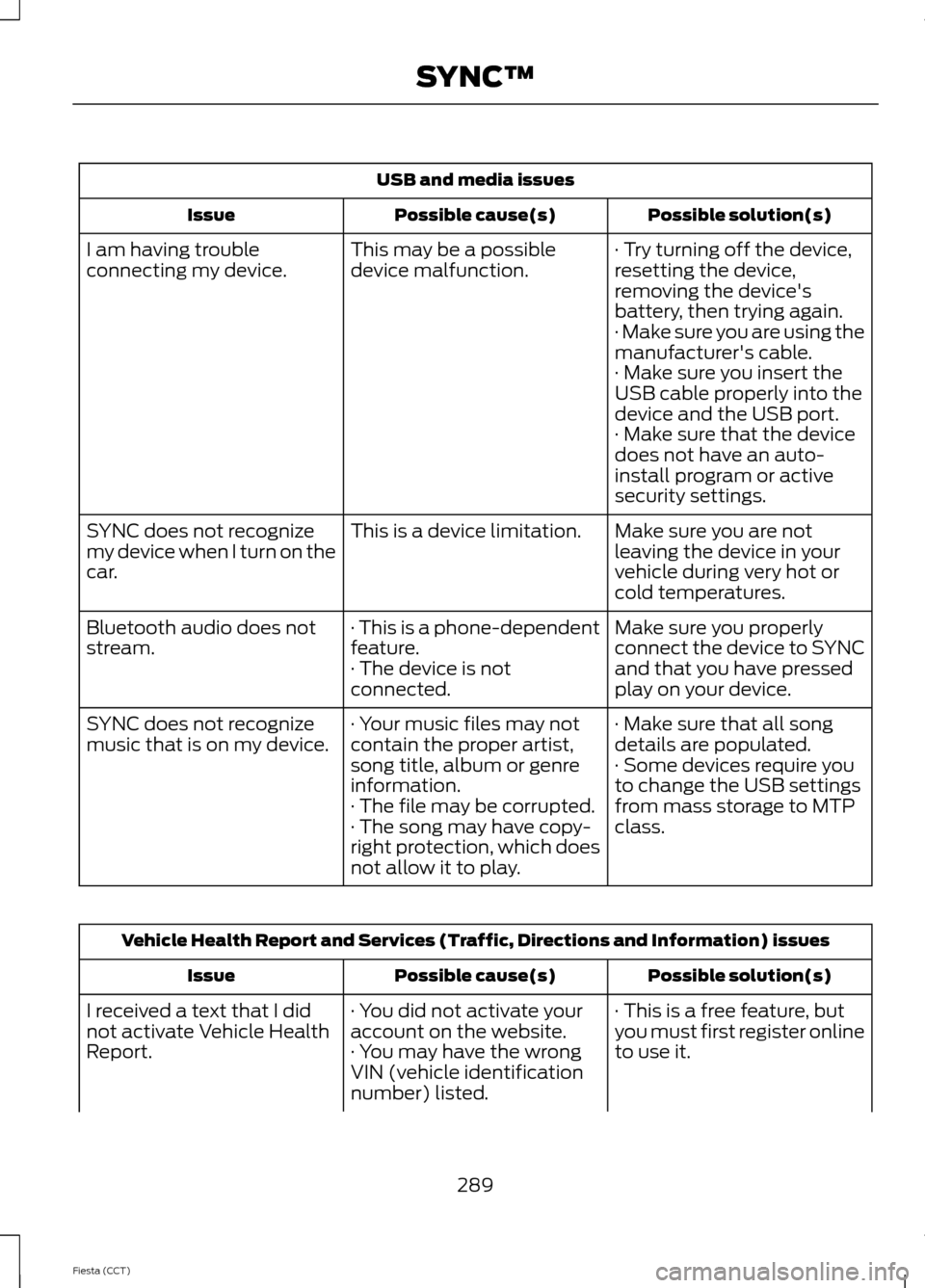
USB and media issues
Possible solution(s)
Possible cause(s)
Issue
· Try turning off the device,
resetting the device,
removing the device's
battery, then trying again.
This may be a possible
device malfunction.
I am having trouble
connecting my device.
· Make sure you are using the
manufacturer's cable.
· Make sure you insert the
USB cable properly into the
device and the USB port.
· Make sure that the device
does not have an auto-
install program or active
security settings.
Make sure you are not
leaving the device in your
vehicle during very hot or
cold temperatures.
This is a device limitation.
SYNC does not recognize
my device when I turn on the
car.
Make sure you properly
connect the device to SYNC
and that you have pressed
play on your device.
· This is a phone-dependent
feature.
· The device is not
connected.
Bluetooth audio does not
stream.
· Make sure that all song
details are populated.
· Your music files may not
contain the proper artist,
song title, album or genre
information.
SYNC does not recognize
music that is on my device.
· Some devices require you
to change the USB settings
from mass storage to MTP
class.
· The file may be corrupted.
· The song may have copy-
right protection, which does
not allow it to play. Vehicle Health Report and Services (Traffic, Directions and Information) issues
Possible solution(s)
Possible cause(s)
Issue
· This is a free feature, but
you must first register online
to use it.
· You did not activate your
account on the website.
· You may have the wrong
VIN (vehicle identification
number) listed.
I received a text that I did
not activate Vehicle Health
Report.
289
Fiesta (CCT) SYNC™
Page 297 of 396
This system uses a four-corner strategy to
provide quick access to several vehicle
features and settings. The touchscreen
provides easy interaction with your cell
phone, entertainment, information and
system settings. The corners display active
modes within the menus, for example; your
cell phone's status.
Note:
Some features are not available while
your vehicle is moving.
Note: You can access the Home or
Information menus by pressing the relevent
button on the steering wheel controls.
Note: You can access the entertainment
features for 30 minutes after you switch the
ignition off, and no doors are opened.
PHONE
Press to select any of the following:
• Phone
• Quick Dial
• Phonebook
• History
• Messaging
• Settings
NAVIGATION
Press to select any of the following:
• My Home
• Favorites
• Previous Destinations
• Point of Interest
• Emergency
• Street Address
• Intersection
• City Center
• Map
• Edit Route Cancel Route SETTINGS Press to select any of the following:
•
Clock
• Display
• Sound
• Vehicle
• Settings
• Help HOME
Press to access the home
screen.
Note: Depending on your vehicle ’s option
package and software, the screens may vary
in appearance from the descriptions in this
section. The features may also be limited
depending on the market. Check with an
authorized dealer for availability. INFORMATION
Press to select any of the following:
• Services
• Travel Link
• Alerts
• Calendar
• Apps
ENTERTAINMENT
Press to select any of the following:
• AM
• FM
• SIRIUS
• CD
• USB
• BT Stereo
• SD Card
• Line In
294
Fiesta (CCT) MyFord Touch
™ (If Equipped)E142607 E142613 E142608
Page 302 of 396
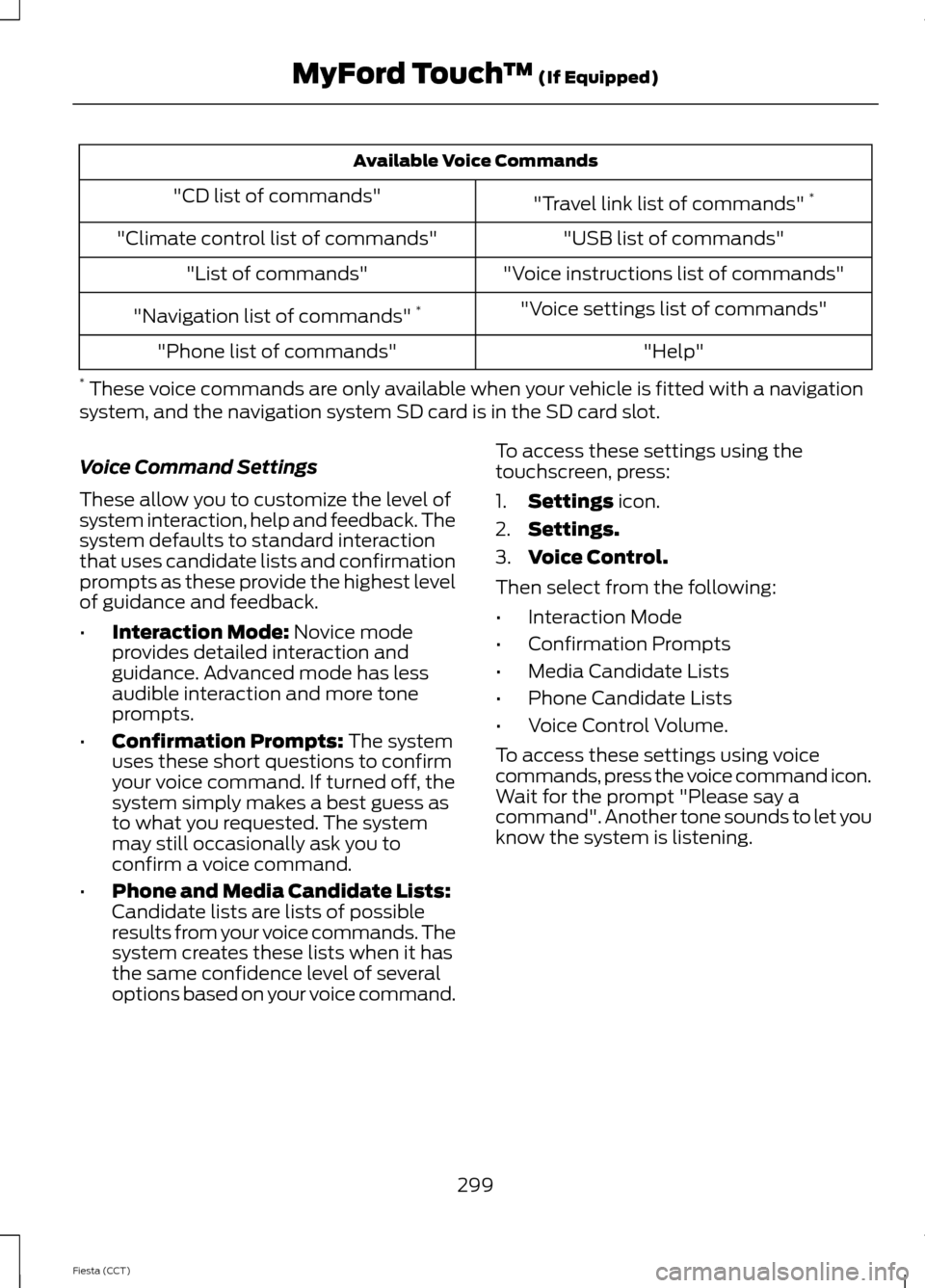
Available Voice Commands
"Travel link list of commands" *
"CD list of commands"
"USB list of commands"
"Climate control list of commands"
"Voice instructions list of commands"
"List of commands"
"Voice settings list of commands"
"Navigation list of commands" *
"Help"
"Phone list of commands"
* These voice commands are only available when your vehicle is fitted with a navigation
system, and the navigation system SD card is in the SD card slot.
Voice Command Settings
These allow you to customize the level of
system interaction, help and feedback. The
system defaults to standard interaction
that uses candidate lists and confirmation
prompts as these provide the highest level
of guidance and feedback.
• Interaction Mode: Novice mode
provides detailed interaction and
guidance. Advanced mode has less
audible interaction and more tone
prompts.
• Confirmation Prompts:
The system
uses these short questions to confirm
your voice command. If turned off, the
system simply makes a best guess as
to what you requested. The system
may still occasionally ask you to
confirm a voice command.
• Phone and Media Candidate Lists:
Candidate lists are lists of possible
results from your voice commands. The
system creates these lists when it has
the same confidence level of several
options based on your voice command. To access these settings using the
touchscreen, press:
1.
Settings
icon.
2. Settings.
3. Voice Control.
Then select from the following:
• Interaction Mode
• Confirmation Prompts
• Media Candidate Lists
• Phone Candidate Lists
• Voice Control Volume.
To access these settings using voice
commands, press the voice command icon.
Wait for the prompt "Please say a
command". Another tone sounds to let you
know the system is listening.
299
Fiesta (CCT) MyFord Touch
™
(If Equipped)
Page 305 of 396
From this screen, you can also make other
adjustments such as 12-hour or 24-hour
mode, activate GPS time synchronization
and have the system automatically update
new time zones.
You can also turn the outside air
temperature display off and on. It appears
at the top center of the touchscreen, next
to the time and date.
The system automatically saves any
updates you make to the settings.
Display
You can adjust the touchscreen display
through the touchscreen or by pressing the
voice button on the steering wheel controls
and when prompted, say, "Display
settings".
To make adjustments using the
touchscreen, press:
1. Settings icon.
2. Display
.
Then select from the following:
• Brightness
allows you to make the
screen display brighter or dimmer.
• Mode
allows you to set the screen to
a certain brightness or have the system
automatically change based on the
outside light level.
• If you select
AUTO or NIGHT, you
have the options of turning the
display's Auto Dim feature on or off
and changing the Auto Dim Manual
Offset feature.
• Edit Wallpaper
allows you to display
the default photo or upload your own. Uploading Photos for Your Home
Screen Wallpaper
Note:
You cannot load photos directly from
your camera. You must access the photos
either from your USB mass storage device
or from an SD card.
Note: Photographs with extremely large
dimensions (such as 2048 x 1536) may not
be compatible and appear as a blank
(black) image on the display.
Your system allows you to upload and view
up to 32 photos. To access, press:
1. Settings
icon.
2. Display
.
3. Edit Wallpaper
.
4. follow the system prompts to upload your photographs.
Only the photograph(s), which meets the
following conditions, display:
• Compatible file formats are as follows:
.jpg, .gif, .png, .bmp
• Each file must be 1.5 MB or less.
• Recommended dimensions: 800 x 384
Sound To make adjustments using the
touchscreen, press:
1. Settings
icon.
2. Sound
.
Then select from the following:
• Bass
• Midrange
• Treble
• Set Balance and Fade
• Occupancy Mode
302
Fiesta (CCT) MyFord Touch
™
(If Equipped)E142607 E142607 E142607
Page 311 of 396
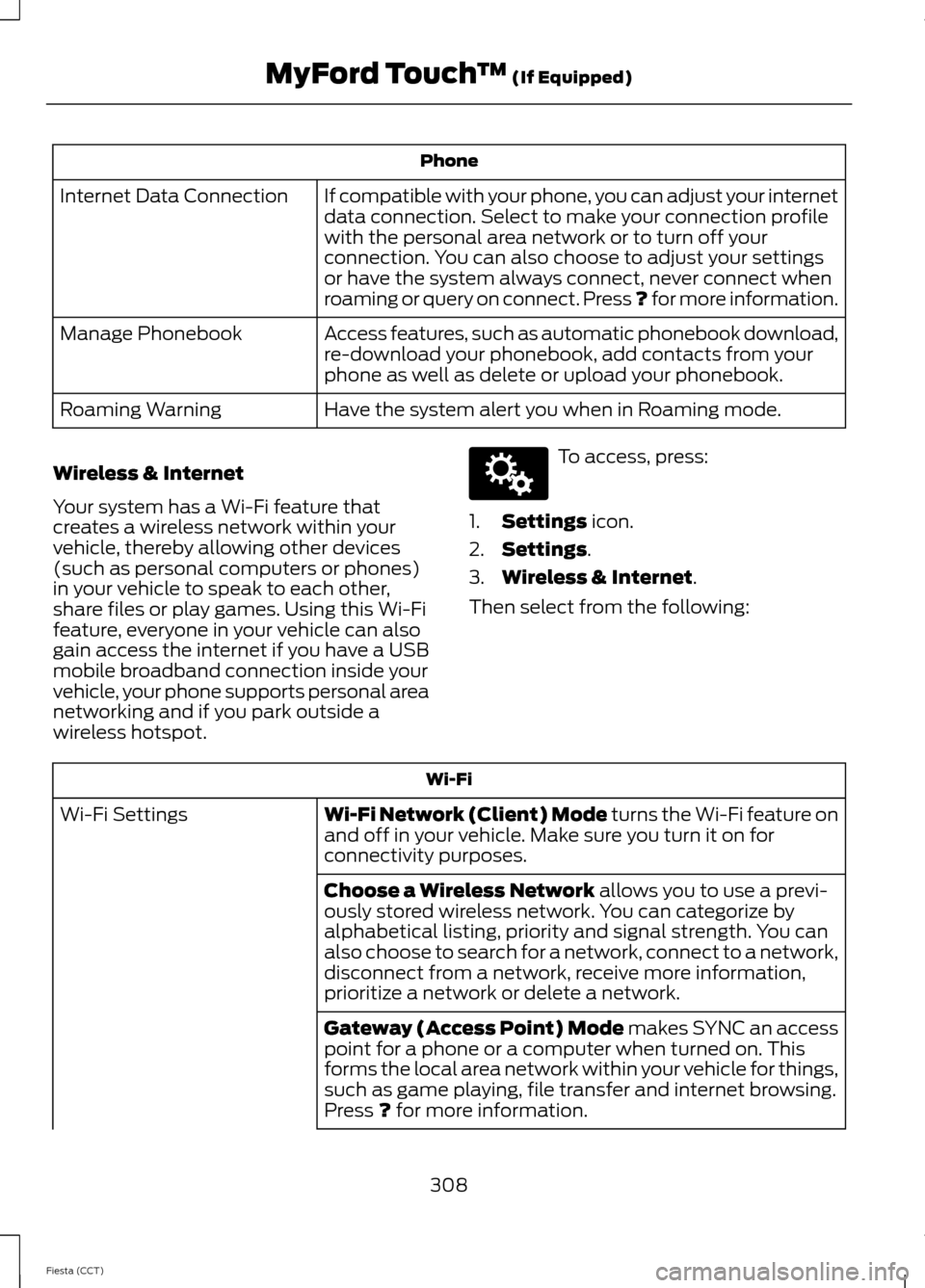
Phone
If compatible with your phone, you can adjust your internet
data connection. Select to make your connection profile
with the personal area network or to turn off your
connection. You can also choose to adjust your settings
or have the system always connect, never connect when
roaming or query on connect. Press ? for more information.
Internet Data Connection
Access features, such as automatic phonebook download,
re-download your phonebook, add contacts from your
phone as well as delete or upload your phonebook.
Manage Phonebook
Have the system alert you when in Roaming mode.
Roaming Warning
Wireless & Internet
Your system has a Wi-Fi feature that
creates a wireless network within your
vehicle, thereby allowing other devices
(such as personal computers or phones)
in your vehicle to speak to each other,
share files or play games. Using this Wi-Fi
feature, everyone in your vehicle can also
gain access the internet if you have a USB
mobile broadband connection inside your
vehicle, your phone supports personal area
networking and if you park outside a
wireless hotspot. To access, press:
1. Settings icon.
2. Settings
.
3. Wireless & Internet
.
Then select from the following: Wi-Fi
Wi-Fi Network (Client) Mode
turns the Wi-Fi feature on
and off in your vehicle. Make sure you turn it on for
connectivity purposes.
Wi-Fi Settings
Choose a Wireless Network
allows you to use a previ-
ously stored wireless network. You can categorize by
alphabetical listing, priority and signal strength. You can
also choose to search for a network, connect to a network,
disconnect from a network, receive more information,
prioritize a network or delete a network.
Gateway (Access Point) Mode makes SYNC an access
point for a phone or a computer when turned on. This
forms the local area network within your vehicle for things,
such as game playing, file transfer and internet browsing.
Press
? for more information.
308
Fiesta (CCT) MyFord Touch
™
(If Equipped)E142607
Page 312 of 396
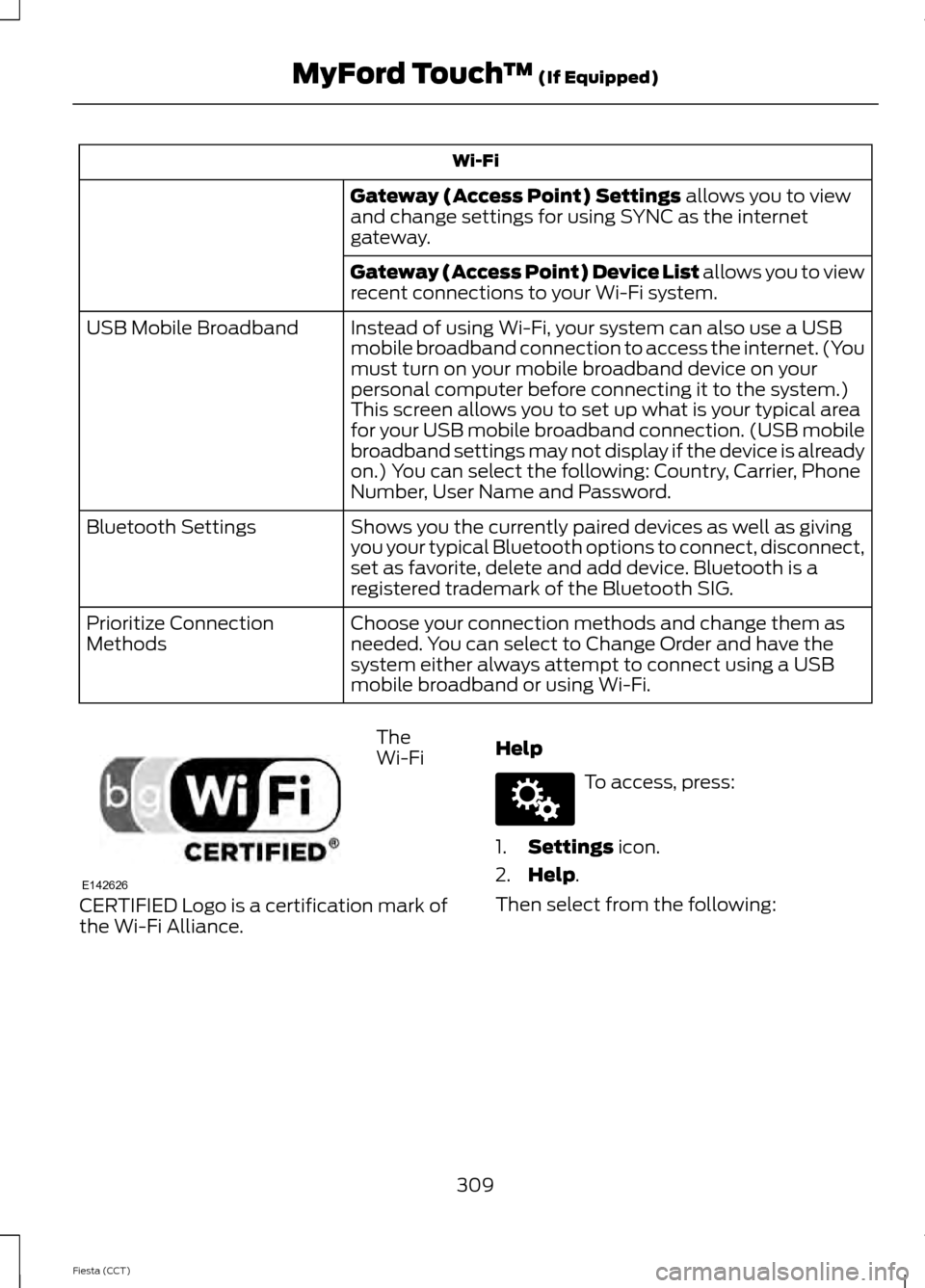
Wi-Fi
Gateway (Access Point) Settings allows you to view
and change settings for using SYNC as the internet
gateway.
Gateway (Access Point) Device List allows you to view
recent connections to your Wi-Fi system.
Instead of using Wi-Fi, your system can also use a USB
mobile broadband connection to access the internet. (You
must turn on your mobile broadband device on your
personal computer before connecting it to the system.)
This screen allows you to set up what is your typical area
for your USB mobile broadband connection. (USB mobile
broadband settings may not display if the device is already
on.) You can select the following: Country, Carrier, Phone
Number, User Name and Password.
USB Mobile Broadband
Shows you the currently paired devices as well as giving
you your typical Bluetooth options to connect, disconnect,
set as favorite, delete and add device. Bluetooth is a
registered trademark of the Bluetooth SIG.
Bluetooth Settings
Choose your connection methods and change them as
needed. You can select to Change Order and have the
system either always attempt to connect using a USB
mobile broadband or using Wi-Fi.
Prioritize Connection
Methods The
Wi-Fi
CERTIFIED Logo is a certification mark of
the Wi-Fi Alliance. Help To access, press:
1. Settings
icon.
2. Help
.
Then select from the following:
309
Fiesta (CCT) MyFord Touch
™
(If Equipped)E142626 E142607