2014 FORD F150 pairing phone
[x] Cancel search: pairing phonePage 266 of 472
•
alcohol solutions
• solvents or cleaners intended
specifically for rubber, vinyl and
plastics.
WITH THE KING RANCH EDITION
Your vehicle is equipped with seating
covered in premium, top-grain leather
which is extremely durable, but still
requires special care and maintenance in
order to preserve longevity and comfort.
Regular cleaning and conditioning will
maintain the appearance of the leather.
Cleaning
For dirt, use a vacuum cleaner then use a
clean, damp cloth or soft brush.
For routine cleaning, wipe the surface with
a soft, damp cloth. For more thorough
cleaning, wipe the surface with a mild soap
and water solution.
• Clean spills as quickly as possible.
• Test any cleaner or stain remover on
an inconspicuous part of the leather as
cleaners may darken the leather.
• Do not spill coffee, ketchup, mustard,
orange juice or oil-based products on
the leather as they may permanently
stain the leather.
• Do not use household cleaning
products, alcohol solutions, solvents
or cleaners intended for rubber, vinyl
or plastics.
Scratches
Natural Markings - Because the leather in
the seat comes from genuine steer hides,
there will be evidence of naturally
occurring markings, such as small scars.
These markings give character to the
seating covers and considered to be proof
of a genuine leather product. In order to lessen the appearance of
certain scratches and other wear marks,
apply conditioner on the affected area
following the same instructions as in the
Conditioning section.
Conditioning
Bottles of King Ranch Leather Conditioner
are available at the King Ranch Saddle
Shop. Visit the website at
www.krsaddleshop.com, or telephone (in
the United States) 1–800–
282–KING
(5464). If you are unable to obtain King
Ranch Leather Conditioner, use another
premium leather conditioner.
• Clean the surfaces using the steps
outlined in the Cleaning section.
• Make sure the leather is dry then apply
a nickel-sized amount of conditioner
to a clean, dry cloth.
• Rub the conditioner into the leather
until it disappears. Allow the
conditioner to dry, then repeat the
process for the entire interior. If a film
appears, wipe it off with a dry, clean
cloth.
REPAIRING MINOR PAINT
DAMAGE
Authorized dealers have touch-up paint to
match your vehicle ’s color. Your vehicle
color code is printed on a sticker on the
front, left-hand side door jamb. Take your
color code to your authorized dealer to
make sure you get the correct color.
Before repairing minor paint damage, use
a cleaner such as Motorcraft Bug and Tar
Remover to remove particles such as bird
droppings, tree sap, insect deposits, tar
spots, road salt and industrial fallout.
Always read the instructions before using
cleaning products.
263
F150 (TF6) , enUSA Vehicle Care
Page 331 of 472
Pairing a Phone for the First Time
Note:
SYNC can support downloading up
to approximately 1000 entries per
Bluetooth-enabled cellular phone.
Note: Make sure to switch on the ignition
and the radio. Put the transmission in
position P.
Note: To scroll through the menus, press
the up and down arrows on your audio
system.
Wirelessly pairing your phone with SYNC
allows you to make and receive hands-free
calls.
1. Press the phone button. When the display indicates there is no phone
paired, press
OK.
2. When
Find SYNC appears in the
display, press OK.
3. Put your phone into Bluetooth discovery mode. See your device's
manual if necessary.
4. When prompted on your phone's display, enter the six-digit PIN provided
by SYNC in the radio display. The
display indicates when the pairing is
successful.
Depending on your phone's capability and
your market, the system may prompt you
with questions, such as setting the current
phone as the primary phone (the phone
SYNC automatically tries to connect with
first upon vehicle start-up) and
downloading your phonebook.
Pairing Subsequent Phones
Note: Make sure to switch on the ignition
and the radio. Put the transmission in
position
P.
Note: To scroll through the menus, press
the up and down arrows on your audio
system. 1.
Press the phone button, and then scroll
to System Settings. Press
OK.
2. Scroll to Bluetooth Devices. Press
OK.
3. Scroll to Add Bluetooth Device. Press OK
.
4. When
Find SYNC appears in the
display, press OK.
5. Put your phone into Bluetooth discovery mode. See your phone's
manual if necessary.
6. When prompted on your phone's display, enter the six-digit PIN provided
by SYNC in the radio display. The
display indicates when the pairing is
successful.
The system then prompts with questions,
such as if you would like to set the current
phone as the primary phone (the phone
SYNC automatically tries to connect with
first upon vehicle start-up) and download
your phone book.
Phone Voice Commands
Press the voice icon and say "Phone". Say
any of the following: "PHONE"
"Call
"Call
"Call
"Call
"Call
"Call
"Call history incoming" 2
"Call history missed" 2
328
F150 (TF6) , enUSA SYNC™
Page 359 of 472
USB and media issues
Possible solution(s)
Possible cause(s)
Issue
Some devices require you to
change the USB settings
from mass storage to MTP
class.
The file may be corrupted.
The song may have copy-
right protection, which does
not allow it to play. Vehicle Health Report and Services (Traffic, Directions and Information) issues
Possible solution(s)
Possible cause(s)
Issue
This is a free feature, but you
must first register online to
use it.
You did not activate your
account on the website.
You may have the wrong
VIN (vehicle identification
number) listed.
I received a text that I did
not activate Vehicle Health
Report.
Make sure that your VIN is
correctly listed in your
account.
When you register your
account, you must choose a
preferred dealer. If it already
lists a dealer, try selecting
another dealer and logging
out. Log back in, change it
back to your preferred
dealer, and retrieve the
report.
The preferred dealer
information did not load
correctly.
I am unable to retrieve the
report on the website, or I
receive a system error.
Update your cellular number
in your account on the
website.
This could be due to your
phone's compatibility.
Bad signal strength.
I am unable to submit a
report.
Make sure you have full
signal strength and that your
Bluetooth volume level has
been turned up.
You did not register your
phone correctly on the
website.
Make sure the currently
connected phone is
registered on your
SYNCMyRide account.
Try deleting your phone and
performing a clean pairing.
This is a free feature, but you
must first register online to
use it.
You did not activate this
phone for this service.
Your phone has ID blocker
active.
I heard a commercial when
I tried to use Traffic, Direc-
tions and Information.
356
F150 (TF6) , enUSA SYNC™
Page 365 of 472
Monday-Saturday, 8:30am-9:00pm EST.
Sunday, 10:30am-7:30pm EST.
In the United States, call: 1-800-392-3673.
In Canada, call: 1-800-565-3673.
Times are subject to change due to
holidays.
Safety Information
WARNING
Driving while distracted can result in
loss of vehicle control, crash and
injury. We strongly recommend that
you use extreme caution when using any
device that may take your focus off the
road. Your primary responsibility is the safe
operation of your vehicle. We recommend
against the use of any hand-held device
while driving and encourage the use of
voice-operated systems when possible.
Make sure you are aware of all applicable
local laws that may affect the use of
electronic devices while driving. •
Do not attempt to service or repair the
system. See an authorized dealer.
• Do not operate playing devices if the
power cords or cables are broken, split
or damaged. Place cords and cables
out of the way, so they do not interfere
with the operation of pedals, seats,
compartments or safe driving abilities. •
Do not leave playing devices in your
vehicle during extreme conditions as it
could cause them damage. See your
device's user guide for further
information.
• For your safety, some SYNC functions
are speed-dependent. Their use is
limited to when your vehicle is traveling
at speeds under 3 mph (5 km/h).
Make sure that you review your device's
manual before using it with SYNC.
Speed-restricted Features
Some features of this system may be too
difficult to use while your vehicle is moving
so they are restricted from use unless your
vehicle is stationary.
• Screens crowded with information,
such as Point of Interest reviews and
ratings, SIRIUS Travel Link sports
scores, movie times or ski conditions.
• Any action that requires you to use a
keyboard is restricted, such as entering
a navigation destination or editing
information.
• All lists are limited so the user can view
fewer entries (such as phone contacts
or recent phone call entries).
See the following chart for more specific
examples. Restricted features
Pairing a Bluetooth phone
Cellular Phone
Adding phonebook contacts or uploading phonebook
contacts (from a USB)
List entries are limited for phone contacts and recent
phone call entries
Editing the keypad code
System Functionality
Enabling Valet Mode
362
F150 (TF6) , enUSA MyFord Touch
™ (If Equipped)
Page 397 of 472
Phone
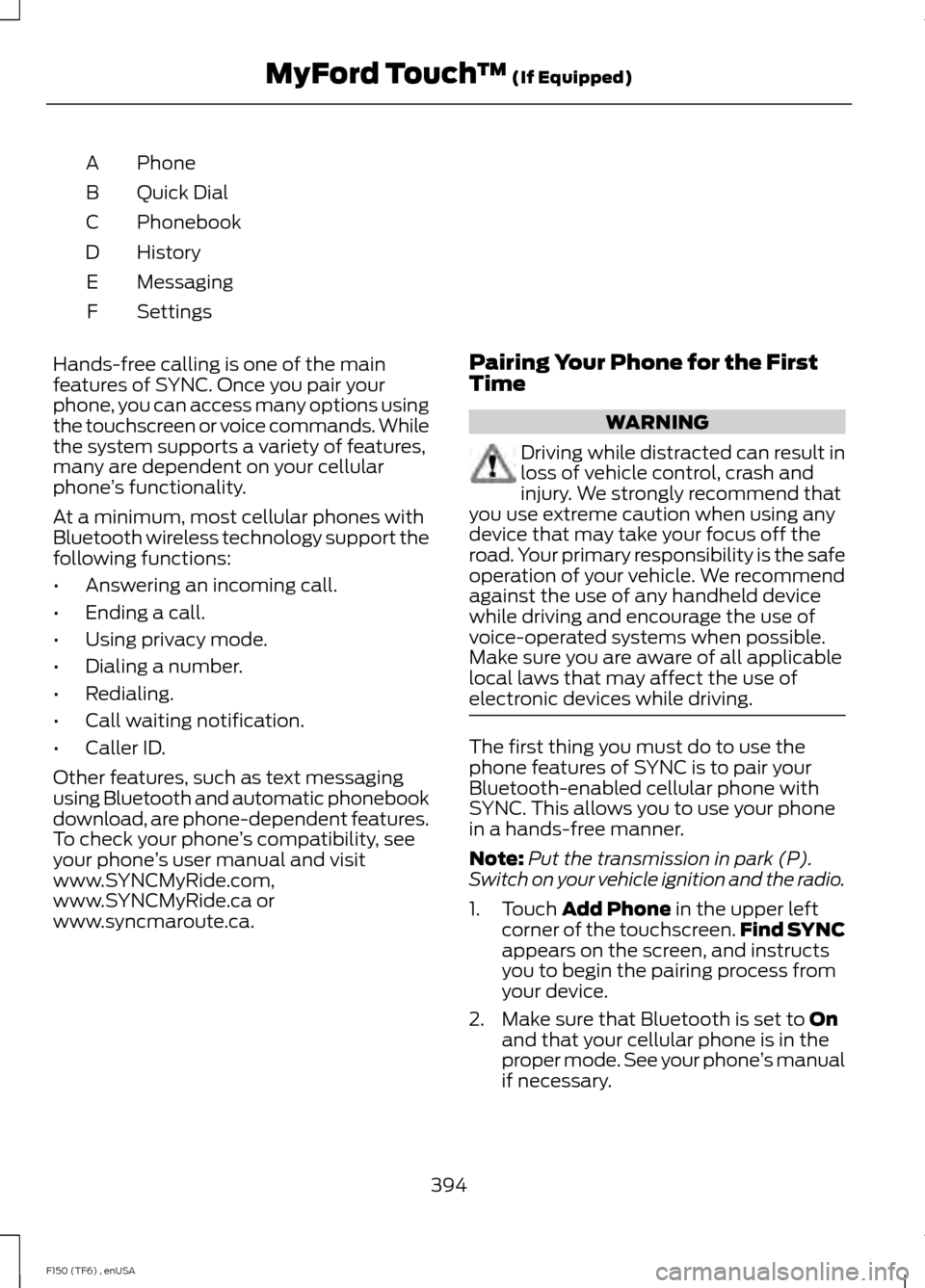
A
Quick Dial
B
Phonebook
C
History
D
Messaging
E
Settings
F
Hands-free calling is one of the main
features of SYNC. Once you pair your
phone, you can access many options using
the touchscreen or voice commands. While
the system supports a variety of features,
many are dependent on your cellular
phone ’s functionality.
At a minimum, most cellular phones with
Bluetooth wireless technology support the
following functions:
• Answering an incoming call.
• Ending a call.
• Using privacy mode.
• Dialing a number.
• Redialing.
• Call waiting notification.
• Caller ID.
Other features, such as text messaging
using Bluetooth and automatic phonebook
download, are phone-dependent features.
To check your phone ’s compatibility, see
your phone ’s user manual and visit
www.SYNCMyRide.com,
www.SYNCMyRide.ca or
www.syncmaroute.ca. Pairing Your Phone for the First
Time WARNING
Driving while distracted can result in
loss of vehicle control, crash and
injury. We strongly recommend that
you use extreme caution when using any
device that may take your focus off the
road. Your primary responsibility is the safe
operation of your vehicle. We recommend
against the use of any handheld device
while driving and encourage the use of
voice-operated systems when possible.
Make sure you are aware of all applicable
local laws that may affect the use of
electronic devices while driving. The first thing you must do to use the
phone features of SYNC is to pair your
Bluetooth-enabled cellular phone with
SYNC. This allows you to use your phone
in a hands-free manner.
Note:
Put the transmission in park (P).
Switch on your vehicle ignition and the radio.
1. Touch Add Phone in the upper left
corner of the touchscreen. Find SYNC
appears on the screen, and instructs
you to begin the pairing process from
your device.
2. Make sure that Bluetooth is set to
On
and that your cellular phone is in the
proper mode. See your phone ’s manual
if necessary.
394
F150 (TF6) , enUSA MyFord Touch
™
(If Equipped)
Page 398 of 472
Note:
Select SYNC, and a six-digit PIN
appears on your device.
3. If prompted to enter a PIN on your device, it does not support Secure
Simple Pairing. To pair, enter the PIN
displayed on the touchscreen. Skip the
next step.
4. When prompted on your phone ’s
display, confirm that the PIN provided
by SYNC matches the PIN displayed
on your cellular phone.
5. The display indicates when the pairing
is successful.
SYNC may prompt you with more phone
options. For more information on your
phone's capability, see your phone's
manual and visit the website.
Pairing Subsequent Phones
Note: Put the transmission in park (P).
Switch on your vehicle ignition and the radio.
1. Press the
Phone corner of the
touchscreen > Settings > BT Devices
>
Add Device.
2. Make sure that Bluetooth is set to
On
and that your cellular phone is in the
proper mode. See your phone ’s manual
if necessary.
Note: Select
SYNC, and a six-digit PIN
appears on your device.
3. If prompted to enter a PIN on your device, it does not support Secure
Simple Pairing. To pair, enter the PIN
displayed on the touchscreen. Skip the
next step.
4. When prompted on your phone ’s
display, confirm that the PIN provided
by SYNC matches the PIN displayed
on your cellular phone.
5. The display indicates when the pairing
is successful. SYNC may prompt you with more phone
options. For more information on your
phone's capability, see your phone's
manual and visit the website.
Making Calls Press the voice button on your
steering wheel controls. When
prompted, say, "Call
or say "Dial", then the desired number. To end the call or exit phone
mode, press and hold the phone
button.
Receiving Calls
During an incoming call, an audible tone
sounds. Call information appears in the
display if it is available. Accept the call by pressing
Accept
on the touchscreen or
by pressing the phone button on
your steering wheel controls.
Reject the call by pressing
Reject on the
touchscreen or by pressing and holding the
phone button on your steering wheel
controls.
Ignore the call by doing nothing. SYNC logs
it as a missed call.
Phone Menu Options
Press the top left corner on your
touchscreen to select from the following
options:
Phone
Touch this button to access the on-screen
numerical pad to enter a number and place
a call. During an active call, you can also
choose to:
• Mute the call.
• Put the call on hold.
• Turn on the privacy feature.
395
F150 (TF6) , enUSA MyFord Touch
™
(If Equipped)E142599 E165966 E165966
Page 467 of 472
Lug Nuts
See: Changing a Road Wheel....................... 289
M
Maintenance..................................................235 General Information......................................... 235
Manual Climate Control............................106
Manual Seats..................................................116 Manual Lumbar .................................................... 117
Moving the Seat Backward and Forward............................................................... 117
Recline Adjustment............................................. 117
Media Hub......................................................322
Memory Function
..........................................118
Easy Entry and Exit Feature............................. 119
Message Center See: Information Displays................................. 87
Mirrors See: Heated Windows and Mirrors................112
See: Windows and Mirrors................................ 75
Mobile Communications Equipment
.......12
Moonroof...........................................................79 Bounce-Back......................................................... 80
Opening and Closing the Moonroof.............80
Venting the Moonroof........................................ 80
Motorcraft Parts..........................................298
MyFord Touch ™
...........................................359
General Information......................................... 359
MyKey Troubleshooting...............................56
MyKey ™
.............................................................53
Principle of Operation......................................... 53
N
Navigation.......................................................410 cityseekr................................................................. 412
Map Mode............................................................. 414
Navigation Map Updates................................. 417
Navigation Voice Commands......................... 417
Point of Interest (POI) Categories................412
Quick-touch Buttons........................................ 416
Setting a Destination......................................... 411
Setting Your Navigation Preferences..........413
Normal Scheduled Maintenance...........441 Intelligent Oil-Life Monitor® (Vehicles with
a 3.5L, 3.7L and 5.0L Engine).................... 441
Normal Maintenance Intervals..................... 443O
Oil Check
See: Engine Oil Check...................................... 240
Opening and Closing the Hood..............235
Ordering Additional Owner's Literature......................................................223
Obtaining a French Owner ’s Manual..........223
Overhead Console........................................134
P
Parking Aid
.......................................................172
Rear Sensing System......................................... 172
Parking Aids
.....................................................172
Parking Brake.................................................164
Passive Anti-Theft System..........................61 SecuriLock ™........................................................... 61
PATS See: Passive Anti-Theft System...................... 61
Pedals................................................................68
Perchlorate.........................................................11
Personal Safety System ™
..........................38
How Does the Personal Safety System
Work?.................................................................. 38
Phone...............................................................393 Making Calls........................................................ 395
Pairing Subsequent Phones.......................... 395
Pairing Your Phone for the First Time................................................................... 394
Phone Menu Options....................................... 395
Phone Settings................................................... 397
Phone Voice Commands............................... 398
Receiving Calls................................................... 395
Text Messaging.................................................. 396
Post-Crash Alert System
...........................218
Power Door Locks See: Locking and Unlocking.............................. 57
Power Running Boards
................................63
Power Seats.....................................................117 Power Lumbar...................................................... 118
Power Recline........................................................ 117
Power Steering Fluid Check....................246 3.5L, 3.7L and 5.0L Engines........................... 246
6.2L Engines........................................................ 246
464
F150 (TF6) , enUSA Index
Page 470 of 472
Tires
See: Wheels and Tires..................................... 266
Towing a Trailer..............................................191 Load Placement................................................... 191
Towing the Vehicle on Four Wheels.........................................................208
Emergency Towing........................................... 208
Recreational Towing........................................ 208
Towing...............................................................191
Traction Control............................................166
Principle of Operation...................................... 166
Trailer Sway Control....................................192
Transfer Case Fluid Check........................245
Transmission Code Designation...........300
Transmission ...................................................
147
Transmission See: Transmission............................................... 147
Transporting the Vehicle...........................207
U
Under Hood Overview - 3.5L Ecoboost™.................................................236
Under Hood Overview - 3.7L....................237
Under Hood Overview - 5.0L..................238
Under Hood Overview - 6.2L...................239
Universal Garage Door Opener................124 CAR2U® Home Automation System..........124
HomeLink Wireless Control System............127
USB Port
..........................................................322
Using Cruise Control....................................176 Switching Cruise Control Off.......................... 176
Switching Cruise Control On........................... 176
Using Four-Wheel Drive
.............................153
4WD Indicator Lights......................................... 153
Driving Off-Road With Truck and Utility Vehicles............................................................. 156
How Your Vehicle Differs From Other Vehicles............................................................. 156
Using the 2-Speed Automatic 4WD System............................................................... 154
Using the Electronic Shift on the Fly 4WD system................................................................ 153
Using Hill Descent Control........................170 Hill descent modes............................................ 170
Using MyKey With Remote Start Systems..........................................................55 Using Power Running Boards....................63
Automatic Power Deploy.................................. 63
Automatic Power Stow...................................... 63
Bounce-back......................................................... 64
Enabling and Disabling...................................... 63
Manual Power Deploy........................................ 63
Using Snow Chains
.....................................283
Using Stability Control...............................168 AdvanceTrac ™ with Roll Stability Control ™
(RSC™)............................................................ 168
Using SYNC™ With Your Media Player............................................................345
Accessing Your Play Menu............................. 349
Connecting Your Digital Media Player to the USB Port.......................................................... 345
Media Menu Features...................................... 348
Media Voice Commands................................ 346
System Settings.................................................. 351
What's Playing?................................................. 346
Using SYNC™ With Your Phone.............327 Accessing Features through the Phone
Menu................................................................... 331
Accessing Your Phone Settings.................... 334
Making Calls........................................................ 330
Pairing a Phone for the First Time...............328
Pairing Subsequent Phones.......................... 328
Phone Options during an Active Call.........330
Phone Voice Commands................................ 328
Receiving Calls................................................... 330
System Settings................................................. 335
Text Messaging................................................... 333
Using Traction Control...............................166 System Indicator Lights and
Messages.......................................................... 166
Using Voice Recognition...........................325 Initiating a Voice Session................................ 325
System Interaction and Feedback..............326
Utilizing the Mediation/Arbitration Program (Canada Only)..........................221
V
Vehicle Care...................................................259 General Information......................................... 259
Vehicle Certification Label.......................299
Vehicle Identification Number...............298
467
F150 (TF6) , enUSA Index