2014 FORD F150 ignition
[x] Cancel search: ignitionPage 331 of 472
Pairing a Phone for the First Time
Note:
SYNC can support downloading up
to approximately 1000 entries per
Bluetooth-enabled cellular phone.
Note: Make sure to switch on the ignition
and the radio. Put the transmission in
position P.
Note: To scroll through the menus, press
the up and down arrows on your audio
system.
Wirelessly pairing your phone with SYNC
allows you to make and receive hands-free
calls.
1. Press the phone button. When the display indicates there is no phone
paired, press
OK.
2. When
Find SYNC appears in the
display, press OK.
3. Put your phone into Bluetooth discovery mode. See your device's
manual if necessary.
4. When prompted on your phone's display, enter the six-digit PIN provided
by SYNC in the radio display. The
display indicates when the pairing is
successful.
Depending on your phone's capability and
your market, the system may prompt you
with questions, such as setting the current
phone as the primary phone (the phone
SYNC automatically tries to connect with
first upon vehicle start-up) and
downloading your phonebook.
Pairing Subsequent Phones
Note: Make sure to switch on the ignition
and the radio. Put the transmission in
position
P.
Note: To scroll through the menus, press
the up and down arrows on your audio
system. 1.
Press the phone button, and then scroll
to System Settings. Press
OK.
2. Scroll to Bluetooth Devices. Press
OK.
3. Scroll to Add Bluetooth Device. Press OK
.
4. When
Find SYNC appears in the
display, press OK.
5. Put your phone into Bluetooth discovery mode. See your phone's
manual if necessary.
6. When prompted on your phone's display, enter the six-digit PIN provided
by SYNC in the radio display. The
display indicates when the pairing is
successful.
The system then prompts with questions,
such as if you would like to set the current
phone as the primary phone (the phone
SYNC automatically tries to connect with
first upon vehicle start-up) and download
your phone book.
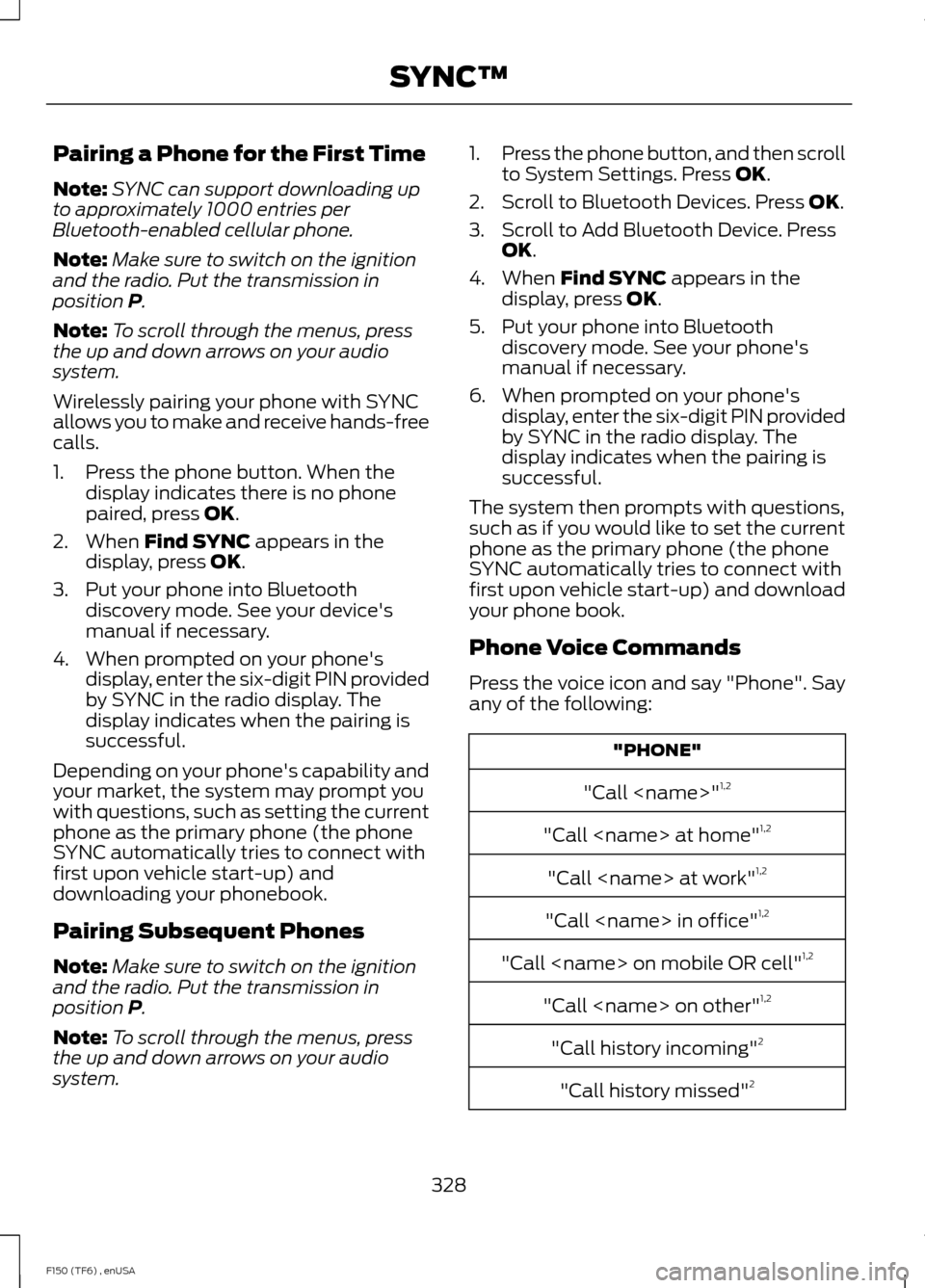
Phone Voice Commands
Press the voice icon and say "Phone". Say
any of the following: "PHONE"
"Call
"Call
"Call
"Call
"Call
"Call
"Call history incoming" 2
"Call history missed" 2
328
F150 (TF6) , enUSA SYNC™
Page 339 of 472
1. Press the phone button to enter the
phone menu
2. Scroll to System Settings. Press OK. 3. Scroll to Bluetooth Devices. Press
OK.
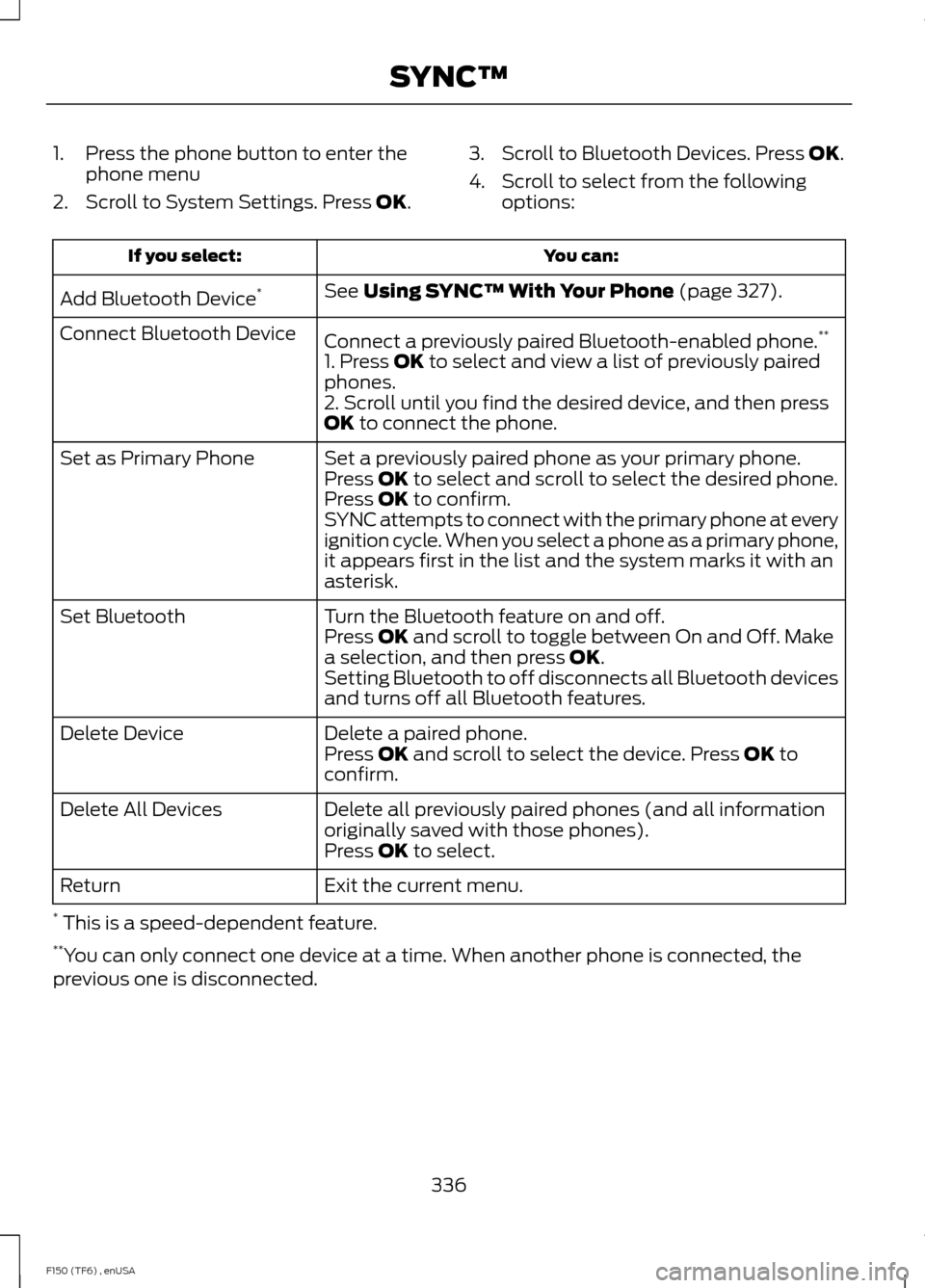
4. Scroll to select from the following options: You can:
If you select:
See
Using SYNC™ With Your Phone (page 327).
Add Bluetooth Device *
Connect a previously paired Bluetooth-enabled phone. **
Connect Bluetooth Device
1. Press
OK to select and view a list of previously paired
phones.
2. Scroll until you find the desired device, and then press
OK
to connect the phone.
Set a previously paired phone as your primary phone.
Set as Primary Phone
Press
OK to select and scroll to select the desired phone.
Press OK to confirm.
SYNC attempts to connect with the primary phone at every
ignition cycle. When you select a phone as a primary phone,
it appears first in the list and the system marks it with an
asterisk.
Turn the Bluetooth feature on and off.
Set Bluetooth
Press
OK and scroll to toggle between On and Off. Make
a selection, and then press OK.
Setting Bluetooth to off disconnects all Bluetooth devices
and turns off all Bluetooth features.
Delete a paired phone.
Delete Device
Press
OK and scroll to select the device. Press OK to
confirm.
Delete all previously paired phones (and all information
originally saved with those phones).
Delete All Devices
Press
OK to select.
Exit the current menu.
Return
* This is a speed-dependent feature.
** You can only connect one device at a time. When another phone is connected, the
previous one is disconnected.
336
F150 (TF6) , enUSA SYNC™
Page 363 of 472
This system uses a four-corner strategy to
provide quick access to several vehicle
features and settings. The touchscreen
provides easy interaction with your cellular
phone, multimedia, climate control and
navigation system. The corners display any
active modes within those menus, such as
phone status or the climate temperature.
Note:
Some features are not available while
your vehicle is moving.
Note: Your system is equipped with a
feature that allows you to access and
control audio features for 30 minutes after
you switch the ignition off (and no doors
open).
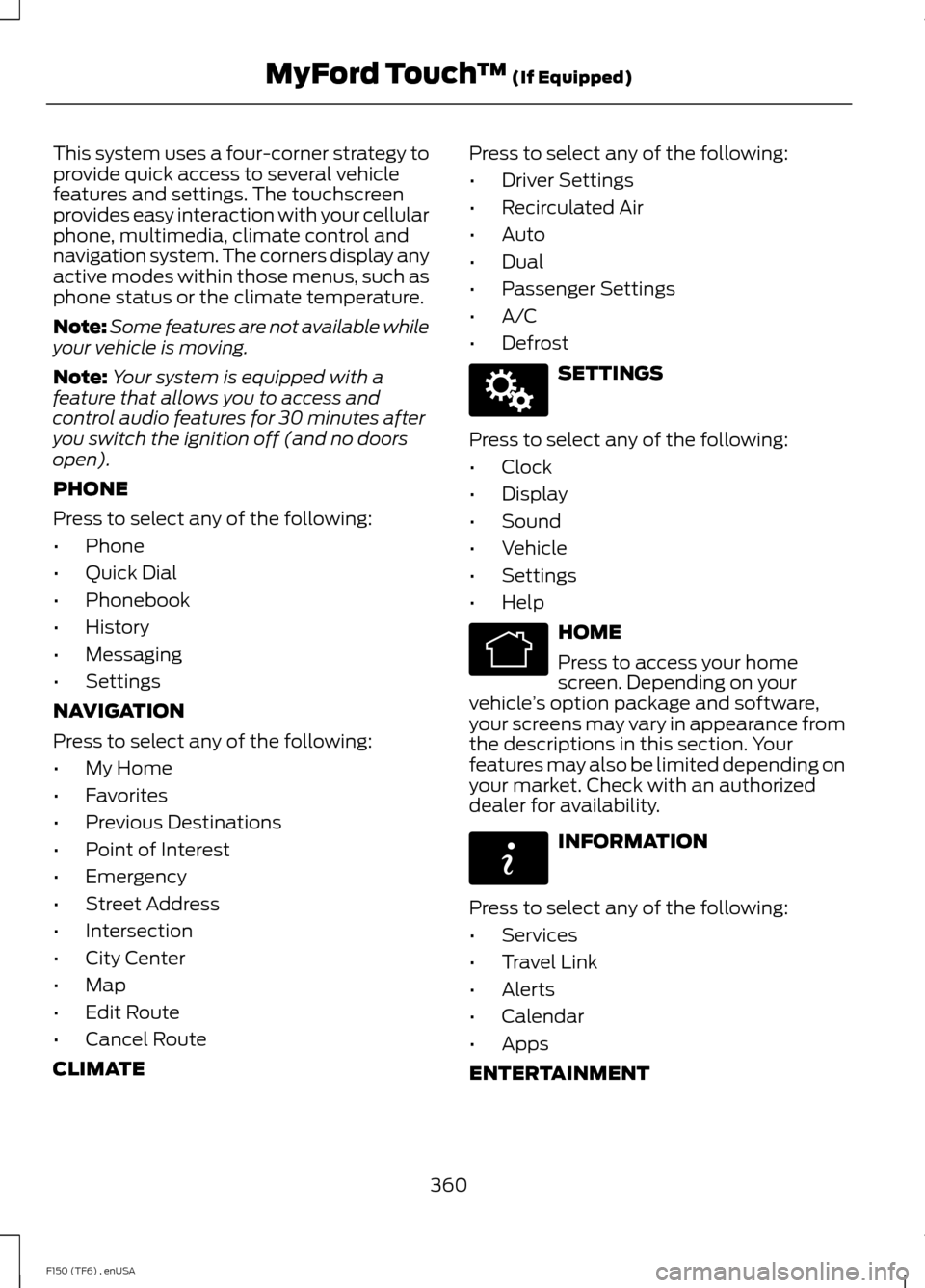
PHONE
Press to select any of the following:
• Phone
• Quick Dial
• Phonebook
• History
• Messaging
• Settings
NAVIGATION
Press to select any of the following:
• My Home
• Favorites
• Previous Destinations
• Point of Interest
• Emergency
• Street Address
• Intersection
• City Center
• Map
• Edit Route
• Cancel Route
CLIMATE Press to select any of the following:
•
Driver Settings
• Recirculated Air
• Auto
• Dual
• Passenger Settings
• A/C
• Defrost SETTINGS
Press to select any of the following:
• Clock
• Display
• Sound
• Vehicle
• Settings
• Help HOME
Press to access your home
screen. Depending on your
vehicle ’s option package and software,
your screens may vary in appearance from
the descriptions in this section. Your
features may also be limited depending on
your market. Check with an authorized
dealer for availability. INFORMATION
Press to select any of the following:
• Services
• Travel Link
• Alerts
• Calendar
• Apps
ENTERTAINMENT
360
F150 (TF6) , enUSA MyFord Touch
™ (If Equipped)E142607 E142613 E142608
Page 373 of 472
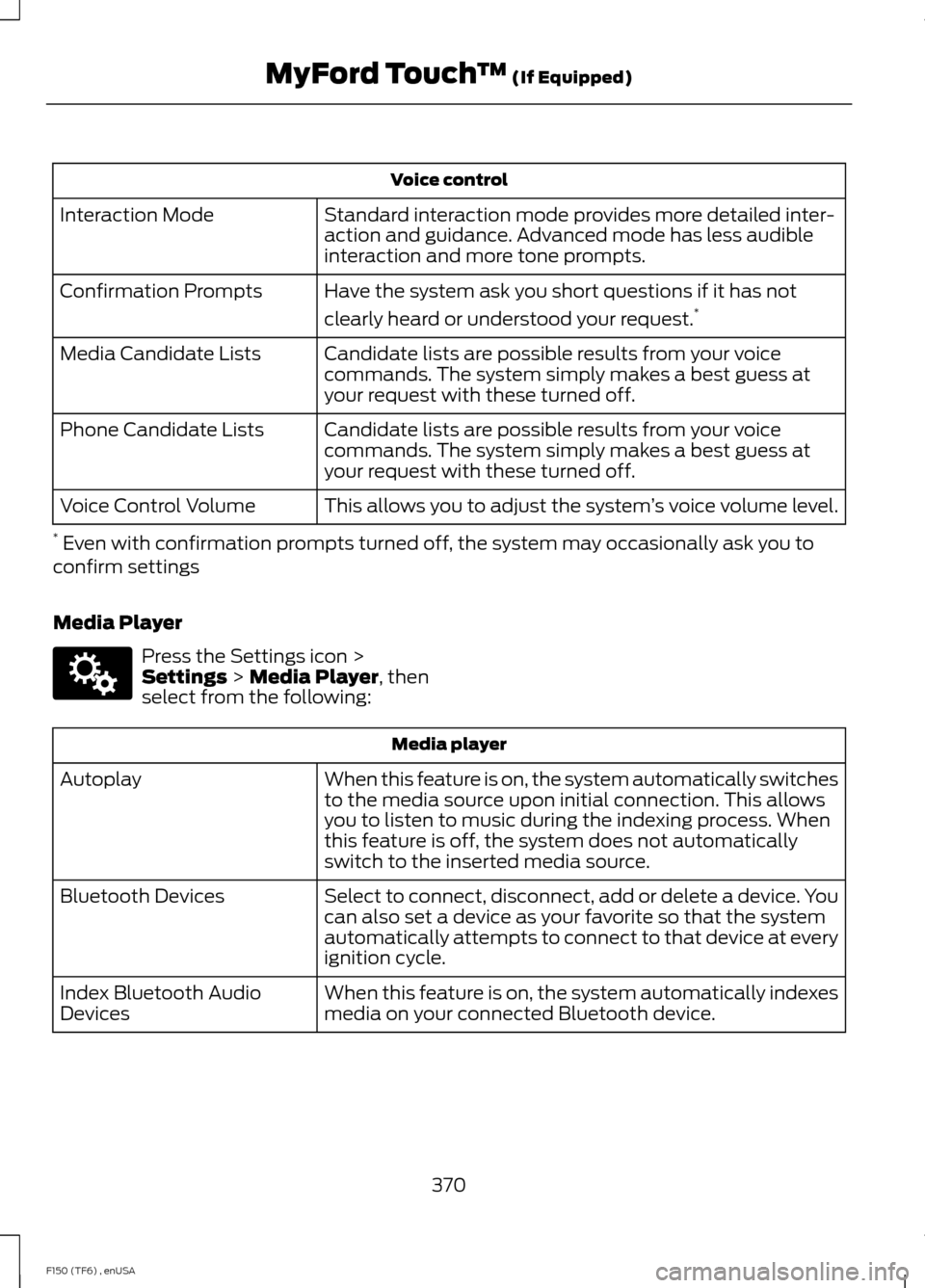
Voice control
Standard interaction mode provides more detailed inter-
action and guidance. Advanced mode has less audible
interaction and more tone prompts.
Interaction Mode
Have the system ask you short questions if it has not
clearly heard or understood your request. *
Confirmation Prompts
Candidate lists are possible results from your voice
commands. The system simply makes a best guess at
your request with these turned off.
Media Candidate Lists
Candidate lists are possible results from your voice
commands. The system simply makes a best guess at
your request with these turned off.
Phone Candidate Lists
This allows you to adjust the system ’s voice volume level.
Voice Control Volume
* Even with confirmation prompts turned off, the system may occasionally ask you to
confirm settings
Media Player Press the Settings icon >
Settings > Media Player, then
select from the following: Media player
When this feature is on, the system automatically switches
to the media source upon initial connection. This allows
you to listen to music during the indexing process. When
this feature is off, the system does not automatically
switch to the inserted media source.
Autoplay
Select to connect, disconnect, add or delete a device. You
can also set a device as your favorite so that the system
automatically attempts to connect to that device at every
ignition cycle.
Bluetooth Devices
When this feature is on, the system automatically indexes
media on your connected Bluetooth device.
Index Bluetooth Audio
Devices
370
F150 (TF6) , enUSA MyFord Touch
™
(If Equipped)E142607
Page 393 of 472
Playing Video from Your Device
To access and play video from your device,
your vehicle's transmission must be in
position P with the ignition in accessory
mode. See Starting and Stopping the
Engine (page 135).
SD Card and USB Voice Commands If you are listening to a USB
device or an SD card, press the
voice button on the steering
wheel controls. When prompted, say any
of the following commands.
If you are not listening to a USB device or
an SD card, press the voice button and,
after the tone, say "USB" or "SD card",
then any of the following commands. "USB" or "SD CARD"
"Browse" *
"Next"
"Pause" "Play"
"Play album
"Play artist
"Play audiobook
"Play composer
"Play movie
"Play music video
"Play playlist
"Play podcast
"Play podcast episode
"Play song
"Play TV show
"Play TV show episode
"Play video
"Play video podcast
"Play video podcast episode
"Play video playlist
"Previous"
"Repeat all"
"Repeat off"
"Repeat one" "Shuffle"
"Shuffle album" "Shuffle off"
"What's this?" "Help"
* If you have said you would like to browse
your USB or SD card, the system prompts
you to specify what you would like to
browse. When prompted, see the following
"Browse" chart.
** These commands are only available in
USB mode and are device-dependent.
390
F150 (TF6) , enUSA MyFord Touch
™
(If Equipped)E142599
Page 397 of 472
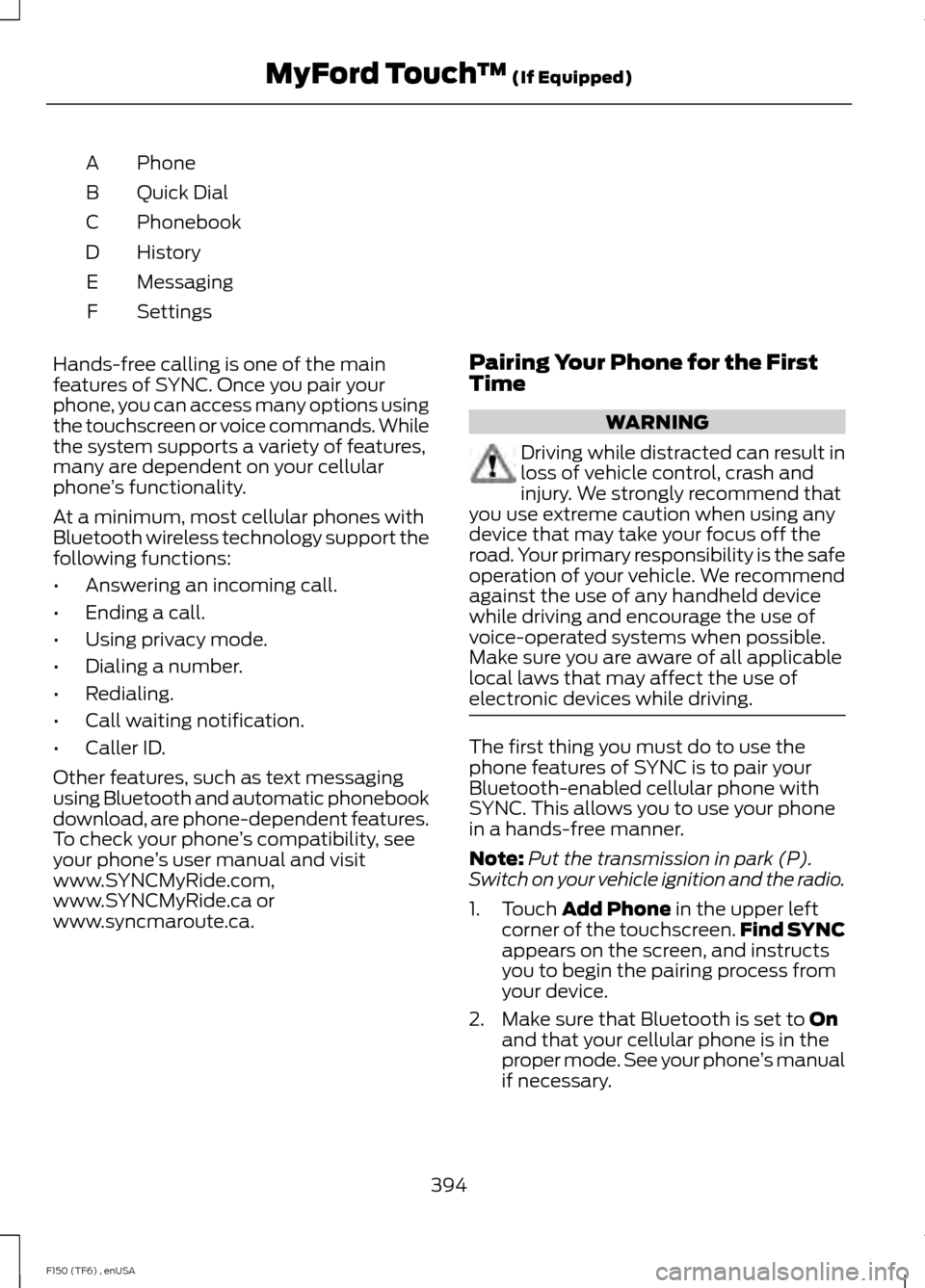
Phone
A
Quick Dial
B
Phonebook
C
History
D
Messaging
E
Settings
F
Hands-free calling is one of the main
features of SYNC. Once you pair your
phone, you can access many options using
the touchscreen or voice commands. While
the system supports a variety of features,
many are dependent on your cellular
phone ’s functionality.
At a minimum, most cellular phones with
Bluetooth wireless technology support the
following functions:
• Answering an incoming call.
• Ending a call.
• Using privacy mode.
• Dialing a number.
• Redialing.
• Call waiting notification.
• Caller ID.
Other features, such as text messaging
using Bluetooth and automatic phonebook
download, are phone-dependent features.
To check your phone ’s compatibility, see
your phone ’s user manual and visit
www.SYNCMyRide.com,
www.SYNCMyRide.ca or
www.syncmaroute.ca. Pairing Your Phone for the First
Time WARNING
Driving while distracted can result in
loss of vehicle control, crash and
injury. We strongly recommend that
you use extreme caution when using any
device that may take your focus off the
road. Your primary responsibility is the safe
operation of your vehicle. We recommend
against the use of any handheld device
while driving and encourage the use of
voice-operated systems when possible.
Make sure you are aware of all applicable
local laws that may affect the use of
electronic devices while driving. The first thing you must do to use the
phone features of SYNC is to pair your
Bluetooth-enabled cellular phone with
SYNC. This allows you to use your phone
in a hands-free manner.
Note:
Put the transmission in park (P).
Switch on your vehicle ignition and the radio.
1. Touch Add Phone in the upper left
corner of the touchscreen. Find SYNC
appears on the screen, and instructs
you to begin the pairing process from
your device.
2. Make sure that Bluetooth is set to
On
and that your cellular phone is in the
proper mode. See your phone ’s manual
if necessary.
394
F150 (TF6) , enUSA MyFord Touch
™
(If Equipped)
Page 398 of 472
Note:
Select SYNC, and a six-digit PIN
appears on your device.
3. If prompted to enter a PIN on your device, it does not support Secure
Simple Pairing. To pair, enter the PIN
displayed on the touchscreen. Skip the
next step.
4. When prompted on your phone ’s
display, confirm that the PIN provided
by SYNC matches the PIN displayed
on your cellular phone.
5. The display indicates when the pairing
is successful.
SYNC may prompt you with more phone
options. For more information on your
phone's capability, see your phone's
manual and visit the website.
Pairing Subsequent Phones
Note: Put the transmission in park (P).
Switch on your vehicle ignition and the radio.
1. Press the
Phone corner of the
touchscreen > Settings > BT Devices
>
Add Device.
2. Make sure that Bluetooth is set to
On
and that your cellular phone is in the
proper mode. See your phone ’s manual
if necessary.
Note: Select
SYNC, and a six-digit PIN
appears on your device.
3. If prompted to enter a PIN on your device, it does not support Secure
Simple Pairing. To pair, enter the PIN
displayed on the touchscreen. Skip the
next step.
4. When prompted on your phone ’s
display, confirm that the PIN provided
by SYNC matches the PIN displayed
on your cellular phone.
5. The display indicates when the pairing
is successful. SYNC may prompt you with more phone
options. For more information on your
phone's capability, see your phone's
manual and visit the website.
Making Calls Press the voice button on your
steering wheel controls. When
prompted, say, "Call
or say "Dial", then the desired number. To end the call or exit phone
mode, press and hold the phone
button.
Receiving Calls
During an incoming call, an audible tone
sounds. Call information appears in the
display if it is available. Accept the call by pressing
Accept
on the touchscreen or
by pressing the phone button on
your steering wheel controls.
Reject the call by pressing
Reject on the
touchscreen or by pressing and holding the
phone button on your steering wheel
controls.
Ignore the call by doing nothing. SYNC logs
it as a missed call.
Phone Menu Options
Press the top left corner on your
touchscreen to select from the following
options:
Phone
Touch this button to access the on-screen
numerical pad to enter a number and place
a call. During an active call, you can also
choose to:
• Mute the call.
• Put the call on hold.
• Turn on the privacy feature.
395
F150 (TF6) , enUSA MyFord Touch
™
(If Equipped)E142599 E165966 E165966
Page 462 of 472

4
4WD
See: Four-Wheel Drive...................................... 153
A
A/C See: Climate Control......................................... 106
About This Manual...........................................7
Protecting the Environment................................ 7
ABS See: Brakes............................................................ 163
ABS driving hints See: Hints on Driving With Anti-Lock
Brakes................................................................ 163
Accessories.....................................................419 Exterior style......................................................... 419
Interior style.......................................................... 419
Lifestyle.................................................................. 419
Peace of mind...................................................... 419
Accessories See: Replacement Parts
Recommendation............................................. 11
Adjusting the Headlamps
........................249
Horizontal Aim Adjustment............................ 251
Vertical Aim Adjustment................................ 249
Adjusting the Pedals
....................................68
Adjusting the Steering Wheel...................65 Power Tilt and Telescope Steering
Column................................................................ 65
Airbag Disposal..............................................48
Air Conditioning See: Climate Control......................................... 106
Alarm See: Anti-Theft Alarm........................................ 62
Anti-Theft Alarm............................................62 Arming the Alarm................................................. 62
Disarming the Alarm........................................... 62
Appendices.....................................................421
Audible Warnings and Indicators.............85 Headlamps On Warning Chime...................... 85
Key in Ignition Warning Chime........................ 85
Parking Brake On Warning Chime.................86 Audio Control
..................................................66
Media........................................................................\
. 67
Seek, Next or Previous........................................ 67
Type 1........................................................................\
66
Type 2....................................................................... 66
Audio Input Jack............................................321
Audio System
...............................................306
General Information......................................... 306
Audio unit - Vehicles With: AM/FM/CD/ SYNC/Satellite Radio.............................308
Audio unit - Vehicles With: AM/FM
.......307
Audio unit - Vehicles With: Sony AM/FM/ CD....................................................................315
Autolamps..........................................................71
Automatic Climate Control......................109
Automatic Transmission............................147 Brake-Shift Interlock......................................... 150
If Your Vehicle Gets Stuck In Mud or Snow................................................................... 152
Understanding the Shift Positions of a 6– Speed Automatic Transmission.........147
Understanding your SelectShift Automatic® transmission.......................... 149
Automatic Transmission Fluid Check.............................................................245
Autowipers.......................................................69
Auxiliary Power Points................................132 110 Volt AC Power Points................................. 132
12 Volt DC Power Point..................................... 132
Locations................................................................ 132
B
Bonnet Lock See: Opening and Closing the Hood..........235
Booster Seats..................................................24 Types of Booster Seats...................................... 25
Brake Fluid Check
........................................246
Brakes...............................................................163
General Information.......................................... 163
Breaking-In......................................................210
Bulb Specification Chart...........................254
C
California Proposition 65..............................11
Capacities and Specifications................296 Technical Specifications.................................. 301
459
F150 (TF6) , enUSA Index