2014 FORD EXPLORER buttons
[x] Cancel search: buttonsPage 183 of 586

Programming HomeLink to the Genie Intellicode garage door
opener motor
Note:You may need a ladder to access the garage door opener motor.
To program HomeLink to the garage
door opener motor:
1. Press and hold the PROGRAM
button on the garage door opener
motor until both blue LED’s turn on.
2. Release the PROGRAM button.
Only the smaller round LED should
be on.
3. Press and release the program
button. The larger purple LED will
flash
Note:The next two steps must be completed in 30 seconds.
4. Press and release the Genie Intellicode 2 hand-held transmitter’s
previously programmed button. Both indicator lights on the garage door
opener motor unit should now flash purple.
5. Press and hold the previously programmed button on the sun visor for
two seconds. Repeat this step up to 3 times until the garage door moves.
Programming is now complete.
Clearing a HomeLink device
To erase programming from the three HomeLink buttons, press and hold
the two outer HomeLink buttons until the indicator light begins to flash.
The LED will begin flashing in 10 to 20 seconds, at which time both
buttons should be released. Programming has now been erased, and the
LED should blink slowly to indicate the device is in train mode when any
one of the three HomeLink buttons is pressed.
FCC and RSS-210 Industry Canada Compliance
This device complies with Part 15 of the FCC Rules and with RSS-210 of
Industry Canada. Operation is subject to the following two conditions:
(1) this device may not cause harmful interference, and (2) this device
must accept any interference received, including interference that may
cause undesired operation.
Changes or modifications to your device not expressly approved by the
party responsible for compliance can void the user’s authority to operate
the equipment.
182Universal Garage Door Opener (If Equipped)
2014 Explorer(exp)
Owners Guide gf, 1st Printing, April 2013
USA(fus)
Page 192 of 586

Vehicles with an Ignition Key
Note:Do not touch the accelerator pedal.
1. Fully press the brake pedal.
2. Turn the key to the start position. Release the key when the engine
starts.
Note:The engine may continue cranking for up to 15 seconds or until it
starts.
Note:If you cannot start the engine on the first try, wait for a short
period and try again.
Vehicles with Keyless Start
Note:Do not touch the accelerator pedal.
1. Fully press the brake pedal.
2. Press the button.
The system does not function if:
•The key frequencies are jammed.
•The key battery has no charge.
If you are unable to start your vehicle, do the following:
1. Locate the key backup slot in
the center console utility
compartment.
2.
With the buttons facing the rear of
the vehicle and the key ring up,
place the key into backup slot.
3. With the key in this position, press
the brake pedal, then the button
to switch the ignition on and start
your vehicle.
Fast Restart (Vehicles with Keyless Start)
The fast restart feature allows you to restart the engine within
20 seconds of switching it off, even if a valid key is not present.
Within 20 seconds of switching the engine off, press the brake pedal and
press the button. After 20 seconds have expired, you can no longer start
the engine without the key present inside your vehicle.
Once the engine has started, it remains running until you press the button,
even if the system does not detect a valid key. If you open and close a door
while the engine is running, the system searches for a valid key. You cannot
start the engine if the system does not detect a valid key within
20 seconds.
Starting and Stopping the Engine191
2014 Explorer(exp)
Owners Guide gf, 1st Printing, April 2013
USA(fus)
Page 210 of 586
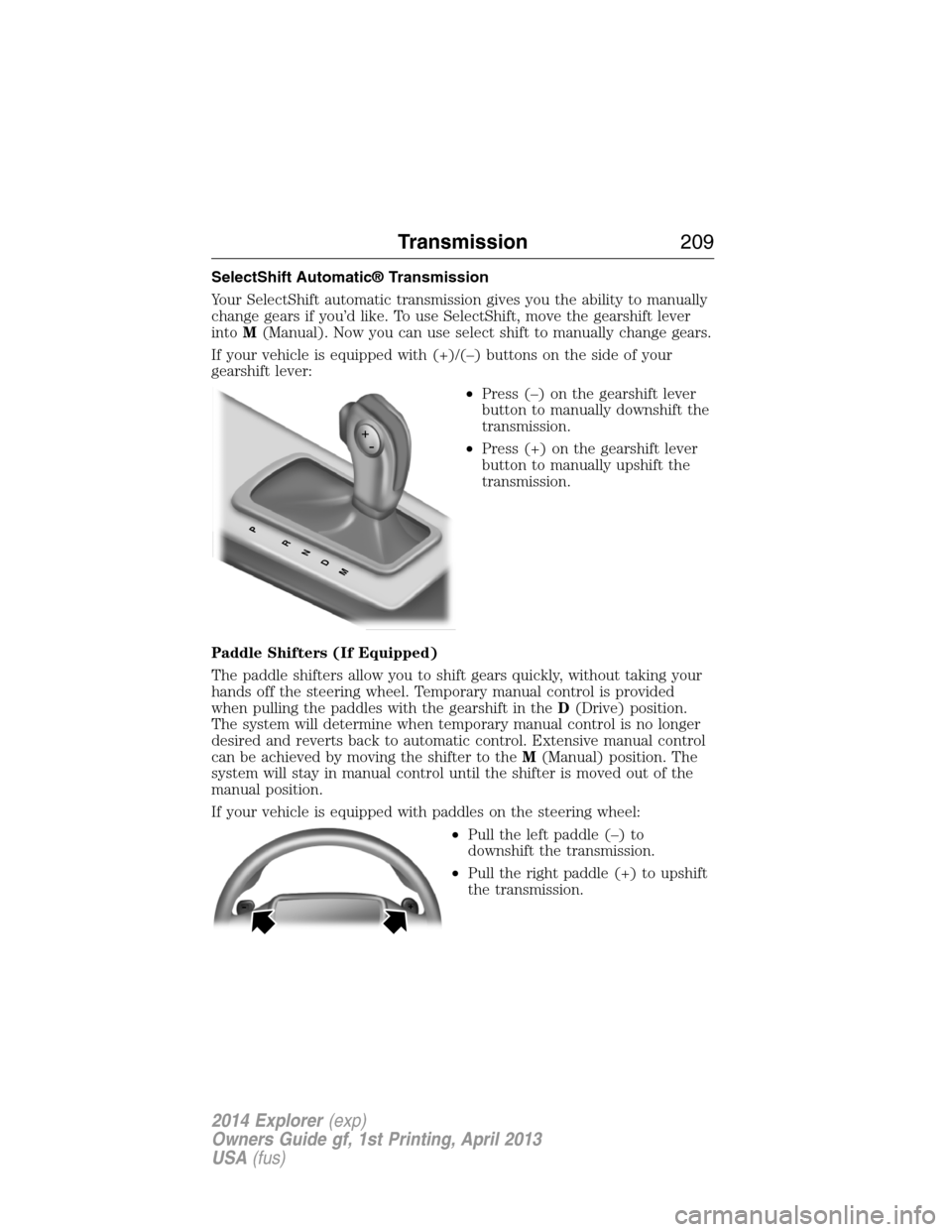
SelectShift Automatic® Transmission
Your SelectShift automatic transmission gives you the ability to manually
change gears if you’d like. To use SelectShift, move the gearshift lever
intoM(Manual). Now you can use select shift to manually change gears.
If your vehicle is equipped with (+)/(–) buttons on the side of your
gearshift lever:
•Press (–) on the gearshift lever
button to manually downshift the
transmission.
•Press (+) on the gearshift lever
button to manually upshift the
transmission.
Paddle Shifters (If Equipped)
The paddle shifters allow you to shift gears quickly, without taking your
hands off the steering wheel. Temporary manual control is provided
when pulling the paddles with the gearshift in theD(Drive) position.
The system will determine when temporary manual control is no longer
desired and reverts back to automatic control. Extensive manual control
can be achieved by moving the shifter to theM(Manual) position. The
system will stay in manual control until the shifter is moved out of the
manual position.
If your vehicle is equipped with paddles on the steering wheel:
•Pull the left paddle (–) to
downshift the transmission.
•Pull the right paddle (+) to upshift
the transmission.
PRNDM
Transmission209
2014 Explorer(exp)
Owners Guide gf, 1st Printing, April 2013
USA(fus)
Page 240 of 586

Visual Park Aid Alert
Note:Visual park alert is only available when the transmission is in R
(Reverse).
Note:The reverse sensing system is not effective at speeds above 3 mph
(5 km/h) and may not detect certain angular or moving objects.
The visual park aid alert allows the driver to view the area that is being
detected by the reverse sensing system. The system uses red, yellow and
green highlights which appear on top of the video image when an object
is detected by the reverse sensing system. The alert highlights the
closest object detected. The reverse sensing alert can be disabled and if
visual park aid alert is enabled, highlighted areas are still displayed.
Selectable settings for this feature are ON and OFF.
Manual Zoom
WARNING:When manual zoom is on, the full area behind the
vehicle is not shown. Be aware of your surroundings when using
the manual zoom feature.
Note:Manual zoom is only available when the transmission is in R
(Reverse).
Note:When manual zoom is enabled, only the centerline is shown.
Allows the driver to get a closer view of an object behind the vehicle.
The zoomed image keeps the bumper in the image to provide a
reference. The zoom is only active while the transmission is in R
(Reverse), When the transmission is shifted out of R (Reverse), the
feature automatically turns off and must be reset when it is used again.
Selectable settings for this feature are OFF, Level 1, Level 2 or Level 3.
Press the up and down arrows to change the view. The selection level
appears between the buttons (i.e. Level 1). The default setting for the
manual zoom is OFF.
Rear Camera Delay
When shifting the transmission out of R (Reverse) and into any gear
other than P (Park), the camera image remains in the display until the
vehicle speed reaches 6 mph (10 km/h). This occurs when the rear
camera delay feature is on, or until a radio button is selected.
Selectable settings for this feature are ON and OFF. The default setting
for the rear camera delay is OFF.
Parking Aids239
2014 Explorer(exp)
Owners Guide gf, 1st Printing, April 2013
USA(fus)
Page 403 of 586

MyFord® SYSTEM
WARNING:Driving while distracted can result in loss of vehicle
control, crash and injury. We strongly recommend that you use
extreme caution when using any device that may take your focus off
the road. Your primary responsibility is the safe operation of your
vehicle. We recommend against the use of any hand-held device while
driving and encourage the use of voice-operated systems when possible.
Make sure you are aware of all applicable local laws that may affect the
use of electronic devices while driving.
Note:Some features, such as Sirius satellite radio, may not be available
in your location. Check with an authorized dealer.
A.RADIO:Press this button to listen to the radio or change radio
frequency bands. Press the function buttons below the radio screen to
select different radio functions.
B.CD:Press this button to listen to a CD. Press the function buttons
below the radio screen to select on-screen options of Repeat or Shuffle.
402Audio System
2014 Explorer(exp)
Owners Guide gf, 1st Printing, April 2013
USA(fus)
Page 404 of 586

C.Memory presets:
•In radio mode, store your favorite radio stations. To store a radio
station, tune to the station, then press and hold a preset button until
sound returns.
•In CD mode, press one of these buttons to select a track.
D.Function buttons:Select different functions of the audio system
depending on which mode you are in (such as Radio mode or CD mode).
E.TUNE:
•In radio mode, turn the control to manually search the frequency
band.
•In satellite radio mode, turn the control to tune to the next or
previous channel.
F.Reverse and Fast Forward; AM/FM/CD Seek:
•In radio mode, select a frequency band and press one of these
buttons. The system stops at the first station it finds in that direction.
Press and hold one of these buttons to move quickly in that direction
to the next strong radio station or memory preset.
•In Sirius mode, press one of these buttons to select the previous or
next channel. If you select a specific category (such as Jazz, Rock or
News), use these buttons to find the previous or next channel in the
selected category. Press and hold one of these buttons to move
quickly in that direction to the next channel or category.
•In CD mode, press one of these buttons to select the previous or next
track. Press and hold one of these buttons to move quickly in that
direction within the current track.
G.OK and arrow buttons:
•Press the up and down or left and right arrow buttons to browse
menu selections.
•PressOKto confirm menu selections.
H.Eject:Press this button to eject a CD.
I.Power and Volume:
•Press this button to switch the system off and on.
•Turn it to adjust the volume.
J.CLOCK:Press this button to access the clock setting. Use the center
arrow controls to change the hours and minutes.
K.SOUND:Press this button to adjust settings for Treble, Middle, Bass,
Balance and Fade.
L.MENU:Press this button to access different audio system features.
SeeMenu structurelater in this section.
Audio System403
2014 Explorer(exp)
Owners Guide gf, 1st Printing, April 2013
USA(fus)
Page 405 of 586
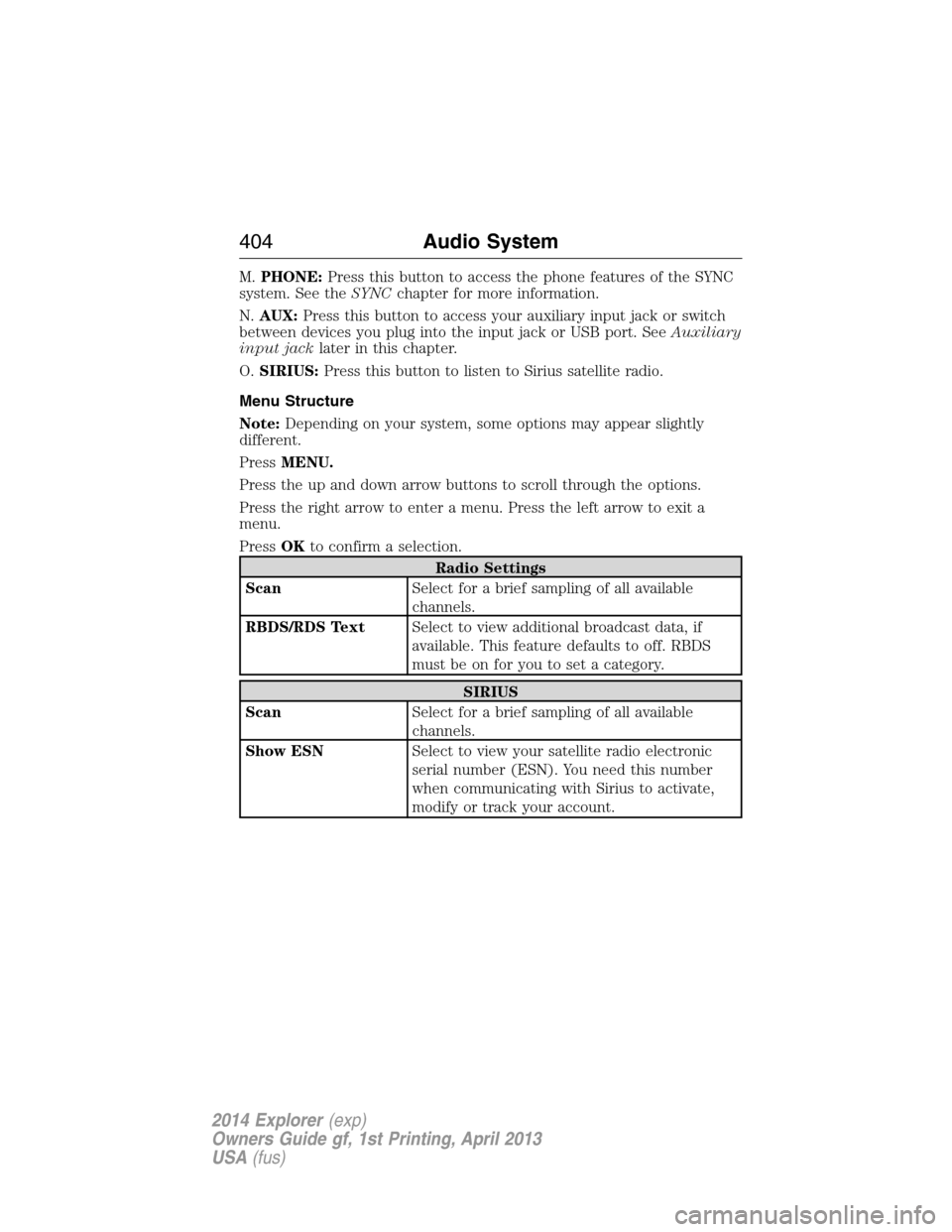
M.PHONE:Press this button to access the phone features of the SYNC
system. See theSYNCchapter for more information.
N.AUX:Press this button to access your auxiliary input jack or switch
between devices you plug into the input jack or USB port. SeeAuxiliary
input jacklater in this chapter.
O.SIRIUS:Press this button to listen to Sirius satellite radio.
Menu Structure
Note:Depending on your system, some options may appear slightly
different.
PressMENU.
Press the up and down arrow buttons to scroll through the options.
Press the right arrow to enter a menu. Press the left arrow to exit a
menu.
PressOKto confirm a selection.
Radio Settings
ScanSelect for a brief sampling of all available
channels.
RBDS/RDS TextSelect to view additional broadcast data, if
available. This feature defaults to off. RBDS
must be on for you to set a category.
SIRIUS
ScanSelect for a brief sampling of all available
channels.
Show ESNSelect to view your satellite radio electronic
serial number (ESN). You need this number
when communicating with Sirius to activate,
modify or track your account.
404Audio System
2014 Explorer(exp)
Owners Guide gf, 1st Printing, April 2013
USA(fus)
Page 408 of 586

WARNING:Driving while distracted can result in loss of vehicle
control, crash and injury. We strongly recommend that you use
extreme caution when using any device that may take your focus off
the road. Your primary responsibility is the safe operation of your
vehicle. We recommend against the use of any hand-held device while
driving and encourage the use of voice-operated systems when possible.
Make sure you are aware of all applicable local laws that may affect the
use of electronic devices while driving.
Note:The MyFord Touch® system controls most of the audio features.
See theMyFord Touch®chapter for more information.
A.Eject:Press this button to eject a CD.
B.CD Slot:Insert a CD.
C.TUNE + and TUNE - :
•In radio mode, press these buttons to manually search through the
radio frequency band.
•In Sirius mode, press these buttons to find the next or previous
available satellite radio station.
D.Volume and Power:
•Press this button to switch the system off and on.
•Turn it to adjust the volume.
E.SEEK, Reverse and Fast Forward:
•In radio mode, select a frequency band and press one of these
buttons. The system stops at the first station it finds in that direction.
•In Sirius mode, press these buttons to select the previous or next
channel. If a specific category is selected (such as Jazz, Rock or
News), use these buttons to find the previous or next channel in the
selected category.
•In CD mode, press these buttons to select the previous or next track.
Audio System407
2014 Explorer(exp)
Owners Guide gf, 1st Printing, April 2013
USA(fus)