Page 436 of 519
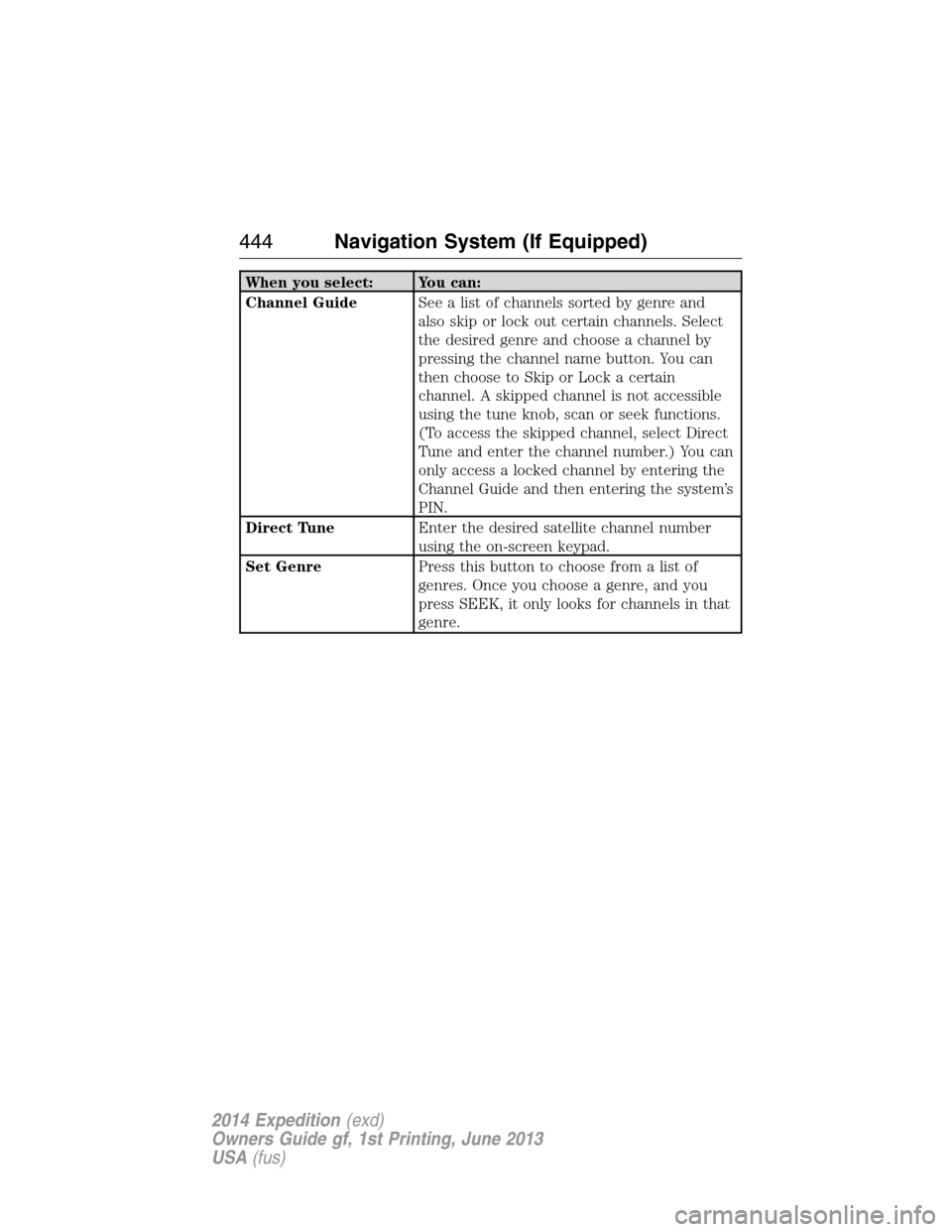
If you select: You can:
System Settings Languageallows you to choose between
English, Spanish and French.
Unitsallows you to choose between English
and Metric measurements.
Keyboard Layoutallows you to choose
between an ABC and QWERTY keyboard.
Delete Stored Itemsallows you to choose
to delete all of the entries from Address Book,
Previous Destinations, Avoid Areas, Saved
Photos and Voice Recognition Profiles. Touch
View to see what entries have been stored.
Restore Factory Default Settingsallows
you to restore factory default settings.
Valet ModeLock and unlock the system using a four-digit
PIN.
Note:You can reset the PIN by
simultaneously pressing and holding presets 1
and 5 while on the PIN entry screen. After
approximately five seconds, the system
transitions to the valet mode screen indicating
that you reset the PIN. Once you have reset
the PIN, the system then allows you to set a
new PIN.
Voice ControlSet the system to listen automatically for USB
or SYNC voice commands first. This
eliminates the need to say “USB” or “User
Device” before any SYNC media commands.
Navigation System (If Equipped)435
2014 Expedition(exd)
Owners Guide gf, 1st Printing, June 2013
USA(fus)
Page 445 of 519
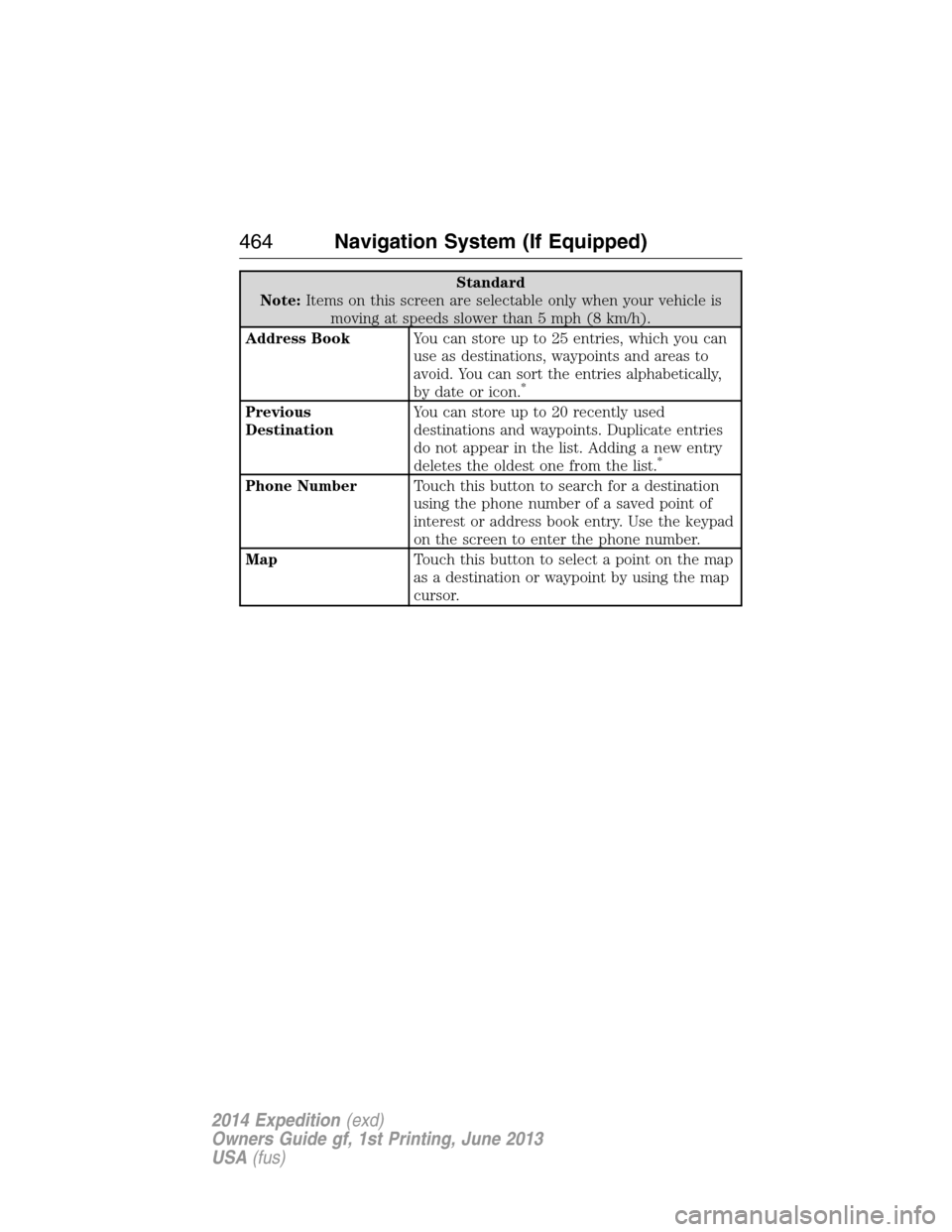
When you select: You can:
Channel GuideSee a list of channels sorted by genre and
also skip or lock out certain channels. Select
the desired genre and choose a channel by
pressing the channel name button. You can
then choose to Skip or Lock a certain
channel. A skipped channel is not accessible
using the tune knob, scan or seek functions.
(To access the skipped channel, select Direct
Tune and enter the channel number.) You can
only access a locked channel by entering the
Channel Guide and then entering the system’s
PIN.
Direct TuneEnter the desired satellite channel number
using the on-screen keypad.
Set GenrePress this button to choose from a list of
genres. Once you choose a genre, and you
press SEEK, it only looks for channels in that
genre.
444Navigation System (If Equipped)
2014 Expedition(exd)
Owners Guide gf, 1st Printing, June 2013
USA(fus)
Page 449 of 519
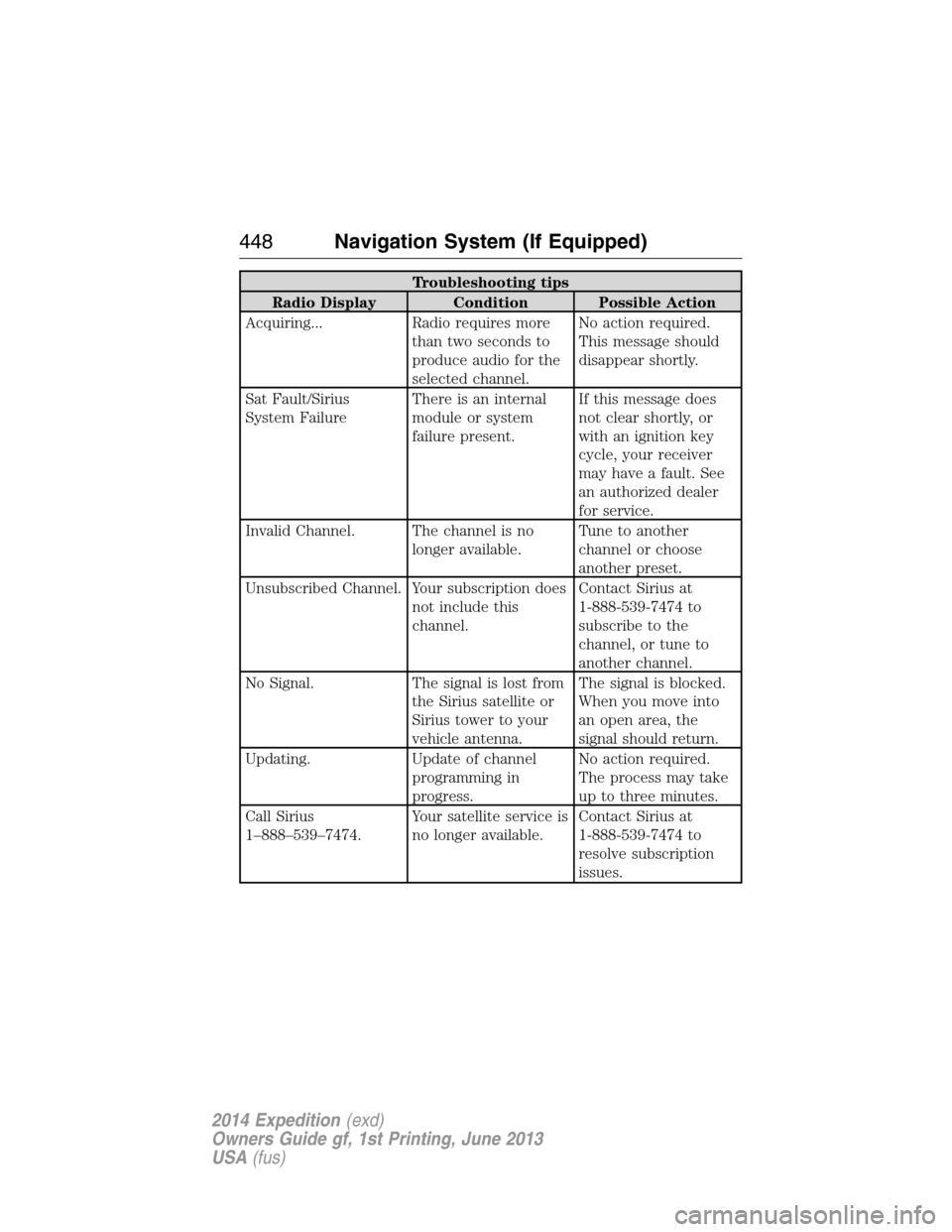
Troubleshooting tips
Radio Display Condition Possible Action
Acquiring... Radio requires more
than two seconds to
produce audio for the
selected channel.No action required.
This message should
disappear shortly.
Sat Fault/Sirius
System FailureThere is an internal
module or system
failure present.If this message does
not clear shortly, or
with an ignition key
cycle, your receiver
may have a fault. See
an authorized dealer
for service.
Invalid Channel. The channel is no
longer available.Tune to another
channel or choose
another preset.
Unsubscribed Channel. Your subscription does
not include this
channel.Contact Sirius at
1-888-539-7474 to
subscribe to the
channel, or tune to
another channel.
No Signal. The signal is lost from
the Sirius satellite or
Sirius tower to your
vehicle antenna.The signal is blocked.
When you move into
an open area, the
signal should return.
Updating. Update of channel
programming in
progress.No action required.
The process may take
up to three minutes.
Call Sirius
1–888–539–7474.Your satellite service is
no longer available.Contact Sirius at
1-888-539-7474 to
resolve subscription
issues.
448Navigation System (If Equipped)
2014 Expedition(exd)
Owners Guide gf, 1st Printing, June 2013
USA(fus)
Page 452 of 519
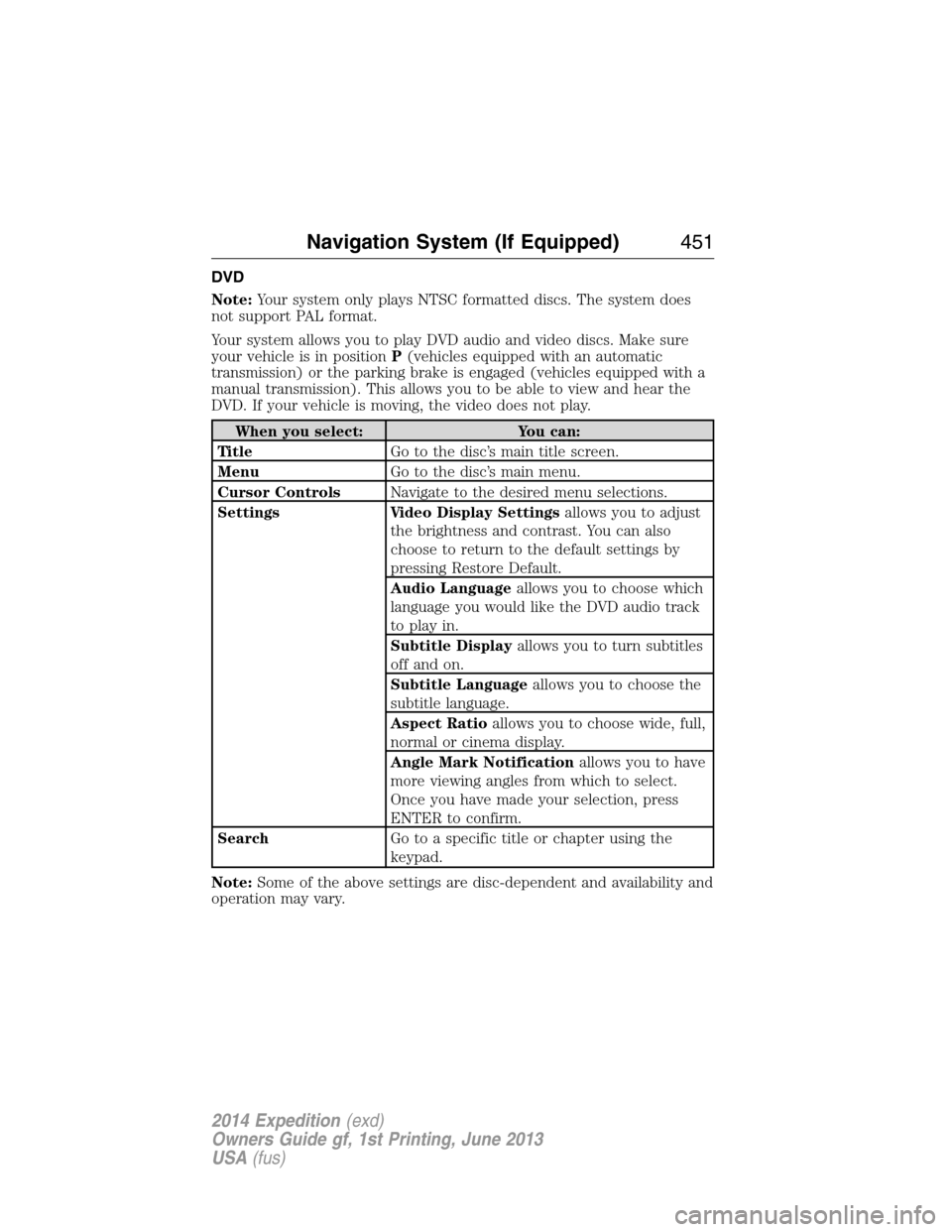
DVD
Note:Your system only plays NTSC formatted discs. The system does
not support PAL format.
Your system allows you to play DVD audio and video discs. Make sure
your vehicle is in positionP(vehicles equipped with an automatic
transmission) or the parking brake is engaged (vehicles equipped with a
manual transmission). This allows you to be able to view and hear the
DVD. If your vehicle is moving, the video does not play.
When you select: You can:
Ti t l eGo to the disc’s main title screen.
MenuGo to the disc’s main menu.
Cursor ControlsNavigate to the desired menu selections.
Settings Video Display Settingsallows you to adjust
the brightness and contrast. You can also
choose to return to the default settings by
pressing Restore Default.
Audio Languageallows you to choose which
language you would like the DVD audio track
to play in.
Subtitle Displayallows you to turn subtitles
off and on.
Subtitle Languageallows you to choose the
subtitle language.
Aspect Ratioallows you to choose wide, full,
normal or cinema display.
Angle Mark Notificationallows you to have
more viewing angles from which to select.
Once you have made your selection, press
ENTER to confirm.
SearchGo to a specific title or chapter using the
keypad.
Note:Some of the above settings are disc-dependent and availability and
operation may vary.
Navigation System (If Equipped)451
2014 Expedition(exd)
Owners Guide gf, 1st Printing, June 2013
USA(fus)
Page 465 of 519
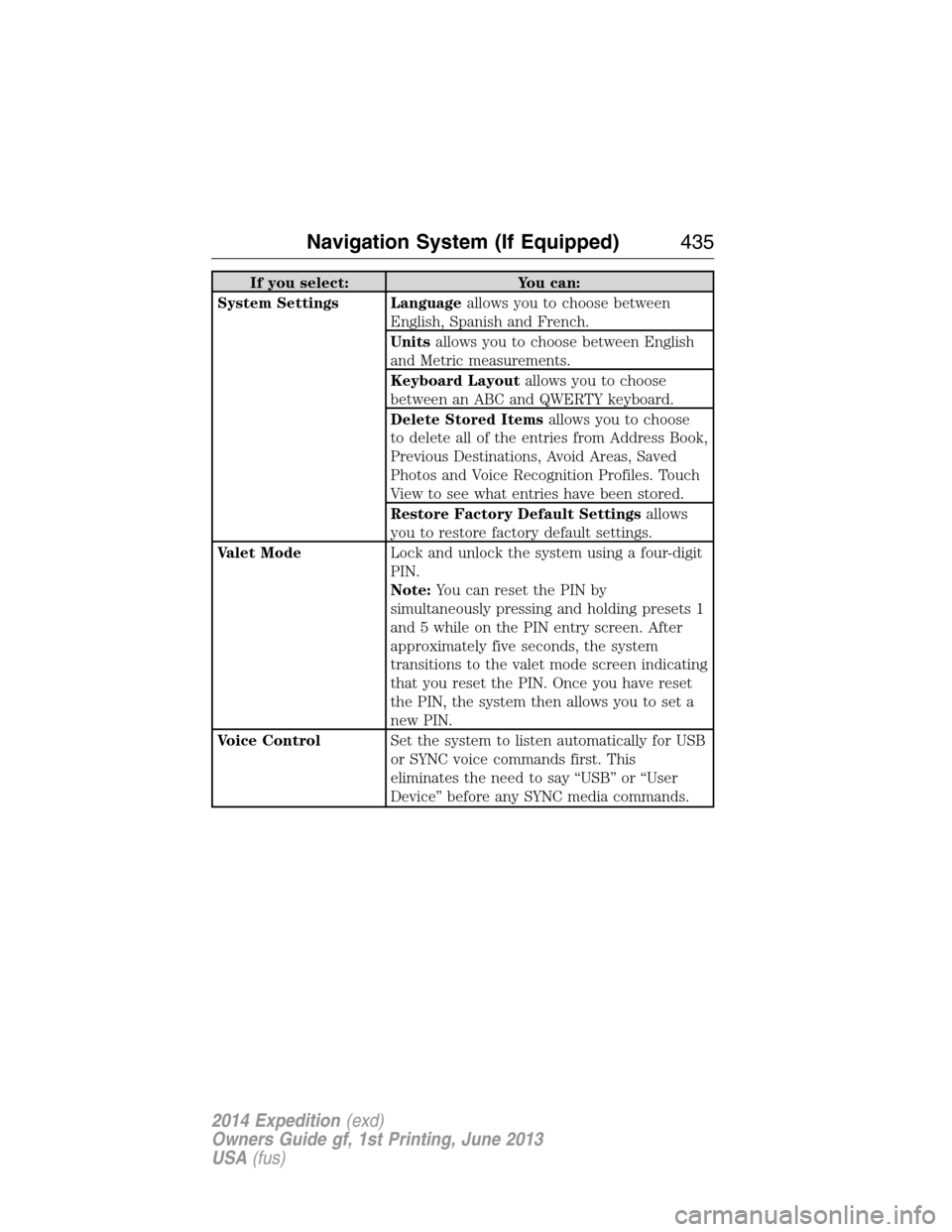
Standard
Note:Items on this screen are selectable only when your vehicle is
moving at speeds slower than 5 mph (8 km/h).
Address BookYou can store up to 25 entries, which you can
use as destinations, waypoints and areas to
avoid. You can sort the entries alphabetically,
by date or icon.
*
Previous
DestinationYou can store up to 20 recently used
destinations and waypoints. Duplicate entries
do not appear in the list. Adding a new entry
deletes the oldest one from the list.
*
Phone NumberTouch this button to search for a destination
using the phone number of a saved point of
interest or address book entry. Use the keypad
on the screen to enter the phone number.
MapTouch this button to select a point on the map
as a destination or waypoint by using the map
cursor.
464Navigation System (If Equipped)
2014 Expedition(exd)
Owners Guide gf, 1st Printing, June 2013
USA(fus)
Page 466 of 519
Standard
Note:Items on this screen are selectable only when your vehicle is
moving at speeds slower than 5 mph (8 km/h).
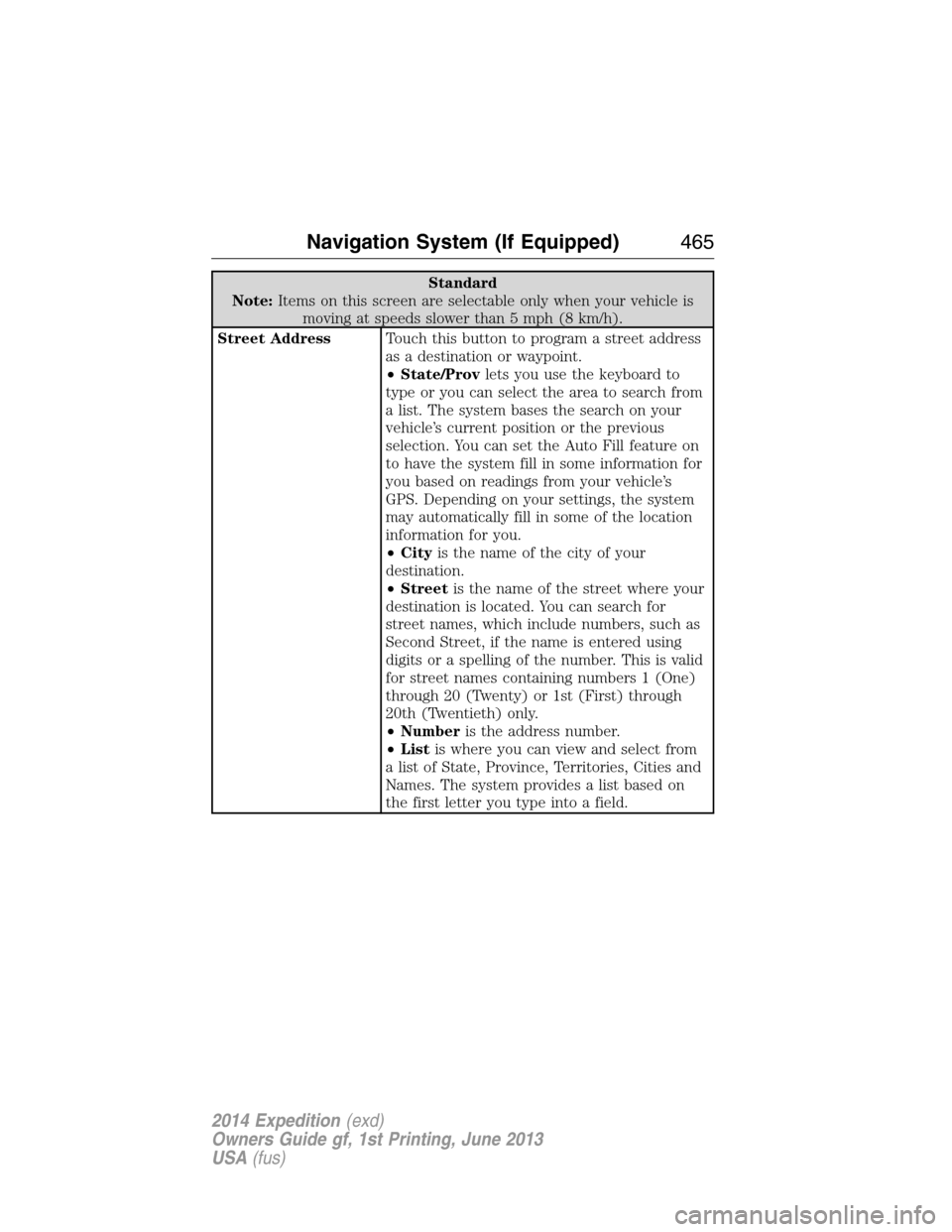
Street AddressTouch this button to program a street address
as a destination or waypoint.
•State/Provlets you use the keyboard to
type or you can select the area to search from
a list. The system bases the search on your
vehicle’s current position or the previous
selection. You can set the Auto Fill feature on
to have the system fill in some information for
you based on readings from your vehicle’s
GPS. Depending on your settings, the system
may automatically fill in some of the location
information for you.
•Cityis the name of the city of your
destination.
•Streetis the name of the street where your
destination is located. You can search for
street names, which include numbers, such as
Second Street, if the name is entered using
digits or a spelling of the number. This is valid
for street names containing numbers 1 (One)
through 20 (Twenty) or 1st (First) through
20th (Twentieth) only.
•Numberis the address number.
•Listis where you can view and select from
a list of State, Province, Territories, Cities and
Names. The system provides a list based on
the first letter you type into a field.
Navigation System (If Equipped)465
2014 Expedition(exd)
Owners Guide gf, 1st Printing, June 2013
USA(fus)
Page 467 of 519
Standard
Note:Items on this screen are selectable only when your vehicle is
moving at speeds slower than 5 mph (8 km/h).
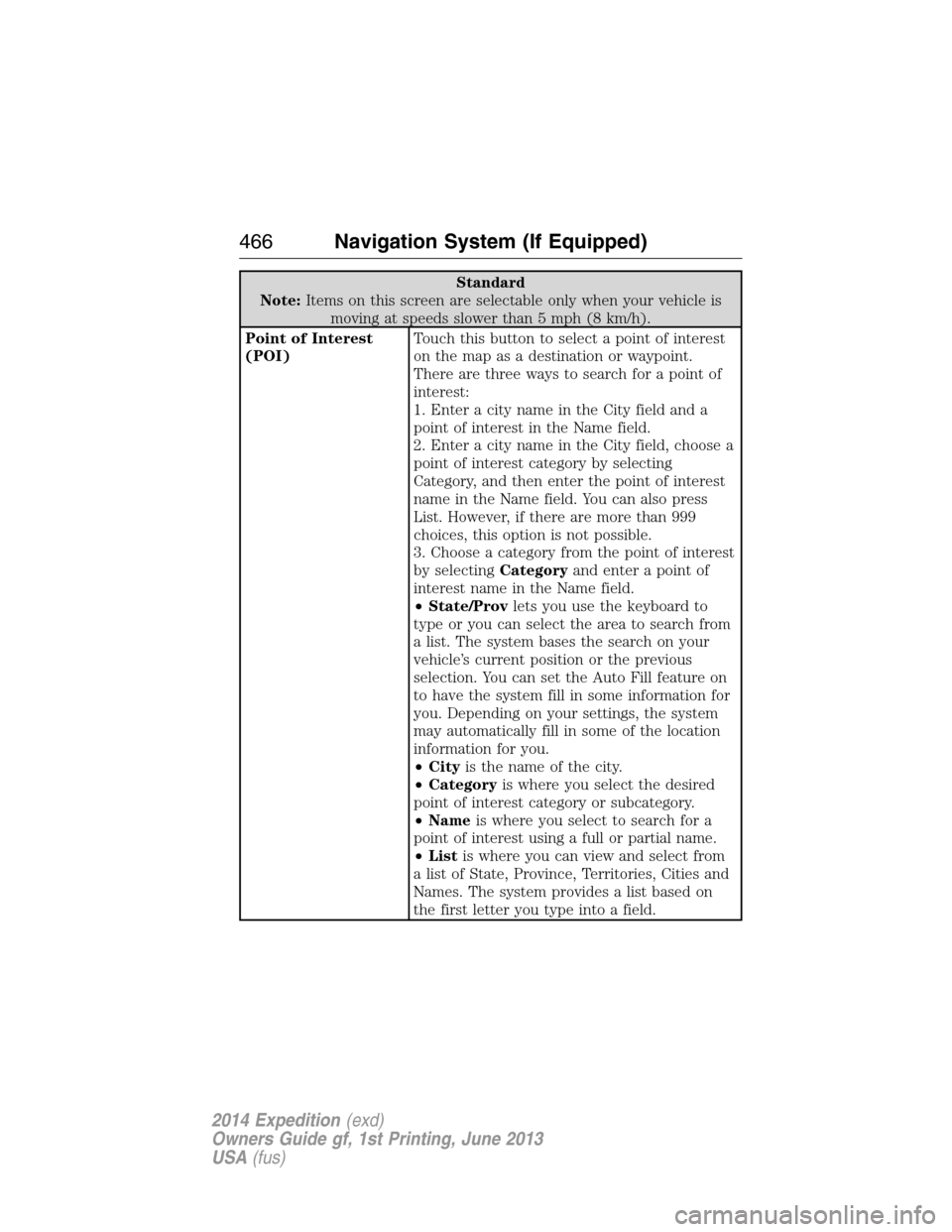
Point of Interest
(POI)Touch this button to select a point of interest
on the map as a destination or waypoint.
There are three ways to search for a point of
interest:
1. Enter a city name in the City field and a
point of interest in the Name field.
2. Enter a city name in the City field, choose a
point of interest category by selecting
Category, and then enter the point of interest
name in the Name field. You can also press
List. However, if there are more than 999
choices, this option is not possible.
3. Choose a category from the point of interest
by selectingCategoryand enter a point of
interest name in the Name field.
•State/Provlets you use the keyboard to
type or you can select the area to search from
a list. The system bases the search on your
vehicle’s current position or the previous
selection. You can set the Auto Fill feature on
to have the system fill in some information for
you. Depending on your settings, the system
may automatically fill in some of the location
information for you.
•Cityis the name of the city.
•Categoryis where you select the desired
point of interest category or subcategory.
•Nameis where you select to search for a
point of interest using a full or partial name.
•Listis where you can view and select from
a list of State, Province, Territories, Cities and
Names. The system provides a list based on
the first letter you type into a field.
466Navigation System (If Equipped)
2014 Expedition(exd)
Owners Guide gf, 1st Printing, June 2013
USA(fus)
Page 468 of 519
Standard
Note:Items on this screen are selectable only when your vehicle is
moving at speeds slower than 5 mph (8 km/h).
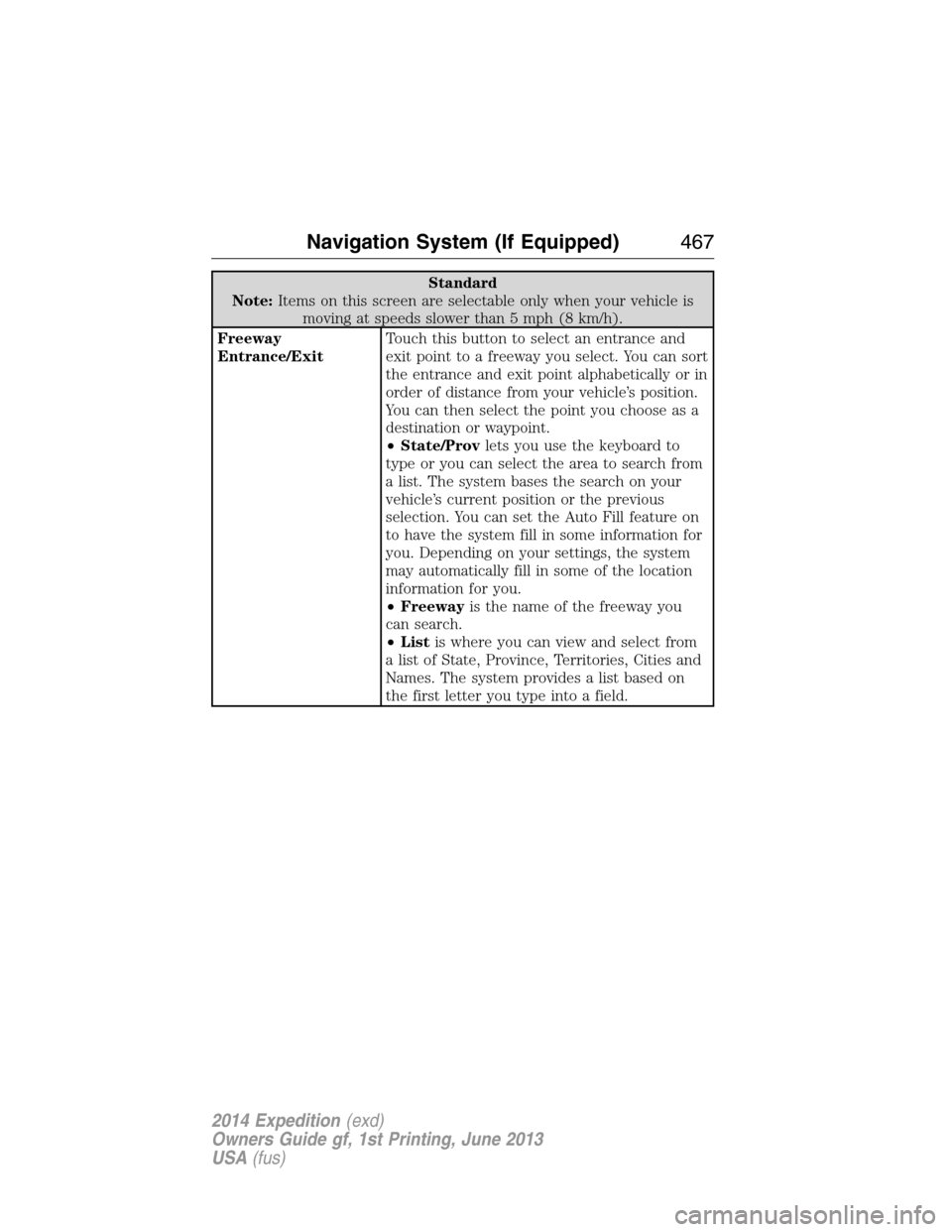
Freeway
Entrance/ExitTouch this button to select an entrance and
exit point to a freeway you select. You can sort
the entrance and exit point alphabetically or in
order of distance from your vehicle’s position.
You can then select the point you choose as a
destination or waypoint.
•State/Provlets you use the keyboard to
type or you can select the area to search from
a list. The system bases the search on your
vehicle’s current position or the previous
selection. You can set the Auto Fill feature on
to have the system fill in some information for
you. Depending on your settings, the system
may automatically fill in some of the location
information for you.
•Freewayis the name of the freeway you
can search.
•Listis where you can view and select from
a list of State, Province, Territories, Cities and
Names. The system provides a list based on
the first letter you type into a field.
Navigation System (If Equipped)467
2014 Expedition(exd)
Owners Guide gf, 1st Printing, June 2013
USA(fus)