Page 171 of 240

03
10.5
JUMPER-PAPIER_EN_CHAP10A_AUTORADIO_FIAT-TACTILE-1_ED01-2014
STEERING MOUNTED CONTROLS
Pause / restore the CD, USB/iPod, Bluetooth ® sources. ® sources. ®
Mute / restore sound from the radio. Switch the microphone off / on during a telephone call.
Rotate: adjust the volume for audio, hands-free, speaking texts, voice announcements and music sources. Short press: increase / decrease volume one step. Long press: increase / decrease volume progressively until released.
Switch voice recognition on. Interrupt a voice message to start a new voice command. Interrupt voice recognition.
Accept an incoming call. Accept a second incoming call and put the current call on hold. Switch on voice recognition for the telephone function. Interrupt a voice message to issue another voice command. Interrupt voice recognition.
Rotate: - Radio: select the previous / next station. - Media: select the previous / next track. Short press: - Confi rm Long press: - Radio: sweep higher / lower frequencies until released. - Media: fast forward / back until released.
Reject the incoming call. End the call in progress.
Page 175 of 240
10.9
JUMPER-PAPIER_EN_CHAP10A_AUTORADIO_FIAT-TACTILE-1_ED01-2014
Level 1Level 2Level 3Comment
Radio
Audio
Equaliser Adjust the bass, mid-range and treble.
Balance / Fade
Bass Adjust the balance of the speakers, front and rear, left and right. Press the button in the middle of the arrows to balance the adjustments.
Mid-range
Treble
Volume / Speed Select the desired setting, the option is highlighted.
Loudness Optimise audio quality at low volume.
Automatic radio Adjust the radio on startup or restore the active state the last time the ignition was switched to STOP.
Radio off delay Adjust the setting.
Adjust AUX vol. Adjust the settings.
Page 179 of 240
10.13
JUMPER-PAPIER_EN_CHAP10A_AUTORADIO_FIAT-TACTILE-1_ED01-2014
Level 1Level 2Level 3Comment
Media Briefl y press the symbols to play the previous/next track. Press and hold the symbols for fast forward or back in the track selected.
Media
Navigate
Currently playing
Navigate and select tracks on the active device. The selection possibilities depend on the device connected or the type of CD inserted.
Artists
Albums
Genres
Tracks
Playlists
Audio books
Podcasts
Media
Source
CD Select the desired audio source from those available or insert a device intended for this purpose, the system starts playing the source automatically. AUX
USB
Bluetooth
Sources connected
Pair a Bluetooth audio device. Add device
Tel. connect.
Media
Info
Information Display information on the track playing.
Page 181 of 240
10.15
JUMPER-PAPIER_EN_CHAP10A_AUTORADIO_FIAT-TACTILE-1_ED01-2014
Level 1Level 2Level 3Comment
Media
Random
Press the button to play the tracks on the CD, USB, iPod or Bluetooth device in random order.
Media
Repeat
Press the button to activate this function.
Media
Audio
Equaliser Adjust the bass, mid-range and treble.
Balance / Fade
Bass Adjust the balance of the speakers, front and rear, left and right. Press the button in the middle of the arrows to balance the adjustments.
Mid-range
Treble
Volume / Speed Select the desired setting, the option is highlighted.
Loudness Optimise audio quality at low volume.
Automatic radio Adjust the radio on startup or restore the active state the last time the ignition was switched to STOP.
Radio off delay Adjust the setting.
Adjust AUX vol. Adjust the setting.
Page 185 of 240

05
10.19
JUMPER-PAPIER_EN_CHAP10A_AUTORADIO_FIAT-TACTILE-1_ED01-2014
Audio streaming
Streaming allows audio fi les on your telephone to be played via the vehicle's speakers.
Switch on Bluetooth on the device.
Press " Media ".
If there is an active media source, press the " Source " button.
Select the " Bluetooth " media source then press the " Add device " button.
Search for the name of the peripheral device and when requested by the audio system, enter the PIN number displayed in the screen of the system or confi rm in the device the PIN displayed.
When the pairing procedure has succeeded, a screen page appears:
- reply "Yes" to the question, the Bluetooth audio device will be saved as favourite (the device will have priority over other devices paired subsequently).
- reply "No", priority will be determined according to the order of connection. the last device connected will have the highest priority.
Some Bluetooth devices do not allow scanning of tracks and information by means of the categories present.
Connecting APPLE ® Connecting APPLE ® Connecting APPLE players ® players ®
Connect the Apple ® player to the USB ® player to the USB ®
port using a suitable cable (not supplied).
Play starts automatically.
Control is via the audio system.
The classifi cations available are those of the portable device connected (artists / albums / genres / tracks / playlists / audio books / podcasts).
The default classifi cation used is by artist. To modify the classifi cation used, return to the fi rst level of the menu then select the desired classifi cation (playlists for example) and confi rm to go down through the menu to the desired track.
MEDIA
The version of software in the audio system may not be compatible with the generation of your Apple ® player. ® player. ®
Page 191 of 240
06
10.25
JUMPER-PAPIER_EN_CHAP10A_AUTORADIO_FIAT-TACTILE-1_ED01-2014
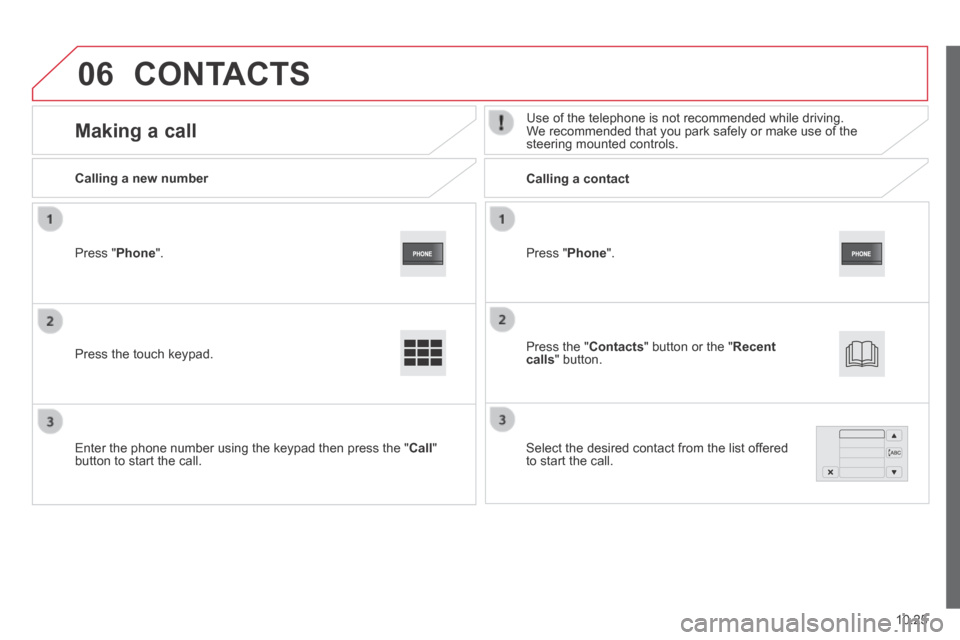
Press " Phone ".
Calling a new number Calling a contact
Making a call Use of the telephone is not recommended while driving. We recommended that you park safely or make use of the steering mounted controls.
Press the touch keypad.
Enter the phone number using the keypad then press the " Call " button to start the call.
Press " Phone ".
Press the " Contacts " button or the " Recent calls " button.
Select the desired contact from the list offered to start the call.
CONTACTS
Page 193 of 240
10.27
JUMPER-PAPIER_EN_CHAP10A_AUTORADIO_FIAT-TACTILE-1_ED01-2014
Level 1Level 2Level 3Comment
Nav
Go to...
Home
Select "Go to", to defi ne the destination in many ways and not just by entering an address.
Favourite
Address
Recent destination
Point of interest
My position
Latitude/Longitude
Position of last stop
Display map Display the map for the route for a preview of the route using the map navigator.
Plan a route Use the navigation system to plan a route in advance, selecting the start point and the destination.
Services Use traffi c information to minimise the impact of traffi c delays on your journey.
Settings
Modify the appearance and operation of the navigation system. Most of the system settings are accessible by pressing "Settings" in the main menu.
Help
Call assistance
Access to information on assistance services or other specialised services.
Go to assistance
Where am I?
What can I say?
Demonstrations
Safety and other guides
End
Page 195 of 240

10.29
JUMPER-PAPIER_EN_CHAP10A_AUTORADIO_FIAT-TACTILE-1_ED01-2014
Level 1Level 2Level 3Comment
Nav
Speed limit (if known). To see the difference between the desired time of arrival and estimated time of arrival. Touch this part of the status bar to switch between 3D and 2D map.
Nav
Go to...
When the navigation system starts up for the fi rst time, the "Driving mode" and detailed information on the current position are displayed. Touch the middle of the screen to open the main menu.
Display map
Plan a route
Services
Settings
Help
End
Nav
Details
Display instructions
The route overview gives a preview of the route, the remaining distance to the destination and an estimate of the remaining travelling time. With RDS-TMC data, the route overview also shows traffi c information related to delays on the route.
Display the map of the route
Display demo of the route
Route overview
Display the destination
Display traffi c on the route
Modify route
Modify the destination
The navigation system helps in arriving at the destination as quickly as possible by displaying an faster alternative route when available.
Avoid roadblocks
Calculate alt route...
Go via...
Avoid part of the route
Minimise delays
End
Nav
Navigation instructions for the rest of the route and distance to the next instruction. If the second instruction is less than 150 metres from the fi rst, its is displayed immediately instead of the distance. Touch this part of the status bar to repeat the last voice instruction.