2014 Citroen C3 instrument panel
[x] Cancel search: instrument panelPage 29 of 284

27
C3_en_Chap01_Controle-de-marche_ed01-2014
C3_en_Chap01_Controle-de-marche_ed01-2014
Screen in the instrument panel
Monochrome screen A
Information displays
F Press the button, located at the end of the wiper stalk , to display the various items of
trip computer information in succession.
Zero reset
F Press the control for more than two seconds to reset to zero the distance
travelled, the average fuel consumption
and the average speed.
The trip computer provides the following
information:
-
range,
-
c
urrent fuel consumption,
-
t
he Stop & Start time counter*, -
d
istance travelled,
-
a
verage fuel consumption,
F
T
he next press then returns you to the
normal display.
Tr i p c o m p u t e r
System that gives you information on the
current journey (range, fuel consumption…).
-
a
verage speed.
* Available only with the monochrome screen A.
1
Monitoring
Page 32 of 284
30
C3_en_Chap02_Ecrans-multifonction_ed01-2014
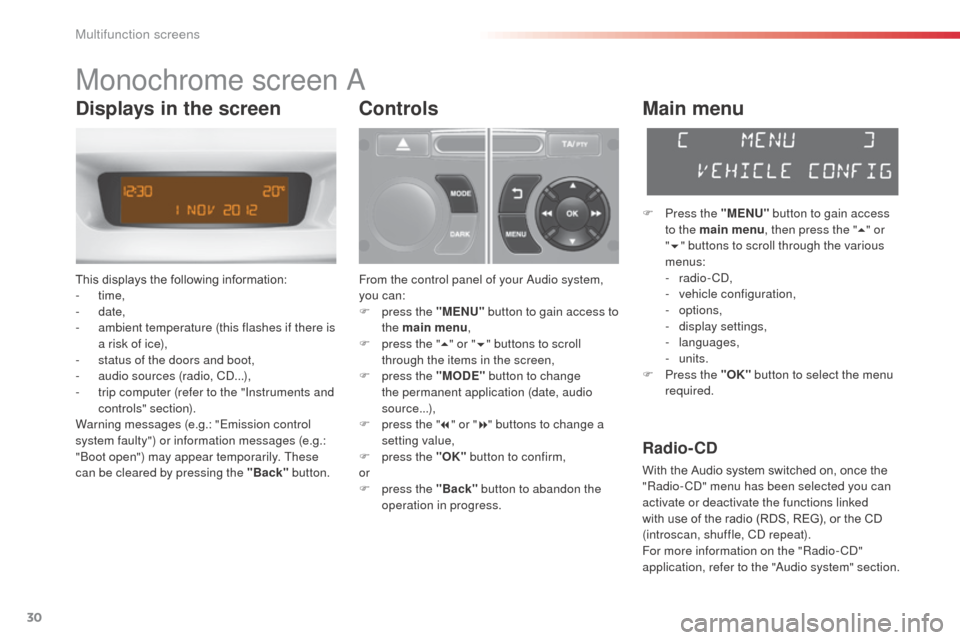
Monochrome screen a
This displays the following information:
- time,
-
date,
-
a
mbient temperature (this flashes if there is
a risk of ice),
-
s
tatus of the doors and boot,
-
a
udio sources (radio, C
d.
..),
-
t
rip computer (refer to the "Instruments and
controls" section).
Warning messages (e.g.: "Emission control
system faulty") or information messages (e.g.:
"
bo
ot open") may appear temporarily. These
can be cleared by pressing the "Back" button.
Controls
From the control panel of your audio system,
you can:
F
p
ress the "MENU" button to gain access to
the main menu ,
F
p
ress the " 5" or " 6" buttons to scroll
through the items in the screen,
F
p
ress the "MODE" button to change
the permanent application (date, audio
source...),
F
p
ress the " 7" or " 8" buttons to change a
setting value,
F
p
ress the "OK" button to confirm,
or
F
p
ress the "Back" button to abandon the
operation in progress.
Main menu
F Press the "MENU" button to gain access
to the main menu , then press the "5" or
" 6 " buttons to scroll through the various
menus:
-
radio - C
d
,
-
v
ehicle configuration,
-
options,
-
d
isplay settings,
-
languages,
-
units.
F
P
ress the "OK" button to select the menu
required.
Radio- CD
With the Audio system switched on, once the
"Radio- Cd" m enu has been selected you can
activate or deactivate the functions linked
with use of the radio (RDS, REG), or the CD
(introscan, shuffle, C
d
repeat).
For more information on the "Radio-C
d"
application, refer to the "
au
dio system" section.
Displays in the screen
Multifunction screens
Page 34 of 284

32
C3_en_Chap02_Ecrans-multifonction_ed01-2014
Languages
once the "Languages" menu has been
selected, you can change the language used
by the display, by choosing a new language
from the list offered.
Units
once the "Units" menu has been selected,
you can change the units of the following
parameters:
-
t
emperature (°C or °F),
-
f
uel consumption (l/100 km, mpg or km/l). For safety reasons, configuration by the
driver of the multifunction screen must
only be done when stationary.
on
ce the fuel consumption units have
been set to mpg, the information in the
instrument panel screen on speed and
distance will also be in mph and miles.
Multifunction screens
Page 35 of 284

33
C3_en_Chap02_Ecrans-multifonction_ed01-2014
Monochrome screen C
This displays the following information:
- time,
-
date,
-
a
mbient temperature (this flashes if there is
a risk of ice),
-
s
tatus of doors and boot,
-
a
udio sources (radio, C
d, U
S
b
port /
auxiliary socket etc.),
-
t
rip computer (refer to the "Instruments and
controls" section).
Warning messages (E.g. "Emissions control
system faulty") or information messages
(E.g.:
a
u
tomatic headlamps active") may
appear temporarily. These can be cleared by
pressing the "Back" button.
Controls
From your audio system control panel, you can:
F p ress the "MENU" button to gain access to
the main menu ,
F
p
ress the " 5" or " 6" buttons to scroll
through the items in the screen,
F
p
ress the "MODE" button to change the
permanent application (trip computer,
audio source...),
F
p
ress the " 7" or " 8" buttons to change a
setting value,
F
p
ress the "OK" button to confirm,
or
F
p
ress the "Back" button to abandon the
operation in progress.
Main menu
F Press the "MENU" button to gain access
to the main menu :
-
a
udio functions,
-
t
he trip computer,
-
personalisation-configuration,
-
t
elephone (hands-free kit).
F
P
ress the " 5" or " 6" buttons to select the
menu required, then confirm by pressing
the "OK" button.
"Audio functions"
menu
With the Audio system switched on, once this
menu has been selected you can activate
or deactivate the functions linked with use
of the radio (R
dS
, REG, RadioText), the C
d
(introscan, shuffle, C
d
repeat) or the MP3
player (US
b
port / auxiliary socket).
For more information on the "
au
dio functions"
application, refer to the "
au
dio system" section.
Displays in the screen
2
Multifunction screens
Page 39 of 284

37
C3_en_Chap02_Ecrans-multifonction_ed01-2014
16/9 colour screen (eMyWay)
It displays the following information
automatically and directly:
- time,
-
date,
-
altitude,
-
a
mbient temperature (the value displayed
flashes if there is a risk of ice),
-
c
heck of the doors,
-
par
king sensor information,
-
w
arning and vehicle function status
messages, displayed temporarily,
-
a
udio functions,
-
t
rip computer information (see the
"Instrument s and controls" section),
-
sa
tellite navigation system information.
-
t
he settings menus for the display screen,
navigation system and vehicle systems.
Controls
To select one of the applications, from the
eMyWay control panel:
F
p
ress the dedicated "RADIO" , "MUSIC",
" N AV " , "TR AFFIC" , "SETUP" or
"PHONE" button for access to the
corresponding menu,
F
t
urn the knob to change the selection,
F
p
ress the knob to confirm the selection,
or
F
p
ress the "Back" button to abandon the
current operation and return to the previous
display.
For more information on these applications,
refer to the "eMyWay" section or to the specific
user guide given to you with the other owner's
documents.
"SETUP" menu
F Press the "SETUP" button to gain access
to the configuration menu. This allows you
to select from the following functions:
-
"Display configuration ",
-
"Voice synthesis ",
-
"Language ",
-
"Vehicle parameters ",
-
"Trip computer ",
Displays in the screen
2
Multifunction screens
Page 65 of 284

63
C3_en_Chap04_ouvertures_ed01-2014
Fuel tank
Low fuel level
When the fuel tank minimum level is
reached this warning lamp comes on
on the instrument panel. When it first
comes on there remains approximately
5 litres of fuel in the tank.
Filling
a label affixed to the inside of the flap reminds
y ou of the type of fuel to be used depending on
your engine.
ad
ditions of fuel must be of at least 7 litres, in
order to be registered by the fuel gauge. To fill the tank safely:
F
t
he engine must be switched off,
F
o
pen the fuel filler flap,
F
i
nsert the key in the cap, then turn it to
the left,
F
r
emove the cap and hook it onto the clip
located on the inside of the flap,
F
f
ill the tank, but do not continue after the
3rd cut- off of the pump ; this could cause
malfunctions.
When you have filled the tank:
F
p
ut the cap back in place,
F
t
urn the key to the right, then remove it
from the cap,
F
c
lose the flap.
You must refuel as soon as possible to avoid
running out of fuel.
If you run out of fuel (
di
esel), refer also to the
"Checks" section. Fuel tank capacity: approximately
50 litres (petrol) or 46 litres (Diesel) or
37
litres (LPG); (Depending on version:
approximately 30 litres (petrol or Diesel)).
With Stop & Start, never refuel with the
system in STOP mode; you must switch
off the ignition with the key. The key cannot be removed from the
lock until the cap is refitted.
op
ening the filler cap may create a
noise caused by an inrush of air. This
vacuum is entirely normal, resulting
from the sealing of the fuel system.
4
access
Page 68 of 284
66
C3_en_Chap05_Visibilite_ed01-2014
Lighting controls
Main lighting
The various front and rear lamps of the vehicle
are designed to adapt the driver's visibility
progressively according to climatic conditions:
-
s
idelamps, to be seen,
-
d
ipped beam headlamps to see without
dazzling other drivers,
-
m
ain beam headlamps to see clearly when
the road is clear.
Additional lighting
other lamps are installed to fulfil the
requirements of particular conditions of
visibility:
-
a r
ear foglamp to be seen from afar,
-
f
ront foglamps for even better for ward
vision.
Programming
Various automatic lighting control modes
are also available according to the following
options:
-
gu
ide-me-home lighting,
-
a
utomatic illumination of headlamps.
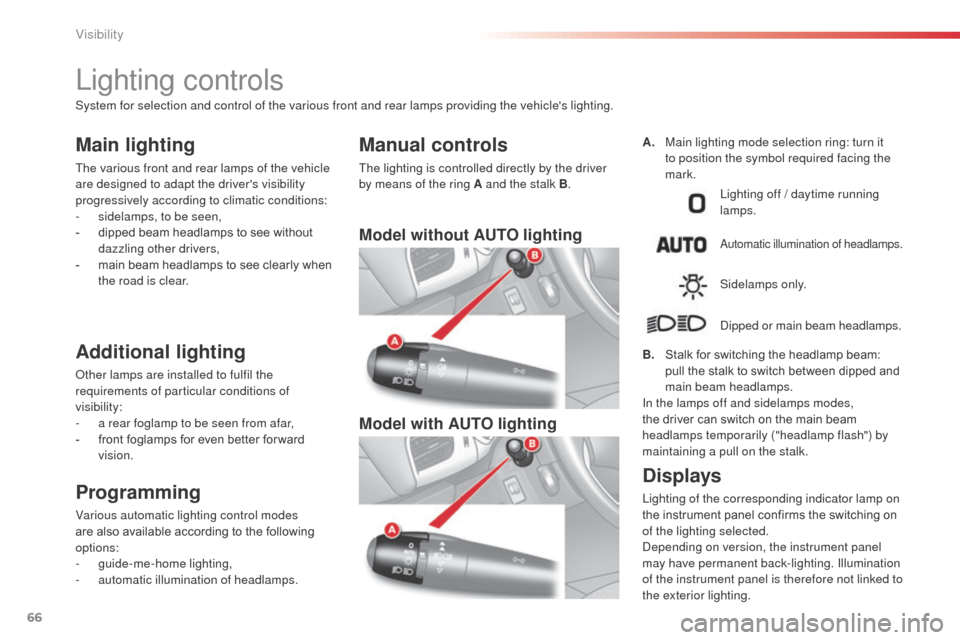
Model without AUTO lighting
Model with AUTO lighting
Lighting off / daytime running
lam ps.
automatic illumination of headlamps.
Sidelamps only.
dip
ped or main beam headlamps.
B.
S
talk for switching the headlamp beam:
pull the stalk to switch between dipped and
main beam headlamps.
In the lamps off and sidelamps modes,
the
driver can switch on the main beam
headlamps temporarily ("headlamp flash") by
maintaining a pull on the stalk.
Displays
Lighting of the corresponding indicator lamp on
the instrument panel confirms the switching on
of the lighting selected.
dep
ending on version, the instrument panel
may have permanent back-lighting. Illumination
of the instrument panel is therefore not linked to
the exterior lighting.
Manual controls
The lighting is controlled directly by the driver
by means of the ring A and the stalk B .A.
M
ain lighting mode selection ring: turn it
to position the symbol required facing the
mark.
System for selection and control of the various front and rear lamps providing the vehicle's lighting.
Visibility
Page 71 of 284

69
C3_en_Chap05_Visibilite_ed01-2014
Association with the automatic
"Guide-me-home" lighting
Association with the automatic illumination of
headlamps provides "guide-me-home" lighting
with the following additional options:
-
s
election of the lighting duration to 15, 30 or
60 seconds in the functions that can be set
in the vehicle configuration menu (except in
the case of the monochrome screen
a
, f
or
which the duration is set: 60 seconds),
-
a
utomatic activation of "guide-me-home"
lighting when automatic illumination of
headlamps is in operation.
Operating fault
In the event of a fault with the
sunshine sensor, the lighting
come on, this warning lamp is displayed in the
instrument panel and/or a message appears in
the screen, accompanied by an audible signal.
Contact a CITR
oËn
dealer or a qualified
workshop.
In fog or snow, the sunshine sensor
may detect sufficient light. Therefore,
the lighting will not come on
automatically.
do n
ot cover the sunshine sensor,
coupled with the rain sensor and
located in the centre of the windscreen
behind the rear view mirror; the
associated functions would no longer
be controlled.
Automatic illumination of headlamps
Activation
F Turn ring to the "AUTO" position. The
automatic illumination of headlamps is
accompanied by a message in the screen.
Deactivation
F Turn ring to a position other than "AUTO" . de
activation is accompanied by a message
in the screen.
The sidelamps and dipped beam headlamps
are switched on automatically, without any
action on the part of the driver, when a low level
of external light is detected or in certain cases
of activation of the windscreen wipers.
as s
oon as the brightness returns to a sufficient
level or after the windscreen wipers are switched
off, the lamps are switched off automatically.
5
Visibility