2014 CHEVROLET SPARK lock
[x] Cancel search: lockPage 126 of 362

Black plate (32,1)Chevrolet Spark Owner Manual (GMNA-Localizing-U.S./Canada-5853490) -
2014 - crc - 9/3/13
5-32 Instruments and Controls
Set Time Format
Select to set the 12/24 hour format.
Press 12h or 24h.
Set Date Format
Select to set the month and day
format.
Press
SorTto select the DD/MM/
YYYY (day/month/year), MM/DD/
YYYY (month/day/year), or YYYY/
MM/DD (year/month/day) format.
Set Time and Date
Select to manually set the time
and date.
1. Press
yorzto adjust the
value.
2. Press OK.
Automatic Clock Sync
Select to display the real or user
time on the radio.
Select On to display the real time or
Off to display the time set by
the user.
Radio Settings
Select the Radio Settings menu and
the following may be displayed:
.Auto Volume
.Radio Favorites
.Radio Tune Bar
.Radio Text
.XM Categories
.Radio Factory Settings
Auto Volume
This feature adjusts the radio
volume to compensate for road and
wind noise as the vehicle speeds up
or slows down, so that the volume
level is consistent.
Press
SorTto select Off, Low,
Medium, or High.
Radio Favorites
Select to set the number of favorite
pages from one to seven. Radio Tune Bar
Select to display the radio station
tune bar.
Select On or Off.
Radio Text
Select to display the radio broadcast
information.
Select On or Off.
XM Categories
Select to set the selection of XM
categories.
Radio Factory Settings
Select to restore the radio to the
factory settings.Connection Settings
Select the Connection Settings
menu and the following may be
displayed:
.Bluetooth Settings
.Change Ringtone
.Ringtone Volume
Page 127 of 362

Black plate (33,1)Chevrolet Spark Owner Manual (GMNA-Localizing-U.S./Canada-5853490) -
2014 - crc - 9/3/13
Instruments and Controls 5-33
Bluetooth Settings
Select this feature to:
.Connect, disconnect, or delete a
device
.Change or set a Personal
Identification Number (PIN)
.Turn on or off the Bluetooth
connection
.Check the device information
Change Ringtone
Select to set different ringtones.
Ringtone Volume
Select to set the ringtone volume.
Press
SorT.
Vehicle Settings
Select the Vehicle Settings menu
and the following may be displayed:
.Comfort & Convenience
.Lighting
.Power Door Locks
.Lock, Unlock Settings
.Rear Camera Option
.Vehicle Factory Settings
Comfort & Convenience
Select the Comfort & Convenience
menu and the following may be
displayed:
.Chime Volume
.Auto Wipe in Reverse Gear
Chime Volume
Select to set the chime volume
level.
Select Normal or High. Press
4.
Auto Wipe in Reverse Gear
Select to set the Auto Wipe in
Reverse Gear feature on or off.
When on, and the front wipers are
on, the rear window wiper will turn
on automatically when the vehicle is
shifted into R (Reverse).
Select On or Off. Press
4.
Lighting
Select the Lighting menu and the
following may be displayed:
.Exit Lighting
.Vehicle Location Lights
Exit Lighting
Select to set how long the exterior
lamps stay on when leaving the
vehicle and it is dark outside.
Select Off, 30 Sec, 60 Sec, or 120
Sec. Press
4.
Vehicle Location Lights
Select to turn the Vehicle Location
Lights on or off.
Select On or Off. Press
4.
Power Door Locks
Select Power Door Locks and the
following may be displayed:
.Auto Door Unlock
.Unlocked Door Anti Lock Out
.Delayed Door Lock
Page 128 of 362
Black plate (34,1)Chevrolet Spark Owner Manual (GMNA-Localizing-U.S./Canada-5853490) -
2014 - crc - 9/3/13
5-34 Instruments and Controls
Auto Door Unlock
Select to set which of the doors will
automatically unlock when the
vehicle is shifted into P (Park).
Select All Doors, Driver Door, or Off.
Press
4.
Unlocked Door Anti Lock Out
When on, this feature will keep the
driver door from locking when the
door is open. If Off is selected, the
Delayed Door Lock menu will be
available and the door will lock as
programmed through this menu.
Select On or Off. Press
4.
Delayed Door Lock
When on, this feature will delay the
locking of the doors until
five seconds after the last door is
closed. Three chimes will signal that
delayed locking is in use. Pressing
either
QorKon the RKE
transmitter twice will override the
delayed locking feature and
immediately lock all of the doors. Select On or Off. Press
4.
Lock, Unlock Settings
Select Lock, Unlock Settings and
the following may be displayed:
.Remote Unlock Light Feedback
.Remote Lock Light & Horn
Feedback
.Remote Door Unlock
Remote Unlock Light Feedback
When on, the exterior lamps will
flash when unlocking the vehicle
with the RKE transmitter.
Select Flash Lights or Lights Off.
Press
4.
Remote Lock Light & Horn
Feedback
Select to set what type of feedback
is given when pressing
Qon the
RKE transmitter.
Select Lights Only, Lights & Horn,
Horn Only, or Off. Press
4. Remote Door Unlock
Select to set which doors will unlock
when pressing
Kon the RKE
transmitter.
Select All Doors or Driver Door.
When set to Driver Door, the driver
door will unlock the first time
Kis
pressed and all doors will unlock
when the button is pressed a
second time. When set to All Doors,
all of the doors will unlock at the first
press of
K. Press4.
Rear Camera Option
Select the Rear Camera Option
menu and the following may be
displayed:
.Symbols
.Guidelines
Symbols
When on, the rear camera symbols
will display on the screen.
Select On or Off. Press
4.
Page 140 of 362

Black plate (4,1)Chevrolet Spark Owner Manual (GMNA-Localizing-U.S./Canada-5853490) -
2014 - crc - 9/3/13
7-4 Infotainment System
7.©SEEK (Previous)
.Press to seek the previous
station.
.Press and hold to reverse
through the currently
playing song on an external
audio device.
8. AUX (Auxiliary)
.Press to access the
auxiliary input device.
9. RADIO/BAND
.Press to select AM, FM,
or band.
.Press to select the radio
when listening to a different
audio source.
10.
H(Clock)
.Press to enter the Time
and Date settings menu.
11. TONE
.Press to open the
Tone menu. 12. CONFIG (Configuration)
.Press to open the System
Configuration menu.
13.
/BACK
.Press to go to the
previous screen.
.Press to cancel entered
content.
14.
5/>(Phone/Mute)
.Press to open the Phone
main menu.
.Press to mute the audio
system.
Page 155 of 362

Black plate (19,1)Chevrolet Spark Owner Manual (GMNA-Localizing-U.S./Canada-5853490) -
2014 - crc - 9/3/13
Infotainment System 7-19
2. Press the desired menu.
.tone settings: Adjust the
sound setup. See“Tone
Settings” under“Radio
Controls with Touchscreen”
in Operation on page 7-6.
.clock/temp display: To
display the clock and
temperature on the full
screen, select On or Off.
.display settings: Adjust the
brightness and contrast of
the screen.
3. Press
4.
Phone
Bluetooth (Overview)
If equipped with Bluetooth®
capability, the system can interact
with many Bluetooth phones, PDAs,
or other devices to:
.Place and receive hands-free
calls.
.Transmit hands-free data.
.Play audio streaming files.
The device must be paired first. See
“Pairing” under Bluetooth
(Infotainment Controls) Bluetooth
(Overview) on page 7-19 or
Bluetooth (Infotainment Controls) on
page 7-21.
To minimize driver distraction,
before driving, and with the vehicle
parked:
.Become familiar with the
features of the cell phone.
Organize the phone book and
contact lists clearly and delete duplicate or rarely used entries.
If possible, program speed dial
or other shortcuts.
.Review the controls and
operation of the infotainment
system.
.Pair cell phone(s) to the vehicle.
The system may not work with
all cell phones. See
“Pairing”in
this section.
.See “Storing and Deleting Phone
Numbers” in this section.
{Warning
When using a cell phone, it can
be distracting to look too long or
too often at the screen of the
phone or the infotainment system.
Taking your eyes off the road too
long or too often could cause a
crash resulting in injury or death.
Focus your attention on driving.
Page 165 of 362

Black plate (29,1)Chevrolet Spark Owner Manual (GMNA-Localizing-U.S./Canada-5853490) -
2014 - crc - 9/3/13
Infotainment System 7-29
Downloadable
Applications
Smartphone Link
(Overview)
Before Using Smartphone Link
If equipped, the vehicle can connect
to Pandora
®, Stitcher
SmartRadio™, or other available
applications through the
infotainment system. The
applications must be downloaded to
the device first, then connect the
device to the infotainment system.
Pandora is a free Internet radio
service that streams personalized
radio stations based on artists,
songs, genres, and comedians.
Create stations using the Pandora
website or smartphone application,
then use
-(thumbs up) or,
(thumbs down) to personalize
stations. To set up an account, or for
more information, go to www.pandora.com. Pandora may
not be available in Canada or
Mexico.
Stitcher SmartRadio is an Internet
radio service that streams news,
sports, and entertainment shows
through the audio system. Create
personalized, on-demand stations or
discover new shows through
Stitcher's preset stations. To set up
an account, download the
application from the Android Market
or iTunes Store, or go to
www.stitcher.com.
A phone or tablet with Internet
connection and the application
installed is required. Personal cell
phone data plans are used. Make
sure the latest version is installed
on the device and the volume is
turned up.
Smartphone Supported by
Application
To use Applications:
.Connect an iPod/iPhone using
the USB port.
.Connect Andriod™
phones
through Bluetooth.
iPod/iPhone Error Messages and
Solution
If the system fails to activate the
application on the iPod/iPhone
connected, an error message is
displayed as, “Unable to start
application, possible reasons.”
.Your iPhone is locked. To
resolve, unlock the iPhone.
.You have another active
application open. To resolve,
close the other active
application.
.You have not installed the
application on your iPhone. To
resolve, install the application on
the iPhone.
iOS Version Error
If the iOS version of the iPhone is
less than 4.0, the error message is
displayed as, “Your iPhone does
not allow this application to be
opened on a USB connection.
Please refer to owner ’s manual.”
Page 175 of 362

Black plate (39,1)Chevrolet Spark Owner Manual (GMNA-Localizing-U.S./Canada-5853490) -
2014 - crc - 9/3/13
Infotainment System 7-39
.Some files may not operate due
to a different recording format or
the condition of the file.
Viewing Pictures
1. Connect the USB device to the USB port.
2. Press the screen to open to fullscreen. Press the screen again
to return to the previous screen.
If the USB device is already
connected:
1. Press
D.
2. Press
Gpicture & movie.
3. Press Source
R.
4. Press USB picture. Some features are disabled while
the vehicle is in motion.
Viewing a Slide Show
1. From the picture screen, press
z. The slide show will start
to play.
2. Press the screen to cancel the slide show during the slide show
playback.
Viewing a Previous or Next
Picture
Press
torufrom the picture
screen.
Rotating a Picture
Press
yorwfrom the picture
screen.
Enlarging a Picture
Press
xfrom the picture screen.
Using the USB Picture Menu
1. Press MENU from the picture screen.
2. Press the appropriate menu:
.picture file list: lists all
picture files.
.sort by title: shows pictures
in title order.
.sort by date: shows pictures
in date order.
.slide show time: allows
selection of the slide show
interval.
.clock/temp display: allows
selection of On or Off to
show the clock and
temperature on the full
screen.
.display settings: adjusts for
Brightness and Contrast.
Page 177 of 362
Black plate (41,1)Chevrolet Spark Owner Manual (GMNA-Localizing-U.S./Canada-5853490) -
2014 - crc - 9/3/13
Infotainment System 7-41
Changing to Next/Previous Movie
.Pressuto change to the
next file.
.Presstwithin five seconds of
the playback time to play the
previous file.
Returning to the Beginning of the
Current Movie
Press
tafter five seconds of the
playback time.
Scanning Forward or Backward
Press and hold
toruduring
playback to rewind or fast forward.
Release the button to resume
playback at normal speed.
Viewing Full Screen
Press
tfrom the movie screen.
Press
tagain to return to the
previous screen.
Using the USB Movie Menu
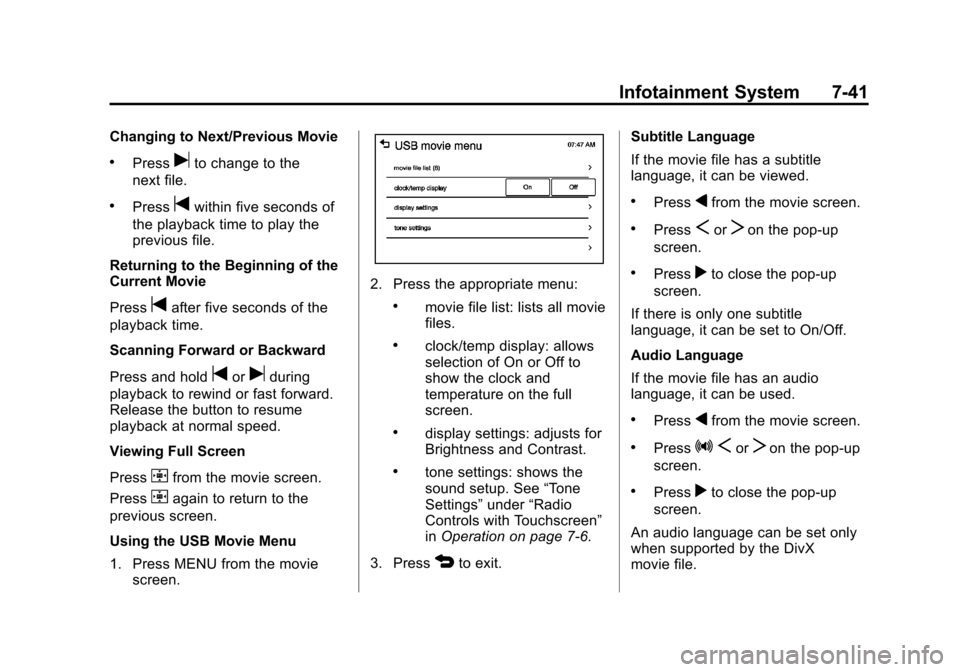
1. Press MENU from the movie screen.
2. Press the appropriate menu:
.movie file list: lists all movie
files.
.clock/temp display: allows
selection of On or Off to
show the clock and
temperature on the full
screen.
.display settings: adjusts for
Brightness and Contrast.
.tone settings: shows the
sound setup. See “Tone
Settings” under“Radio
Controls with Touchscreen”
in Operation on page 7-6.
3. Press
4to exit. Subtitle Language
If the movie file has a subtitle
language, it can be viewed.
.Pressqfrom the movie screen.
.PressSorTon the pop-up
screen.
.Pressrto close the pop-up
screen.
If there is only one subtitle
language, it can be set to On/Off.
Audio Language
If the movie file has an audio
language, it can be used.
.Pressqfrom the movie screen.
.PressZ SorTon the pop-up
screen.
.Pressrto close the pop-up
screen.
An audio language can be set only
when supported by the DivX
movie file.