2014 CHEVROLET SILVERADO 1500 ECO mode
[x] Cancel search: ECO modePage 174 of 542
Black plate (38,1)Chevrolet Silverado Owner Manual (GMNA-Localizing-U.S./Canada/Mexico-
5853506) - 2014 - CRC 3rd Edition - 8/28/13
5-38 Instruments and Controls
ENGINE OIL LOW ADD OIL
On some vehicles, this message
displays when the engine oil level
may be too low. Check the oil level
before filling to the recommended
level. If the oil is not low and this
message remains on, take the
vehicle to your dealer for service.
SeeEngine Oil on page 10-10.
ENGINE OIL HOT IDLE
ENGINE
This message displays when the
engine oil becomes hotter than the
normal operating temperature. Stop
and allow the vehicle to idle until it
cools down. See Engine Coolant
Temperature Gauge on page 5-16.
OIL PRESSURE LOW STOP
ENGINE
This message displays if low oil
pressure levels occur. Stop the
vehicle as soon as safely possible
and do not operate it until the cause
of the low oil pressure has been
corrected. Check the oil as soon as possible and have the vehicle
serviced by your dealer. See
Engine
Oil on page 10-10.
Engine Power Messages
ENGINE POWER IS REDUCED
This message displays and a chime
may sound when the cooling system
temperature gets too hot and the
engine further enters the engine
coolant protection mode. See
Engine Overheating on page 10-23
for more information.
This message also displays when
the vehicle's engine power is
reduced. Reduced engine power
can affect the vehicle's ability to
accelerate. If this message is on,
but there is no reduction in
performance, proceed to your
destination. The performance may
be reduced the next time the vehicle
is driven. The vehicle may be driven
at a reduced speed while this
message is on, but acceleration and
speed may be reduced. Anytime this message stays on, the vehicle
should be taken to your dealer for
service as soon as possible.
Fuel System Messages
FUEL LEVEL LOW
This message displays and a chime
may sound if the fuel level is low.
Refuel as soon as possible. See
Fuel Gauge on page 5-14
andFuel
on page 9-70.
TIGHTEN GAS CAP
This message may display along
with the malfunction indicator lamp
on the instrument cluster if the
vehicle's fuel cap is not tightened
properly. See Malfunction Indicator
Lamp on page 5-21. Reinstall the
fuel cap fully. See Filling the Tank
on page 9-73. The diagnostic
system can determine if the fuel cap
has been left off or improperly
installed. A loose or missing fuel
cap allows fuel to evaporate into the
Page 180 of 542
Black plate (44,1)Chevrolet Silverado Owner Manual (GMNA-Localizing-U.S./Canada/Mexico-
5853506) - 2014 - CRC 3rd Edition - 8/28/13
5-44 Instruments and Controls
TRANSMISSION HOT IDLE
ENGINE
This message displays and a chime
may sound if the transmission fluid
in the vehicle gets hot. Driving with
the transmission fluid temperature
high can cause damage to the
vehicle. Stop the vehicle and let it
idle to allow the transmission to
cool. This message clears and the
chime stops when the fluid
temperature reaches a safe level.
When towing, use tow/haul mode to
prevent damage to the engine or
transmission. SeeTow/Haul Mode
on page 9-38.
VEHICLE IN 4WD LOW
This message will display if the
vehicle is driven in Four-Wheel
Drive Low for about 10 minutes
above 72 km/h (45 mph).
Vehicle Reminder
Messages
CHECK TRAILER WIRING
On vehicles with the Integrated
Trailer Brake Control (ITBC) system,
this message may display and a
chime may sound when one of the
following conditions exists:
.A trailer with electric brakes
becomes disconnected from the
vehicle.
‐ If the disconnect occurs while
the vehicle is stopped, this
message clears itself after a
short time.
‐ If the disconnect occurs while
the vehicle is moving, this
message stays on until the
ignition is turned off.
.There is a short in the wiring to
the electric trailer brakes.
When this message displays, power
is no longer available to the trailer
brakes. As soon as it is safe to do so,
carefully pull the vehicle over to the
side of the road and turn the ignition
off. Check the wiring connection to
the trailer and turn the ignition back
on. This message clears if the trailer
is reconnected. This message also
clears if you acknowledge it. If this
message still displays, either the
vehicle or the trailer needs service.
See your dealer.
See
“Integrated Trailer Brake
Control System” underTowing
Equipment on page 9-89.
ICE POSSIBLE DRIVE
WITH CARE
This message displays when ice
conditions are possible.
TRAILER CONNECTED
On vehicles with the Integrated
Trailer Brake Control (ITBC) system,
this message displays briefly when
a trailer with electric or electric over
hydraulic brakes is first connected
to the vehicle.
Page 182 of 542
Black plate (46,1)Chevrolet Silverado Owner Manual (GMNA-Localizing-U.S./Canada/Mexico-
5853506) - 2014 - CRC 3rd Edition - 8/28/13
5-46 Instruments and Controls
3. PressoBACK on the faceplate
or the
0screen button to return
to the previous menu or exit.
Turn the vehicle to ON/RUN to
access the Settings menu, then
select SETTINGS from the Home
page on the infotainment system
display.
Personalization Menus
The following list of menu items may
be available:
.Time and Date
.Language [Language]
.Valet Mode
.Radio
.Vehicle
.Bluetooth
.Voice
.Display
.Rear Camera
.Return to Factory Settings
.Software Information Detailed information for each menu
follows.
Time and Date
Manually set the time and date. See
Clock on page 5-5.
Language [Language]
Select Language, then select from
the available language(s).
The selected language will display
on the system, and voice
recognition will reflect the selected
language.
Valet Mode
This will lock the infotainment
system, the infotainment controls,
and screen storage location.
To turn Valet Mode on and off, enter
a four-digit code on the keypad.
Press Enter to go to the
confirmation screen. Re-enter the
four-digit code. Press LOCK to lock
the system. Enter the four-digit code
to unlock the system. Press the
Back screen button to go back to
the previous menu.
Radio
Press to display the Radio menu
and the following may display:
.Manage Favorites
.Number of Favorites Pages
.Audible Touch Feedback
.Auto Volume
.Maximum Startup Volume
.Audio Cue Volume
Manage Favorites
This allows favorites to be edited.
See “Manage Favorites” in“Radio
Setup” underHome Page on
page 7-5 or“Manage Favorites” in
“Settings” under“Radio” in the
infotainment manual.
Number of Favorites Pages
Press to set the number of favorites
to display.
Page 197 of 542
Black plate (5,1)Chevrolet Silverado Owner Manual (GMNA-Localizing-U.S./Canada/Mexico-
5853506) - 2014 - CRC 3rd Edition - 8/28/13
Lighting 6-5
Turn and Lane-Change
Signals
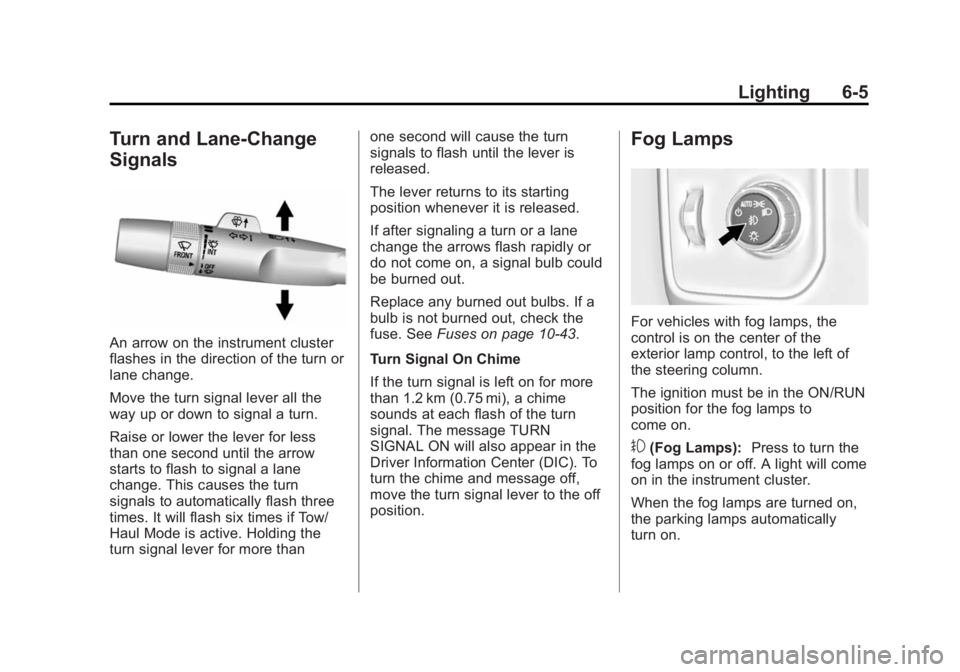
An arrow on the instrument cluster
flashes in the direction of the turn or
lane change.
Move the turn signal lever all the
way up or down to signal a turn.
Raise or lower the lever for less
than one second until the arrow
starts to flash to signal a lane
change. This causes the turn
signals to automatically flash three
times. It will flash six times if Tow/
Haul Mode is active. Holding the
turn signal lever for more thanone second will cause the turn
signals to flash until the lever is
released.
The lever returns to its starting
position whenever it is released.
If after signaling a turn or a lane
change the arrows flash rapidly or
do not come on, a signal bulb could
be burned out.
Replace any burned out bulbs. If a
bulb is not burned out, check the
fuse. See
Fuses on page 10-43.
Turn Signal On Chime
If the turn signal is left on for more
than 1.2 km (0.75 mi), a chime
sounds at each flash of the turn
signal. The message TURN
SIGNAL ON will also appear in the
Driver Information Center (DIC). To
turn the chime and message off,
move the turn signal lever to the off
position.
Fog Lamps
For vehicles with fog lamps, the
control is on the center of the
exterior lamp control, to the left of
the steering column.
The ignition must be in the ON/RUN
position for the fog lamps to
come on.
#(Fog Lamps): Press to turn the
fog lamps on or off. A light will come
on in the instrument cluster.
When the fog lamps are turned on,
the parking lamps automatically
turn on.
Page 208 of 542
Black plate (6,1)Chevrolet Silverado Owner Manual (GMNA-Localizing-U.S./Canada/Mexico-
5853506) - 2014 - CRC 3rd Edition - 8/28/13
7-6 Infotainment System
CD (if equipped), USB/iPod, AUX
Input, SD card reader (if equipped),
and Bluetooth Audio (if equipped).
SeeAM-FM Radio on page 7-8,
Satellite Radio on page 7-10, CD
Player on page 7-15, Auxiliary Jack
on page 7-21, and Bluetooth Audio
on page 7-22.
PHONE: Select the PHONE screen
icon to display the Phone main
page. See Bluetooth (Infotainment
Controls - Base Radio) on
page 7-33 orBluetooth (Voice
Recognition - Base Radio) on
page 7-37 orBluetooth (Overview)
on page 7-31 orBluetooth
(Infotainment Controls - Base
Connected Radio) on page 7-42 or
Bluetooth (Voice Recognition - Base
Connected Radio) on page 7-47.
NAV (Navigation, If Equipped):
Select the NAV screen icon to
display the OnStar Turn-by-Turn
Navigation. See “OnStar Overview”
in OnStar, if equipped. SETTINGS:
Select the SETTINGS
screen icon to display the Settings
main page. See “Setting Radio
Preferences” following.
Pandora (If Equipped)
Select the PANDORA icon to begin
Pandora. See Pandora Internet
Radio on page 7-12.
Setting Radio Preferences
Select the SETTINGS screen icon
to display the Settings menu and
the following may display:
Time and Date: SeeClock on
page 5-5.
Language (Current Language):
This will set the display language in
the radio and instrument cluster.
Select to display a list of languages.
Select
oBACK to go back to the
previous menu. Valet Mode:
Using the circular numeric keypad,
enter a four-digit code:
1. Turn the MENU knob to highlight
a number.
2. Press the MENU knob to select it. Do this for each one of the
four digits. Select Enter to go to
the confirmation screen.
3. Re-enter the four-digit code. Select LOCK to lock the system.
4. Enter the four-digit code to unlock the system. Select
oBACK to go back to the
previous menu.
Radio: See“Radio Setup” later in
this section.
Vehicle: SeeVehicle
Personalization on page 5-45.
Display: Press the MENU knob to
turn the display on or off.
Return to Factory Settings: See
“Return to Factory Settings” later in
this section.
Page 228 of 542
Black plate (26,1)Chevrolet Silverado Owner Manual (GMNA-Localizing-U.S./Canada/Mexico-
5853506) - 2014 - CRC 3rd Edition - 8/28/13
7-26 Infotainment System
1. Pressgon the steering wheel
control to activate voice
recognition, or select the
gon
the infotainment screen on the
center stack.
.If voice recognition is
started from the steering
wheel control, the
instrument cluster displays
the selections and visual
dialog content.
.If voice recognition is
started from the
infotainment screen on the
center stack, the selections
and visual dialog content
are displayed on both the
center stack display and the
instrument cluster display.
2. The audio system mutes and the system plays a prompt followed
by a beep. 3. Wait until after the beep
completes, then clearly speak
one of the commands described
in this section.
Press
gto interrupt any voice
recognition system prompt. For
example, if the prompt seems to
be taking too long to finish,
press
gagain and the beep
should happen right away.
There are two voice prompt modes
supported:
.Long verbal prompts: The longer
prompts provide more
information regarding the
supported actions.
.Short prompts: The short
prompts provide simple
instructions about what can be
stated.
If a command is not spoken, the
voice recognition system says a
help prompt. Prompts and Screen Displays
While a voice recognition session is
active, there will be corresponding
buttons on screens displayed.
Manual interaction in the voice
recognition session is permitted.
Interaction during a voice session
may be completed entirely using
voice commands, or some
selections may expedite a session.
If a selection is made using a
manual control, the dialog will
progress in the same way as if the
selection was made through a voice
command. Once the system is able
to complete the task, or the session
is terminated, the voice recognition
dialog stops.
An example of this type of manual
intervention is pressing on an entry
of a displayed number list instead of
speaking the number associated
with the entry desired.
Canceling Voice Recognition
.Press the Home screen button.
This will terminate the voice
recognition session.
Page 233 of 542
Black plate (31,1)Chevrolet Silverado Owner Manual (GMNA-Localizing-U.S./Canada/Mexico-
5853506) - 2014 - CRC 3rd Edition - 8/28/13
Infotainment System 7-31
Voice Recognition for the
Phone
“Call
call to an entered contact. The
command may include location if
the contact has location numbers
stored.
“Call
“At Work,” “On Mobile,” or“On
Other”: Initiate a call to an entered
contact and location at home, at
work, on mobile device, or on
another phone.
“Call
call to a standard phone number
seven or 10 digits in length, and
also 911, 411, or 611.
“Pair Phone”: Begins the
Bluetooth pairing process. Follow
instructions on the radio display. “Switch Phone”:
Select a different
phone for outgoing calls.
“Voice Keypad”: Begins a dialog
to enter special numbers like
international numbers. The numbers
can be entered in groups of digits
with each group of digits being
repeated back by the system. If the
group of digits is not correct, the
command “Delete”will remove the
last group of digits and allow them
to be re-entered. Once the entire
number has been entered, the
command “Call”will start dialing the
number.
“Voice Mail”: Initiate a call to voice
mail numbers.
Voice Recognition for OnStar
(If Equipped)
“OnStar”: Begin Onstar Voice
Recognition.
Phone
Bluetooth (Overview)
Instructions for using the cell phone
may differ between infotainment
systems. The base radio and base
radio with connectivity instructions
are included in this manual. See the
infotainment manual for instructions
on the uplevel radios.
Bluetooth-capable systems can
interact with many cell phones,
allowing:
.Placement and receipt of calls in
a hands-free mode.
.Sharing of the cell phone’s
address book or contact list with
the vehicle.
To minimize driver distraction,
before driving, and with the vehicle
parked:
.Become familiar with the
features of the cell phone.
Organize the phone book and
contact lists clearly and delete
Page 235 of 542
Black plate (33,1)Chevrolet Silverado Owner Manual (GMNA-Localizing-U.S./Canada/Mexico-
5853506) - 2014 - CRC 3rd Edition - 8/28/13
Infotainment System 7-33
PHONE:Select to enter the phone
main menu. See Bluetooth
(Infotainment Controls - Base
Radio) on page 7-33 orBluetooth
(Voice Recognition - Base Radio) on
page 7-37 orBluetooth (Overview)
on page 7-31 orBluetooth
(Infotainment Controls - Base
Connected Radio) on page 7-42 or
Bluetooth (Voice Recognition - Base
Connected Radio) on page 7-47.
Voice Recognition
The voice recognition system uses
commands to control the system
and dial phone numbers.
Noise: The system may not
recognize voice commands if there
is too much background noise, such
as noise from open windows or loud
talking inside the vehicle.
When to Speak: A tone sounds to
indicate that the system is ready for
a voice command. Wait for the tone
and then speak.
How to Speak: Speak clearly in a
calm and natural voice.
Audio System
When using the Bluetooth system,
sound comes through the vehicle's
front audio system speakers and
overrides the audio system. Use the
Oknob during a call to change the
volume level. The system maintains
a minimum volume level.
Bluetooth Audio Quality
Turn off the Echo and Noise
cancellation feature on your phone,
if supported, for the best hands-free
performance.
See www.gm.com/bluetooth.
Bluetooth (Infotainment
Controls - Base Radio)
For information about how to
navigate the menu system using the
infotainment controls, see Overview
on page 7-2.
Switching to Handset or
Hands-Free Mode
To switch between handset mode
and hands-free mode, use the
OnStar command, “transfer call.”
Pairing
A Bluetooth-enabled cell phone
must be paired to the Bluetooth
system and then connected to the
vehicle before it can be used. See
your cell phone manufacturer's user
guide for Bluetooth functions before
pairing the cell phone. If a Bluetooth
phone is not connected, calls can
be made using OnStar Hands-Free
Calling, if available. See “OnStar
Overview” in OnStar, if equipped.
Pairing Information
.Up to five cell phones can be
paired to the Bluetooth system.
.The pairing process is disabled
when the vehicle is moving.
.Pairing only needs to be
completed once per phone,
unless the pairing information on