2014 CHEVROLET IMPALA AUX
[x] Cancel search: AUXPage 24 of 422
Black plate (18,1)Chevrolet Impala Owner Manual (GMNA-Localizing-U.S./Canada-5772216) -
2014 - 2nd crc - 5/14/13
1-18 In Brief
Vehicle Features
Radio(s)
O
:Press to turn the system on.
Press and hold to turn it off. When
on, press to mute; press again to
unmute. Turn to increase or
decrease the volume.
RADIO: Press to choose between
FM, AM, and SiriusXM
®,
if equipped.
MEDIA: Press to change the audio
source between CD, USB, SD card,
and AUX.
{: Press to go to the Home Page.
MENU: Press to select a menu.
g:Press to seek the previous
station or track.
l: Press to seek the next station
or track.
See Overview on page 7-3 about
these and other radio features.
Storing Radio Station Presets
Up to 25 preset stations from all
bands can be stored in the favorite
lists in any order. Up to five stations
can be stored in each favorite page
and the number of favorite pages
can be set.
To store the station to a position in
the list, while on the active source
main page, such as AM, FM,
or SiriusXM (if equipped), press and
hold a Favorites/Soft Key button on
the faceplate.
See “Storing Radio Station Presets”
under AM-FM Radio on page 7-7.
Setting the Clock
SeeClock (Base Radio) on
page 5-5 orClock (Uplevel Radio)
on page 5-5.
Satellite Radio
Vehicles with a SiriusXM®satellite
radio tuner and a valid SiriusXM
satellite radio subscription can
receive SiriusXM programming.
SiriusXM Satellite Radio
Service
SiriusXM is a satellite radio service
based in the 48 contiguous United
States and 10 Canadian provinces.
SiriusXM satellite radio has a wide
variety of programming and
commercial-free music, coast to
coast, and in digital-quality sound.
A fee is required to receive the
SiriusXM service.
For more information refer to:
.www.siriusxm.com or call
1-866-635-2349 (U.S.).
.www.xmradio.ca or call
1-877-209-0079 (Canada).
See Satellite Radio on page 7-9.
Portable Audio Devices
This vehicle has a 3.5 mm (1/8 in)
auxiliary input jack and USB port in
the center console. If equipped with
storage behind the radio, there is a
USB port inside. See Instrument
Panel Storage on page 4-1.
External devices such as iPods
®,
Page 25 of 422
Black plate (19,1)Chevrolet Impala Owner Manual (GMNA-Localizing-U.S./Canada-5772216) -
2014 - 2nd crc - 5/14/13
In Brief 1-19
laptop computers, MP3 players, CD
changers, and USB storage devices
may be connected, depending on
the audio system.
SeeUSB Port on page 7-14 and
Auxiliary Jack on page 7-17.
Bluetooth®
The Bluetooth®system allows users
with a Bluetooth-enabled cell phone
to make and receive hands-free
calls using the vehicle audio system
and controls.
The Bluetooth-enabled cell phone
must be paired with the in-vehicle
Bluetooth system before it can be
used in the vehicle. Not all phones
will support all functions.
See Bluetooth (Infotainment
Controls) on page 7-20 orBluetooth
(Voice Recognition) on page 7-24 or
Bluetooth (Overview) on page 7-18.
Steering Wheel Controls
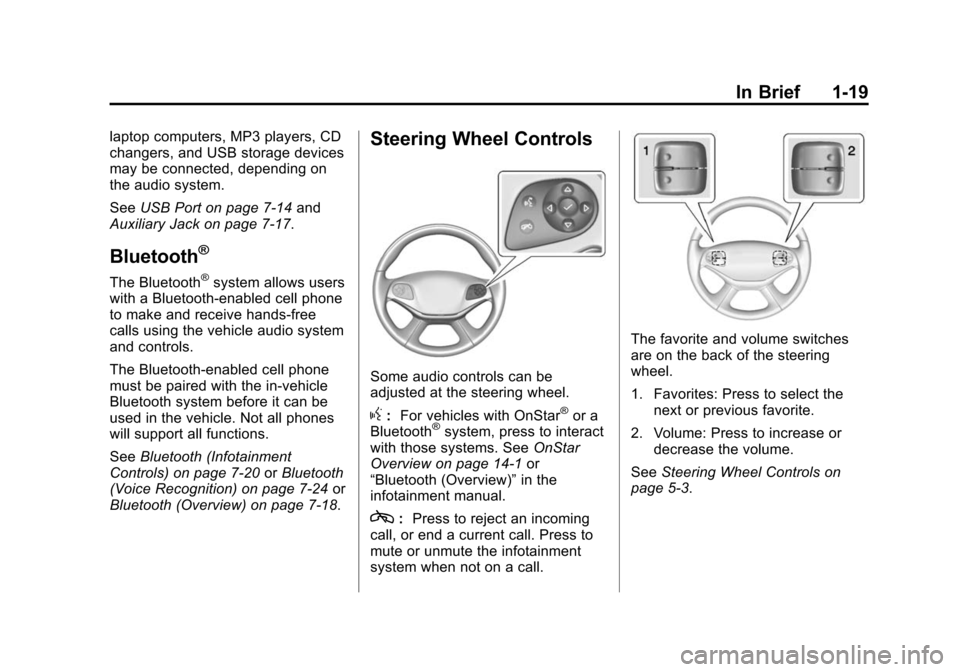
Some audio controls can be
adjusted at the steering wheel.
g: For vehicles with OnStar®or a
Bluetooth®system, press to interact
with those systems. See OnStar
Overview on page 14-1 or
“Bluetooth (Overview)” in the
infotainment manual.
c: Press to reject an incoming
call, or end a current call. Press to
mute or unmute the infotainment
system when not on a call.
The favorite and volume switches
are on the back of the steering
wheel.
1. Favorites: Press to select the next or previous favorite.
2. Volume: Press to increase or decrease the volume.
See Steering Wheel Controls on
page 5-3.
Page 113 of 422
Black plate (3,1)Chevrolet Impala Owner Manual (GMNA-Localizing-U.S./Canada-5772216) -
2014 - 2nd crc - 5/14/13
Storage 4-3
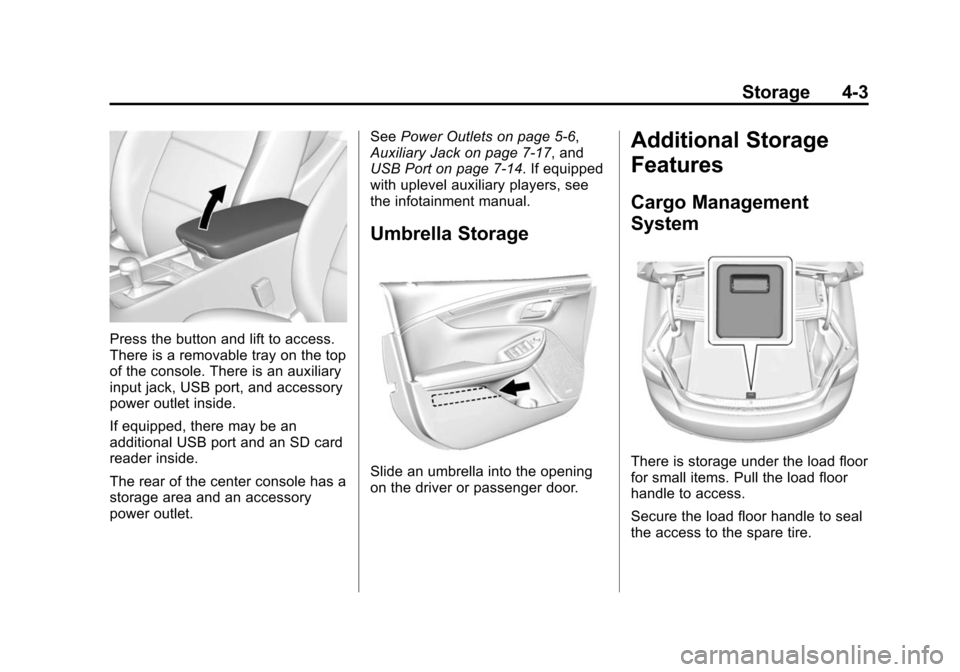
Press the button and lift to access.
There is a removable tray on the top
of the console. There is an auxiliary
input jack, USB port, and accessory
power outlet inside.
If equipped, there may be an
additional USB port and an SD card
reader inside.
The rear of the center console has a
storage area and an accessory
power outlet.See
Power Outlets on page 5-6,
Auxiliary Jack on page 7-17, and
USB Port on page 7-14. If equipped
with uplevel auxiliary players, see
the infotainment manual.
Umbrella Storage
Slide an umbrella into the opening
on the driver or passenger door.
Additional Storage
Features
Cargo Management
System
There is storage under the load floor
for small items. Pull the load floor
handle to access.
Secure the load floor handle to seal
the access to the spare tire.
Page 171 of 422

Black plate (1,1)Chevrolet Impala Owner Manual (GMNA-Localizing-U.S./Canada-5772216) -
2014 - 2nd crc - 5/14/13
Infotainment System 7-1
Infotainment
System
Introduction
Infotainment . . . . . . . . . . . . . . . . . . . 7-1
Theft-Deterrent Feature . . . . . . . 7-2
Overview . . . . . . . . . . . . . . . . . . . . . . 7-3
Home Page . . . . . . . . . . . . . . . . . . . 7-4
Software Updates . . . . . . . . . . . . . 7-7
Radio
AM-FM Radio . . . . . . . . . . . . . . . . . 7-7
Satellite Radio . . . . . . . . . . . . . . . . 7-9
Radio Reception . . . . . . . . . . . . . 7-10
Backglass Antenna . . . . . . . . . . 7-11
Multi-Band Antenna . . . . . . . . . . 7-11
Audio Players
CD Player . . . . . . . . . . . . . . . . . . . 7-12
USB Port . . . . . . . . . . . . . . . . . . . . 7-14
Auxiliary Jack . . . . . . . . . . . . . . . . 7-17
Phone
Bluetooth (Overview) . . . . . . . . 7-18
Bluetooth (InfotainmentControls) . . . . . . . . . . . . . . . . . . . 7-20
Bluetooth (Voice Recognition) . . . . . . . . . . . . . . . 7-24
Trademarks and License
Agreements
Trademarks and License
Agreements . . . . . . . . . . . . . . . . 7-29
Introduction
Infotainment
Read the following pages to
become familiar with the
infotainment system featured in this
owner manual.
{Warning
Taking your eyes off the road
for too long or too often while
using any infotainment features
can cause a crash resulting in
injury or death. Do not give
extended attention to
infotainment tasks while
driving. Focus your attention
on driving and limit glances to
the instrument cluster or center
stack screens. Use voice
guidance whenever possible.
The infotainment system has built-in
features intended to help with this
by disabling some functions when
Page 174 of 422
Black plate (4,1)Chevrolet Impala Owner Manual (GMNA-Localizing-U.S./Canada-5772216) -
2014 - 2nd crc - 5/14/13
7-4 Infotainment System
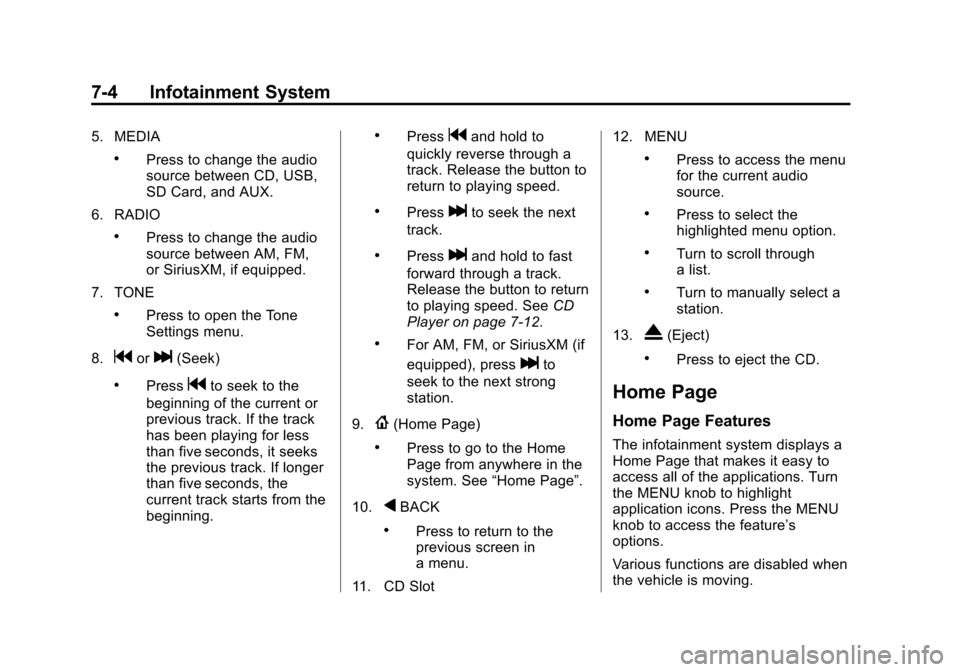
5. MEDIA
.Press to change the audio
source between CD, USB,
SD Card, and AUX.
6. RADIO
.Press to change the audio
source between AM, FM,
or SiriusXM, if equipped.
7. TONE
.Press to open the Tone
Settings menu.
8.
gorl(Seek)
.Pressgto seek to the
beginning of the current or
previous track. If the track
has been playing for less
than five seconds, it seeks
the previous track. If longer
than five seconds, the
current track starts from the
beginning.
.Pressgand hold to
quickly reverse through a
track. Release the button to
return to playing speed.
.Presslto seek the next
track.
.Pressland hold to fast
forward through a track.
Release the button to return
to playing speed. See CD
Player on page 7-12.
.For AM, FM, or SiriusXM (if
equipped), press
lto
seek to the next strong
station.
9.
{(Home Page)
.Press to go to the Home
Page from anywhere in the
system. See “Home Page”.
10.
qBACK
.Press to return to the
previous screen in
a menu.
11. CD Slot 12. MENU
.Press to access the menu
for the current audio
source.
.Press to select the
highlighted menu option.
.Turn to scroll through
a list.
.Turn to manually select a
station.
13.
X(Eject)
.Press to eject the CD.
Home Page
Home Page Features
The infotainment system displays a
Home Page that makes it easy to
access all of the applications. Turn
the MENU knob to highlight
application icons. Press the MENU
knob to access the feature’ s
options.
Various functions are disabled when
the vehicle is moving.
Page 175 of 422
Black plate (5,1)Chevrolet Impala Owner Manual (GMNA-Localizing-U.S./Canada-5772216) -
2014 - 2nd crc - 5/14/13
Infotainment System 7-5
AUDIO:Select the AUDIO screen
icon to display the active source
page. The sources available are
AM, FM, SiriusXM
®(if equipped),
CD, USB/iPod, AUX, and SD Card
Reader. See AM-FM Radio on
page 7-7, Satellite Radio on
page 7-9, CD Player on page 7-12,
and Auxiliary Jack on page 7-17.
PHONE: Select the PHONE screen
icon to display the Phone main
page. See Bluetooth (Infotainment
Controls) on page 7-20 orBluetooth
(Voice Recognition) on page 7-24 or
Bluetooth (Overview) on page 7-18.
NAV: Select the NAV screen icon
to display the last Turn-by-Turn
maneuver if a destination was
downloaded. See Navigation on
page 14-2.
SETTINGS: Select the SETTINGS
screen icon to display the Settings
main page. See “Setting Radio
Preferences” following.
Setting Radio Preferences
Select the SETTINGS screen icon
to display the Settings menu and
the following may display:
Time:SeeClock (Base Radio) on
page 5-5 orClock (Uplevel Radio)
on page 5-5.
Language [Language]: This will
set the display language in the
radio, and Instrument cluster. Select
to display a list of languages. Select
qBACK to go back to the
previous menu.
Valet Mode:
Type a four-digit code on the
circular numeric keypad by:
1. Turning the MENU knob to highlight a number.
2. Press the MENU knob to select it. Do this for each one of the
four digits. Select Enter to go to
the confirmation screen. 3. Re-enter the four-digit code.
Select LOCK to lock the system.
This will also lock out access to
the storage behind the radio,
if equipped. See Instrument
Panel Storage on page 4-1.
4. Type the four-digit code to unlock the system. Select
q
BACK to go back to the
previous menu.
Radio: See“Radio Setup” later in
this section.
Vehicle: SeeVehicle
Personalization on page 5-40.
Display: Press the MENU knob to
turn the display on or off.
Return to Factory Settings: See
“Return to Factory Settings” later in
this section.
Page 177 of 422
Black plate (7,1)Chevrolet Impala Owner Manual (GMNA-Localizing-U.S./Canada-5772216) -
2014 - 2nd crc - 5/14/13
Infotainment System 7-7
Rear Cross Traffic Alert:This
feature will display an alert icon
when cross traffic is detected.
Select Rear Cross Traffic Alert, then
select Off or On.
Return to Factory Settings
Select Return to Factory Settings
and the following list may display:
Restore Vehicle Settings: This
option will restore factory vehicle
personalization settings. Select
Restore Vehicle Settings. A screen
displays stating all vehicle
customization settings will be
restored to the factory settings.
Select Cancel or Continue.
Clear All Private Data: This option
clears all private information from
the vehicle. Select Clear All Private
Data. Select Cancel or Continue. Restore Radio Settings:
This
option will restore factory radio
settings. Select Restore Radio
Settings. A screen displays stating
all personalized radio settings will
be restored back to the factory
settings. Select Cancel or Continue.
English and Metric Unit
Conversion
To change the display units between
English and metric units, see “Units”
under “Settings” inInstrument
Cluster on page 5-9.
Software Updates
See the website for more
information.
In the U.S., see www.chevrolet.com
In Canada, see
www.chevrolet.gm.ca
Radio
AM-FM Radio
Playing the Radio
While on the audio main page,
press the RADIO or MEDIA button
repeatedly to display and scroll
through the available sources: AM,
FM, and SiriusXM
®(if equipped),
CD, USB, SD, and AUX.
The steering wheel controls can
also be used to adjust the volume.
See Steering Wheel Controls on
page 5-3.
AM, FM, SiriusXM (If Equipped)
To select AM, FM, or SiriusXM
(if equipped):
1. Press
{.
2. Turn the MENU knob to highlight the AUDIO screen icon.
3. Press the MENU knob to select.
Page 186 of 422

Black plate (16,1)Chevrolet Impala Owner Manual (GMNA-Localizing-U.S./Canada-5772216) -
2014 - 2nd crc - 5/14/13
7-16 Infotainment System
The iPod battery recharges
automatically while the vehicle is on.
When the vehicle is off while an
iPod is connected using the iPod
USB cable, the iPod battery stops
charging and the iPod automatically
turns off.
If the iPod is an unsupported model,
it can still be listened to in the
vehicle by connecting to the
auxiliary input jack using a standard
3.5 mm (1/8 in) stereo cable.
iPod Menu
Press the MENU knob to display the
iPod Menu and the following may
display:
Browse:Select to display the files
or songs on the iPod. See “Browse
iPod Media” later in this section.
Tone Settings: Select to adjust
Bass, Midrange, Treble, Balance,
Fade, and EQ (Equalizer). See
“Tone Settings” under“Playing an
Audio CD.”
Auto Volume: If equipped, see
“Playing an Audio CD.” EQ (Equalizer) Settings:
If equipped, this feature adjusts the
pre-defined EQ Modes. See
“EQ
(Equalizer) Settings” inAM-FM
Radio on page 7-7.
DSP Modes: If equipped, this
feature adjusts the DSP Modes.
See “DSP Modes” inAM-FM Radio
on page 7-7.
Browse iPod Media
Use the following to browse:
Playlists:
1. Turn the MENU knob to highlight and press to view the playlists
stored on the iPod.
2. Turn the MENU knob to highlight and press to select a playlist
name to view a list of all songs
in the playlist.
3. Turn the MENU knob to highlight and press to select the song
from the list to begin playback. Artists:
1. Turn the MENU knob to highlight
and press to view the artists
stored on the iPod.
2. Turn the MENU knob to highlight and press to select an artist
name to view a list of all albums
by the artist.
3. Turn the MENU knob to highlight and press to select the album
from the list.
4. To begin playback, select a song from the album.
Albums:
1. Turn the MENU knob to highlight and press to view the albums
stored on the iPod.
2. Turn the MENU knob to highlight and press to select an album
name to view a list of all songs
on the album.
3. Turn the MENU knob to highlight and press to select the song
from the list to begin playback.