2014 BMW X1 Trip
[x] Cancel search: TripPage 146 of 297

Navigation systemVehicle equipmentThis chapter describes all series equipment as
well as country-specific and special equipment
offered for this model series. Therefore, it also
describes equipment that may not be found in
your vehicle, for instance due to the selected
special equipment or the country version. This
also applies to safety-related functions and
systems.
When using the features and systems descri‐
bed here, adhere to local regulations.
General information The navigation system can determine the pre‐
cise position of the vehicle, with the aid of sat‐
ellites and vehicle sensors, and can reliably
guide you to every entered destination.
Entries in stationary vehicle
Enter data only when the vehicle is sta‐
tionary, and always give priority to the applica‐
ble traffic regulations in the event of any con‐
tradiction between traffic and road conditions
and the instructions issued by the navigation
system. Failure to take to this precaution can
place you in violation of the law and put vehicle
occupants and other road users in danger.◀
Opening the navigation system1. Press the button on the controller.2."Navigation"
The navigation system can also be called
up directly using the button on the con‐
troller.
Navigation data
Information on navigation data1."Navigation"2.Open "Options".3."Navigation system version"
Information is displayed on the data ver‐
sion.
Updating the navigation data
General information
Navigation data are stored in the vehicle and
can be updated.
Current navigation data and the authorization
code are available from your service center.
▷Depending on the data volume, a data up‐
date may take several hours.▷Update during the trip to preserve battery.▷During the update, only the basic functions
of the navigation system are available.▷The status of the update can be viewed.▷After the updating process is complete, the
system restarts.▷Remove the medium with the navigation
data after the update.
Performing an update
1.Insert the navigation DVD into the DVD
player with the labeled side facing up.2.Follow the instructions on the Control Dis‐
play.3.Enter the authorization code of the naviga‐
tion DVD.4.Change the DVD if necessary.
After the trip is interrupted, follow the instruc‐
tions on the Control Display.
Seite 142NavigationNavigation system142
Online Edition for Part no. 01 40 2 957 353 - X/14
Page 155 of 297

If there are several towns/cities with the same
name:
Towns/cities of the same name are grouped in
a list and displayed as one location followed by
an ellipsis.1.Select an entry: ›Yes‹ or ›Entry ...‹, e. g., En‐
try 2.2.Select the desired town/city.
Entering a street or intersection
separately
Enter a street and intersection in the same way
as you would enter a town/city.
Entering a house number separately Depending on the data in the navigation sys‐
tem, house numbers up to number 2,000 can
be entered.
1.›House number‹2.Say the house number.
Say each digit separately.3.Continue making the entry as prompted by
the system.
Starting destination guidance
›Start guidance‹
Planning a trip with
intermediate destinations
New trip
A trip can be planned with several intermediate
destinations.
1."Navigation"2."Map"3.Move the controller to the left if necessary.4. "Guidance"5."Enter new destination"6.Select the type of destination entry.7.Enter the intermediate destination.8."Start guidance"
Entering intermediate destinations
A maximum of 30 intermediate destinations
can be entered for a trip.
1."Enter new destination"2.Select the type of destination entry.3.Enter the intermediate destination.4."Add as another destination"
The intermediate destination is entered in
the destination list and is highlighted.5.Turn the controller until the intermediate
destination is located at the desired loca‐
tion in the list.6.Press the controller.
Starting the trip
1.After all intermediate destinations are en‐
tered, highlight the first destination.
If the second destination, for example, is
highlighted when destination guidance is
started, the first destination is skipped.2."Start guidance"
This symbol marks the active leg of the
trip.
Seite 151Destination entryNavigation151
Online Edition for Part no. 01 40 2 957 353 - X/14
Page 156 of 297

Storing a tripUp to 30 trips can be stored in the trip list. If
necessary, delete existing trips to be able to
store new trips.1.Open "Options".2."Store trip"3.Enter a name for the trip.4."OK"
Selecting a stored trip
1."Navigation"2."Stored trips"3.Select a stored trip.4."Start guidance"
Changing the trip direction
Intermediate destinations are displayed in re‐
verse order in the list.
1."Map"2. "Guidance"3.Open "Options".4."Reverse order of trip dest."
Intermediate destination options
1."Map"2. "Guidance"3."Display all trip destinations"4.Select an intermediate destination.▷"Edit destination"▷"Reposition dest. in the trip": move an
intermediate destination to another po‐
sition in the list.▷"Delete dest. in the trip"▷"Go to next dest. in the trip"
Some options are not available for certain trips.
Deleting a stored trip
1."Navigation"2."Stored trips"3.Highlight the desired trip.4.Open "Options".5."Delete all trips" or "Delete trip"
Opening the last trip
1."Navigation"2."Stored trips"3."Last trip"4."Start guidance"Seite 152NavigationDestination entry152
Online Edition for Part no. 01 40 2 957 353 - X/14
Page 157 of 297

Destination guidanceVehicle equipmentThis chapter describes all series equipment as
well as country-specific and special equipment
offered for this model series. Therefore, it also
describes equipment that may not be found in
your vehicle, for instance due to the selected
special equipment or the country version. This
also applies to safety-related functions and
systems.
When using the features and systems descri‐
bed here, adhere to local regulations.
Starting destination
guidance1."Navigation"2.Make a destination entry, refer to
page 144.3."Accept destination"4."Start guidance"
The route is shown on the Control Display.
The distance to the destination/intermediate
destination and the estimated time of arrival
are displayed in the map view.
Terminating destination
guidance
1."Navigation"2."Map"3. "Guidance"4."Stop guidance"Continuing destination
guidance
If the destination was not reached during thelast trip, destination guidance can be resumed.
"Resume guidance"
Route criteria
General information▷The route calculated can be influenced by
selecting certain criteria.▷The route criteria can be changed when
the destination is entered and during desti‐
nation guidance.▷Road types are part of the navigation data
and are taken into consideration when
planning a route, e.g., avoid highways.▷The recommended route may differ from
the route you would take based on per‐
sonal experience.▷The settings are stored for the remote
control currently in use.▷Destination guidance with traffic bulletins,
refer to page 159.
Changing the route criteria
1."Navigation"2."Map"3. "Route preference"4.Select the criterion:▷ "Fast route": time-optimized route,
being a combination of the shortest
possible route and the fastest roads.▷ "ECO PRO route" or "Efficient
route": optimized combination of the
fastest and shortest possible route.Seite 153Destination guidanceNavigation153
Online Edition for Part no. 01 40 2 957 353 - X/14
Page 164 of 297

▷Total length of the traffic obstructions on
the route.▷Time by which the trip is extended due to
the traffic obstructions.
The lower part of the message shows:
▷Detour recommendation with the distance
to the beginning of the detour.▷Difference between the length of the new
route compared to the original route.▷Time gained if the detour is taken com‐
pared to the original route with the traffic
obstructions.
Both the original route, shown in white, and the
detour are displayed on the split screen.
Accepting the detour
"Detour"
In the event of special hazards, e. g., objects on
the road, a message is displayed without a de‐
tour suggestion.
Detours can also be accepted if the traffic
messages are called up in the list.
1."Navigation"2."Map"3. "Traffic Info"4."Detour information"5. "Detour"
Dynamic destination guidance
The route is automatically changed in the
event of traffic obstructions.
▷The system does not point out traffic ob‐
structions along the original route.▷Traffic bulletins continue to be displayed
on the map.▷Depending on road type and the kind and
extent of the traffic obstruction, the calcu‐
lated route may lead through the traffic ob‐
struction.▷Dangerous situations are displayed regard‐
less of the setting.Activating dynamic destination guidance1."Navigation"2.Open "Options".3."Dynamic guidance"Seite 160NavigationDestination guidance160
Online Edition for Part no. 01 40 2 957 353 - X/14
Page 188 of 297
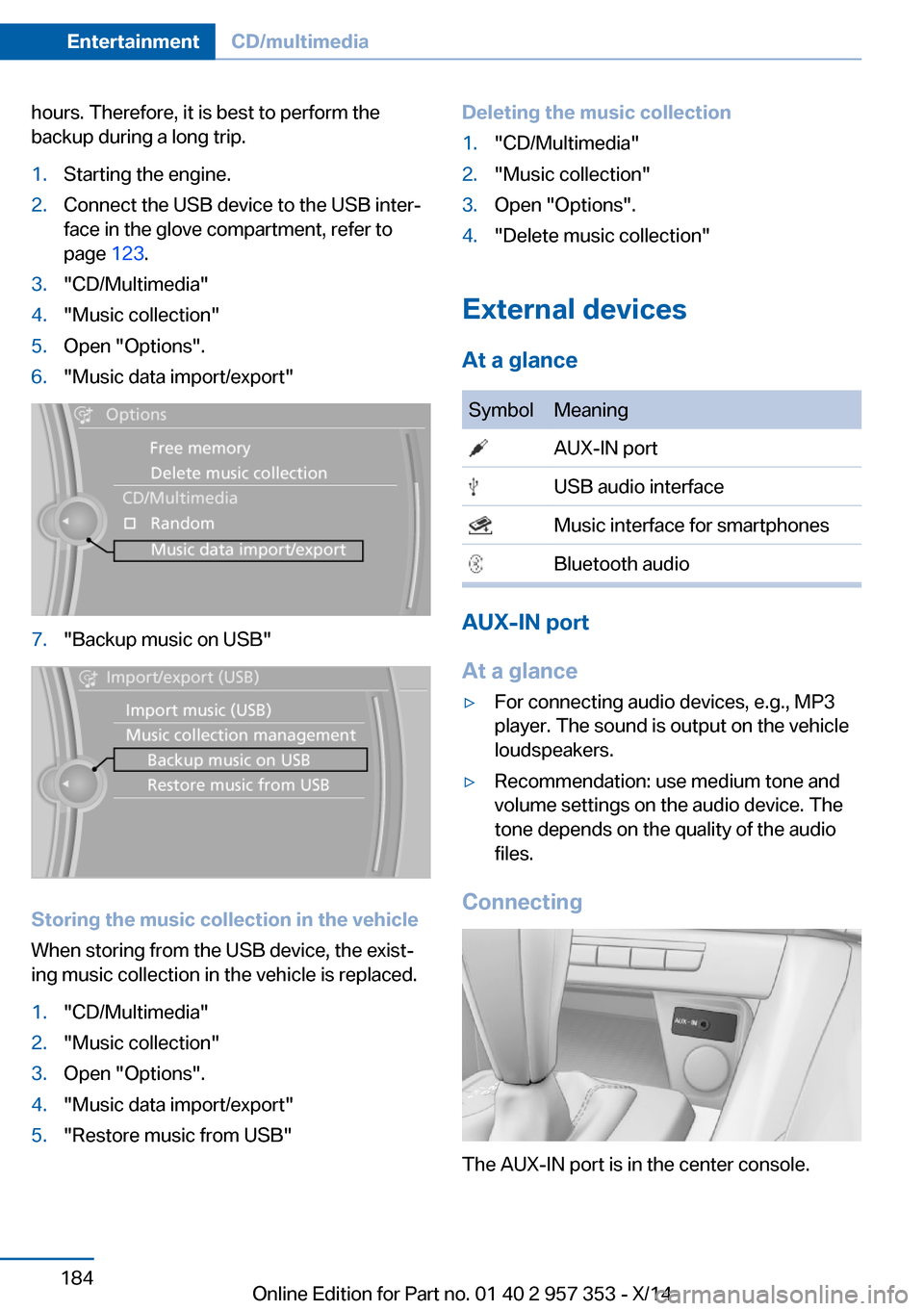
hours. Therefore, it is best to perform the
backup during a long trip.1.Starting the engine.2.Connect the USB device to the USB inter‐
face in the glove compartment, refer to
page 123.3."CD/Multimedia"4."Music collection"5.Open "Options".6."Music data import/export"7."Backup music on USB"
Storing the music collection in the vehicle
When storing from the USB device, the exist‐
ing music collection in the vehicle is replaced.
1."CD/Multimedia"2."Music collection"3.Open "Options".4."Music data import/export"5."Restore music from USB"Deleting the music collection1."CD/Multimedia"2."Music collection"3.Open "Options".4."Delete music collection"
External devices
At a glance
SymbolMeaning AUX-IN port USB audio interface Music interface for smartphones Bluetooth audio
AUX-IN port
At a glance
▷For connecting audio devices, e.g., MP3
player. The sound is output on the vehicle
loudspeakers.▷Recommendation: use medium tone and
volume settings on the audio device. The
tone depends on the quality of the audio
files.
Connecting
The AUX-IN port is in the center console.
Seite 184EntertainmentCD/multimedia184
Online Edition for Part no. 01 40 2 957 353 - X/14
Page 234 of 297

Wheels and tiresVehicle equipment
This chapter describes all series equipment as
well as country-specific and special equipment
offered for this model series. Therefore, it also
describes equipment that may not be found in
your vehicle, for instance due to the selected
special equipment or the country version. This
also applies to safety-related functions and
systems.
When using the features and systems descri‐
bed here, adhere to local regulations.
Tire inflation pressure Safety information
It is not merely the tires' service life, but also
driving comfort and, to a great extent, driving
safety that depend on the condition of the tires
and the maintenance of the specified tire pres‐
sure.
Checking the pressure Tires naturally lose pressure uniformly across
all four tires.
Only check the tire inflation pressure when the
tires are cold. This means after a maximum of
1.25 miles/2 km driving or when the vehicle
has been parked for at least 2 hours. When the
tires are warm, the tire inflation pressure is
higher.
Check the tire inflation pressure regularly
Regularly check the tire inflation pres‐
sure and correct it as needed: at least twice a
month and before a long trip. If you fail to ob‐
serve this precaution, you may be driving on
tires with incorrect tire pressures, a condition
that may not only compromise your vehicle's
driving stability, but also lead to tire damage
and the risk of an accident.◀Tires warm up during driving and the tire infla‐
tion pressure increases as the temperature
rises. The tire inflation pressure specifications
apply to cold tires or tires at ambient tempera‐
ture.
Only check the tire inflation pressure when the
tires are cold. This means after a maximum of
1.25 miles/2 km driving or when the vehicle
has been parked for at least 2 hours.
The values displayed by tire inflation stations
may be up to 0.1 bar, 2 psi too low.
For the Flat Tire Monitor: after adjusting the
tire inflation pressure to a new value, reinitialize
the Flat Tire Monitor, refer to page 91.
For the Tire Pressure Monitor: after adjusting
the tire inflation pressure to a new value, reset
the Tire Pressure Monitor, refer to page 94.
Pressure specifications The tables below provide all the correct infla‐
tion pressures for the specified tire sizes at
ambient temperature.
The inflation pressures apply to the tire sizes
approved and tire brands recommended by
BMW; a list of these is available from your
service center.
For correct identification of the right tire infla‐
tion pressures, observe the following:▷Tire sizes of your vehicle.▷Maximum allowable driving speed.
Tire inflation pressures for driving up
to 100 mph or 160 km/h
For normal driving up to 100 mph/160 km/h,
adjust pressures to the respective tire inflation
pressures listed on the following pages in the
column for traveling speeds up to 100 mph/
160 km/h to achieve optimum driving comfort.
Seite 230MobilityWheels and tires230
Online Edition for Part no. 01 40 2 957 353 - X/14
Page 252 of 297

Rear1.Fold up and hold the wiper arm.2.Squeeze the locking spring, arrows 1, and
fold out the wiper blade, arrow 2.3.Take the wiper blade out of the catch
mechanism toward the front.
Lamp and bulb replacement
Notes
Lamps and bulbs
Lamps and bulbs make an essential contribu‐
tion to vehicle safety.
The manufacturer of the vehicle recommends
that you entrust corresponding procedures to
the service center if you are unfamiliar with them or they are not described here.
You can obtain a selection of replacement
bulbs at the service center.
Danger of burns
Only change bulbs when they are cool;
otherwise, there is the danger of getting
burned.◀
Working on the lighting system
When working on the lighting system,
you should always switch off the lights af‐
fected to prevent short circuits.
To avoid possible injury or equipment damage
when replacing bulbs, observe any instructions
provided by the bulb manufacturer.◀
Do not perform work/bulb replacement
on xenon headlamps
Have any work on the xenon lighting system,
including bulb replacement, performed only by
a service center.
Due to the high voltage present in the system,
there is the danger of fatal injuries if work is
carried out improperly.◀
Do not touch the bulbs
Do not touch the glass of new bulbs with
your bare hands, as even minute amounts of
contamination will burn into the bulb's surface
and reduce its service life.
Use a clean tissue, cloth or something similar,
or hold the bulb by its base.◀
Light-emitting diodes LED
Light-emitting diodes installed behind translu‐
cent lenses serve as the light source for many
of the controls, displays and other equipment
in your vehicle.
These light-emitting diodes, which operate us‐
ing a concept similar to that applied in conven‐
tional lasers, are officially designated as
Class 1 light-emitting diodes.
Do not remove the covers
Do not remove the covers, and never
stare into the unfiltered light for several hours; otherwise, irritation of the retina could result.◀
Headlamp glass
Condensation can form on the inside of the
headlamps in cool or humid weather. When
you drive with the lights switched on, the con‐
densation evaporates after a short time. The
headlamps do not need to be changed.
If the condensation in the headlamps does not
evaporate after trips with the lights switched
on, and the amount of moisture in the head‐
lamps increases, for example if water droplets
form, have them checked by your service cen‐
ter.Seite 248MobilityReplacing components248
Online Edition for Part no. 01 40 2 957 353 - X/14