2014 AUDI RS7 SPORTBACK steering
[x] Cancel search: steeringPage 113 of 292
Parking system plus
Description
Applies to vehicles: with parking system plus
Audi parking system plus provides audio and
visual signals when parking.
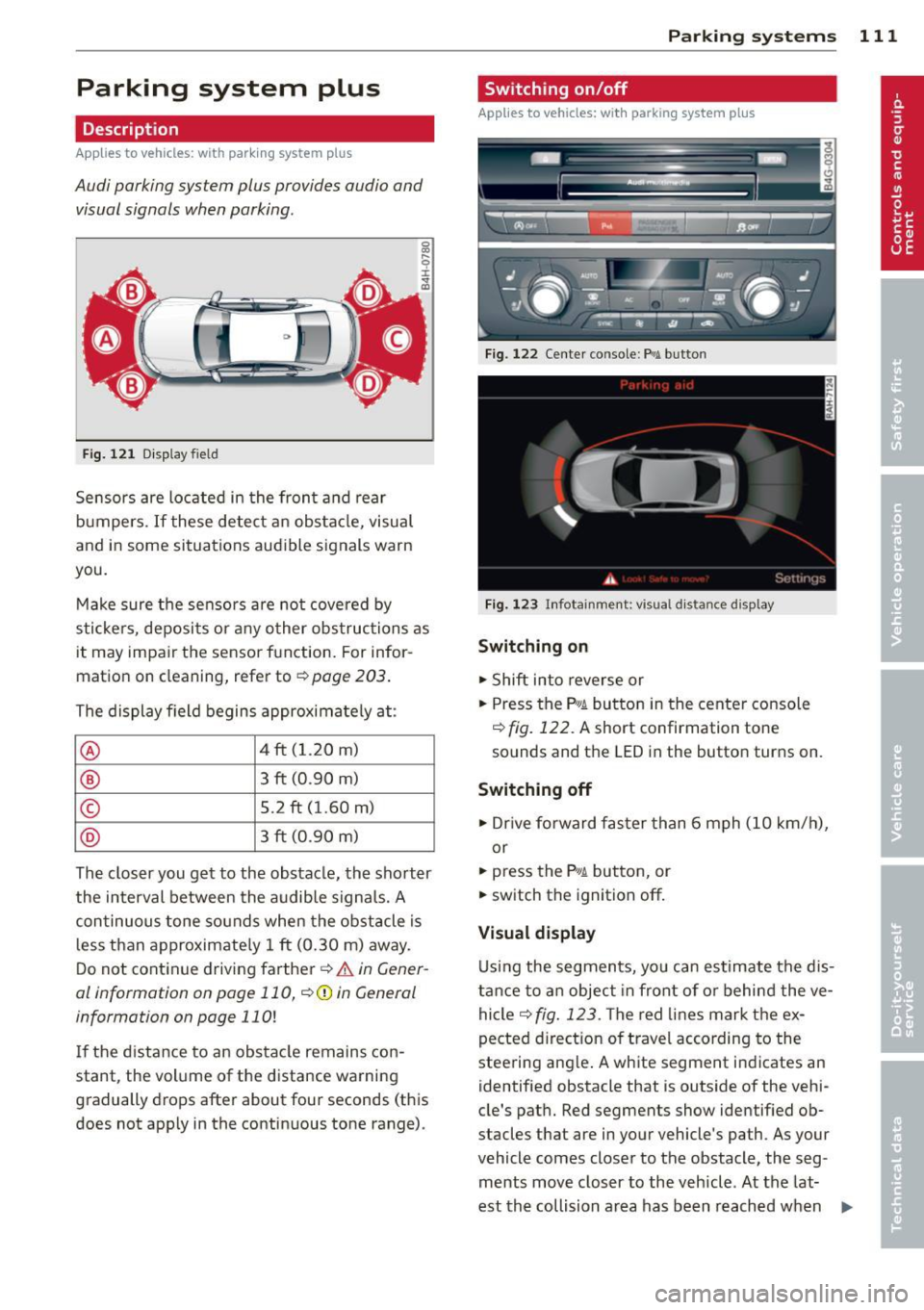
Fi g. 1 21 Dis p lay f ie ld
Sensors are located in the front and rear
bumpers.
If these detect an obs tacle, visual
and in some situations aud ible signals warn
you.
M ake sure t he sensors are not cove red by
s t icke rs, deposits or a ny o ther obs truc tions as
it may impair the sensor f unction. For infor
matio n on cleaning, refer to
c::> page 203 .
The display field begins approximately at:
® 4 ft (1.20 m)
® 3 ft (0 .90 m)
© 5.2 ft (1.60 m)
@ 3 ft (0 .90 m)
The clos er you get to the obstacle, the sho rter
the interval between the audible signa ls. A
con tinuous tone sounds when the obstacle is
l ess than approximate ly 1 ft (0.30 m) away .
Do not continue driving farther¢
& in Gener
al information on page 110, ¢(Di n General
information on page 110!
If the d istance to an obstacle remains con
stant, the volume of the d istance wa rning
gradually drops after about four seconds (this
does not apply in the continuous tone range).
P arking systems 111
Switching on/off
Applies to vehicles: with parking system plus
F ig. 122 Ce nter co nso le :
Pv! button
F ig . 1 23 Infota in m ent : v is u al d is ta n ce d isplay
Switching on
.,. Shift into reverse or
.,. Press the
p,;A bu tton in the center console
c::> fig. 122 . A short confirmation tone
sounds and the LED in the button turns on .
Switching off
.,. Dr ive fo rward fas ter than 6 mph (10 km/ h),
or
.,. press the
P" IA button, or
.,. sw itch the ignit ion off.
Visual d isplay
U sing the segmen ts, yo u can estimate the dis
tance to a n object in front of o r behind the ve
hicle ¢
fig. 123 . The red lines mark the ex
pected d irect ion of travel according to the
steering ang le . A wh ite segment indicates an
identified obstacle that is outside of the vehi
cle's pat h. Red segments show identified ob
stacles that are in your vehicle's path . As your
vehicle comes close r to the obstacle, the seg
ments move closer to the vehicle . At the lat-
est th e collision area has been reached when ..,.
Page 115 of 292
example, after a collision, do not contin
ue to use the system for safety reasons.
Have it checked by your authorized Audi
dealership or authorized repa ir facility .
- Only use the rear v iew camera to assist
you if it shows a good, clear picture. For
example, the image may be affected by
the sun shin ing into the lens, dirt on the
lens or if there is a system fau lt.
- Use the rear view camera only if the lug
gage compartment lid is comp letely
closed. Ma ke su re any objects you may
h ave mounted on the luggage compart
ment lid do not block the rear view cam
era.
- The camera lens en la rges and dis torts
the field of vision. The ob ject appears
both a ltered and inaccurate on the
screen .
- In certain s ituations, peop le or objects in
the display appear closer or f urther
away:
- For objects that do not touch the
ground , such as the bumper of a
pa rked vehicle, a t railer hitch or the
rea r of a truck. Do not use the help
lines in this case.
- If driven from a leve l su rface onto a n
incline, or a downward slope.
- If driven towa rd p rotruding objects.
- If the veh icle is ca rrying too much load
in the rear.
(D Note
- Always read and follow the applicable
warnings
¢ (D in General information on
page 110.
- The orange colored orientat ion lines in
the Infotainment d isplay show the vehi
cle path depending on the steering
whee l ang le. The front of the vehicle
front sw ings out more than the rear of
the veh icle. Mainta in p lenty of distan ce
so that your outside mirro r o r a corne r of
you r vehicle does not collide with any ob
stacles.
Par king sys tem s 113
Switching on/off
App lies to vehicles: wit h parking system plus w ith rear
v iew camera
Switching on
.. Shift in to reverse or
.. press the
PwA bu tton in the center console
¢ page 111, fig . 122 . A short confirmation
tone sounds and the LED in the button turns
on .
Swi tching between the re ar view camera
and optical display
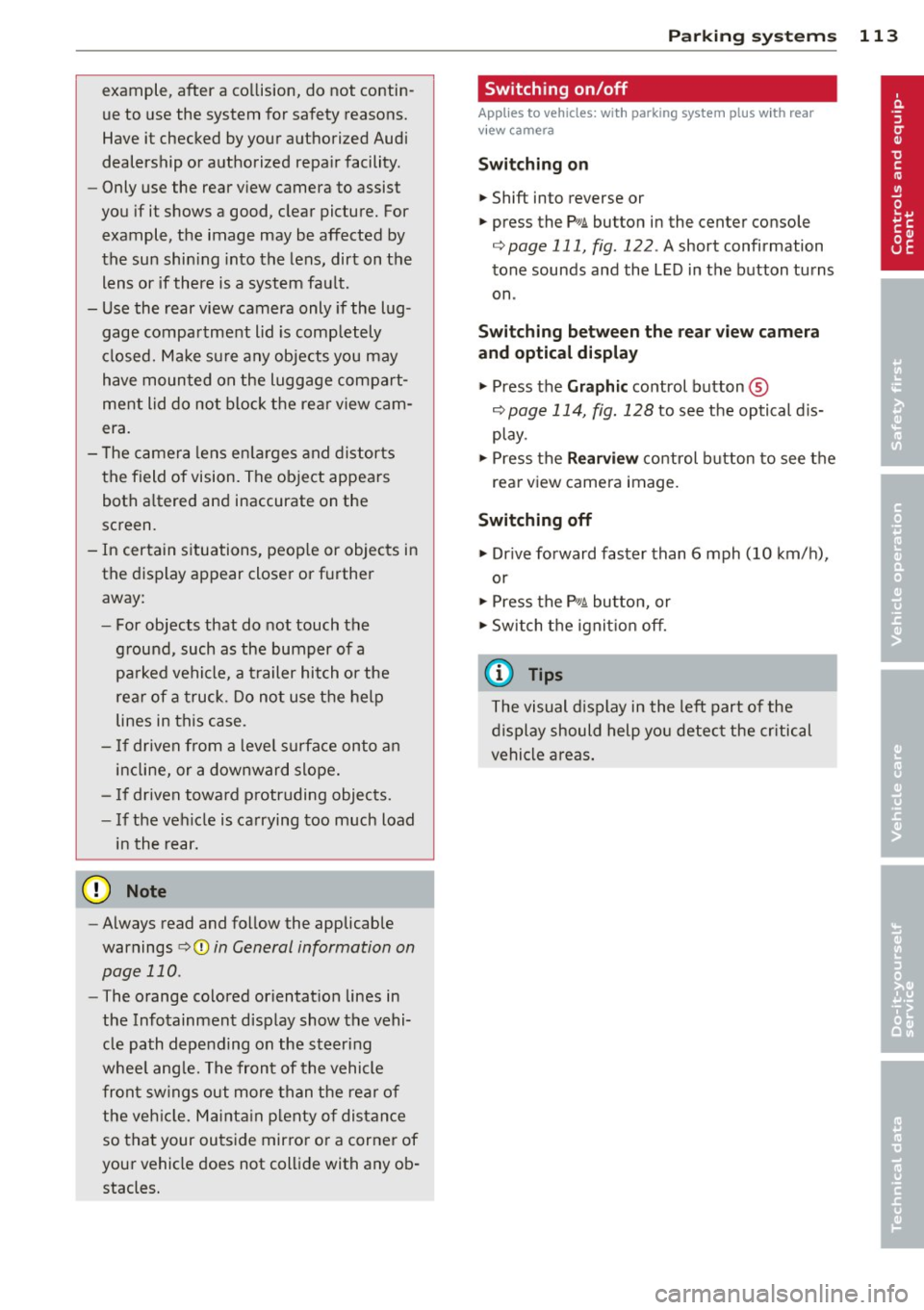
.,. Press the Graphi c control button®
¢ page 114, fig. 128 to see the optical d is
play .
.. Press the
Rearview control b utton to see the
rear view camera image.
Switching off
.,. Dr ive forward faster than 6 mph (10 km/h),
or
.. Press the
p,,1A button, or
.,. Switch the ignit ion off.
(D Tips
The visual d isplay in the left part of the
display should help you detec t the critical
vehicle areas .
Page 116 of 292
114 Parking systems
Cross parking
Applies to vehicles: with park ing system p lus w it h rear
view ca mera
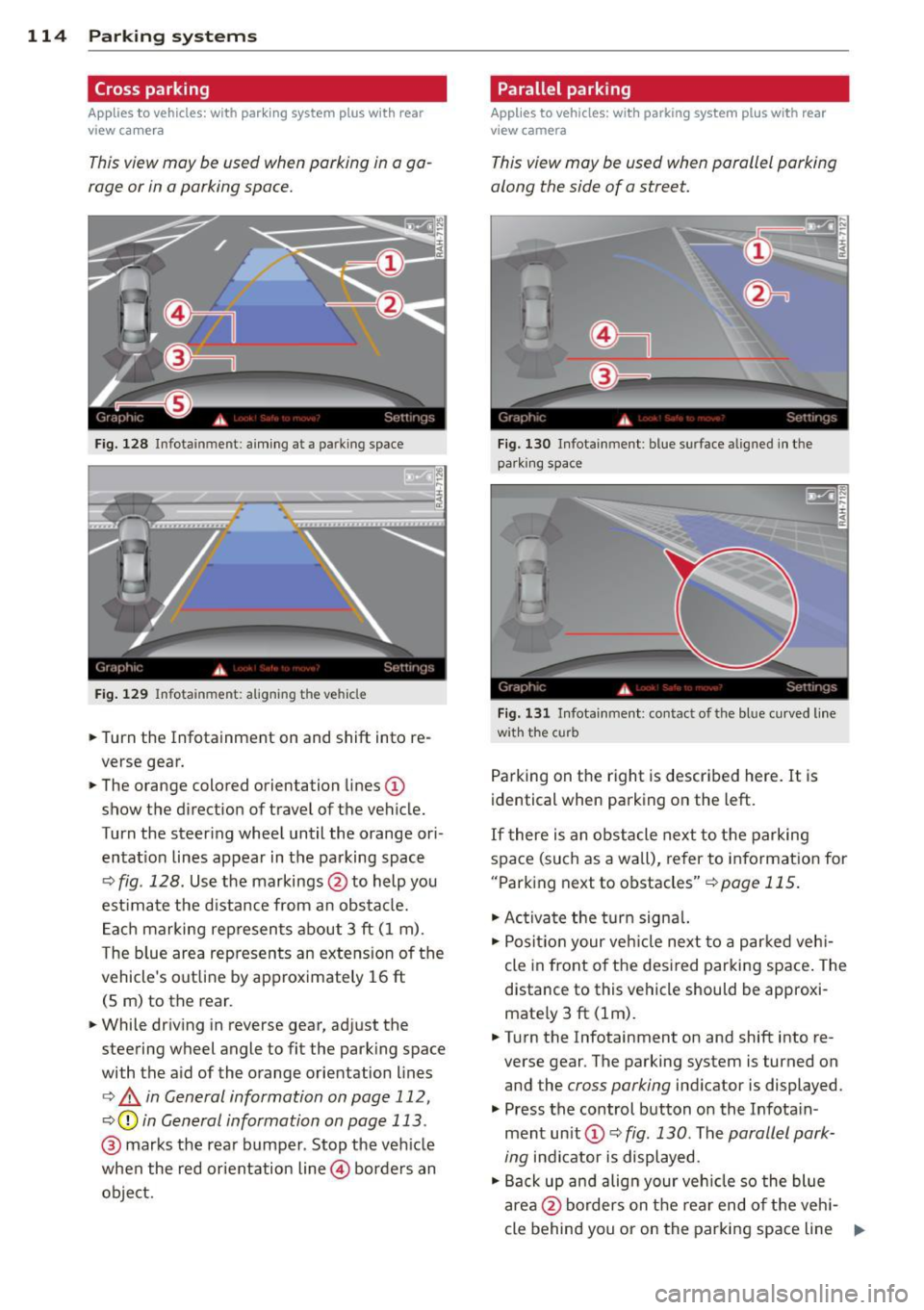
This view may be used when parking in a ga
rage or in a parking space.
F ig. 128 Infotainment: aim ing at a parking space
Fig. 129 Infotainment : aligning the ve hicle
... Turn the Infotainment on and shift into re
verse gear.
... The orange colored orientation lines
(D
show the direction of travel of the vehicle.
Turn the steering wheel until the orange ori
entat ion lines appear in the parking space
c:::> fig. 128. Use the markings @to help you
est imate the distance from an obstacle.
Each marking represents about 3 ft (1 m).
The blue area represents an extens ion of the
vehicle's out line by approximately 16 ft
(5 m) to the rear.
... While driving in reverse gear, adjust the
steering wheel angle to fit the parking space
with the aid of the orange orientation lines
c:> & in General information on page 112,
c:::> @ in General information on page 113 .
@ marks the rear bumper . Stop the veh icle
when the red orientation line@ borders an
object.
Parallel parking
Applies to vehicles : wit h parking system pl us with rear
v iew camera
This view may be used when parallel parking
along the side of a street.
Fig . 130 Infotainment : blue surface aligned in the
park ing space
Fig. 131 Infotainme nt: contact of the blue curved lin e
w ith the curb
Parking on the right is described here. It is
identical when parking on the left.
If there is an obstacle next to the parking
space (such as a wall), refer to information for
"Parking next to obstacles"
c:::> page 115.
"' Activate the turn signal.
"'P osit ion your veh icle next to a parked vehi
cle in front of the desired parking space. The
distance to this vehicle should be approxi
mate ly 3 ft (lm) .
... Turn the Infotainment on and shift into re
verse gear . The parking system is turned on
and the
cross parking indicator is displayed.
"' Press the control button on the Infota in
ment un it
(D c:::> fig. 130 . The parallel park
ing
indicator is displayed.
"' Back up and align your vehicle so the blue
area @borders on the rear end of the veh i-
cle behind you or on the parking space line ..,.
Page 117 of 292
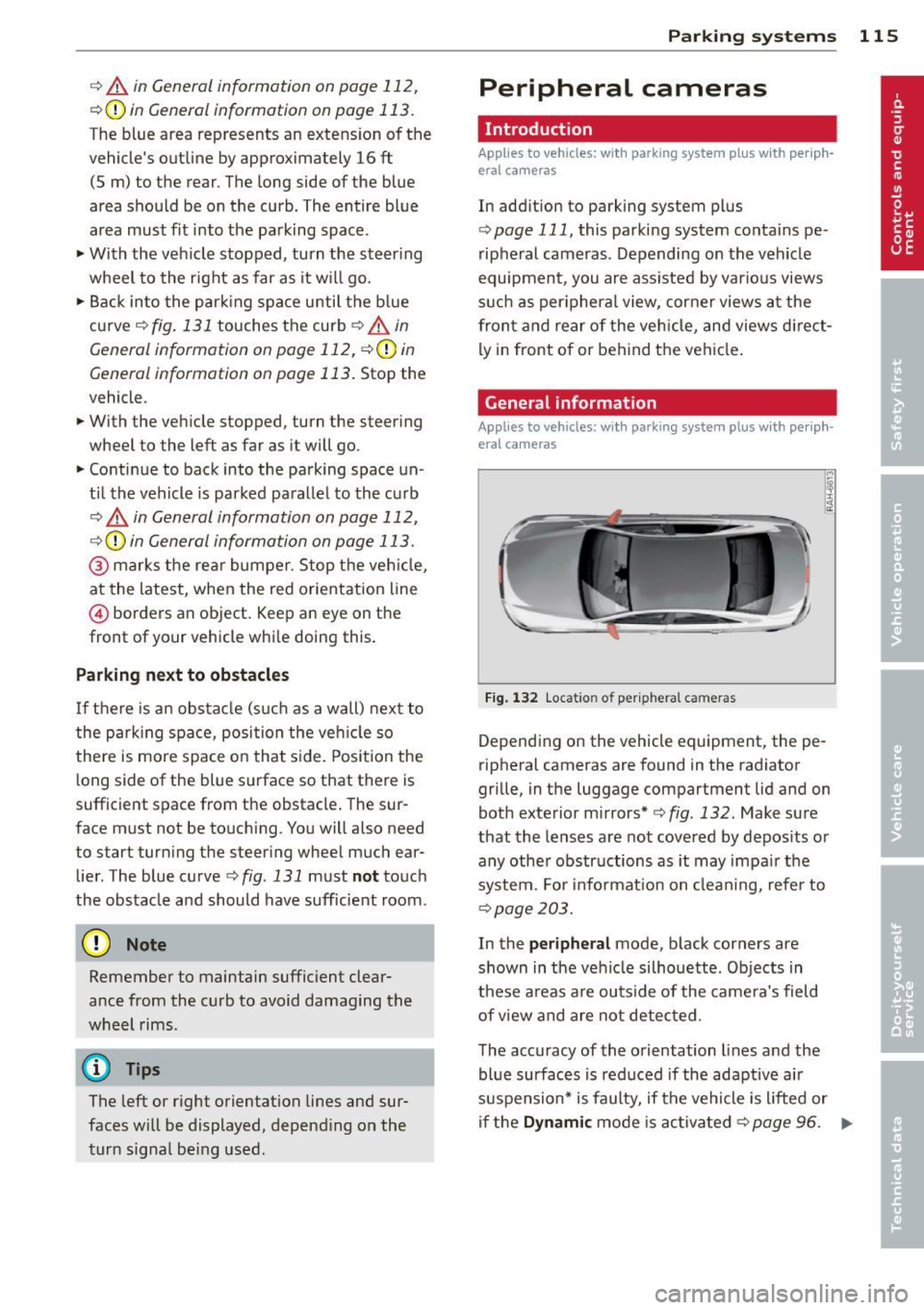
r::> & in General information on page 112,
r::>(D in General information on page 113 .
The blue area represents an extens ion of the
vehicle's outline by approximately 16 ft
(5 m) to the rear . The long side of the blue
area should be on the curb . The entire blue
area must fit into the parking space.
• With the veh icle stopped, turn the steering
wheel to the right as far as it w ill go.
• Back in to the park ing space u ntil the b lue
curve
r::> fig . 131 touches the curb r::> & in
General information on page 112,
r::> (D in
General information on page 113 .
Stop the
vehicle.
• With the veh icle stopped , turn the steer ing
whee l to the left as far as it will go .
• Continue to back into the parking space un
t il the vehicle is parked pa rallel to the cu rb
r::> & in General information on page 112,
r::> (D in General information on page 113 .
@ marks the rear bumper. Stop the veh icle,
at the latest, when the red orientation line
@ borders an object. Keep an eye on the
front of your vehicle whi le do ing th is .
Pa rking next to obstacles
If there is an obstacle (s uc h a s a wall) next to
the par king space, position the veh icle so
there is more space o n that s ide. Position the
l ong side of the blue s urface so that there is
sufficient space from the obstacle . The sur
face must not be to uch ing . You will also need
to star t turning the steer ing wheel much ear
lier . The blue curve
r::>fig .131 must not touch
the obstacle and should have sufficient room.
(D Note
Remember to maintain sufficient clear
ance from the curb to avoid damag ing the
wheel rims .
(D Tips
The left or right orientation lines and sur
faces will be displayed, depend ing on the
turn sig na l being used.
P arking systems 115
Peripheral cameras
Introduction
Applies to vehicles: with parking system plus with periph
eral cameras
In add ition to parking system plus
¢
page 111, this parking system conta ins pe
ripheral cameras . Depending on the vehicle
equipment , you are ass isted by vario us views
su ch a s p eriphera l view, corne r views a t the
fron t and rear of the veh icle, and views di rect
ly in front of or behind t he vehicle .
General information
Applies to vehicles: with parking system plus with periph
eral cameras
F ig . 1 32 Locat io n of per ip hera l ca meras
Depending on the vehicle equipment, the pe
ripheral cameras are found in the radiator
grille, in the luggage compartment lid and on
both exterior mirrors* ¢
fig. 132. Make su re
that the lenses a re not covered by depos its o r
any other obstr uctions as it may impa ir t he
system. For info rmat io n on clean ing, refe r to
¢ page 203.
In the peripheral mode , b lack corners are
shown in the ve hicle silhouette . Objects in
these a reas a re outside of the came ra's field
of view and are not detec ted .
The accuracy of the orientation lines and the
bl ue surfaces is reduced if the adaptive a ir
suspension* is faulty, if the vehicle is l ifted or
if t he
D ynamic mode is activa ted ¢ page 96. ..,.
Page 118 of 292
116 Parking systems
& WARNING
- Always read and follow the applicable
warnings
Q .&. in General information on
page
110.
- If the posit ion or the installation angle
of a camera was changed, afte r a colli
sion for example, do not continue to use
the system for safety reasons. Have it
checked by your au thori zed Audi dealer
s hip.
- K eep in m ind that the image i n the dis
play is distorted if the ex ter ior mir ro r
housing has been man ual ly adjusted .
- Use the
re ar mode and the corner view
(re ar)
mode on ly when the luggage com
partment lid is fully closed . Otherwise
the image in the display will be distort
ed.
- The veh icle surroundings are shown us
ing the camera images . The vehicle im
age is shown by the system. Objects and
obstacles above the camera are not dis
played .
- Camera lenses en large and distort the
field of v is ion. The objects appear both
altered and inaccu rate on the screen.
(D Note
- Always read and follow the applicab le
warnings
c:> (i) in General information on
page
110.
- The In fota inment display shows the d i
rection in wh ich the rear of the vehicle is
traveling based on the steering wheel
angle . The front of the ve hicle front
swings out more than the rear of t he ve
hicle. Ma intain plenty of distance so that
you r outside m irror or a corner of you r
vehicle does no t coll ide wi th any obsta
cles.
@ Tips
I f t he 8/cr;iJ/r:;::::s symbol appea rs i n the
d isp lay and the respec tive display area is
g rayed out, then the power exter io r mir
rors were fo lded in or the driver 's door/ front passenger's door/
luggage compart
ment lid was opened.
Switching on or off
Applies to vehicles: with parking system plus with periph
eral cameras
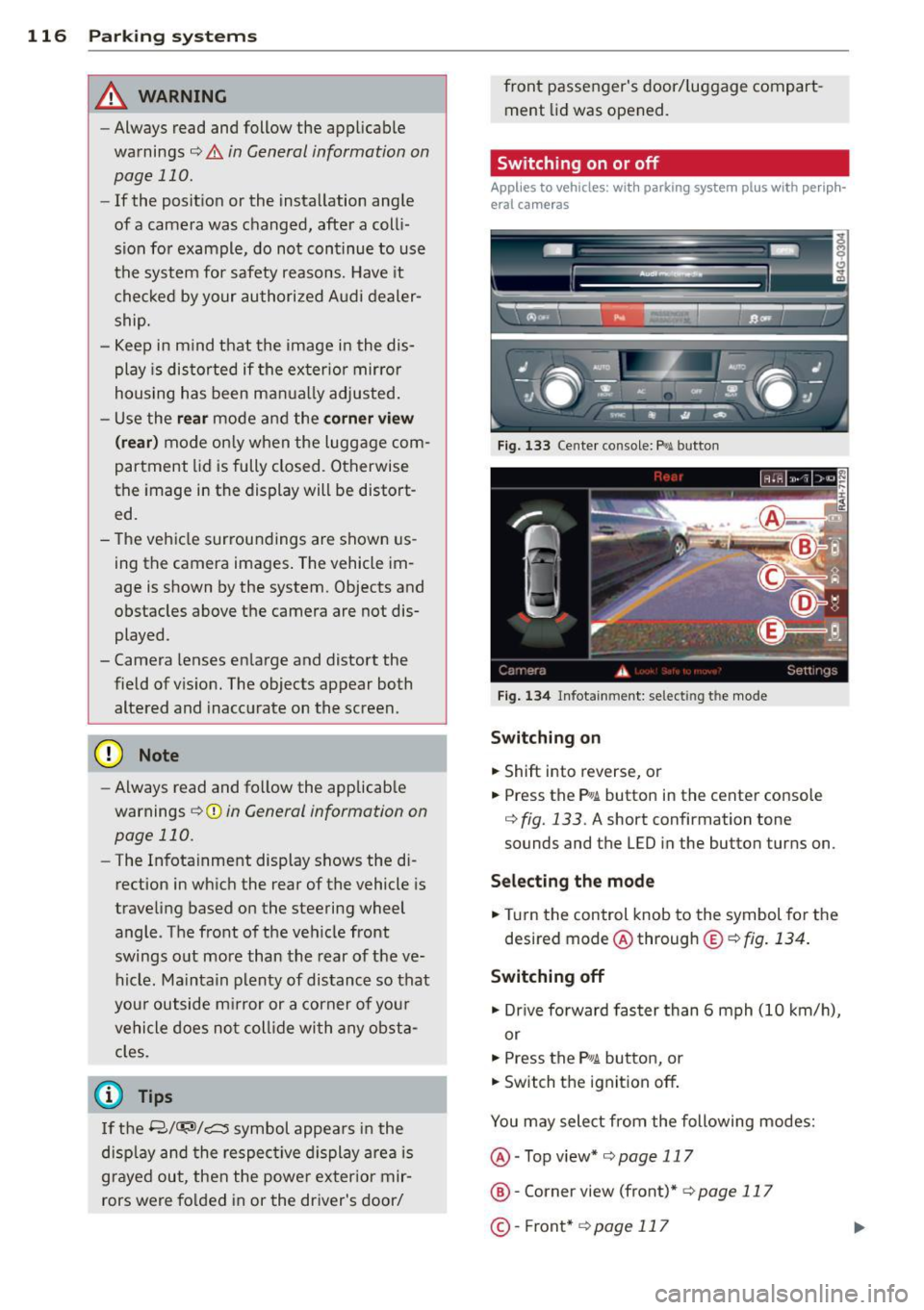
Fig . 1 33 Ce nte r co n sole: f> •JI butto n
Fig. 1 34 Infot ainment: se lect ing t he m od e
Switching on
.. Shift into reverse , or
.. Press the P•QJ\. button in the cente r console
c:> fig. 133 . A short confirmation tone
sounds and the L ED in the button turns on .
Selecting the mode
.. Turn the control knob to the symbol fo r the
desired mode @ through @¢
fig. 134 .
Switching off
.. Dr ive fo rward faster than 6 mph (10 k m/ h),
or
.. Press the
P"li bu tton, or
.. Switch the ignit ion off .
You may sele ct from the following modes:
@ -Top view*
c:>page 117
@ -Corne r view (front)* c:> page 11 7
©-Front * c:>page 117
Page 120 of 292

118 Parking systems
orientation line * borders an object¢.&. in
Gen eral information on page 116 .
Rear
Appl ies to vehicles: with parking system plus and rear
mode
F ig. 139 In fot ainm ent: rear mode
Th is view as sists you for example, in using the
f ull maneuvering range behind the veh icle .
The area beh ind the veh icle is d isplayed . The
vehicle surroundings are shown in the left
area of the display . You can switch between
optical d isplay and camera image*
¢ page 117.
.,. Select the @symbol with the control knob .
You can choo se between three different views
in this mode .
.,. To cross park or parallel park, press the ®
control button on the unit repeated ly until
the symbol for the desired mode is selected .
Cross parking
Applies to vehicles: with parking system p lus and rear
mode
T his view may be used when parking in a ga
rage or in a parking space.
Fi g. 140 Infot ainment: a im ing at a parkin g space
Fig . 14 1 Info ta inme nt: al ign ing t he ve hicle
Requ irement: cros s parking is selected
¢ page 118 .
.,. The orange colored orientation lines(!)
show the direction of travel of the vehicle .
Turn the steering wheel until the orange ori
entation lines appear in the parking space
¢ fig . 140 . Use the mark ings @to help you
estimate the distance from an obstacle .
Ea ch mar king represe nts about 3
ft (1 m).
The blue area represents an ex tension of the
veh icle's ou tline by approximate ly 16 ft
(S m) to the rear.
.,. Whi le driving in reverse gear, adjust the
steer ing whee l angle to fit the parking space
w ith the aid of the orange orientat ion lines
¢ .&. in General information on page 116,
¢ (Din General information on page 116 .
@ marks the rear bumper. Stop the vehicle
when the red orienta tion line @ borders an
obs ta cl e
¢ .&. in General information on
page 112.
Page 121 of 292
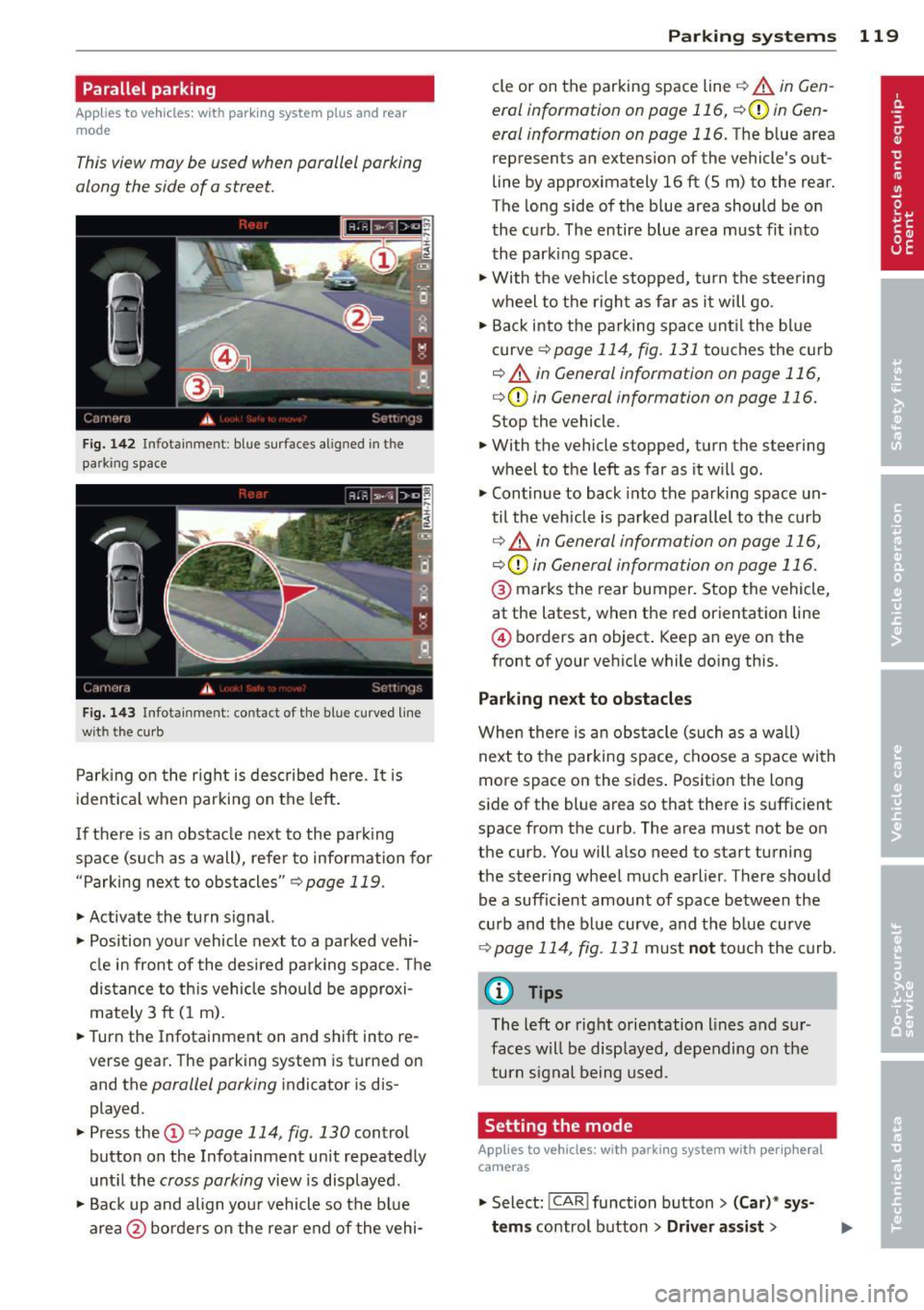
Parallel parking
Applies to vehicles: with parking system plus and rear
mode
This view may be used when parallel parking
along the side of a street.
Fig. 1 42 Infotainment: blue su rfaces aligned in the
parking space
F ig. 1 43 Infota inmen t: contact of the blue curved line
wi th th e curb
Park ing on the right is described he re. It is
ident ical when parking on the left .
I f there is an obstacle next to the park ing
space (such as a wall), refer to information for
"Parking next to obstacles"
c::> page 119.
~ Activate the turn s ignal.
~ Position your vehicle next to a parked vehi
cle in front of the desired parking space . T he
distance to th is vehicle should be approxi
mately 3 ft (1 m).
~ Turn the Infotainment on and shift into re
verse gear. The parking system is turned on
and the
parallel parking indicator is dis
played .
~ Press the@¢ page 114 , fig. 130 control
button on the Infotainment un it repeatedly
unt il the
cross parking view is displayed.
~ Backup and align yo ur vehicle so the blue
area @ borders on the rear end of the vehi-
Parking systems 119
cle or on the parking space line c::> A in Gen
eral information on page 116, c::>(I)in Gen
eral information on page 116.
The blue area
represents an extension of the vehicle 's out
line by approximately 16 ft (5 m) to the rear.
The long side of the blue area should be on
the curb . The entire blue area must fit into
th e parking space .
~ With the vehicle stopped, turn the stee ring
wheel to t he righ t as fa r as it will go.
~ Back into the parking space unt il the blue
curve
c::> page 114, fig. 131 to uches the curb
c::> A in General information on page 116,
c::>(D in General information on page 116.
Stop the vehicle.
~ With the vehicle stopped, turn the steering
wheel to the left as far as it w ill go.
~ Continue to back into the parking space un
til the vehicle is parked parallel to the curb
c::> ..&. in General information on page 116,
c::> (Din General information on page 116.
@ marks the rear bumper. Stop the vehicle,
at the latest, when the red orientation line
@ borders an object . Keep an eye on the
front of your vehicle while do ing this .
Parking next to obstacles
When there is an obstacle (such as a w all)
next to the parking space, choose a space with
more space on the sides . Positio n the long
side of the blue area so that there is sufficient
space from the curb. The area must not be on
the curb. You will also need to start turning
the steering wheel much earlier . T here should
be a sufficient amount of space between the
c ur b and the bl ue curve, and the b lue curve
c::> page 114, fig . 131 m ust no t touch the curb.
@ Tips
The left o r right orientation lines and sur
faces w ill be disp layed, depending on the
turn s ignal being used .
Setting the mode
Applies to vehicles: with parking system with peripheral
cameras
~ Select: ! CAR ! function button> (Car) * sy s
tems
control button > Driver assist >
Page 125 of 292
Driving Safely
General notes
Safe driving habits
Please remember -safety first!
This chapter contains important information,
tips, instructions and warnings that you need
to read and observe for your own safety, the
safety of your passengers and others. We have
summarized here what you need to know
about safety belts, airbags, child restraints as
well as child safety. Your safety is for us
priori
ty number 1.
Always observe the information
and warnings in this section - for your own
safety as well as that of your passengers.
The information in this section applies to all
model versions of your vehicle. Some of the
features described in this sections may be
standard equipment on some models, or may
be optional equipment on others. If you are
not sure, ask your authorized Audi dealer.
A WARNING
-Always make sure that you follow the in
structions and heed the WARNINGS in
this Manual. It is in your interest and in
the interest of your passengers.
- Always keep the complete Owner's Liter
ature in your Audi when you lend or sell
your vehicle so that this important infor
mation will always be available to the
driver and passengers.
- Always keep the Owner's literature handy
so that you can find it easily if you have
questions.
Safety equipment
The safety features are part of the occupant
restraint system and work together to help
reduce the risk of injury in a wide variety of
accident situations.
Your safety and the safety of your passengers
should not be left to chance. Advances in
technology have made a variety of features
available to help reduce the risk of injury in an
Driving Safely 123
accident. The following is a list of just a few of
the safety features in your Audi:
- sophisticated safety belts for driver and all
passenger seating positions,
- safety belt pretensioners,
- safety belt force limiters for the front seats,
- safety belt height adjustment systems for the front seats,
- front airbags,
- knee airbags for the front seats*
- side airbags in the front seats and outer rear
seats*,
- side curtain airbags,
- special LATCH anchorages for child re-
straints,
- head restraints for each seating position,
- adjustable steering column.
These individual safety features, can work to
gether as a system to help protect you and
your passengers in a wide range of accidents.
These features cannot work as a system if
they are not always correctly adjusted and cor
rectly used.
Safety is everybody's responsibility!
Important things to do before driving
Safety is everybody's job! Vehicle and occu
pant safety always depends on the informed and careful driver.
Fo r your safety and the safety of your passen
gers,
before driving always:
.. Make sure that all lights and signals are op
erating correctly.
.,. Make sure that the tire pressure is correct .
.. Make sure that all windows are clean and af
ford good visibility to the outside.
.,. Secure all luggage and other items carefully
I::!) page 64, I::!) page 61.
.. Make sure that nothing can interfere with
the pedals.
.. Adjust front seat, head restraint and mirrors
correctly for your height.
.. Instruct passengers to adjust the head re-
straints according to the ir height. .,.. •
•