Page 284 of 440

Function key: Effect
Complete : Detailed driving recommendations with lane recommendation and additional
information.
Compact : Some additional navigation recommendations and information are left out.
Off : no spoken navigation recommendations.
Time display : Display � during route guidance.
Arrival time : the estimated time of arrival at the destination is displayed.
Driving time : the estimated driving time until reaching the destination is displayed.
Instrument cluster guidance : Visual navigation recommendations for guidance in the instrument
cluster .
Arrow view : Travel direction arrows show the direction of travel and the distance to the next
turn-off point.
Street view : Road and route view corresponding with the map display in the Infotainment
System.
= Voice guidance during phone call: Spoken navigation recommendations are also given during a
telephone call.
Advanced navigation settings : Allows settings for demo mode.
SIRIUS traffic ID : The Sirius traffic ID and the Internet address and the telephone number of the
Sirius activation hotline are displayed in the pop-up window .
Advanced navigation settings: Demo mode and manual location
x In the Advanced navigation settings menu, check the check box in the Demo mode
function key by pressing it ] to start virtual route guidance to the entered destination.
x Press the Enter current position manually function key to select a manual location in the same way
you entered a destination .
If demo mode is enabled , an additional pop-up window opens when you start route guidance.
x Pressing the Demo mode function key starts a “virtual route guidance” to the destination you have
entered.
x If you press the Normal mode function key, a “real route guidance” starts.
The sequence of events and the operations in virtual route guidance are similar to those in real route
guidance. Once a manual location has been entered, the virtual route guidance starts from that
position.
Virtual route guidance is repeated when you reach the fictitious destination and always starts again
from the starting point if it is interrupted.
When real route guidance is started following route guidance in demo mode, the unit first has to
reorient itself. Depending on the number of currently received satellites, this orientation may take
some time. Vehicle movement can reduce the re-orientation time
.If the vehicle is moved and the unit can determine its current location by GPS, any manually
entered location will be overwritten with the current vehicle location.
.Disable demo mode after use, otherwise you will be prompted to choose between virtual and
normal route guidance each time you start route guidance.
Page 290 of 440
Favorite destinations on the map
A favorite category can be specified for stored destinations Favorite destinations can be displayed on
the map with the orange favorite icon assigned to them (private T or business P
The list of favorite destinations is called up from the Destination entry menu .
Points of interest on the map
Points of interest can be selected as a navigation destination .
Points of interest are divided into point of interest categories. These point of interest categories are
assigned to blue point of interest icons (such as as * hotel and , petrol station).A list of
available point of interest categories can be called up from the Map settings menu. Map icons can
be selected there for display .
Display detailed information on points of interest
x Press the symbol on the map briefly to display a window with further information.
Due to the map scale, there may be several entries behind one symbol on the map, in which case a
list appears for selecting an entry.
x Select the required entry by pressing.
Function keys for further operation are displayed in the information window that appears.
x Selecting points of interest and favorite destinations from the map .
x TMC traffic reports on the map .
3D models on the map
An abstract 3D city model can be displayed in the 6 3D display type for some cities (such as Berlin).
In addition, special historical buildings and sights of interest are displayed as photo-realistic 3D
models.
To display these, autozoom needs to be switched off in some cases and you have to zoom further into
the map .
The display of 3D city models and 3D sights of interest is enabled and disabled in the map settings .
.If no symbols or 3D models can be displayed due to the scale, turn the setting knob clockwise
⇒ fig. 123 (3) in order to zoom in on the map.
Map settings: selecting map symbols
.
Page 310 of 440
.The entries in the telephone directory of the cell phone cannot be changed permanently via the
telephone control. A telephone number stored in the telephone directory on the cell phone can only be
modified for calls from the vehicle. You can add a country code, for example .
.The telephone directory entries can be called up in the Navigation system via the Directory
menu .
Searching for an entry in the telephone directory
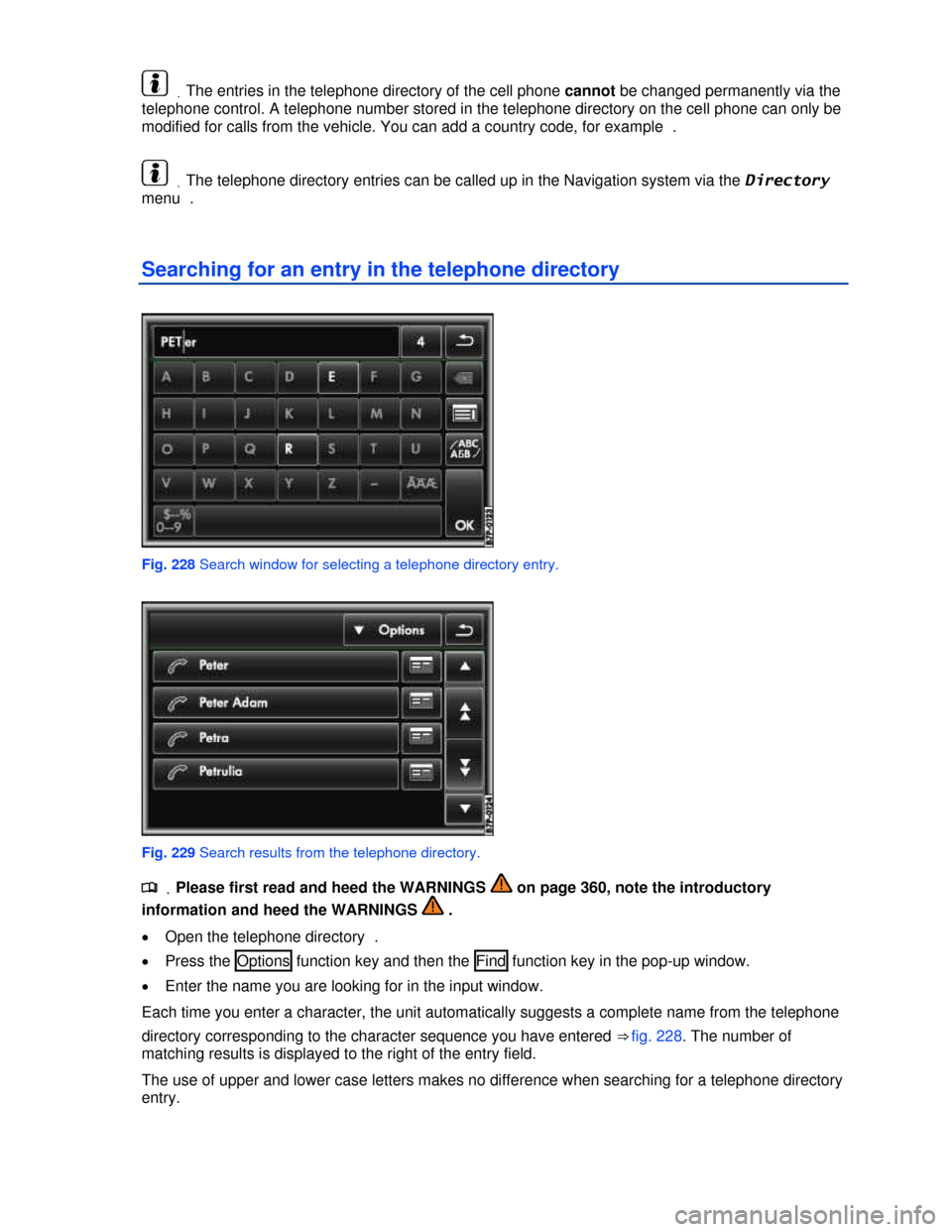
Fig. 228 Search window for selecting a telephone directory entry.
Fig. 229 Search results from the telephone directory.
.
Page 387 of 440

Orientation lines overview
Meaning of the orientation lines and areas projected on screen ⇒ fig. 267. All distances of the
orientation lines refer to a vehicle on a level surface.
(1) Safety distance: Area up to about 16 inches (40 cm) behind the vehicle on the road.
(2) Vehicle's width limits.
(3) Point to change steering angle.
When the yellow line touches the curb or any other parking space boundary, the steering wheel
must be turned in the opposite direction (close-up view).
(4) The parking area parallel to the vehicle which is needed for parking. The area shown must fit
completely into the parking space.
(5) Parked vehicle at the curb.
Parking
x Position the vehicle about 3 feet (1 meter) away from and parallel to the parking space and shift
into reverse.
x On the screen of the navigation system, activate Mode 2 for parallel parking.
x Back up slowly and steer the vehicle so that the yellow surface on the screen is flush with the side
boundary of the parking space (such as the curb) and stops short of any obstacle (5), such as another
vehicle.
x Turn the steering wheel as far as it will go into the direction of the parking space and slowly back
up.
x Once the yellow line (3) touches the side boundary of the parking space, such as a painted line or
a curb (close-up view), turn the steering wheel as far as it will go in the opposite direction.
x Continue backing up until the vehicles is positioned in the parking space parallel to the roadway. If
necessary, correct the parking position.
.It may take up to 5 seconds for the area detected by the sensors to be displayed on the factory-
installed radio or navigation screen.