Page 287 of 556
287
3-2. Using the audio system
3
Interior features
Adjusting the volume
Press “+” on to increase the volume and “-” to decrease the vol-
ume.
Hold down “+” or “-” on to conti nue increasing or decreasing the vol-
ume.
Silencing a sound
Press and hold .
To cancel, press and hold again.
Selecting a radio station Press to select the radio mode.
Press “” or “ ” on to select a preset station.
To scan for receivable stations, press and hold “ ” or “ ” on
until you hear a beep.
Selecting a track/file or song
Press to select CD, iPod, USB memory or Bluetooth
®
audio mode.
Press “” or “ ” on to select the desired track/file or
song.
STEP1
STEP2
STEP1
STEP2
Page 289 of 556
289
3
Interior features
3-3. Using the Bluetooth® audio system
Bluetooth® audio/phone
■Bluetooth® audio
The Bluetooth
® audio system enables yo u to enjoy music played
on a portable digital audio player (portable player) from the vehi-
cle speakers via wireless communication.
This audio system supports Bluetooth
®, a wireless data system
capable of playing portable audi o music without cables. If your
portable player does not support Bluetooth
®, the Bluetooth®
audio system will not function.
■ Bluetooth
® phone (hands-free phone system)
This system supports Bluetooth
®, which allows you to make or
receive calls without using cables to connect a cellular phone
and the system, and without operating the cellular phone.
Page 291 of 556
291
3-3. Using the Bluetooth
® audio system
3
Interior features
■
Compatible models
●Bluetooth
® specifications:
Ver. 1.1, or higher (recommended: Ver. 2.1 + EDR or higher)
● Following Profiles:
• A2DP (Advanced Audio Distribution Prof ile) Ver. 1.0, or higher (recom-
mended: Ver. 1.2 or higher)
• AVRCP (Audio/Video Remote Control Pr ofile) Ver. 1.0 or higher (rec-
ommended: Ver. 1.3 or higher)
Portable players must correspond to the above specifications in order to be
connected to the Bluetooth
® audio system. However, please note that some
functions may be limited depending on the type of portable player.
● Cellular phone
• HFP (Hands Free Profile) Ver. 1.0 or higher (recommended: Ver. 1.5)
• OPP (Object Push Profile) Ver. 1.1
• PBAP (Phone Book Access Profile) Ver. 1.0
Page 293 of 556
293
3-3. Using the Bluetooth® audio system
3
Interior features
Using the Bluetooth® audio/phone
■Audio unit
Bluetooth
® connection con-
dition
If “BT” is not displayed, the
Bluetooth® audio/phone
cannot be used.
Display
A message, name, number,
etc. is displayed.
Lower-case characters and
special characters cannot
be displayed.
Displays the set up menu
Selects items such as menu
and number
Turn: Selects an item
Press: Inputs the selected
item
Off-hook switch
Turns the hands-free sys-
tem on/starts a call
On-hook switch
Turns the hands-free sys-
tem off/ends a call/refuses a
call
Displays information that is
too long to be displayed at
one time on the display
(press and hold)
Selects speed dials
Page 295 of 556
295
3-3. Using the Bluetooth
® audio system
3
Interior features
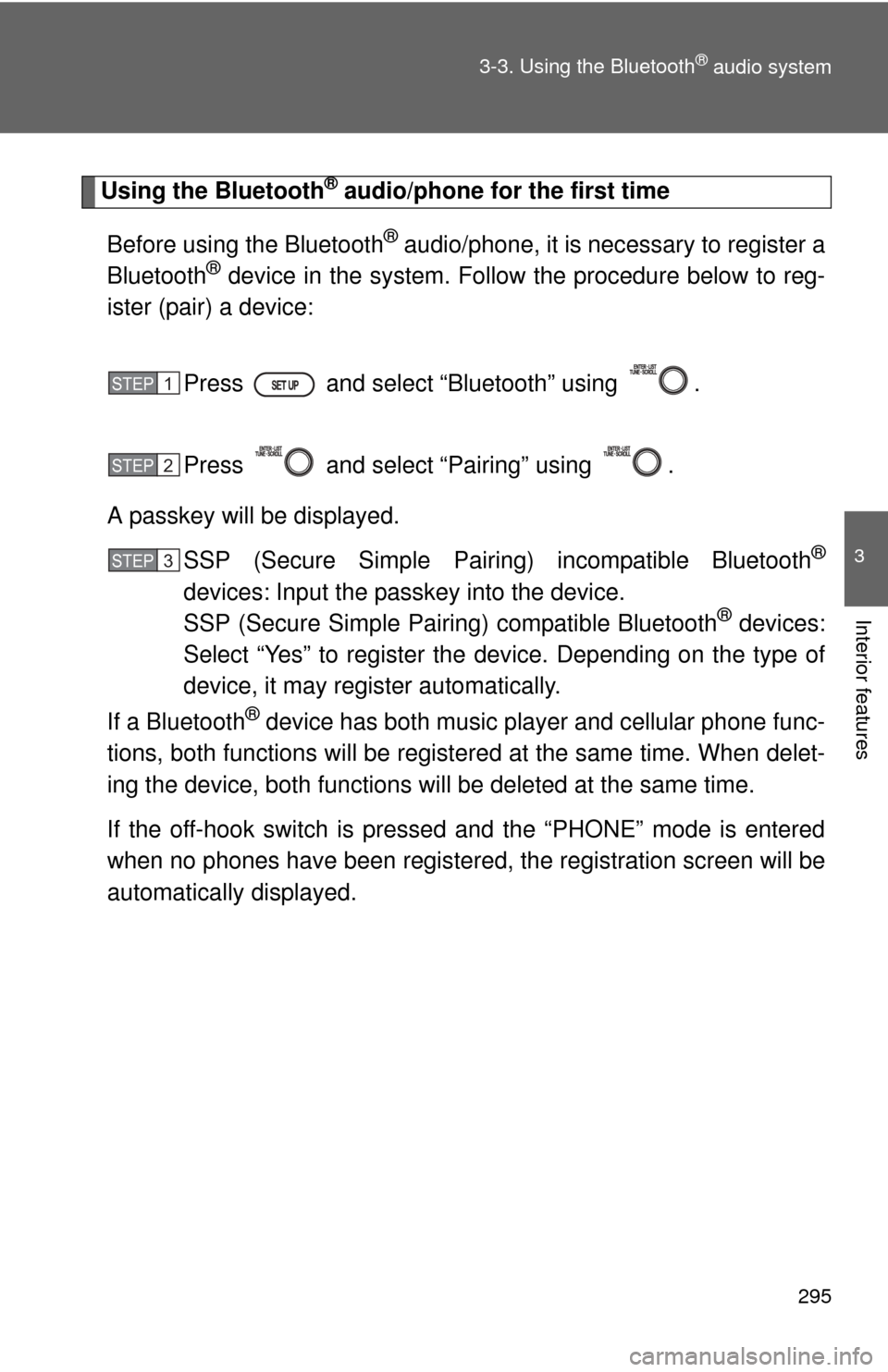
Using the Bluetooth® audio/phone for the first time
Before using the Bluetooth
® audio/phone, it is necessary to register a
Bluetooth® device in the system. Follow the procedure below to reg-
ister (pair) a device:
Press and select “Bluetooth” using .
Press and select “Pairing” using .
A passkey will be displayed. SSP (Secure Simple Pairin g) incompatible Bluetooth
®
devices: Input the passkey into the device.
SSP (Secure Simple Pairing) compatible Bluetooth® devices:
Select “Yes” to register the device. Depending on the type of
device, it may register automatically.
If a Bluetooth
® device has both music player and cellular phone func-
tions, both functions will be regist ered at the same time. When delet-
ing the device, both f unctions will be deleted at the same time.
If the off-hook switch is pressed and the “PHONE” mode is entered
when no phones have been registered, the re gistration screen will be
automatically displayed.
STEP1
STEP2
STEP3
Page 297 of 556
297
3-3. Using the Bluetooth
® audio system
3
Interior features
“Phone”
“Phonebook” “Add contacts” Adding a new number
“Add SD”
Registering a speed
dial
“Delete Call
History” Deleting a number
stored in the call history
“Delete
contacts” Deleting a number
stored in the
phonebook
“Delete other
PB” Deleting a phonebook’s
data
“HF Sound
Setting” “Call volume” Setting call volume
“Ring tone
volume”
Setting ringtone volume
“Ringtone” Setting the ringtone
“Transfer
Histories” -Transferring the call
histories
■ Bluetooth
® audio/phone system functions
Depending on the Bluetooth
® device, certain functions may not be available.
First menuSecond menuThird menuOperation details
Page 299 of 556
299
3-3. Using the Bluetooth
® audio system
3
Interior features
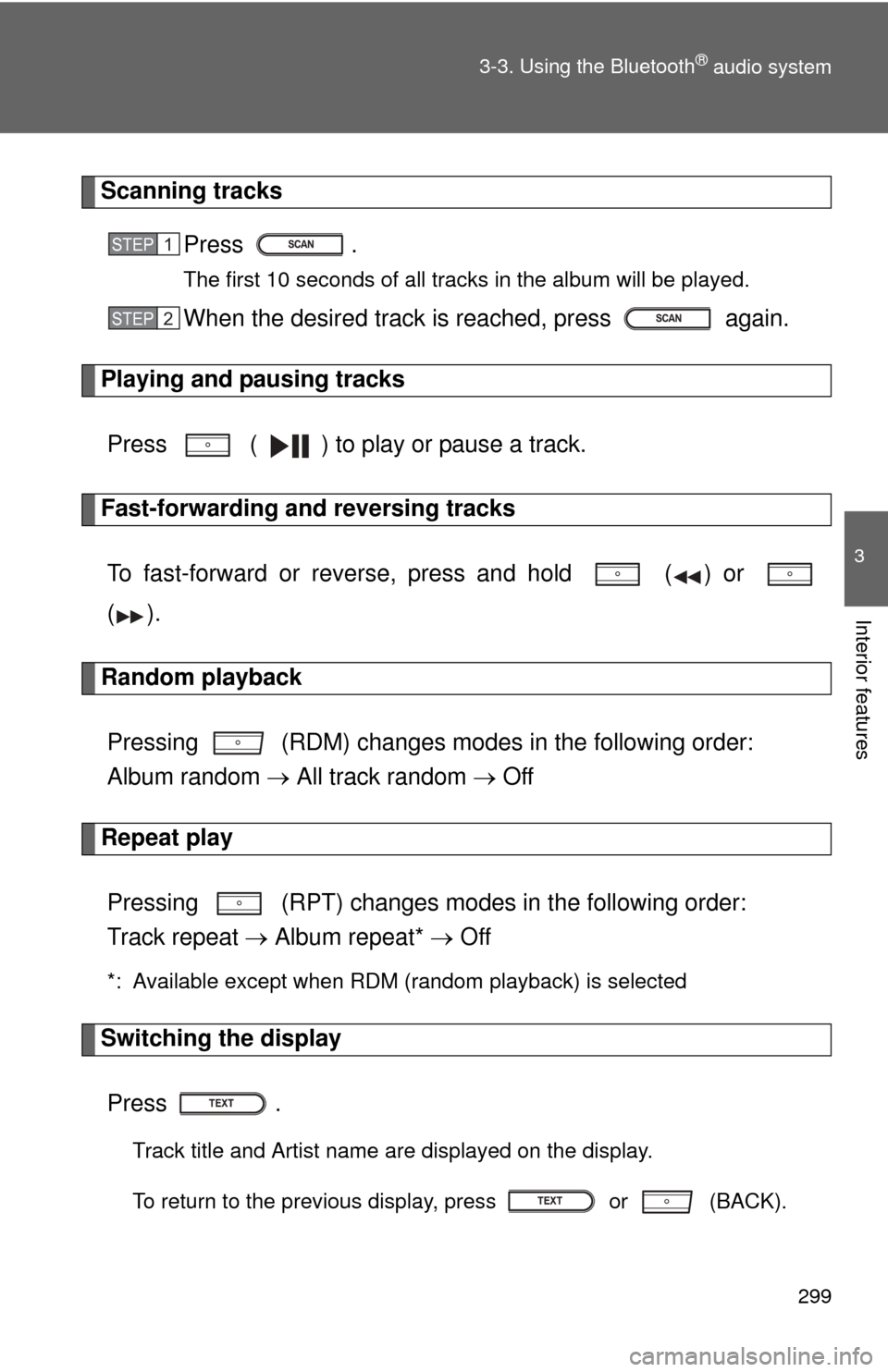
Scanning tracks
Press .
The first 10 seconds of all tracks in the album will be played.
When the desired track is reached, press again.
Playing and pausing tracks
Press ( ) to play or pause a track.
Fast-forwarding and reversing tracksTo fast-forward or reverse, press and hold ( ) or
().
Random playback
Pressing (RDM) changes modes in the following order:
Album random All track random Off
Repeat play
Pressing (RPT) changes modes in the following order:
Track repeat Album repeat* Off
*: Available except when RDM (random playback) is selected
Switching the display
Press .
Track title and Artist name are displayed on the display.
To return to the previous display, press or (BACK).
STEP1
STEP2
Page 301 of 556
301
3-3. Using the Bluetooth® audio system
3
Interior features
Making a phone call
To enter the “PHONE” mode, press the off-hook switch.
■Making a phone call
●Dialing by selecting a name
● Speed dialing
● Dialing by entering the number
● Dialing from call histories
■ Receiving a phone call
●Answering the phone
● Refusing the call
■ Operations during a call
●Transferring a call
● Muting your voice
● Inputting digits
● Setting call volume
■ Adjusting the ringtone volume when receiving a call