Page 197 of 684
197
2-2. Instrument cluster
2
When driving
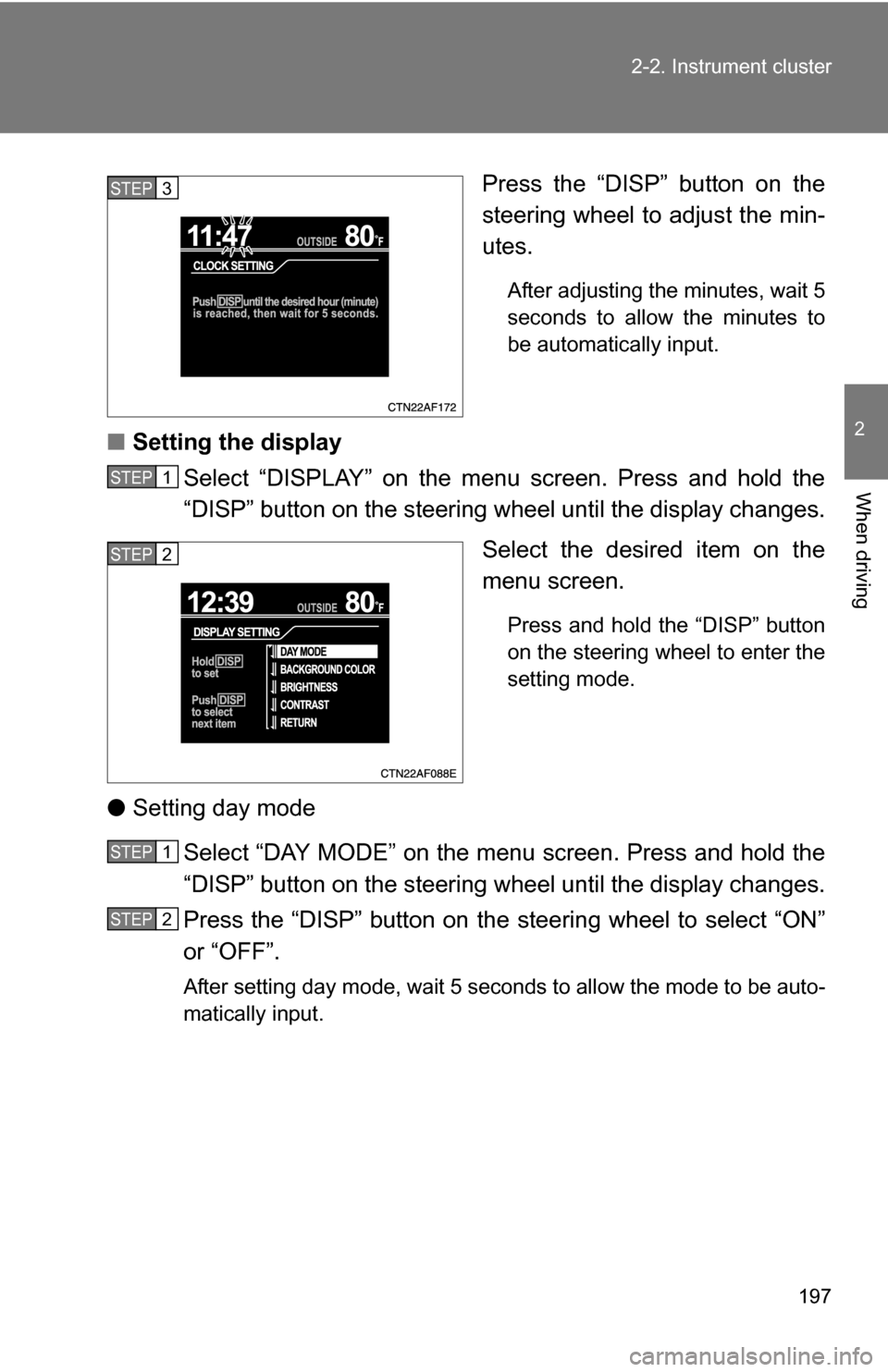
Press the “DISP” button on the
steering wheel to adjust the min-
utes.
After adjusting the minutes, wait 5
seconds to allow the minutes to
be automatically input.
■
Setting the display
Select “DISPLAY” on the menu screen. Press and hold the
“DISP” button on the steering w heel until the display changes.
Select the desired item on the
menu screen.
Press and hold the “DISP” button
on the steering wheel to enter the
setting mode.
● Setting day mode
Select “DAY MODE” on the menu screen. Press and hold the
“DISP” button on the steering w heel until the display changes.
Press the “DISP” button on the steering wheel to select “ON”
or “OFF”.
After setting day mode, wait 5 seconds to allow the mode to be auto-
matically input.
STEP3
STEP1
STEP2
STEP1
STEP2
Page 198 of 684
198 2-2. Instrument cluster
●Setting the background color
Select “BACKGROUND COLOR” on the menu screen. Press
and hold the “DISP” button on the steering wheel until the dis-
play changes.
Press the “DISP” button on the steering wheel to select
“BLACK” or “BLUE”.
After selecting a background color, wait 5 seconds to allow the color
to be automatically input.
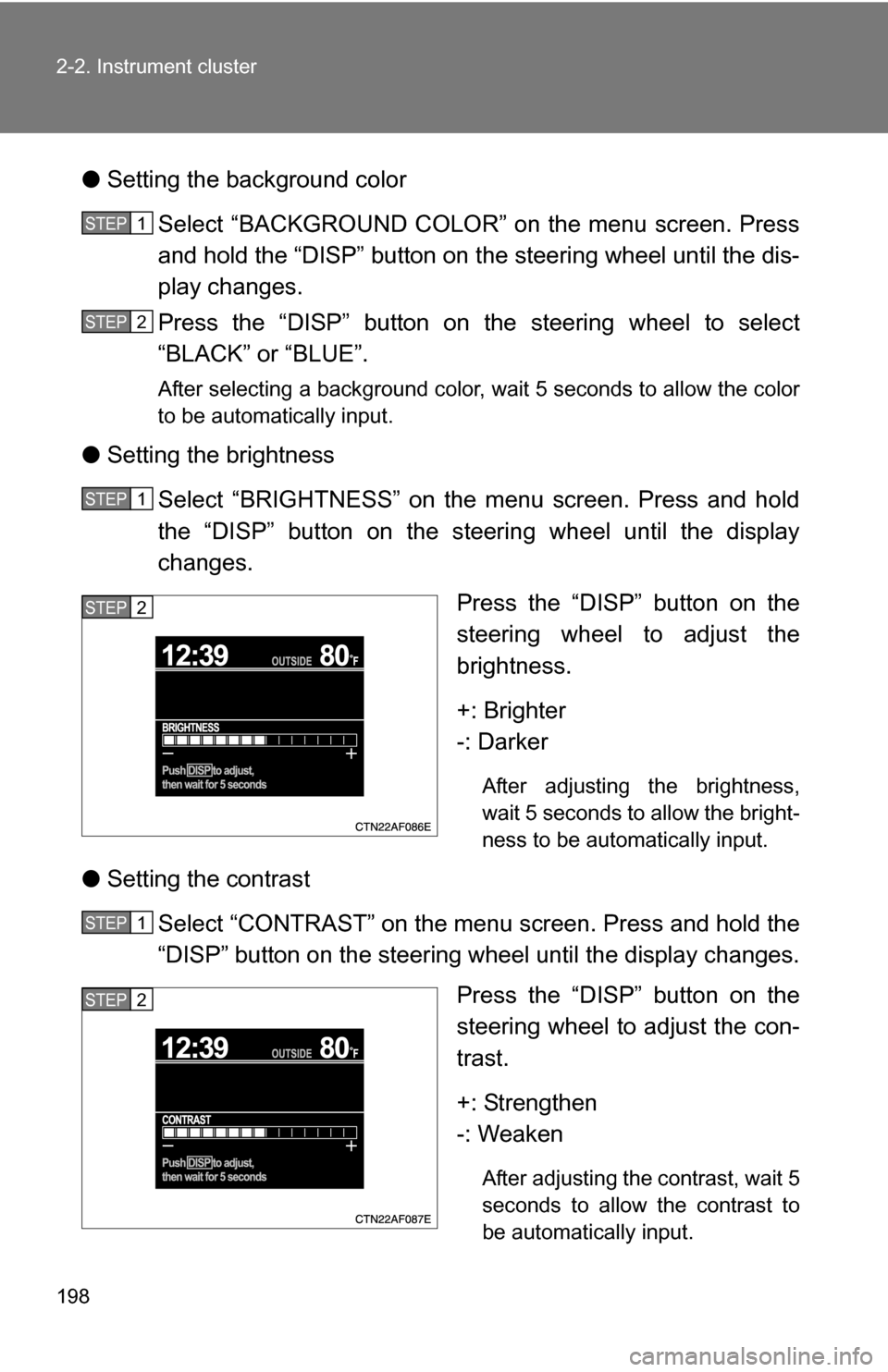
●Setting the brightness
Select “BRIGHTNESS” on the menu screen. Press and hold
the “DISP” button on the steering wheel until the display
changes. Press the “DISP” button on the
steering wheel to adjust the
brightness.
+: Brighter
-: Darker
After adjusting the brightness,
wait 5 seconds to allow the bright-
ness to be automatically input.
●Setting the contrast
Select “CONTRAST” on the menu screen. Press and hold the
“DISP” button on the steering wheel until the display changes. Press the “DISP” button on the
steering wheel to adjust the con-
trast.
+: Strengthen
-: Weaken
After adjusting the contrast, wait 5
seconds to allow the contrast to
be automatically input.
STEP1
STEP2
STEP1
STEP2
STEP1
STEP2
Page 199 of 684
199
2-2. Instrument cluster
2
When driving
●
Returning to the previous screen
Select “RETURN” on the menu screen. Press and hold the “DISP”
button on the steering wheel until the display changes.
Setting up the rear view monitor display
Display the set up screen on the
multi-information display when
the vehicle is stopped and the
rear view monitor is turned on.
Press and hold the “DISP” button
on the steering wheel to display
the set up screen.
Select the desired item on the
menu screen.
Press and hold the “DISP” button
on the steering wheel to enter the
adjustment mode.
STEP1
STEP2
Page 200 of 684
200 2-2. Instrument cluster
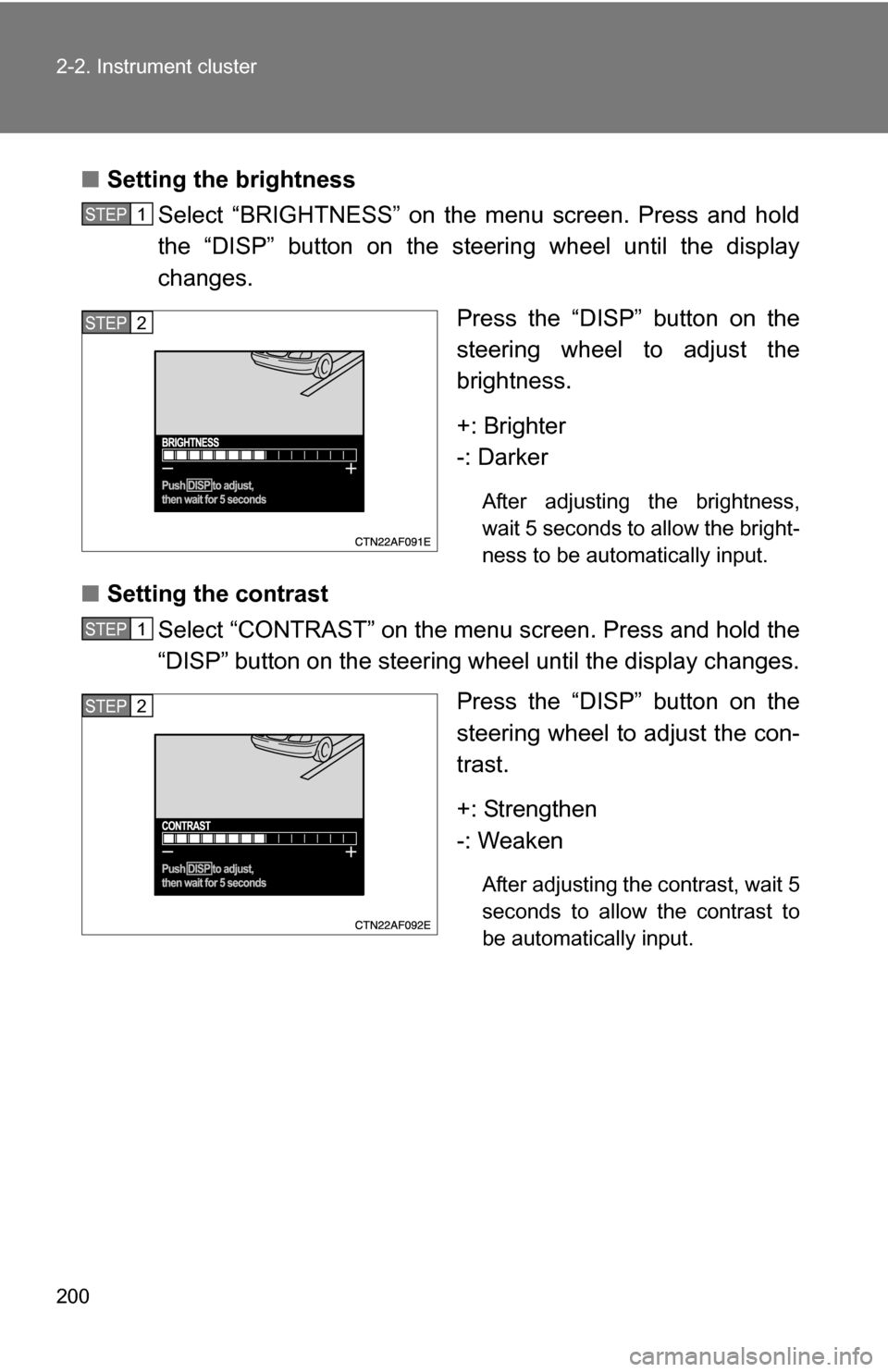
■Setting the brightness
Select “BRIGHTNESS” on the menu screen. Press and hold
the “DISP” button on the steering wheel until the display
changes.
Press the “DISP” button on the
steering wheel to adjust the
brightness.
+: Brighter
-: Darker
After adjusting the brightness,
wait 5 seconds to allow the bright-
ness to be automatically input.
■Setting the contrast
Select “CONTRAST” on the menu screen. Press and hold the
“DISP” button on the steering wheel until the display changes.
Press the “DISP” button on the
steering wheel to adjust the con-
trast.
+: Strengthen
-: Weaken
After adjusting the contrast, wait 5
seconds to allow the contrast to
be automatically input.
STEP1
STEP2
STEP1
STEP2
Page 201 of 684
201
2-2. Instrument cluster
2
When driving
■
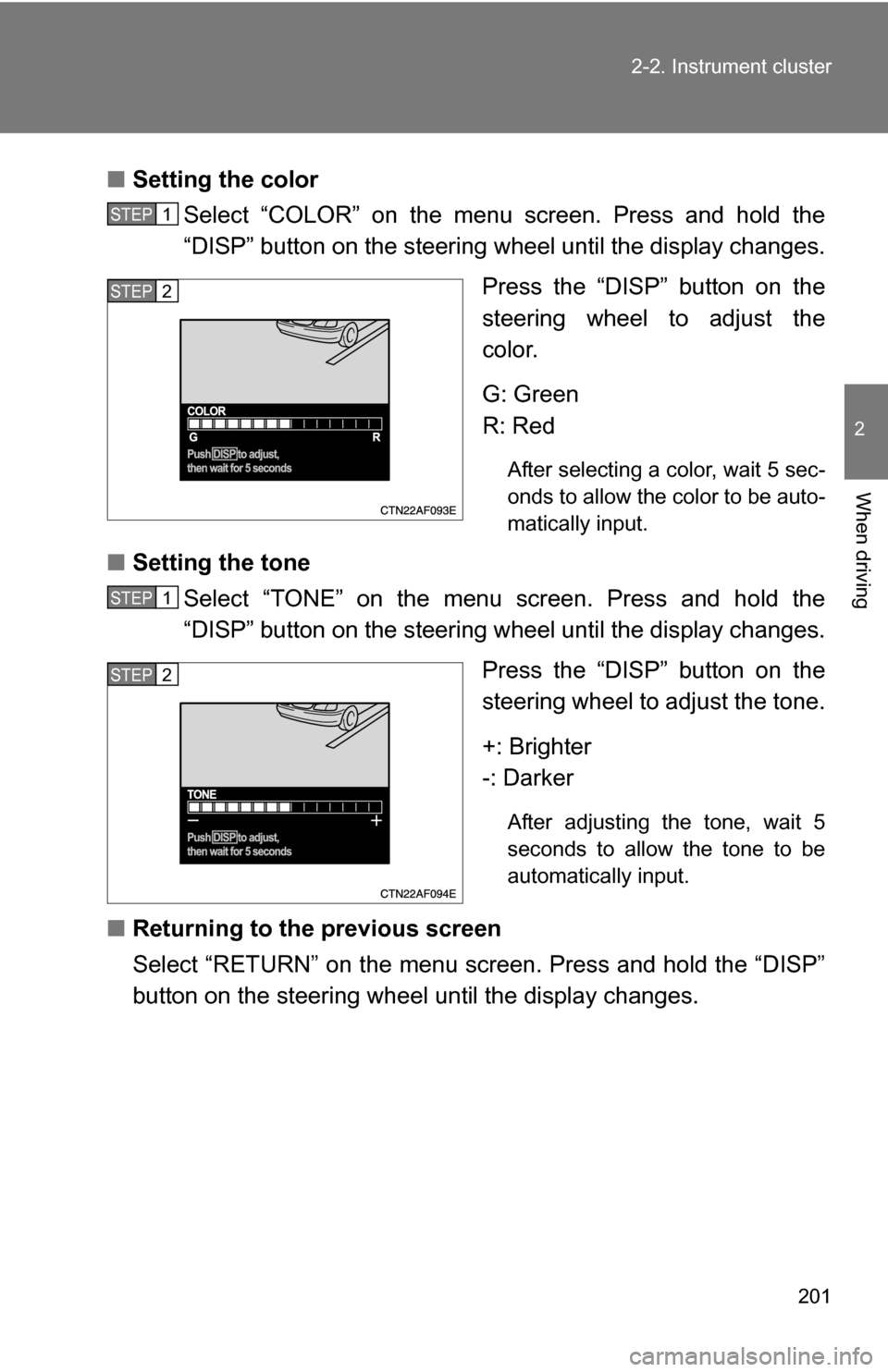
Setting the color
Select “COLOR” on the menu screen. Press and hold the
“DISP” button on the steering w heel until the display changes.
Press the “DISP” button on the
steering wheel to adjust the
color.
G: Green
R: Red
After selecting a color, wait 5 sec-
onds to allow the color to be auto-
matically input.
■ Setting the tone
Select “TONE” on the menu screen. Press and hold the
“DISP” button on the steering w heel until the display changes.
Press the “DISP” button on the
steering wheel to adjust the tone.
+: Brighter
-: Darker
After adjusting the tone, wait 5
seconds to allow the tone to be
automatically input.
■ Returning to the previous screen
Select “RETURN” on the menu screen. Press and hold the “DISP”
button on the steering wheel until the display changes.
STEP1
STEP2
STEP1
STEP2
Page 227 of 684
227
2-4. Using other driving systems
2
When driving
Driving assist systems
To help enhance driving safety and performance, the following sys-
tems operate automatically in res ponse to various driving situations.
Be aware, however, that these systems are supplementary and
should not be relied upon too heavi ly when operating the vehicle.
■ABS (Anti-lock Brake System)
Helps to prevent wheel lock when the brakes are applied suddenly, or if
the brakes are applied while driving on a slippery road surface.
■Brake assist
Generates an increased level of braking force after the brake pedal is
depressed when the system detects a panic stop situation.
■VSC (Vehicle Stability Control)
Helps the driver to control skidding when swerving suddenly or turning
on slippery road surfaces.
■TRAC (Traction Control)
Helps to maintain drive power and prevent the front wheels (2WD mod-
els) or four wheels (4WD models) from spinning when starting the vehi-
cle or accelerating on slippery roads.
■ Hill-start assist control
P. 232
■Downhill assist control system (4WD models only)
P. 234
■EPS (Electric Power Steering)
Employs an electric motor to reduce the amount of effort needed to turn
the steering wheel.
■Enhanced VSC (Enhanced Vehicle Stability Control)
Provides cooperative control of the ABS, TRAC, VSC and EPS.
Helps to maintain directional stability when swerving on slippery road
surfaces by controlling steering performance.
Page 228 of 684
228 2-4. Using other driving systems
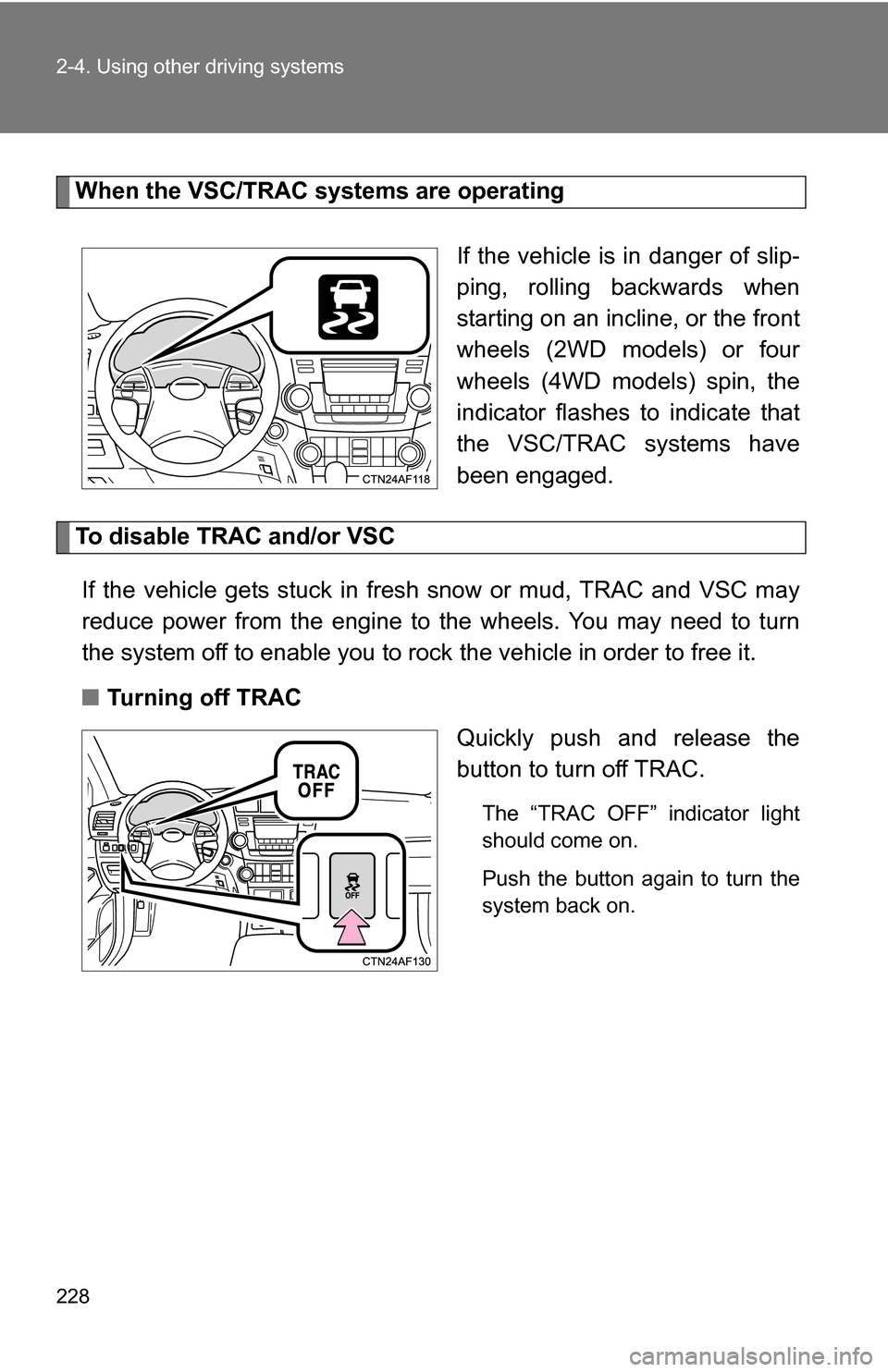
When the VSC/TRAC systems are operatingIf the vehicle is in danger of slip-
ping, rolling backwards when
starting on an incline, or the front
wheels (2WD models) or four
wheels (4WD models) spin, the
indicator flashes to indicate that
the VSC/TRAC systems have
been engaged.
To disable TRAC and/or VSCIf the vehicle gets stuck in fres h snow or mud, TRAC and VSC may
reduce power from the engine to the wheels. You may need to turn
the system off to enable you to rock the vehicle in order to free it.
■ Turning off TRAC
Quickly push and release the
button to turn off TRAC.
The “TRAC OFF” indicator light
should come on.
Push the button again to turn the
system back on.
Page 230 of 684
230 2-4. Using other driving systems
■Sounds and vibrations caused by the ABS, TRAC, VSC and brake
assist
●A sound may be heard from the engine compartment when the engine is
started or just after the vehicle begins to move. This sound does not indi-
cate that a malfunction has occurred in any of these systems.
● Any of the following conditions may occur when the above systems are
operating. None of these indicates that a malfunction has occurred.
• Vibrations may be felt through the vehicle body and steering.
• A motor sound may be heard after the vehicle comes to a stop.
• The brake pedal may pulsate slightly when the ABS is activated.
• The brake pedal may move down slightly after the ABS is activated.
■ EPS operation sound
When the steering is wheel operated, a motor sound (whirring sound) may
be heard. This does not indicate a malfunction.
■ Reduced effectiveness of EPS system
The effectiveness of the EPS system is reduced to prevent the system from
overheating when there is frequent steering input over an extended period of
time. The steering wheel may feel heavy as a result. Should this occur,
refrain from excessive steering input or stop the vehicle and turn the engine
off. The EPS system should return to normal within 10 minutes.
■ If the slip indicator comes on...
It may indicate a malfunction in the VSC and TRAC. Contact your Toyota
dealer.
CAUTION
■The ABS does not operate effectively when
●The limits of tire gripping performance have been exceeded (such as
excessively worn tires on a snow covered road).
● The vehicle hydroplanes while driving at high speed on wet or slick road.