Page 400 of 684
400 3-4. Using the hands-free phone system (for cellular phone)
Use one of the following methods to input a telephone num-
ber:
Inputting a telephone number using a voice command STEP2-1 Select “By Voice (By voice)” using a voice command
or .
STEP2-2 Press the talk switch, say the desired number, and select “Confirm” us ing a voice command.
Transferring data from the cellular phone
STEP2-1 Select “By Phone” and then “Confirm” using a voice
command or .
STEP2-2 Transfer the data from the cellular phone.
Refer to the manual that comes with the cellular phone for
the details of transferring data.
STEP2-3 Select the data to be registered by either of the fol- lowing methods:
a. Say “Previous” or “Next” until the desired data isdisplayed, and select “Confirm” using a voice
command.
b. Select the desired data using .
STEP2
Page 401 of 684
401
3-4. Using the hand
s-free phone system (for cellular phone)
3
Interior features
Inputting a phone number using
STEP2-1 Select “Manual Input” using .
STEP2-2 Input a phone number using , and press once again.
Input the phone number 1 digit at a time.
Selecting a phone number from outgoing or incoming call historySTEP2-1 Select “Call History” using a voice command or
.
STEP2-2 Select “Outgoing Call History (Outgoing)” or “Incom- ing Call History (Incoming)” using a voice command
or .
STEP2-3 Select the data to be registered by either of the fol- lowing methods:
a. Say “Previous” or “Go back” until the desireddata is displayed, and select “Confirm” using a
voice command.
b. Select the desired data using .
Page 406 of 684
406
3-5. Using the rear audio system
Rear seat entertainment system features
With navigation system
Owners of models equipped with a navigation system should refer to
the “Navigation System Owner’s Manual”.
Without navigation system
The rear seat entertainment system is designed for the rear passen-
gers to enjoy audio and DVD vide o separately from the front audio
system.
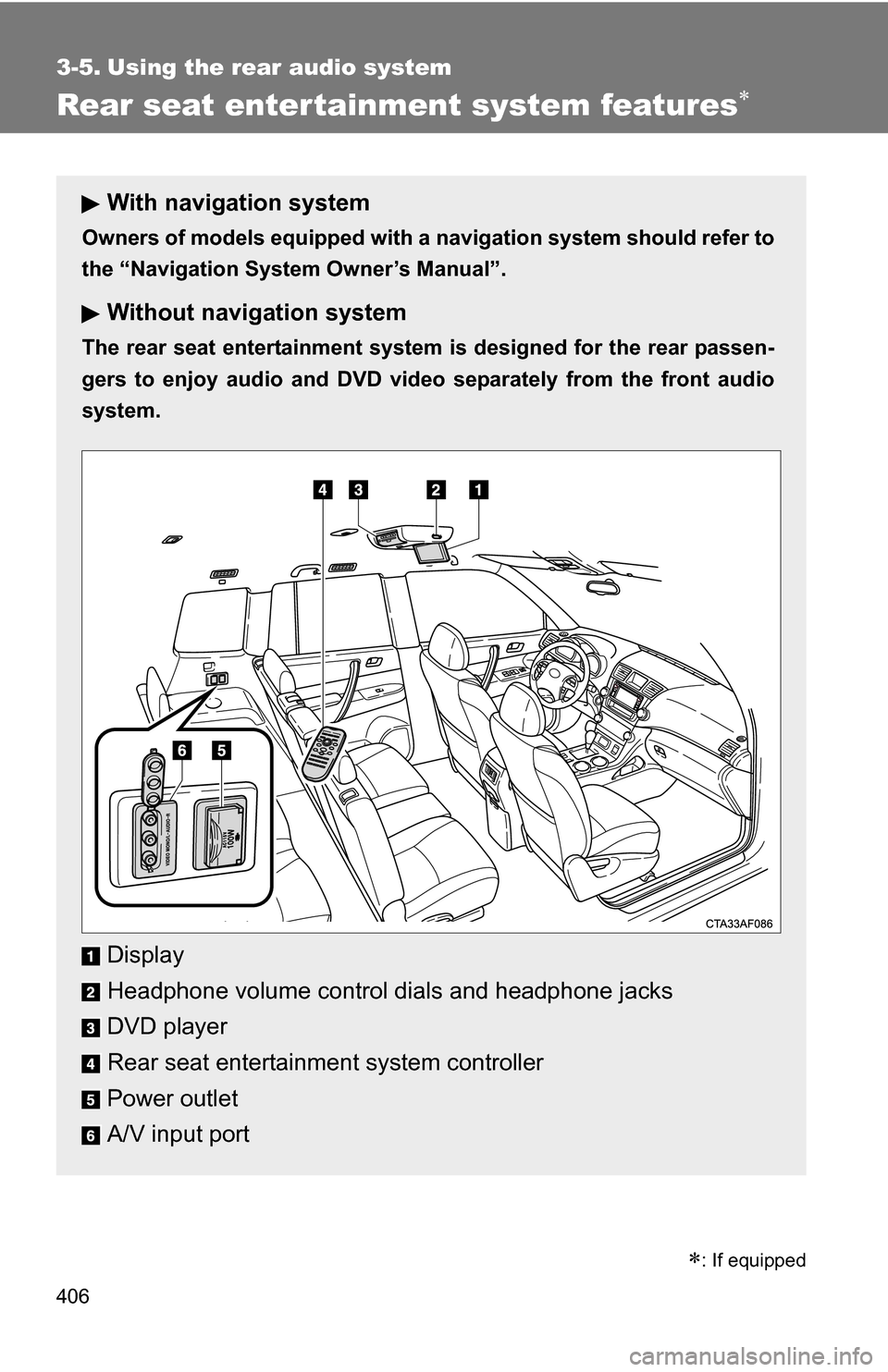
Display
Headphone volume control dials and headphone jacks
DVD player
Rear seat entertainment system controller
Power outlet
A/V input port
: If equipped
Page 407 of 684
407
3-5. Using the rear audio system
3
Interior features
Opening and closing the display
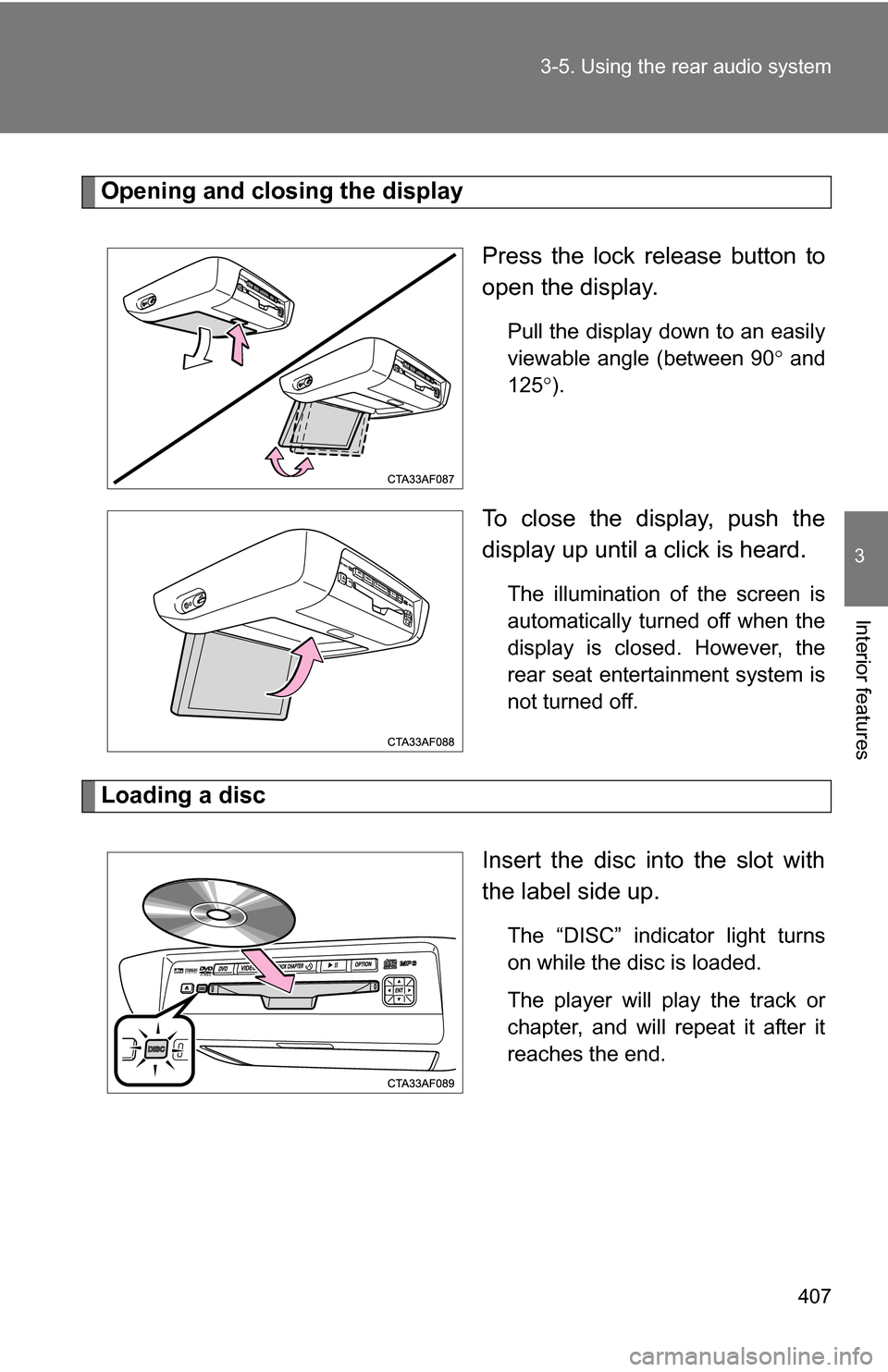
Press the lock release button to
open the display.
Pull the display down to an easily
viewable angle (between 90 and
125 ).
To close the display, push the
display up until a click is heard.
The illumination of the screen is
automatically turned off when the
display is closed. However, the
rear seat entertainment system is
not turned off.
Loading a disc
Insert the disc into the slot with
the label side up.
The “DISC” indicator light turns
on while the disc is loaded.
The player will play the track or
chapter, and will repeat it after it
reaches the end.
Page 411 of 684
411
3-5. Using the rear audio system
3
Interior features
■
Headphones
With some headphones generally available in the market, it may be difficult
to catch signals properly. Toyota recommends the use of Toyota genuine
wireless headphones.
Please contact your Toyota dealer for further details.
■ Vo l u m e
●Adjust the volume when you connect the headphones to the jack. Loud
sounds may have a significant impact on the human body.
● Conversational speech on some DVDs is recorded at a low volume to
emphasize the impact of sound effects. If you adjust the volume assum-
ing that the conversations represent the maximum volume level that the
DVD will play, you may be startled by louder sound effects or when you
change to a different audio source. Be sure to adjust the volume with this
in mind.
CAUTION
■While driving
Do not use headphones.
Doing so may cause an accident, resulting in death or serious injury.
■ When the rear seat entert ainment system is not used
Keep the display closed.
In the event of an accident or sudden braking, the opened display may hit an
occupant's body, resulting in injury.
■ To prevent accidents and electric shock
Do not disassemble or modify the remote controller.
■ When the remote controller is not used
Stow the remote controller.
Injuries may result in the event of an accident or sudden braking.
■ Removed battery and other parts
These parts are small and if swallowed by a child, they can cause choking.
Keep away from children. Failure to do so could result in death or serious
injury.
Page 413 of 684
413
3-5. Using the rear audio system
3
Interior features
Using the DVD player (DVD video)
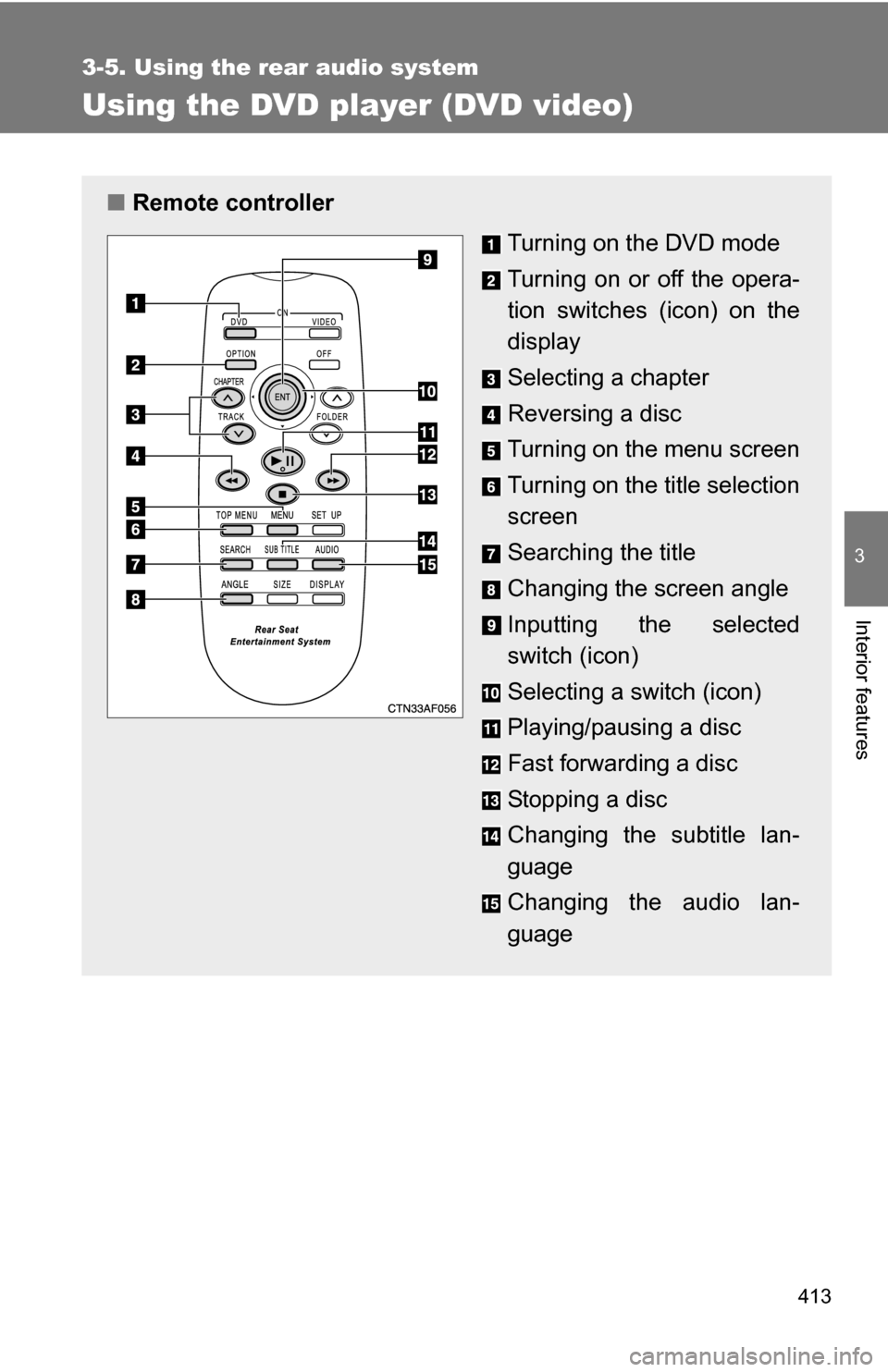
■Remote controller
Turning on the DVD mode
Turning on or off the opera-
tion switches (icon) on the
display
Selecting a chapter
Reversing a disc
Turning on the menu screen
Turning on the title selection
screen
Searching the title
Changing the screen angle
Inputting the selected
switch (icon)
Selecting a switch (icon)
Playing/pausing a disc
Fast forwarding a disc
Stopping a disc
Changing the subtitle lan-
guage
Changing the audio lan-
guage
Page 414 of 684
414 3-5. Using the rear audio system
■Unit
Turning on the DVD mode
Skipping to the desired
chapter
Playing/pausing a disc
Turning on or off the opera-
tion switches (icon) on the
display
Selecting a switch (icon)
Inputting the selected
switch (icon)
■ Display (page 1)
Turning off the operation
switches (icon) on the dis-
play
Displaying page 2
Turning on or off the title
selection screen for the disc
Turning on or off the menu
screen for the disc
Reversing a disc
Stopping a disc
Pausing the disc/canceling
the pause
Fast forwarding a disc
Page 415 of 684
415
3-5. Using the rear audio system
3
Interior features
NOTICE
■
Cleaning the display
Wipe the display with a dry soft cloth.
If the screen is wiped with a rough cloth, the surface of the screen may be
scratched.
■ To prevent damage to the remote controller
●Keep the remote control away from direct sunlight, temperature heat and
high humidity.
● Do not drop or knock the remote controller against hard objects.
● Do not sit on or place heavy objects on the remote controller.
■ DVD player
Never try to disassemble or oil any part of the DVD player. Do not insert any-
thing other than a disc into the slot.
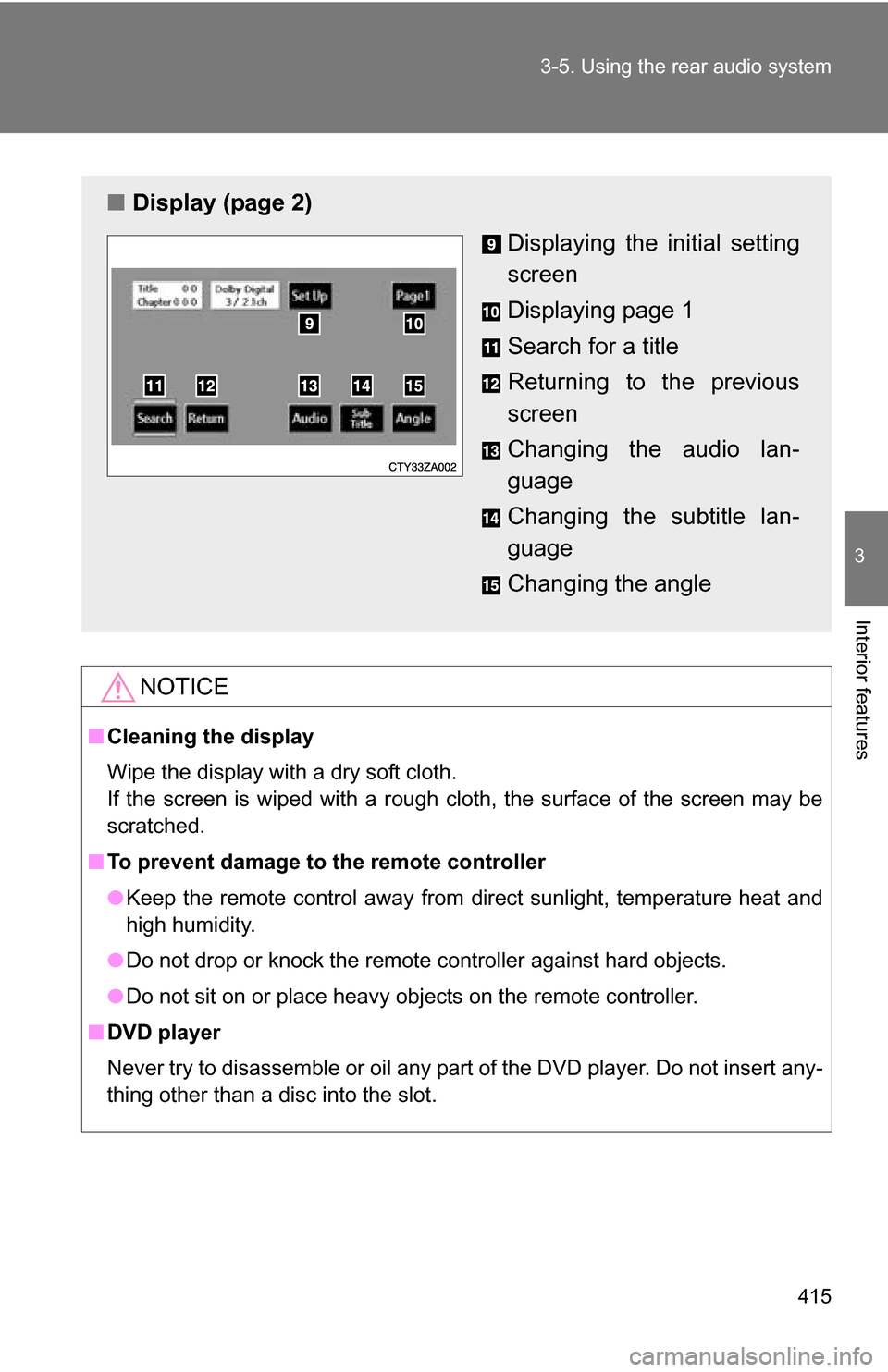
■ Display (page 2)
Displaying the initial setting
screen
Displaying page 1
Search for a title
Returning to the previous
screen
Changing the audio lan-
guage
Changing the subtitle lan-
guage
Changing the angle