Page 197 of 324
195
8
Checks
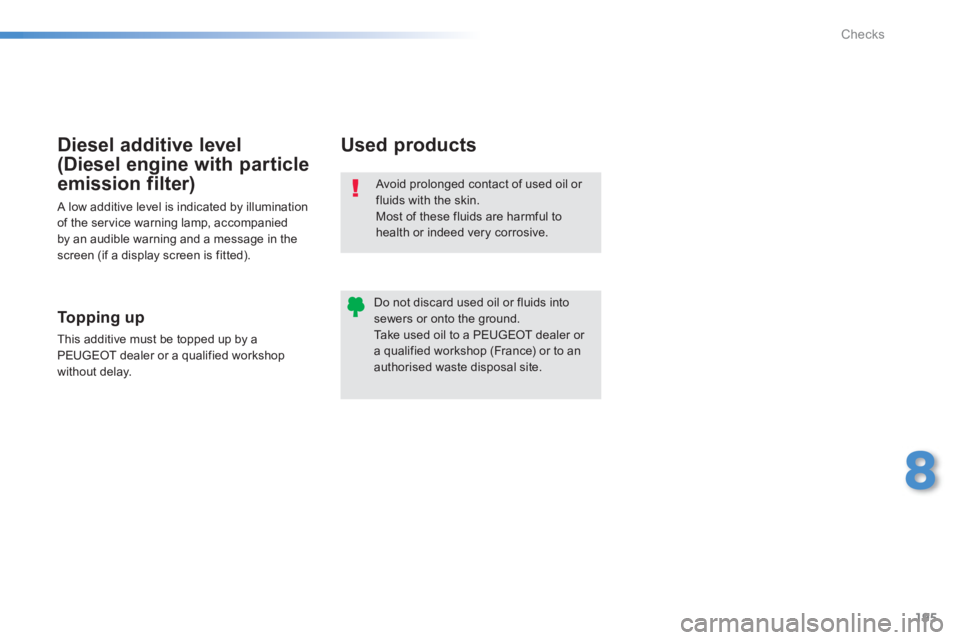
Avoid prolonged contact of used oil or fluids with the skin. Most of these fluids are harmful to
health or indeed very corrosive.
Do not discard used oil or fluids intosewers or onto the ground. Take used oil to a PEUGEOT dealer or a qualified workshop (France) or to an authorised waste disposal site.
Used products
Topping up
This additive must be topped up by a
PEUGEOT dealer or a qualified workshop
without delay.
Diesel additive level
(Diesel engine with particle
emission filter)
A low additive level is indicated by illumination
of the ser vice warning lamp, accompanied by an audible warning and a message in the screen (if a display screen is fitted).
Page 198 of 324

196
Checks
Checks
12 V battery
The battery does not require any maintenance.
However, check that the terminals are clean
and correctly tightened, particularly in summer and winter.
The presence of this label, in particular with
the Stop & Star t system, indicates the use of
a specific 12 V lead-acid battery with special
technology and specification. The involvement
of a PEUGEOT dealer or a qualified workshop is essential when replacing or disconnecting
the battery.
Particle emissions filter (Diesel)
The start of saturation of thepar ticle filter is indicated bythe fixed illumination of this warning lamp
accompanied by a warning message in the screen (if a display screen is fitted).
As soon as the traffic conditions permit,
regenerate the filter by driving at a speed of at
least 40 mph (60 km/h) until the warning lampgoes off.
If the warning lamp stays on, this indicates a
low additive level.
On a new vehicle, the first par ticlefilter regeneration operations may be accompanied by a "burnt" smell, whichis perfectly normal.
Following prolonged operation of the vehicle at very low speed or at idle, you may, in exceptional circumstances,notice the emission of water vapour at the exhaust on acceleration. This does not affect the behaviour of the vehicle or the environment. Unless other wise indicated, check these components in accordance with the ser vicin
g and warranty booklet and according to your engine. Other wise, have them checked by a PEUGEOT dealer or a qualified workshop.
Air filter and passenger compartment filter
Refer to the servicing and warranty
booklet for details of the replacement
inter vals for these components.
Oil filter
Replace the oil filter each time theengine oil is changed.
Refer to the ser vicing and warranty
booklet for details of the replacement
interval for this component. When carr
ying out work on the battery, refer
to the "12 V battery" section for details of theprecautions to be taken before disconnecting
the battery and following its reconnection. Dependin
g on the environment (e.g. dusty
atmosphere) and the use of the vehicle(e.g. city driving), replace them twice as oftenif necessary.y A clogged passenger compartment filter may
have an adverse effect on the performance
of the air conditioning system and generateundesirable odours.
Page 212 of 324

01
210
Press to mute the sound.
MOD
E: selection of the type
of permanent display.
Volume ad
justment (each source is independent, including TA messages and navigation instructions).
Selectin
g the " MAIN MENU":
-"Navigation
" for navigation settings and to select a destination (depending on version).
- "Medi
a
" to select radio, MP3 music (from a USB memory stick),
view photos.
- "Communications" to connect a telephone b
y Bluetooth so as to make
telephone calls safely or to connect to the Internet.
-"Settin
gs" to enter settings for the radio, the vehicle or audio.
Press MENU again to quit the " MAIN MENU " and return to the permanentdisplay.
Selectin
g the audio source (depending on version):
- "FM"
/ "AM" radio wavebands.
- "U
SB" memory stick.
-
CD (located in the glove box) *
.
- Telephone connected b
y Bluetooth and streaming.
- Media pla
yer connected to the auxiliary socket (jack, cable not supplied).
Use the zones su
ggested in the
screen using a fi nger.
To clean the screen, use
a soft non-abrasive cloth (spectacles cloth) without
any additional product.
FIRST STEPS
*
Depending on equipment.
MAIN MENU
Page 214 of 324
03
These screens are the representation of a graphic style.
To chan
ge the graphic style, refer to the " SETTINGS" section. Pr
ess MODEseveral times in succession for access to the following displays:
"
Trip computer"r
(refer to the "Instrumentsand controls" section)
"
Map"
(if navigation guidance in
progress) "Radio
"
(or audio source being listened to: CD, USB,
Auxiliary)
"
Telephone"
(if call in progress)
OR
GENERAL OPERATION
Following prolonged operation in sunny conditions, the volume may be limited to protect the system. The return to normal takesplace when the temperature in the passenger compartment drops.
In ver
y hot conditions, the system may go into stand-by (screen and sound completely off) for a minimum period of 5 minutes.
Page 215 of 324

04
213213
PEUGEOT CONNECT APPS
These intelligent applications use
vehicle data such as the current
speed, mileage, remaining fuel range or even GPS position to
provide useful information.
Plu
g the "PEUGEOT CONNECT" connection key into one the theUSB ports for access to the applications via the touch screen.
The "M
yPeugeot" application is alink between the user, the marqueand its dealer network.
It
allows the customer to knoweverything about their vehicle:handbook, servicing booklet,accessory range, contracts takenout.
It also makes possible the sendin
g
of the vehicle's mileage to the "MyPeugeot" site, or to identify a dealer.
With "PEU
GEOT CONNECT APPS", the driver travels around while having access to information such as the state of the traffi c, the
availability of parking places, tourist sites, weather conditions, correct addressesÖ
This service includes the use o
f the mobile network associated with the use of these applications. It is available according to country, subscription contract and the version of touch screen.
For obvious sa
fety reasons, some functions can only be used whenstationary.
Using "Plug & Play", the key is recognised automatically and allows
display of the interface giving access to the applications.
Page 217 of 324
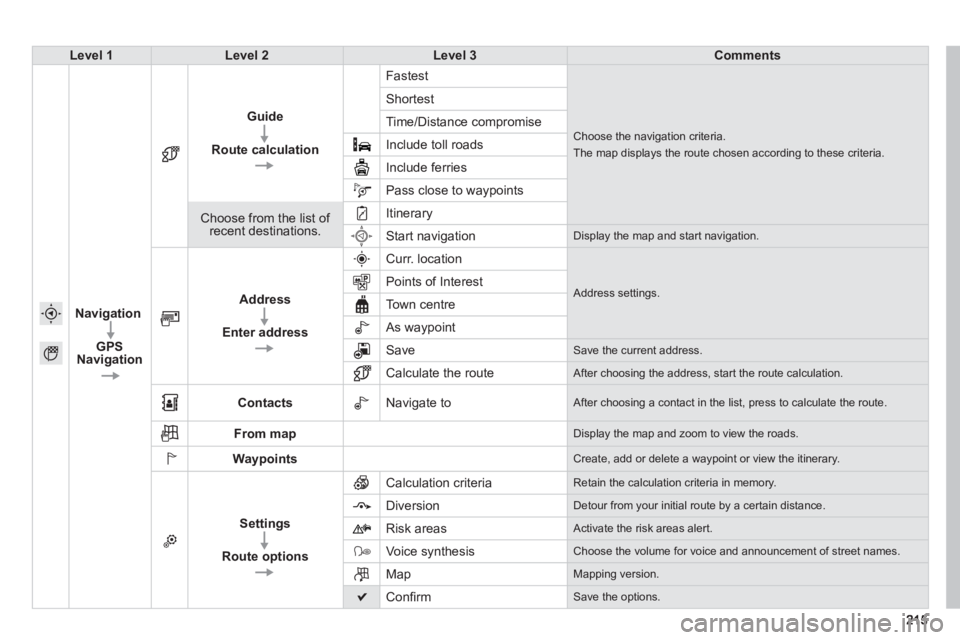
Level 1Level 2Level 3Comments
Navigation
GPS
Navi
gation
Guide
Route calculation F
astest
Choose the navigation criteria.
The map displays the route chosen according to these criteria.
Shortest
Time
/Distance compromise
In
clude toll roads
Include ferries
Pass close to waypoints
Choose from the list of recent destinations.
Itinerary
Start navigation Display the map and start navigation.
Address
Enter address
Curr. location
Address settings. Points of Interest
T
own centre
As waypoint
SaveSave the current address.
Calculate the route After choosing the address, start the route calculation.
Contacts Navigate to
After choosing a contact in the list, press to calculate the route.
From mapDisplay the map and zoom to view the roads.
WaypointsCreate, add or delete a waypoint or view the itinerary.
Settings
Route o
ptions
Calculation criteria Retain the calculation criteria in memory.
DiversionDetour from your initial route by a certain distance.
Risk areas
Activate the risk areas alert.
Voice synthesis Choose the volume for voice and announcement of street names.
MapMapping version.
Confi rm Save the options.
Page 219 of 324
217217
Level 1Level 2Level 3Comments
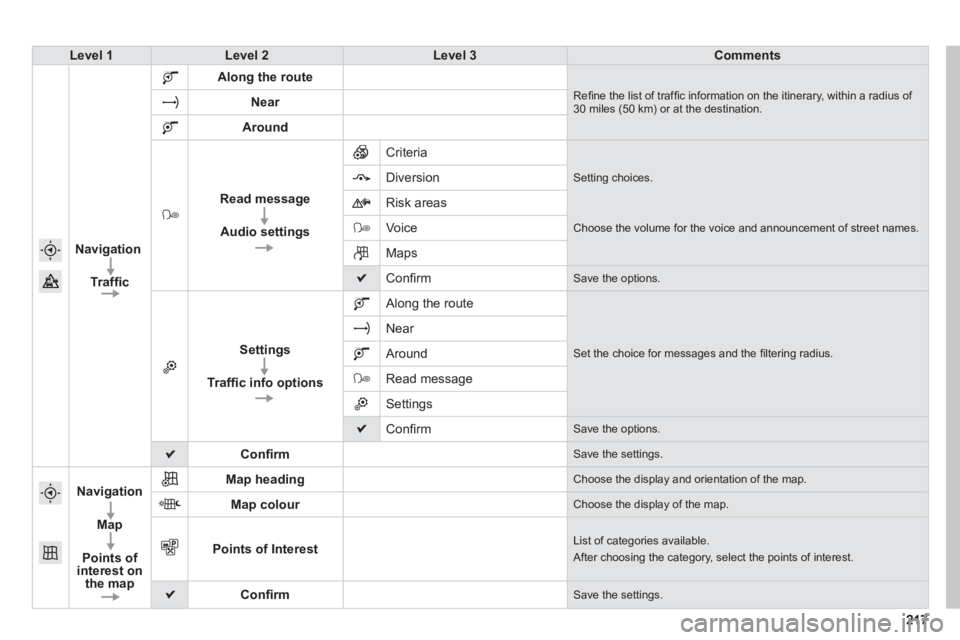
Navi
gation
Traffi c
Along the route
Refi ne the list of traffi c information on the itinerary, within a radius of 30 miles (50 km) or at the destination. Near
Around
Read message
Audio settings
Criteria
Setting choices.
Diversion
Ri
sk areas
V
oice Choose the volume for the voice and announcement of street names.
Maps
Confi rm Save the options.
Settings
Traffi c info options
Along the route
Set the choice for messages and the fi ltering radius.
Near
Around
Read message
Settings
Confi rm Save the options.
Confi rmSave the settings.
Navigation
Map
Points of interest on
the map
Map headingChoose the display and orientation of the map.
Map colourChoose the display of the map.
Points of InterestList of categories available.
After choosing the category, select the points of interest.
Confi rmSave the settings.
Page 220 of 324
05
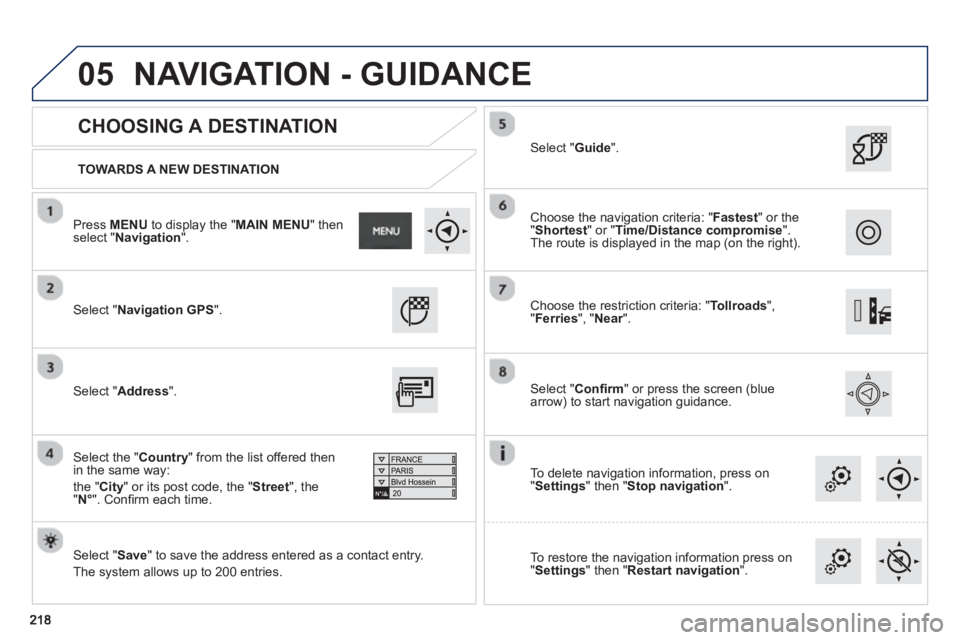
TOWARDS A NEW DESTINATION
CHOOSING A DESTINATION
Select "Navigation GPS
".
Select "Save
" to save the address entered as a contact entry.
The s
ystem allows up to 200 entries.
Select "Confi rm" or press the screen (blue
arrow) to start navigation guidance.
Select "Address
".
Select the " Country
" from the list offered then in the same way:
th
e " City" or its post code, the "Street", the
" N°
". Confi rm each time.
Select "Guide ".
Choose the restriction criteria: "Tollroads",
" Ferries", " Near".
r
Choose the navigation criteria: " Fastest
" or the
"Shortest
" or " Time/Distance compromise".The route is displayed in the map (on the right).
To delete navi
gation information, press on
" Settings
" then " Stop navigation
".
To restore the navi
gation information press on
"Settings
" then " Restart navigation".
Press MENUto display the " MAIN MENU " then select " Navigation".
NAVIGATION - GUIDANCE