2013 MERCEDES-BENZ SL-CLASS ROADSTER ad blue
[x] Cancel search: ad bluePage 364 of 572
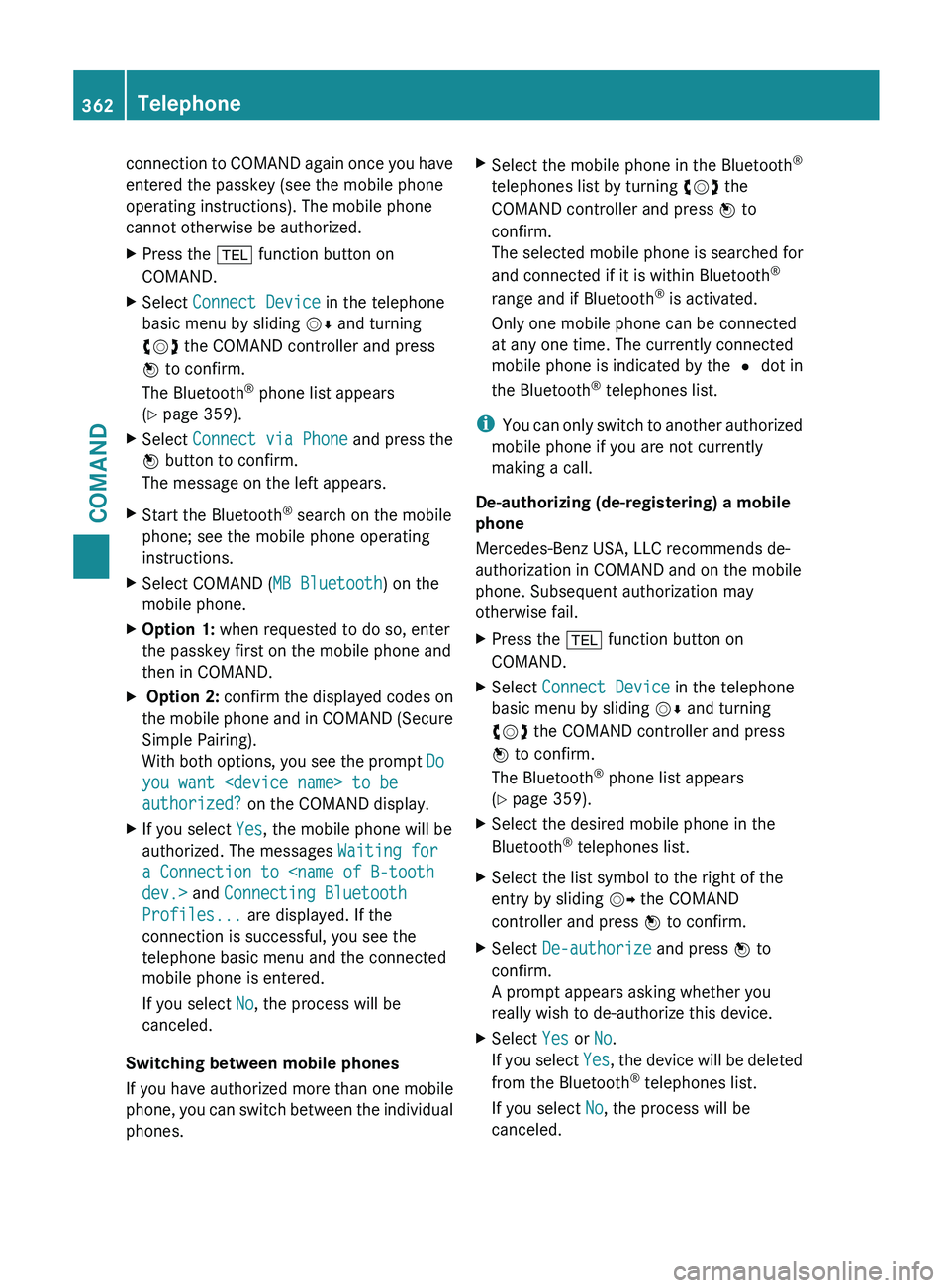
connection to COMAND again once you have
entered the passkey (see the mobile phone
operating instructions). The mobile phone
cannot otherwise be authorized.
X
Press the % function button on
COMAND.
X Select Connect Device in the telephone
basic menu by sliding VÆ and turning
cVd the COMAND controller and press
W to confirm.
The Bluetooth ®
phone list appears
(Y page 359).
X Select Connect via Phone and press the
W button to confirm.
The message on the left appears.
X Start the Bluetooth ®
search on the mobile
phone; see the mobile phone operating
instructions.
X Select COMAND ( MB Bluetooth) on the
mobile phone.
X Option 1: when requested to do so, enter
the passkey first on the mobile phone and
then in COMAND.
X Option 2: confirm the displayed codes on
the mobile phone and in COMAND (Secure
Simple Pairing).
With both options, you see the prompt Do
you want
authorized? on the COMAND display.
X If you select Yes, the mobile phone will be
authorized. The messages Waiting for
a Connection to
Profiles... are displayed. If the
connection is successful, you see the
telephone basic menu and the connected
mobile phone is entered.
If you select No, the process will be
canceled.
Switching between mobile phones
If you have authorized more than one mobile
phone, you
can switch between the individual
phones. X
Select the mobile phone in the Bluetooth ®
telephones list by turning cVd the
COMAND controller and press W to
confirm.
The selected mobile phone is searched for
and connected if it is within Bluetooth ®
range and if Bluetooth ®
is activated.
Only one mobile phone can be connected
at any one time. The currently connected
mobile phone is indicated by the # dot in
the Bluetooth ®
telephones list.
i You can
only switch to another authorized
mobile phone if you are not currently
making a call.
De-authorizing (de-registering) a mobile
phone
Mercedes-Benz USA, LLC recommends de-
authorization in COMAND and on the mobile
phone. Subsequent authorization may
otherwise fail.
X Press the % function button on
COMAND.
X Select Connect Device in the telephone
basic menu by sliding VÆ and turning
cVd the COMAND controller and press
W to confirm.
The Bluetooth ®
phone list appears
(Y page 359).
X Select the desired mobile phone in the
Bluetooth ®
telephones list.
X Select the list symbol to the right of the
entry by sliding VY the COMAND
controller and press W to confirm.
X Select De-authorize and press W to
confirm.
A prompt appears asking whether you
really wish to de-authorize this device.
X Select Yes or No.
If you
select Yes, the device will be deleted
from the Bluetooth ®
telephones list.
If you select No, the process will be
canceled. 362
Telephone
COMAND
Page 365 of 572
i
Before re-authorizing the mobile phone,
you should
also delete the device name MB
Bluetooth from your mobile phone's
Bluetooth ®
list.
Displaying connection details X
Press the % function button on
COMAND.
X Select Connect Device in the telephone
basic menu by sliding VÆ and turning
cVd the COMAND controller and press
W to confirm.
The Bluetooth ®
phone list appears
(Y page 359).
X Select the desired mobile phone in the
Bluetooth ®
telephones list.
X Select the list symbol to the right of the
entry by sliding VY the COMAND
controller and press W to confirm.
X Select Details and press W to confirm.
The following information concerning the
selected mobile phone is shown:
R Bluetooth ®
name
R Bluetooth ®
address
R availability status (shown after a new
search)
R authorization status
X To close the detailed view: turn cVd or
slide XVY the COMAND controller. Telephone basic menu (Bluetooth
®
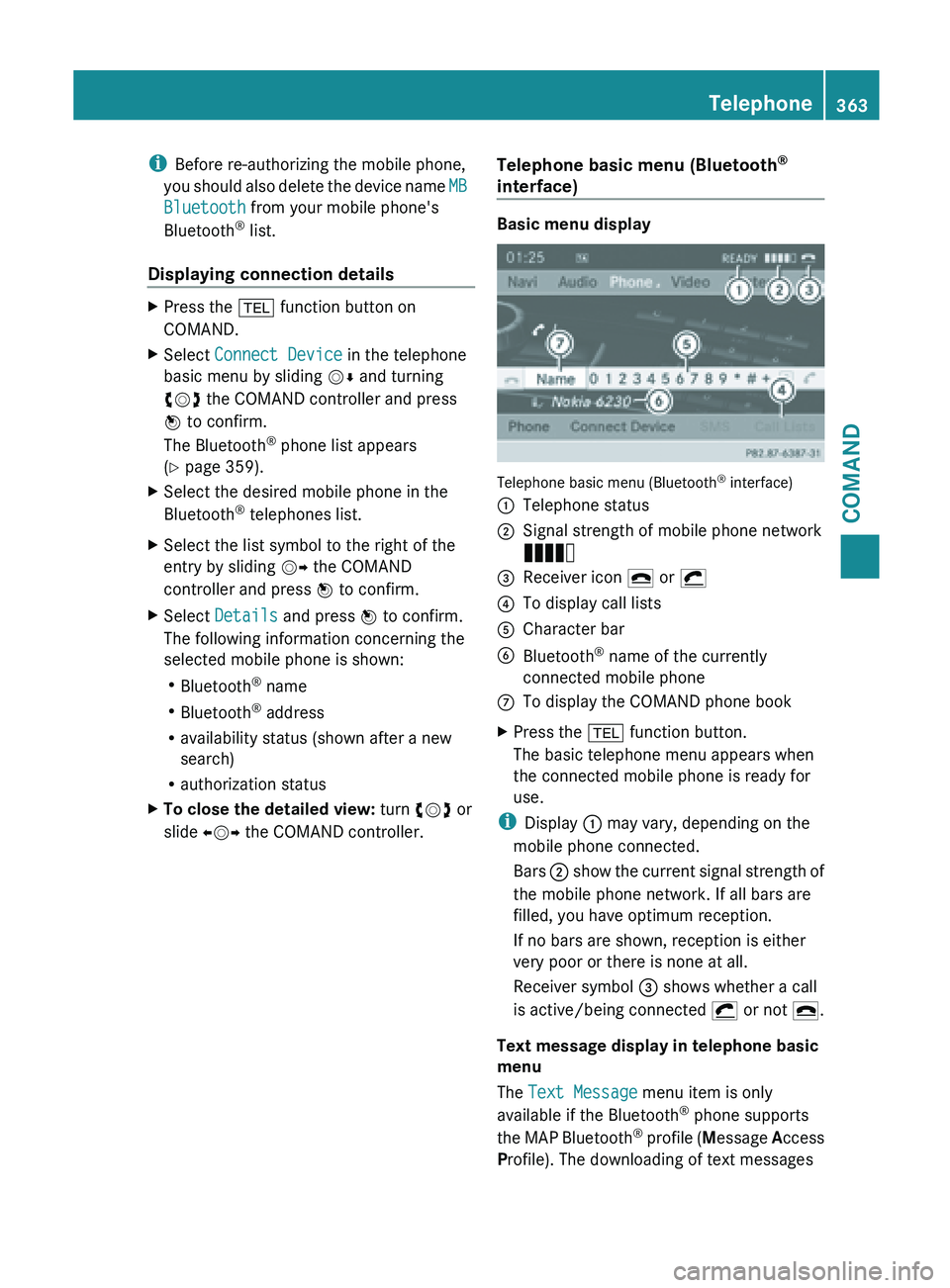
interface) Basic menu display
Telephone basic menu (Bluetooth
®
interface)
: Telephone status
; Signal strength of mobile phone network
Ä
= Receiver icon ¢ or ¡
? To display call lists
A Character bar
B Bluetooth ®
name of the currently
connected mobile phone
C To display the COMAND phone book
X Press the % function button.
The basic telephone menu appears when
the connected mobile phone is ready for
use.
i Display : may vary, depending on the
mobile phone connected.
Bars ; show
the current signal strength of
the mobile phone network. If all bars are
filled, you have optimum reception.
If no bars are shown, reception is either
very poor or there is none at all.
Receiver symbol = shows whether a call
is active/being connected ¡ or not ¢.
Text message display in telephone basic
menu
The Text Message menu item is only
available if the Bluetooth ®
phone supports
the MAP Bluetooth ®
profile ( Message Access
Profile). The downloading of text messages Telephone
363
COMAND Z
Page 366 of 572
from the Bluetooth
®
phone must have been
completed. The menu item is otherwise
grayed out. Further information on SMS
(Y page 375).
If you have an unread text message, the 1
mail symbol is displayed. The symbol
disappears once you have read the text
message. The ú mail symbol is displayed
as soon as the text message memory is full.
The symbol disappears once you delete at
least one text message. Reception and transmission volume
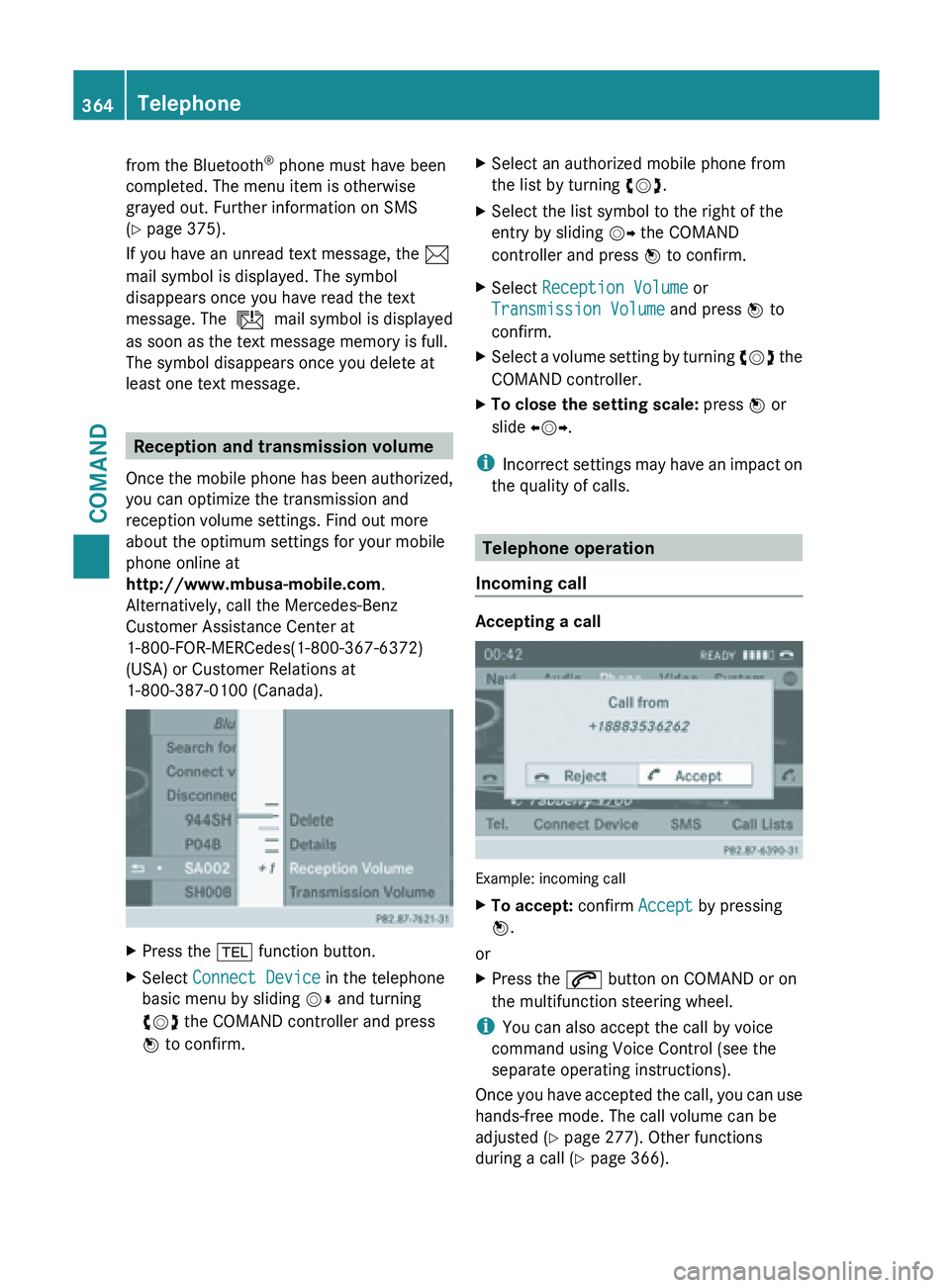
Once the
mobile phone has been authorized,
you can optimize the transmission and
reception volume settings. Find out more
about the optimum settings for your mobile
phone online at
http://www.mbusa-mobile.com.
Alternatively, call the Mercedes-Benz
Customer Assistance Center at
1-800-FOR-MERCedes(1-800-367-6372)
(USA) or Customer Relations at
1-800-387-0100 (Canada). X
Press the % function button.
X Select Connect Device in the telephone
basic menu by sliding VÆ and turning
cVd the COMAND controller and press
W to confirm. X
Select an authorized mobile phone from
the list by turning cVd.
X Select the list symbol to the right of the
entry by sliding VY the COMAND
controller and press W to confirm.
X Select Reception Volume or
Transmission Volume and press W to
confirm.
X Select a volume setting by turning cVd the
COMAND controller.
X To close the setting scale: press
W or
slide XVY.
i Incorrect settings
may have an impact on
the quality of calls. Telephone operation
Incoming call Accepting a call
Example: incoming call
X
To accept: confirm Accept by pressing
W.
or
X Press the 6 button on COMAND or on
the multifunction steering wheel.
i You can also accept the call by voice
command using Voice Control (see the
separate operating instructions).
Once you
have accepted the call, you can use
hands-free mode. The call volume can be
adjusted ( Y page 277). Other functions
during a call ( Y page 366).364
Telephone
COMAND
Page 368 of 572
Option 2:
X
Call up the telephone basic menu
(Y page 363).
X Select Call Lists by sliding VÆ and
turning cVd the COMAND controller and
press W to confirm.
A menu appears.
X Select Speed Dial Preset List by
turning cVd the COMAND controller and
press W to confirm.
The speed dial list appears.
X Select preset and press W to confirm.
The basic telephone menu displays the
selected entry. This initiates dialing.
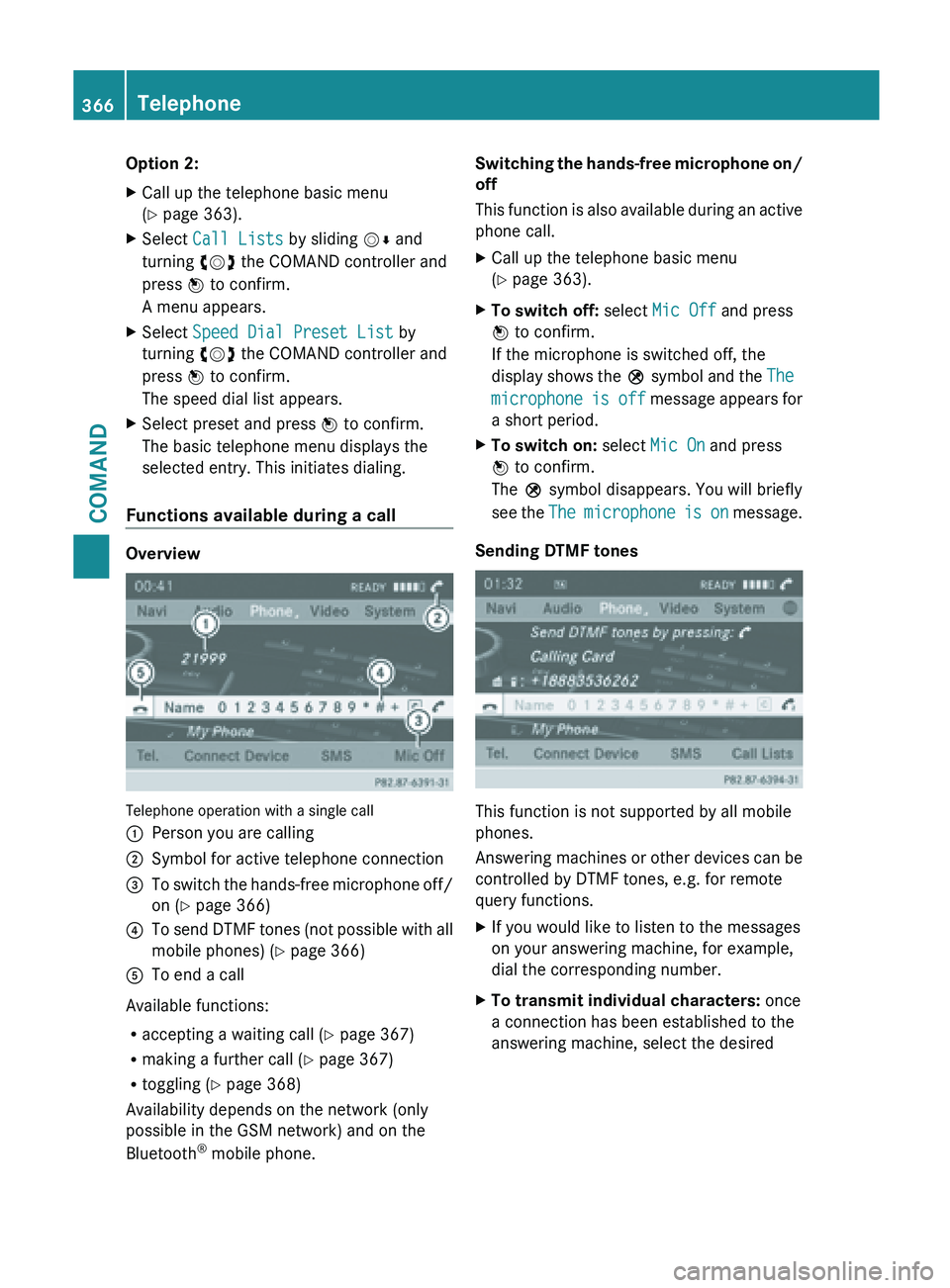
Functions available during a call Overview
Telephone operation with a single call
:
Person you are calling
; Symbol for active telephone connection
= To switch the hands-free microphone off/
on (Y page 366)
? To send DTMF tones (not possible with all
mobile phones) (
Y
page 366)
A To end a call
Available functions:
R accepting a waiting call (Y
page 367)
R making a further call ( Y page 367)
R toggling (Y page 368)
Availability depends on the network (only
possible in the GSM network) and on the
Bluetooth ®
mobile phone. Switching the hands-free microphone on/
off
This
function
is also available during an active
phone call.
X Call up the telephone basic menu
(Y page 363).
X To switch off: select Mic Off and press
W to confirm.
If the microphone is switched off, the
display shows
the Q symbol and the The
microphone is off message appears for
a short period.
X To switch on: select Mic On and press
W to confirm.
The Q symbol disappears. You will briefly
see the
The
microphone is on message.
Sending DTMF tones This function is not supported by all mobile
phones.
Answering
machines
or other devices can be
controlled by DTMF tones, e.g. for remote
query functions.
X If you would like to listen to the messages
on your answering machine, for example,
dial the corresponding number.
X To transmit individual characters: once
a connection has been established to the
answering machine, select the desired 366
Telephone
COMAND
Page 369 of 572
characters in the character bar and press
W to confirm each one.
or
X Press the corresponding key on the
COMAND number keypad.
Every character selected will be
transmitted immediately.
X To send a phone book entry as a DTMF
sequence: select Name
by turning cVd the
COMAND controller and press W to
confirm.
X Select the desired phone book entry and
press W to confirm.
The entry is sent as a DTMF character
string.
X To return to the call display: select
Back and press W to confirm.
i You can also send DTMF tones using the
Voice Control System (see the separate
operating instructions).
Calls with several participants Rejecting or accepting a waiting call
The mobile phone network provider must
support
and
activate the call-waiting function.
Depending on the mobile phone used, the
system behavior differs when accepting a
call.
If you have a call in progress and receive
another call, a new window appears in the
display. You also hear a tone. You can accept
or reject the call.
X To reject: select Reject and press W to
confirm.
or
X Press the ~ button on COMAND or on
the multifunction steering wheel.
X To accept: select Accept and press W to
confirm.
or
X Press the 6 button on COMAND or on
the multifunction steering wheel. The system behavior after accepting the
incoming
call
depends on your mobile phone.
R The mobile phone supports the call waiting
function (via Bluetooth ®
) when:
the previously active call is held. You can
then switch back and forth between both
calls (toggling) ( Y page 368).
R The mobile phone does not support the call
waiting function (via Bluetooth ®
) when:
the previously active call is ended.
This is also the case if you accept the
waiting call using Voice Control (see the
separate operating instructions).
The COMAND display changes. If you
continue to operate functions on the mobile
phone, the COMAND display may differ from
that of the mobile phone.
Making a second call
If your mobile phone allows you to make a
second call via Bluetooth ®
, you can make
another call while on the phone with someone
else. This action puts the previous call on
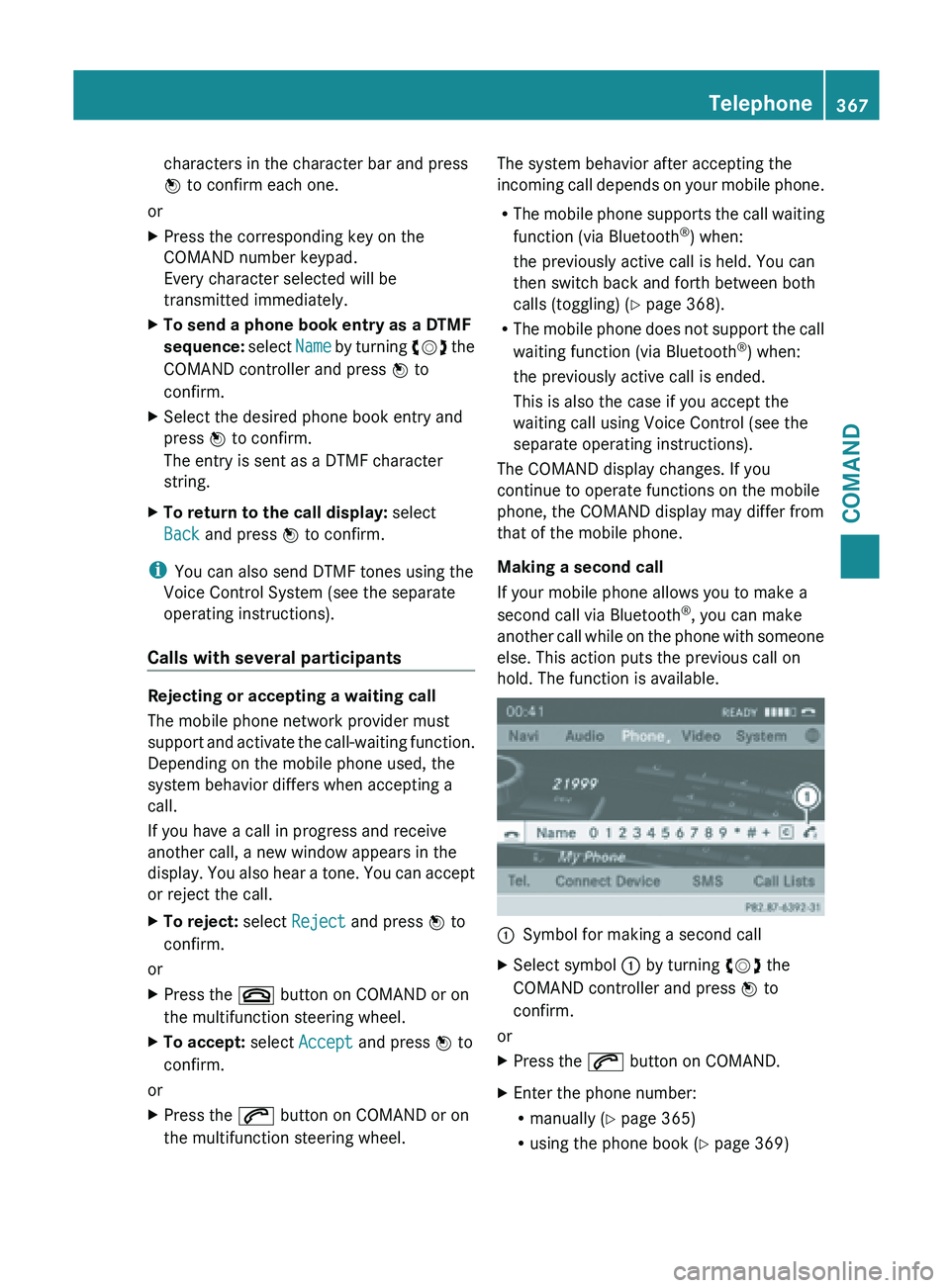
hold. The function is available. :
Symbol for making a second call
X Select symbol : by turning cVd the
COMAND controller and press W to
confirm.
or
X Press the 6 button on COMAND.
X Enter the phone number:
R
manually (Y
page 365)
R using the phone book ( Y page 369) Telephone
367
COMAND Z
Page 370 of 572
R
using the call lists ( Y page 372)
R using speed dial ( Y
page 365)
Call waiting
You can switch back and forth between calls
with this function. The function is available if
your mobile phone supports the toggling
function (via Bluetooth ®
).
You can
use the function if you are answering
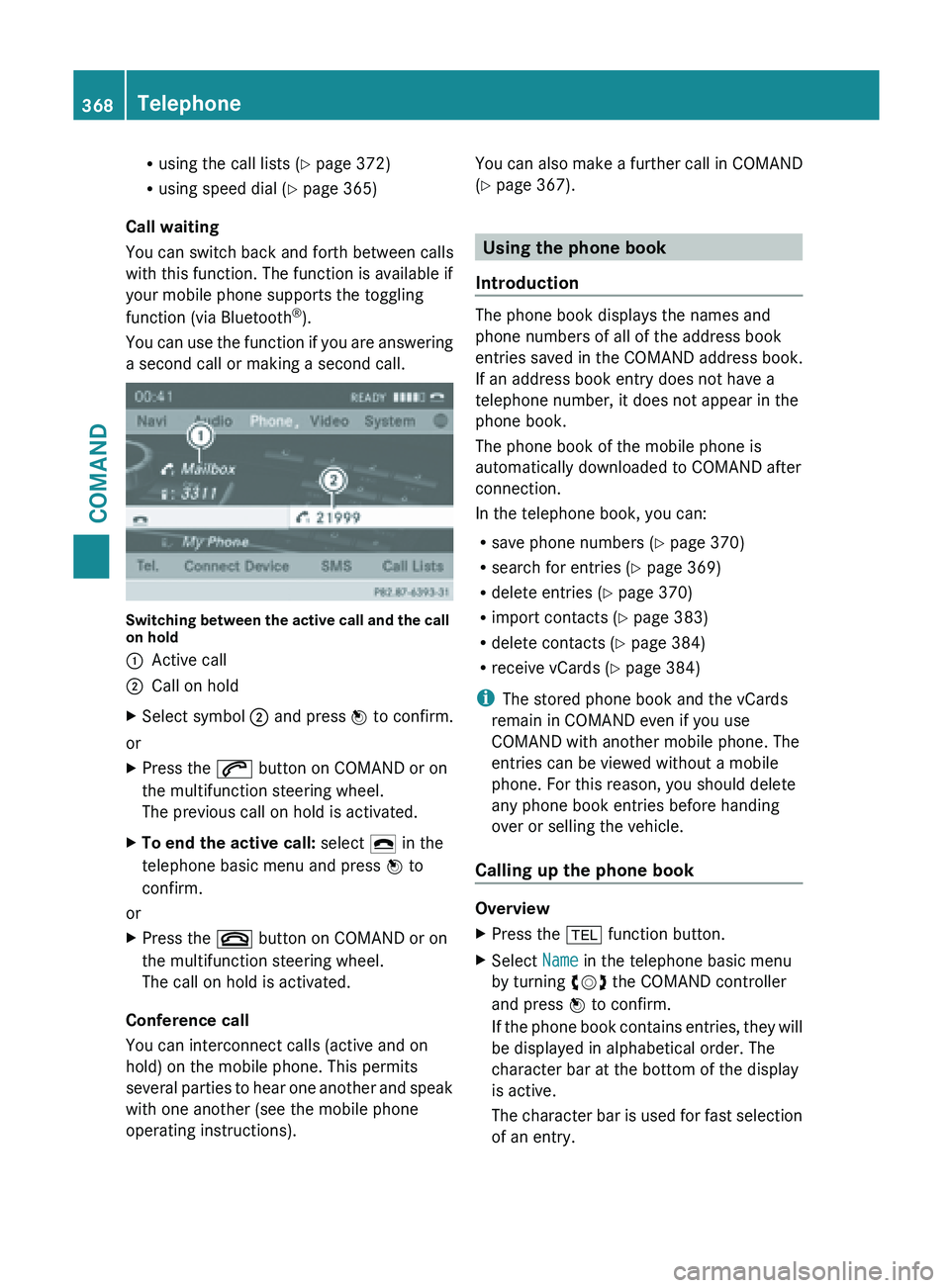
a second call or making a second call. Switching between the active call and the call
on hold
:
Active call
; Call on hold
X Select symbol ; and press W to confirm.
or
X Press the 6 button on COMAND or on
the multifunction steering wheel.
The previous call on hold is activated.
X To end the active call: select ¢ in the
telephone basic menu and press W to
confirm.
or
X Press the ~ button on COMAND or on
the multifunction steering wheel.
The call on hold is activated.
Conference call
You can interconnect calls (active and on
hold) on the mobile phone. This permits
several parties
to hear one another and speak
with one another (see the mobile phone
operating instructions). You can also make a further call in COMAND
(Y page 367).
Using the phone book
Introduction The phone book displays the names and
phone numbers of all of the address book
entries saved in the COMAND address book.
If an address book entry does not have a
telephone number, it does not appear in the
phone book.
The phone book of the mobile phone is
automatically downloaded to
COMAND after
connection.
In the telephone book, you can:
R save phone numbers ( Y
page 370)
R search for entries (Y page 369)
R delete entries (Y page 370)
R import contacts ( Y page 383)
R delete contacts (Y page 384)
R receive vCards ( Y page 384)
i The stored phone book and the vCards
remain in COMAND even if you use
COMAND with another mobile phone. The
entries can be viewed without a mobile
phone. For this reason, you should delete
any phone book entries before handing
over or selling the vehicle.
Calling up the phone book Overview
X
Press the % function button.
X Select Name in the telephone basic menu
by turning cVd the COMAND controller
and press W to confirm.
If the
phone book contains entries, they will
be displayed in alphabetical order. The
character bar at the bottom of the display
is active.
The character bar is used for fast selection
of an entry. 368
Telephone
COMAND
Page 371 of 572
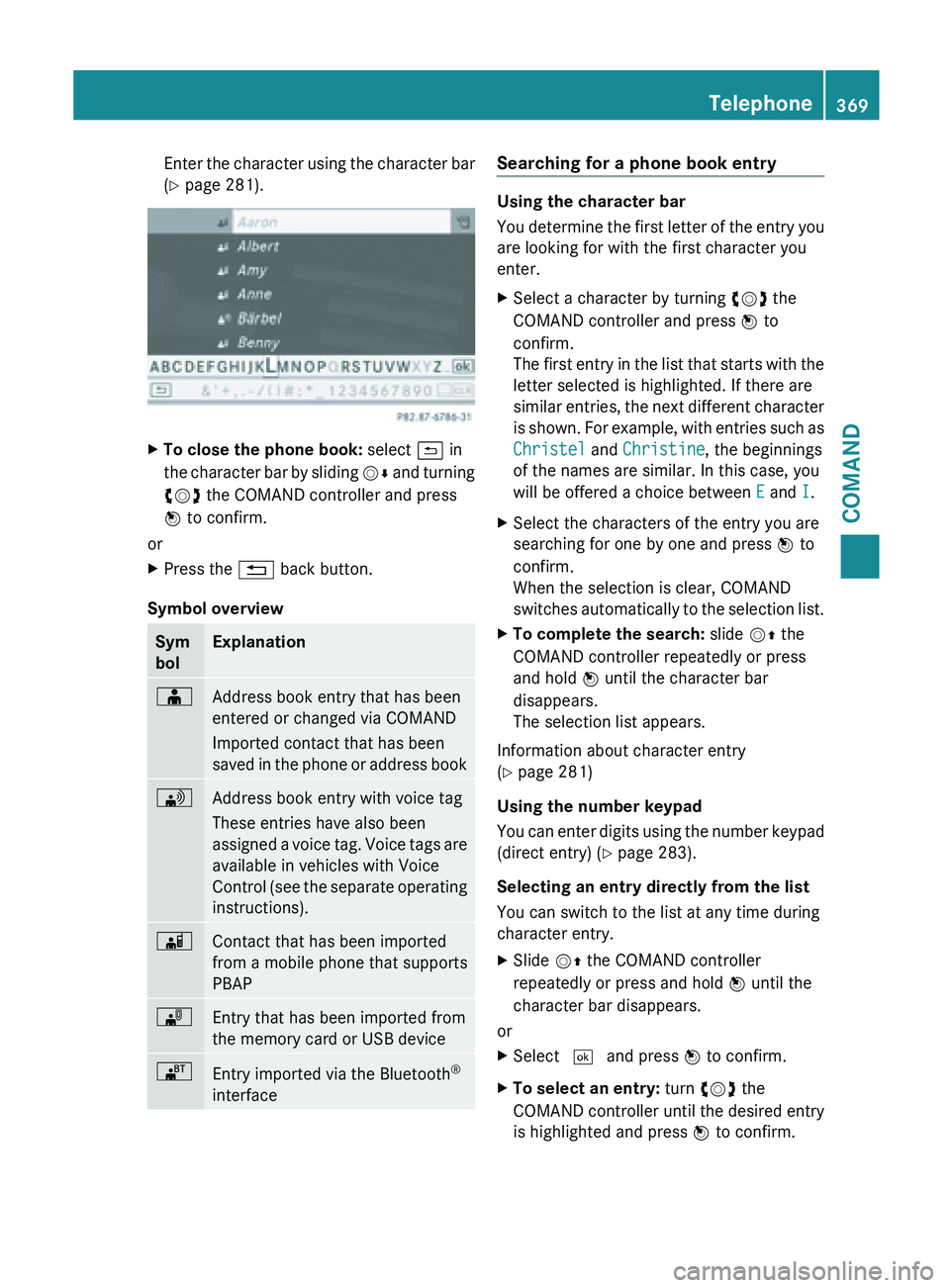
Enter the character using the character bar
(Y page 281).
X
To close the phone book: select & in
the character
bar by sliding VÆ and turning
cVd the COMAND controller and press
W to confirm.
or
X Press the % back button.
Symbol overview Sym
bol Explanation
Æ
Address book entry that has been
entered or changed via COMAND
Imported contact that has been
saved
in
the phone or address book \
Address book entry with voice tag
These entries have also been
assigned
a
voice tag. Voice tags are
available in vehicles with Voice
Control (see the separate operating
instructions). Ã
Contact that has been imported
from a mobile phone that supports
PBAP
¯
Entry that has been imported from
the memory card or USB device
®
Entry imported via the Bluetooth
®
interface Searching for a phone book entry
Using the character bar
You
determine
the first letter of the entry you
are looking for with the first character you
enter.
X Select a character by turning cVd the
COMAND controller and press W to
confirm.
The first
entry in the list that starts with the
letter selected is highlighted. If there are
similar entries, the next different character
is shown. For example, with entries such as
Christel and Christine, the beginnings
of the names are similar. In this case, you
will be offered a choice between E and I.
X Select the characters of the entry you are
searching for one by one and press W to
confirm.
When the selection is clear, COMAND
switches automatically
to the selection list.
X To complete the search: slide VZ the
COMAND controller repeatedly or press
and hold W until the character bar
disappears.
The selection list appears.
Information about character entry
(Y page 281)
Using the number keypad
You can
enter digits using the number keypad
(direct entry) (Y page 283).
Selecting an entry directly from the list
You can switch to the list at any time during
character entry.
X Slide VZ the COMAND controller
repeatedly or press and hold W until the
character bar disappears.
or
X Select ¬ and press W to confirm.
X To select an entry: turn cVd the
COMAND controller
until the desired entry
is highlighted and press W to confirm. Telephone
369
COMAND Z
Page 373 of 572
X
Select a category for the phone, e.g.
Mobile, and press W to confirm.
X Select Continue and press W to confirm.
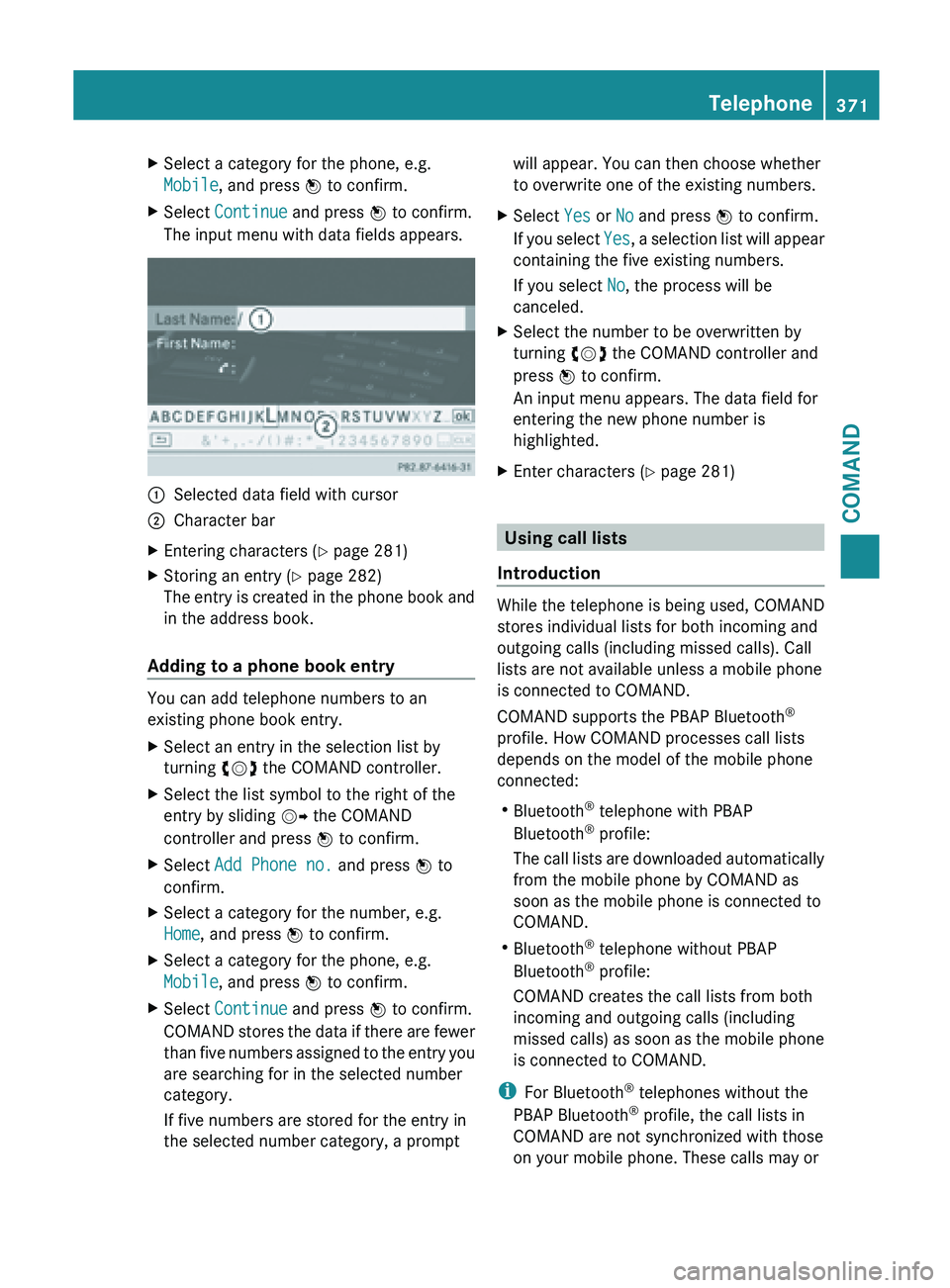
The input menu with data fields appears. :
Selected data field with cursor
; Character bar
X Entering characters ( Y page 281)
X Storing an entry (Y page 282)
The entry
is created in the phone book and
in the address book.
Adding to a phone book entry You can add telephone numbers to an
existing phone book entry.
X
Select an entry in the selection list by
turning cVd the COMAND controller.
X Select the list symbol to the right of the
entry by sliding VY the COMAND
controller and press W to confirm.
X Select Add Phone no. and press W to
confirm.
X Select a category for the number, e.g.
Home, and press W to confirm.
X Select a category for the phone, e.g.
Mobile, and press W to confirm.
X Select Continue and press W to confirm.
COMAND stores
the data if there are fewer
than five numbers assigned to the entry you
are searching for in the selected number
category.
If five numbers are stored for the entry in
the selected number category, a prompt will appear. You can then choose whether
to overwrite one of the existing numbers.
X Select Yes or No and press W to confirm.
If you
select Yes, a selection list will appear
containing the five existing numbers.
If you select No, the process will be
canceled.
X Select the number to be overwritten by
turning cVd the COMAND controller and
press W to confirm.
An input menu appears. The data field for
entering the new phone number is
highlighted.
X Enter characters ( Y page 281) Using call lists
Introduction While the telephone is being used, COMAND
stores individual lists for both incoming and
outgoing calls (including missed calls). Call
lists are not available unless a mobile phone
is connected to COMAND.
COMAND supports the PBAP Bluetooth
®
profile. How COMAND processes call lists
depends on the model of the mobile phone
connected:
R Bluetooth ®
telephone with PBAP
Bluetooth ®
profile:
The call
lists are downloaded automatically
from the mobile phone by COMAND as
soon as the mobile phone is connected to
COMAND.
R Bluetooth ®
telephone without PBAP
Bluetooth ®
profile:
COMAND creates the call lists from both
incoming and outgoing calls (including
missed calls) as soon as the mobile phone
is connected to COMAND.
i For Bluetooth ®
telephones without the
PBAP Bluetooth ®
profile, the call lists in
COMAND are not synchronized with those
on your mobile phone. These calls may or Telephone
371
COMAND Z