2013 MERCEDES-BENZ SL-Class reset
[x] Cancel search: resetPage 290 of 590

System menu overview
Settings Time Consump-
tion Seat Display
off Display settings Sets the time Calls up the
fuel
consumption
display Changes the
driver/front-
passenger seat
settings Switches
off the
display Text reader speed Sets the format
Voice-operated control
settings Sets the time
zone
Language
Favorites button
Rear view camera
Activates/deactivates
Bluetooth
® Resets COMAND
i
Delete your
personal data using
this function, for
example before
selling your vehicle. If equipped with the rear view camera:
when the function is activated and COMAND is
switched on, the image from the rear view camera is automatically shown in the COMAND
display when reverse gear is engaged.
Switching the COMAND display on/off
X Press the 000Dfunction button.
or
X Select System in the main function bar by
sliding 00380012and turning 003E0012003Fthe COMAND
controller and press 0039to confirm.
In both cases, the system menu appears.
X To switch off: selectDisplay Off and
press 0039to confirm.
X To switch on: press one of the function
buttons, e.g. 000D,0014or the 001Fback
button. Cleaning instructions
!
Do not touch the COMAND display.T he
display has a very sensitive high-gloss
surface; there is a risk of scratching. If you
have to clean the screen, however, use a
mild cleaning agent and a soft, lint-free
cloth.
The display must be switched off and have
cooled down before you start cleaning. Clean
the display screen, when necessary, with a
commercially available microfiber cloth and
cleaning agent for TFT/LCD displays. Do not
apply pressure to the display surface when
cleaning it, as this could cause irreversible 288
At
ag lanceCOMAND
Page 293 of 590

Function Page
0019
Number pad
• Selects stations via the
statio
npresets 428
• Stores stations manually 429
• Mobile phone
authorization
380
• Telephone number entry 384
• Sends DTMF tones 386
• Character entry 301
• Selects a location for the
weather forecast from the
memory
480
0033
Displays the current
track being played 445
001A
Selects stations by
entering the frequency
manually 428
001A
Selects a track 442
001A
Switches COMAND on/off 294
Adjusts the volume
294 Function Page
001D
SD memory card slot 439
001E
Calls up the system menu 303
001F
Accepts a call 384
Dials a number 384
Redials 385
Accepts a waiting call 386
0020
Switches the sound on or
off
294
Switches the hands-free
microphone on/off
386
Cancels the text message
read-aloud function
396
Switches off navigation
announcements
294
0022
Rejects a call 384
Ends an active call 387
Rejects a waiting call 386
COMAND controller
Overview
0002
COMAND controller
You can use the COMAND controller to select
the menu items in the COMAND display. You can:
R
call up menus or lists
R scroll withi nmenus or lists and
R exit menus or lists
Operation Example: operating the COMAND controller At
ag lance
291COMAND Z
Page 309 of 590

already entered and saved the address
(Y page 324).
R Detour Menu :y
ou can call up the Detour
menu and then avoid a section of the route
and recalculate the route (Y page 346).
R Compass Screen :y
ou can call up the
compass.
R Driver's Seat Massage ,
Front- Passenger's Seat Massage or
Massage: Both Front Seats :y
ou can
start the massage function, depending on
which seats are selected (Y page 313).Importing/exporting data
! Never remove the stick or card when
writing data to the USB stick or the memory
card. You may otherwise lose data.
Using this function, you can:
R transfer your personal COMAND data from
one system/vehicle to another
R make a backup copy of your personal data
(export data) and load it again (import
data).
You can either use an SD memory card or a
USB storage device (e.g. a USB stick) as
temporary storage. X
Insert the SD memory card (Y page 439).
or
X Connect aUSB device (e.g. aUSB memory
stick) ( Ypage 439).
X Press 000D.
The system menu appears.
X Select Settings by turning
003E0012003Fthe
COMAND controlle rand press 0039to
confirm.
X Select Import/Export Data and press
0039 to confirm.
X Select Import Data or
Export Data and
press 0039to confirm.
X To select apreset: selectMemory Card or
USB Storage and press
0039to confirm. System settings
307COMAND Z
Page 310 of 590

X
Select All Data and press
0039to confirm.
This function exports all the data to the
selected disc.
or
X Select the data type and press 0039to
confirm.
Depending on the previous entry, select the
data type for the export 0013or not 0003.
X Select Continue and press
0039to confirm.
i Personal music files in the MUSIC
REGISTER canno tbe saved and imported
again using this function. Reset function
You can completely reset COMAND to the
factory settings. Amongst other things, this
will delete all personal COMAND data. This
includes the station presets, entries in the
destination memory and in the list of previous
destinations in the navigation system and
address book entries. Resetting is
recommended before selling or transferring
ownership of your vehicle, for example.
Data on the internal hard drive, e.g. music
files in the MUSIC REGISTER, will be deleted.
You can also delete music files from the
MUSIC REGISTER using the "Delete all music
files" function (Y page 453).
X Press the 000Dfunction button.
X Select Settings by turning
003E0012003Fthe
COMAND controller and press 0039to
confirm.
X Select Reset and press
0039to confirm.
Ap rompt appears asking whethe ryou wish
to reset.
X Select Yes or
No and press
0039to confirm.
If you select No , the process will be
canceled. If you select
Yes , a prompt will appear again
asking whether you really wish to reset.
X Select Yes or
No and press
0039to confirm.
If you select Yes , a message will be shown.
COMAND is reset and restarted.
If you select No , the process will be
canceled. Vehicle functions
Your COMAND equipment
These operating instructions describe all the
standard and optional equipment for your
COMAND system, as available at the time of
going to print. Country-specific differences
are possible. Please note that your COMAND
system may not be equipped with all the
features described. Climate control status display
The climate status display in the COMAND display
(example)
If you change the settings of the climate
control system, the climate status display
appears for three seconds at the bottom of
the screen in the COMAND display
.You will
see the current settings of the various climate
control functions.
Overview of climate control systems, see
separate vehicle operating instructions. 308
Vehicle functionsCOMAND
Page 316 of 590
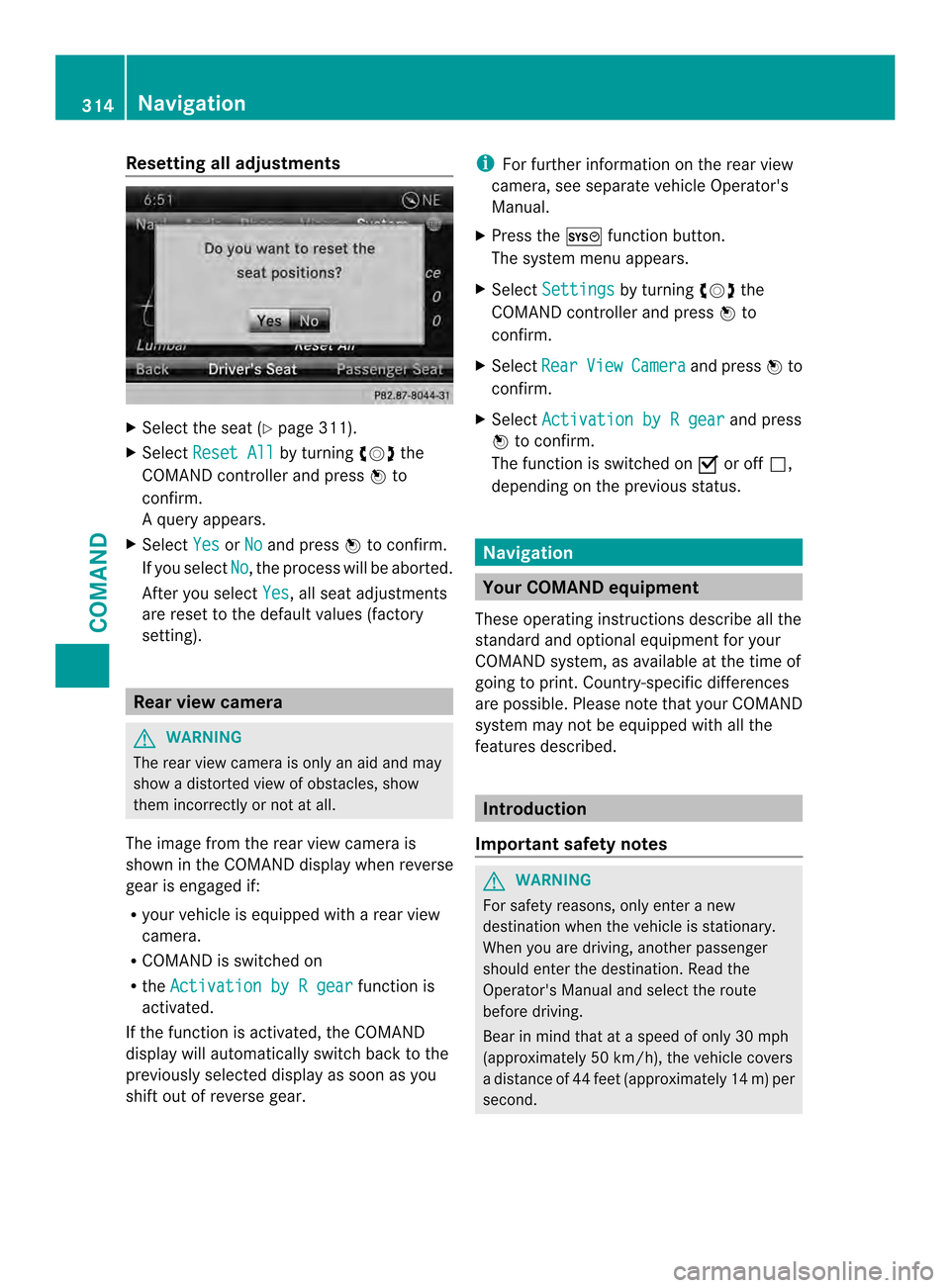
Resetting all adjustments
X
Select the sea t(Ypage 311).
X Select Reset All by turning
003E0012003Fthe
COMAND controller and press 0039to
confirm.
Aq uery appears.
X Select Yes or
No and press
0039to confirm.
If you select No , the process will be aborted.
Afte ryou select Yes , all seat adjustments
are reset to the default values (factory
setting). Rear view camera
G
WARNING
The rear view camera is only an aid and may
show a distorted view of obstacles, show
them incorrectly or not at all.
The image from the rear view camera is
shown in the COMAND display when reverse
gear is engaged if:
R your vehicle is equipped with a rear view
camera.
R COMAND is switched on
R the Activation by R gear function is
activated.
If the function is activated, the COMAND
display will automatically switch back to the
previously selected display as soon as you
shift out of reverse gear. i
For further information on the rear view
camera, see separate vehicle Operator's
Manual.
X Press the 000Dfunction button.
The system menu appears.
X Select Settings by turning
003E0012003Fthe
COMAND controller and press 0039to
confirm.
X Select Rear View Camera and press
0039to
confirm.
X Select Activation by R gear and press
0039 to confirm.
The function is switched on 0013or off 0003,
depending on the previous status. Navigation
Your COMAND equipment
These operating instructions describe all the
standard and optional equipment for your
COMAND system, as available at the time of
going to print. Country-specific differences
are possible. Please note that your COMAND
system may not be equipped with all the
features described. Introduction
Important safety notes G
WARNING
For safety reasons, only enter a new
destination when the vehicle is stationary.
When you are driving, another passenger
should enter the destination .Read the
Operator's Manual and select the route
before driving.
Bear in mind that at a speed of only 30 mph
(approximately 50 km/h), the vehicle covers
a distance of 44 feet (approximately 14 m) per
second. 314
NavigationCOMAND
Page 331 of 590

X
Confirm Set by pressing
0039the COMAND
controller.
X Ente rthe waypoint via one of the following
options. Selection Action
Address Entry X
Enter a
destination by
address
(Y page 318). From Memory X
Select a
destination from
the destination
memory
(Y page 324). From Last
Destinations X
Select a
destination from
the list of last
destinations
(Y page 325). From POIs X
Select a point of
interest
(Y page 330). From Personal
POIs X
Enter a
destination from
the personal POIs
(Y page 339). Using Map X
Enter a
destination using
the map
(Y page 325). Using Geo-
Coordinates X
Enter a
destination using
the geo-
coordinates
(Y page 326). When the entry is complete, the waypoint
appears. X
To accept the waypoint: confirmOK by
pressing 0039.
X To display the details: selectDetails by
turning 003E0012003Fthe COMAND controller and
press 0039to confirm.
X To make a call: selectCall with the
COMAND controller and press 0039to
confirm.C OMAND switches to telephone
mode (Y page 384).
i This menu item is available if the waypoint
has a telephone number and if a mobile
phone is connected to
COMAND(Y page 378).
X To call up the map: selectMap with the
COMAND controller and press 0039to
confirm.
X You can move the map and select the
destination.
X To store the waypoint in the destination
memory: selectPresets with the
COMAND controller and press 0039to
confirm.
Once you have accepted the waypoint, it is
entered in the waypoint menu. Navigation
329COMAND Z
Page 353 of 590

X
To begin route calculation: selectStart in the menu by turning
003E0012003Fthe COMAND
controller and press 0039to confirm.
COMAND attempts to alig nthe recorded
route with the digital map. Changing route names and icons
X
Select Edit in the menu by turning
003E0012003F
the COMAND controller and press 0039to
confirm.
X To change the route name: select
Rename and press
0039to confirm.
i The name cannot be changed while the
vehicle is in motion.
X To change the icon: selectChange Icon and press
0039to confirm.
Observe the further information on managing
categories for personal POIs (Y page 337).
To change direction for route
calculation: you can set the icon for the
route to the starting point or to the
destination, thereby changing the direction
for route calculation.
During route calculation, one-way streets or
turn restrictions, for example, are taken into
account. Therefore, the outward and return
routes may differ from each other.
X Select Swap in the menu by turning
003E0012003F
the COMAND controller and press 0039to
confirm. X
To delete a route: selectDelete in the
menu by turning 003E0012003Fthe COMAND
controller and press 0039to confirm.
Ap rompt appears asking whethe rthe route
should be deleted.
X Select Yes or
No and press
0039to confirm.
If you select Yes , the route will be deleted.
If you select No , the process will be
canceled.
Scanning the memory The SD memory card is inserted.
X
Calling up the "Routes" menu
(Y page 350).
X Select Presets in the "Routes" menu by
turning 003E0012003Fthe COMAND controller and
press 0039to confirm.
The route memory is displayed.
Off-road and off-map Important safety note
G
WARNING
The COMAND navigation system may direct
you to off-road routes that your vehicle may
not be capable of traversing through without
damaging your tires, wheels or vehicle. It is
the driver's sole responsibility to determine
the suitability of the route. Off-road routes
may be of varying conditions and their
appropriateness for use may be affected by
various factors such as time of day, time of
year and immediate weather conditions that
cannot be judged or taken into consideration
by the COMAND system. Navigation
351COMAND Z
Page 387 of 590

X
To make a call: select°in the character
ba ra nd press 0039to confirm.
or
X Press the 0017button on COMAND or on
the multifunctio nsteering wheel.
Redialing
X Call up the telephone basi cmenu
(Y page 383).
X Select °in the character bar and press
0039 to confirm.
or
X If the telephone basic menu is displayed,
press the 0017button on COMAND.
In both cases, the calls dialed list appears.
The most recently dialed number is at the
top.
X To select acall: turn 003E0012003F the COMAND
controller.
X To connect the call: press0039the
COMAND controller.
Using the call lis torCOMAND phone book
X Open a call list and select an entry
(Y page 392).
or
X Call up the COMAND phone book and
select an entry (Y page 389).
X To make a call: press0039the COMAND
controller or the 0017button.
Making a call via speed dial
The speed dial list contains stored entries
from the phone book (Y page 394).
Option 1:
X Hold down one of the number keys for
longer than two seconds.
The telephone basic menu displays the
selected entry. This initiates dialing. Option 2:
X
Call up the telephone basic menu
(Y page 383).
X Select Call Lists by sliding
0012000Aand
turning 003E0012003Fthe COMAND controller and
press 0039to confirm.
Am enu appears.
X Select Speed Dial Preset List by
turning 003E0012003Fthe COMAND controller and
press 0039to confirm.
The speed dial list appears.
X Select preset and press 0039to confirm.
The telephone basic menu displays the
selected entry. This initiates dialing.
Functions available during acall Overview
Telephone operatio
nwith a single call
0002 Perso nyou are calling
0003 Icon for active telephone connection
0027 To switch the hands-free microphone off/
on (Y page 386)
0026 To send DTMF tones (not possible with all
mobile phones) (Y page 386)
0024 To end a call
Available functions:
R accepting a waiting call (Y page 386)
R making a further call (Y page 387)
R toggling (Y page 387)
Availability depends on the network (only
possible in the GSM network) and on the
Bluetooth ®
mobile phone. Telephone
385COMAND Z