Page 365 of 474
Browsing Device Content
When listening to any type of audio,
you can browse through other devices
without having to change sources. For
example, if you are currently listening
to the radio, you can browse all the
artists that are stored on your USB
device. Press the voice icon on the
steering wheel. When
prompted, you can say:
"BROWSE" within Devices
"Browse" *
"Browse games" **
"Browse channels" **
"Browse CD track list" "Browse SD card"
"Browse Sirius channel guide" **
"Browse USB" "Help"
* If you only say "Browse", you can then say any commands in the following
chart.
** If equipped with SIRIUS® satellite radio. "BROWSE"
" Games" *
" channels" *
"CD Track List" "SD card" *
362
MyLincoln Touch
™E142599
Page 366 of 474

"BROWSE"
"Sirius Channel Guide" *
"USB" **
"Help"
* If equipped with SIRIUS® satellite radio.
** For more commands in SD card or USB mode, see the "SD Card and USB
Port" section of this chapter.
AM/FM Radio Press the lower left corner of
the touchscreen and then
select the AM or FM tabs.
To change between AM and FM
presets, just touch the AM or FM tabs. You Can
When You Select
Save a station by pressing and holding one of the
memory preset areas. There is a brief mute while
the station is being saved, then sound returns when
it is done.
Presets
Turn the feature on. This enables you to receive
radio broadcasts digitally (where available),
providing free, crystal-clear sound.
HD Radio
Go to the next strong AM or FM radio station.
Scan
Sound Settings allows you to adjust Bass,
Midrange, Treble, Balance and Fade, THX Deep Note
Demo (if equipped), DSP (if equipped), Occupancy
Mode (if equipped) and Speed Compensated
Volume.
Options
Set PTY for Seek/Scan
allows you to select a
category of music you would like to search for and
then choose to either seek or scan for the stations.
363
MyLincoln Touch
™E142611
Page 380 of 474
"CD"
"Shuffle CD" *
"Shuffle folder" *
"Shuffle off" "Help"
* WMA or MP3 only.
SD Card Slot and USB Port
SD Card
Note: Your SD card slot is
spring-loaded. To remove the SD card,
press the card in and the system ejects
it. Do not attempt to pull the card to
remove it as this could cause damage.
The card slot can also be used for your
navigation system (if equipped). See
Navigation (page 407). The SD card slot is located either in
the center console or behind a small
access door in the instrument panel.
To access and play music from your
device, press the lower left corner of
the touchscreen. SD logo is a trademark of SD-3C, LLC.
USB Port
The USB ports are located either in
the center console or behind a small
access door in the instrument panel.
To access and play music from your
device, press the lower left corner of
the touchscreen.
377
MyLincoln Touch
™E142619 E142620 E142621
Page 381 of 474

This feature allows you to plug in
media playing devices, memory sticks,
flash drives or thumb drives, and also
charge devices if they support this
feature.
In order to playback video from your
iPod® or iPhone® (if compatible), you
MUST have a special combination
USB/RCA composite video cable
(available for purchase from Apple®).
When the cable is connected to your
iPod® or iPhone®, plug the other end
into both the RCA jacks and the USB
port.
Playing Music from Your Device Insert your device and select
the USB or SD Card tab once
the system recognizes it. You
can choose from the following
options: You Can
When You Select
Repeat the currently playing song or album.
Repeat
Play music on the selected album or folder in
random order.
Shuffle
Choose music similar to that which is currently
playing.
Similar Music
Displays information such as current track, artist
name. album and genre.
More Info
Sound Settings allows you to adjust Bass,
Midrange, Treble, Balance and Fade, DSP (if
equipped), Occupancy mode (if equipped), and
speed compensated volume.
Options
Media Player Settings
allows you to select more
settings, which can be found under Media Player.
See Settings (page 351).
378
MyLincoln Touch
™E142611
Page 382 of 474

You Can
When You Select
Device Information displays software and firm-
ware information about the currently-connected
media device.
Update Media Index indexes the device each time
it is connected to make sure you have the latest
voice commands available for all media on the
device.
Browse the contents of the device. It also allows
you to search and play by genre, artist, album, etc.
Browse
To view song information such as
Title, Artist, File, Folder, Album, and
Genre, touch the on-screen album art.
You can also press
What's Playing?
to hear how the system pronounces
the current band and song. This can
be helpful when using voice
commands to make sure the system
correctly plays your request. USB and SD Card Voice Commands If you are listening to a USB
device or an SD card, press
the voice button on the
steering wheel controls. When
prompted, say any of the following
commands.
If you are not listening to a USB device
or an SD card, press the voice button
and, after the tone, say "USB" or "SD
card", then any of the following
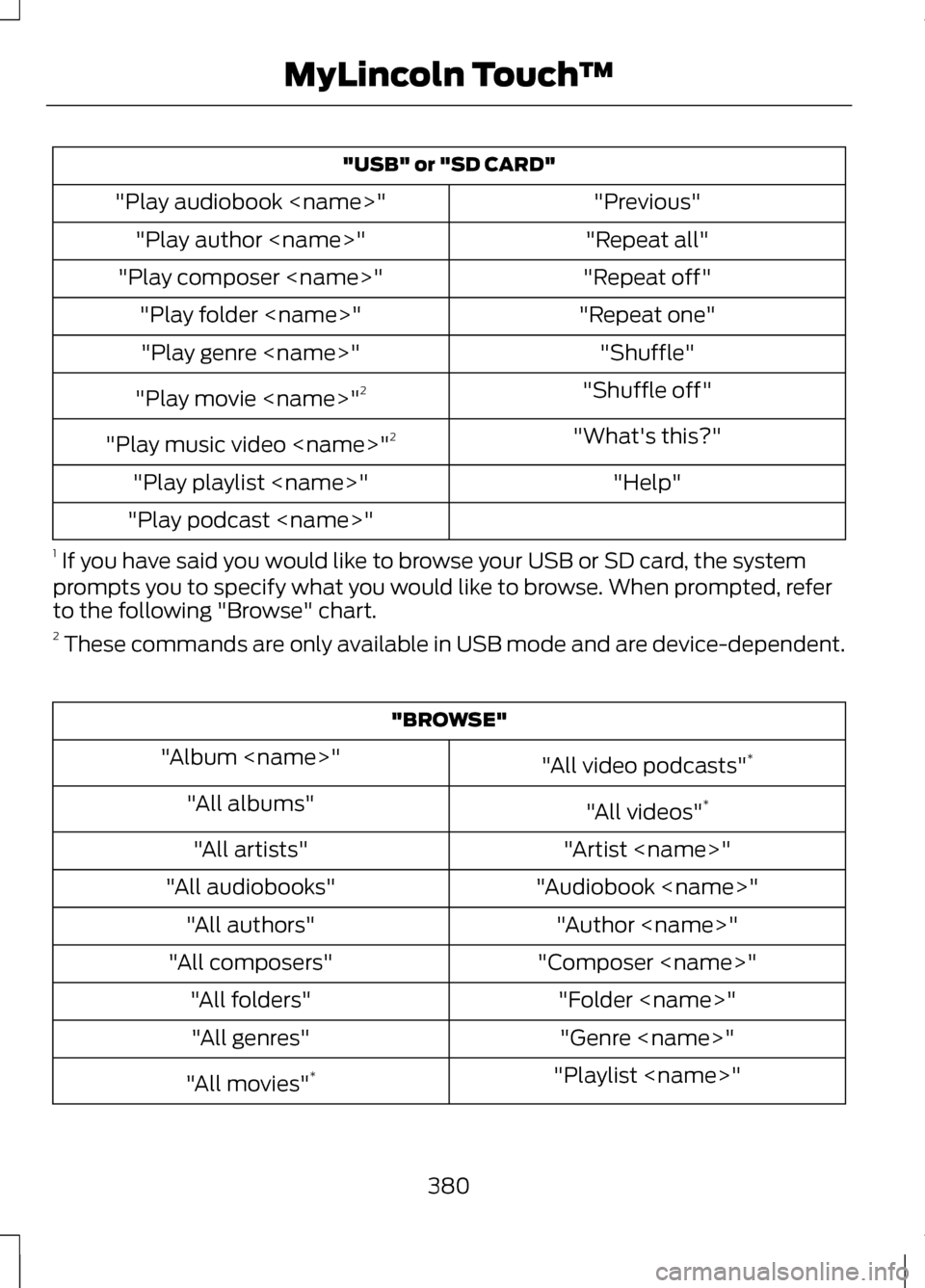
commands. "USB" or "SD CARD"
"Play podcast episode "
"Browse" 1
"Play similar music"
"Next"
"Play song "
"Pause"
"Play TV show episode " 2
"Play"
"Play video "2
"Play album "
"Play video podcast episode " 2
"Play all"
"Play video playlist " 2
"Play artist "
379
MyLincoln Touch
™E142599
Page 383 of 474
"USB" or "SD CARD"
"Previous"
"Play audiobook "
"Repeat all"
"Play author "
"Repeat off"
"Play composer "
"Repeat one"
"Play folder "
"Shuffle"
"Play genre "
"Shuffle off"
"Play movie " 2
"What's this?"
"Play music video " 2
"Help"
"Play playlist "
"Play podcast "
1 If you have said you would like to browse your USB or SD card, the system
prompts you to specify what you would like to browse. When prompted, refer
to the following "Browse" chart.
2 These commands are only available in USB mode and are device-dependent. "BROWSE"
"All video podcasts" *
"Album "
"All videos"*
"All albums"
"Artist "
"All artists"
"Audiobook "
"All audiobooks"
"Author "
"All authors"
"Composer "
"All composers"
"Folder "
"All folders"
"Genre "
"All genres"
"Playlist "
"All movies" *
380
MyLincoln Touch
™
Page 384 of 474

"BROWSE"
"Podcast "
"All music videos" *
"TV show "*
"All playlists"
"Video "*
"All podcasts"
"Video playlist "*
"All songs"
"Video podcast "*
"All TV shows" *
"Help"
"All video playlists" *
* These commands are only available in USB mode and are device-dependent.
Supported Media Players,
Formats and Metadata
Information
SYNC is capable of hosting nearly any
digital media player, including iPod®,
Zune ™, plays from device players, and
most USB drives. Supported audio
formats include MP3, WMA, WAV and
AAC.
It is also able to organize your indexed
media from your playing device by
metadata tags. Metadata tags are
descriptive software identifiers
embedded in the media files which
provide information about the file.
If your indexed media files contain no
information embedded in these
metadata tags, SYNC may classify
the empty metadata tags as
Unknown. In order to playback video from your
iPod® or iPhone®, (if compatible),
you MUST have a special combination
USB/RCA composite video cable
(available for purchase from Apple®).
When the cable is connected to your
iPod® or iPhone®, plug the other end
into both the RCA jacks and the USB
port.
Bluetooth Audio
Your system allows you to stream
audio over your vehicle's speakers
from your connected,
Bluetooth-enabled mobile phone.
To access, press the lower
left corner on the
touchscreen, then select the
BT Stereo tab.
381
MyLincoln Touch
™E142611
Page 387 of 474

To use the auxiliary input jack feature,
make sure that your portable media
player is designed to be used with
headphones and that it is fully
charged. You also need an audio
extension cable with stereo male
one-eighth inch (3.5 millimeter)
connectors at one end and a RCA jack
at the other.
1. Begin with the vehicle parked and
the radio and portable device
turned off.
2. Attach one end of the audio extension cable to the headphone
output of your player and the other
end into the adapter in one of the
two left A/V input jacks (white or
red) inside the center console.
3. Press the lower left corner on the touchscreen. Select either a tuned
station from the FM tab or the CD
tab (if there is a CD already loaded
into the system). Adjust the
volume to a comfortable listening
level.
4. Turn the portable media player on
and adjust the volume to one-half
the maximum.
5. Press the lower left corner on the touchscreen. Select the A/V In tab.
(You should hear audio from your
portable music player although it
may be low.)
6. Adjust the sound on your portable
media player until it reaches the
level of the FM station or CD by
switching back and forth between
the controls. In order to playback video from your
iPod® or iPhone®, (if compatible),
you MUST have a special combination
USB/RCA composite video cable
(available for purchase from Apple®).
When the cable is connected to your
iPod® or iPhone®, plug the other end
into both the RCA jacks and the USB
port.
Note:
Do not connect the audio input
jack to a line level output. The AIJ only
works correctly with devices that have
a headphone output with a volume
control.
Note: Do not set the portable media
player's volume level higher than is
necessary to match the volume of the
CD or FM radio as this causes distortion
and reduces sound quality.
Note: If the audio sounds distorted at
lower listening levels, turn the portable
media player volume down. If the
problems persists, replace or recharge
the batteries in the portable media
player.
Note: The portable media player must
be controlled in the same manner when
it is used with headphones as the AIJ
does not provide control (e.g., play or
pause) over the attached portable
media player.
384
MyLincoln Touch
™