Page 287 of 1168

Features of your vehicle
208
4
No phone paired. Empty phone paired.
Pair a phone?
No connected phone.No connected phone. Connect a
phone?
Phone book is empty.Phone book is empty
Available only when This is a warning, Do not enter
the MENU about BT Setup.
When vehicle is moving
Listening... Listen to instruction of audio
Phone book DownloadDownloading phone book from
phone paired to audio
Auto Download After pairing phone, audio sys- tem automatically download
phone book
Audio Streaming
After pairing phone, audio system
can support
Bluetooth®Wireless
Technology streaming mode
Outgoing Volume Set outoging volume "0 ~ 5"
Bluetooth System OffTurn off Bluetooth®Wireless
TechnologySystem
Bluetooth System ONTurn on Bluetooth®Wireless
TechnologySystem
Device :
Bluetooth®Wireless
Technologydevice name
Passkey Passkey for pairing a phone
Pairing complete Pair a
Bluetooth®Wireless
Technologyphone to the audio
Pairing failed Audio & Phone connection have
failed
Already 5 devices All 5 phones have already been paired. Delete a previously
paired phone to pair new phone
Connection completeAudio & Phone connection have
succeed
Connection failed. Audio & Phone connection have
failed
Priority changed Changed priority about the reg-
istered phones
Overwrite previous Overwrite previous phone book
information
Phone does not supportPhone does not support Phone
book download
No connected There are phone in the
connection list
Phone does not supportBut it was actually not connect-
ed BT pairing
Downloading stoppedDownloading stopped
paired. Delete a paired phone?
Phone book download
Bluetooth
audio
vehicle is stationary
Download?
Connect a phone?
Pair a phone?
phone book?Retry?
Bluetoothdevice
JD eng 4b(169~).qxp 7/19/2012 3:46 PM Page 208
Page 289 of 1168
Features of your vehicle
210
4
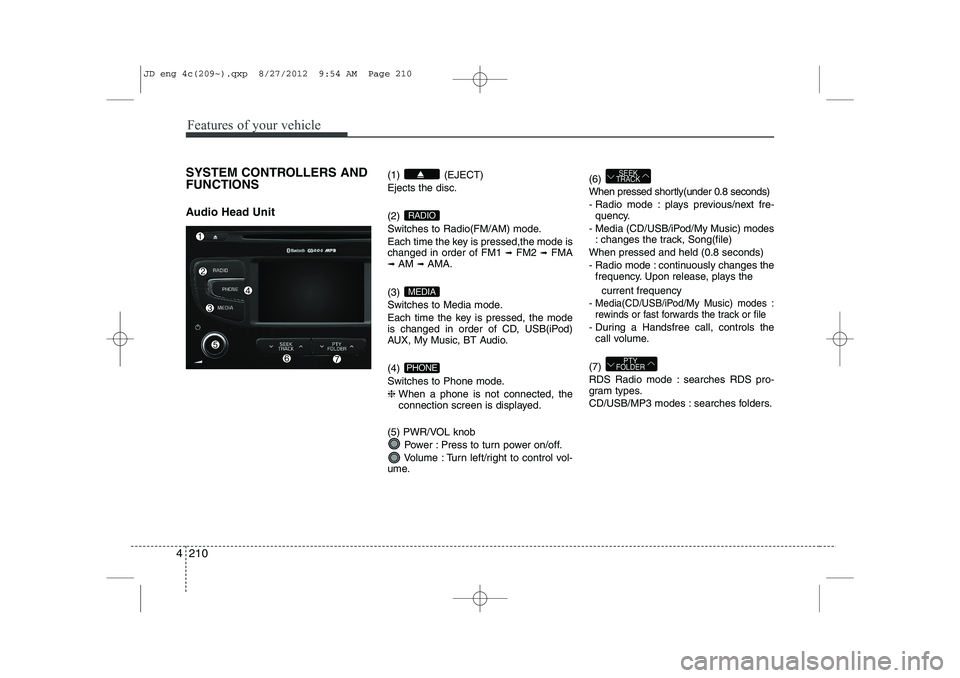
SYSTEM CONTROLLERS AND FUNCTIONS
Audio Head Unit (1) (EJECT) Ejects the disc. (2)
Switches to Radio(FM/AM) mode.
Each time the key is pressed,the mode is changed in order of FM1
➟
FM2 ➟FMA
➟ AM ➟AMA.
(3)
Switches to Media mode.
Each time the key is pressed, the mode
is changed in order of CD, USB(iPod)
AUX, My Music, BT Audio. (4)
Switches to Phone mode.❈ When a phone is not connected, the
connection screen is displayed.
(5) PWR/VOL knob Power : Press to turn power on/off.
Volume : Turn left/right to control vol-
ume. (6)
When pressed shortly(under 0.8 seconds)
- Radio mode : plays previous/next fre-
quency.
- Media (CD/USB/iPod/My Music) modes : changes the track, Song(file)
When pressed and held (0.8 seconds)
- Radio mode : continuously changes the frequency. Upon release, plays the
current frequency
-
Media(CD/USB/iPod/My Music) modes :
rewinds or fast forwards the track or file
- During a Handsfree call, controls the call volume.
(7)
RDS Radio mode : searches RDS pro-
gram types.
CD/USB/MP3 modes : searches folders.
PTY
FOLDER
SEEK
TRACK
PHONE
MEDIA
RADIO
JD eng 4c(209~).qxp 8/27/2012 9:54 AM Page 210
Page 291 of 1168
Features of your vehicle
212
4
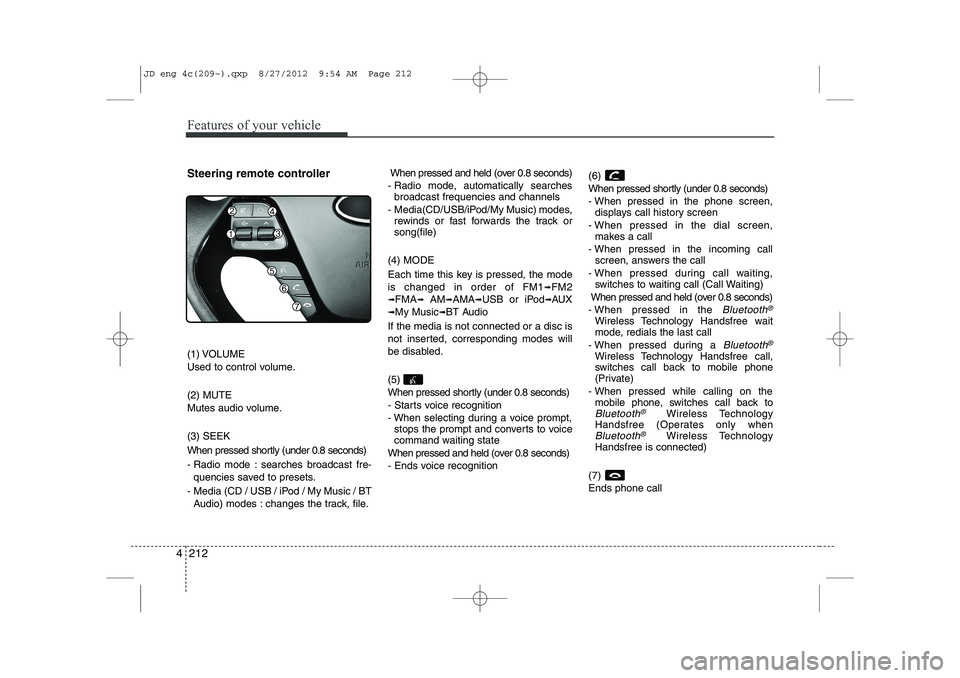
Steering remote controller
(1) VOLUME
Used to control volume. (2) MUTE
Mutes audio volume. (3) SEEK
When pressed shortly (under 0.8 seconds)
- Radio mode : searches broadcast fre-
quencies saved to presets.
- Media (CD / USB / iPod / My Music / BT Audio) modes : changes the track, file. When pressed and held (over 0.8 seconds)
- Radio mode, automatically searches broadcast frequencies and channels
- Media(CD/USB/iPod/My Music) modes, rewinds or fast forwards the track or song(file)
(4) MODE
Each time this key is pressed, the mode is changed in order of FM1
➟FM2
➟FMA➟AM➟AMA➟USB or iPod➟AUX
➟My Music➟BT Audio
If the media is not connected or a disc is
not inserted, corresponding modes will
be disabled. (5)
When pressed shortly (under 0.8 seconds)
- Starts voice recognition
- When selecting during a voice prompt, stops the prompt and converts to voice
command waiting state
When pressed and held (over 0.8 seconds)
- Ends voice recognition (6)
When pressed shortly (under 0.8 seconds)
- When pressed in the phone screen,
displays call history screen
- When pressed in the dial screen, makes a call
- When pressed in the incoming call screen, answers the call
- When pressed during call waiting, switches to waiting call (Call Waiting)
When pressed and held (over 0.8 seconds)
- When pressed in the Bluetooth®
Wireless Technology Handsfree wait
mode, redials the last call
- When pressed during a
Bluetooth®
Wireless Technology Handsfree call,
switches call back to mobile phone
(Private)
- When pressed while calling on the mobile phone, switches call back to
Bluetooth®Wireless Technology
Handsfree (Operates only when
Bluetooth®Wireless Technology
Handsfree is connected)
(7) Ends phone call
JD eng 4c(209~).qxp 8/27/2012 9:54 AM Page 212
Page 295 of 1168
Features of your vehicle
216
4
MEDIA MODE
Switching to Media Mode
Pressing the key will change
the operating mode in order ofCD
➟USB(iPod)➟AUX➟My Music ➟
BT Audio.
If [Pop-up Mode] is turned on within
[Display], then pressing the
key will display the Media
Pop-up Mode screen.
Turn the TUNE knob to move the
focus. Press the knob to select.
✽✽ NOTICE
The media mode pop up screen can be
displayed only when there are two or
more media modes turned on.
Title Icon When a
Bluetooth®Wireless
Technology, iPod, USB, or AUX
device is connected or a CD is
inserted, the corresponding mode
icon will be displayed.
Icon Title
Bluetooth®Wireless Technology
CD
iPod
USB
AUX
MEDIA
SETUP
MEDIA
JD eng 4c(209~).qxp 8/27/2012 9:55 AM Page 216
Page 296 of 1168
4 217
Features of your vehicle
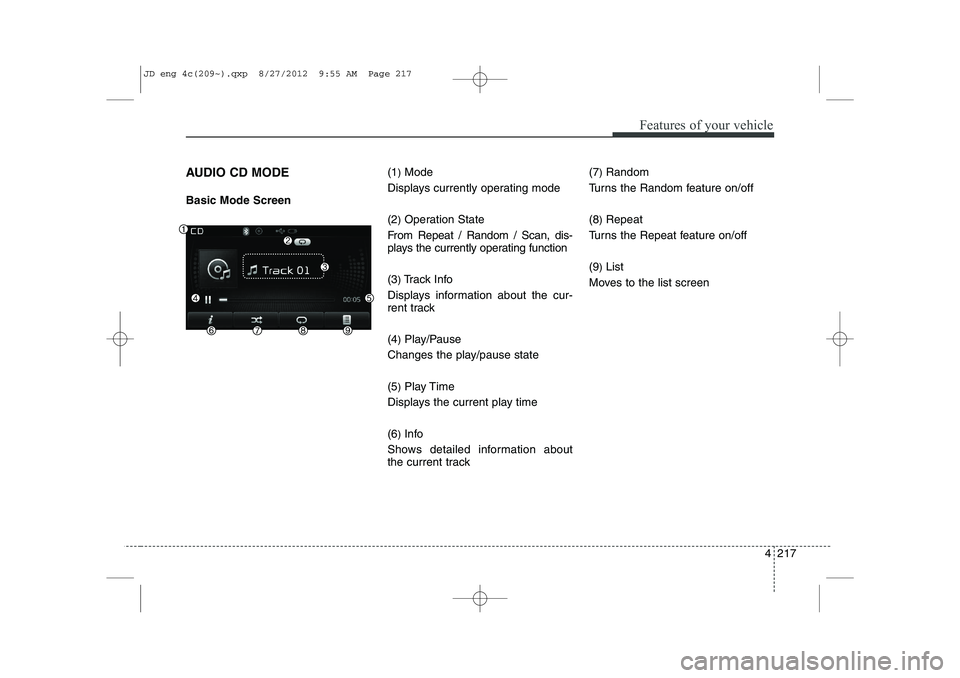
AUDIO CD MODE Basic Mode Screen(1
)Mode
Displays currently operating mode (2 )Operation State
From Repeat / Random / Scan, dis-
plays the currently operating function (3 )Track Info
Displays information about the cur-
rent track (4 )Play/Pause
Changes the play/pause state(5 )Play Time
Displays the current play time(6 )Info
Shows detailed information about
the current track (7
)
Random
Turns the Random feature on/off (8 )Repeat
Turns the Repeat feature on/off(9 )List
Moves to the list screen
JD eng 4c(209~).qxp 8/27/2012 9:55 AM Page 217
Page 297 of 1168
Features of your vehicle
218
4
Using Audio CD Mode
Playing/Pausing CD Tracks
Once an audio CD is inserted, the
mode will automatically start and
begin playing.
While playing, press the button
to pause and press button to
play.
✽✽
NOTICE
Page 298 of 1168
4 219
Features of your vehicle
Audio CD Mode Menu
Within this mode, you will have
access to the Info, Random, Repeat
and List features.Info
Press the button to display details about the current disc.
Random
Press the button to play tracks
in random order.
Press the button again to turn the
Random feature off.
Repeat
Press the button to repeat the
current track. Press the button again
to turn the repeat feature off.
List
Press the button to display the
track list screen.
Turn the TUNE knob left/right to
search for tracks. Once the desired track
is displayed, press the knob to select and
play.
JD eng 4c(209~).qxp 8/27/2012 9:58 AM Page 219
Page 308 of 1168
4 229
Features of your vehicle
Using iPod Mode
Playing/Pausing iPod Songs
Once an iPod is connected, the
mode will automatically start and
begin playing an iPod song.
While playing, press the button
to pause and press button to
play.
✽✽NOTICE
iPods with unsupported communication
protocols may not properly operate inthe audio system.
Changing Songs
Press the key to move to the
previous or next song.
✽✽ NOTICE
![KIA CEED 2013 Owners Manual Features of your vehicle
216
4
MEDIA MODE
Switching to Media Mode
Pressing the key will change
the operating mode in order ofCD
➟USB(iPod)➟AUX➟My Music ➟
BT Audio.
If [Pop-up Mode] is tur](/manual-img/2/57944/w960_57944-294.png "KIA CEED 2013 Owners Manual Features of your vehicle
216
4
MEDIA MODE
Switching to Media Mode
Pressing the key will change
the operating mode in order ofCD
➟USB(iPod)➟AUX➟My Music ➟
BT Audio.
If [Pop-up Mode] is tur")