Page 914 of 1168
4 251
Features of your vehicle
Scroll Text
Press the key Select
[Display] Select [Scroll text]
This feature is used to scroll text dis-
played on the screen when it is too long
to be displayed at once.
When turned on, the text is repeatedly
scrolled. When turned off, the text is
scrolled just once.
MP3 Information Display
Press the key Select
[Display] Select [Song Info]
This feature is used to change the infor-
mation displayed within USB and MP3
CD modes.
(1) Folder File : Displays file name andfolder name
(2) Album Artist Song : Displays album name/artist name/song Sound Settings
Sound Settings
Press the key Select
[Sound] Select [Audio Setting]
Use the , , , buttons to
adjust the Fader/Balance settings.
Use the , buttons to adjust the
Bass/Middle/Treble settings.
Press the button to reset.
Default
SETUP
SETUP
SETUP
JD RHD 4c(209~).QXP 8/27/2012 10:02 AM Page 251
Page 916 of 1168
4 253
Features of your vehicle
Bluetooth®Wireless Technology
Setting
Pairing a New Device
Press the key Select
[Phone] Select [Pair Phone]
Bluetooth®Wireless Technology devices
can be paired with the audio system.
For more information, refer to the “Pairing
through Phone Setup” section within
Bluetooth®Wireless Technology.
Viewing Paired Phone List
Press the key Select
[Phone] Select [Paired Phone List]
This feature is used to view mobile
phones that have been paired with the
audio system. Upon selecting a paired
phone, the setup menu is displayed.
For more information, refer to the “Setting
Bluetooth®Wireless Technology
Connection” section within
Bluetooth®
Wireless Technology. ( 1) : Moves to the previous screen
( 2) Connect/Disconnect Phone :
Connect/ disconnects currently selected phone
( 3) Delete : Deletes the currently select-
ed phone (
4) Change Priority : Sets currently select-
ed phone to highest connection priority
✽✽NOTICE BEFORE DOWN-
LOADING PHONE BOOKS
Page 918 of 1168
4 255
Features of your vehicle
Outgoing Volume
Press the key Select
[Phone] Select [Outgoing Volume]
Use the , buttons to adjust the
outgoing volume level.
Turning Bluetooth System Off
Press the key Select
[Phone] Select [Bluetooth SystemOff] Once
Bluetooth®Wireless Technology is
turned off,
Bluetooth®Wireless
Technology related features will not be
supported within the audio system.
✽✽ NOTICE
To turn Bluetooth ®
Wireless Technology
back on, go to [Phone] and
press “Yes”.
SETUP SETUP SETUP
CAUTION
Bluetooth®Wireless Technologyaudio streaming may not be sup-
ported in some Bluetooth®
Wireless Technologyphones.
JD RHD 4c(209~).QXP 8/27/2012 10:02 AM Page 255
Page 920 of 1168
4 257
Features of your vehicle
❈ Illustration on using voice commands
Starting voice command.
Shortly pressing the key (under 0.8 seconds):
Skipping Voice Recognition
Shortly pressing the key (under 0.8 seconds):
End voice command.
Shortly pressing the key (under 0.8 seconds):
More Help
Phone book
Cancel
More Help
Please say a command
Please say a command
Please say a...
More Help.
You can say Radio, FM, AM, Media, CD, USB, Aux,
My Music, iPod, Bluetooth Audio, Phone, Call
History or Phone book. Please say a command.
Phone book.
Please say the name of the phone book you
want to call.
More Help.
You can say Radio, FM, AM, Media, CD, USB, Aux,
My Music, iPod, Bluetooth Audio, Phone, Call
History or Phone book. Please say a command.
Ding~
Ding~
Ding~
Di-Ding~(Cancel Sound)
Ding~
Shortly pressing the key (under 0.8 seconds)
JD RHD 4c(209~).QXP 8/27/2012 10:02 AM Page 257
Page 922 of 1168
4 259
Features of your vehicle
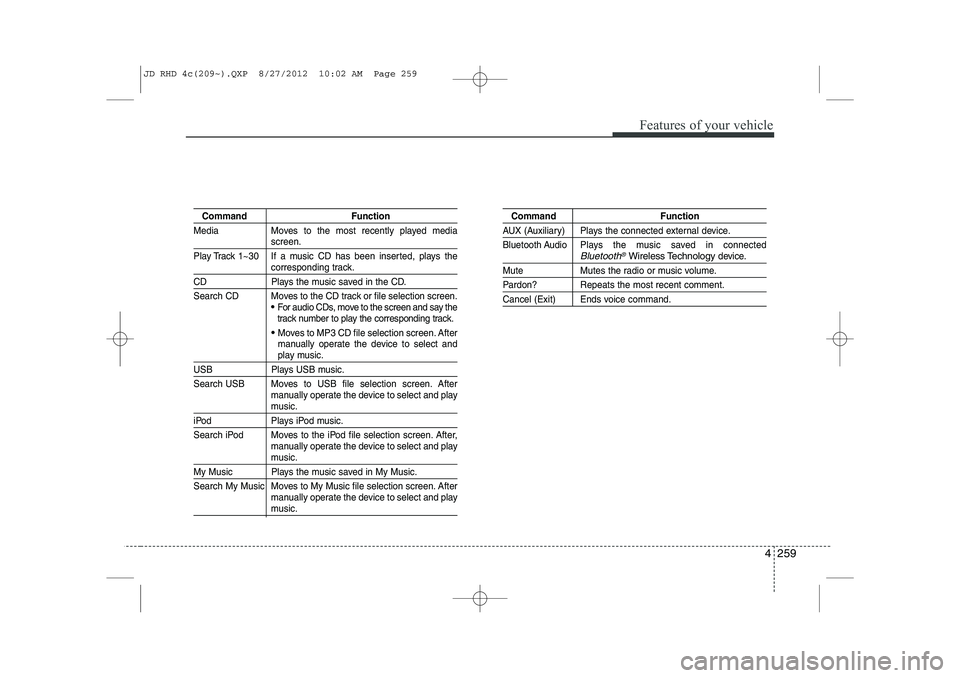
Command Function
Media Moves to the most recently played media
screen.
Play Track 1~30 If a music CD has been inserted, plays the
corresponding track.
CD Plays the music saved in the CD.
Search CD Moves to the CD track or file selection screen.
For audio CDs, move to the screen and say the
track number to play the corresponding track.
Moves to MP3 CD file selection screen. After
manually operate the device to select and
play music.
USB Plays USB music.
Search USB Moves to USB file selection screen. After manually operate the device to select and play
music.
iPod Plays iPod music.
Search iPod Moves to the iPod file selection screen. After,manually operate the device to select and play
music.
My Music Plays the music saved in My Music.
Search My Music Moves to My Music file selection screen. Aftermanually operate the device to select and play
music.
Command Function
AUX (Auxiliary) Plays the connected external device.
Bluetooth Audio Plays the music saved in connected
Bluetooth®Wireless Technologydevice.
Mute Mutes the radio or music volume.
Pardon? Repeats the most recent comment.
Cancel (Exit) Ends voice command.
JD RHD 4c(209~).QXP 8/27/2012 10:02 AM Page 259
Page 923 of 1168
Features of your vehicle
260
4
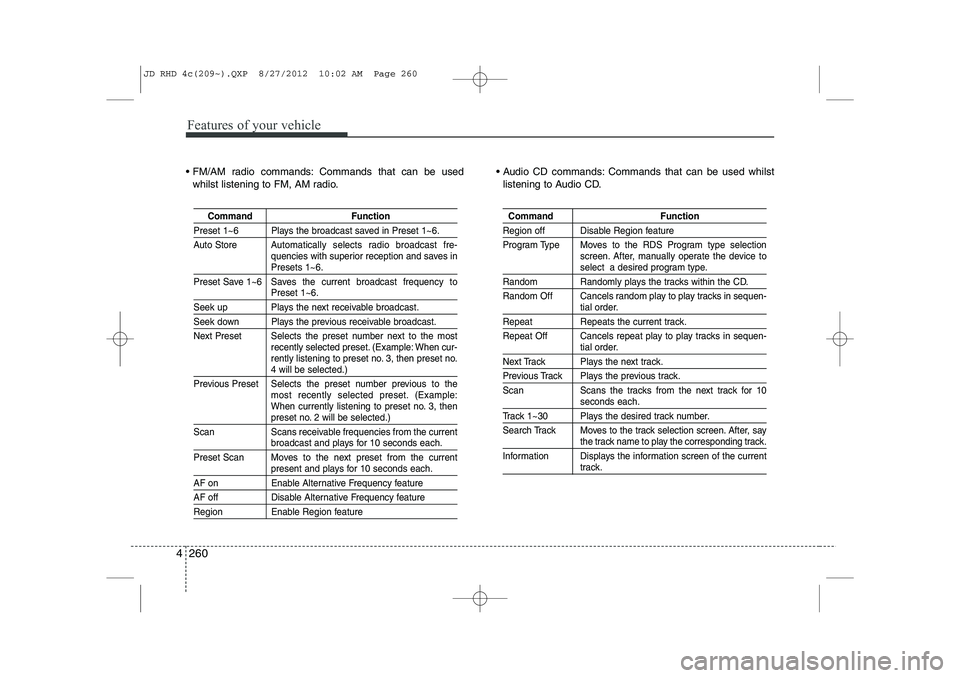
FM/AM radio commands: Commands that can be used
whilst listening to FM, AM radio. Audio CD commands: Commands that can be used whilst
listening to Audio CD.
Command Function
Preset 1~6 Plays the broadcast saved in Preset 1~6.
Auto Store A utomatically selects radio broadcast fre-
quencies with superior reception and saves in
Presets 1~6.
Preset Save 1~6 Saves the current broadcast frequency to
Preset 1~6.
Seek up Plays the next receivable broadcast.
Seek down Plays the previous receivable broadcast.
Next Preset Selects the preset number next to the most recently selected preset. (Example: When cur-
rently listening to preset no. 3, then preset no.
4 will be selected.)
Previous Preset Selects the preset number previous to the most recently selected preset. (Example:
When currently listening to preset no. 3, then
preset no. 2 will be selected.)
Scan Scans receivable frequencies from the current
broadcast and plays for 10 seconds each.
Preset Scan Moves to the next preset from the current
present and plays for 10 seconds each.
AF on Enable Alternative Frequency feature
AF off Disable Alternative Frequency feature
Region Enable Region feature
Command Function
Region off Disable Region feature
Program Type Moves to the RDS Program type selection screen. After, manually operate the device to
select a desired program type.
Random Randomly plays the tracks within the CD.
Random Off Cancels random play to play tracks in sequen-
tial order.
Repeat Repeats the current track.
Repeat Off Cancels repeat play to play tracks in sequen-
tial order.
Next Track Plays the next track.
Previous Track Plays the previous track.
Scan Scans the tracks from the next track for 10
seconds each.
Track 1~30 Plays the desired track number.
Search Track Moves to the track selection screen. After, say
the track name to play the corresponding track.
Information Displays the information screen of the current
track.
JD RHD 4c(209~).QXP 8/27/2012 10:02 AM Page 260
Page 930 of 1168
55
Driving your vehicle
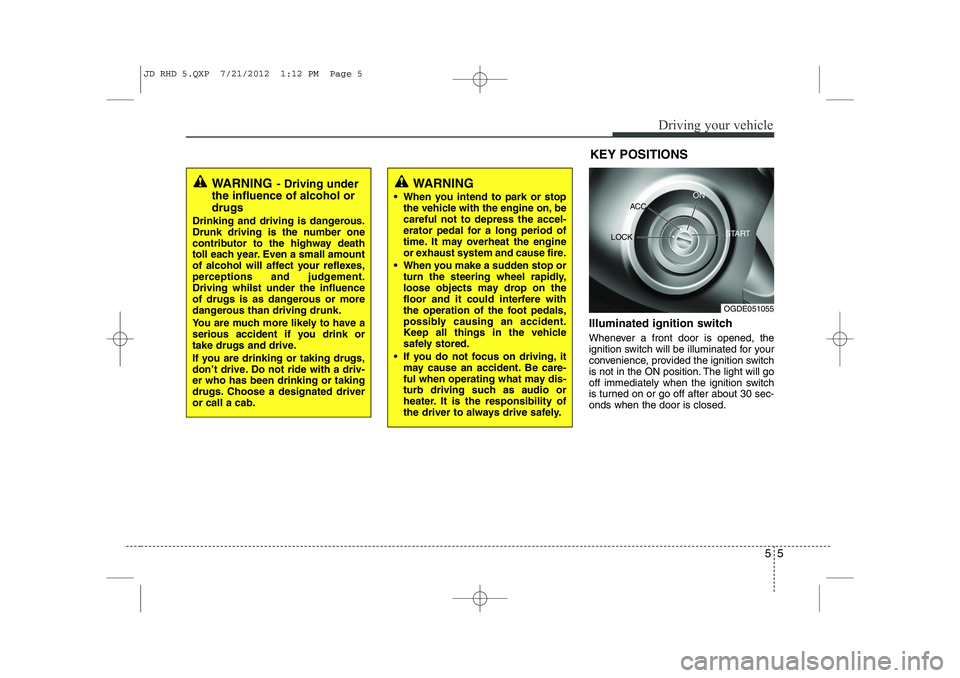
Illuminated ignition switch
Whenever a front door is opened, the
ignition switch will be illuminated for your
convenience, provided the ignition switch
is not in the ON position. The light will go
off immediately when the ignition switch
is turned on or go off after about 30 sec-onds when the door is closed.KEY POSITIONS
WARNING
- Driving under
the influence of alcohol or drugs
Drinking and driving is dangerous.
Drunk driving is the number one
contributor to the highway death
toll each year. Even a small amount
of alcohol will affect your reflexes,
perceptions and judgement.Driving whilst under the influence
of drugs is as dangerous or more
dangerous than driving drunk.
You are much more likely to have a
serious accident if you drink or
take drugs and drive.
If you are drinking or taking drugs,
don’t drive. Do not ride with a driv-er who has been drinking or taking
drugs. Choose a designated driveror call a cab.WARNING
When you intend to park or stop the vehicle with the engine on, be careful not to depress the accel-
erator pedal for a long period of
time. It may overheat the engine
or exhaust system and cause fire.
When you make a sudden stop or turn the steering wheel rapidly,
loose objects may drop on the
floor and it could interfere with
the operation of the foot pedals,
possibly causing an accident.
Keep all things in the vehicle
safely stored.
If you do not focus on driving, it may cause an accident. Be care-
ful when operating what may dis-
turb driving such as audio or
heater. It is the responsibility of
the driver to always drive safely.
OGDE051055
ACC
ON
START
LOCK
JD RHD 5.QXP 7/21/2012 1:12 PM Page 5
Page 984 of 1168

559
Driving your vehicle
This system detects the lane with the
sensor at the front windscreen and warns
you when your vehicle leaves the lane.To operate the LDWS, press the switch
with the ignition in the ON position. The
indicator illuminates on the cluster. To
cancel the LDWS, press the switchagain.
LANE DEPARTURE WARNING SYSTEM (LDWS) (IF EQUIPPED)
WARNING
The LDWS does not make the vehi- cle change lanes. It is the driver's
responsibility to always check the
road conditions.
Do not turn the steering wheel sud- denly, when the LDWS warns you
that your vehicle is leaving the lane.
If the sensor can not detect the lane or if the vehicle speed does not
exceed 60km/h, the LDWS won't
warn you even though the vehicle
leaves the lane.
If your vehicle has window tint or other types of coating on the front
windscreen, the LDWS may not
work properly.
Do not let water or any kind of liq- uid come in contact with the LDWS
sensor.
Do not remove the LDWS parts and do not affect the sensor by a strongimpact.
Do not put objects that reflect light on the dash board.
Always check road conditions because you may not hear the
warning chime because of audio
and external conditions.
OJD052030R
OJD052029
OJD042178
OJD052028
JD RHD 5.QXP 7/21/2012 1:15 PM Page 59
![KIA CEED 2013 Owners Manual 4 251
Features of your vehicle
Scroll Text
Press the key Select
[Display] Select [Scroll text]
This feature is used to scroll text dis-
played on the screen when it is too long
to be displayed at](/manual-img/2/57944/w960_57944-913.png "KIA CEED 2013 Owners Manual 4 251
Features of your vehicle
Scroll Text
Press the key Select
[Display] Select [Scroll text]
This feature is used to scroll text dis-
played on the screen when it is too long
to be displayed at")
![KIA CEED 2013 Owners Manual 4 253
Features of your vehicle
Bluetooth®Wireless Technology
Setting
Pairing a New Device
Press the key Select
[Phone] Select [Pair Phone]
Bluetooth®Wireless Technology devices
can be paired with](/manual-img/2/57944/w960_57944-915.png "KIA CEED 2013 Owners Manual 4 253
Features of your vehicle
Bluetooth®Wireless Technology
Setting
Pairing a New Device
Press the key Select
[Phone] Select [Pair Phone]
Bluetooth®Wireless Technology devices
can be paired with")
![KIA CEED 2013 Owners Manual 4 255
Features of your vehicle
Outgoing Volume
Press the key Select
[Phone] Select [Outgoing Volume]
Use the , buttons to adjust the
outgoing volume level.
Turning Bluetooth System Off
Press the](/manual-img/2/57944/w960_57944-917.png "KIA CEED 2013 Owners Manual 4 255
Features of your vehicle
Outgoing Volume
Press the key Select
[Phone] Select [Outgoing Volume]
Use the , buttons to adjust the
outgoing volume level.
Turning Bluetooth System Off
Press the")
