Page 394 of 661

•Turning it clockwise (forward) by one click, while
playing a track, skips to the next track or press the
VR button and say �Next Track�.
• Turning it counterclockwise (backward) by one click,
will jump to the previous track in the list or press the
VR button and say �Previous Track�
• Jump backward in the current track by pressing and
holding the <
ton long enough will jump to the beginning of the
current track.
• Jump forward in the current track by pressing and
holding the FF>> button.
• A single press backward << RWor forward FF>> will
jump backward or forward respectively, for five sec-
onds.
• Use the << SEEKandSEEK>> buttons to jump to the
previous or next track. Pressing the SEEK>> buttonduring play mode will jump to the next track in the
list, or press the VR button and say
�Next or Previous
Track�.
• While a track is playing, press the INFObutton to see
the associated metadata (artist, track title, album, etc.)
for that track. Pressing the INFObutton again jumps
to the next screen of data for that track. Once all
screens have been viewed, the last INFObutton press
will go back to the play mode screen on the radio.
• Pressing the REPEATbutton will change the audio
device mode to repeat the current playing track or
press the VR button and say �Repeat ON�or�Repeat
Off�.
• Press the SCANbutton to use iPod�/USB/MP3 de-
vice scan mode, which will play the first 10 seconds of
each track in the current list and then forward to the
next song. To stop SCAN mode and start playing the
desired track, when it is playing the track, press the
392 UNDERSTANDING YOUR INSTRUMENT PANEL
Page 395 of 661

SCANbutton again. During Scan mode, pressing the
<< SEEK andSEEK>> buttons will select the previous
and next tracks.
• RND button (available on sales code RES radio only):
Pressing this button toggles between Shuffle ON and
Shuffle OFF modes for the iPod� or external USB
device, or press the VR button and say �Shuffle ON�or
�Shuffle Off�.IftheRND icon is showing on the radio
display, then the shuffle mode is ON.
List Or Browse Mode
During Play mode, pressing any of the buttons described
below, will bring up List mode. List mode enables
scrolling through the list of menus and tracks on the
audio device.
• TUNE control knob: The TUNEcontrol knob functions
in a similar manner as the scroll wheel on the audio
device or external USB device. •
Turning it clockwise (forward) and counterclockwise
(backward) scrolls through the lists, displaying the
track detail on the radio display. Once the track to be
played is highlighted on the radio display, press the
TUNE control knob to select and start playing the
track. Turning the TUNEcontrol knob fast will scroll
through the list faster. During fast scroll, a slight
delay in updating the information on the radio
display may be noticeable.
• During all List modes, the iPod� displays all lists in
“wrap-around” mode. So if the track is at the bottom
of the list, just turn the wheel backward (counter-
clockwise) to get to the track faster.
• In List mode, the radio PRESETbuttons are used as
shortcuts to the following lists on the iPod� or
external USB device.
• Preset 1 – Playlists
• Preset 2 – Artists
• Preset 3 – Albums
4
UNDERSTANDING YOUR INSTRUMENT PANEL 393
Page 419 of 661
The VES™ can even control radio modes or video modes
while the radio is turned off. The VES™ can access the
radio modes or disc modes by navigating to those modes
on the VES™ and activating a radio mode or disc mode.
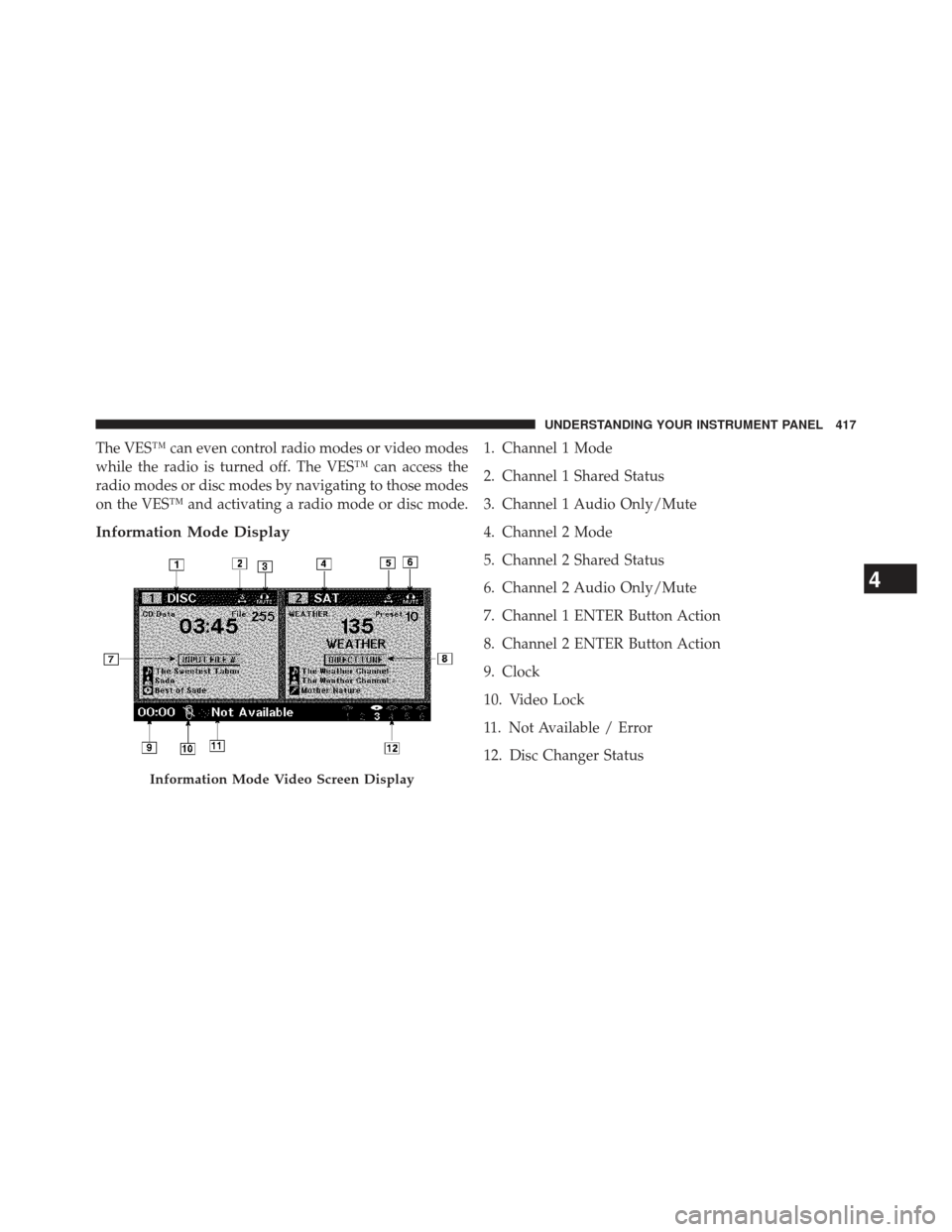
Information Mode Display
1. Channel 1 Mode
2. Channel 1 Shared Status
3. Channel 1 Audio Only/Mute
4. Channel 2 Mode
5. Channel 2 Shared Status
6. Channel 2 Audio Only/Mute
7. Channel 1 ENTER Button Action
8. Channel 2 ENTER Button Action
9. Clock
10. Video Lock
11. Not Available / Error
12. Disc Changer Status
Information Mode Video Screen Display
4
UNDERSTANDING YOUR INSTRUMENT PANEL 417
Page 433 of 661
DSS modes for audio sources are “Stereo” and “Audio
Surround,” which is surround sound equalized for the
front seat occupants. The “Video Surround” mode is
described under Driver-Selectable Surround (DSS). The
Video Surround Mode will only be available for video
media sources (DVDs, Video CDs, or other video media
supported by the radio). Some audio will sound better in
DSS modes, others in Stereo mode.
When in “Audio Surround” mode, balance is set auto-
matically. Fader control is available in surround mode
but should be set to the center position for optimal
surround performance.
STEERING WHEEL AUDIO CONTROLS
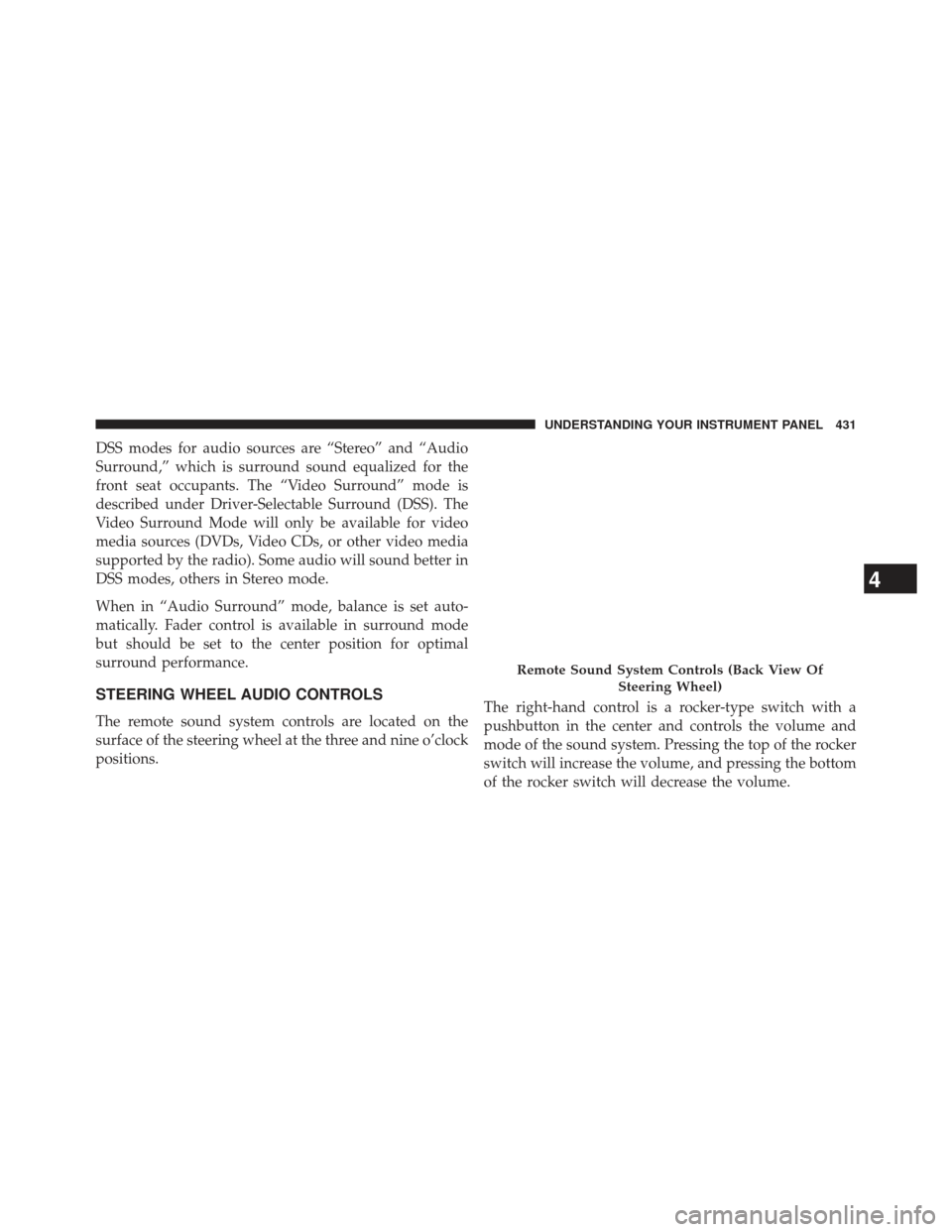
The remote sound system controls are located on the
surface of the steering wheel at the three and nine o’clock
positions.The right-hand control is a rocker-type switch with a
pushbutton in the center and controls the volume and
mode of the sound system. Pressing the top of the rocker
switch will increase the volume, and pressing the bottom
of the rocker switch will decrease the volume.
Remote Sound System Controls (Back View Of
Steering Wheel)
4
UNDERSTANDING YOUR INSTRUMENT PANEL 431
Page 440 of 661
NOTE:Each of these features operate independently
from each other. If any one feature is controlled manually,
temperature control will continue to operate automati-
cally.
Blower Control
There are seven fixed blower speeds.
Use the outer dial control to regulate the
amount of air forced through the system
in any mode you select. The blower
speed increases as you move the control
clockwise and decreases when you
move the control counter-clockwise.
The blower fan speed can be set to any fixed speed by
adjusting the blower control outer dial. The fan will now
operate at a fixed speed until additional speeds are
selected. This allows the front occupants to control the
volume of air circulated in the vehicle and cancel the
Auto mode. The operator can also select the direction of the airflow
by selecting one of the following positions.
Panel Mode
Air comes from the outlets in the instrument
panel. Each of these outlets can be individually
adjusted to direct the flow of air. The air vanes of the
center outlets and outboard outlets can be moved up and
down or side to side to regulate airflow direction. There
is a shut off wheel located below the air vanes to shut off
or adjust the amount of airflow from these outlets.
Bi-Level Mode
Air comes from the instrument panel outlets, floor
outlets and defrost outlets.
NOTE: In many temperature positions, the Bi–Level
mode is designed to provide cooler air out of the panel
outlets and warmer air from the floor outlets.
438 UNDERSTANDING YOUR INSTRUMENT PANEL
Page 451 of 661
Installing And Removing The ENGINE
START/STOP Button
Installing The Button
1. Remove the key fob from the ignition switch.
2. Insert the ENGINE START/STOP button into theignition switch with the lettering facing up and read-
able.
3. Press firmly on the center of the button to secure it into position.
Removing The Button
1. The ENGINE START/STOP button can be removed from the ignition switch for key fob use.
2. Insert the metal part of the emergency key under the chrome bezel at the 6 o’clock position and gently pry
the button loose. NOTE:
The ENGINE START/STOP button should only
be removed or inserted with the ignition in the OFF
position (OFF position for Keyless Enter-N-Go™).
Normal Starting
Using The ENGINE START/STOP Button
1. The transmission must be in PARK or NEUTRAL.
2. Press and hold the brake pedal while pressing the ENGINE START/STOP button once.
3. The system takes over and attempts to start the vehicle. If the vehicle fails to start, the starter will
disengage automatically after 10 seconds.
4. If you wish to stop the cranking of the engine prior to the engine starting, press the button again.
NOTE: Normal starting of either a cold or a warm
engine is obtained without pumping or pressing the
accelerator pedal.
5
STARTING AND OPERATING 449
Page 546 of 661
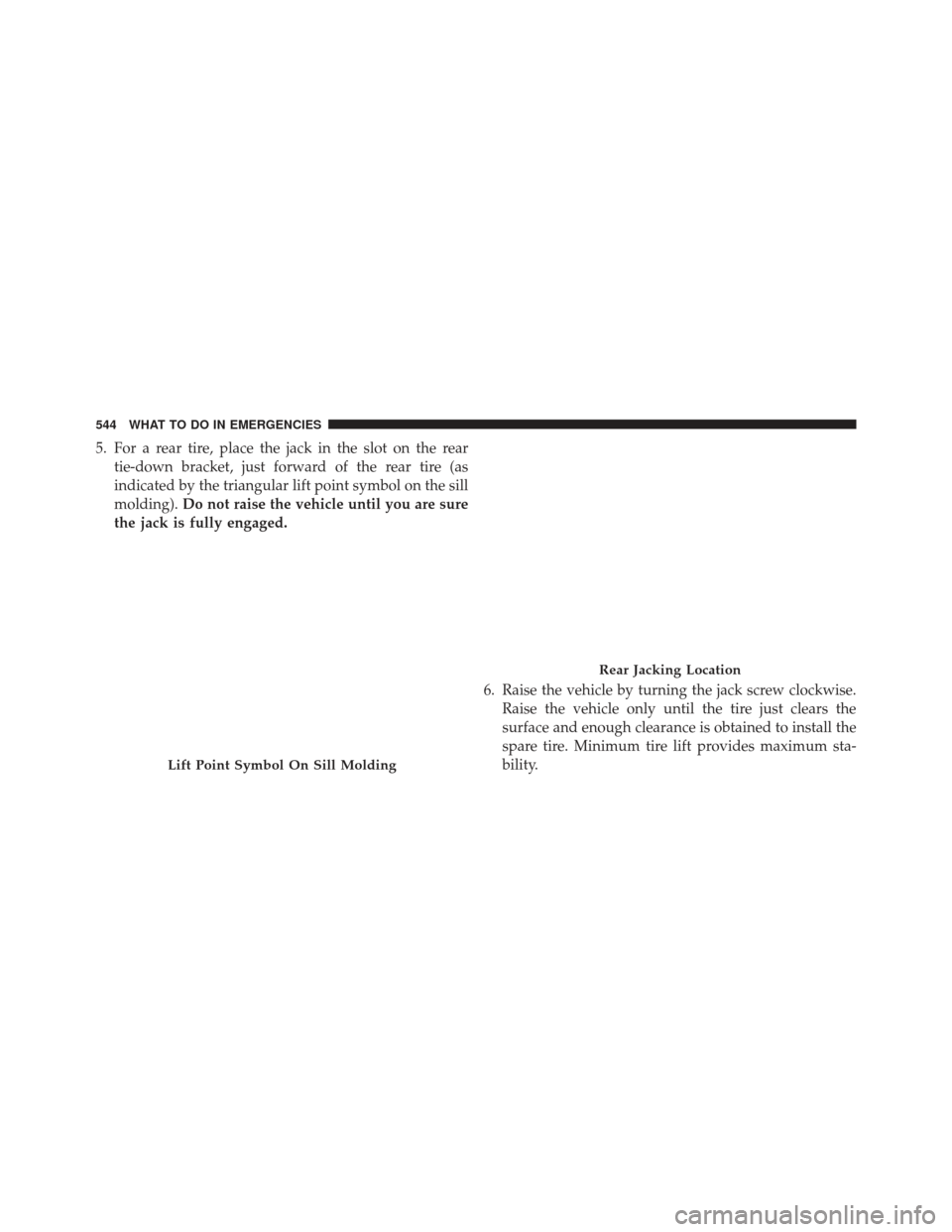
5. For a rear tire, place the jack in the slot on the reartie-down bracket, just forward of the rear tire (as
indicated by the triangular lift point symbol on the sill
molding). Do not raise the vehicle until you are sure
the jack is fully engaged.
6. Raise the vehicle by turning the jack screw clockwise.Raise the vehicle only until the tire just clears the
surface and enough clearance is obtained to install the
spare tire. Minimum tire lift provides maximum sta-
bility.
Lift Point Symbol On Sill Molding
Rear Jacking Location
544 WHAT TO DO IN EMERGENCIES
Page 548 of 661
9. Lower the vehicle by turning the jack screw counter-clockwise, and remove the jack and wheel blocks.
10. Finish tightening the lug nuts. Push down on the wrench while at the end of the handle for increased
leverage. Tighten the lug nuts in a star pattern until
each nut has been tightened twice. The correct wheel
nut tightness is 110 ft-lbs (150 N·m). If in doubt about
the correct tightness, have them checked with a
torque wrench by your authorized dealer or at a
service station.
11. Lower the jack to the fully closed position and return it and the tools to the proper positions in the foam
tray.
12. Remove the small center cap and securely store the road wheel in the cargo area. 13. Have the aluminum road wheel and tire repaired as
soon as possible, properly secure the spare tire with
the special wing nut torqued to 3.7 ft-lbs (5 N·m),
reinstall the jack and tool kit foam tray, and latch the
rear load floor cover.
Stowed Spare
546 WHAT TO DO IN EMERGENCIES