Page 216 of 573
215
Features
Audio System Basic Operation
To use the audio system function, the ignition switch must be in ACCESSORY (q or
ON (w *1
.
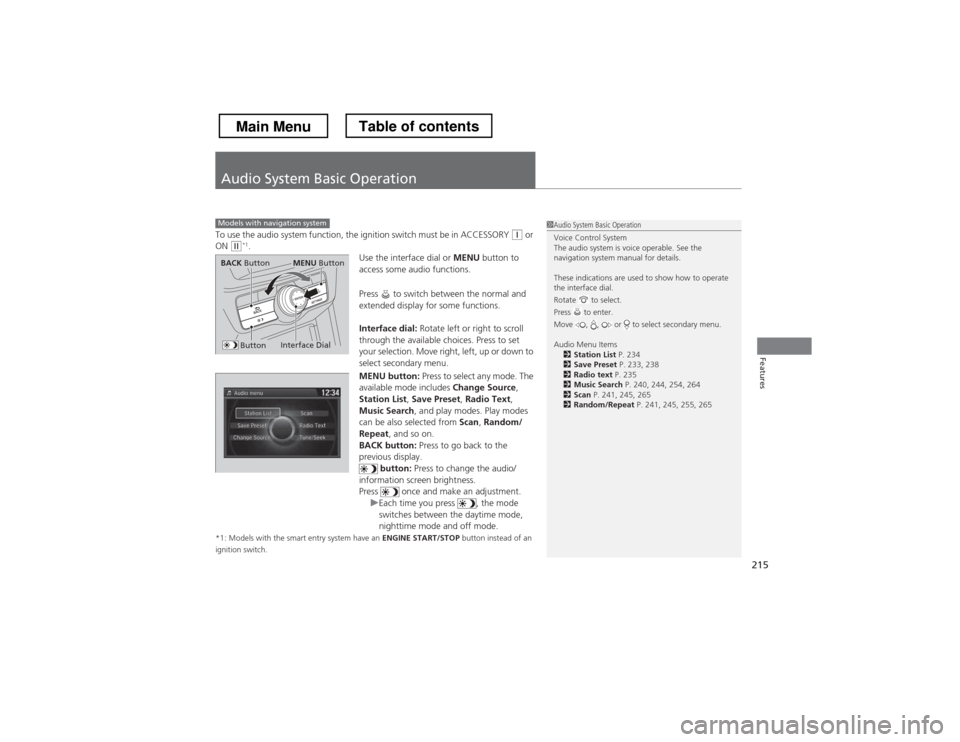
Use the interface dial or MENU button to
access some audio functions.
Press to switch between the normal and
extended display for some functions.
Interface dial: Rotate left or right to scroll
through the available choices. Press to set
your selection. Move right, left, up or down to
select secondary menu.
MENU button: Press to select any mode. The
available mode includes Change Source,
Station List , Save Preset , Radio Text ,
Music Search , and play modes. Play modes
can be also selected from Scan, Random/
Repeat , and so on.
BACK button: Press to go back to the
previous display. button: Press to change the audio/
information screen brightness.
Press once and make an adjustment.
uEach time you press , the mode
switches between the daytime mode,
nighttime mode and off mode.
*1: Models with the smart entry system have an ENGINE START/STOP button instead of an
ignition switch.
Models with navigation system1Audio System Basic Operation
Voice Control System
The audio system is voice operable. See the
navigation system manual for details.
These indications are used to show how to operate the interface dial.
Rotate to select.
Press to enter.
Move , , or to select secondary menu.
Audio Menu Items 2 Station List P. 234
2 Save Preset P. 233, 238
2 Radio text P. 235
2 Music Search P. 240, 244, 254, 264
2 Scan P. 241, 245, 265
2 Random/Repeat P. 241, 245, 255, 265
Interface Dial
MENU ButtonBACK Button
Button
Main MenuTable of contents
Page 282 of 573
281
Continued
Features
Customized Features *
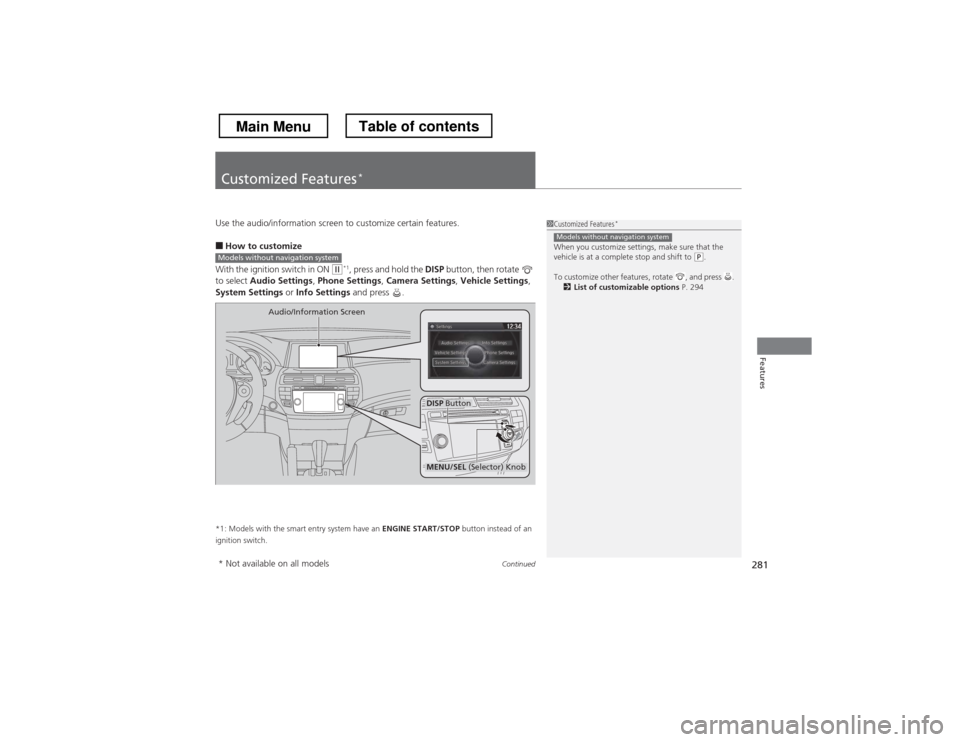
Use the audio/information screen to customize certain features. ■
How to customize
With the ignition switch in ON
(w *1
, press and hold the DISP button, then rotate
to select Audio Settings , Phone Settings , Camera Settings , Vehicle Settings ,
System Settings or Info Settings and press .
*1: Models with the smart entry system have an ENGINE START/STOP button instead of an
ignition switch.
1Customized Features *
When you customize settings, make sure that the
vehicle is at a complete stop and shift to
(P .
To customize other features, rotate , and press . 2 List of customizable options P. 294
Models without navigation system
Models without navigation system
DISP Button
Audio/Information Screen
MENU/SEL
(Selector) Knob
* Not available on all models
Main MenuTable of contents
Page 283 of 573
uuCustomized Features*u
282
Features
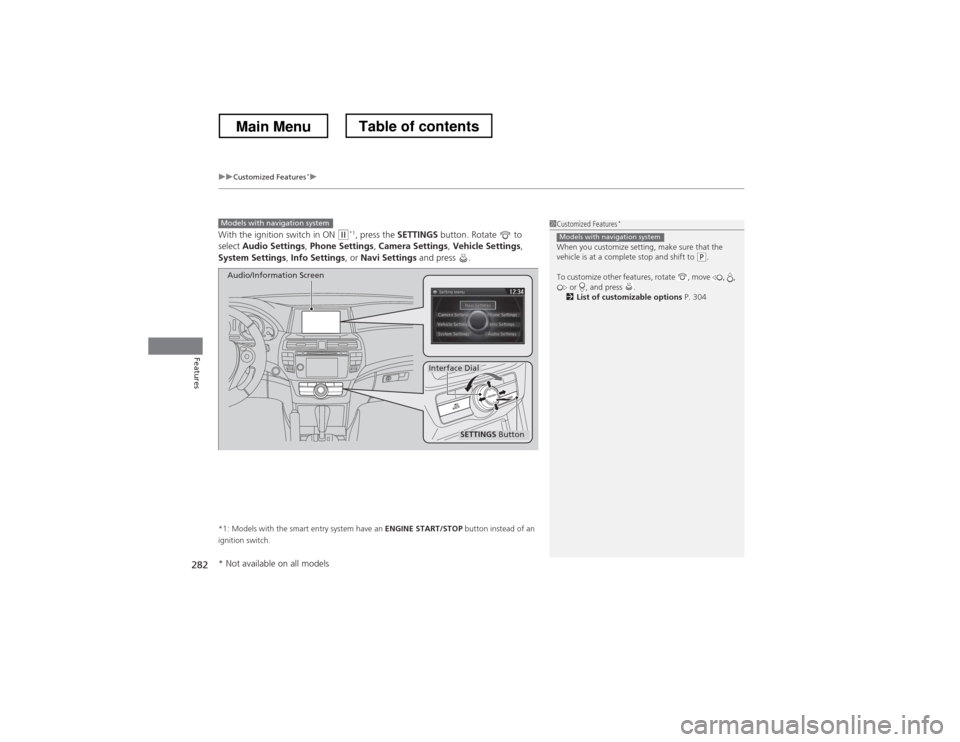
With the ignition switch in ON (w*1
, press the SETTINGS button. Rotate to
select Audio Settings , Phone Settings , Camera Settings , Vehicle Settings ,
System Settings , Info Settings , or Navi Settings and press .
*1: Models with the smart entry system have an ENGINE START/STOP button instead of an
ignition switch.
Models with navigation system
SETTINGS Button
Audio/Information Screen
Interface Dial
1Customized Features *
When you customize setting, make sure that the
vehicle is at a complete stop and shift to
(P .
To customize other features, rotate , move , , or , and press .
2 List of customizable options P. 304
Models with navigation system
* Not available on all models
Main MenuTable of contents
Page 335 of 573
334
uuBluetooth® HandsFreeLink ®uHFL Menus
Features
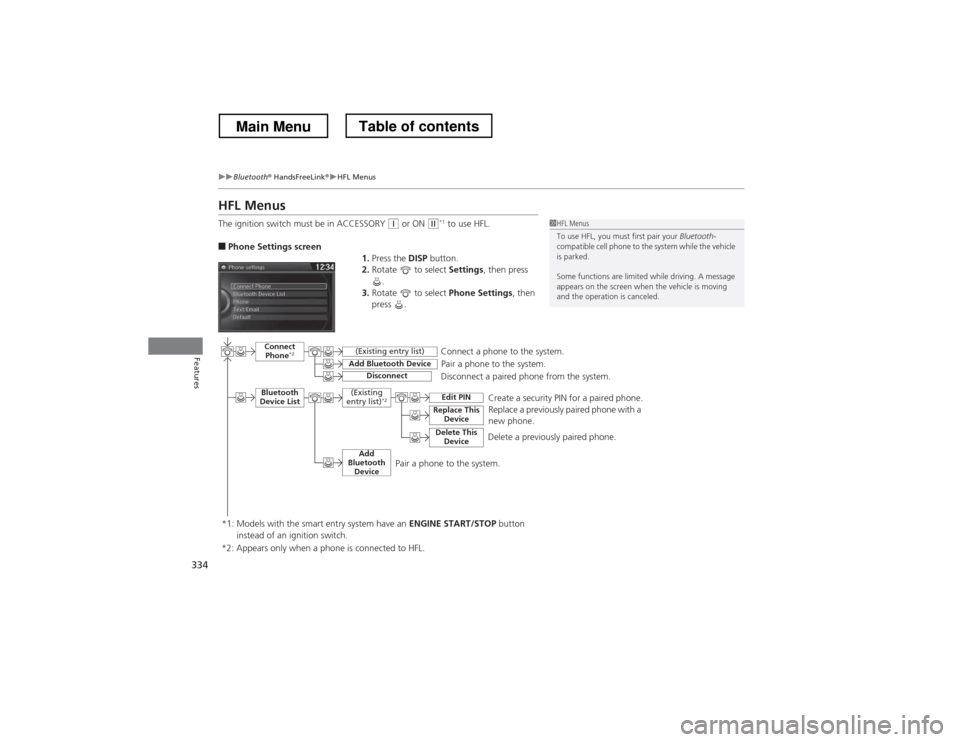
HFL Menus
The ignition switch must be in ACCESSORY
(q or ON (w*1
to use HFL.
■ Phone Settings screen
1.Press the DISP button.
2. Rotate to select Settings, then press
.
3. Rotate to select Phone Settings, then
press .1HFL Menus
To use HFL, you must first pair your Bluetooth-
compatible cell phone to the system while the vehicle is parked.
Some functions are limited while driving. A message
appears on the screen when the vehicle is moving
and the operation is canceled.
Pair a phone to the system.
Replace a previously paired phone with a
new phone.
Connect
Phone *2
Bluetooth
Device List
Add Bluetooth Device
Edit PIN
(Existing entry list)
Disconnect
Connect a phone to the system.
Disconnect a paired phone from the system.
*1: Models with the smart entry system have an ENGINE START/STOP button
instead of an ignition switch. (Existing
entry list) *2
Replace This
Device
Delete This DeviceDelete a previously paired phone.Create a security PIN for a paired phone.
Add
Bluetooth Device
*2: Appears only when a phone is connected to HFL.
Pair a phone to the system.
Main MenuTable of contents
Page 370 of 573
369
uuBluetooth® HandsFreeLink ®uHFL Menus
Continued
Features
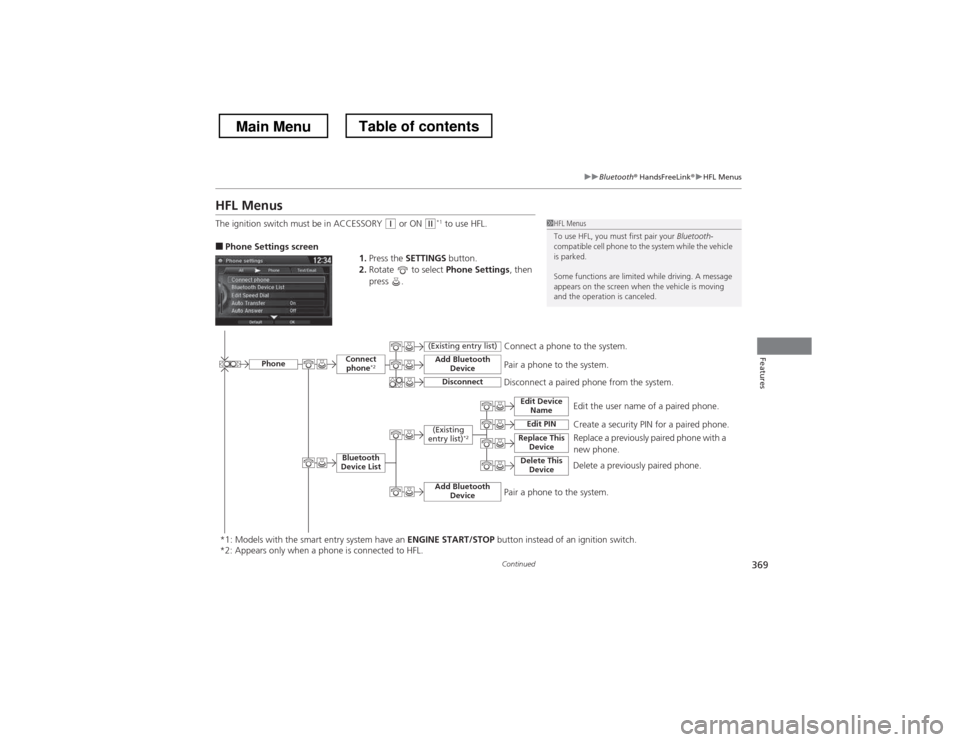
HFL Menus
The ignition switch must be in ACCESSORY
(q or ON (w*1
to use HFL.
■ Phone Settings screen
1.Press the SETTINGS button.
2. Rotate to select Phone Settings, then
press .1HFL Menus
To use HFL, you must first pair your Bluetooth-
compatible cell phone to the system while the vehicle is parked.
Some functions are limited while driving. A message
appears on the screen when the vehicle is moving
and the operation is canceled.
Edit the user name of a paired phone.
PhoneEdit Device
Name
Connect phone *2
Bluetooth
Device List
(Existing
entry list) *2
Replace This
Device
Add Bluetooth Device
Disconnect a paired phone from the system.Connect a phone to the system.Disconnect
(Existing entry list)
Pair a phone to the system.
Edit PIN
Create a security PIN for a paired phone.Replace a previously paired phone with a
new phone.
Delete This Device
Delete a previously paired phone.
Add Bluetooth DevicePair a phone to the system.
*1: Models with the smart entry system have an ENGINE START/STOP button instead of an ignition switch.
*2: Appears only when a phone is connected to HFL.
Main MenuTable of contents
Page 408 of 573
407
Features
Compass*
When you turn the ignition switch to ON (w
*1
, the compass self-calibrates, and the
compass display appears.
Compass Calibration
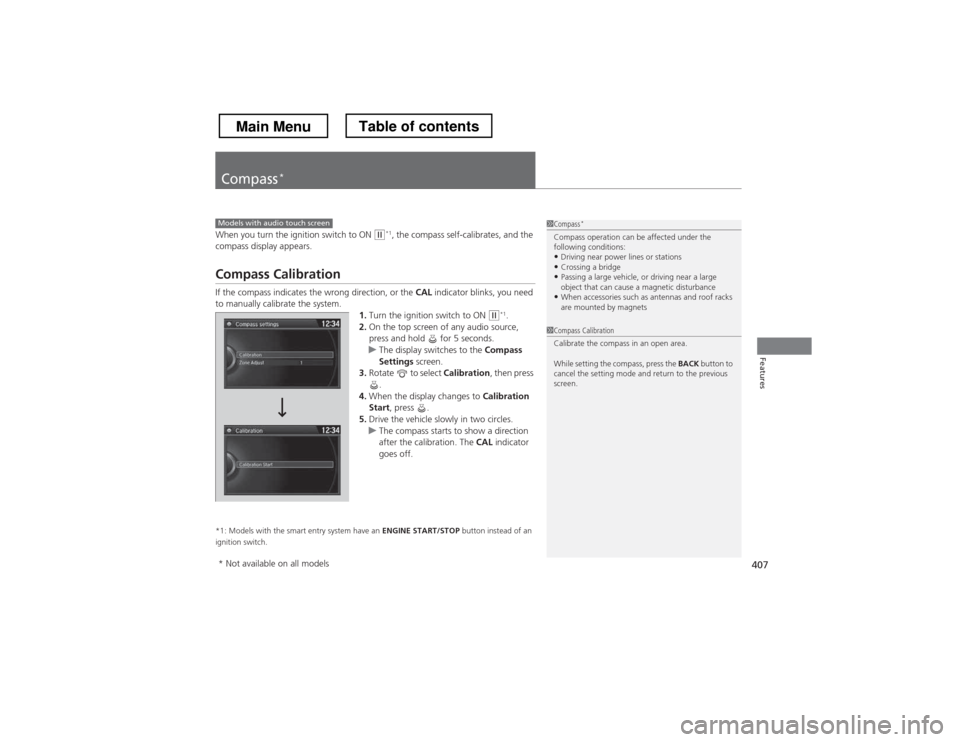
If the compass indicates the wrong direction, or the CAL indicator blinks, you need
to manually calibrate the system.
1.Turn the ignition switch to ON
(w *1
.
2. On the top screen of any audio source,
press and hold for 5 seconds.
uThe display switches to the Compass
Settings screen.
3. Rotate to select Calibration, then press
.
4. When the display changes to Calibration
Start , press .
5. Drive the vehicle slowly in two circles.
uThe compass starts to show a direction
after the calibration. The CAL indicator
goes off.
*1: Models with the smart entry system have an ENGINE START/STOP button instead of an
ignition switch.
Models with audio touch screen1Compass *
Compass operation can be affected under the
following conditions: • Driving near power lines or stations
• Crossing a bridge
• Passing a large vehicle, or driving near a large
object that can cause a magnetic disturbance
• When accessories such as antennas and roof racks
are mounted by magnets
1Compass Calibration
Calibrate the compass in an open area.
While setting the compass, press the BACK button to
cancel the setting mode and return to the previous
screen.
* Not available on all models
Main MenuTable of contents
Page 409 of 573
408
uuCompass*uCompass Zone Selection
Features
Compass Zone Selection
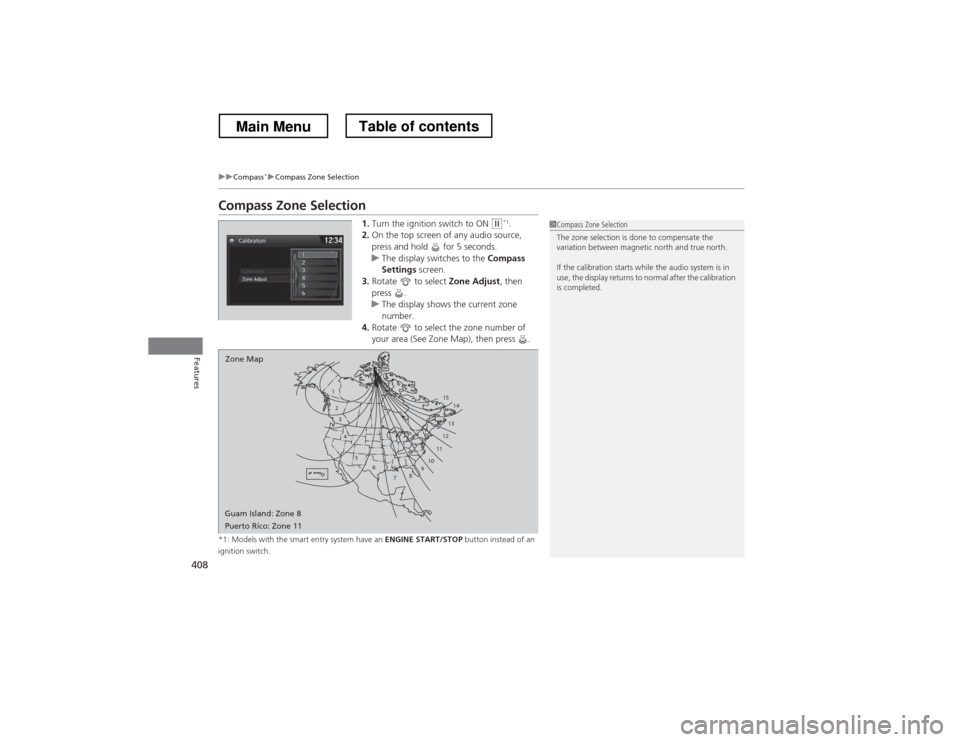
1.Turn the ignition switch to ON
(w *1
.
2. On the top screen of any audio source,
press and hold for 5 seconds.
uThe display switches to the Compass
Settings screen.
3. Rotate to select Zone Adjust, then
press .
uThe display shows the current zone
number.
4. Rotate to select the zone number of
your area (See Zone Map), then press .
*1: Models with the smart entry system have an ENGINE START/STOP button instead of an
ignition switch.
1
23
4
5 6
78910 11121314
15
Zone Map
Guam Island: Zone 8
Puerto Rico: Zone 11
1Compass Zone Selection
The zone selection is done to compensate the
variation between magnetic north and true north.
If the calibration starts while the audio system is in
use, the display returns to normal after the calibration is completed.
Main MenuTable of contents
Page 424 of 573
423
uuWhen DrivinguStarting the Engine
Driving
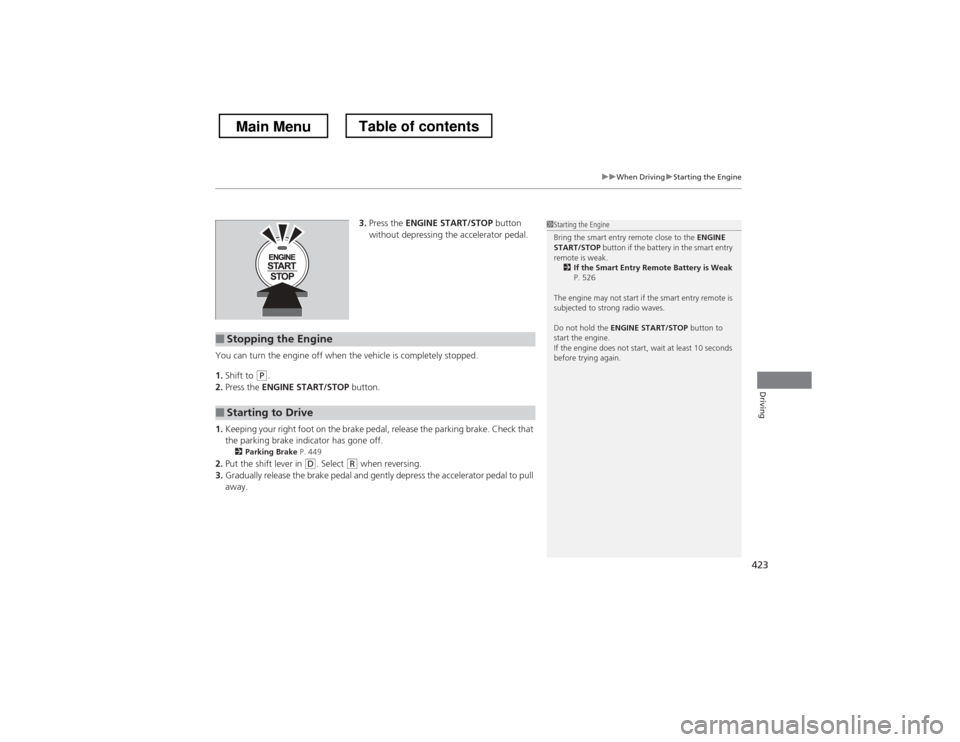
3.Press the ENGINE START/STOP button
without depressing the accelerator pedal.
You can turn the engine off when the vehicle is completely stopped. 1. Shift to
(P .
2. Press the ENGINE START/STOP button.
1. Keeping your right foot on the brake pedal, release the parking brake. Check that
the parking brake indicator has gone off.
2 Parking Brake P. 449
2. Put the shift lever in
(D . Select (R when reversing.
3. Gradually release the brake pedal and gently depress the accelerator pedal to pull away.
■Stopping the Engine
■Starting to Drive
1Starting the Engine
Bring the smart entry remote close to the ENGINE
START/STOP button if the battery in the smart entry
remote is weak. 2 If the Smart Entry Remote Battery is Weak
P. 526
The engine may not start if the smart entry remote is
subjected to strong radio waves. Do not hold the ENGINE START/STOP button to
start the engine.
If the engine does not start, wait at least 10 seconds
before trying again.
Main MenuTable of contents