Page 183 of 573
182
Features
Audio System Basic Operation
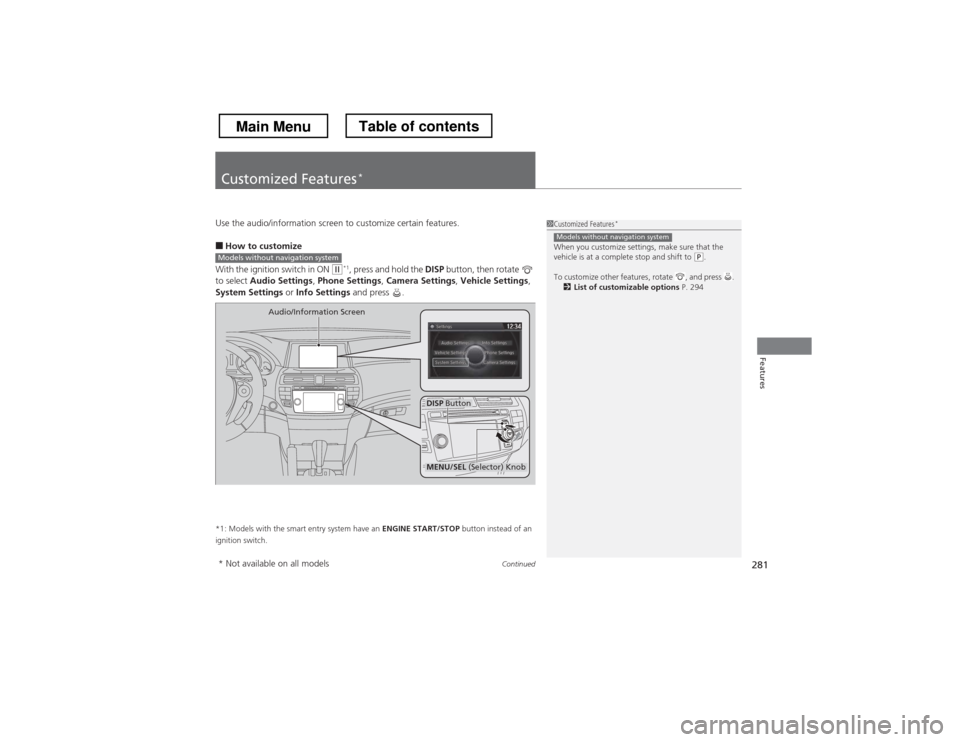
To use the audio system function, the ignition switch must be in ACCESSORY (q or
ON (w *1
.
Use the selector knob, DISP and BACK
buttons to access some audio functions.
Press to switch between the normal and
extended display for some functions.
MENU/SEL (Selector) knob: Rotate left or
right to scroll through the available choices.
Press to set your selection.
Also press to select any mode. The available
mode includes Change Source , Station List ,
Save Preset , Radio Text , Music Search , and
play modes. Play modes can be also selected from Scan, Random/Repeat , and so on.
BACK button: Press to go back to the
previous display. button: Press to change the audio/
information screen brightness.
Press once and make an adjustment.
uEach time you press , the mode
switches between the daytime mode,
nighttime mode and OFF mode.
*1: Models with the smart entry system have an ENGINE START/STOP button instead of an
ignition switch.
Models with two displays1Audio System Basic Operation
These indications are used to show how to operate the MENU/SEL (Selector) knob.
Rotate to select.
Press to enter.
Audio Menu Items 2 Station List P. 195
2 Save Preset P. 194, 199
2 Radio text P. 196
2 Music Search P. 201, 205, 211
2 Scan P. 202, 212
2 Random/Repeat P. 202, 206, 212
Button
MENU/SEL
(Selector) Knob
DISP (SETTINGS) Button
BACK Button
VOL/ Knob
Press to turn the audio
system on and off.
Turn to adjust the volume.
Main MenuTable of contents
Page 216 of 573
215
Features
Audio System Basic Operation
To use the audio system function, the ignition switch must be in ACCESSORY (q or
ON (w *1
.
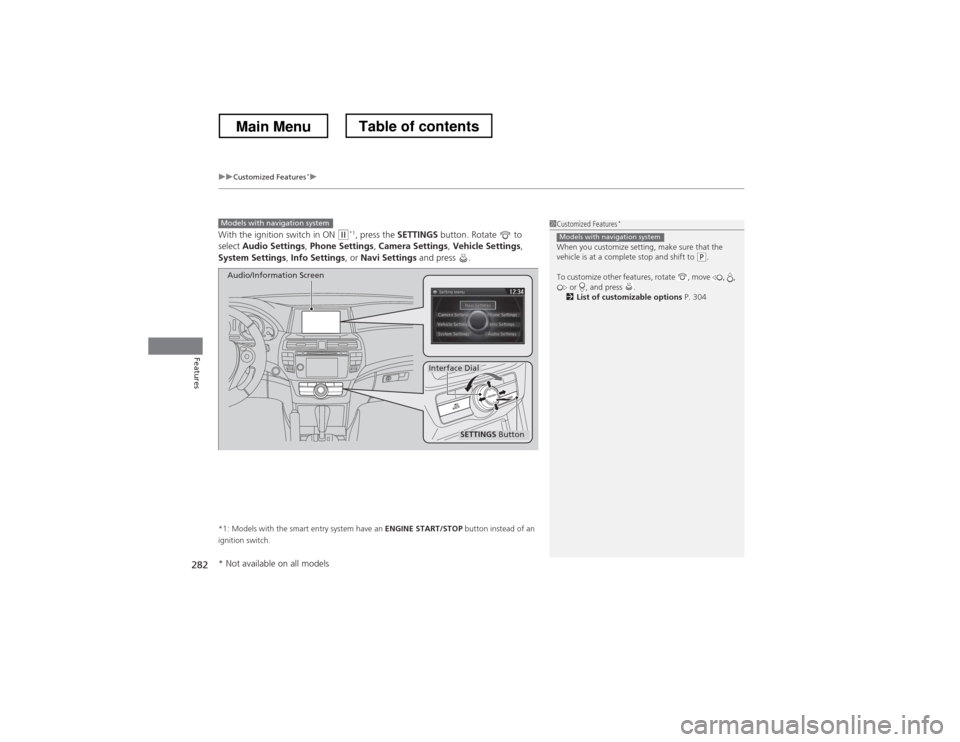
Use the interface dial or MENU button to
access some audio functions.
Press to switch between the normal and
extended display for some functions.
Interface dial: Rotate left or right to scroll
through the available choices. Press to set
your selection. Move right, left, up or down to
select secondary menu.
MENU button: Press to select any mode. The
available mode includes Change Source,
Station List , Save Preset , Radio Text ,
Music Search , and play modes. Play modes
can be also selected from Scan, Random/
Repeat , and so on.
BACK button: Press to go back to the
previous display. button: Press to change the audio/
information screen brightness.
Press once and make an adjustment.
uEach time you press , the mode
switches between the daytime mode,
nighttime mode and off mode.
*1: Models with the smart entry system have an ENGINE START/STOP button instead of an
ignition switch.
Models with navigation system1Audio System Basic Operation
Voice Control System
The audio system is voice operable. See the
navigation system manual for details.
These indications are used to show how to operate the interface dial.
Rotate to select.
Press to enter.
Move , , or to select secondary menu.
Audio Menu Items 2 Station List P. 234
2 Save Preset P. 233, 238
2 Radio text P. 235
2 Music Search P. 240, 244, 254, 264
2 Scan P. 241, 245, 265
2 Random/Repeat P. 241, 245, 255, 265
Interface Dial
MENU ButtonBACK Button
Button
Main MenuTable of contents
Page 282 of 573
281
Continued
Features
Customized Features *
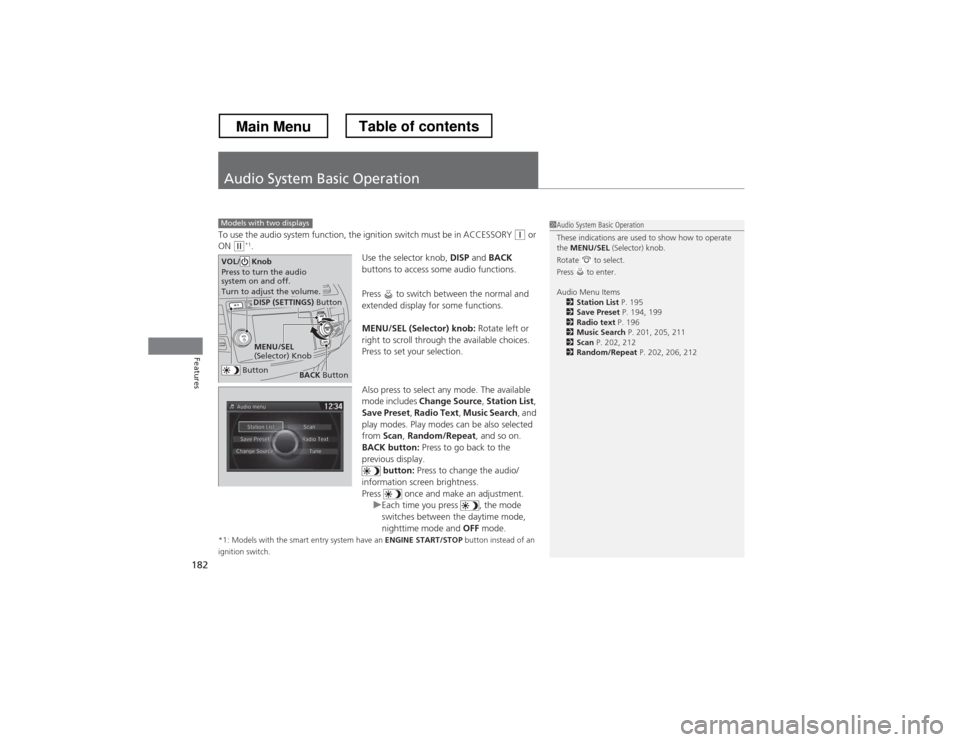
Use the audio/information screen to customize certain features. ■
How to customize
With the ignition switch in ON
(w *1
, press and hold the DISP button, then rotate
to select Audio Settings , Phone Settings , Camera Settings , Vehicle Settings ,
System Settings or Info Settings and press .
*1: Models with the smart entry system have an ENGINE START/STOP button instead of an
ignition switch.
1Customized Features *
When you customize settings, make sure that the
vehicle is at a complete stop and shift to
(P .
To customize other features, rotate , and press . 2 List of customizable options P. 294
Models without navigation system
Models without navigation system
DISP Button
Audio/Information Screen
MENU/SEL
(Selector) Knob
* Not available on all models
Main MenuTable of contents
Page 283 of 573
uuCustomized Features*u
282
Features
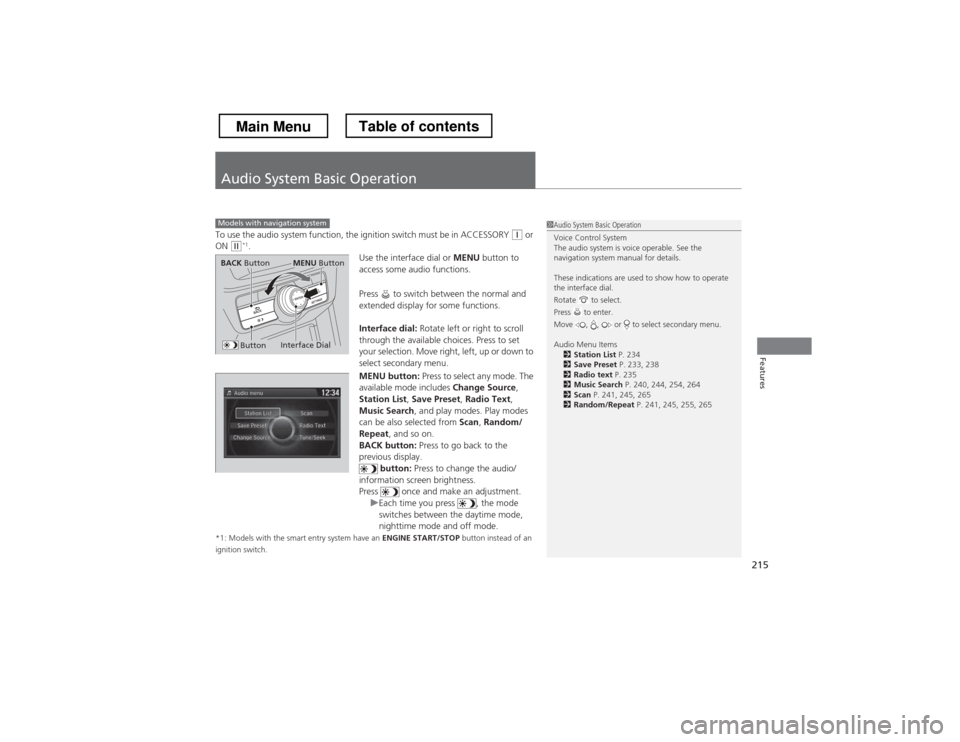
With the ignition switch in ON (w*1
, press the SETTINGS button. Rotate to
select Audio Settings , Phone Settings , Camera Settings , Vehicle Settings ,
System Settings , Info Settings , or Navi Settings and press .
*1: Models with the smart entry system have an ENGINE START/STOP button instead of an
ignition switch.
Models with navigation system
SETTINGS Button
Audio/Information Screen
Interface Dial
1Customized Features *
When you customize setting, make sure that the
vehicle is at a complete stop and shift to
(P .
To customize other features, rotate , move , , or , and press .
2 List of customizable options P. 304
Models with navigation system
* Not available on all models
Main MenuTable of contents
Page 323 of 573
322
uuBluetooth® HandsFreeLink ®uHFL Menus
Features
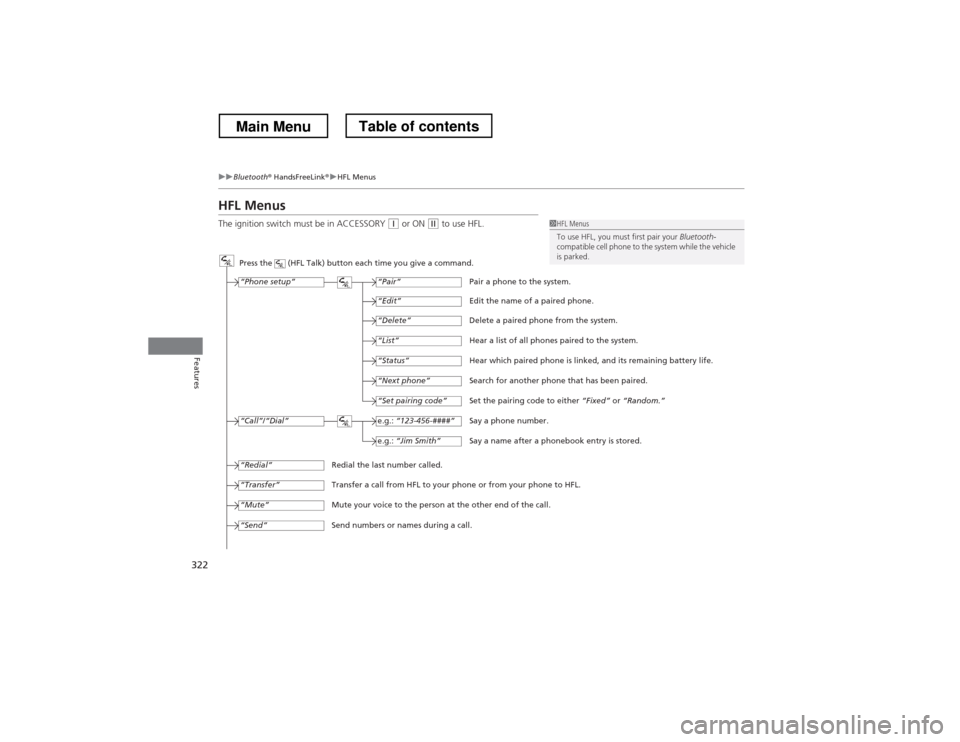
HFL Menus
The ignition switch must be in ACCESSORY
(q or ON (w to use HFL.1HFL Menus
To use HFL, you must first pair your Bluetooth-
compatible cell phone to the system while the vehicle is parked.
Press the (HFL Talk) button each time you give a command.
“Set pairing code”
Pair a phone to the system.
Edit the name of a paired phone.
Delete a paired phone from the system.
Hear a list of all phones paired to the system.
Hear which paired phone is linked, and its remaining battery life.
Search for another phone that has been paired.
Set the pairing code to either “Fixed” or “Random.”
Say a phone number.
Say a name after a phonebook entry is stored.
Redial the last number called.
Transfer a call from HFL to your phone or from your phone to HFL.
Mute your voice to the person at the other end of the call.
Send numbers or names during a call. “Pair”
“Edit”
“Delete”
“List”
“Status”
“Next phone”
e.g.:
“123-456-####”
e.g.: “Jim Smith”
“Phone setup”
“Call” /“Dial”
“Transfer”
“Mute”
“Send”
“Redial”
Main MenuTable of contents
Page 327 of 573
uuBluetooth® HandsFreeLink ®uHFL Menus
326
Features
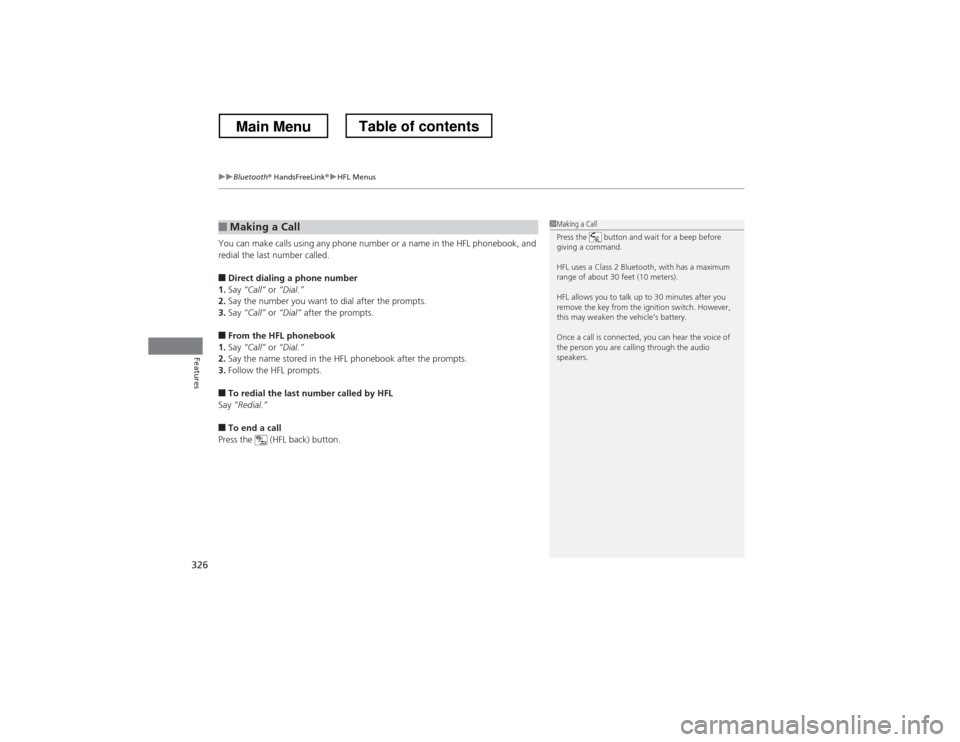
You can make calls using any phone number or a name in the HFL phonebook, and redial the last number called. ■ Direct dialing a phone number
1. Say “Call” or “Dial.”
2. Say the number you want to dial after the prompts.
3. Say “Call” or “Dial” after the prompts.
■ From the HFL phonebook
1. Say “Call” or “Dial.”
2. Say the name stored in the HFL phonebook after the prompts.
3. Follow the HFL prompts.
■ To redial the last number called by HFL
Say “Redial.”
■ To end a call
Press the (HFL back) button.
■Making a Call1Making a Call
Press the button and wait for a beep before
giving a command.
HFL uses a Class 2 Bluetooth, with has a maximum
range of about 30 feet (10 meters).
HFL allows you to talk up to 30 minutes after you
remove the key from the ignition switch. However,
this may weaken the vehicle’s battery.
Once a call is connected, you can hear the voice of
the person you are calling through the audio
speakers.
Main MenuTable of contents
Page 332 of 573
331
uuBluetooth® HandsFreeLink ®uHFL Menus
Features
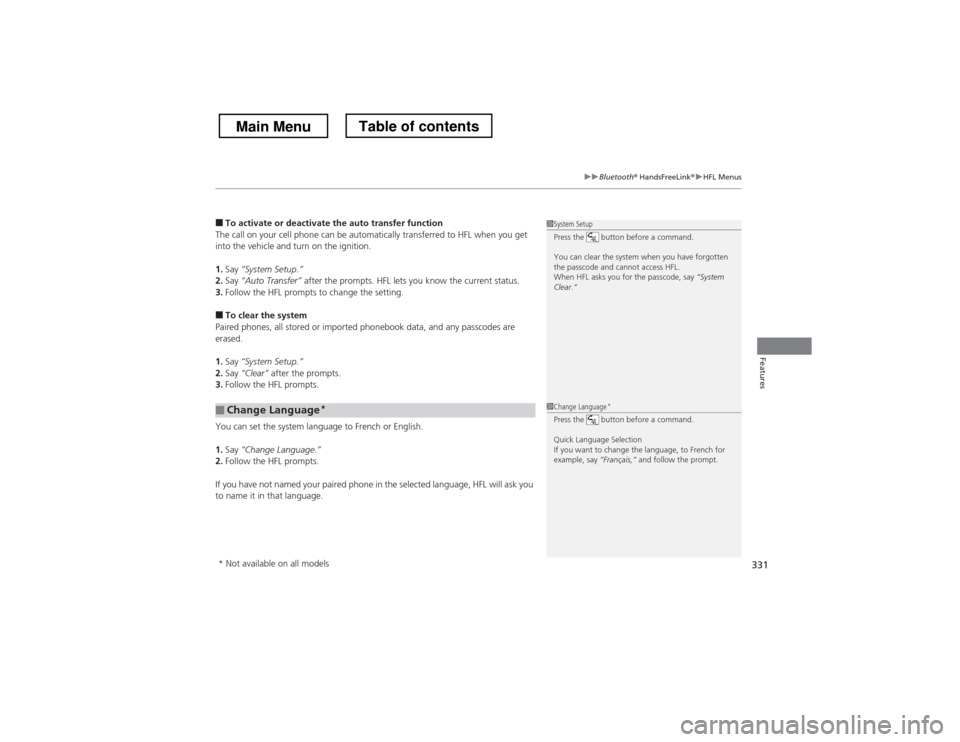
■To activate or deactivate the auto transfer function
The call on your cell phone can be automatically transferred to HFL when you get
into the vehicle and turn on the ignition. 1. Say “System Setup.”
2. Say “Auto Transfer” after the prompts. HFL lets you know the current status.
3. Follow the HFL prompts to change the setting.
■ To clear the system
Paired phones, all stored or imported phonebook data, and any passcodes are
erased. 1. Say “System Setup.”
2. Say “Clear” after the prompts.
3. Follow the HFL prompts.
You can set the system language to French or English.1. Say “Change Language.”
2. Follow the HFL prompts.
If you have not named your paired phone in the selected language, HFL will ask you
to name it in that language.
■Change Language *
1System Setup
Press the button before a command.
You can clear the system when you have forgotten
the passcode and cannot access HFL.
When HFL asks you for the passcode, say
“System
Clear.”
1Change Language *
Press the button before a command.
Quick Language Selection
If you want to change the language, to French for
example, say “Fran
Page 335 of 573
334
uuBluetooth® HandsFreeLink ®uHFL Menus
Features
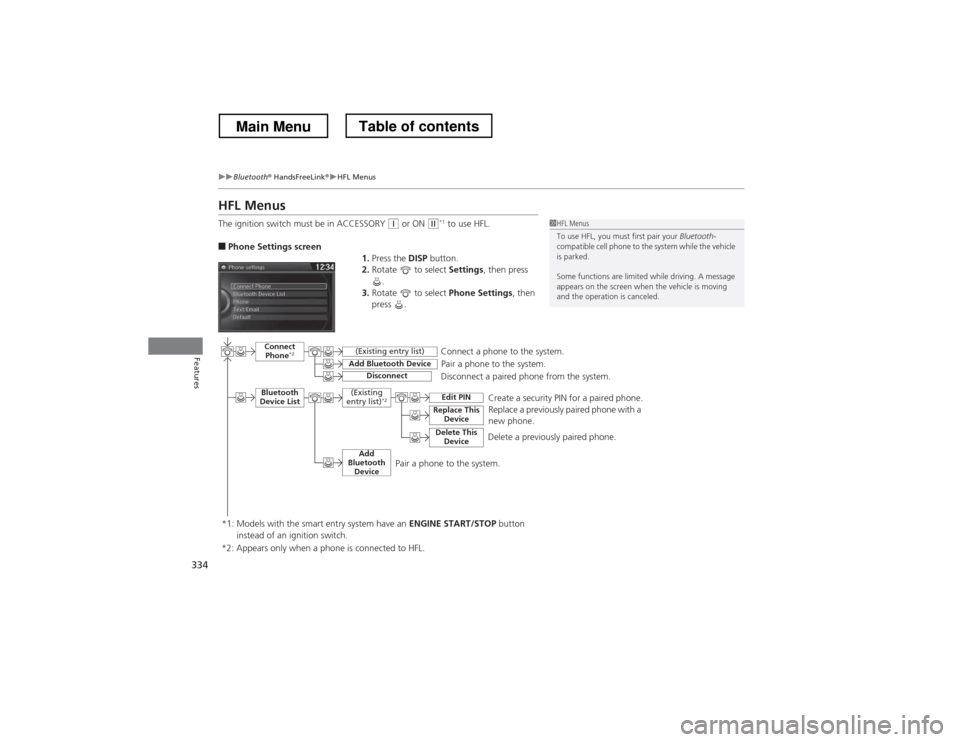
HFL Menus
The ignition switch must be in ACCESSORY
(q or ON (w*1
to use HFL.
■ Phone Settings screen
1.Press the DISP button.
2. Rotate to select Settings, then press
.
3. Rotate to select Phone Settings, then
press .1HFL Menus
To use HFL, you must first pair your Bluetooth-
compatible cell phone to the system while the vehicle is parked.
Some functions are limited while driving. A message
appears on the screen when the vehicle is moving
and the operation is canceled.
Pair a phone to the system.
Replace a previously paired phone with a
new phone.
Connect
Phone *2
Bluetooth
Device List
Add Bluetooth Device
Edit PIN
(Existing entry list)
Disconnect
Connect a phone to the system.
Disconnect a paired phone from the system.
*1: Models with the smart entry system have an ENGINE START/STOP button
instead of an ignition switch. (Existing
entry list) *2
Replace This
Device
Delete This DeviceDelete a previously paired phone.Create a security PIN for a paired phone.
Add
Bluetooth Device
*2: Appears only when a phone is connected to HFL.
Pair a phone to the system.
Main MenuTable of contents