Page 173 of 573
uuAudio System Basic OperationuPlaying the AM/FM Radio
172
Features
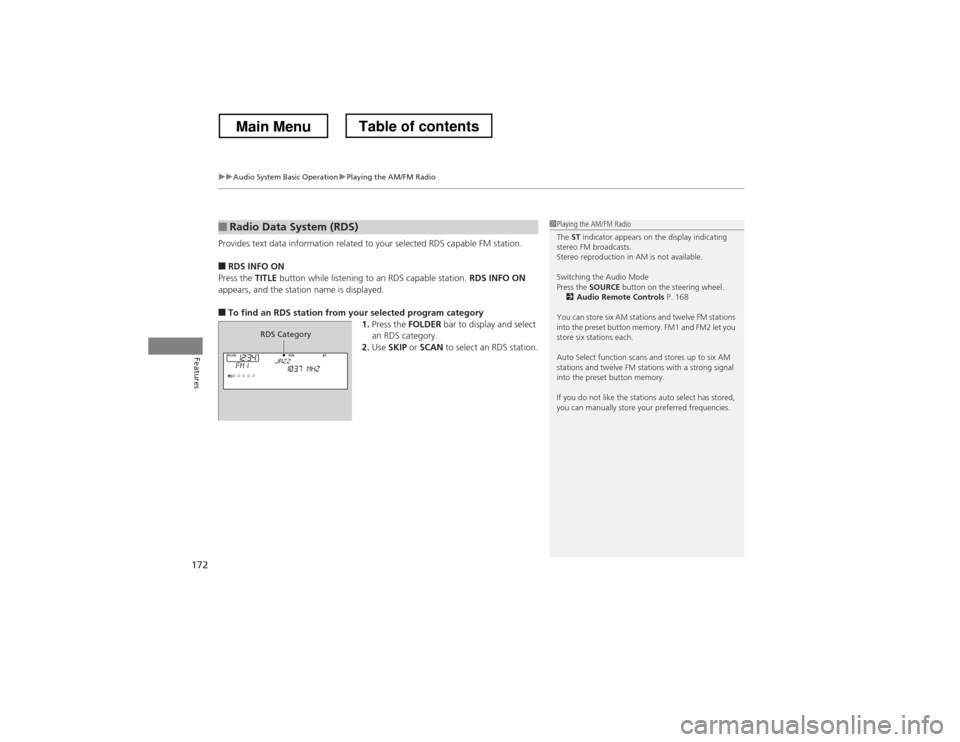
Provides text data information related to your selected RDS capable FM station. ■ RDS INFO ON
Press the TITLE button while listening to an RDS capable station. RDS INFO ON
appears, and the station name is displayed.
■ To find an RDS station from your selected program category
1.Press the FOLDER bar to display and select
an RDS category.
2. Use SKIP or SCAN to select an RDS station.
■Radio Data System (RDS)1Playing the AM/FM Radio
The ST indicator appears on the display indicating
stereo FM broadcasts.
Stereo reproduction in AM is not available.
Switching the Audio Mode
Press the SOURCE button on the steering wheel.
2 Audio Remote Controls P. 168
You can store six AM stations and twelve FM stations
into the preset button memory. FM1 and FM2 let you
store six stations each.
Auto Select function scans and stores up to six AM
stations and twelve FM stations with a strong signal
into the preset button memory.
If you do not like the stations auto select has stored,
you can manually store your preferred frequencies.
RDS Category
Main MenuTable of contents
Page 183 of 573
182
Features
Audio System Basic Operation
To use the audio system function, the ignition switch must be in ACCESSORY (q or
ON (w *1
.
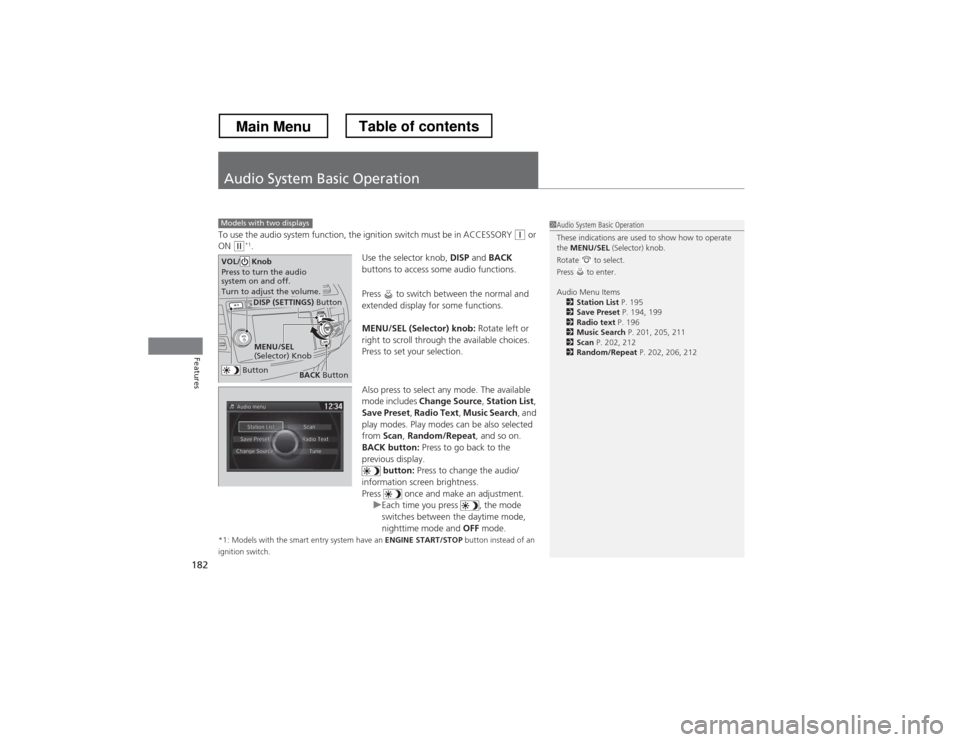
Use the selector knob, DISP and BACK
buttons to access some audio functions.
Press to switch between the normal and
extended display for some functions.
MENU/SEL (Selector) knob: Rotate left or
right to scroll through the available choices.
Press to set your selection.
Also press to select any mode. The available
mode includes Change Source , Station List ,
Save Preset , Radio Text , Music Search , and
play modes. Play modes can be also selected from Scan, Random/Repeat , and so on.
BACK button: Press to go back to the
previous display. button: Press to change the audio/
information screen brightness.
Press once and make an adjustment.
uEach time you press , the mode
switches between the daytime mode,
nighttime mode and OFF mode.
*1: Models with the smart entry system have an ENGINE START/STOP button instead of an
ignition switch.
Models with two displays1Audio System Basic Operation
These indications are used to show how to operate the MENU/SEL (Selector) knob.
Rotate to select.
Press to enter.
Audio Menu Items 2 Station List P. 195
2 Save Preset P. 194, 199
2 Radio text P. 196
2 Music Search P. 201, 205, 211
2 Scan P. 202, 212
2 Random/Repeat P. 202, 206, 212
Button
MENU/SEL
(Selector) Knob
DISP (SETTINGS) Button
BACK Button
VOL/ Knob
Press to turn the audio
system on and off.
Turn to adjust the volume.
Main MenuTable of contents
Page 194 of 573
193
uuAudio System Basic OperationuPlaying AM/FM Radio
Continued
Features
Playing AM/FM Radio
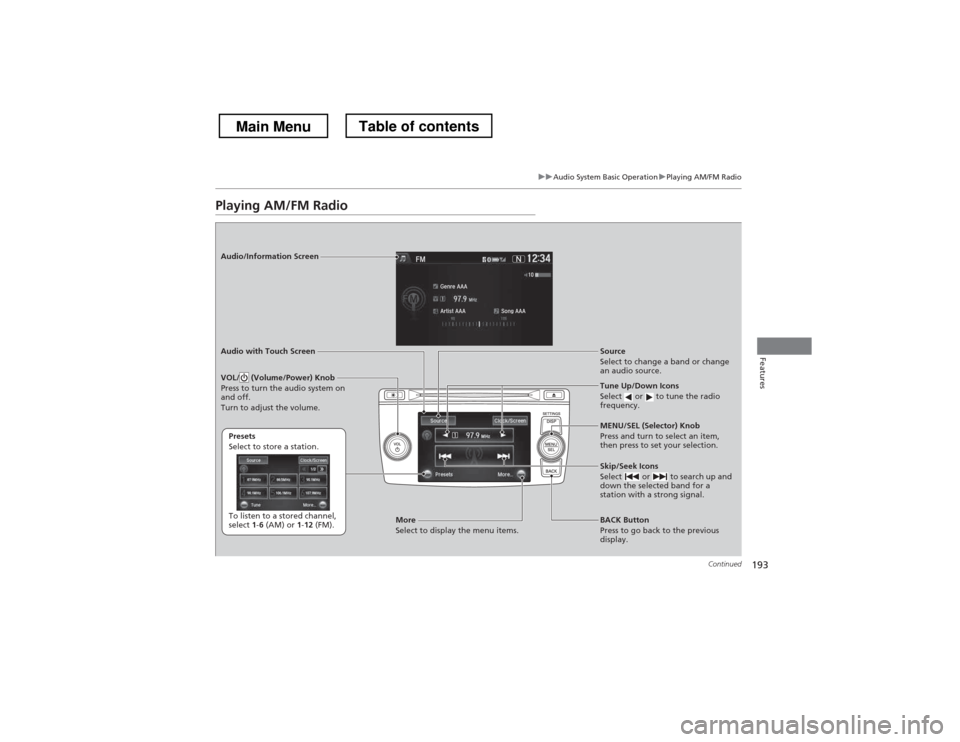
Audio/Information Screen
Audio with Touch ScreenTune Up/Down Icons
Select or to tune the radio
frequency.
BACK Button
Press to go back to the previous
display.
MENU/SEL (Selector) Knob
Press and turn to select an item,
then press to set your selection.
VOL/ (Volume/Power) Knob
Press to turn the audio system on
and off.
Turn to adjust the volume.
Source
Select to change a band or change
an audio source.
To listen to a stored channel,
select
1-6 (AM) or 1-12 (FM).
Presets
Select to store a station.
Skip/Seek Icons
Select or to search up and
down the selected band for a
station with a strong signal.More
Select to display the menu items.
Main MenuTable of contents
Page 195 of 573
uuAudio System Basic OperationuPlaying AM/FM Radio
194
Features
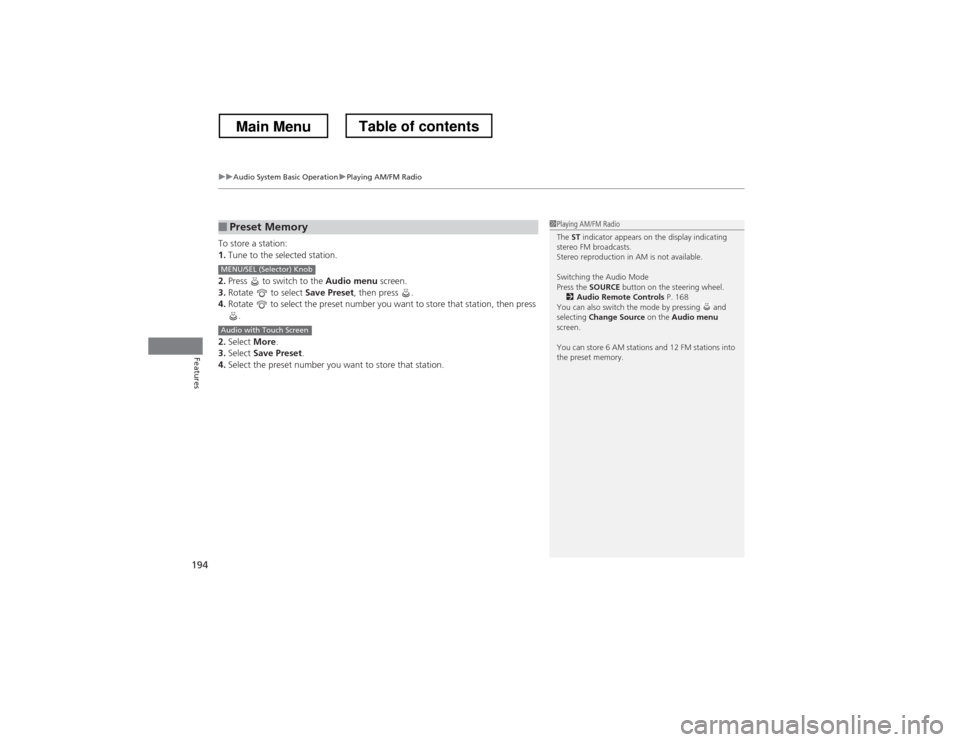
To store a station: 1. Tune to the selected station.
2. Press to switch to the Audio menu screen.
3. Rotate to select Save Preset, then press .
4. Rotate to select the preset number you want to store that station, then press
.
2. Select More.
3. Select Save Preset .
4. Select the preset number you want to store that station.
■Preset Memory1Playing AM/FM Radio
The ST indicator appears on the display indicating
stereo FM broadcasts.
Stereo reproduction in AM is not available.
Switching the Audio Mode
Press the SOURCE button on the steering wheel.
2 Audio Remote Controls P. 168
You can also switch the mode by pressing and selecting Change Source on the Audio menu
screen.
You can store 6 AM stations and 12 FM stations into
the preset memory.
MENU/SEL (Selector) Knob
Audio with Touch Screen
Main MenuTable of contents
Page 196 of 573
Continued195
uuAudio System Basic OperationuPlaying AM/FM Radio
Features
Provides text data information related to your selected RDS-capable FM station. ■To find an RDS station from Station List
1. Press to switch to the Audio menu screen while listening to an FM station.
2. Rotate to select Station List, then press .
3. Rotate to select the station, then press .
■ Manual update
Updates your available station list at any time. 1. Press to switch to the Audio menu screen while listening to an FM station.
2. Rotate to select Station List, then press .
3. Rotate to select UPDATE LIST, then press .
■Radio Data System (RDS)1Radio Data System (RDS)
When you select an RDS-capable FM station, the RDS
automatically turns on, and the frequency display
changes to the station name. However, when the
signals of that station become weak, the display
changes from the station name to the frequency.
Main MenuTable of contents
Page 197 of 573
uuAudio System Basic OperationuPlaying AM/FM Radio
196
Features
■ Radio text
Displays the radio text information of the selected RDS station. 1. Press to switch to the Audio menu screen.
2. Rotate to select Radio Text, then press .
■ Scan
Samples each of the strongest stations on the selected band for 10 seconds. 1. Press to switch to the Audio menu screen.
2. Rotate to select Scan, then press .
To turn off scan, press to select Cancel Scan, or press the BACK button.
1. Select More.
2. Select Scan.
To turn off scan, select Cancel Scan.1Radio text
The text indicator comes on when you received a text
message. The indicator stays on until you read the
message.
MENU/SEL (Selector) Knob
Audio with Touch Screen
Main MenuTable of contents
Page 198 of 573
197
uuAudio System Basic OperationuPlaying XM® Radio *
Continued
Features
Playing XM
® Radio *
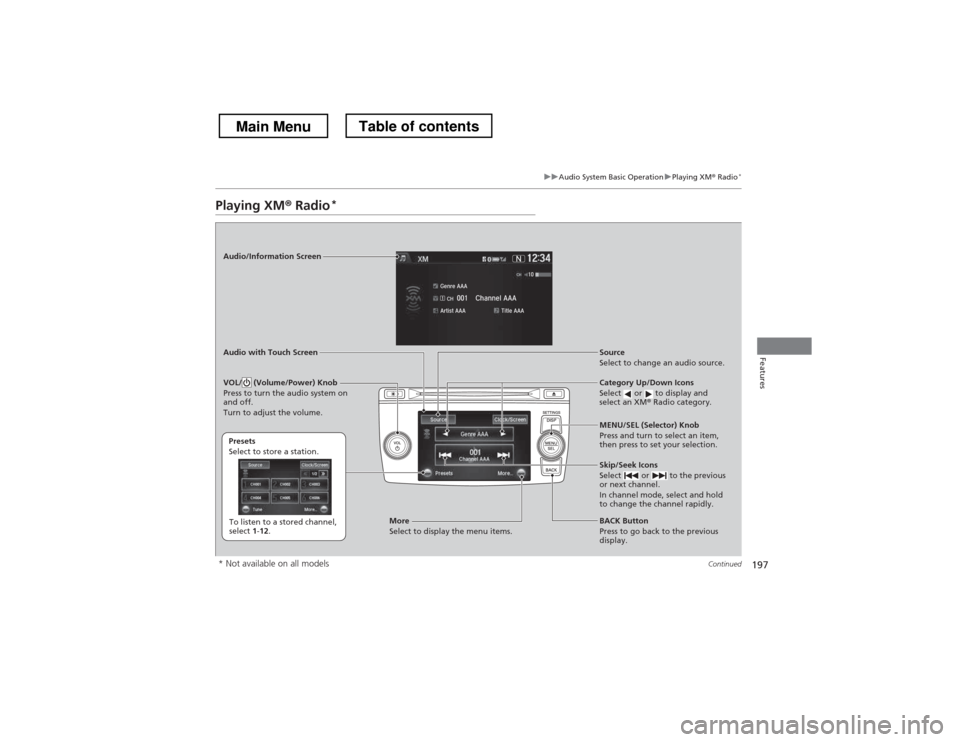
Audio/Information Screen
Audio with Touch Screen
Category Up/Down Icons
Select or to display and
select an XM® Radio category.
BACK Button
Press to go back to the previous
display.
MENU/SEL (Selector) Knob
Press and turn to select an item,
then press to set your selection.
VOL/ (Volume/Power) Knob
Press to turn the audio system on
and off.
Turn to adjust the volume.
Source
Select to change an audio source.
To listen to a stored channel,
select
1-12 .
Presets
Select to store a station.
Skip/Seek Icons
Select or to the previous
or next channel.
In channel mode, select and hold to change the channel rapidly.More
Select to display the menu items.
* Not available on all models
Main MenuTable of contents
Page 199 of 573
uuAudio System Basic OperationuPlaying XM® Radio *
198
Features
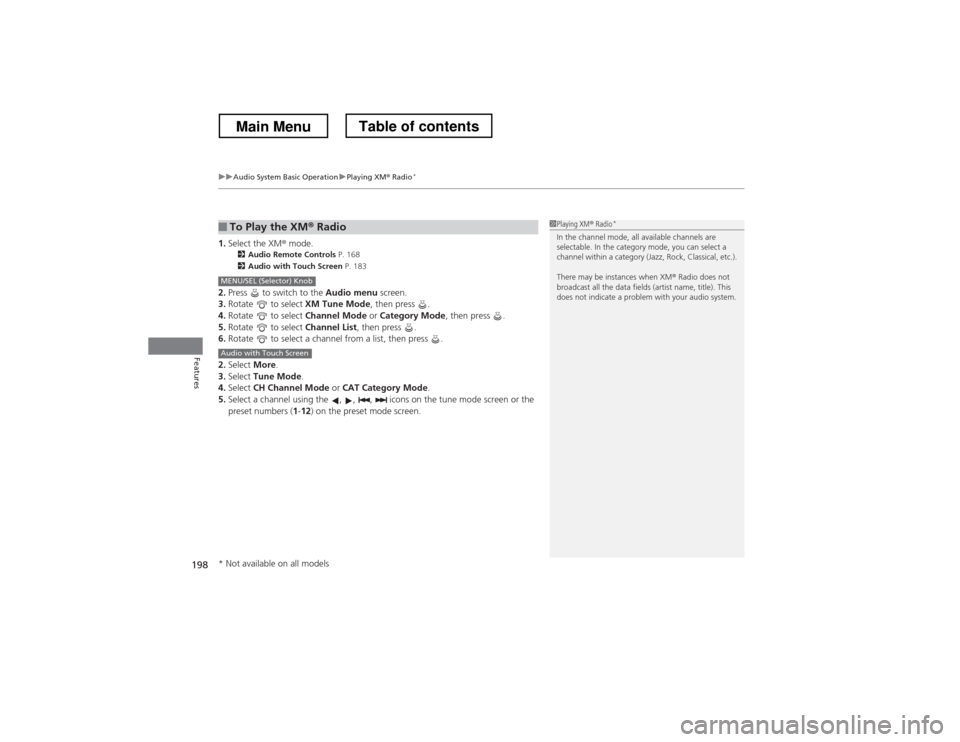
1. Select the XM ® mode.
2 Audio Remote Controls P. 168
2 Audio with Touch Screen P. 183
2. Press to switch to the Audio menu screen.
3. Rotate to select XM Tune Mode, then press .
4. Rotate to select Channel Mode or Category Mode , then press .
5. Rotate to select Channel List, then press .
6. Rotate to select a channel from a list, then press .
2. Select More.
3. Select Tune Mode .
4. Select CH Channel Mode or CAT Category Mode .
5. Select a channel using the , , , icons on the tune mode screen or the preset numbers ( 1-12 ) on the preset mode screen.
■To Play the XM ® Radio1Playing XM ® Radio *
In the channel mode, all available channels are
selectable. In the category mode, you can select a
channel within a category (Jazz, Rock, Classical, etc.).
There may be instances when XM ® Radio does not
broadcast all the data fields (artist name, title). This
does not indicate a problem with your audio system.
MENU/SEL (Selector) Knob
Audio with Touch Screen
* Not available on all models
Main MenuTable of contents