2013 FORD SUPER DUTY display
[x] Cancel search: displayPage 133 of 563
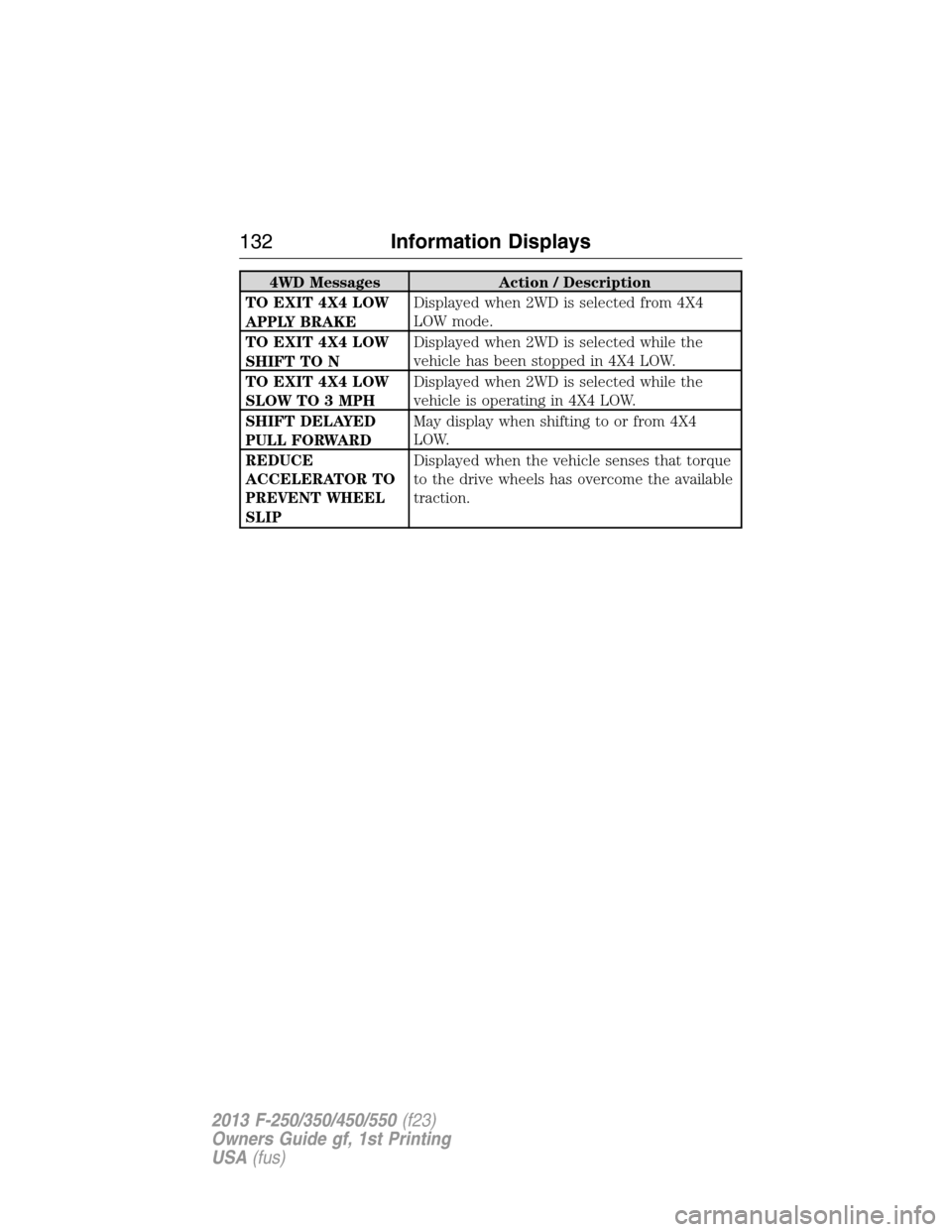
4WD Messages Action / Description
TO EXIT 4X4 LOW
APPLY BRAKEDisplayed when 2WD is selected from 4X4
LOW mode.
TO EXIT 4X4 LOW
SHIFT TO NDisplayed when 2WD is selected while the
vehicle has been stopped in 4X4 LOW.
TO EXIT 4X4 LOW
SLOW TO 3 MPHDisplayed when 2WD is selected while the
vehicle is operating in 4X4 LOW.
SHIFT DELAYED
PULL FORWARDMay display when shifting to or from 4X4
LOW.
REDUCE
ACCELERATOR TO
PREVENT WHEEL
SLIPDisplayed when the vehicle senses that torque
to the drive wheels has overcome the available
traction.
132Information Displays
2013 F-250/350/450/550(f23)
Owners Guide gf, 1st Printing
USA(fus)
Page 135 of 563

MP3 Track and Folder Structure
Audio systems capable of recognizing and playing MP3 individual tracks
and folder structures work as follows:
•There are two different modes for MP3 disc playback: MP3 track
mode (system default) and MP3 folder mode.
•MP3 track mode ignores any folder structure on the MP3 disc. The
player numbers each MP3 track on the disc (noted by the .mp3 file
extension) from T001 to a maximum of T255.Note:The maximum
number of playable MP3 files may be less depending on the structure
of the CD and exact model of radio present.
•MP3 folder mode represents a folder structure consisting of one level
of folders. The CD player numbers all MP3 tracks on the disc (noted
by the .mp3 file extension) and all folders containing MP3 files, from
F001 (folder) T001 (track) to F253 T255.
•Creating discs with only one level of folders helps with navigation
through the disc files.
If you are burning your own MP3 discs, it is important to understand
how the system reads the structures you create. While various files may
be present, (files with extensions other than mp3), only files with the
.mp3 extension are played; other files are ignored by the system. This
enables you to use the same MP3 disc for a variety of tasks on your work
computer, home computer and your in-vehicle system.
In track mode, the system displays and plays the structure as if it were
only one level deep (all .mp3 files play, regardless of being in a specific
folder). In folder mode, the system only plays the .mp3 files in the
current folder.
134Audio System
2013 F-250/350/450/550(f23)
Owners Guide gf, 1st Printing
USA(fus)
Page 136 of 563

AM/FM
WARNING:Driving while distracted can result in loss of vehicle
control, accident and injury. Ford strongly recommends that you
use extreme caution when using any device or feature that may take
your focus off the road. Your primary responsibility is the safe operation
of your vehicle. We recommend against the use of any handheld device
while driving, encourage the use of voice-operated systems when
possible and that you become aware of applicable state and local laws
that may affect use of electronic devices while driving.
A.CLK:Press this button to switch the display between the clock and
radio frequency. To set the time:
1. Press and holdCLKuntil the hours start to flash.
2. Press the arrow buttons to adjust the hours. Repeat Steps 1 and 2 to
set the minutes.
3. PressCLKagain to exit clock mode.
B.Tune:Press these arrow buttons to manually search through the radio
frequency band. Press and hold for a fast search. In AUDIO mode, press
the buttons to adjust different sound settings.
C.AUDIO:Press this button to access settings for Treble, Middle, Bass,
Fade and Balance.
CLK
AUDIOC
EG
F
BA
D
Audio System135
2013 F-250/350/450/550(f23)
Owners Guide gf, 1st Printing
USA(fus)
Page 138 of 563
C.Tune:Press this button to manually search through the radio
frequency band. Press and hold for a fast search.
D.Phone:Press this button to access the phone features of the SYNC®
system. See theSYNC®chapter for more information.
E.MENU:Press this button to access different audio system features.
•If your vehicle is equipped with satellite radio, you can access
different menus by pressingOK.
•Set the time by pressingMENUuntilSET HOURSorSET
MINUTESappears and using the arrow buttons to adjust the time.
•Set the strongest stations on the radio frequency by pressingMENU
untilAUTOSETappears.AUTOSETdoes not override your original
presets.
•RBDSdisplays text transmitted by certain radio stations and
searches for music categories. To search for music categories, turn on
RBDS (by using theSEEKbuttons whenRBDS ON/OFFappears).
Press the up and down arrow buttons to scroll through categories,
then use theSEEKbuttons to begin the search.
•SPEEDVOL(speed compensated volume) allows you to adjust radio
volume to compensate for noise levels when vehicle speed increases.
•Track/Folderis only available on MP3 files when in CD mode. In
track mode, pressing theSEEKarrows allows you to scroll through
all the tracks on the disc. In folder mode, pressing theSEEKarrows
allows you to scroll through all the tracks within the selected folder.
Press theFOLDERbuttons to access other folders.
•COMPRESS(Compression) is only available in CD and MP3 modes.
Switching compression on brings the soft and loud passages together
for a more consistent listening level. Use theSEEKbuttons and up
and down arrow buttons to switch it on and off.
F.AUX:Press this button to access the media features of the SYNC®
system. See theSYNC®chapter for more information.
G.SEEK:
•In radio mode, press and release these buttons to go to the next (or
previous) preset radio station or disc track.
•In CD and MP3 modes, press these buttons to select the next (or
previous) track, or press and hold to advance (or reverse) within the
same track.
Audio System137
2013 F-250/350/450/550(f23)
Owners Guide gf, 1st Printing
USA(fus)
Page 139 of 563
H.Play, Pause and OK:
•Play and Pause allow you to play or pause a track when listening to a
CD.
•OKallows you to confirm commands with phone and media features
of the SYNC system. See theSYNC®chapter for more information.
I.SHUFFLE:Play music on the selected CD or MP3 folder in random
order.
J.Folder:Press this button to access the next folder on an MP3 disc.
K.Folder:Press this button to access the previous folder on an MP3
disc.
L.FF:Press this button to manually fast forward in a CD track or MP3
file.
M.REW:Press this button to manually rewind in a CD track or MP3 file.
N.Memory presets:Store your favorite radio stations. To store a radio
station, tune to the station, then press and hold a preset button until
sound returns.
O.TEXT/SCAN:
•In radio, CD and MP3 modes, press and hold to hear a brief sampling
of radio stations, CD tracks or MP3 files.
•In CD and MP3 modes, press and release to display track title, artist
name and disc title.
Note:In text mode, sometimes the display requires additional text to
show. When theindicatorison,pressTEXT and then use the
SEEK buttons to view the additional display text.
P.AM/FM:Press this button to select a frequency band.
Q.VOL-PUSH:
•Press this button to switch the system off and on.
•Turn it to adjust the volume.
R.CD:Press this button to enter CD or MP3 mode.
138Audio System
2013 F-250/350/450/550(f23)
Owners Guide gf, 1st Printing
USA(fus)
Page 142 of 563
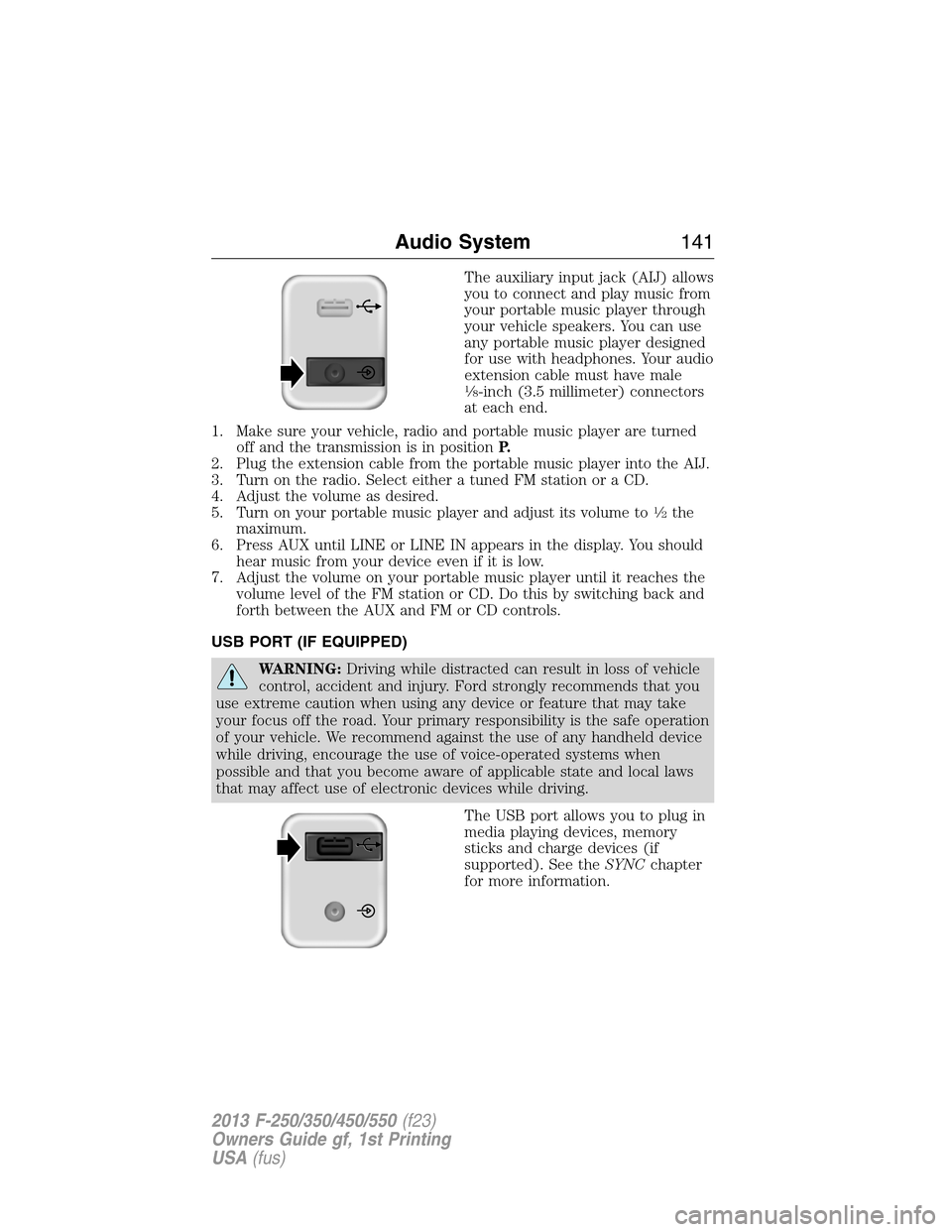
The auxiliary input jack (AIJ) allows
you to connect and play music from
your portable music player through
your vehicle speakers. You can use
any portable music player designed
for use with headphones. Your audio
extension cable must have male
18-inch (3.5 millimeter) connectors
at each end.
1. Make sure your vehicle, radio and portable music player are turned
off and the transmission is in positionP.
2. Plug the extension cable from the portable music player into the AIJ.
3. Turn on the radio. Select either a tuned FM station or a CD.
4. Adjust the volume as desired.
5. Turn on your portable music player and adjust its volume to
12the
maximum.
6. Press AUX until LINE or LINE IN appears in the display. You should
hear music from your device even if it is low.
7. Adjust the volume on your portable music player until it reaches the
volume level of the FM station or CD. Do this by switching back and
forth between the AUX and FM or CD controls.
USB PORT (IF EQUIPPED)
WARNING:Driving while distracted can result in loss of vehicle
control, accident and injury. Ford strongly recommends that you
use extreme caution when using any device or feature that may take
your focus off the road. Your primary responsibility is the safe operation
of your vehicle. We recommend against the use of any handheld device
while driving, encourage the use of voice-operated systems when
possible and that you become aware of applicable state and local laws
that may affect use of electronic devices while driving.
The USB port allows you to plug in
media playing devices, memory
sticks and charge devices (if
supported). See theSYNCchapter
for more information.
Audio System141
2013 F-250/350/450/550(f23)
Owners Guide gf, 1st Printing
USA(fus)
Page 143 of 563
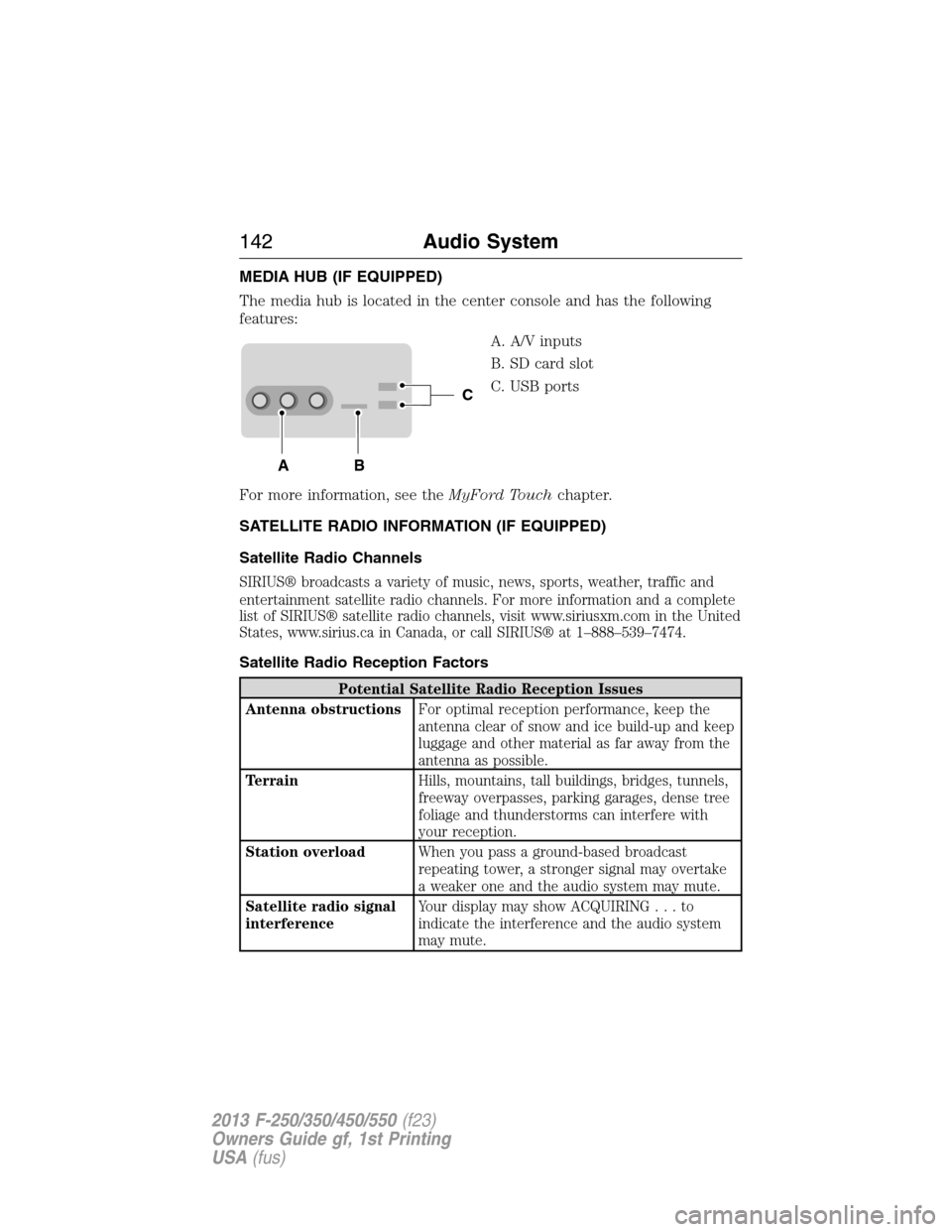
MEDIA HUB (IF EQUIPPED)
The media hub is located in the center console and has the following
features:
A. A/V inputs
B. SD card slot
C. USB ports
For more information, see theMyFord Touchchapter.
SATELLITE RADIO INFORMATION (IF EQUIPPED)
Satellite Radio Channels
SIRIUS® broadcasts a variety of music, news, sports, weather, traffic and
entertainment satellite radio channels. For more information and a complete
list of SIRIUS® satellite radio channels, visit www.siriusxm.com in the United
States, www.sirius.ca in Canada, or call SIRIUS® at 1–888–539–7474.
Satellite Radio Reception Factors
Potential Satellite Radio Reception Issues
Antenna obstructionsFor optimal reception performance, keep the
antenna clear of snow and ice build-up and keep
luggage and other material as far away from the
antenna as possible.
TerrainHills, mountains, tall buildings, bridges, tunnels,
freeway overpasses, parking garages, dense tree
foliage and thunderstorms can interfere with
your reception.
Station overloadWhen you pass a ground-based broadcast
repeating tower, a stronger signal may overtake
a weaker one and the audio system may mute.
Satellite radio signal
interferenceYour display may show ACQUIRING...to
indicate the interference and the audio system
may mute.
C
BA
142Audio System
2013 F-250/350/450/550(f23)
Owners Guide gf, 1st Printing
USA(fus)
Page 144 of 563
SIRIUS® Satellite Radio Service
Note:SIRIUS® reserves the unrestricted right to change, rearrange, add or
delete programming including canceling, moving or adding particular
channels, and its prices, at any time, with or without notice to you. Ford
Motor Company shall not be responsible for any such programming changes.
SIRIUS® satellite radio is a
subscription-based satellite radio
service that broadcasts a variety of
music, sports, news, weather, traffic
and entertainment programming.
Your factory-installed SIRIUS®
satellite radio system includes
hardware and a limited subscription term which begins on the date of
sale or lease of your vehicle. See your authorized dealer for availability.
For more information on extended subscription terms (a service fee is
required), the online media player and a complete list of SIRIUS® satellite
radio channels, and other features, please visit www.siriusxm.com in the
United States, www.sirius.ca in Canada, or call SIRIUS® at 1–888–539–7474.
Satellite Radio Electronic Serial Number (ESN)
You need your ESN to activate, modify or track your satellite radio
account. When in satellite radio mode, you can view this number by
pressing SIRIUS and memory preset 1 at the same time.
Troubleshooting
SIRIUS® Troubleshooting Tips
Radio Display Condition Possible Action
Acquiring Radio requires more
than two seconds to
produce audio for the
selected channel.No action required.
This message should
disappear shortly.
Sat Fault/SIRIUS®
system failureThere is an internal
module or system
failure present.If this message does
not clear shortly, or
with an ignition key
cycle, your receiver
may have a fault. See
your authorized dealer
for service.
Audio System143
2013 F-250/350/450/550(f23)
Owners Guide gf, 1st Printing
USA(fus)