2013 FORD SUPER DUTY USB
[x] Cancel search: USBPage 463 of 563
Speed-restricted Features
Some features of this system may be too difficult to use while your
vehicle is moving so they are restricted from use unless your vehicle is
stationary.
•Screens that are too crowded with information, such as Point of
Interest reviews and ratings, SIRIUS® Travel Link™ sports scores,
movie times and ski conditions.
•Any action that requires you to use a keyboard is restricted, such as
entering a navigation destination or editing information.
•All lists are limited so the user can view fewer entries (such as phone
contacts or recent phone call entries).
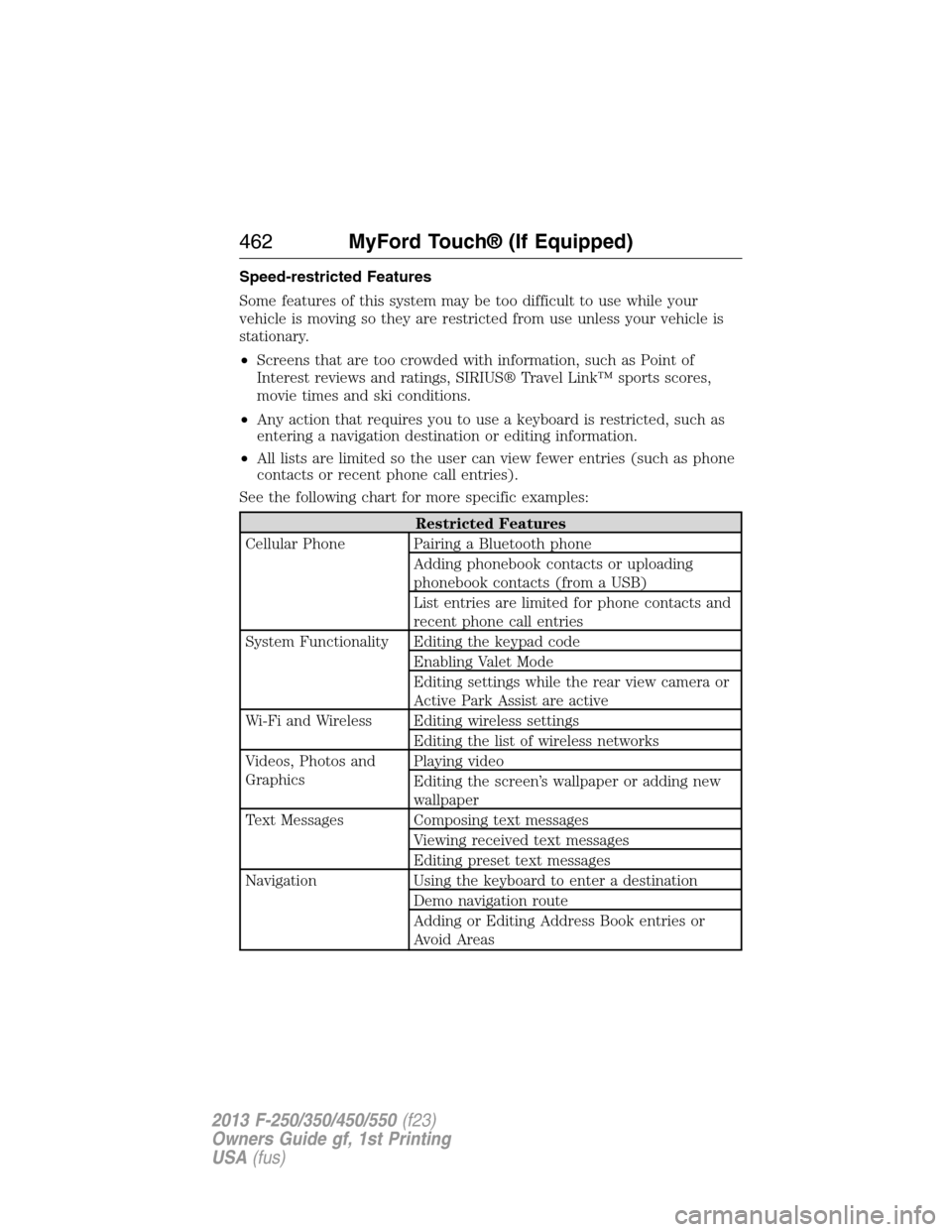
See the following chart for more specific examples:
Restricted Features
Cellular Phone Pairing a Bluetooth phone
Adding phonebook contacts or uploading
phonebook contacts (from a USB)
List entries are limited for phone contacts and
recent phone call entries
System Functionality Editing the keypad code
Enabling Valet Mode
Editing settings while the rear view camera or
Active Park Assist are active
Wi-Fi and Wireless Editing wireless settings
Editing the list of wireless networks
Videos, Photos and
GraphicsPlaying video
Editing the screen’s wallpaper or adding new
wallpaper
Text Messages Composing text messages
Viewing received text messages
Editing preset text messages
Navigation Using the keyboard to enter a destination
Demo navigation route
Adding or Editing Address Book entries or
Avoid Areas
462MyFord Touch® (If Equipped)
2013 F-250/350/450/550(f23)
Owners Guide gf, 1st Printing
USA(fus)
Page 466 of 563

Accessing a List of Available Commands
•If you use the touchscreen, press the Settings icon >Help>Voice
Command List.
•If you use the steering wheel control, press the voice icon. After the
tone, speak your command clearly.
Voice command list
“Audio list of commands”
“Bluetooth audio list of commands”
“Browse list of commands”
“CD list of commands”
“Climate control list of commands”
“List of commands”
“Navigation list of commands”
“Phone list of commands”
“Radio list of commands”
“SD card list of commands”
“Sirius satellite list of commands”
“Travel link list of commands”
“USB list of commands”
“Voice instructions list of commands”
“Voice settings list of commands”
“Help”
Voice Settings
Voice settings allow you to customize the level of system interaction,
help and feedback. The system defaults to standard interaction that uses
candidate lists and confirmation prompts as these provide the highest
level of guidance and feedback.
Interaction Mode:Novice mode provides detailed interaction and
guidance while the advanced mode has less audible interaction and more
tone prompts.
Confirmation Prompts:The system uses these short questions to
confirm your voice request. If turned off, the system simply makes a best
guess as to what you requested. The system may still occasionally ask
you to confirm settings.
MyFord Touch® (If Equipped)465
2013 F-250/350/450/550(f23)
Owners Guide gf, 1st Printing
USA(fus)
Page 470 of 563
ENTERTAINMENT
Your system offers many media options. You can access these options
using the touchscreen or voice commands.
Browsing Device Content
When listening to any type of audio, you can browse through other
devices without having to change sources. For example, if you are
currently listening to the radio, you can browse all the artists that are
stored on your USB device.
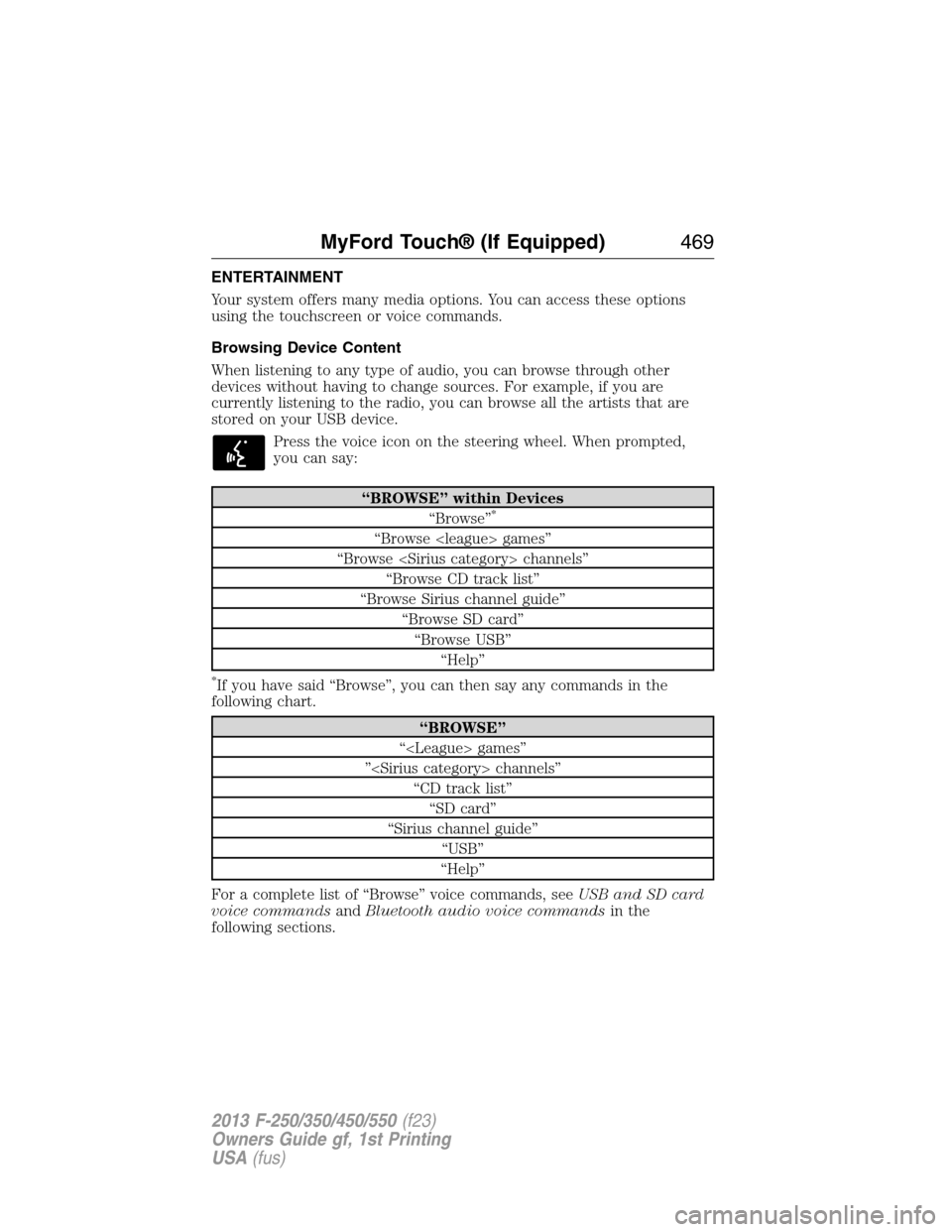
Press the voice icon on the steering wheel. When prompted,
you can say:
“BROWSE” within Devices
“Browse”*
“Browse
“Browse
“Browse CD track list”
“Browse Sirius channel guide”
“Browse SD card”
“Browse USB”
“Help”
*If you have said “Browse”, you can then say any commands in the
following chart.
“BROWSE”
“
”
“CD track list”
“SD card”
“Sirius channel guide”
“USB”
“Help”
For a complete list of “Browse” voice commands, seeUSB and SD card
voice commandsandBluetooth audio voice commandsin the
following sections.
MyFord Touch® (If Equipped)469
2013 F-250/350/450/550(f23)
Owners Guide gf, 1st Printing
USA(fus)
Page 484 of 563
CD Voice Commands
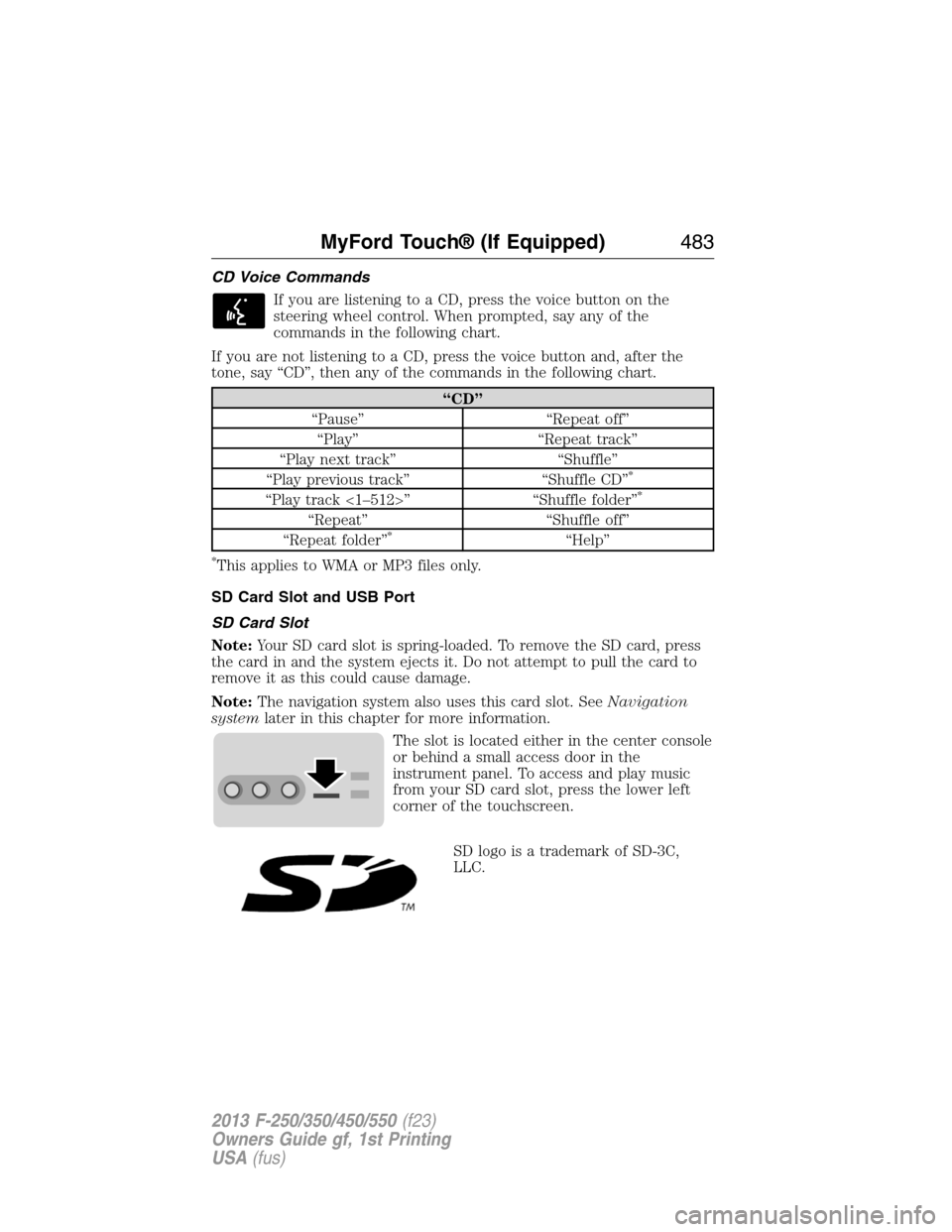
If you are listening to a CD, press the voice button on the
steering wheel control. When prompted, say any of the
commands in the following chart.
If you are not listening to a CD, press the voice button and, after the
tone, say “CD”, then any of the commands in the following chart.
“CD”
“Pause” “Repeat off”
“Play” “Repeat track”
“Play next track” “Shuffle”
“Play previous track” “Shuffle CD”
*
“Play track <1–512>” “Shuffle folder”*
“Repeat” “Shuffle off”
“Repeat folder”*“Help”
*This applies to WMA or MP3 files only.
SD Card Slot and USB Port
SD Card Slot
Note:Your SD card slot is spring-loaded. To remove the SD card, press
the card in and the system ejects it. Do not attempt to pull the card to
remove it as this could cause damage.
Note:The navigation system also uses this card slot. SeeNavigation
systemlater in this chapter for more information.
The slot is located either in the center console
or behind a small access door in the
instrument panel. To access and play music
from your SD card slot, press the lower left
corner of the touchscreen.
SD logo is a trademark of SD-3C,
LLC.
MyFord Touch® (If Equipped)483
2013 F-250/350/450/550(f23)
Owners Guide gf, 1st Printing
USA(fus)
Page 485 of 563
USB Port
The ports are located either in the center
console or behind a small access door in the
instrument panel. To access and play music
from your device, press the lower left corner
of the touchscreen.
This feature allows you to plug in media playing devices, memory sticks,
flash drives or thumb drives, and charge devices if they support this
feature.
In order to playback video from your iPod® or iPhone® (if compatible),
you MUST have a special combination USB/RCA composite video cable
(available for purchase from Apple®). When the cable is connected to
your iPod® or iPhone®, plug the other end into both the RCA jacks and
the USB port.
Playing Music from Your Device
Insert your device and select the USB or SD Card tab once the system
recognizes it. You can then select from the following options:
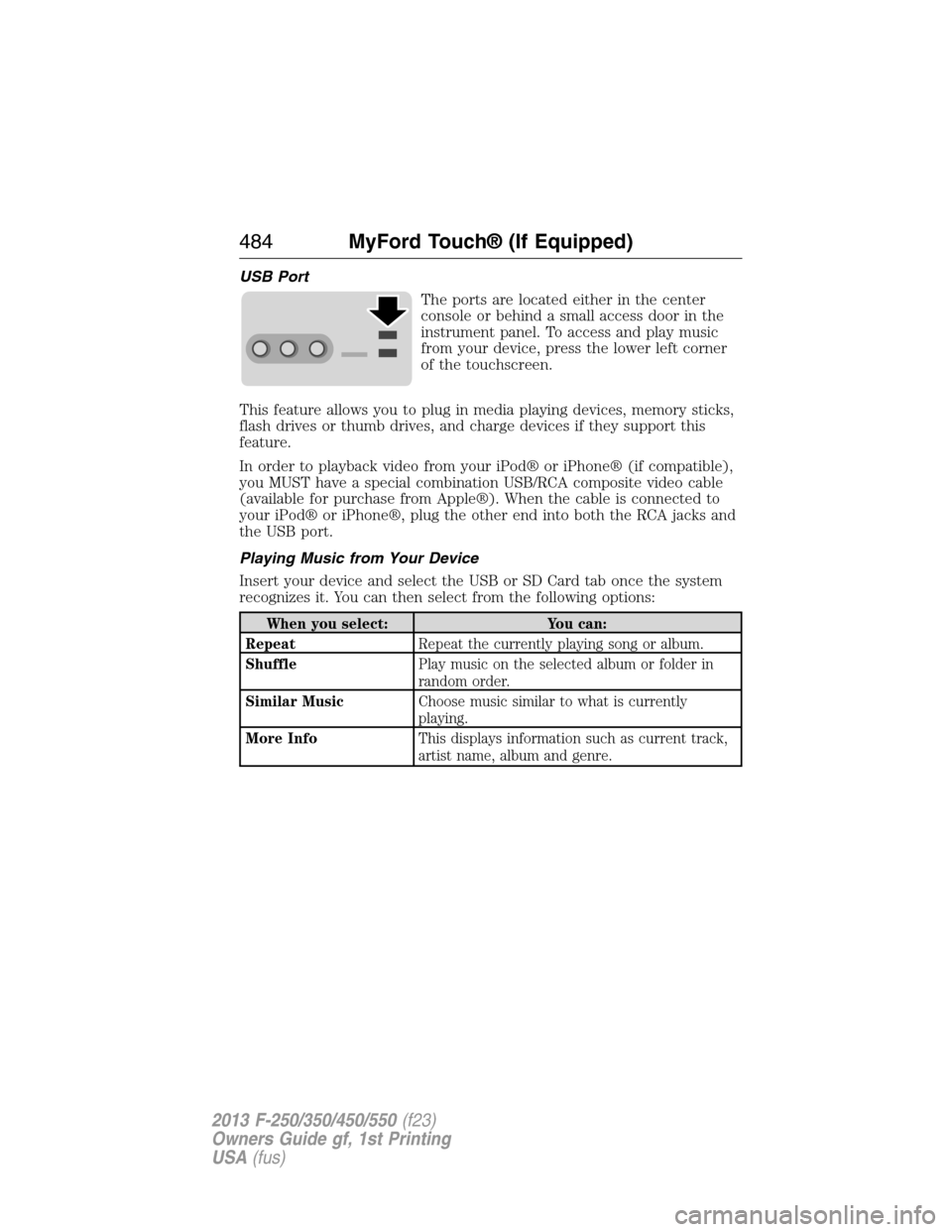
When you select: You can:
RepeatRepeat the currently playing song or album.
ShufflePlay music on the selected album or folder in
random order.
Similar MusicChoose music similar to what is currently
playing.
More InfoThis displays information such as current track,
artist name, album and genre.
484MyFord Touch® (If Equipped)
2013 F-250/350/450/550(f23)
Owners Guide gf, 1st Printing
USA(fus)
Page 486 of 563
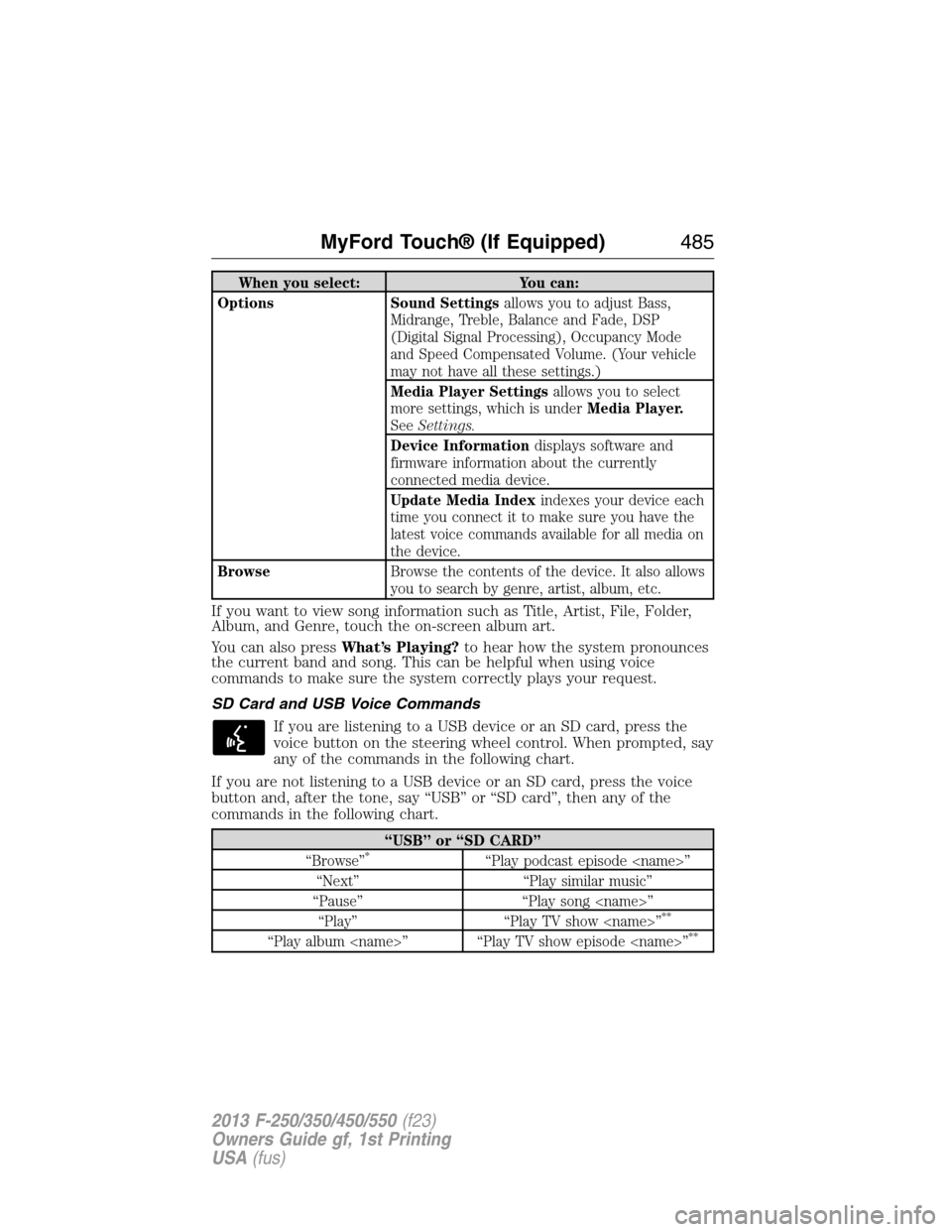
When you select: You can:
Options Sound Settingsallows you to adjust Bass,
Midrange, Treble, Balance and Fade, DSP
(Digital Signal Processing), Occupancy Mode
and Speed Compensated Volume. (Your vehicle
may not have all these settings.)
Media Player Settingsallows you to select
more settings, which is underMedia Player.
SeeSettings.
Device Informationdisplays software and
firmware information about the currently
connected media device.
Update Media Indexindexes your device each
time you connect it to make sure you have the
latest voice commands available for all media on
the device.
BrowseBrowse the contents of the device. It also allows
you to search by genre, artist, album, etc.
If you want to view song information such as Title, Artist, File, Folder,
Album, and Genre, touch the on-screen album art.
You can also pressWhat’s Playing?to hear how the system pronounces
the current band and song. This can be helpful when using voice
commands to make sure the system correctly plays your request.
SD Card and USB Voice Commands
If you are listening to a USB device or an SD card, press the
voice button on the steering wheel control. When prompted, say
any of the commands in the following chart.
If you are not listening to a USB device or an SD card, press the voice
button and, after the tone, say “USB” or “SD card”, then any of the
commands in the following chart.
“USB” or “SD CARD”
“Browse”*“Play podcast episode
“Next” “Play similar music”
“Pause” “Play song
“Play” “Play TV show
**
“Play album
MyFord Touch® (If Equipped)485
2013 F-250/350/450/550(f23)
Owners Guide gf, 1st Printing
USA(fus)
Page 487 of 563
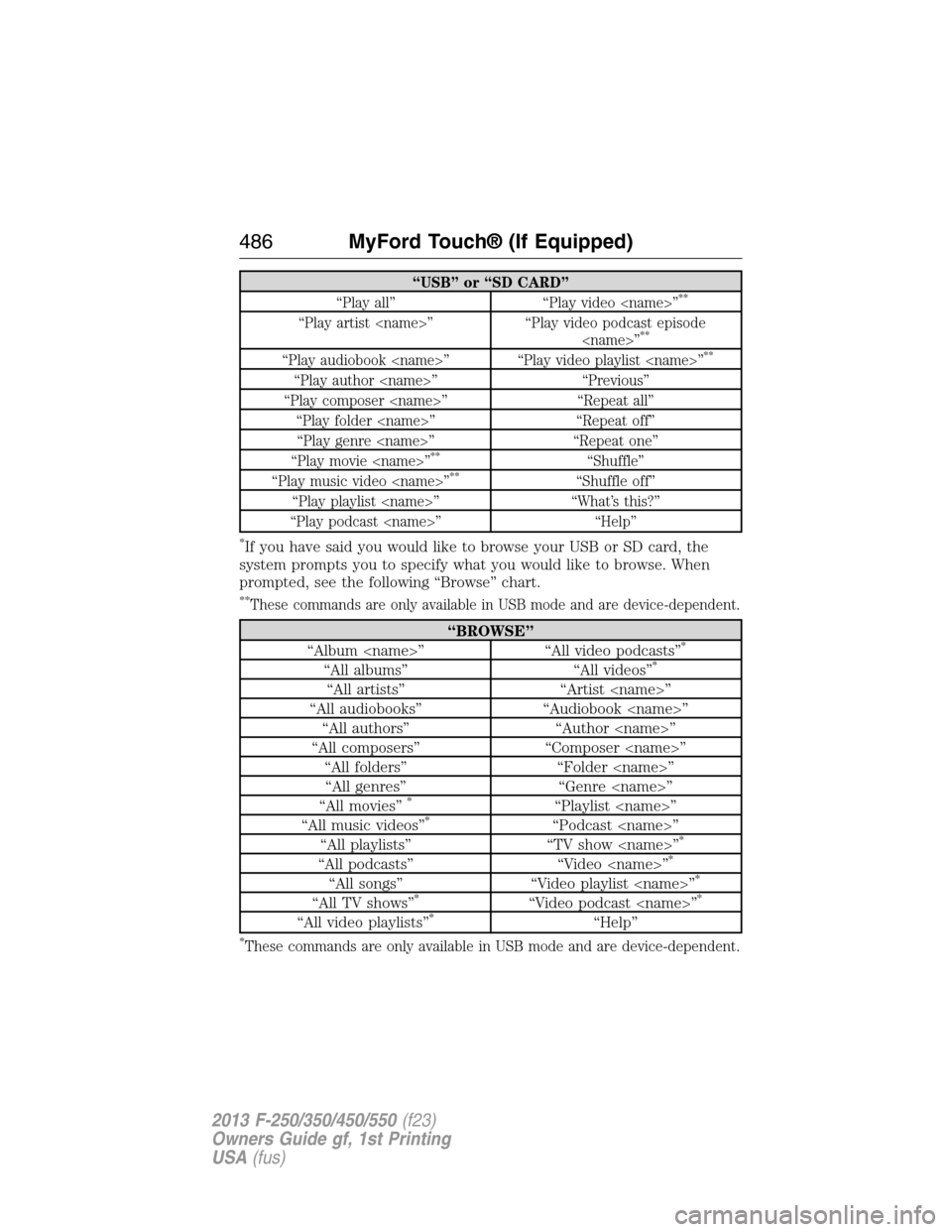
“USB” or “SD CARD”
“Play all” “Play video
“Play artist
“Play audiobook
“Play author
“Play composer
“Play folder
“Play genre
“Play movie
**“Shuffle”
“Play music video
“Play playlist
“Play podcast
*If you have said you would like to browse your USB or SD card, the
system prompts you to specify what you would like to browse. When
prompted, see the following “Browse” chart.
**These commands are only available in USB mode and are device-dependent.
“BROWSE”
“Album
“All albums” “All videos”*
“All artists” “Artist
“All audiobooks” “Audiobook
“All authors” “Author
“All composers” “Composer
“All folders” “Folder
“All genres” “Genre
“All movies”
*“Playlist
“All music videos”*“Podcast
“All playlists” “TV show
“All podcasts” “Video
“All songs” “Video playlist
“All TV shows”*“Video podcast
“All video playlists”*“Help”
*These commands are only available in USB mode and are device-dependent.
486MyFord Touch® (If Equipped)
2013 F-250/350/450/550(f23)
Owners Guide gf, 1st Printing
USA(fus)
Page 488 of 563
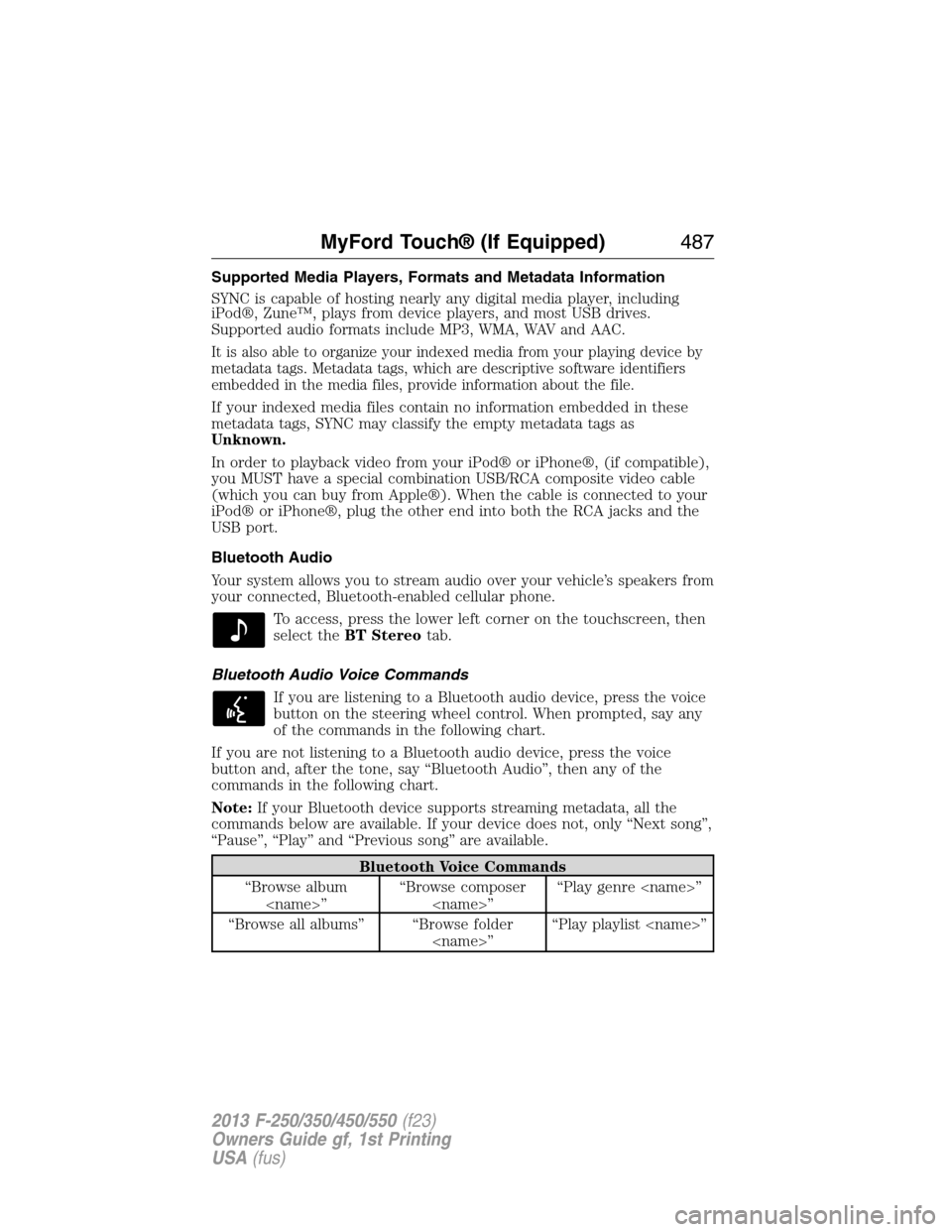
Supported Media Players, Formats and Metadata Information
SYNC is capable of hosting nearly any digital media player, including
iPod®, Zune™, plays from device players, and most USB drives.
Supported audio formats include MP3, WMA, WAV and AAC.
It is also able to organize your indexed media from your playing device by
metadata tags. Metadata tags, which are descriptive software identifiers
embedded in the media files, provide information about the file.
If your indexed media files contain no information embedded in these
metadata tags, SYNC may classify the empty metadata tags as
Unknown.
In order to playback video from your iPod® or iPhone®, (if compatible),
you MUST have a special combination USB/RCA composite video cable
(which you can buy from Apple®). When the cable is connected to your
iPod® or iPhone®, plug the other end into both the RCA jacks and the
USB port.
Bluetooth Audio
Your system allows you to stream audio over your vehicle’s speakers from
your connected, Bluetooth-enabled cellular phone.
To access, press the lower left corner on the touchscreen, then
select theBT Stereotab.
Bluetooth Audio Voice Commands
If you are listening to a Bluetooth audio device, press the voice
button on the steering wheel control. When prompted, say any
of the commands in the following chart.
If you are not listening to a Bluetooth audio device, press the voice
button and, after the tone, say “Bluetooth Audio”, then any of the
commands in the following chart.
Note:If your Bluetooth device supports streaming metadata, all the
commands below are available. If your device does not, only “Next song”,
“Pause”, “Play” and “Previous song” are available.
Bluetooth Voice Commands
“Browse album
“Browse all albums” “Browse folder
MyFord Touch® (If Equipped)487
2013 F-250/350/450/550(f23)
Owners Guide gf, 1st Printing
USA(fus)