Page 513 of 563
Settings
Access and adjust system settings, voice features, as well as phone,
navigation and wireless settings.
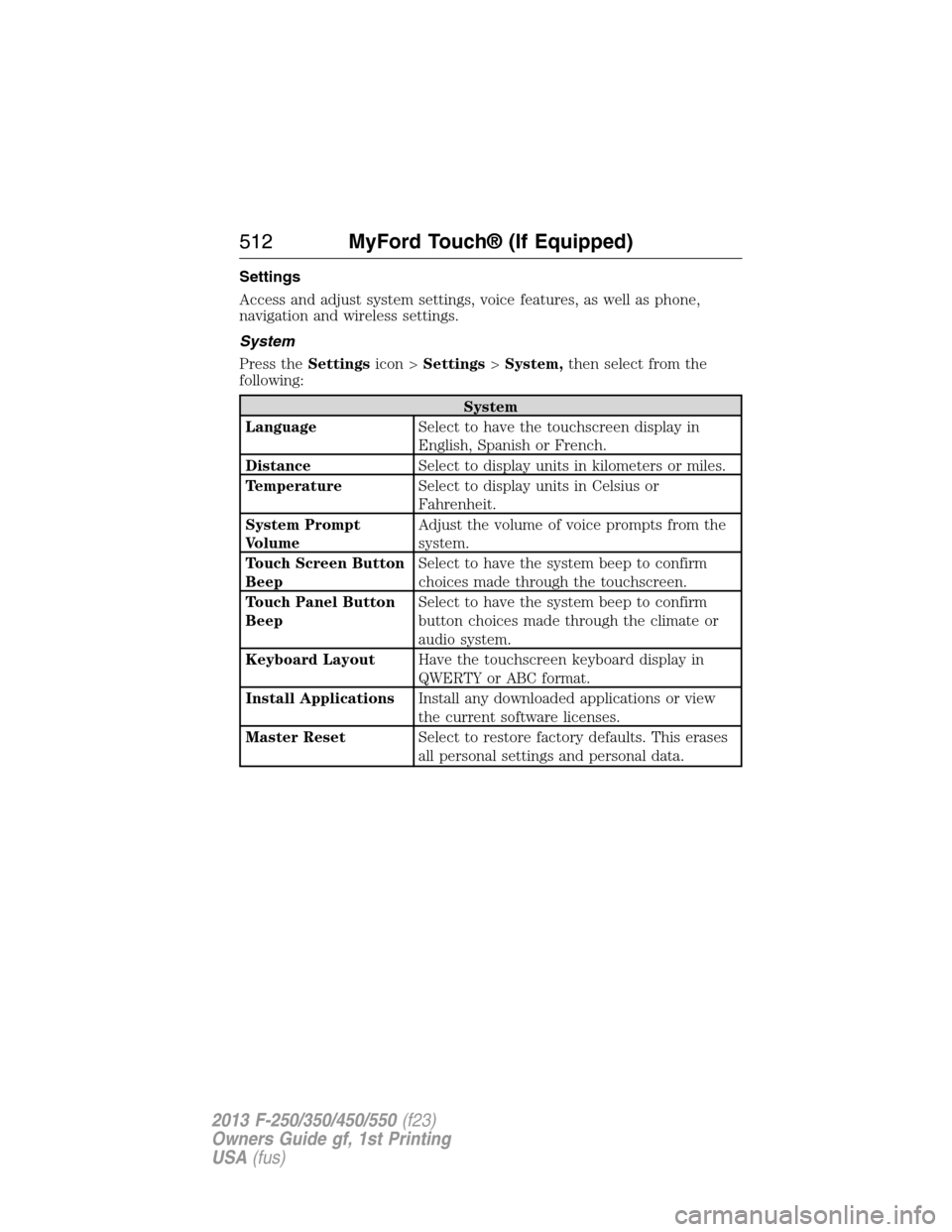
System
Press theSettingsicon >Settings>System,then select from the
following:
System
LanguageSelect to have the touchscreen display in
English, Spanish or French.
DistanceSelect to display units in kilometers or miles.
TemperatureSelect to display units in Celsius or
Fahrenheit.
System Prompt
VolumeAdjust the volume of voice prompts from the
system.
Touch Screen Button
BeepSelect to have the system beep to confirm
choices made through the touchscreen.
Touch Panel Button
BeepSelect to have the system beep to confirm
button choices made through the climate or
audio system.
Keyboard LayoutHave the touchscreen keyboard display in
QWERTY or ABC format.
Install ApplicationsInstall any downloaded applications or view
the current software licenses.
Master ResetSelect to restore factory defaults. This erases
all personal settings and personal data.
512MyFord Touch® (If Equipped)
2013 F-250/350/450/550(f23)
Owners Guide gf, 1st Printing
USA(fus)
Page 514 of 563
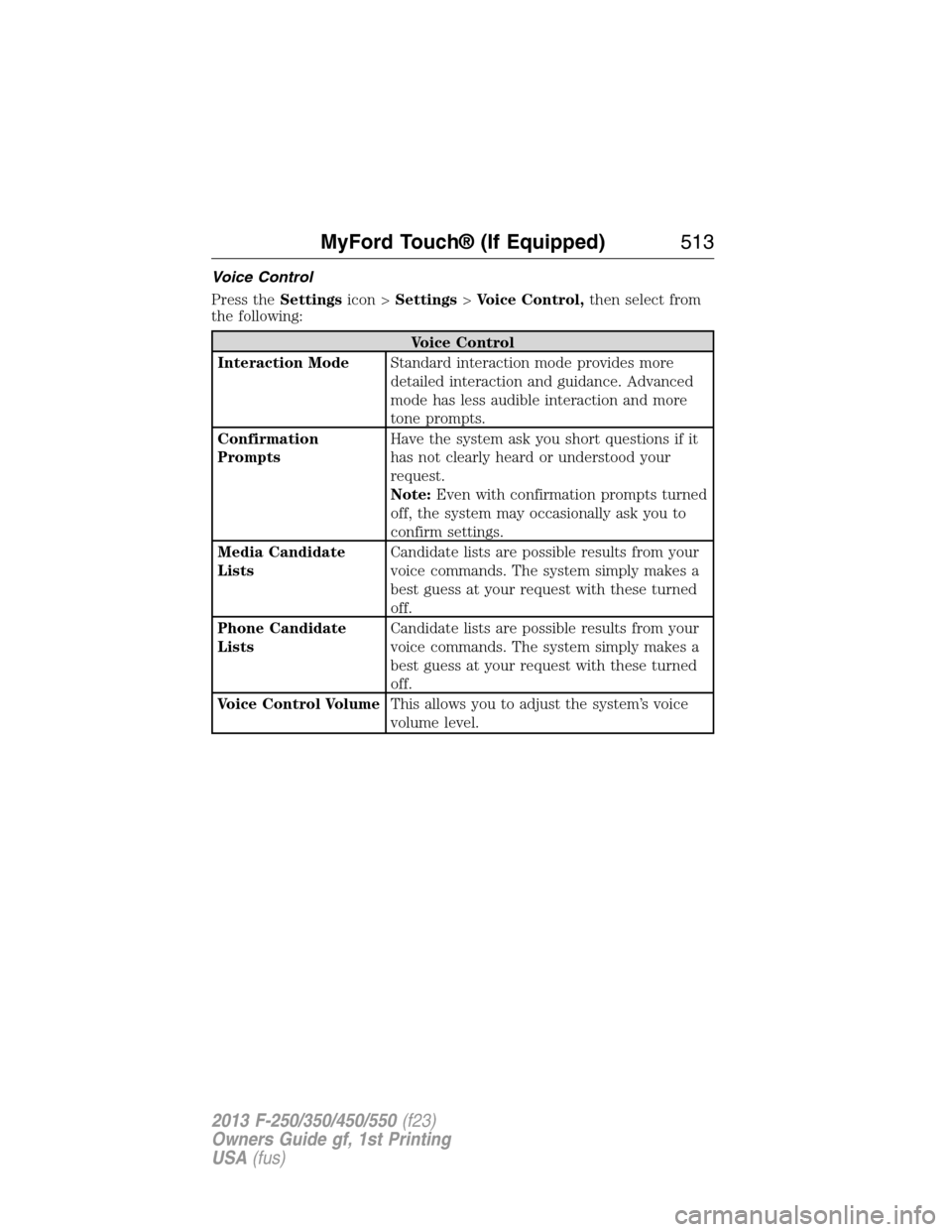
Voice Control
Press theSettingsicon >Settings>Voice Control,then select from
the following:
Voice Control
Interaction ModeStandard interaction mode provides more
detailed interaction and guidance. Advanced
mode has less audible interaction and more
tone prompts.
Confirmation
PromptsHave the system ask you short questions if it
has not clearly heard or understood your
request.
Note:Even with confirmation prompts turned
off, the system may occasionally ask you to
confirm settings.
Media Candidate
ListsCandidate lists are possible results from your
voice commands. The system simply makes a
best guess at your request with these turned
off.
Phone Candidate
ListsCandidate lists are possible results from your
voice commands. The system simply makes a
best guess at your request with these turned
off.
Voice Control VolumeThis allows you to adjust the system’s voice
volume level.
MyFord Touch® (If Equipped)513
2013 F-250/350/450/550(f23)
Owners Guide gf, 1st Printing
USA(fus)
Page 517 of 563
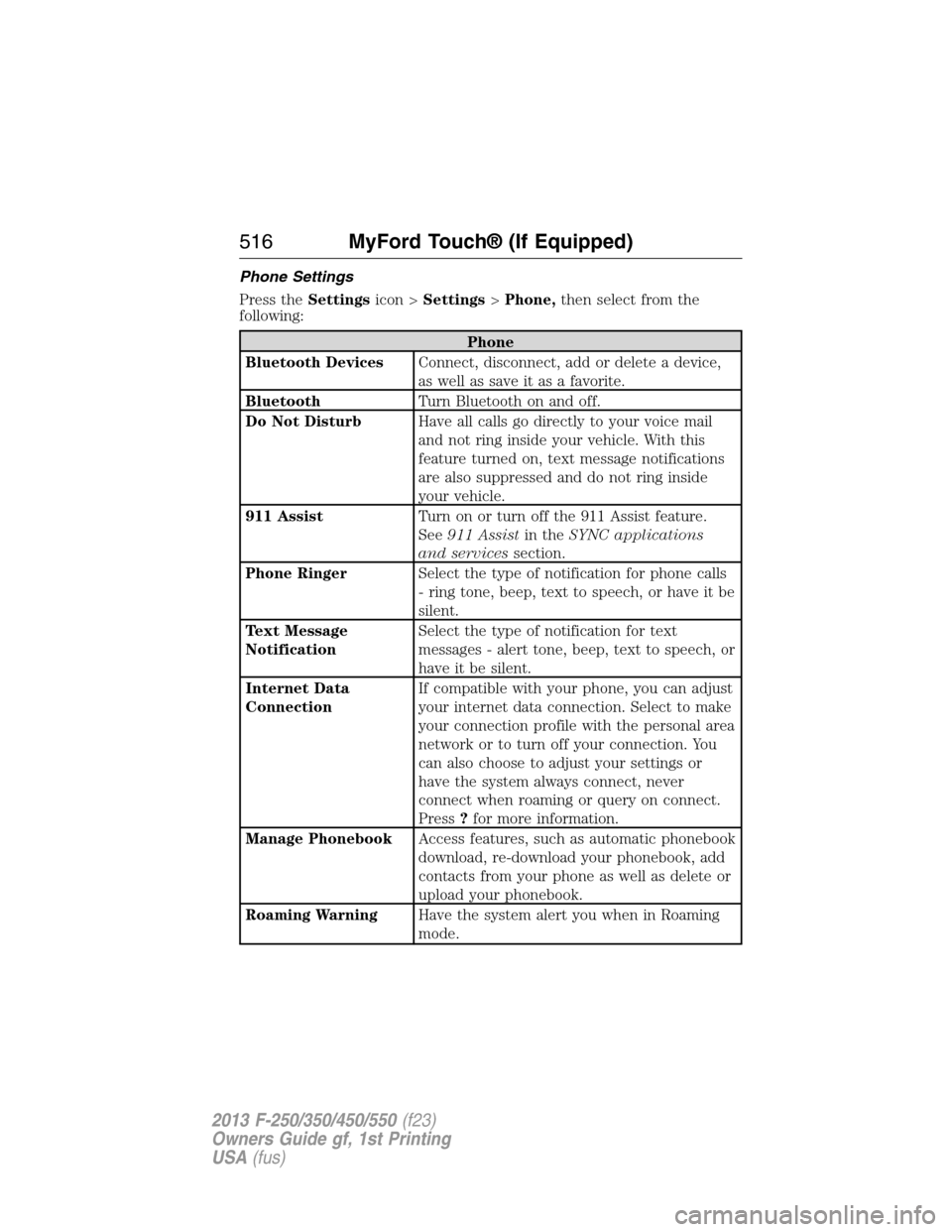
Phone Settings
Press theSettingsicon >Settings>Phone,then select from the
following:
Phone
Bluetooth DevicesConnect, disconnect, add or delete a device,
as well as save it as a favorite.
BluetoothTurn Bluetooth on and off.
Do Not DisturbHave all calls go directly to your voice mail
and not ring inside your vehicle. With this
feature turned on, text message notifications
are also suppressed and do not ring inside
your vehicle.
911 AssistTurn on or turn off the 911 Assist feature.
See911 Assistin theSYNC applications
and servicessection.
Phone RingerSelect the type of notification for phone calls
- ring tone, beep, text to speech, or have it be
silent.
Text Message
NotificationSelect the type of notification for text
messages - alert tone, beep, text to speech, or
have it be silent.
Internet Data
ConnectionIf compatible with your phone, you can adjust
your internet data connection. Select to make
your connection profile with the personal area
network or to turn off your connection. You
can also choose to adjust your settings or
have the system always connect, never
connect when roaming or query on connect.
Press?for more information.
Manage PhonebookAccess features, such as automatic phonebook
download, re-download your phonebook, add
contacts from your phone as well as delete or
upload your phonebook.
Roaming WarningHave the system alert you when in Roaming
mode.
516MyFord Touch® (If Equipped)
2013 F-250/350/450/550(f23)
Owners Guide gf, 1st Printing
USA(fus)
Page 518 of 563
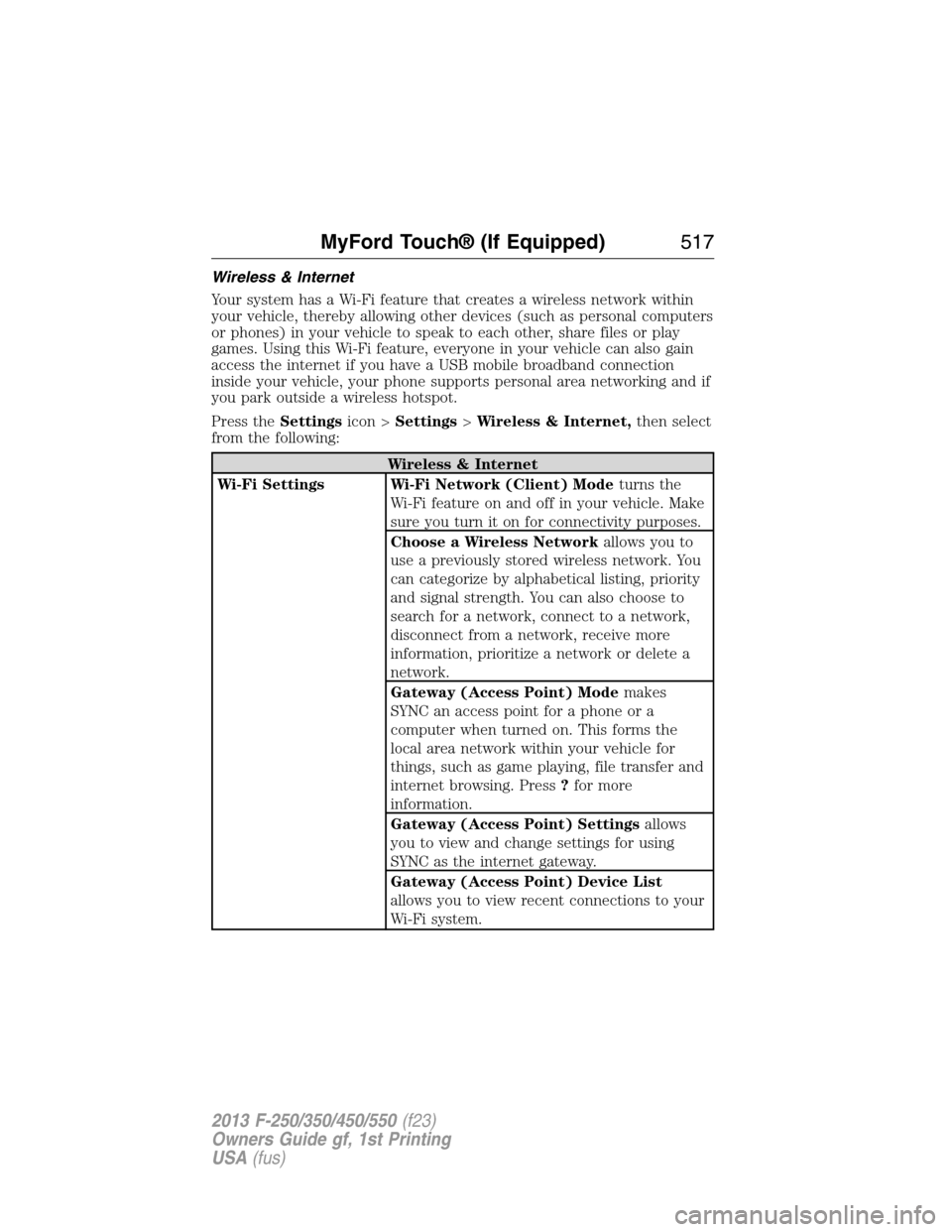
Wireless & Internet
Your system has a Wi-Fi feature that creates a wireless network within
your vehicle, thereby allowing other devices (such as personal computers
or phones) in your vehicle to speak to each other, share files or play
games. Using this Wi-Fi feature, everyone in your vehicle can also gain
access the internet if you have a USB mobile broadband connection
inside your vehicle, your phone supports personal area networking and if
you park outside a wireless hotspot.
Press theSettingsicon >Settings>Wireless & Internet,then select
from the following:
Wireless & Internet
Wi-Fi Settings Wi-Fi Network (Client) Modeturns the
Wi-Fi feature on and off in your vehicle. Make
sure you turn it on for connectivity purposes.
Choose a Wireless Networkallows you to
use a previously stored wireless network. You
can categorize by alphabetical listing, priority
and signal strength. You can also choose to
search for a network, connect to a network,
disconnect from a network, receive more
information, prioritize a network or delete a
network.
Gateway (Access Point) Modemakes
SYNC an access point for a phone or a
computer when turned on. This forms the
local area network within your vehicle for
things, such as game playing, file transfer and
internet browsing. Press?for more
information.
Gateway (Access Point) Settingsallows
you to view and change settings for using
SYNC as the internet gateway.
Gateway (Access Point) Device List
allows you to view recent connections to your
Wi-Fi system.
MyFord Touch® (If Equipped)517
2013 F-250/350/450/550(f23)
Owners Guide gf, 1st Printing
USA(fus)
Page 519 of 563
Wireless & Internet
USB Mobile
BroadbandInstead of using Wi-Fi, your system can also
use a USB mobile broadband connection to
access the internet. (You must turn on your
mobile broadband device on your personal
computer before connecting it to the system.)
This screen allows you to set up what is your
typical area for your USB mobile broadband
connection. (USB mobile broadband settings
may not display if the device is already on.)
You can select the following: Country, Carrier,
Phone Number, User Name and Password.
Bluetooth SettingsShows you the currently paired devices as
well as giving you your typical Bluetooth
options to connect, disconnect, set as favorite,
delete and add device. Bluetooth is a
registered trademark of the Bluetooth SIG.
Prioritize
Connection MethodsChoose your connection methods and change
them as needed. You can select to Change
Order and have the system either always
attempt to connect using a USB mobile
broadband or using Wi-Fi.
The Wi-Fi CERTIFIED Logo is a
certification mark of the Wi-Fi Alliance.
518MyFord Touch® (If Equipped)
2013 F-250/350/450/550(f23)
Owners Guide gf, 1st Printing
USA(fus)
Page 520 of 563
Wi-Fi
Your system has a Wi-Fi feature which creates a wireless network within
your vehicle, thereby allowing other devices (i.e. personal computers or
phones) in your vehicle to speak to each other, share files, play games,
etc. Using this Wi-Fi feature, everyone in your vehicle can also gain
access the internet if:
•You have a USB mobile broadband connection inside the vehicle
•Your phone supports PAN (personal area networking)
•You are parked outside of a wireless hotspot
To access, press the Menu icon > Settings > Wireless and Internet >
Wi-Fi settings, then select from the following options:
•Wi-Fi Network (Client) Mode:Turn the wi-fi feature on and off in
your vehicle. Make sure it is turned on for connectivity purposes.
•Choose a Wireless Network:Use a previously stored wireless
network. You can categorize by alphabetical listing, priority and signal
strength. You can also choose to search for a network, connect to a
network, disconnect from a network, receive more information,
prioritize a network or delete a network.
•Gateway Access Point Mode:Make SYNC an access point for a
phone or a computer by turning this feature on. This forms the local
area network within the vehicle for things such as game playing, file
transfer, internet browsing, etc. Press ? for more information.
•Gateway (Access Point) Settings:View and change settings for
using SYNC as the internet gateway.
•Gateway Access Point Device List:View who has connected to
your Wi-Fi connection recently.
Press the ? button (if available) for additional information.
The Wi-Fi CERTIFIED Logo is a
certification mark of the Wi-Fi Alliance.
MyFord Touch® (If Equipped)519
2013 F-250/350/450/550(f23)
Owners Guide gf, 1st Printing
USA(fus)
Page 521 of 563
USB Mobile Broadband
Instead of using Wi-Fi, your system can also use a USB mobile broadband
connection to access the internet. (You must activate your mobile
broadband device on your PC prior to connecting it to the system.) This
screen allows you to set up what is your typical area for your USB
mobile broadband connection. (USB mobile broadband settings may not
be displayed if the device is already activated.) You can select the
following:
•Country
•Carrier
•Phone Number
•User Name
•Password
Prioritize Connection Methods
This screen allows you to choose your connection methods and change
them as needed. You can select to Change Order and have the system
either always attempt to connecting using a USB mobile broadband or
using Wi-Fi.
Bluetooth Settings
Shows you what device is currently paired with the system as well as
giving you your typical Bluetooth options to connect, disconnect, set as
favorite, delete and add device.
Bluetooth is a registered trademark of the Bluetooth SIG.
520MyFord Touch® (If Equipped)
2013 F-250/350/450/550(f23)
Owners Guide gf, 1st Printing
USA(fus)
Page 522 of 563

Help
Press theSettingsicon >Help,then select from the following:
Help
Where Am I?View your vehicle’s current location, if your
vehicle is equipped with navigation. If your
vehicle is not equipped with navigation,
nothing displays.
System InformationTouchscreen system serial number.
Your vehicle identification number (VIN).
Touchscreen system software version.
Navigation system version.
Map database version.
Sirius satellite radio electronic serial number
(ESN).
Gracenote® Database Information and Library
version.
Software LicensesView the licenses for any software and
applications installed on your system.
Driving RestrictionsCertain features are not accessible when your
vehicle is moving.
911 AssistTurn on and turn off the 911 Assist feature.
See911 Assistin theSYNC applications
and servicessection.
In Case of Emergency (ICE) Speed Dial
allows you to save up to two numbers as ICE
contacts for quick access if there is an
emergency. SelectEditto access your
phonebook and then select the desired
contacts. The numbers then appear as options
on this screen for the ICE 1 and ICE 2
buttons. The ICE contacts you select appear
at the end of the 911 Assist call process.
Voice Command ListView categorized lists of voice commands.
To access Help using the voice commands, press the voice button, then,
after the tone, say “Help”. The system provides allowable voice
commands for the current mode.
MyFord Touch® (If Equipped)521
2013 F-250/350/450/550(f23)
Owners Guide gf, 1st Printing
USA(fus)