2013 FORD FUSION (AMERICAS) change time
[x] Cancel search: change timePage 322 of 458
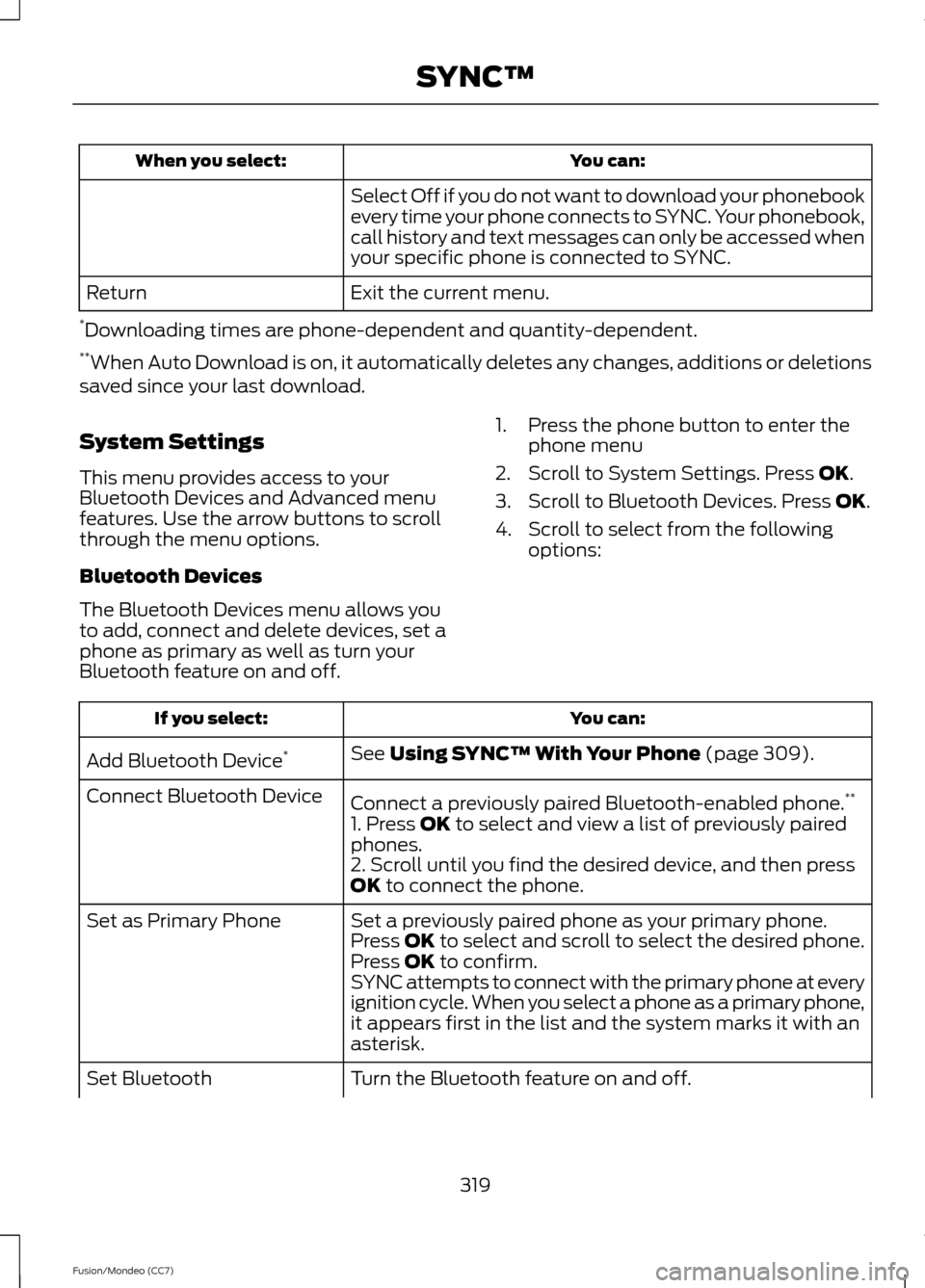
You can:
When you select:
Select Off if you do not want to download your phonebook
every time your phone connects to SYNC. Your phonebook,
call history and text messages can only be accessed when
your specific phone is connected to SYNC.
Exit the current menu.
Return
* Downloading times are phone-dependent and quantity-dependent.
** When Auto Download is on, it automatically deletes any changes, additions or deletions
saved since your last download.
System Settings
This menu provides access to your
Bluetooth Devices and Advanced menu
features. Use the arrow buttons to scroll
through the menu options.
Bluetooth Devices
The Bluetooth Devices menu allows you
to add, connect and delete devices, set a
phone as primary as well as turn your
Bluetooth feature on and off. 1. Press the phone button to enter the
phone menu
2. Scroll to System Settings. Press OK.
3. Scroll to Bluetooth Devices. Press
OK.
4. Scroll to select from the following options: You can:
If you select:
See
Using SYNC™ With Your Phone (page 309).
Add Bluetooth Device *
Connect a previously paired Bluetooth-enabled phone. **
Connect Bluetooth Device
1. Press
OK to select and view a list of previously paired
phones.
2. Scroll until you find the desired device, and then press
OK
to connect the phone.
Set a previously paired phone as your primary phone.
Set as Primary Phone
Press
OK to select and scroll to select the desired phone.
Press OK to confirm.
SYNC attempts to connect with the primary phone at every
ignition cycle. When you select a phone as a primary phone,
it appears first in the list and the system marks it with an
asterisk.
Turn the Bluetooth feature on and off.
Set Bluetooth
319
Fusion/Mondeo (CC7) SYNC™
Page 329 of 458

Note:
The driver is ultimately responsible
for the safe operation of the vehicle, and
therefore, must evaluate whether it is safe
to follow the suggested directions. Any
navigation features provided are only an aid.
Make your driving decisions based on your
observations of local conditions and existing
traffic regulations. Do not follow the route
suggestions if doing so would result in an
unsafe or illegal maneuver, place you in an
unsafe situation, or if you would be directed
into an area that you consider unsafe. Maps
used by this system may be inaccurate
because of errors, changes in roads, traffic
conditions or driving conditions.
Note: When you connect, the service uses
GPS technology and advanced vehicle
sensors to collect your vehicle's current
location, travel direction and speed to help
provide you with the directions, traffic
reports, or business searches you request.
Further, to provide the services you request,
for continuous improvement, the service
may collect and record call details and voice
communications. For more information, see
SYNC Services Terms and Conditions at
www.SYNCMyRide.com. If you do not want
Ford or its service providers to collect your
vehicle travel information or other
information identified in the Terms and
Conditions, do not subscribe or use the
service.
SYNC Services uses advanced vehicle
sensors, integrated GPS technology and
comprehensive map and traffic data, to
give you personalized traffic reports,
precise turn-by-turn directions, business
search, news, sports, weather and more.
For a complete list of services, or to learn
more, please visit www.SYNCMyRide.com.
Connecting to SYNC Services Using
Voice Commands
1. Press the voice button. 2. When prompted, say "Services". This
initiates an outgoing call to SYNC
Services using your paired and
connected Bluetooth-enabled cellular
phone.
3. Once you connect to the service, follow
the voice prompts to request the
desired service, such as Traffic or
Directions. You can also say, "What are
my choices?" to receive a list of
available services from which to
choose.
4. Say, "Services" to return to the Services
main menu or for help, say, "Help".
Connecting to SYNC Services Using
the Phone Menu
1. Press the phone button to enter the phone menu.
2. Scroll to Services.
3. Press OK to confirm and enter the
Services menu. The display indicates
the system is connecting.
4. Press
OK. SYNC initiates the call to the
Services portal.
5. Once you connect to the service, follow
the voice prompts to request the
desired service, such as Traffic or
Directions. You can also say, "What are
my choices?" to receive a list of
available services from which to
choose.
6. Say, "Services" to return to the Services
main menu or for help, say, "Help".
Receiving Turn-by-Turn Directions
1. When connected to SYNC Services, say "Directions" or "Business search".
To find the closest business or type of
business to your current location, just
say "Business search" and then
"Search near me". If you need further
assistance in finding a location you can
say "Operator" at any time within a
326
Fusion/Mondeo (CC7) SYNC™
Page 348 of 458
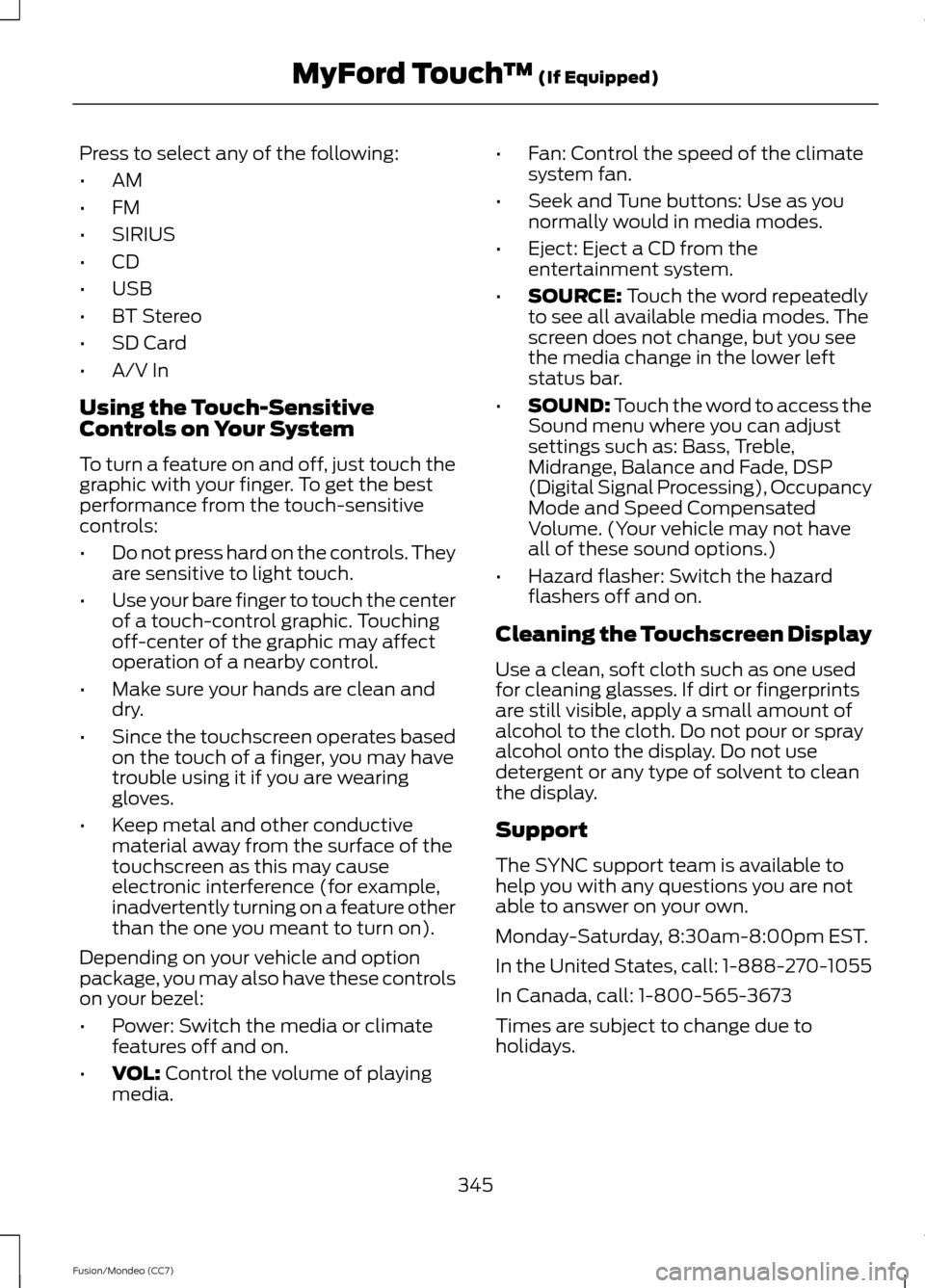
Press to select any of the following:
•
AM
• FM
• SIRIUS
• CD
• USB
• BT Stereo
• SD Card
• A/V In
Using the Touch-Sensitive
Controls on Your System
To turn a feature on and off, just touch the
graphic with your finger. To get the best
performance from the touch-sensitive
controls:
• Do not press hard on the controls. They
are sensitive to light touch.
• Use your bare finger to touch the center
of a touch-control graphic. Touching
off-center of the graphic may affect
operation of a nearby control.
• Make sure your hands are clean and
dry.
• Since the touchscreen operates based
on the touch of a finger, you may have
trouble using it if you are wearing
gloves.
• Keep metal and other conductive
material away from the surface of the
touchscreen as this may cause
electronic interference (for example,
inadvertently turning on a feature other
than the one you meant to turn on).
Depending on your vehicle and option
package, you may also have these controls
on your bezel:
• Power: Switch the media or climate
features off and on.
• VOL: Control the volume of playing
media. •
Fan: Control the speed of the climate
system fan.
• Seek and Tune buttons: Use as you
normally would in media modes.
• Eject: Eject a CD from the
entertainment system.
• SOURCE:
Touch the word repeatedly
to see all available media modes. The
screen does not change, but you see
the media change in the lower left
status bar.
• SOUND:
Touch the word to access the
Sound menu where you can adjust
settings such as: Bass, Treble,
Midrange, Balance and Fade, DSP
(Digital Signal Processing), Occupancy
Mode and Speed Compensated
Volume. (Your vehicle may not have
all of these sound options.)
• Hazard flasher: Switch the hazard
flashers off and on.
Cleaning the Touchscreen Display
Use a clean, soft cloth such as one used
for cleaning glasses. If dirt or fingerprints
are still visible, apply a small amount of
alcohol to the cloth. Do not pour or spray
alcohol onto the display. Do not use
detergent or any type of solvent to clean
the display.
Support
The SYNC support team is available to
help you with any questions you are not
able to answer on your own.
Monday-Saturday, 8:30am-8:00pm EST.
In the United States, call: 1-888-270-1055
In Canada, call: 1-800-565-3673
Times are subject to change due to
holidays.
345
Fusion/Mondeo (CC7) MyFord Touch
™
(If Equipped)
Page 373 of 458
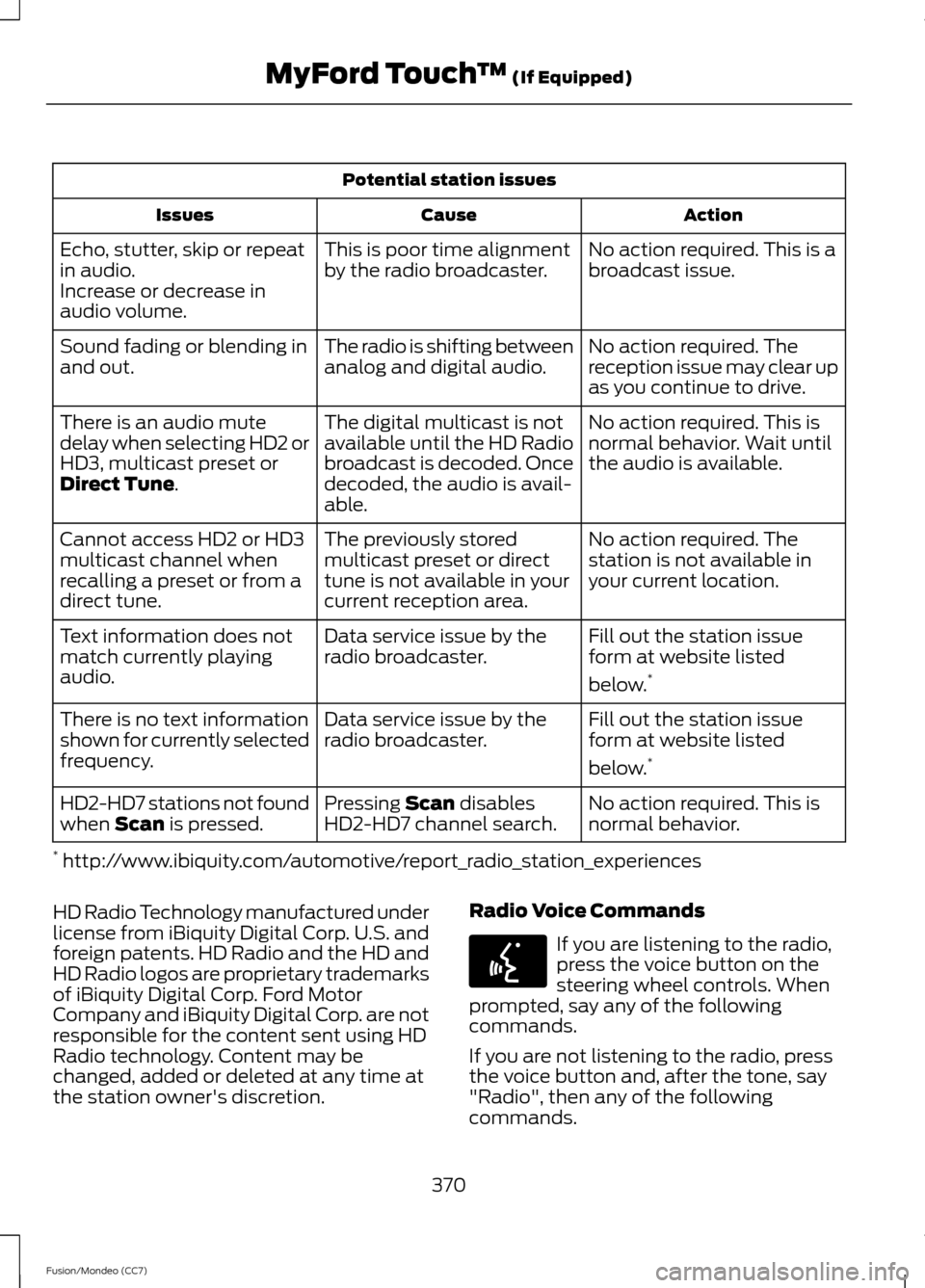
Potential station issues
Action
Cause
Issues
No action required. This is a
broadcast issue.
This is poor time alignment
by the radio broadcaster.
Echo, stutter, skip or repeat
in audio.
Increase or decrease in
audio volume.
No action required. The
reception issue may clear up
as you continue to drive.
The radio is shifting between
analog and digital audio.
Sound fading or blending in
and out.
No action required. This is
normal behavior. Wait until
the audio is available.
The digital multicast is not
available until the HD Radio
broadcast is decoded. Once
decoded, the audio is avail-
able.
There is an audio mute
delay when selecting HD2 or
HD3, multicast preset or
Direct Tune.
No action required. The
station is not available in
your current location.
The previously stored
multicast preset or direct
tune is not available in your
current reception area.
Cannot access HD2 or HD3
multicast channel when
recalling a preset or from a
direct tune.
Fill out the station issue
form at website listed
below.*
Data service issue by the
radio broadcaster.
Text information does not
match currently playing
audio.
Fill out the station issue
form at website listed
below.*
Data service issue by the
radio broadcaster.
There is no text information
shown for currently selected
frequency.
No action required. This is
normal behavior.
Pressing
Scan disables
HD2-HD7 channel search.
HD2-HD7 stations not found
when Scan is pressed.
* http://www.ibiquity.com/automotive/report_radio_station_experiences
HD Radio Technology manufactured under
license from iBiquity Digital Corp. U.S. and
foreign patents. HD Radio and the HD and
HD Radio logos are proprietary trademarks
of iBiquity Digital Corp. Ford Motor
Company and iBiquity Digital Corp. are not
responsible for the content sent using HD
Radio technology. Content may be
changed, added or deleted at any time at
the station owner's discretion. Radio Voice Commands If you are listening to the radio,
press the voice button on the
steering wheel controls. When
prompted, say any of the following
commands.
If you are not listening to the radio, press
the voice button and, after the tone, say
"Radio", then any of the following
commands.
370
Fusion/Mondeo (CC7) MyFord Touch
™
(If Equipped)E142599
Page 376 of 458
Parental Lockout
This allows you to lock and unlock
channels, change or reset your PIN or
unlock all channels. To use this feature,
you need your initial PIN, which is 1234.
Artist/Title/Team Alerts
This feature allows you to select Artists,
Titles and Teams that you would like the
system to alert you to when they are
playing on other channels. Press Edit Alerts
to delete or turn off alerts. You can also
set all alerts to on or off. When an alert
appears on the screen, you can choose to
Tune to the channel, to Cancel the alert or
to Disable Alerts. If you are listening to a
sporting event, you can save your favorite
teams so that the system can alert you
when they are playing on a satellite radio
channel.
Note:
SIRIUS does not support the Alert
feature on all channels. Ford Motor
Company shall not be responsible for Alert
feature variation.
Electronic Serial Number (ESN)
SIRIUS requires this number when
communicating with you about your
account.
Direct Tune
Touch this button to manually enter the
desired satellite channel number. Touch
Enter when you are done.
Browse
Touch this button to view a list of all
available stations. Scroll to see more
categories. Touch the station you want to
listen to.
Touch
Skip if you want to skip this
channel.
Touch
Lock if you do not want anyone to
listen to this channel. Touch
Title or Artist to see song and
artists on other stations.
SIRIUS Satellite Radio Information
Note: SIRIUS reserves the unrestricted right
to change, rearrange, add or delete
programming including canceling, moving
or adding particular channels, and its prices,
at any time, with or without notice to you.
Ford Motor Company shall not be
responsible for any such programming
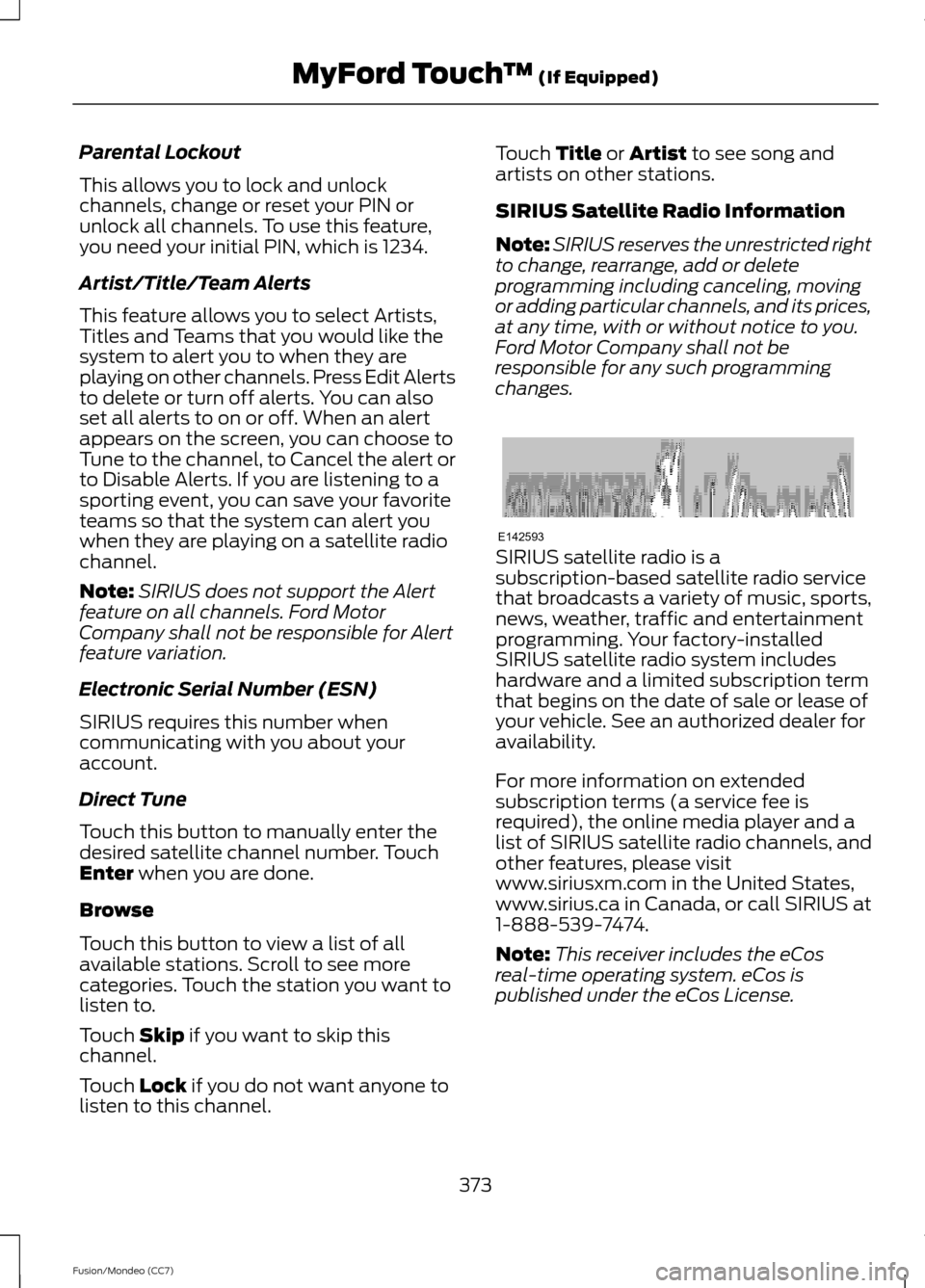
changes. SIRIUS satellite radio is a
subscription-based satellite radio service
that broadcasts a variety of music, sports,
news, weather, traffic and entertainment
programming. Your factory-installed
SIRIUS satellite radio system includes
hardware and a limited subscription term
that begins on the date of sale or lease of
your vehicle. See an authorized dealer for
availability.
For more information on extended
subscription terms (a service fee is
required), the online media player and a
list of SIRIUS satellite radio channels, and
other features, please visit
www.siriusxm.com in the United States,
www.sirius.ca in Canada, or call SIRIUS at
1-888-539-7474.
Note:
This receiver includes the eCos
real-time operating system. eCos is
published under the eCos License.
373
Fusion/Mondeo (CC7) MyFord Touch
™
(If Equipped)E142593
Page 410 of 458
Parking POI Notification
Set the automatic parking points of
interest notification. Turn this feature ON
or OFF. When parking points of interest
notification is on, the icons display on the
map when you get close to your
destination. This may not be very useful in
dense areas, and may clutter the map
when other points of interest display.
Route Preferences
Preferred Route
Choose to have the system display the
Shortest, Fastest or most Ecological route.
Always Use Preferred Route
Bypass route selection in destination
programming. The system only calculates
one route based on preferred route
settings.
Eco Time Penalty
Select a low, medium or high cost for the
calculated Eco Route. The higher the
setting, the longer the time allotment is for
the route.
Avoid
These features allow you to choose to
have the system avoid freeways, toll roads,
ferries and car trains when planning your
route. Turn these features ON or OFF.
Use HOV Lanes
Have the system use high-occupancy
vehicle lanes, if available, when planning
your route.
Navigation Preferences
Guidance Prompts
Have the system use
Voice & Tones or
Tone Only on your programmed route. Auto - Fill State/Province
Have the system automatically fill in the
state and province based on the
information already entered into the
system. Turn this feature
ON or OFF.
Traffic Preferences
Avoid Traffic Problems
Choose how you want the system to
handle traffic problems along your route.
• Automatic:
Have the system reroute
you to avoid traffic incidents that
develop and impact the current route.
The system does not provide a traffic
alert notification.
• Manual:
Have the system always
provide a traffic alert notification for
traffic incidents along the planned
route. You have a choice to accept or
ignore the notification before making
the route deviation.
Traffic Alert Notification
Have the system display traffic alert
notifications.
Other traffic alert features allows you to
turn on certain, or all, traffic icons on the
map such as road work, incident, accidents
and closed roads. Scroll down to view all
the different types of alerts. Turn these
features
ON or OFF.
Avoid Areas
Choose areas which you want the system
to avoid when calculating a route for you.
Press
Add to program an entry. Once you
make a selection, the system tries to avoid
the area(s) if possible for all routes. To
delete a selection, choose the listing on
the screen. When the screen changes to
Avoid Areas Edit
, you can press Delete
at the bottom right of the screen.
407
Fusion/Mondeo (CC7) MyFord Touch
™
(If Equipped)
Page 412 of 458
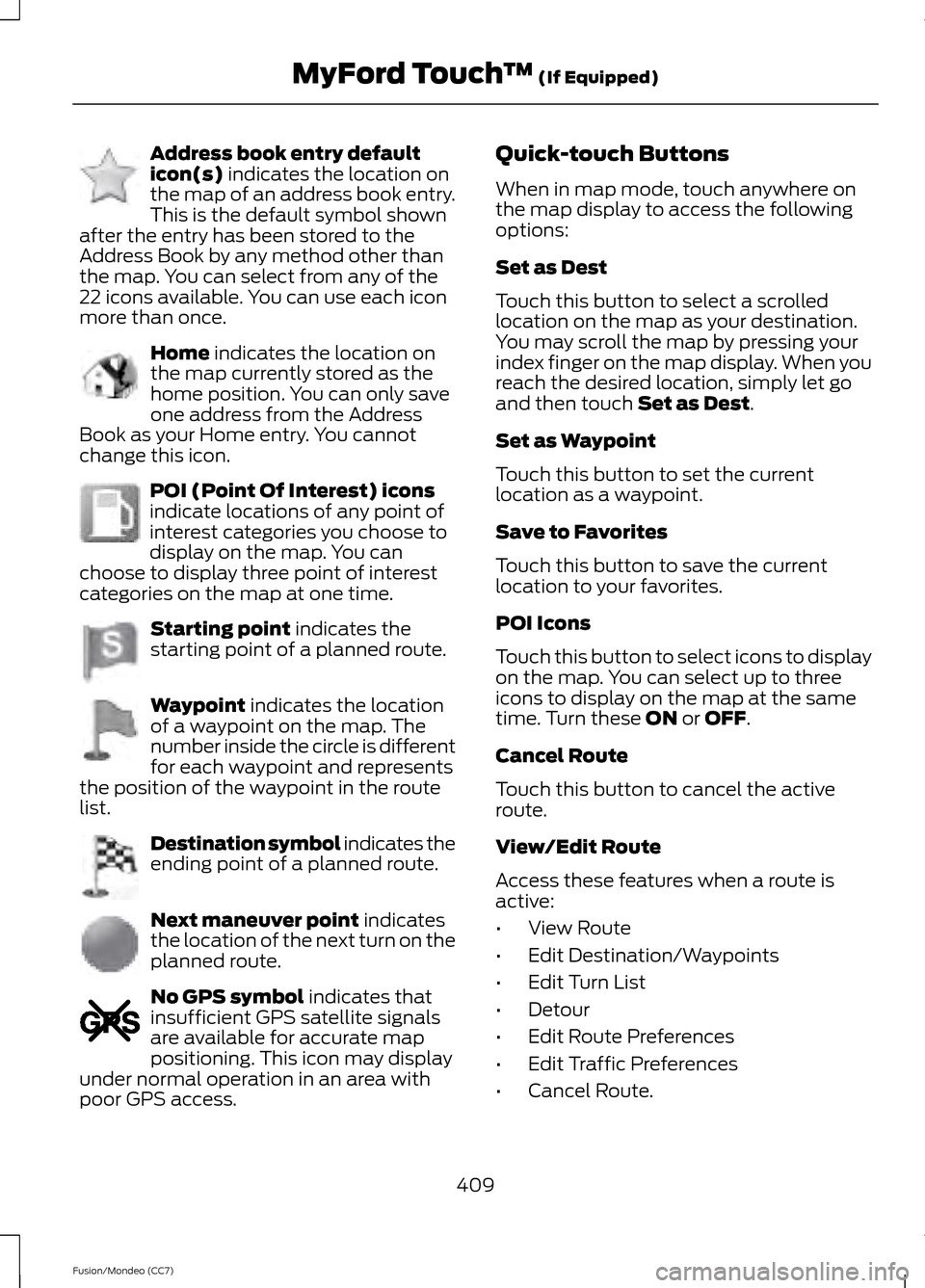
Address book entry default
icon(s) indicates the location on
the map of an address book entry.
This is the default symbol shown
after the entry has been stored to the
Address Book by any method other than
the map. You can select from any of the
22 icons available. You can use each icon
more than once. Home
indicates the location on
the map currently stored as the
home position. You can only save
one address from the Address
Book as your Home entry. You cannot
change this icon. POI (Point Of Interest) icons
indicate locations of any point of
interest categories you choose to
display on the map. You can
choose to display three point of interest
categories on the map at one time. Starting point
indicates the
starting point of a planned route. Waypoint
indicates the location
of a waypoint on the map. The
number inside the circle is different
for each waypoint and represents
the position of the waypoint in the route
list. Destination symbol indicates the
ending point of a planned route.
Next maneuver point
indicates
the location of the next turn on the
planned route. No GPS symbol
indicates that
insufficient GPS satellite signals
are available for accurate map
positioning. This icon may display
under normal operation in an area with
poor GPS access. Quick-touch Buttons
When in map mode, touch anywhere on
the map display to access the following
options:
Set as Dest
Touch this button to select a scrolled
location on the map as your destination.
You may scroll the map by pressing your
index finger on the map display. When you
reach the desired location, simply let go
and then touch
Set as Dest.
Set as Waypoint
Touch this button to set the current
location as a waypoint.
Save to Favorites
Touch this button to save the current
location to your favorites.
POI Icons
Touch this button to select icons to display
on the map. You can select up to three
icons to display on the map at the same
time. Turn these
ON or OFF.
Cancel Route
Touch this button to cancel the active
route.
View/Edit Route
Access these features when a route is
active:
• View Route
• Edit Destination/Waypoints
• Edit Turn List
• Detour
• Edit Route Preferences
• Edit Traffic Preferences
• Cancel Route.
409
Fusion/Mondeo (CC7) MyFord Touch
™
(If Equipped)E142648 E142649 E142650 E142651 E142652 E142653 E142654 E142655
Page 421 of 458
WARNING
Operating certain parts of this
system while driving can distract
your attention away from the road,
and possibly cause an accident or other
serious consequences. Do not change
system settings or enter data non-verbally
(using your hands) while driving. Stop the
vehicle in a safe and legal manner before
attempting these operations. This is
important since while setting up or
changing some functions you might be
required to distract your attention away
from the road and remove your hands from
the wheel. General Operation
Voice Command Control: Functions
within the Windows Automotive-based
system may be accomplished using only
voice commands. Using voice commands
while driving allows you to operate the
system without removing your hands from
the wheel.
Prolonged Views of Screen:
Do not
access any function requiring a prolonged
view of the screen while you are driving.
Pull over in a safe and legal manner before
attempting to access a function of the
system requiring prolonged attention. Even
occasional short scans to the screen may
be hazardous if your attention has been
diverted away from your driving task at a
critical time.
Volume Setting: Do not raise the volume
excessively. Keep the volume at a level
where you can still hear outside traffic and
emergency signals while driving. Driving
while unable to hear these sounds could
cause an accident. Use of Speech Recognition Functions:
Speech recognition software is inherently
a statistical process which is subject to
errors. It is your responsibility to monitor
any speech recognition functions included
in the system and address any errors.
Navigation Features:
Any navigation
features included in the system are
intended to provide turn by turn
instructions to get you to a desired
destination. Please make certain all
persons using this system carefully read
and follow instructions and safety
information fully.
Distraction Hazard:
Any navigation
features may require manual (non-verbal)
setup. Attempting to perform such set-up
or insert data while driving can seriously
distract your attention and could cause an
accident or other serious consequences.
Stop the vehicle in a safe and legal manner
before attempting these operations.
Let Your Judgment Prevail:
Any
navigation features are provided only as
an aid. Make your driving decisions based
on your observations of local conditions
and existing traffic regulations. Any such
feature is not a substitute for your personal
judgment. Any route suggestions made by
this system should never replace any local
traffic regulations or your personal
judgment or knowledge of safe driving
practices.
Route Safety:
Do not follow the route
suggestions if doing so would result in an
unsafe or illegal maneuver, if you would be
placed in an unsafe situation, or if you
would be directed into an area that you
consider unsafe. The driver is ultimately
responsible for the safe operation of the
vehicle and therefore, must evaluate
whether it is safe to follow the suggested
directions.
418
Fusion/Mondeo (CC7) Appendices