Page 93 of 475
Press switch C again to switch them back on. The indicator lamp will
illuminate blue when the door function is on. When the door function is
on and you open a door, the courtesy and door lamps will switch on.
Front Interior lamp (if equipped)
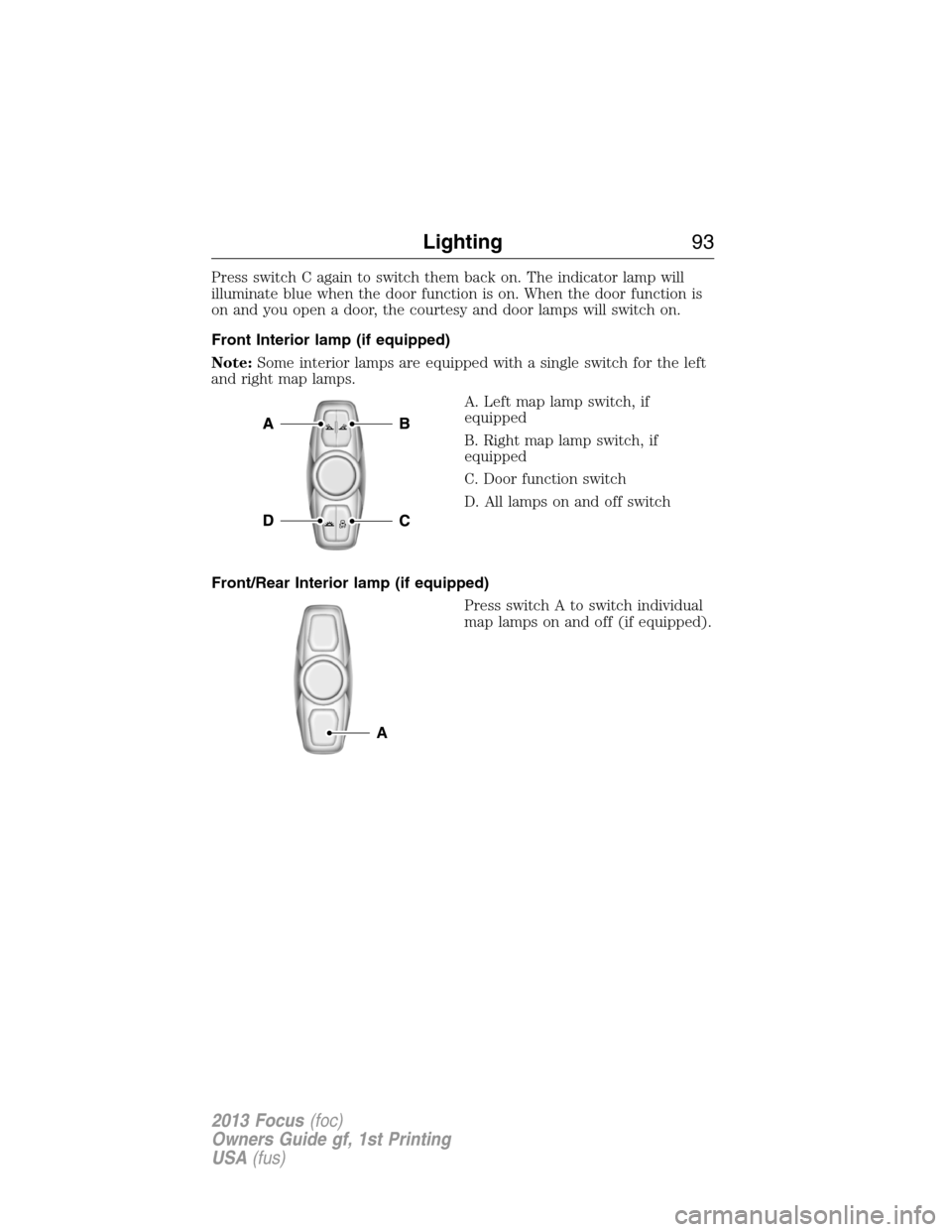
Note:Some interior lamps are equipped with a single switch for the left
and right map lamps.
A. Left map lamp switch, if
equipped
B. Right map lamp switch, if
equipped
C. Door function switch
D. All lamps on and off switch
Front/Rear Interior lamp (if equipped)
Press switch A to switch individual
map lamps on and off (if equipped).
A
Lighting93
2013 Focus(foc)
Owners Guide gf, 1st Printing
USA(fus)
Page 236 of 475
CHANGING A FUSE
Fuses
If electrical components in the vehicle
are not working, a fuse may have
blown. Blown fuses are identified by a
broken wire within the fuse. Check
the appropriate fuses before replacing
any electrical components.
Note:Always replace a fuse with one that has the specified amperage
rating. Using a fuse with a higher amperage rating can cause severe wire
damage and could start a fire.
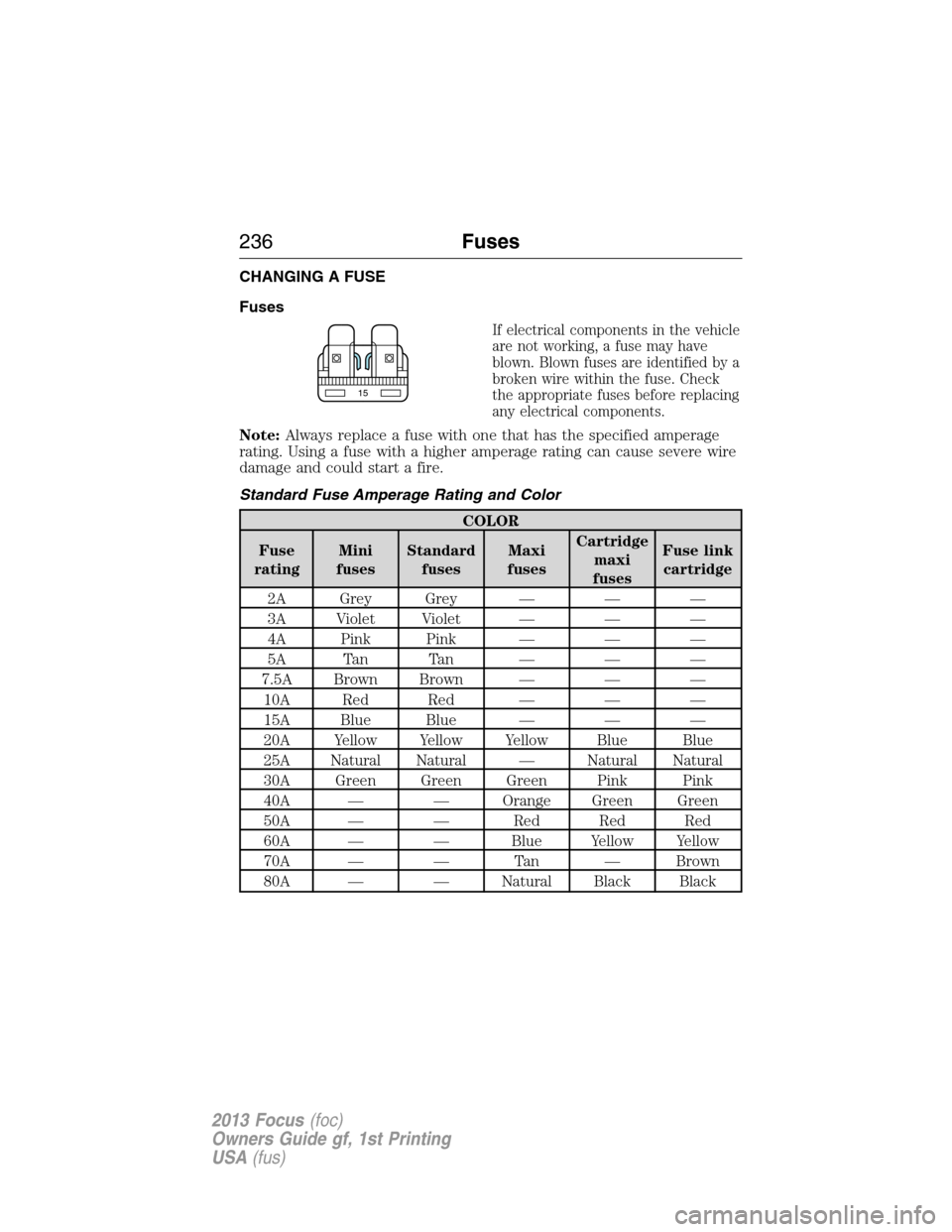
Standard Fuse Amperage Rating and Color
COLOR
Fuse
ratingMini
fusesStandard
fusesMaxi
fusesCartridge
maxi
fusesFuse link
cartridge
2A Grey Grey — — —
3A Violet Violet — — —
4A Pink Pink — — —
5A Tan Tan — — —
7.5A Brown Brown — — —
10A Red Red — — —
15A Blue Blue — — —
20A Yellow Yellow Yellow Blue Blue
25A Natural Natural — Natural Natural
30A Green Green Green Pink Pink
40A — — Orange Green Green
50A — — Red Red Red
60A — — Blue Yellow Yellow
70A — — Tan — Brown
80A — — Natural Black Black
15
236Fuses
2013 Focus(foc)
Owners Guide gf, 1st Printing
USA(fus)
Page 332 of 475
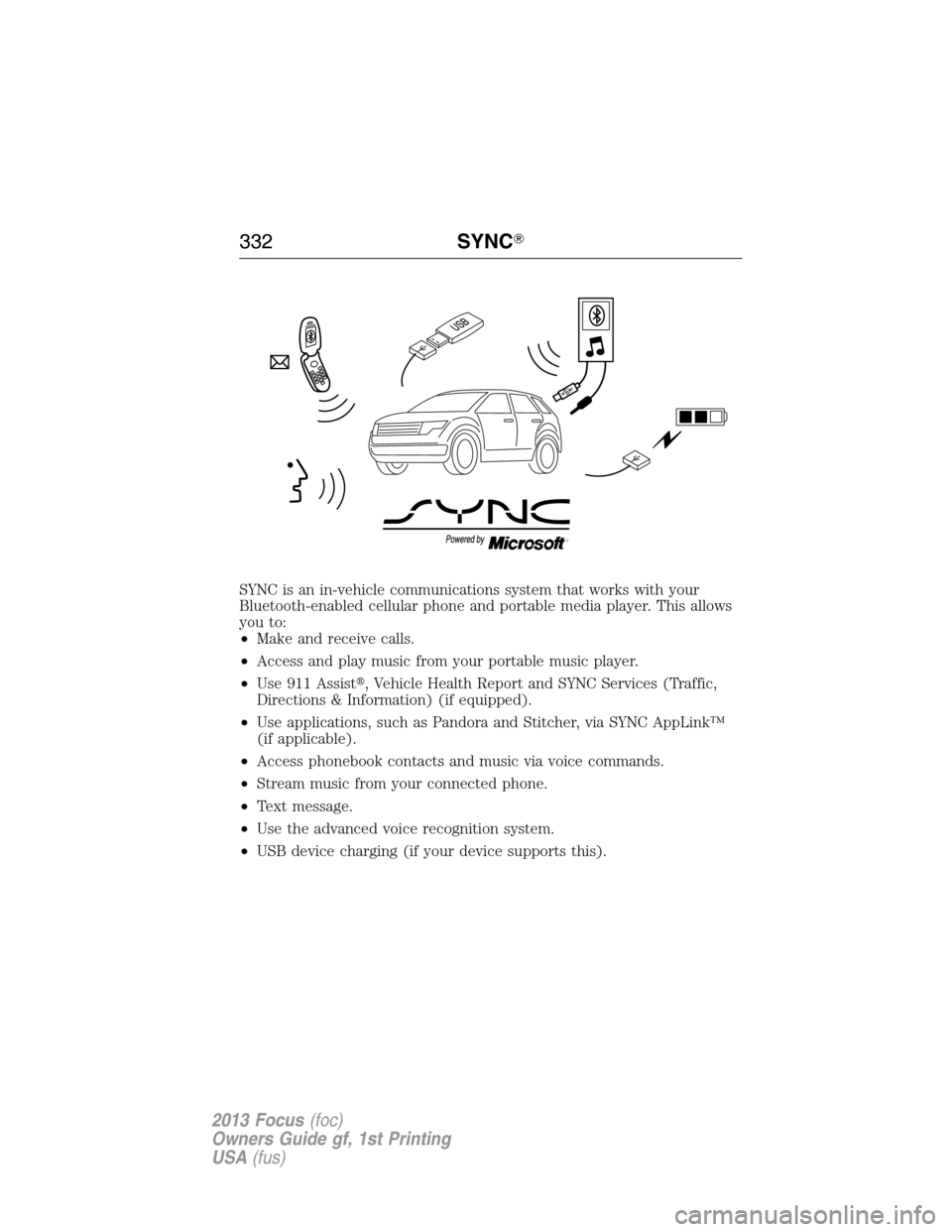
SYNC is an in-vehicle communications system that works with your
Bluetooth-enabled cellular phone and portable media player. This allows
you to:
•Make and receive calls.
•Access and play music from your portable music player.
•Use 911 Assist�, Vehicle Health Report and SYNC Services (Traffic,
Directions & Information) (if equipped).
•Use applications, such as Pandora and Stitcher, via SYNC AppLink™
(if applicable).
•Access phonebook contacts and music via voice commands.
•Stream music from your connected phone.
•Text message.
•Use the advanced voice recognition system.
•USB device charging (if your device supports this).
332SYNC�
2013 Focus(foc)
Owners Guide gf, 1st Printing
USA(fus)
Page 335 of 475

USING VOICE RECOGNITION
This system helps you control many features using voice commands. This
allows you to keep your hands on the wheel and focus on what is in
front of you.
Initiating a Voice Session
Push the voice icon; a tone sounds and Listening appears in the
display. Say any of the following:
Say: If you want to:
“Phone” Make calls.
“USB” Access the device connected to your USB
port.
“Bluetooth Audio” Stream audio from your phone.
“Line in” Access the device connected to the auxiliary
input jack.
“Cancel” Cancel the requested action.
“SYNC” Return to the main menu.
“Voice settings” Adjust the level of voice interaction and
feedback.
“Vehicle Health Report” Run a vehicle health report.
*
“Services” Access the SYNC Services portal.*
“Mobile apps” Access mobile applications.*
“Help” Hear a list of voice commands available in the
current mode.
*If equipped, U.S. only.
System Interaction and Feedback
The system provides feedback through audible tones, prompts, questions
and spoken confirmations depending on the situation and the chosen
level of interaction (voice settings). You can customize the voice
recognition system to provide more or less instruction and feedback.
The default setting is to a higher level of interaction in order to help you
learn to use the system. You can change these settings at any time.
SYNC�335
2013 Focus(foc)
Owners Guide gf, 1st Printing
USA(fus)
Page 337 of 475

•Speak naturally, without long pauses between words.
•At any time you can interrupt the system while it is speaking by
pressing the voice icon.
USING SYNC WITH YOUR PHONE
Hands-free calling is one of the main features of SYNC. While the system
supports a variety of features, many are dependent on your cellular
phone’s functionality. At a minimum, most cellular phones with Bluetooth
wireless technology support the following functions:
•Answering an incoming call.
•Ending a call.
•Using privacy mode.
•Dialing a number.
•Redialing.
•Call waiting notification.
•Caller ID.
Other features, such as text messaging using Bluetooth and automatic
phonebook download, are phone-dependent features. To check your
phone’s compatibility, see your phone’s user manual and visit
www.SYNCMyRide.com, www.SYNCMyRide.ca or www.syncmaroute.ca.
Pairing a Phone for the First Time
Note:SYNC can support downloading up to approximately 2000 entries
per Bluetooth-enabled cellular phone.
Note:Make sure the vehicle ignition and radio are turned on and the
transmission is in positionP.
Note:To scroll through the menus, press the up and down arrows on
your audio system.
Wirelessly pairing your phone with SYNC allows you to make and receive
hands-free calls.
1. Press the phone button; when the display indicates no phone is
paired, press OK.
2. When Add Bluetooth Device appears, press OK.
3. When Find SYNC appears in the display, press OK.
4. Put your phone into Bluetooth discovery mode. See your phone’s
user guide if necessary.
5. When prompted on your phone’s display, enter the six-digit PIN
provided by SYNC in the radio display.
SYNC�337
2013 Focus(foc)
Owners Guide gf, 1st Printing
USA(fus)
Page 338 of 475
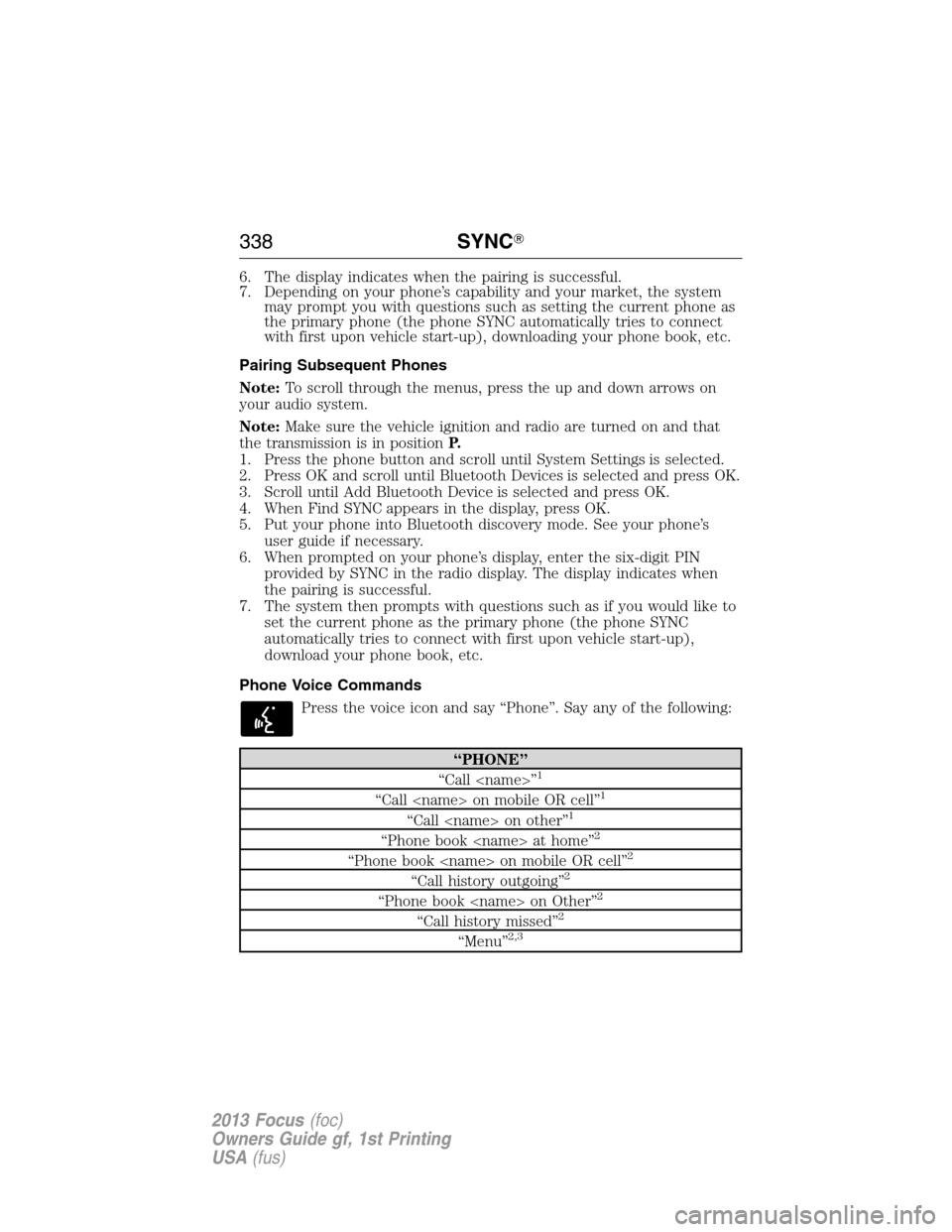
6. The display indicates when the pairing is successful.
7. Depending on your phone’s capability and your market, the system
may prompt you with questions such as setting the current phone as
the primary phone (the phone SYNC automatically tries to connect
with first upon vehicle start-up), downloading your phone book, etc.
Pairing Subsequent Phones
Note:To scroll through the menus, press the up and down arrows on
your audio system.
Note:Make sure the vehicle ignition and radio are turned on and that
the transmission is in positionP.
1. Press the phone button and scroll until System Settings is selected.
2. Press OK and scroll until Bluetooth Devices is selected and press OK.
3. Scroll until Add Bluetooth Device is selected and press OK.
4. When Find SYNC appears in the display, press OK.
5. Put your phone into Bluetooth discovery mode. See your phone’s
user guide if necessary.
6. When prompted on your phone’s display, enter the six-digit PIN
provided by SYNC in the radio display. The display indicates when
the pairing is successful.
7. The system then prompts with questions such as if you would like to
set the current phone as the primary phone (the phone SYNC
automatically tries to connect with first upon vehicle start-up),
download your phone book, etc.
Phone Voice Commands
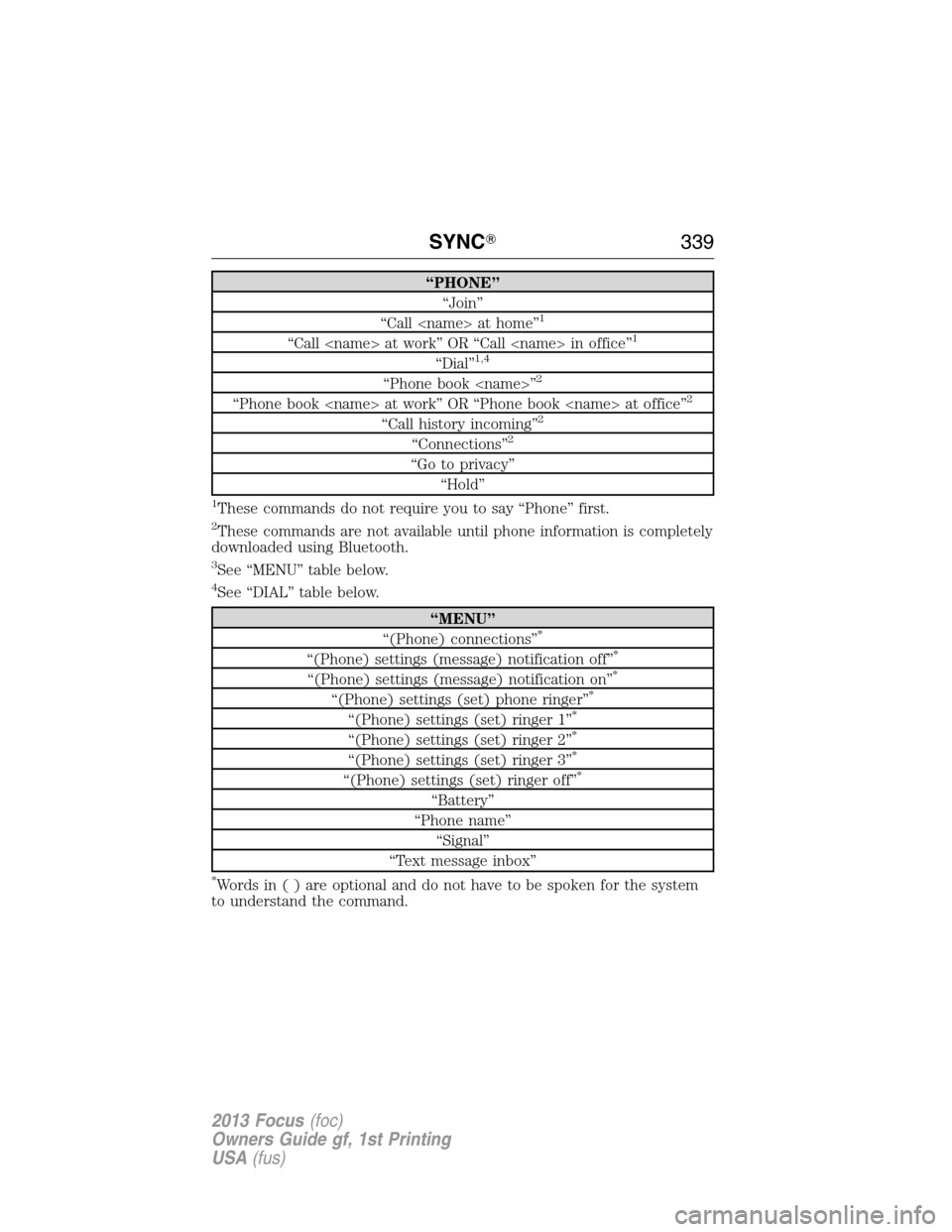
Press the voice icon and say “Phone”. Say any of the following:
“PHONE”
“Call ”1
“Call on mobile OR cell”1
“Call on other”1
“Phone book at home”2
“Phone book on mobile OR cell”2
“Call history outgoing”2
“Phone book on Other”2
“Call history missed”2
“Menu”2,3
338SYNC�
2013 Focus(foc)
Owners Guide gf, 1st Printing
USA(fus)
Page 339 of 475
“PHONE”
“Join”
“Call at home”
1
“Call at work” OR “Call in office”1
“Dial”1,4
“Phone book ”2
“Phone book at work” OR “Phone book at office”2
“Call history incoming”2
“Connections”2
“Go to privacy”
“Hold”
1These commands do not require you to say “Phone” first.
2These commands are not available until phone information is completely
downloaded using Bluetooth.
3See “MENU” table below.
4See “DIAL” table below.
“MENU”
“(Phone) connections”*
“(Phone) settings (message) notification off”*
“(Phone) settings (message) notification on”*
“(Phone) settings (set) phone ringer”*
“(Phone) settings (set) ringer 1”*
“(Phone) settings (set) ringer 2”*
“(Phone) settings (set) ringer 3”*
“(Phone) settings (set) ringer off”*
“Battery”
“Phone name”
“Signal”
“Text message inbox”
*Words in ( ) are optional and do not have to be spoken for the system
to understand the command.
SYNC�339
2013 Focus(foc)
Owners Guide gf, 1st Printing
USA(fus)
Page 342 of 475
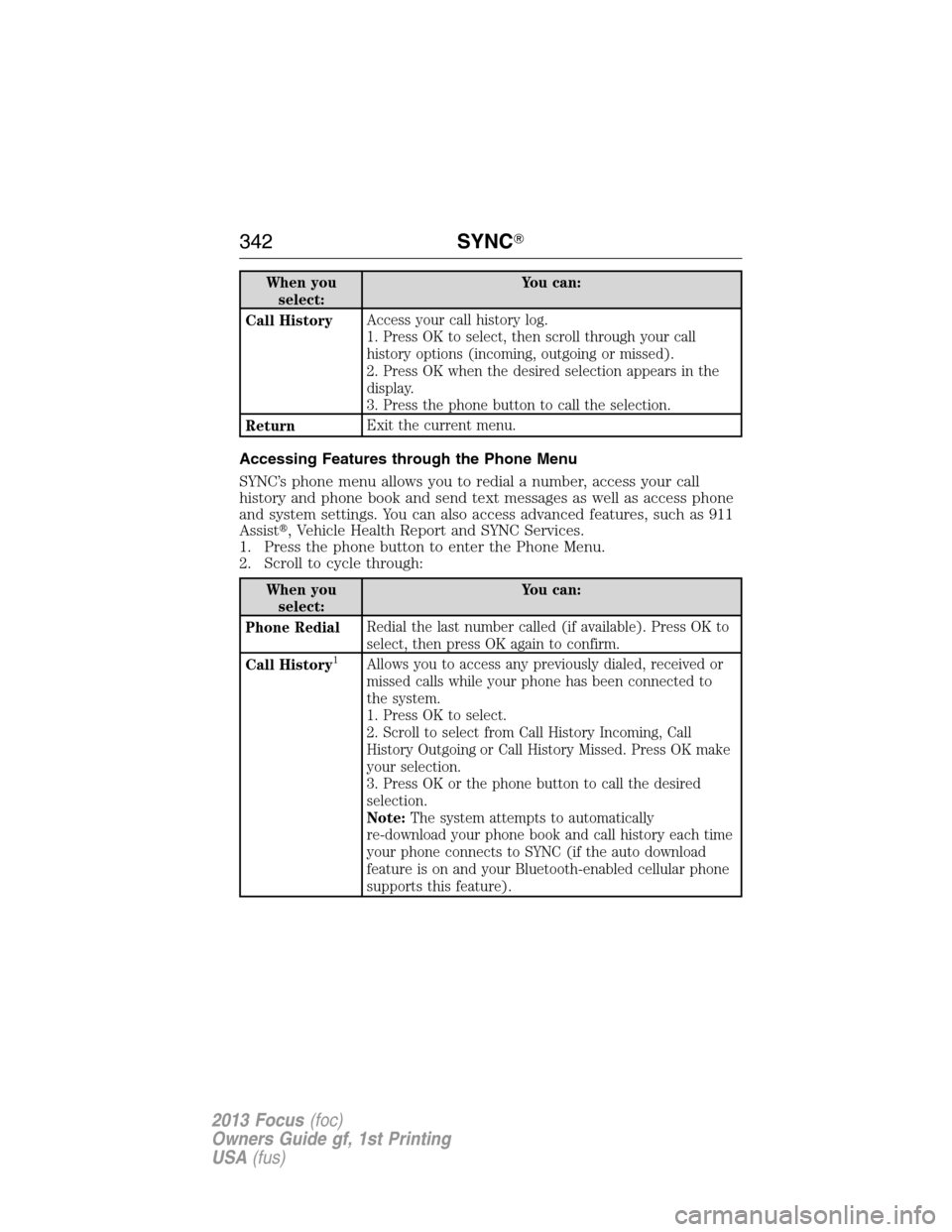
When you
select:You can:
Call HistoryAccess your call history log.
1. Press OK to select, then scroll through your call
history options (incoming, outgoing or missed).
2. Press OK when the desired selection appears in the
display.
3. Press the phone button to call the selection.
ReturnExit the current menu.
Accessing Features through the Phone Menu
SYNC’s phone menu allows you to redial a number, access your call
history and phone book and send text messages as well as access phone
and system settings. You can also access advanced features, such as 911
Assist�, Vehicle Health Report and SYNC Services.
1. Press the phone button to enter the Phone Menu.
2. Scroll to cycle through:
When you
select:You can:
Phone RedialRedial the last number called (if available). Press OK to
select, then press OK again to confirm.
Call History
1Allows you to access any previously dialed, received or
missed calls while your phone has been connected to
the system.
1. Press OK to select.
2. Scroll to select from Call History Incoming, Call
History Outgoing or Call History Missed. Press OK make
your selection.
3. Press OK or the phone button to call the desired
selection.
Note:The system attempts to automatically
re-download your phone book and call history each time
your phone connects to SYNC (if the auto download
feature is on and your Bluetooth-enabled cellular phone
supports this feature).
342SYNC�
2013 Focus(foc)
Owners Guide gf, 1st Printing
USA(fus)