Page 455 of 558
they will not be stepped on or interfere with the operation of pedals,
seats and/or compartments, or safe driving abilities.
•Do not leave playing devices in the vehicle in extreme conditions as it
could cause damage to your device. Refer to your device’s user guide
for further information.
•For your safety, some SYNC�functions are speed dependent and
cannot be performed when the vehicle is traveling at speeds greater
than 3 mph (5 km/h).
•Ensure that you review your device’s user guide before using with
SYNC�.
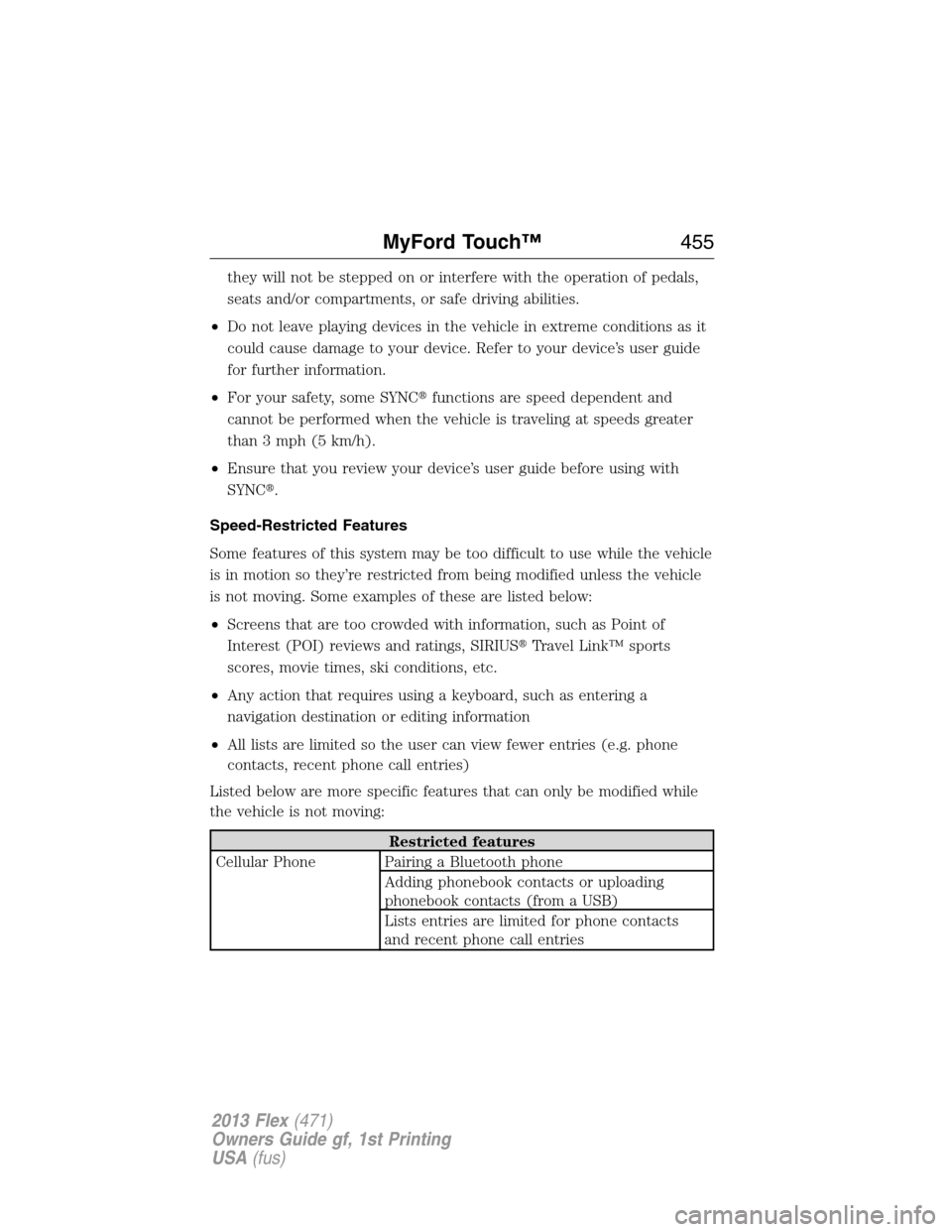
Speed-Restricted Features
Some features of this system may be too difficult to use while the vehicle
is in motion so they’re restricted from being modified unless the vehicle
is not moving. Some examples of these are listed below:
•Screens that are too crowded with information, such as Point of
Interest (POI) reviews and ratings, SIRIUS�Travel Link™ sports
scores, movie times, ski conditions, etc.
•Any action that requires using a keyboard, such as entering a
navigation destination or editing information
•All lists are limited so the user can view fewer entries (e.g. phone
contacts, recent phone call entries)
Listed below are more specific features that can only be modified while
the vehicle is not moving:
Restricted features
Cellular Phone Pairing a Bluetooth phone
Adding phonebook contacts or uploading
phonebook contacts (from a USB)
Lists entries are limited for phone contacts
and recent phone call entries
MyFord Touch™455
2013 Flex(471)
Owners Guide gf, 1st Printing
USA(fus)
Page 456 of 558

Restricted features
System Functionality Setting-up or editing shortcut buttons on the
home screen
Editing the keypad code
Enabling Valet Mode
Editing settings while the rear view camera or
Active Park Assist are active
Wi-Fi/Wireless Editing wireless settings
Editing the list of wireless networks
Videos/Photos/Graphics Playing video
Graphic album art carousel
Editing photos
Editing the screen’s wallpaper or adding new
wallpaper
Text Messages Composing text messages
Viewing received text messages
Editing preset text messages
Navigation Using the keyboard to enter a destination
Demo navigation route
Adding/Editing Address Book entries or Avoid
Areas
Privacy information
When a cellular phone is connected to SYNC�, SYNC�creates a profile
within your vehicle that is linked to that cellular phone. This profile is
created in order to offer you more cellular features and to operate more
efficiently. Among other things, this profile may contain data about your
cellular phone book, text messages (read and unread), and call history,
including history of calls when your cell phone was not connected to
SYNC�. In addition, if you connect a media device, SYNC�creates and
retains an index of media content supported by SYNC�. SYNC�also
records a short development log of approximately 10 minutes of all
recent SYNC�activity. The log profile and other SYNC�data may be
used to improve SYNC�and help diagnose any problems that may occur.
456MyFord Touch™
2013 Flex(471)
Owners Guide gf, 1st Printing
USA(fus)
Page 457 of 558

The cellular profile, media device index, and development log will remain
in the vehicle unless you delete it and are generally accessible only in the
vehicle when the cellular phone or media player is connected. If you no
longer plan to use SYNC�or the vehicle, we recommend you perform a
Master Reset to erase all information stored in SYNC�.
SYNC�data cannot be accessed without special equipment and access to
the vehicle’s SYNC�module. Ford Motor Company and Ford of Canada
will not access SYNC�data for any purpose other than as described
absent consent, a court order, or where required by law enforcement,
other government authorities, or other third parties acting with lawful
authority. Other parties may seek to access the information
independently of Ford Motor Company and Ford of Canada. For further
privacy information, see the sections on 911 Assist™ (if equipped),
Vehicle Health Report (if equipped), and Traffic, Directions and
Information (if equipped).
ACCESSING AND ADJUSTING MODES THROUGH YOUR
INFOTAINMENT DISPLAY (IF EQUIPPED)
The infotainment display is located on the right side of your instrument
cluster. It allows you to view and make minor adjustments to active
modes without taking your hands off the wheel. For example:
•In entertainment mode, you can view what is now playing, change the
audio source, select presets and make some adjustments.
•In phone mode, you can accept or reject an incoming call.
km/h
80
60
40
20
0
20
0 40 60 80
100120140160180
200
220
100120140
MPH
MyFord Touch™457
2013 Flex(471)
Owners Guide gf, 1st Printing
USA(fus)
Page 458 of 558

•In navigation mode (if equipped), you can view the current route or
activate a route.
•In climate mode, the driver side temperature can bet set as well as fan
speed.
Use the OK and arrow buttons on
the right side of your steering wheel
to scroll through the available modes:
Entertainment
Phone
Navigation
Climate
You can make selections from the menu by using the OK button or
touching the screen. If you make a selection by touching the screen, the
selection menu expands and you are allowed different options.
•Press the up and down arrows to scroll through the modes.
•Press the right arrow to enter the mode.
•Press the left or right arrows to make adjustments within the chosen
mode.
•Press OK to confirm your selection.
Note:If your vehicle is not equipped with navigation, Compass appears
in the display instead of Navigation. If you press the right arrow to go
into the Compass menu, you can see the compass graphic. The compass
458MyFord Touch™
2013 Flex(471)
Owners Guide gf, 1st Printing
USA(fus)
Page 460 of 558
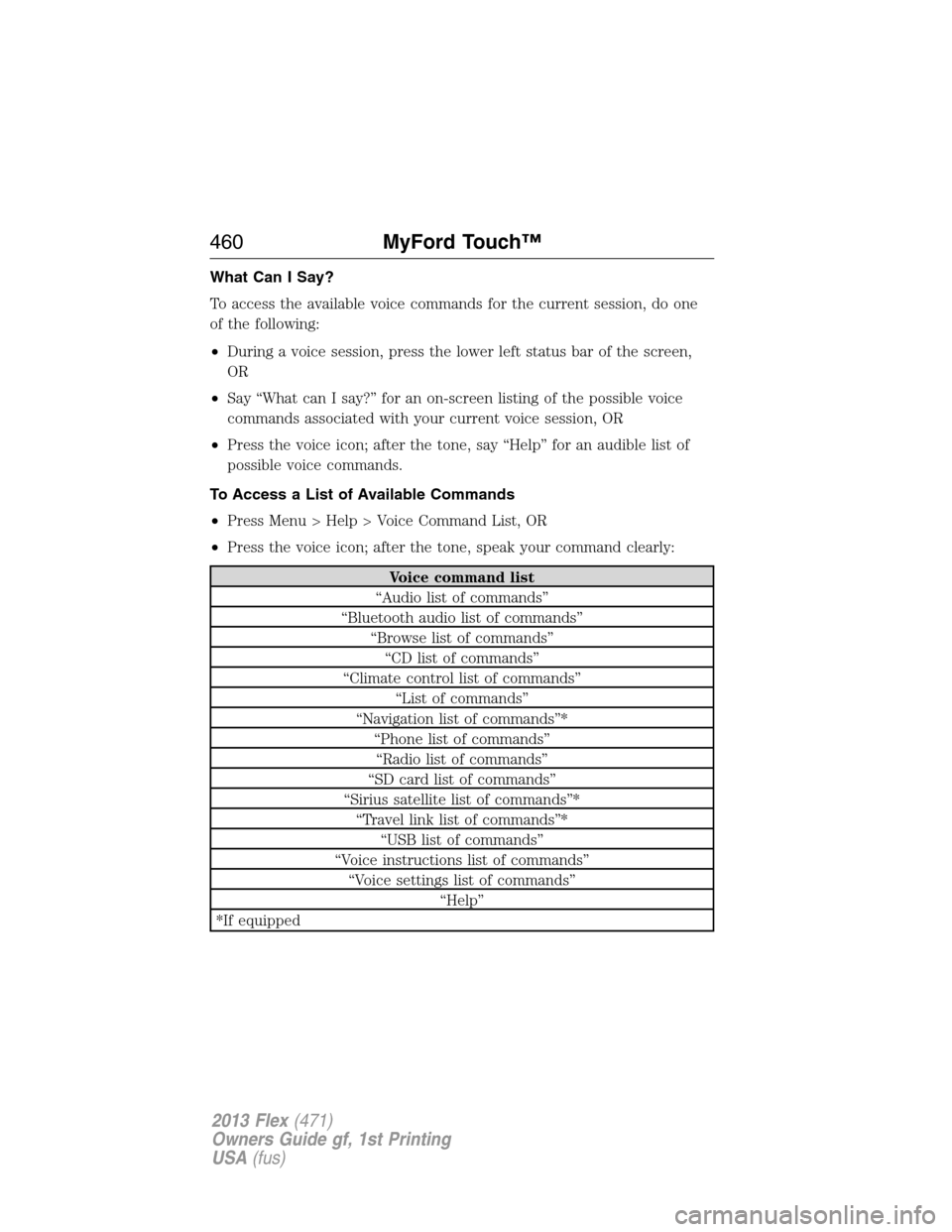
What Can I Say?
To access the available voice commands for the current session, do one
of the following:
•During a voice session, press the lower left status bar of the screen,
OR
•Say “What can I say?” for an on-screen listing of the possible voice
commands associated with your current voice session, OR
•Press the voice icon; after the tone, say “Help” for an audible list of
possible voice commands.
To Access a List of Available Commands
•Press Menu > Help > Voice Command List, OR
•Press the voice icon; after the tone, speak your command clearly:
Voice command list
“Audio list of commands”
“Bluetooth audio list of commands”
“Browse list of commands”
“CD list of commands”
“Climate control list of commands”
“List of commands”
“Navigation list of commands”*
“Phone list of commands”
“Radio list of commands”
“SD card list of commands”
“Sirius satellite list of commands”*
“Travel link list of commands”*
“USB list of commands”
“Voice instructions list of commands”
“Voice settings list of commands”
“Help”
*If equipped
460MyFord Touch™
2013 Flex(471)
Owners Guide gf, 1st Printing
USA(fus)
Page 461 of 558

Helpful Hints
•Make sure the interior of the vehicle is as quiet as possible. Wind noise
from open windows and road vibrations may prevent the system from
correctly recognizing spoken commands.
•After pressing the voice icon, wait until after the tone sounds and
“Listening” appears before saying a command. Any command spoken
prior to this does not register with the system.
•Speak naturally, without long pauses between words.
•At any time you can interrupt the system while it is speaking by
pressing the voice icon.
Voice Settings
Voice settings allow you to customize the level of system interaction, help
and feedback. The system defaults to standard interaction which uses
candidate lists and confirmation prompts as these provide the highest
level of guidance and feedback.
Interaction Mode:Novice mode provides more detailed interaction and
guidance while the advanced mode has less audible interaction and more
tone prompts.
Confirmation Prompts:Confirmation prompts are short questions the
system asks when it is not sure of your request or when there are
multiple possible responses to your request. If turned off, the system
simply makes a best guess as to what you requested and you may still
occasionally be asked to confirm settings.
Phone/Media Candidate Lists:Candidate lists are a list of possible
results from your voice commands. The system creates these lists when
it has the same confidence level of several options based on your voice
command.
To access these settings using the touchscreen:
1. Press Menu > Settings > Voice Control.
2. Select from:
•Interaction Mode
MyFord Touch™461
2013 Flex(471)
Owners Guide gf, 1st Printing
USA(fus)
Page 462 of 558
•Confirmation Prompts
•Media Candidate Lists
•Phone Candidate Lists
•Voice Control Volume
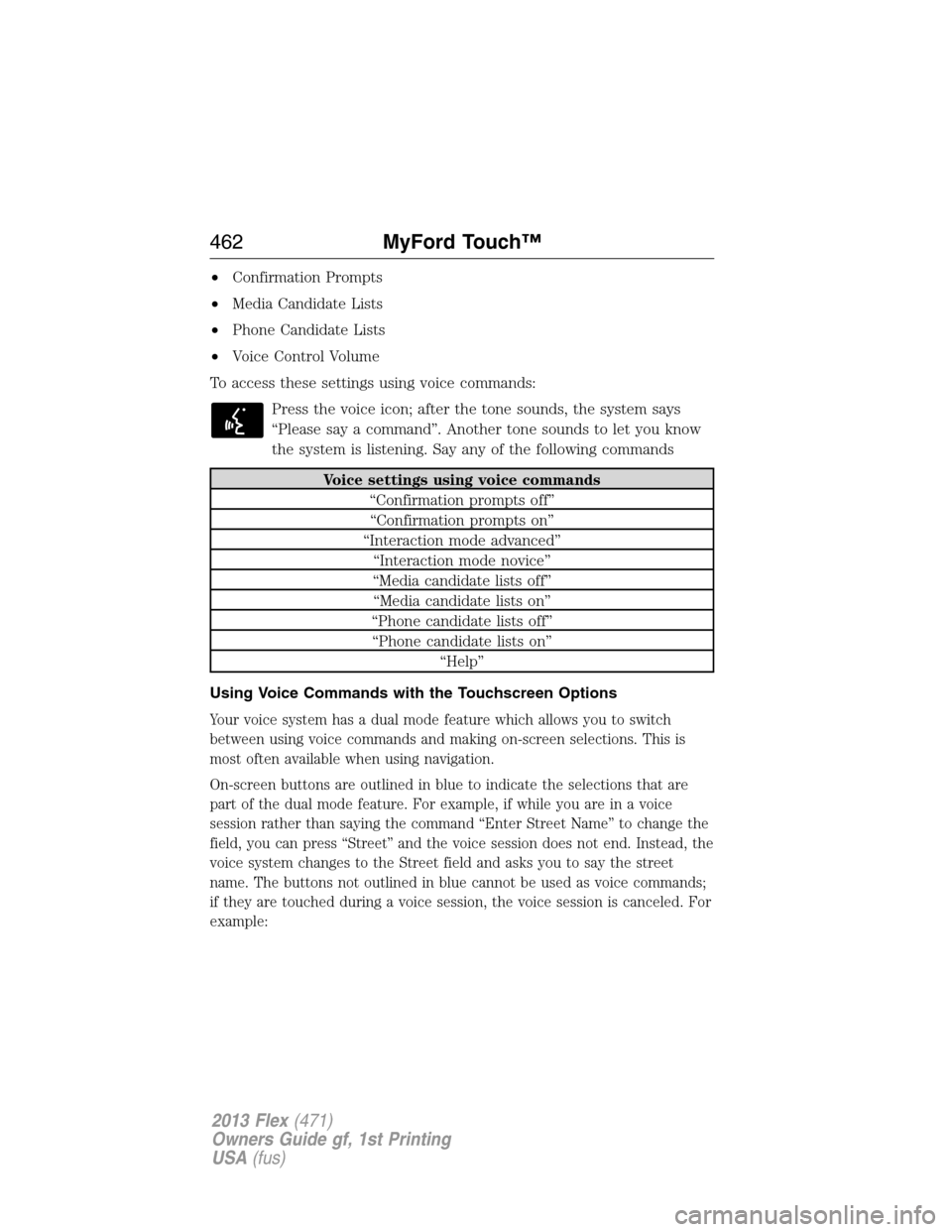
To access these settings using voice commands:
Press the voice icon; after the tone sounds, the system says
“Please say a command”. Another tone sounds to let you know
the system is listening. Say any of the following commands
Voice settings using voice commands
“Confirmation prompts off”
“Confirmation prompts on”
“Interaction mode advanced”
“Interaction mode novice”
“Media candidate lists off”
“Media candidate lists on”
“Phone candidate lists off”
“Phone candidate lists on”
“Help”
Using Voice Commands with the Touchscreen Options
Your voice system has a dual mode feature which allows you to switch
between using voice commands and making on-screen selections. This is
most often available when using navigation.
On-screen buttons are outlined in blue to indicate the selections that are
part of the dual mode feature. For example, if while you are in a voice
session rather than saying the command “Enter Street Name” to change the
field, you can press “Street” and the voice session does not end. Instead, the
voice system changes to the Street field and asks you to say the street
name. The buttons not outlined in blue cannot be used as voice commands;
if they are touched during a voice session, the voice session is canceled. For
example:
462MyFord Touch™
2013 Flex(471)
Owners Guide gf, 1st Printing
USA(fus)
Page 484 of 558
In order to playback video from your iPod�/iPhone�(if compatible), you
MUST have a special combination USB/RCA composite video cable
(available for purchase from Apple�). When the cable is connected to
your iPod�/iPhone�, plug the other end into both the RCA jacks and the
USB port.
Playing Music from Your Device
Insert your device and select the USB or SD Card tab once the system
recognizes it. You can then select from the following options:
When you select: You can:
RepeatRepeat the currently playing song or album.
ShufflePlay music on the selected album or folder in
random order.
BrowseBrowse the contents of the device. It also
allows you to search and play by genre, artist,
album, etc.
Similar MusicChoose music similar to that which is
currently playing.
484MyFord Touch™
2013 Flex(471)
Owners Guide gf, 1st Printing
USA(fus)
