Page 327 of 558
Replacing front parking lamp/turn signal bulbs
1. Make sure headlamp switch is in the off position, then open the hood.
2. Reach behind the headlamp assembly to access the bulb sockets .
3. Remove the bulb socket by
turning it counterclockwise and
pulling it straight out.
4. To remove the bulb, pull it
straight out of the bulb socket.
Install the new bulb(s) in reverse
order.
Replacing fog lamp bulbs
1. Make sure the fog lamp switch is in the off position.
2. From underneath the vehicle,
partially remove the tire splash
shield by removing four drive screws
from the lower flap.
The splash shield flap can now be
repositioned to allow access to the
front fog lamp bulb and electrical
wire harness.
3. Carefully disconnect the wire
harness connector from the bulb by
releasing the two snap clips.
4. Rotate the bulb counterclockwise
to remove from the fog lamp.
Install the new bulb in reverse order.
Maintenance327
2013 Flex(471)
Owners Guide gf, 1st Printing
USA(fus)
Page 328 of 558

Replacing rear stop/tail/turn/backup and side marker lamp bulbs
The stop/tail/turn/backup and side marker lamp bulbs are located in the
tail lamp assembly.
Note:Your vehicle may be equipped with a stop/tail/turn and side
marker lamp assemblies containing integral multiple light emitting diodes
(LED). If replacement is required, see your authorized dealer.
A.Backup lamp
B.Stop/tail/turn signal lamp
C.Side marker lamp
D.Supplemental taillamp
1. Make sure the headlamp switch is
in the off position and open the
liftgate.
2. Remove the hex screws in the liftgate opening, then pull the lamp
assembly away from the vehicle. This will disengage two snap
attachments along the side of the vehicle.
3. Remove the bulb socket by rotating it counterclockwise, then pulling it
out of the lamp assembly.
4. Pull the bulb straight from the socket.
Install new bulb(s) in reverse order.
Replacing high-mount brake lamp bulbs
Your vehicle is equipped with an LED high-mount brake lamp. It is
designed to last the life of the vehicle. If replacement is required, it is
recommended that you see your authorized dealer.
Replacing license plate lamp bulbs
1. Make sure the headlamp switch is in the off position.
2. Remove the two screws and the
license plate lamp assembly from the
liftgate.
328Maintenance
2013 Flex(471)
Owners Guide gf, 1st Printing
USA(fus)
Page 329 of 558

3. Carefully pull the bulb straight out
from the lamp assembly.
Install new bulb(s) in reverse order.
BULB SPECIFICATION CHART
Replacement bulbs are specified in the chart below. Headlamp bulbs must
be marked with an authorized “D.O.T.” for North America and an “E” for
Europe to ensure lamp performance, light brightness and pattern and safe
visibility. The correct bulbs will not damage the lamp assembly or void the
lamp assembly warranty and will provide quality bulb burn time.
Function Number of bulbsTrade
number
Headlamp2 9008 H13
2D3 HID
(optional)
Front park/turn lamp 4 3157NA
*Front sidemarker lamp N/A LED
Fog lamp 2 H11
Map lamp 2 12V6W
Dome/reading lamps 6 578
Tail/brake/turn signal lamp2 3157K
N/A*LED
(optional)
Supplemental taillamp 2 194
Rear sidemarker2 194
N/A*LED
(optional)
Backup lamp 2 921
License plate lamp 2 C5WL
*High-mount brake lamp N/A LED
To replace all instrument panel lights - see your authorized dealer.
*To replace these lamps - see your authorized dealer.
Maintenance329
2013 Flex(471)
Owners Guide gf, 1st Printing
USA(fus)
Page 418 of 558
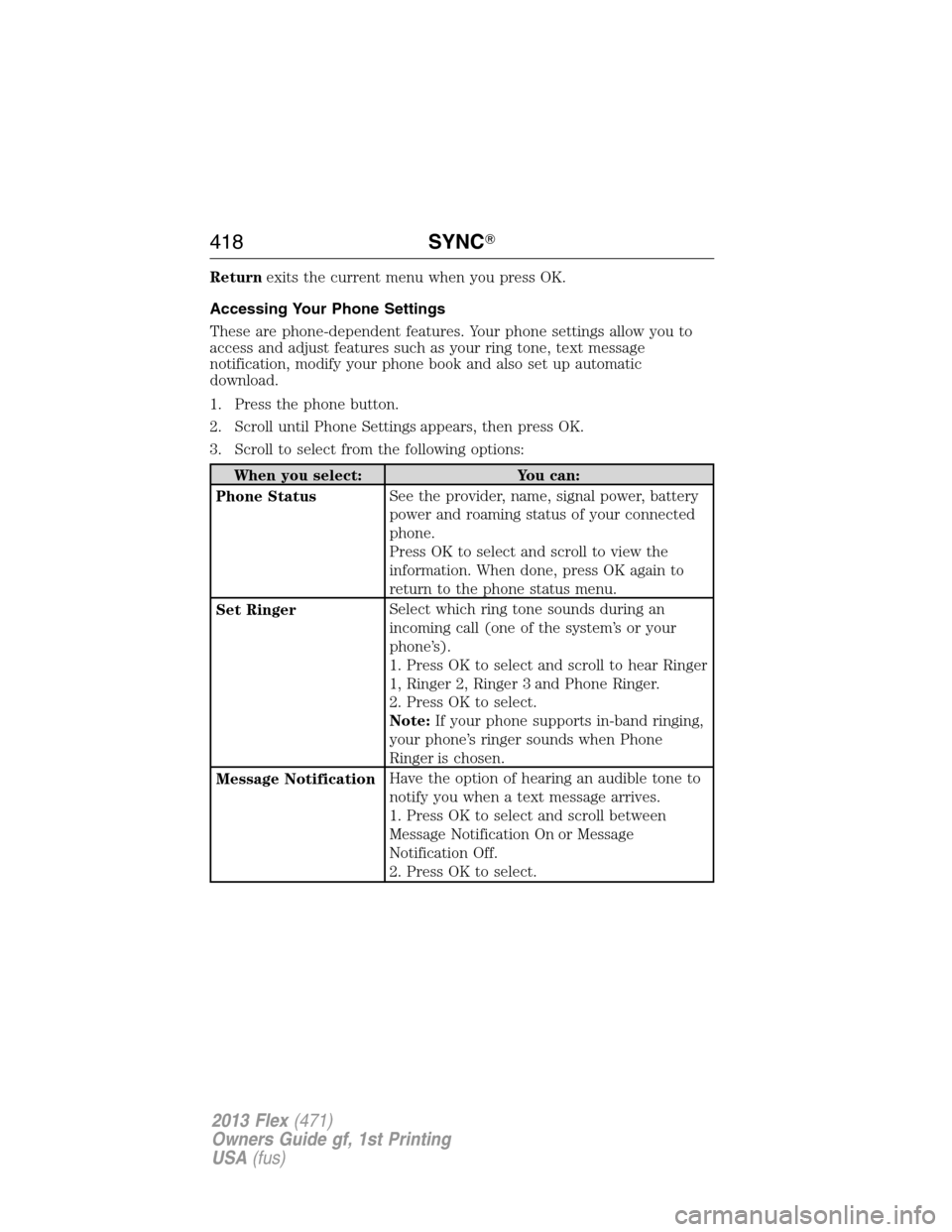
Returnexits the current menu when you press OK.
Accessing Your Phone Settings
These are phone-dependent features. Your phone settings allow you to
access and adjust features such as your ring tone, text message
notification, modify your phone book and also set up automatic
download.
1. Press the phone button.
2. Scroll until Phone Settings appears, then press OK.
3. Scroll to select from the following options:
When you select: You can:
Phone StatusSee the provider, name, signal power, battery
power and roaming status of your connected
phone.
Press OK to select and scroll to view the
information. When done, press OK again to
return to the phone status menu.
Set RingerSelect which ring tone sounds during an
incoming call (one of the system’s or your
phone’s).
1. Press OK to select and scroll to hear Ringer
1, Ringer 2, Ringer 3 and Phone Ringer.
2. Press OK to select.
Note:If your phone supports in-band ringing,
your phone’s ringer sounds when Phone
Ringer is chosen.
Message NotificationHave the option of hearing an audible tone to
notify you when a text message arrives.
1. Press OK to select and scroll between
Message Notification On or Message
Notification Off.
2. Press OK to select.
418SYNC�
2013 Flex(471)
Owners Guide gf, 1st Printing
USA(fus)
Page 447 of 558
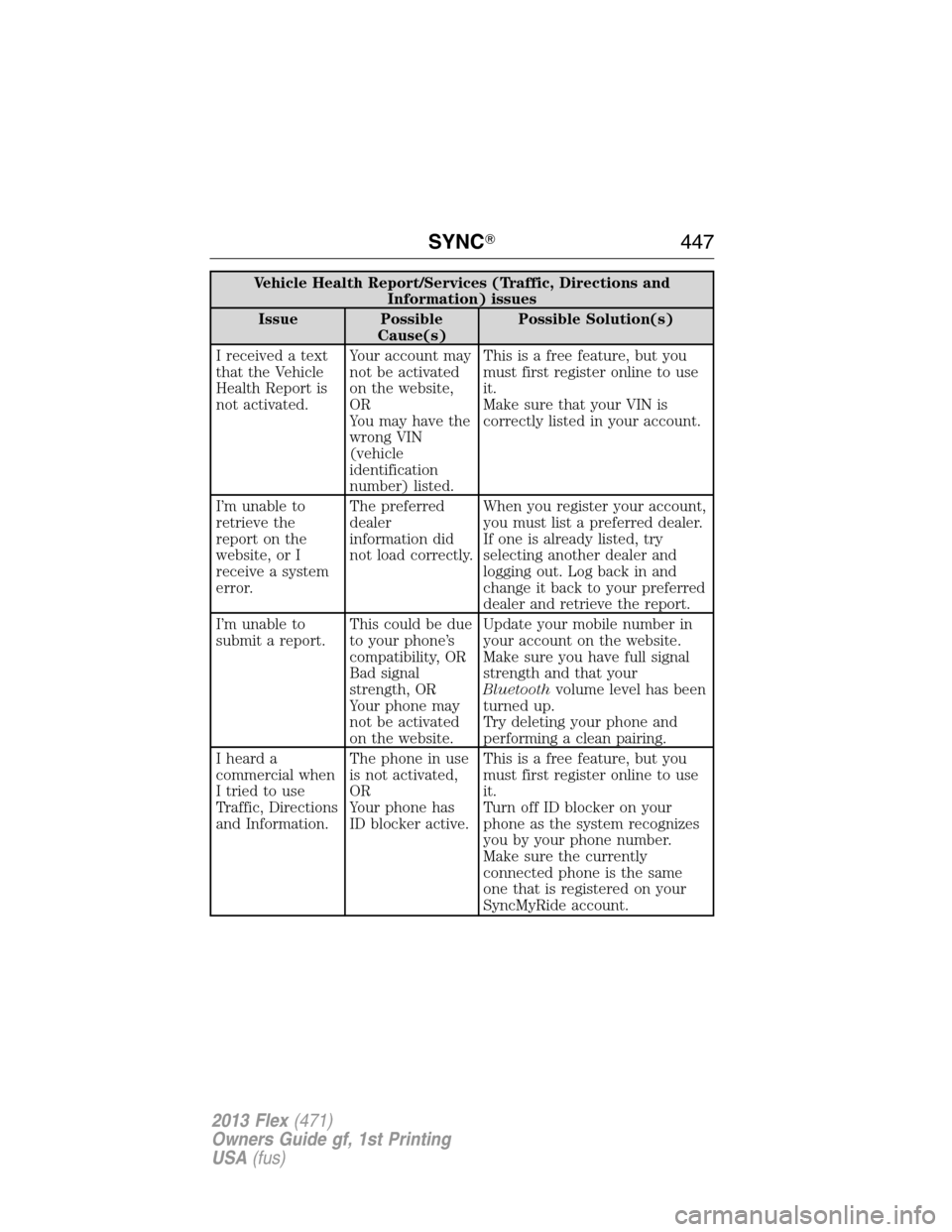
Vehicle Health Report/Services (Traffic, Directions and
Information) issues
Issue Possible
Cause(s)Possible Solution(s)
I received a text
that the Vehicle
Health Report is
not activated.Your account may
not be activated
on the website,
OR
You may have the
wrong VIN
(vehicle
identification
number) listed.This is a free feature, but you
must first register online to use
it.
Make sure that your VIN is
correctly listed in your account.
I’m unable to
retrieve the
report on the
website, or I
receive a system
error.The preferred
dealer
information did
not load correctly.When you register your account,
you must list a preferred dealer.
If one is already listed, try
selecting another dealer and
logging out. Log back in and
change it back to your preferred
dealer and retrieve the report.
I’m unable to
submit a report.This could be due
to your phone’s
compatibility, OR
Bad signal
strength, OR
Your phone may
not be activated
on the website.Update your mobile number in
your account on the website.
Make sure you have full signal
strength and that your
Bluetoothvolume level has been
turned up.
Try deleting your phone and
performing a clean pairing.
I heard a
commercial when
I tried to use
Traffic, Directions
and Information.The phone in use
is not activated,
OR
Your phone has
ID blocker active.This is a free feature, but you
must first register online to use
it.
Turn off ID blocker on your
phone as the system recognizes
you by your phone number.
Make sure the currently
connected phone is the same
one that is registered on your
SyncMyRide account.
SYNC�447
2013 Flex(471)
Owners Guide gf, 1st Printing
USA(fus)
Page 471 of 558
When you select: You can:
TuneGo up and down the frequency in individual
increments.
If the current station has multiple digital
broadcasts, the multicast indicator appears.
Press Tune repeatedly to advance through all
available broadcasts. If you are on the last
broadcast channel, turn to advance to the
next frequency on the band.
To save a multicast
station as a presetWhen the channel is active on-screen, press
and hold a memory preset slot on the right of
the screen until the sound returns. There is a
brief mute, then the sound returns signifying
it was saved. When recalling a HD2 or HD3
memory preset, there is a mute before the
digital audio is played as the system must
once again acquire the digital signal.
As with any saved radio station, you cannot
access the saved station if your vehicle is
outside the station’s reception area.
MyFord Touch™471
2013 Flex(471)
Owners Guide gf, 1st Printing
USA(fus)
Page 481 of 558

SIRIUS troubleshooting tips
Radio Display Condition Possible Action
Unsubscribed Channel Subscription not
available for this
channel.Contact SIRIUS at
1–888–539–7474 to
subscribe to the
channel, or tune to
another channel.
No Signal Loss of signal from the
SIRIUS satellite or
SIRIUS tower to the
vehicle antenna.The signal is currently
being blocked. When
you move into an open
area, the signal should
return.
Updating Update of channel
programming in
progress.No action required.
The process may take
up to three minutes.
Call SIRIUS
1–888–539–7474Satellite service has
been deactivated by
SIRIUS Satellite Radio.Call SIRIUS at
1–888–539–7474 to
reactivate or resolve
subscription issues.
No Channels Available All the channels in the
selected category are
skipped or locked.Using the channel
guide, unlock or
unskip the channels.
Subscription Updated SIRIUS has updated
the channels available
for your vehicle.No action required.
MyFord Touch™481
2013 Flex(471)
Owners Guide gf, 1st Printing
USA(fus)
Page 516 of 558

To access, press Menu > Settings > Wireless and Internet > Wi-Fi
settings, then select from the following options:
If you select: You can:
Wi-Fi Network
(Client) Mode On/OffTurn the Wi-Fi feature on or off in your
vehicle. Make sure that On is selected for
connectivity purposes.
Choose a Wireless
NetworkUse a previously stored wireless network. You
can categorize by alphabetical listing, Priority
and Signal Strength. You can also choose to
search for a network, connect to a network,
disconnect from a network, receive more
information, prioritize a network or delete a
network.
Search for Wireless
NetworksView a list of wireless networks.
Gateway Access
Point Mode (On/Off)Make SYNC an access point for a phone or a
computer by turning this feature on. This
forms the local area network within the
vehicle for things such as game playing, file
transfer, internet browsing, etc.
Gateway Access
Point Device ListView who has connected to your Wi-Fi
connection recently.
Press the ? button (if available) for additional information.
The Wi-Fi CERTIFIED Logo is a
certification mark of the Wi-Fi Alliance.
516MyFord Touch™
2013 Flex(471)
Owners Guide gf, 1st Printing
USA(fus)

