2013 FORD ESCAPE reset
[x] Cancel search: resetPage 292 of 423

You Can
When You Select
Delete Phonebook: Press OK to delete the current phone
book and call history. When Delete Phonebook appears,
press OK to confirm. SYNC takes you back to the Phone
Settings menu.
Download Phonebook: Press OK to select and press OK
again when Confirm Download? appears.
Automatically download your phone book each time your
phone connects to SYNC. (Downloading times are phone-
dependent and quantity-dependent.)
Auto Download
Press OK to select. When Auto Download On? appears,
press OK to have your phonebook automatically down-
loaded each time. (When auto download is on, any
changes, additions or deletions saved since your last
download are deleted.)
Select Off to NOT download your phonebook every time
your phone connects to SYNC. Your phonebook, call
history and text messages can only be accessed when
your specific phone is connected to SYNC.
Exit the current menu.
Return
System Settings
This menu provides access to your
Bluetooth Devices and Advanced menu
features. Use the arrow buttons to scroll
through the menu options.
The Bluetooth Devices menu allows you
to add, connect and delete devices, set a
phone as "primary" as well as turn your
Bluetooth feature on and off.
The Advanced menu allows you to access
and set prompts, languages, defaults,
perform a master reset, install an
application and view system information. Bluetooth Devices Menu Options
1. Press the phone button to enter the
Phone menu
2. Scroll until System Settings appears,
then press OK.
3. Scroll until Bluetooth Devices appears, then select OK.
4. Scroll to select from the following options:
You Can
If You Select
Pair additional phones to the system.
Add Bluetooth Device *
1. Press OK to select, then again when Find SYNC appears
in the display.
292
SYNC®
Page 294 of 423

Advanced Menu Options
1. Press the phone button to enter thePhone menu
2. Scroll until System Settings appears,
then press OK. 3. Scroll until Advanced appears, then
select OK.
4. Scroll to select from the following options:
You Can
If You Select
Get help from SYNC by using questions, helpful hints or
asking you for a specific action. To turn these prompts on
or off:
Prompts
1. Press OK to select and scroll to select between on or
off.
2. Press OK when the desired selection appears in the
display. SYNC takes you back to the Advanced menu.
Choose between English,Français and Español. Once
selected, all of the radio displays and prompts are in the
selected language.
Languages
1. Press OK to select and then scroll through the languages.
2. Press OK when the desired selection appears in the
display. If you change the language setting, the display
indicates that the system is updating. When complete,
SYNC takes you back to the Advanced menu.
Return to the factory default settings. This selection does
not erase your indexed information (phonebook, call
history, text messages and paired devices).
Factory Defaults
1. Press OK to select and then press OK again when
Restore Defaults? appears in the display.
2. Press OK to confirm.
Completely erase all information stored on SYNC
(phonebook, call history, text messages and paired
devices) and return to the factory default settings.
Master Reset
Press OK to select. The display indicates when complete
and SYNC takes you back to the Advanced menu.
Install applications you have downloaded.
Install Application?
Press OK and scroll to select. Press OK to confirm.
Delete all previously paired phones (and all information
originally saved with those phones).
Delete All Devices
Press OK to select.
Access the Auto Version number as well as the FDN
number.
System Info
294
SYNC®
Page 304 of 423

You Can
When You Select
Play your music by artist, album, genre, playlists, tracks,
similar music or to simply, play all. You can also choose
to Explore USB to view the supported digital music files
on your playing device.
Play Menu
· Select and play music from your USB port, auxiliary input
jack (line in) or stream music from your Bluetooth-enabled
phone.
Select Source
· Press OK to select, then scroll to choose from USB,
Bluetooth Audio, and Line In.
· When you select USB, and Autoplay is on, you can
access media files randomly as they are indexed. If turned
off, indexed media is not available until the indexing
process is complete. SYNC is capable of indexing thou-
sands of average size media and notifies you if the
maximum indexing file size is reached.
· Users who have Bluetooth phones that are capable of
streaming audio can press SEEK to play the previous or
next track.
· When you have already connected a device to the USB
port, you cannot access the line in feature. Some digital
media players require both USB and line in ports to stream
data and music separately.
· Choose to shuffle or repeat your music and select your
Autoplay settings. Once these selections are turned on,
they remain on until turned off.
Media Settings
· Some digital media players require both USB and line in
ports to stream data and music separately. Press OK to
select and then scroll to choose from Shuffle, Repeat or
Autoplay.
Interact with SYNC-capable mobile applications on your
smartphone.
Mobile Apps
Access Bluetooth Device menu listings (add, connect,
set as primary, on/off, delete) as well as Advanced menu
listings (prompts, languages, defaults, master reset, install
application and system information).
System Settings
Press OK to exit the media menu.
Exit Media Menu
304
SYNC®
Page 306 of 423

You Can
When You Select
· Search for and play a specific track which has been
indexed. SYNC lists your tracks alphabetically in flat-file
mode. If there are more than 255, SYNC automatically
organizes them into alphabetical categories.
Tracks
· Press OK to select. Scroll to select the desired track, then
press OK.
· Explore all supported digital media on your media device
connected to the USB port. You can only view media
content which is compatible with SYNC; other files saved
are not visible.
Explore USB
· Press OK to select. Scroll to explore indexed media on
your flash drive.
· Play music similar to what is currently playing from the
USB port. The system uses the metadata information of
each song to compile a playlist for you.
Similar Music
· Press OK to select. The system creates a new list of
similar songs and begin playing. The metadata tags must
be populated for this feature to include each track.
· With certain playing devices, if your metadata tags are
not populated, the tracks won't be available in voice
recognition, play menu or similar music. However, if you
place these tracks onto your playing device in Mass
Storage Device Mode they are available in voice recogni-
tion,Play menu browsing and Similar Music. Unknowns
are placed into any unpopulated metadata tag.
Exit the current menu.
Return
System Settings
System settings provide access to your
Bluetooth Devices and Advanced menu
features.
The Bluetooth Devices menu allows you
to add, connect and delete a device as turn
the Bluetooth feature on and off.
The Advanced menu allows you to access
and set prompts, languages, defaults and
perform a master reset. Bluetooth Devices Menu Options
1. Press AUX and then MENU to enter
the Media menu.
2. Scroll until System Settings appears
and select OK, then press OK.
3. Scroll until Bluetooth Devices appears.
4. Press OK and then scroll to select from:
306
SYNC®
Page 308 of 423
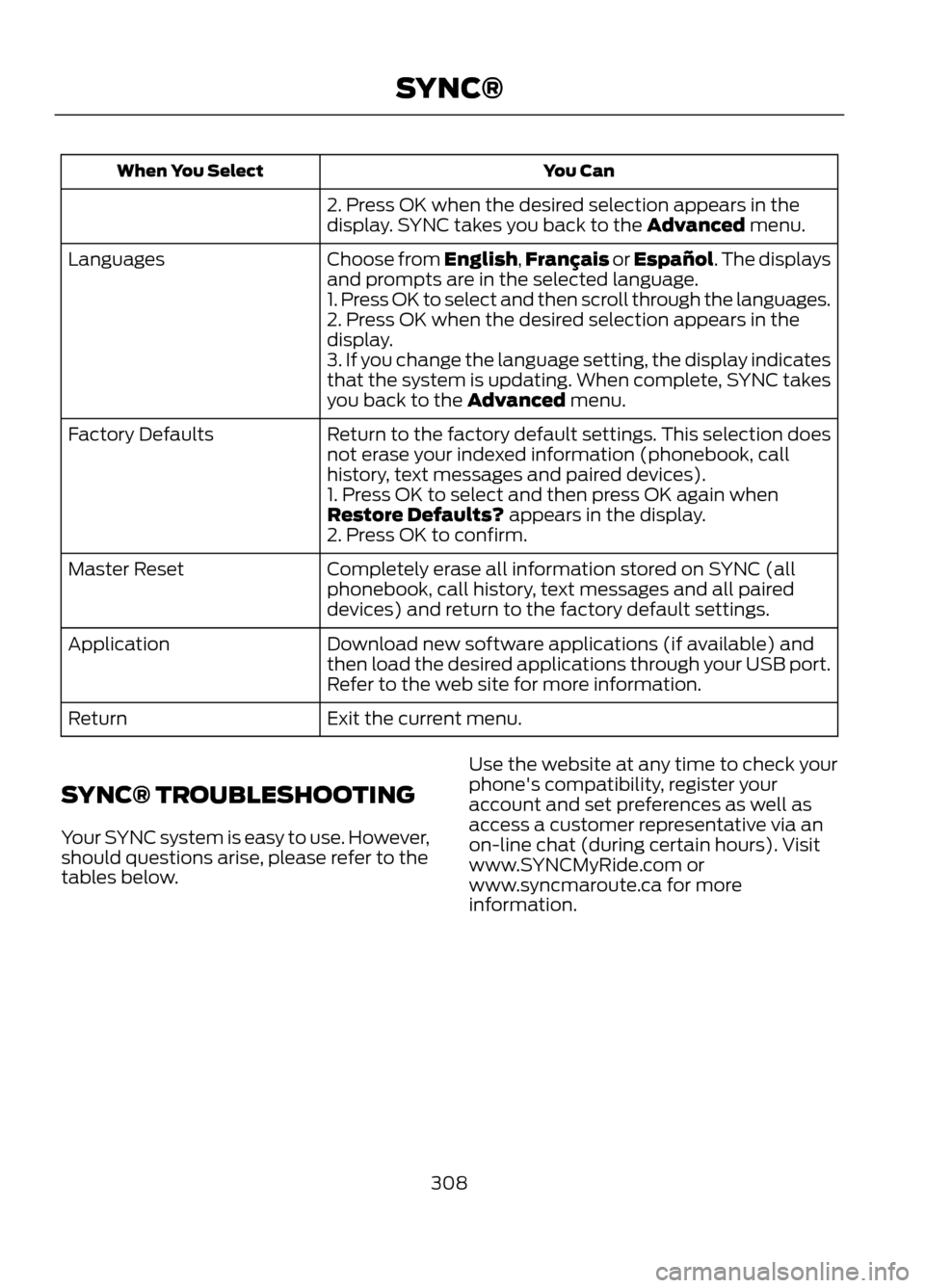
You Can
When You Select
2. Press OK when the desired selection appears in the
display. SYNC takes you back to the Advanced menu.
Choose from English,Français or Español. The displays
and prompts are in the selected language.
Languages
1. Press OK to select and then scroll through the languages.
2. Press OK when the desired selection appears in the
display.
3. If you change the language setting, the display indicates
that the system is updating. When complete, SYNC takes
you back to the Advanced menu.
Return to the factory default settings. This selection does
not erase your indexed information (phonebook, call
history, text messages and paired devices).
Factory Defaults
1. Press OK to select and then press OK again when
Restore Defaults? appears in the display.
2. Press OK to confirm.
Completely erase all information stored on SYNC (all
phonebook, call history, text messages and all paired
devices) and return to the factory default settings.
Master Reset
Download new software applications (if available) and
then load the desired applications through your USB port.
Refer to the web site for more information.
Application
Exit the current menu.
Return
SYNC® TROUBLESHOOTING
Your SYNC system is easy to use. However,
should questions arise, please refer to the
tables below. Use the website at any time to check your
phone's compatibility, register your
account and set preferences as well as
access a customer representative via an
on-line chat (during certain hours). Visit
www.SYNCMyRide.com or
www.syncmaroute.ca for more
information.
308
SYNC®
Page 309 of 423
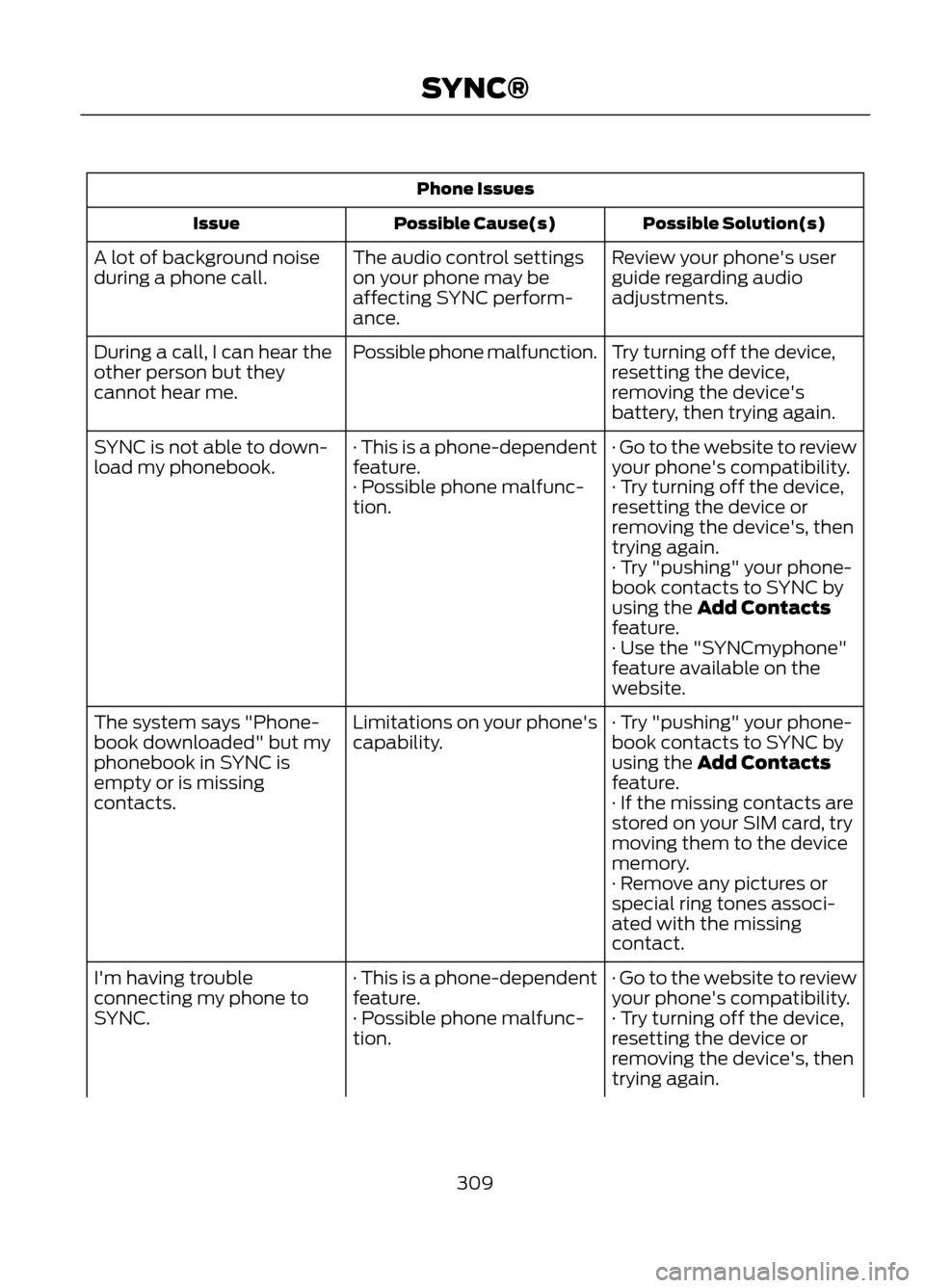
Phone IssuesPossible Solution(s)
Possible Cause(s)
Issue
Review your phone's user
guide regarding audio
adjustments.
The audio control settings
on your phone may be
affecting SYNC perform-
ance.
A lot of background noise
during a phone call.
Try turning off the device,
resetting the device,
removing the device's
battery, then trying again.
Possible phone malfunction.
During a call, I can hear the
other person but they
cannot hear me.
· Go to the website to review
your phone's compatibility.
· This is a phone-dependent
feature.
SYNC is not able to down-
load my phonebook.
· Try turning off the device,
resetting the device or
removing the device's, then
trying again.
· Possible phone malfunc-
tion.
· Try "pushing" your phone-
book contacts to SYNC by
using the Add Contacts
feature.
· Use the "SYNCmyphone"
feature available on the
website.
· Try "pushing" your phone-
book contacts to SYNC by
using the Add Contacts
feature.
Limitations on your phone's
capability.
The system says "Phone-
book downloaded" but my
phonebook in SYNC is
empty or is missing
contacts.
· If the missing contacts are
stored on your SIM card, try
moving them to the device
memory.
· Remove any pictures or
special ring tones associ-
ated with the missing
contact.
· Go to the website to review
your phone's compatibility.
· This is a phone-dependent
feature.
I'm having trouble
connecting my phone to
SYNC.
· Try turning off the device,
resetting the device or
removing the device's, then
trying again.
· Possible phone malfunc-
tion.
309
SYNC®
Page 310 of 423

Phone IssuesPossible Solution(s)
Possible Cause(s)
Issue
· Try deleting your device
from SYNC, deleting SYNC
from your device and trying
again.
· Check the security and
"auto accept/prompt
always" settings relative to
the SYNC Bluetooth
connection on your phone.
· Update your device's firm-
ware.
· Turn off the Auto phone-
book download setting.
· Go to the website to review
your phone's compatibility.
· This is a phone-dependent
feature.
Text messaging is not
working on SYNC.
· Try turning off the device,
resetting the device or
removing the device's, then
trying again.
· Possible phone malfunc-
tion.
USB/Media Issues
Possible Solution(s)
Possible Cause(s)
Issue
· Try turning off the device,
resetting the device,
removing the device's
battery, then trying again.
Possible device malfunction.
I'm having trouble
connecting my device.
· Make sure you are using the
manufacturer's cable.
· Make sure the USB cable is
properly inserted into the
device and the vehicle's USB
port.
310
SYNC®
Page 318 of 423

Restricted Features
Enabling Valet Mode
Editing settings while the rear view camera or active park
assist are active
Editing wireless settings
Wi-Fi or Wireless
Editing the list of wireless networks
Playing video
Videos, photos or graphics
Editing the screen's wallpaper or adding new wallpaper
Composing text messages
Text Messages
Viewing received text messages
Editing preset text messages
Using the keyboard to enter a destination
Navigation
Demo navigation route
Adding or editing Address Book entries or Avoid Areas
Privacy Information
When a mobile phone is connected to
SYNC, SYNC creates a profile within your
vehicle that is linked to that mobile phone.
This profile is created in order to offer you
more mobile features and to operate more
efficiently. Among other things, this profile
may contain data about your mobile phone
book, text messages (read and unread),
and call history, including history of calls
when your mobile phone was not
connected to SYNC. In addition, if you
connect a media device, SYNC creates and
retains an index of media content
supported by SYNC. SYNC also records a
short development log of approximately
10 minutes of all recent SYNC activity. The
log profile and other SYNC data may be
used to improve SYNC and help diagnose
any problems that may occur. The mobile profile, media device index, and
development log will remain in the vehicle
unless you delete it and are generally
accessible only in the vehicle when the
mobile phone or media player is
connected. If you no longer plan to use
SYNC, or the vehicle, we recommend you
perform a Master Reset to erase all
information stored in SYNC.
318
MyFord Touch®